
Good news for people who care about online privacy. The Vivaldi browser has added a built-in VPN with the help of Proton VPN. You can now browse the internet more securely and privately without downloading extra software or setting up anything complicated. In this tutorial, we will explain how to install latest Vivaldi browser with Proton VPN support in Linux.
Table of Contents
Vivaldi Partners with Proton VPN
Vivaldi browser has announced a significant partnership with Proton to integrate Proton VPN directly into its desktop browser.
This integration aims to provide users with enhanced privacy protection without the need for additional downloads or complicated setup.
Both companies, European-based and with a shared commitment to user privacy and an open web, position this as a direct response to the increasing dominance of tech giants and the growing demand for privacy-focused alternatives.
Proton VPN brings its established reputation for security, no-logs policy, and open-source practices to Vivaldi's customisable and privacy-centric browser.
Why is this important?
These days, many companies and websites try to track what you do online. They collect your data for advertising or other purposes.
But, Vivaldi and Proton VPN want to protect your privacy. They believe that your data belongs to you, and no one should take it without your permission.
Both Vivaldi and Proton are from Europe. They are not controlled by big tech companies or governments. They focus on giving users more control and keeping the internet private and safe.
What does a VPN do?
A VPN (Virtual Private Network) hides your real location and encrypts your data. This makes it much harder for websites and trackers to follow you online. A VPN can also help you:
- Stay private while browsing.
- Access blocked websites in some countries.
- Protect your internet activity from hackers.
Proton VPN is trusted because it does not keep logs of your activity, and it uses strong encryption to keep your data safe.
Install Vivaldi browser with Proton VPN support on Linux
Want a safer and more private internet? Just download the latest Vivaldi browser and turn on the built-in Proton VPN. It’s easy, free, and keeps your browsing private.
Vivaldi provides DEB, RPM, and tarball packages for different architectures. Choose the correct one for your system and follow the installation steps below.
Install Vivaldi on Debian, Ubuntu
Once downloaded, navigate to the download folder from your Terminal:
cd ~/Downloads
Install the Vivaldi package using command:
sudo apt install ./vivaldi-stable_7.3.3635.4-1_amd64.deb
Or,
sudo dpkg -i vivaldi-stable_7.3.3635.4-1_amd64.deb
If you see dependency errors, run:
sudo apt-get install -f
You can also get it from Snap Store in Ubuntu:
sudo snap install vivaldi
Install Vivaldi Browser in Fedora, RHEL, openSUSE
Open a terminal and navigate to the download folder:
cd ~/Downloads
Install the package using your package manager:
Fedora/RHEL:
sudo dnf install vivaldi-stable-7.3.3635.4-1.x86_64.rpm
openSUSE:
sudo zypper install vivaldi-stable-7.3.3635.4-1.x86_64.rpm
Now you can use Vivaldi with built-in Proton VPN support!
How to Use Proton VPN in Vivaldi Browser?
If you use the Vivaldi browser on your computer, getting this VPN is easy.
Make sure you're running the latest version of Vivaldi in your system.
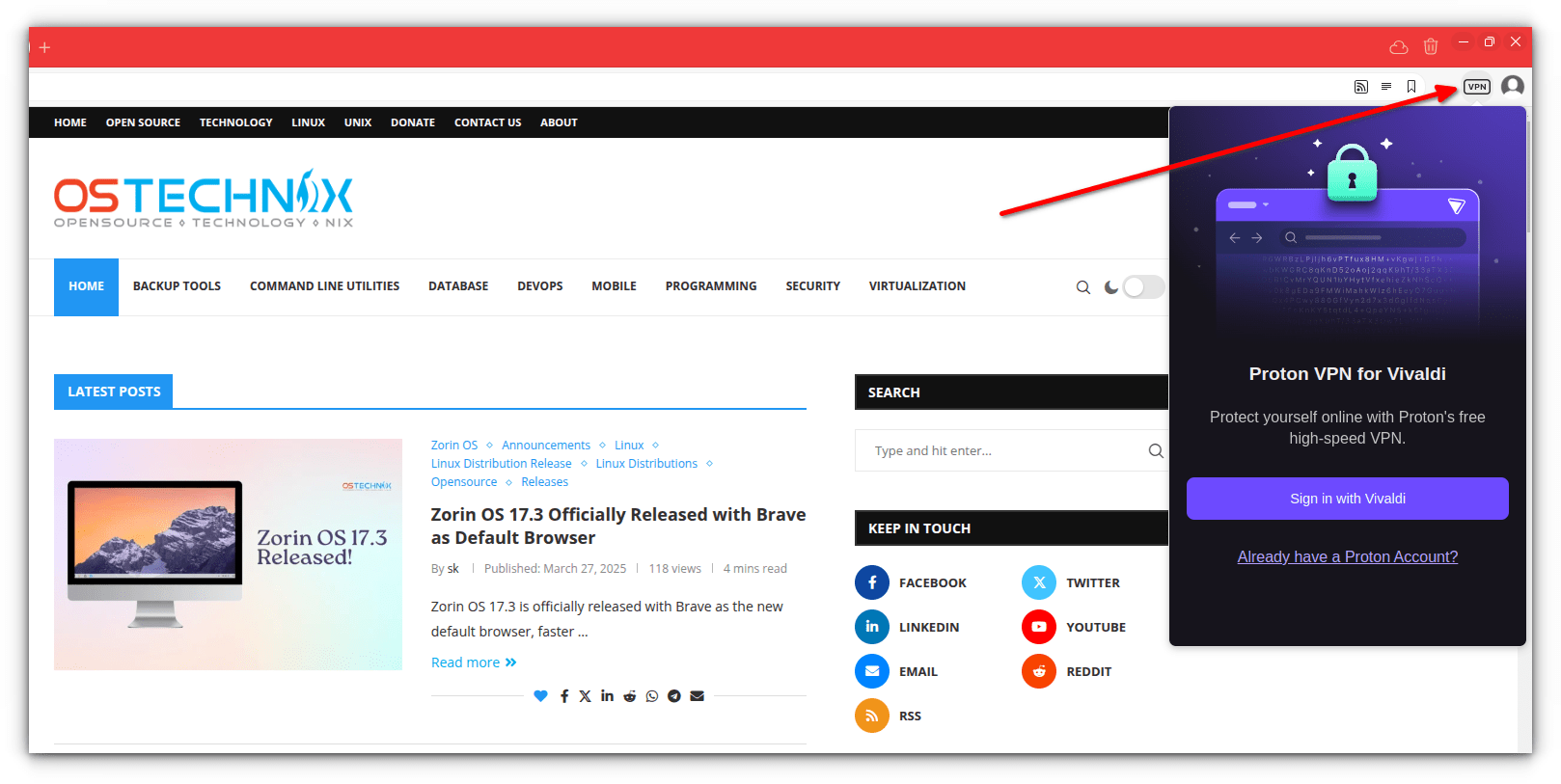
Next click the "VPN" button in the toolbar. Log in with your Vivaldi account (or create one). If you already have Proton VPN account, you can use it too.
Once you logged in, you will see a list of countries where Proton VPN has servers. When you click the Connect button in Vivaldi's built-in Proton VPN, it automatically selects a country for you based on your location.
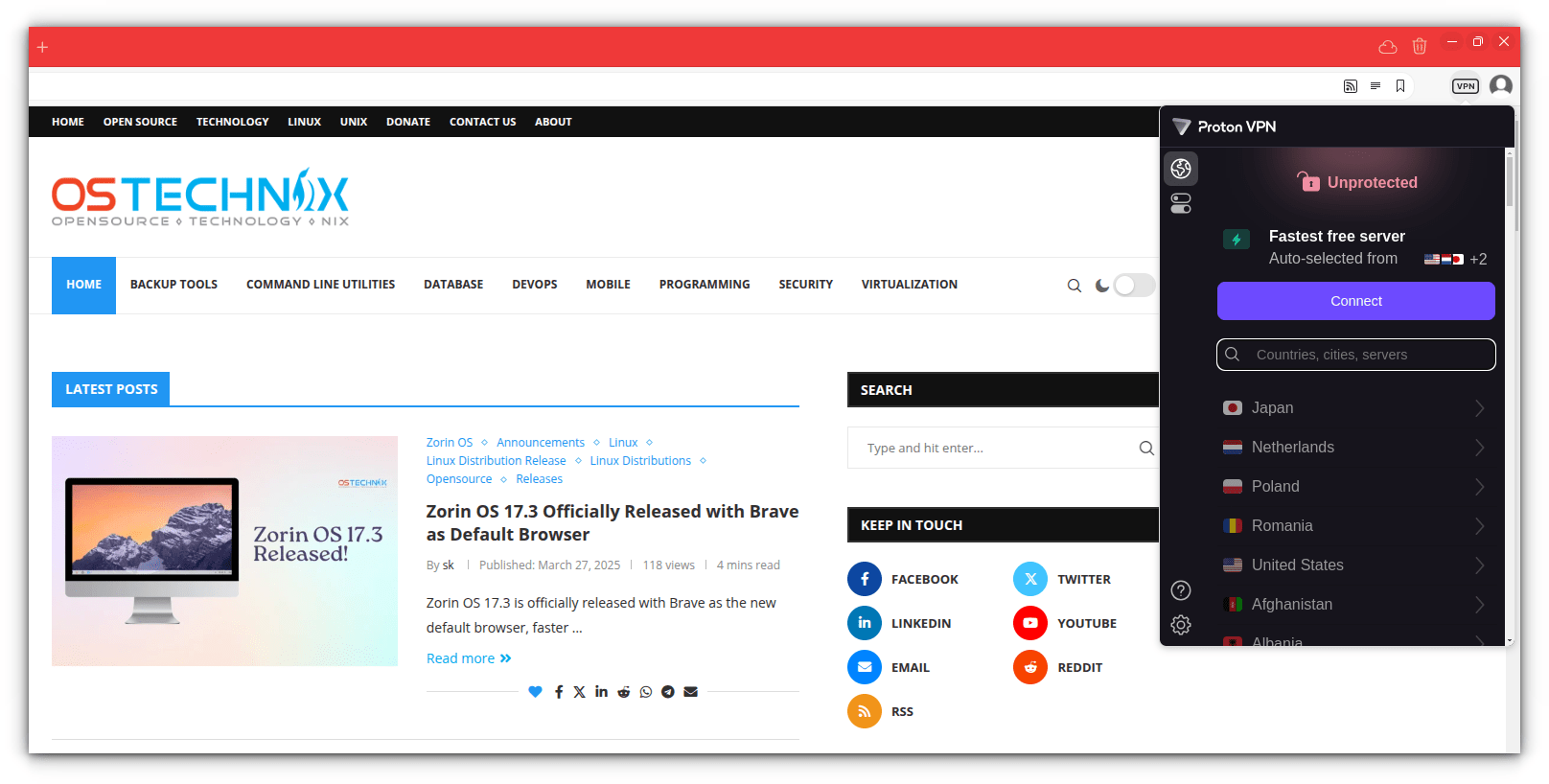
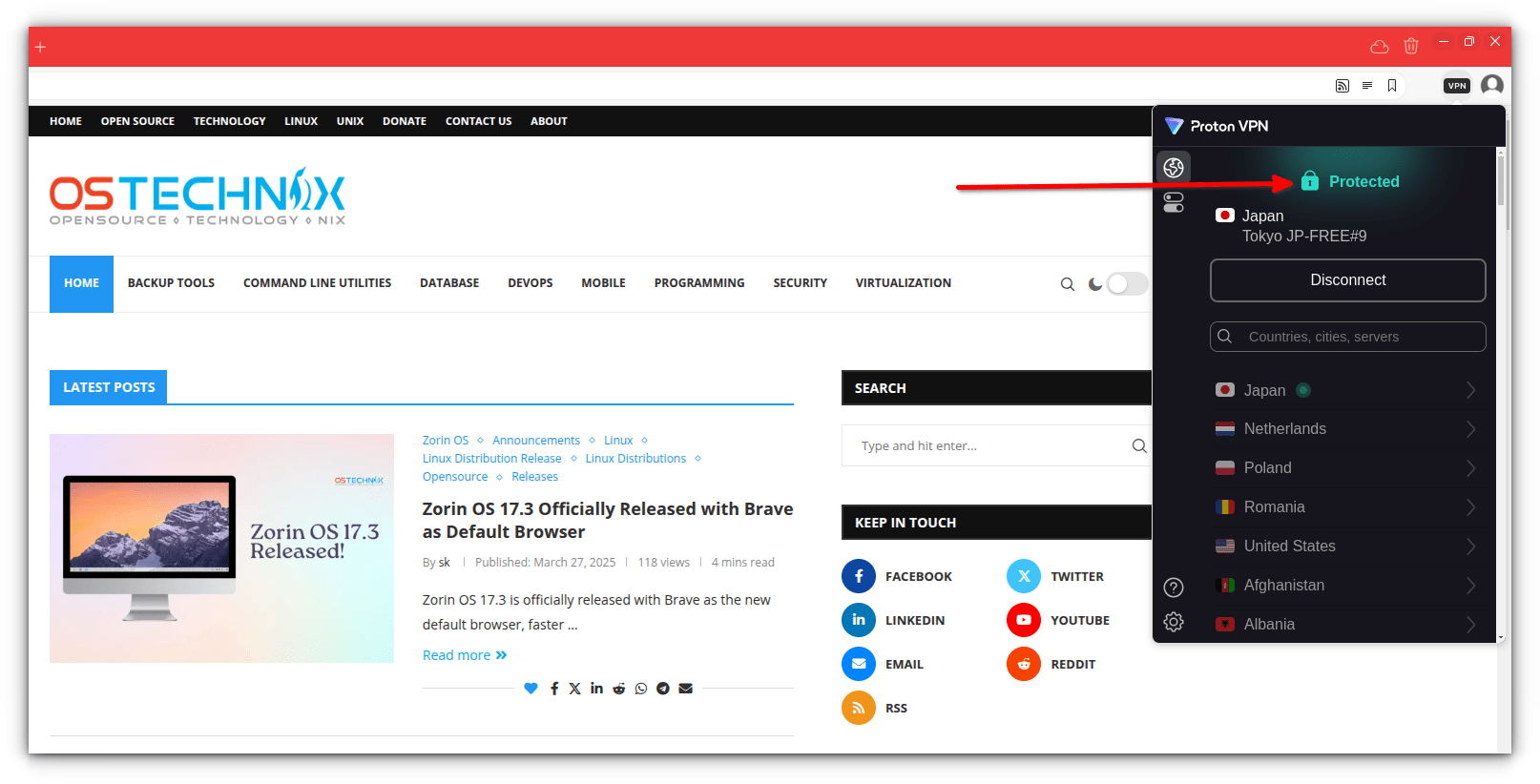
You can also click on a specific country from the list to connect to a server in that location. Your browser will then route all traffic through that country's VPN server.
For faster speeds, it’s best to choose a server closer to your real location since distance affects connection speed and latency.
That's it! Your internet connection will be more secure.
What do you think about the Vivaldi and Proton VPN integration? Please let us know in the comment section below.
Related Read:
