
Renaming File to file works on ext4 but fails on exFAT filesystem. In this guide, we are going to learn why exFAT treats both names as identical, how its Unicode Up-case Table works, and the simplest way to perform case-only renames.
exFAT Won't Let You Change Only the Letter Case
You open a terminal and run a simple command:
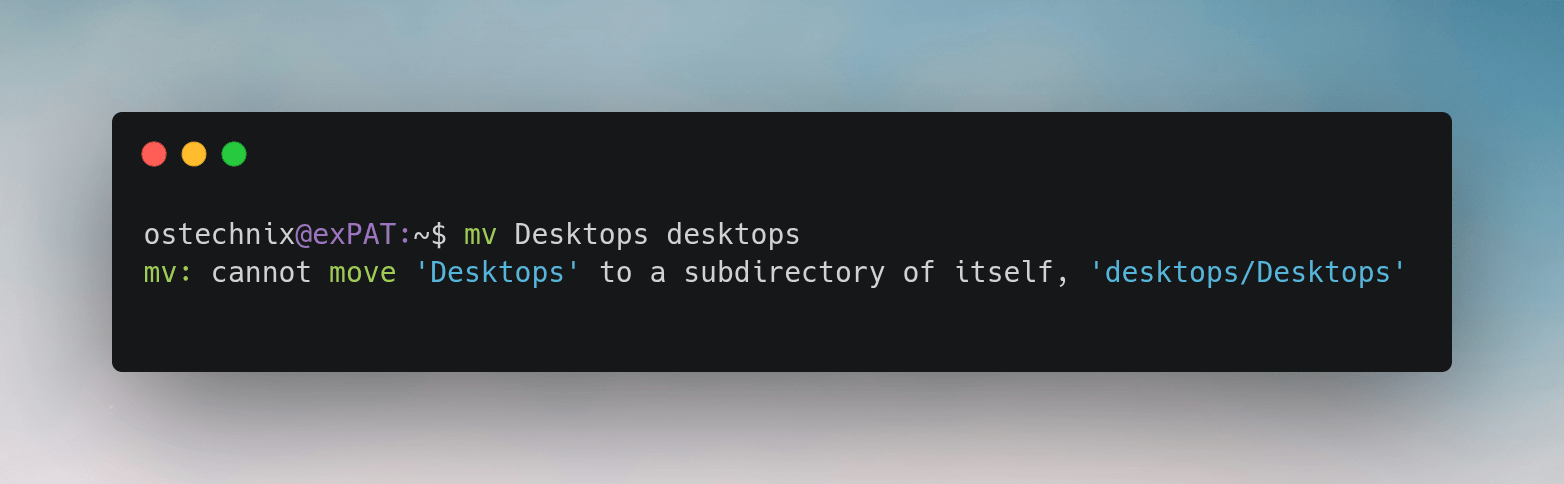
mv Desktops desktops
Instead of renaming the folder, you get this error:
mv: cannot move 'Desktops' to a subdirectory of itself, 'desktops/Desktops'
At first, the error looks confusing. After all, you only wanted to change one uppercase letter to lowercase.
The good news is that nothing is wrong with mv command. The real reason is your filesystem.
Let's see why this happens, how exFAT works under the hood, and why the error actually makes sense.
What Is exFAT?
exFAT (Extended File Allocation Table) is a filesystem that Microsoft designed for flash drives, SD cards, and external storage devices.
It supports much larger files and partitions than FAT32, which makes it a popular choice for USB flash drives, portable SSDs, and memory cards. Today, Windows, macOS, and Linux all support exFAT, making it one of the easiest filesystems to use when you move storage devices between different operating systems.
However, exFAT also follows some Windows-style filename rules. One of those rules is that it ignores uppercase and lowercase letters when comparing filenames. That design choice is exactly why changing Desktops to desktops behaves differently from most Linux filesystems.
When Are You Likely to See this?
You'll most often encounter this behavior when working with USB flash drives, portable SSDs, SD cards, or memory cards formatted as exFAT.
If you're working on your Linux system's internal drive, you're probably using a different filesystem such as ext4, so a case-only rename usually works as expected.
Why This Happens: The Short Answer
If your drive uses exFAT, the filesystem treats these names as the same:
DesktopsdesktopsDESKTOPS
In other words, exFAT ignores uppercase and lowercase letters when it compares filenames. However, it still remembers the capitalization you used and displays the filename exactly as you typed it.
This behavior is known as case-insensitive but case-preserving.
Because of that, changing only the letter case is not as simple as it seems.
Why ext4 Can Rename It but exFAT Can't
Many people assume that ext4 has a better rename feature than exFAT.
It doesn't.
Both filesystems support renaming files and folders. The difference lies in how they look up filenames.
Before mv renames anything, it asks the filesystem a simple question:
"Does a file or folder with the destination name already exist?"
The answer depends entirely on how the filesystem compares names.
How ext4 Looks Up Names
Think of a directory as a list of filenames. When ext4 searches that list, it compares every filename exactly as it is stored.
That means these are three completely different names:
Desktops
desktops
DESKTOPS
Suppose your directory contains:
Desktops
Now you run:
mv Desktops desktops
ext4 searches for a filename that exactly matches desktops.
It does not find one.
From ext4's point of view:
Desktopsexists.desktopsdoes not.
Since there is no conflict, the filesystem simply updates the directory entry with the new name.
The rename succeeds in a single step.
How exFAT Looks Up Names
exFAT works very differently.
Instead of comparing filenames directly, it first converts both names into a common form before comparing them.
To do this, exFAT uses a special data structure stored inside the filesystem itself called the Up-case Table.
Unlike ext4, the comparison does not use the original letters. Instead, both names are normalized first.
What Is the Up-case Table?
The Up-case Table is one of the unique structures defined by the exFAT filesystem.
It contains Unicode mappings that convert lowercase characters into their uppercase equivalents.
For example, the table contains mappings like:
a → A
b → B
d → D
é → É
δ → Δ
The table contains thousands of Unicode mappings, not just the English alphabet.
Because the mapping lives inside the filesystem, every operating system can compare filenames using exactly the same rules.
How exFAT Compares Filenames
Imagine your directory contains this folder:
Desktops
Now you run:
mv Desktops desktops
Before comparing the names, exFAT converts both names using the Up-case Table.
Conceptually, it looks like this:
Stored name:

Desktops
    ↓
DESKTOPS

New name:

desktops
    ↓
DESKTOPS
After conversion, both names become:
DESKTOPS
From exFAT's point of view, they are identical.
So when mv asks,
"Does
desktopsalready exist?"
the filesystem answers,
"Yes."
Because after normalization, it does.
Why the Up-case Table Exists
You might wonder why exFAT stores a table instead of simply converting letters itself.
The answer is Unicode.
Many languages contain uppercase and lowercase characters that are much more complex than the English alphabet.
Instead of requiring every operating system to hard-code the same Unicode conversion rules forever, exFAT stores the conversion table inside the filesystem.
This provides some advantages.
First, every operating system compares filenames using the same rules.
Second, Unicode mappings can evolve without redesigning the filesystem.
Finally, different operating systems remain compatible with one another because they all use the same conversion table stored on the disk.
It is a surprisingly elegant design.
Why exFAT Still Preserves Capitalization
Although exFAT ignores letter case during comparisons, it still stores the original filename exactly as you typed it.
Suppose you create:
MyHolidayPhotos
The directory will display:
MyHolidayPhotos
It does not change the capitalization.
However, when searching for the file, these names all match:
MyHolidayPhotos
myholidayphotos
MYHOLIDAYPHOTOS
That is why exFAT is described as case-preserving but case-insensitive.
Why the Error Looks So Strange
Now let's return to the original command.
mv Desktops desktops
Before renaming anything, mv checks whether the destination already exists.
On exFAT, the filesystem reports that desktops already exists because it compares names without considering letter case.
At that point, mv assumes you want to move the Desktops directory into an existing directory called desktops.
Conceptually, it sees something like this:
Desktops/
└── Desktops/
That would create a directory inside itself.
Since that is impossible, mv stops and prints:
mv: cannot move 'Desktops' to a subdirectory of itself, 'desktops/Desktops'
The command is not confused. It simply trusts what the filesystem tells it.
The error message comes from mv, but the behavior comes from how exFAT compares filenames.
Rename Files and Folders That Differ Only by Letter Case on exFAT
The easiest solution is to use a temporary name.
mv Desktops temp-desktops
mv temp-desktops desktops
The temporary name removes the conflict. Once the original name no longer exists, the second rename succeeds.
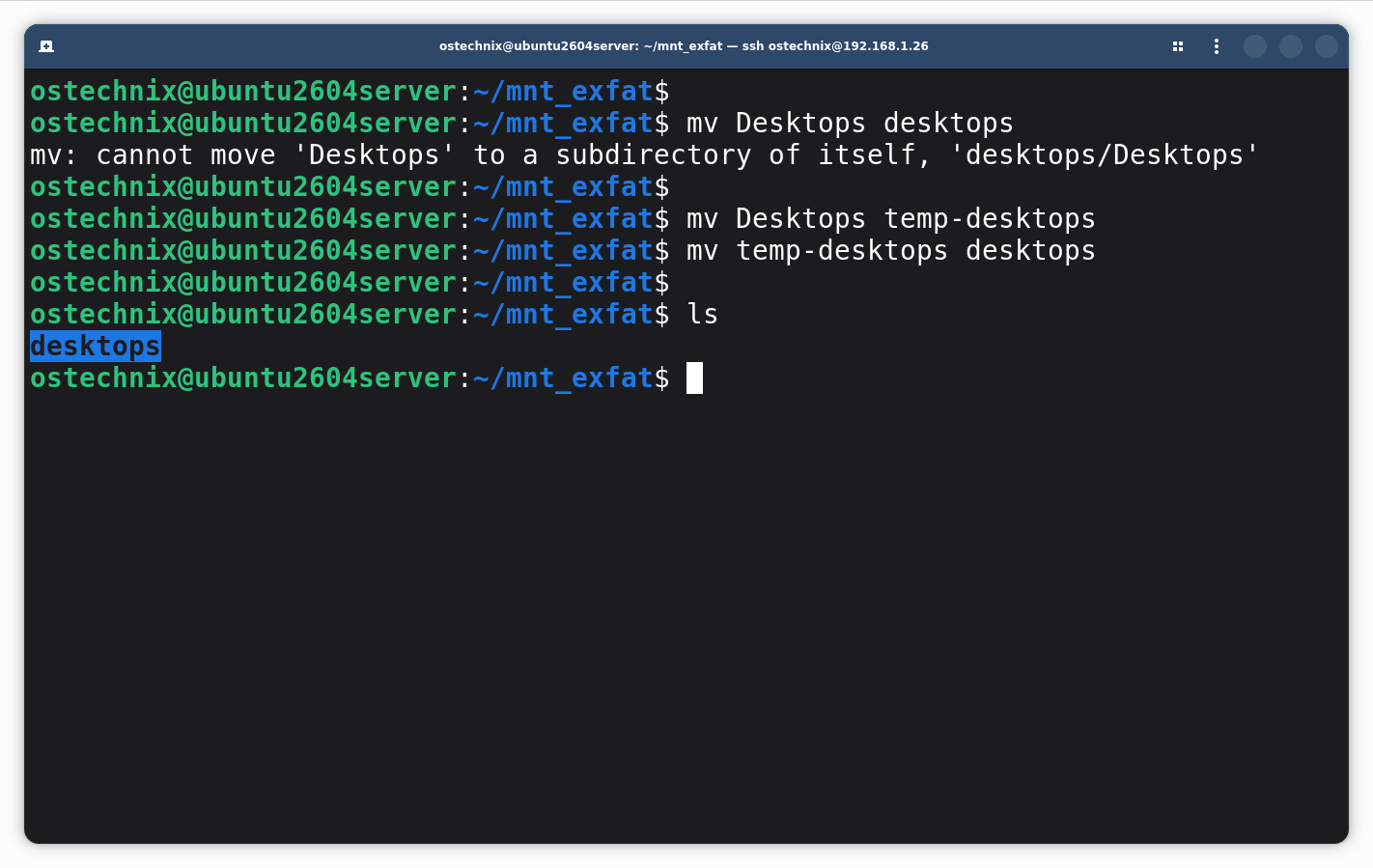
Although this takes two commands, it is the simplest and most reliable method on exFAT.
More Examples
Example 1: Photos Folder
Suppose your external SSD contains:
photos2026
You want:
Photos2026
If you try to rename it with mv command like below:
mv photos2026 Photos2026
It will fail.
Instead, use a temporary name to rename files on exFAT like below:
mv photos2026 Photos-temp
mv Photos-temp Photos2026
Example 2: Music Folder
Current folder:
RockMusic
Desired name:
rockmusic
Again, use an intermediate name.
mv RockMusic rock-temp
mv rock-temp rockmusic
The same trick works for files.
Does This Happen on Every Linux Filesystem?
No. Most Linux filesystems are case-sensitive by default.
For example, ext4 allows all of these to exist in the same directory:
Project
project
PROJECT
Therefore this works without any extra steps:
mv Project project
The same is generally true for Btrfs and XFS.
Which Filesystems Ignore Letter Case?
| Filesystem | Case-sensitive by default? |
|---|---|
| ext4 | Yes |
| Btrfs | Yes |
| XFS | Yes |
| exFAT | No |
| FAT32 | No |
| NTFS (typical Linux mount) | Usually No |
If you mainly use external USB drives, you will probably encounter this behavior because many portable drives come formatted as exFAT.
How to Check Your Filesystem
If you are not sure which filesystem your drive uses, run:
df -T .
Or:
findmnt -T .
Or, if you only want the filesystem type:
findmnt -n -o FSTYPE -T .
If the output shows:
exfat
then this behavior is expected.
You can find more ways to check filesystem type in the following tutorial:
Key Takeaways
Changing only uppercase letters to lowercase looks like a simple rename.
But, exFAT compares filenames differently from most Linux filesystems.
Keep these points in mind:
- exFAT compares filenames without considering letter case.
- It does this using its built-in Unicode Up-case Table.
Desktops,desktops, andDESKTOPSall compare as the same name.mvtrusts the filesystem when it checks whether the destination already exists.- As a result, a case-only rename usually fails on exFAT.
- Renaming through a temporary name is the simplest and most reliable solution.
Once you understand how exFAT looks up filenames, the error message is no longer mysterious. It is simply the result of how the filesystem was designed.
Try It Yourself Without an exFAT Drive (Optional)
This section is optional. You do not need an external USB drive or SSD to follow along. Instead, you can create a temporary exFAT filesystem inside a disk image using a Linux loop device.
A loop device lets Linux treat a regular file as if it were a real block device, such as a USB drive or SSD. This makes it a safe way to experiment without modifying any physical storage. When you're finished, simply unmount the filesystem and delete the image file.
Create the Test Environment
First, install the required tools:
sudo apt update
sudo apt install exfatprogs
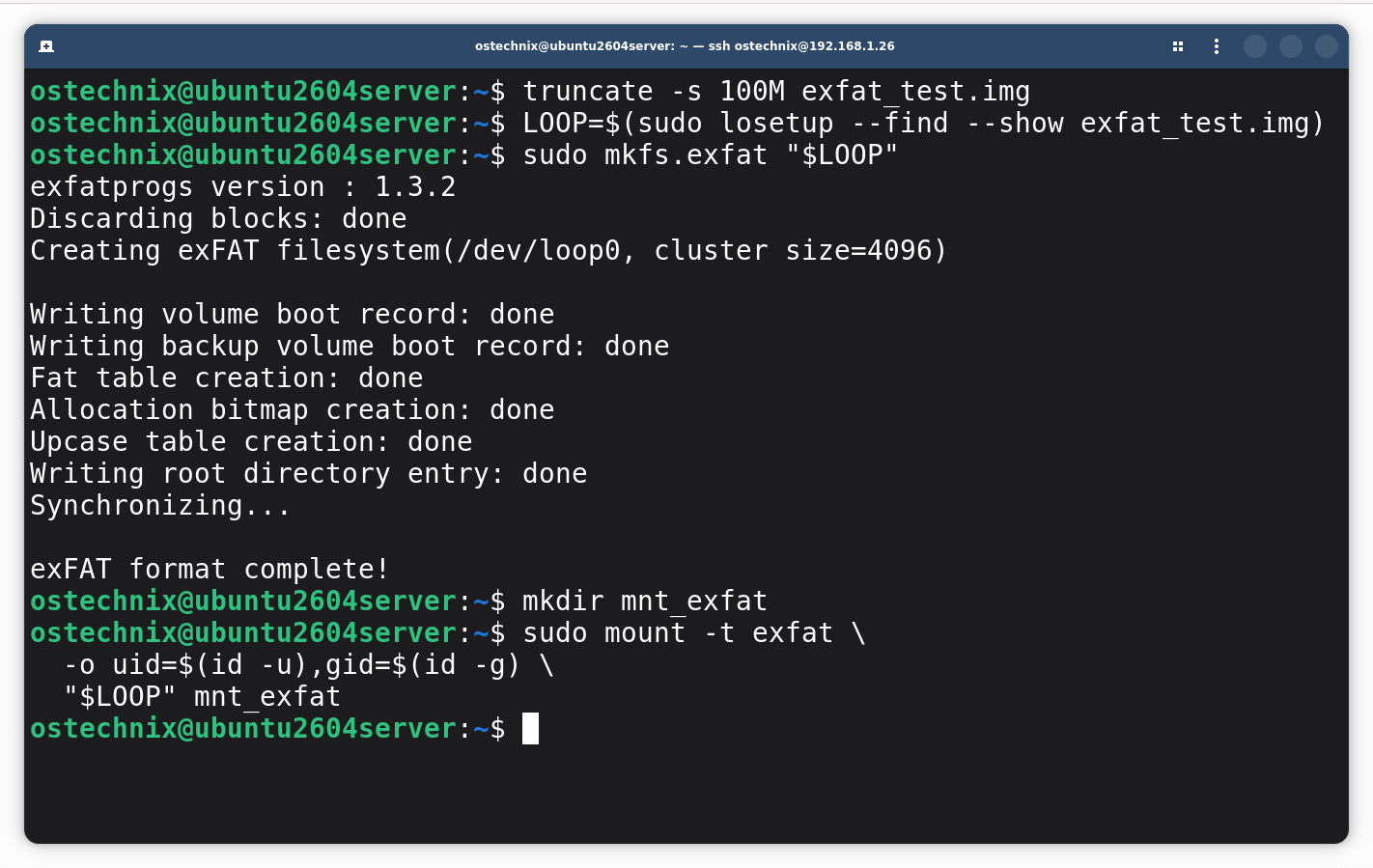
Next, create a 100 MiB disk image:
truncate -s 100M exfat_test.img
Attach the image to a free loop device and save the assigned device name in a shell variable:
LOOP=$(sudo losetup --find --show exfat_test.img)
Create an exFAT filesystem:
sudo mkfs.exfat "$LOOP"
Create a mount point and mount the filesystem:
mkdir mnt_exfat
sudo mount -t exfat \
  -o uid=$(id -u),gid=$(id -g) \
  "$LOOP" mnt_exfat
The uid and gid mount options make your user the owner of the mounted exFAT filesystem. This lets you create, rename, and delete files without using sudo, making the examples in this guide easier to follow.
Test the Commands
Change to the mounted filesystem:
cd mnt_exfat
Create a test directory:
mkdir Desktops
Now try the command discussed in this article:
mv Desktops desktops
You should see the same behavior as you would on a real exFAT-formatted USB drive or SSD.
Case-Only Renames Fail on exFAT.png
Clean Up
When you're finished, unmount the filesystem, detach the loop device, and remove the temporary files:
cd ..

sudo umount mnt_exfat
sudo losetup -d "$LOOP"

rm exfat_test.img
rmdir mnt_exfat
Do You Need exfat-fuse?
On modern Linux distributions, usually not.
The Linux kernel has included a native exFAT driver since version 5.4, and most current distributions use it by default. In most cases, installing exfatprogs is all you need because it provides utilities such as:
mkfs.exfatfsck.exfat
Older Linux systems often relied on:
exfat-fusefuse3
These packages provided exFAT support before the kernel gained a native driver. They are still available on some distributions, but you generally don't need them unless you're working with an older Linux system or intentionally testing the FUSE implementation.
Frequently Asked Questions (FAQ)
mv say "subdirectory of itself" when I only changed the letter case?A: Because exFAT treats Desktops and desktops as the same directory name. When mv checks whether the destination exists, the filesystem reports that it does. mv then assumes you're trying to move a directory into itself and prints the corresponding error message.
A: No, not by default. These filesystems are case-sensitive, so Desktops and desktops are treated as different names. A direct rename usually works without any extra steps.
A: Yes. exFAT is case-insensitive by design, so Windows, macOS, and Linux all compare filenames using the same rules when accessing an exFAT volume.
A: No. Case-insensitive filename lookup is part of the exFAT filesystem specification. Linux cannot enable case sensitivity with a mount option or configuration setting.
A: No. Both commands simply rename the directory within the same filesystem. They do not copy the contents or recreate the directory.
A: Make sure the temporary name does not already exist. Also confirm that you have write permission for the directory and that both source and destination are on the same exFAT filesystem.
A: No. You can create a temporary exFAT filesystem inside a disk image using a Linux loop device. The optional section in this guide shows you how to set up, test, and remove it safely.
Conclusion
This behavior surprises many Linux users because most Linux filesystems are case-sensitive.
But, exFAT was designed primarily for compatibility with Windows and removable storage. Its use of the Unicode Up-case Table ensures that every operating system compares filenames consistently while still displaying them exactly as the user created them.
Understanding this design helps explain not only why mv Desktops desktops fails, but also why the two-step rename works every time.
Recommended Read:
