
We already have shown you how to create a new sudo user, grant sudo permissions to existing users and revoke the sudo privileges from an user in Alpine Linux, CentOS and Ubuntu operating systems. In this guide, we will see how to add, delete and grant sudo privileges to users in Arch Linux and its variants.
Table of Contents
Add, Delete And Grant Sudo Privileges To Users In Arch Linux
Log in as root user or any other existing sudo user. If it is a newly installed system, you shouldn't have any users except the root user. Mine is newly installed Arch system, so I logged in as root user.
Make sure you've installed sudo package by running the following commands as root user:
# pacman -Syu
# pacman -S sudo
The first command will sync the repositories and update your Arch Linux system to latest available version. And the second command will install sudo if it is not already installed.
Next, create a new user and add sudo privileges to that user in Arch Linux.
1. Create a sudo user in Arch Linux
Run the following command to create a new user, for example ostechnix:
# useradd --create-home ostechnix
Set password to the new user:
# passwd ostechnix
We have created a new user named ostechnix. We haven't granted the sudo privilege to the user yet. You can verify if the user is sudo user or not using command:
# sudo -lU ostechnix
Sample output:
User ostechnix is not allowed to run sudo on archlinux.
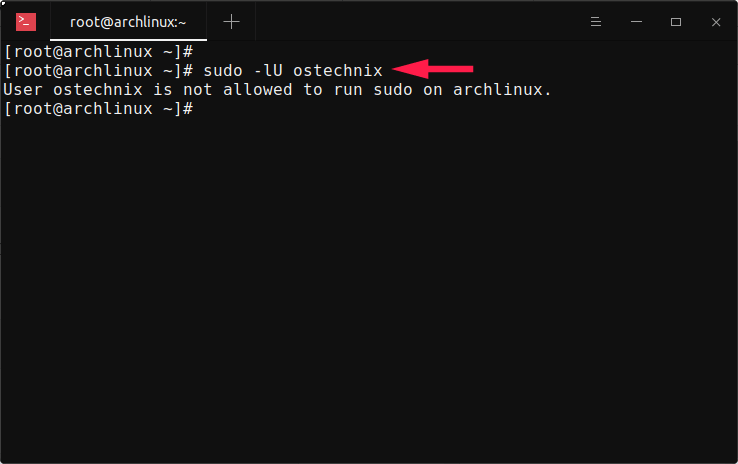
Yes, the user is not yet allowed to perform administrative tasks. Let us go ahead and grant him the sudo permissions.
To add a normal user to sudoers list in Arch Linux, simply add him/her to the wheel group. For those wondering, the wheel is a special group in some Unix-like operating systems. All the members of wheel group are allowed to perform administrative tasks. Wheel group is similar to sudo group in Debian-based systems.
We can add users to sudoers list in two ways. The first method is using chmod command.
1.1. Add users to sudoers list using usermod command in Arch Linux
To add an user to sudoers ist in Arch Linux, run:
# usermod -aG wheel ostechnix
Or,
# usermod --append --groups wheel ostechnix
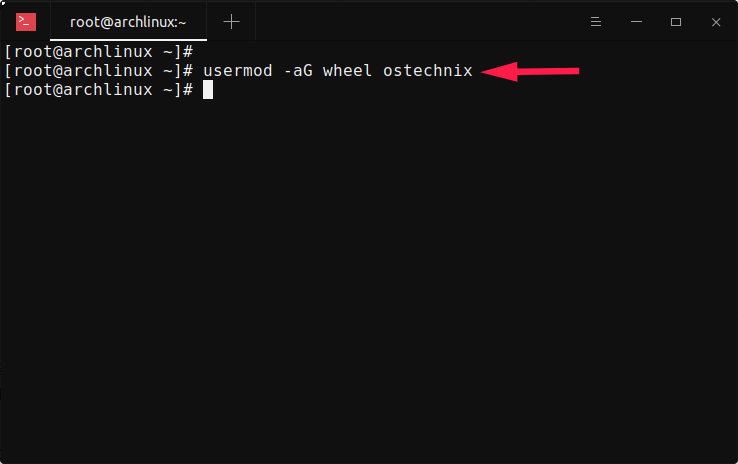
The above command will add the user called ostechnix to "wheel" group. As stated already, the members of wheel group can perform administrative tasks using sudo command.
Next, edit /etc/sudoers file using command:
# visudo
Find and uncomment the following line (just remove the # symbol at the beginning of the line):
%wheel ALL=(ALL) ALL
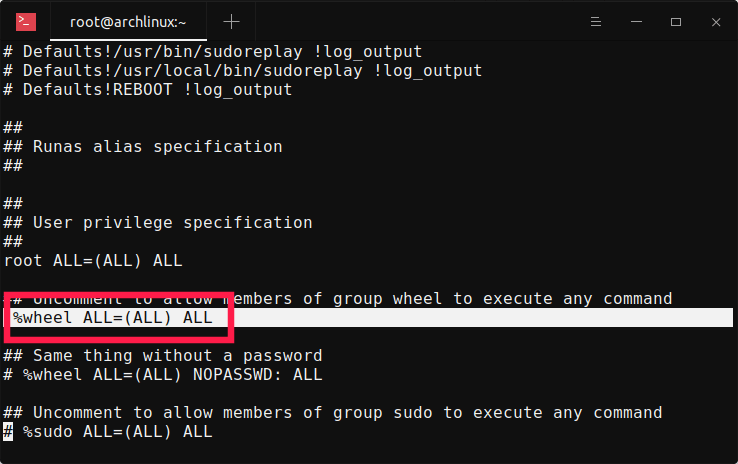
Hit ESC key and type :wq to save the file and exit.
You can also add the user to sudo group to allow it's members to run any command.
# usermod -aG sudo ostechnix
Edit /etc/sudoers file:
# visudo
Uncomment the following line:
%sudo ALL=(ALL) ALL
Save the file and exit.
We have added the user ostechnix to sudoers list. Now skip to the "1.3. Check if an user has sudo access in Arch Linux" section and check if the user has sudo permissions.
1.2. Add users to sudoers list by editing sudoers configuration file in Arch Linux
The another way to assign sudo permission to an user in Linux is by manually adding him to the /etc/sudoers file as shown below.
Edit /etc/sudoers file:
# visudo
This will open /etc/sudoers file in your Vi editor or whatever you have in your $PATH. Scroll down until you find following entry:
root ALL=(ALL) ALL
Right after the above entry, add the following line:
ostechnix ALL=(ALL) ALL

Replace "ostechnix" with your own username. Save the file and exit. Here, the line ALL=(ALL) ALL refers the user "ostechnix" can run any commands on any host.
1.3. Check if an user has sudo access in Arch Linux
To check if an user has sudo permissions, run:
# sudo -lU ostechnix
Sample output:
User ostechnix may run the following commands on archlinux:
    (ALL) ALL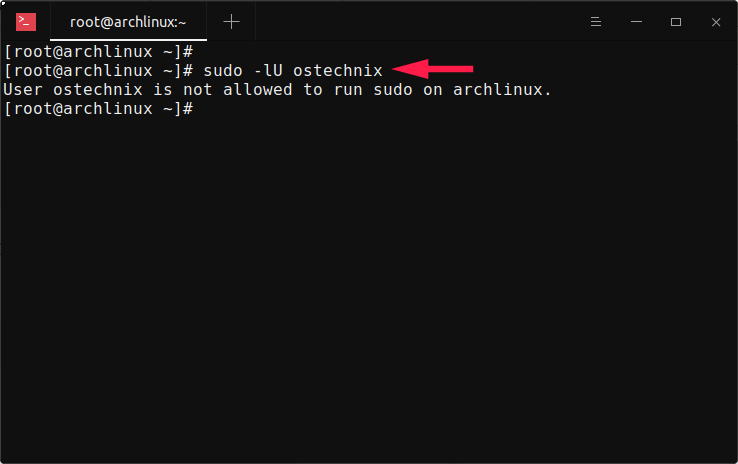
Well, the user "ostechnix" has sudo permissions.
Let us perform some administrative tasks with this user to verify if he really has sudo rights. Log out and log back in as the ostechnix user. Alternatively, you can run the following command to immediately switch to the ostechnix user:
# su - ostechnix
Well, we switched to the ostechnix user. Now try to run any administrative operations.
$ sudo pacman -Syu
Sample output:

It works! The user ostechnix can able to perform administrative tasks.
2. Delete sudo privileges from an user in Arch Linux
We can take away the sudo privileges from an user without actually having to delete the user.
First, log out from the user and log back in as root or another sudo user. Next, delete sudo privileges from an user by simply removing him/her from the wheel group using the following command in Arch Linux:
# gpasswd -d ostechnix wheel
If you have added the user to sudo group, you need to remove him/her from that group too.
# gpasswd -d ostechnix sudo
That's it. The user is not in the sudoers list anymore, so he can't run any administrative tasks.
You can verify it using command:
# sudo -lU ostechnix
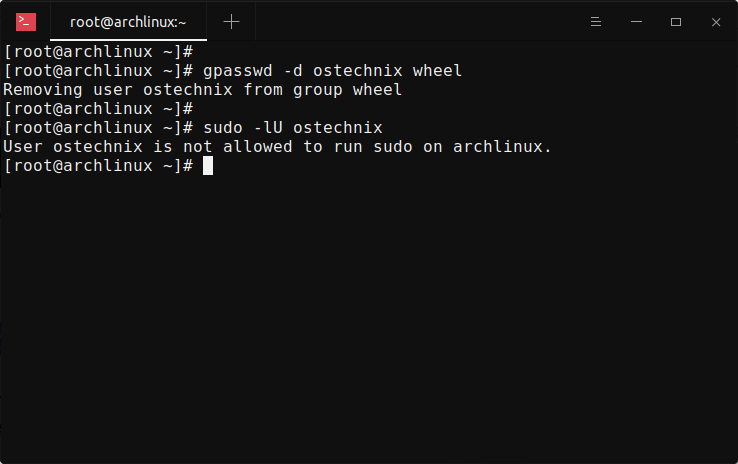
If you don't want that user anymore, remove him entirely from the system using this command:
# userdel -r ostechnix
Here, -r flag is used to delete the $HOME directory of the user.
For more details, refer the respective command's man page:
$ man sudo
$ man useradd
$ man usermod
$ man gpasswd
$ man userdel
That's all for now. In this guide, you learned how to create a sudo user, and how to grant sudo privileges to existing users and finally how to remove the sudo privileges from an user in Arch Linux. It is always recommended to use a sudo user for administrative tasks. Please avoid using root user for server administrative operations.
