
In the LVM series, we have seen what LVM snapshots are and how to restore snapshots in our last article. In this article, we are going to discuss yet another important feature of LVM called export and import. The LVM export and import commands can be used to move a Volume Group (VG) from one machine and attach it to another machine in Linux.
Heads Up: Export and Import require the disk to be removed and attached to a different machine.
Table of Contents
Lab Setup
I am using the same lab setup which I used in the previous article. If you need to replicate it, please refer to the following link.
As the first step, you should check how your current physical volume (pv), volume group (vg), and logical volumes (lv) are structured.
Check how many disks are initialized as a physical volume using pvscan command. In my case, I have two disks in a total of 25GB in size initialized as a physical volume.
$ sudo pvscan
  PV /dev/sdc   VG ostechnix_lab   lvm2 [<10.00 GiB / <5.00 GiB free]
  PV /dev/sdd   VG ostechnix_lab   lvm2 [<15.00 GiB / <15.00 GiB free]
  Total: 2 [24.99 GiB] / in use: 2 [24.99 GiB] / in no VG: 0 [0   ]
Both the physical volume disks are added to the volume group "ostechnix_lab". This is the volume group I will be exporting to a different machine. Let me show you volumegroup using the vgs command:
$ sudo vgs
  VG            #PV #LV #SN Attr   VSize  VFree
  ostechnix_lab   2   1   0 wz--n- 24.99g 19.99g
There is only one logical volume under this volume group which is 5GB in size. We can view the logical volume using lvs command:
$ sudo lvs
  LV   VG            Attr       LSize Pool Origin Data%  Meta%  Move Log Cpy%Sync Convert
  lab  ostechnix_lab -wi-a----- 5.00g
The logical volume is mounted under /opt/lvm_lab and just has 1 file which will be moved to a different machine when you import the volume group.
$ df -h /dev/ostechnix_lab/lab
Filesystem                     Size  Used Avail Use% Mounted on
/dev/mapper/ostechnix_lab-lab  4.9G   20M  4.6G   1% /opt/lvm_lab
$ ls -l /opt/lvm_lab/
total 4
-rw-r--r-- 1 vagrant vagrant 3771 Feb 24 02:39 datafile
Export LVM Volume Group
STEP 1 - Unmount the file system before running the export command.
$ umount <mount-point>
$ umount /opt/lvm_lab/
You can run any of the following commands to check the mount point status using either df or mount command.
$ df -h
$ mount
STEP 2 - Run the lvchange command which will take the logical volume offline.
$ sudo lvchange -an /dev/ostechnix_lab/lab
STEP 3 - Run the vgchange command which will take the volume group offline.
$ sudo vgchange -an ostechnix_lab
  0 logical volume(s) in volume group "ostechnix_lab" now active
STEP 4 - Finally, export the volume group (VG) using vgexport command.
$ sudo vgexport ostechnix_lab
  Volume group "ostechnix_lab" successfully exported
Heads Up: In all the above commands, you have to replace the logical volume and volume group with your relevant names.
Import LVM Volume Group
The import operation can be divided into two phases. In the first phase, you have to remove the physical disk and move to a different machine. In my case, I am using Oracle Virtualbox for demonstration. The steps should be little different virtualization software like Proxmox, KVM Virt-manager, or Gnome Boxes. I suggest you to refer the respective software documentation to add storage disk. You can follow the below procedure if you are using Virtualbox.
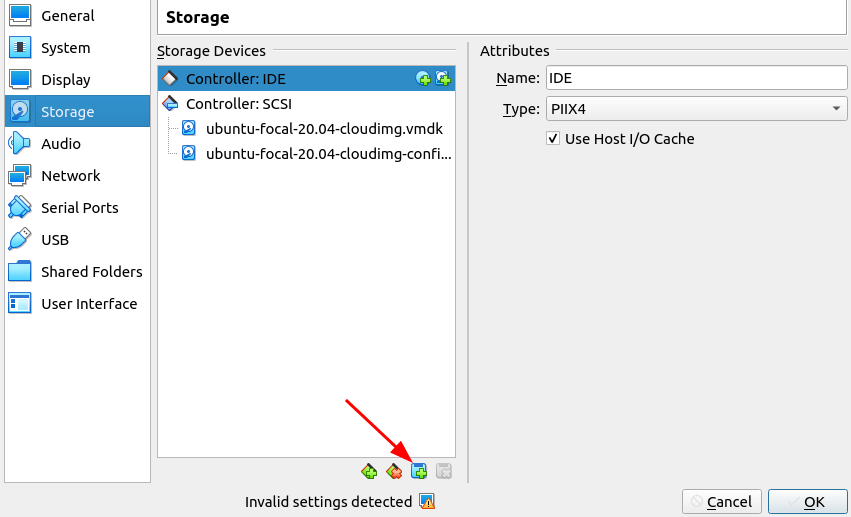
Open Virtualbox graphical application and select "Settings -> Storage" from the virtual machine. Click on the disk you want to remove and press the Icon that marked with red-arrow in the below screenshot.

Next, open the "settings -> storage" on your new machine. Click the highlighted icon in the image.
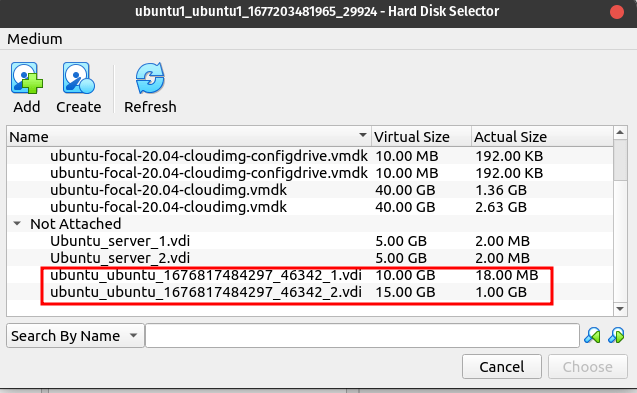
It will open the hard disk selector where you can choose the disk which was previously removed.
Now the disk is attached to the new machine. Start the virtual machine.
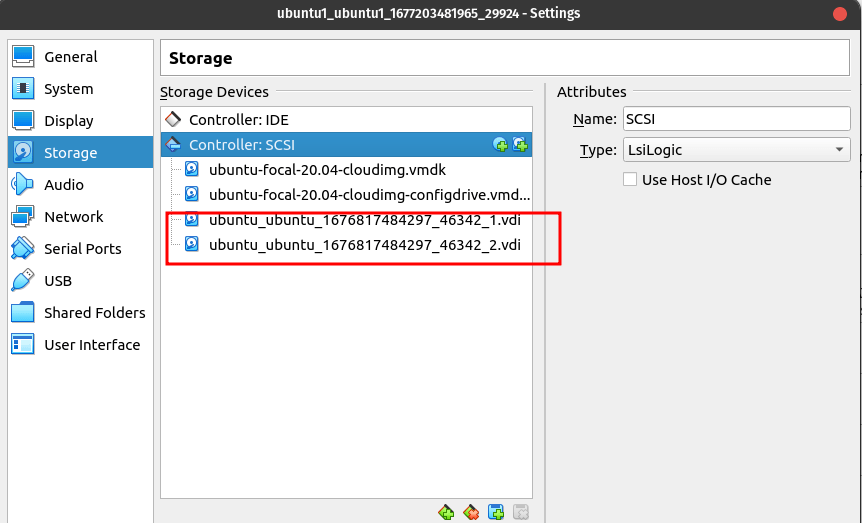
Now I am on my new machine named ubuntu1 and both the disk are attached successfully.
$ hostname
ubuntu1
$ lsblk /dev/sd[b-c]
NAME MAJ:MIN RM SIZE RO TYPE MOUNTPOINT
sdb    8:16   0  10M  0 disk
sdc    8:32   0  10G  0 disk
Run the pvscan command which will show the exported disk.
$ sudo pvscan
  PV /dev/sdc    is in exported VG ostechnix_lab [<10.00 GiB / <5.00 GiB free]
  PV /dev/sdd    is in exported VG ostechnix_lab [<15.00 GiB / <15.00 GiB free]
  Total: 2 [24.99 GiB] / in use: 2 [24.99 GiB] / in no VG: 0 [0   ]
You can also run the pvs command which shows the physical volume. The attribute ax points to the exported volume group.
$ sudo pvs
  PV         VG            Fmt  Attr PSize   PFree
  /dev/sdc   ostechnix_lab lvm2 ax-  <10.00g  <5.00g
  /dev/sdd   ostechnix_lab lvm2 ax-  <15.00g <15.00g
To import the volume group using the vgimport command.
$ sudo vgimport ostechnix_lab
  Volume group "ostechnix_lab" successfully imported
Run vgscan or vgs to see the volume group status.
$ sudo vgs
  VG            #PV #LV #SN Attr   VSize  VFree
  ostechnix_lab   2   1   0 wz--n- 24.99g 19.99g
$ sudo vgscan
  Found volume group "ostechnix_lab" using metadata type lvm2
Finally, activate the volume group by using the vgchange command.
$ sudo vgchange -ay ostechnix_lab
  1 logical volume(s) in volume group "ostechnix_lab" now active
My VG contains just 1 logical volume and it was successfully activated.
Mount the file system. My datafile which was exported as part of the volume group is now available in the new machine.
vagrant@ubuntu1:~$ sudo mkdir /opt/lvm/
vagrant@ubuntu1:~$ sudo mount /dev/ostechnix_lab/lab /opt/lvm/
vagrant@ubuntu1:~$ ls -l /opt/lvm/
total 4
-rw-r--r-- 1 vagrant vagrant 3771 Feb 24 02:39 datafile
Conclusion
In this article, we have seen the step by step procedure on how to export a volume group and import the volume group into another machine. Even though the steps are straightforward and simple, I would always go with other options to replicate data. This method is time-consuming considering the data size and involvement of multiple teams. Also if you're not careful, you might lose the data.

3 comments
So… What happens if I get the (three, in my case) physical drives moved into the new machine, `lsblk` shows them there (sda, sdb, and sdc), but `sudo pvscan` does not show them, nor does `sudo vgimport mygroup` find a group to import?
One issue that I uncovered — if you are moving the drives into a computer that already has a volume group, there will be a file called /etc/lvm/devices/system.devices that will block your new devices from being scanned by `sudo pvscan` or `sudo vgscan.` You will need to add your new devices to the /etc/lvm/devices/system.devices file by using the command: `sudo lvmdevices –adddev=/dev/sda` (repeat for sdb, sdc, etc. as needed). THEN your computer will recognize your new devices when you run `sudo vgscan` or `sudo pvscan` and you can complete the import as the instructions list on this page.
Hi Laurence,
Thanks for the update. Much appreciated.