
Debian 13, codenamed Trixie, has been officially released on August 9, 2025! This Step-by-Step guide explains how to upgrade to Debian 13 trixie from Debian 12 bookworm from command line.
From updating repositories to backing up your data, we'll cover all the necessary steps to ensure a successful Debian 13 upgrade.
Table of Contents
Step-by-Step Guide to Upgrade to Debian 13 from Debian 12
The release of Debian 13 (trixie) brings forth a wealth of new features, enhanced performance, and increased stability. Upgrading your Debian 12 system to Debian 13 will unlock the full potential of this latest operating system.
In this detailed guide, we provide you with an easy-to-follow step-by-step process for seamlessly upgrading to Debian 13.
Step 1: Verify Your Current Debian Version
First, you need to confirm that you are currently running Debian 12.
To check the Debian distribution name and version number, run the following command in your terminal:
lsb_release -d
This should return "Description: Debian GNU/Linux 12 (bookworm)" if you're running Debian 12.
You can also display the version number using the following command:
cat /etc/debian_version
This should return 12.x where x is the current point release of Debian 12.
Sample output:
12.11

Step 2: Update and Upgrade Your Debian 12 Packages
Prior to upgrading Debian bookworm to trixie, make sure all existing packages are updated and upgraded to their latest available versions.
Open a terminal window. Run the following commands one by one, entering your sudo (administrator) password when prompted:
sudo apt update
sudo apt upgrade
sudo apt dist-upgrade
Once the upgrades are complete, clean any residual packages and configuration files using the following commands:
sudo apt --purge autoremove
sudo apt autoclean
sudo find /etc -name '.dpkg-' -o -name '.ucf-' -o -name '*.merge-error'
With the introduction of numerous new packages, the Debian trixie release discontinues and excludes several old packages that were present in bookworm. These obsolete packages do not have a designated upgrade path.
While it is technically possible to continue using these obsolete packages, it's important to note that the Debian project generally ceases security support for them approximately one year after the release of trixie.
Furthermore, the Debian project typically does not provide other forms of support during this period. Therefore, it is recommended to replace these obsolete packages with available alternatives, if any exist.
To identify and remove "Obsolete and Locally Created Packages" from the command line, you can use the following commands:
To list all obsolete packages, enter:
apt list '~o'
To remove these obsolete packages, use the purge command with the '~o' filter:
sudo apt purge '~o'
It is also advisable to purge removed packages along with their configuration files. To list all removed packages that may have configuration files left on the system, run:
apt list '~c'
Remove those leftovers using command:
sudo apt purge '~c'
These commands will help ensure that your system remains clean and free from unnecessary packages after the upgrade process.
To apply all the updates, it is recommended to reboot your system. To do so, execute the following command:
sudo reboot
After the system restarts, you can proceed with the Debian bookworm to trixie upgrade process.
Step 3: Backup your Data
The next most important step is to create a backup of your data.
Make sure you have a copy of all important personal files, directories, and configuration files before proceeding with the upgrade process.
Your backup serves as a safety net to ensure the preservation of your important data in case of any unforeseen issues during the upgrade process.
To perform a comprehensive backup, focus on backing up the following:
- The contents of the
/etcdirectory: This directory contains various system configuration files. Make sure to create a backup of its entire contents. - The
/var/lib/dpkgdirectory: This directory holds the package database. It is important to have a backup of this directory to preserve package information. - The
/var/lib/apt/extended_statesfile: This file contains additional information about installed packages. Include this file in your backup to retain relevant package states. - The output of the
dpkg --get-selections "*"command: Execute this command, including the quotes, to generate a list of all installed packages. Backing up this output will help you restore your package selections.
Use the following commands to perform the above tasks:
# Set timestamp variable for consistency
TS=$(date +%Y%m%d-%H%M%S)

# Create a backup directory
BACKUP_DIR="debian-backup-$TS"
mkdir -p "$BACKUP_DIR"

# 1. Backup the entire /etc directory
sudo tar -czvf "$BACKUP_DIR/etc-backup-$TS.tar.gz" /etc

# 2. Backup the /var/lib/dpkg directory
sudo tar -czvf "$BACKUP_DIR/dpkg-backup-$TS.tar.gz" /var/lib/dpkg

# 3. Backup the /var/lib/apt/extended_states file
sudo cp /var/lib/apt/extended_states "$BACKUP_DIR/extended_states-$TS.backup"

# 4. Save the list of all installed packages
dpkg --get-selections "*" > "$BACKUP_DIR/package-selections-$TS.list"
The resulting folder structure would look like below:
debian-backup-20260316-1742/
├── etc-backup-20260316-1742.tar.gz
├── dpkg-backup-20260316-1742.tar.gz
├── extended_states-20260316-1742.backup
└── package-selections-20260316-1742.list
Here's what it does in order:
- Creates a
debian-backupdirectory. - Compresses and saves
/etcasetc-backup.tar.gz. - Compresses and saves
/var/lib/dpkgasdpkg-backup.tar.gz. - Copies
extended_statesinto the backup folder. - Saves the list of installed packages into
package-selections.list.
As you see, each backup has the date and time in its filename. That way, you can keep multiple backups without overwriting.
By backing up these essential components, you can safeguard your data and configuration settings. This ensures that you have the necessary resources to restore your system or recover specific files if needed.
You also have a variety of options when it comes to selecting backup applications for your Debian Linux system. Consider using one or two of the following applications to backup your data and system settings:
- Rsync: This powerful command-line utility is ideal for backing up personal data and the contents of your $HOME directory.
- Deja Dup: If you prefer a simple graphical interface, Deja Dup is a user-friendly utility that allows you to back up your personal data with ease.
- Timeshift: For backing up system files and settings, Timeshift provides a graphical application that enables you to create snapshots of your system.
- Restic: This command-line utility offers the ability to save multiple revisions of files and directories in an encrypted repository stored on different backends.
- Rsnapshot: If you require periodic snapshots of both local and remote machines over SSH, Rsnapshot is a command-line utility that can fulfill this requirement.
Personally, I use Deja Dup and Timeshift for my backups. Feel free to choose any combination of the above-listed applications that best suits your preferences and backup needs.
Step 4: Modify the /etc/apt/sources.list File
Prior to updating the software repositories in Debian bookworm, please back up the current software source list. Follow these steps to create a backup of the current software repository configuration files.
Create a new directory named "apt" in your home directory by running the following command:
mkdir ~/apt
Make a copy of the main software source list by executing the following command with administrator privileges:
sudo cp /etc/apt/sources.list ~/apt
Create a copy of the additional software sources located in the "sources.list.d" directory using the recursive and verbose options:
sudo cp -rv /etc/apt/sources.list.d/ ~/apt
To ensure that the software repository lists have been successfully copied, verify the contents of the "~/apt" directory by running the following command:
$ ls apt/
sources.list  sources.list.d
After executing these steps, you should see the "sources.list" file and the "sources.list.d" directory listed in the output, confirming that the backup process was completed successfully.
Next, you'll need to update your package sources to point to the Debian 13 trixie repositories. To update the Debian 12 (bookworm) repositories to Debian 13 (trixie) repositories, use the following commands.
From the terminal, run the following command with administrator privileges to update the main software source list:
sudo sed -i 's/bookworm/trixie/g' /etc/apt/sources.list
This command uses the sed utility to replace all occurrences of "bookworm" with "trixie" in the /etc/apt/sources.list file.
Update the additional software source lists in the "sources.list.d" directory by executing the following command:
sudo sed -i 's/bookworm/trixie/g' /etc/apt/sources.list.d/*
Similarly, this command replaces "bookworm" with "trixie" in all files within the /etc/apt/sources.list.d/ directory.
By following these steps, you will have replaced and updated the Debian 12 (bookworm) repositories with the Debian 13 (trixie) repositories in your system's software source lists.
Verify if the sources list file has been updated with the new repository links by running the following command:
cat /etc/apt/sources.list
This command displays the contents of the /etc/apt/sources.list file, allowing you to confirm if the repository links have been successfully updated.
Here is the contents of my test machine's source repository list:
deb https://deb.debian.org/debian/ trixie main non-free-firmware contrib non-free

# trixie-updates, to get updates before a point release is made;
# see https://www.debian.org/doc/manuals/debian-reference/ch02.en.html#_updates_and_backports
deb https://deb.debian.org/debian/ trixie-updates main non-free-firmware contrib non-free
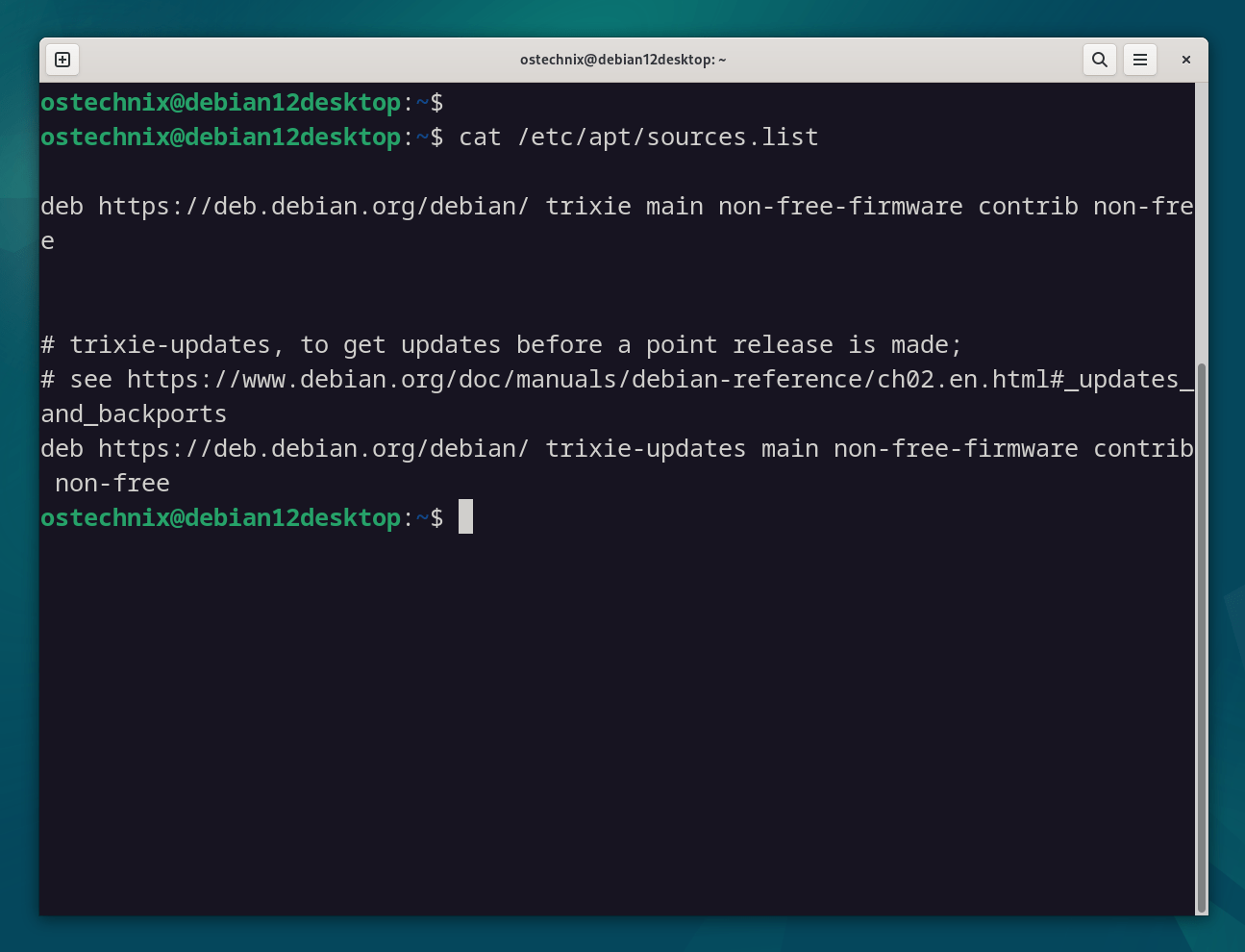
As observed in the above output, the sources.list file has been successfully updated with the new Debian 13 repository links.
Next, update the repository lists by executing the following command in the terminal:
sudo apt update
This command will refresh the repository lists based on the updated configuration in the sources.list file. It allows your system to retrieve the latest package information from the newly added Debian 13 repositories.
Step 5: Perform Minimal System Upgrade
In certain scenarios, performing a full system upgrade as explained in the next step may result in the removal of a significant number of packages that you wish to retain.
Therefore, Debian developers recommend a two-part upgrade process consisting of a minimal upgrade followed by a full upgrade.
The minimal upgrade ensures the upgrade of all existing packages without installing or removing any additional packages.
To initiate the minimal upgrade, use the following command:
sudo apt upgrade --without-new-pkgs
While the upgrade process is underway, carefully monitor the screen. You may encounter a series of questions that require your input, such as deciding the fate of a configuration file or whether to restart a particular service.
The specific questions presented to you can vary based on the number of installed packages on your current Debian system.
You should pay attention and respond to these prompts appropriately to ensure a smooth upgrade experience. This allows you to retain desired packages and maintain the desired configuration during the minimal upgrade phase.
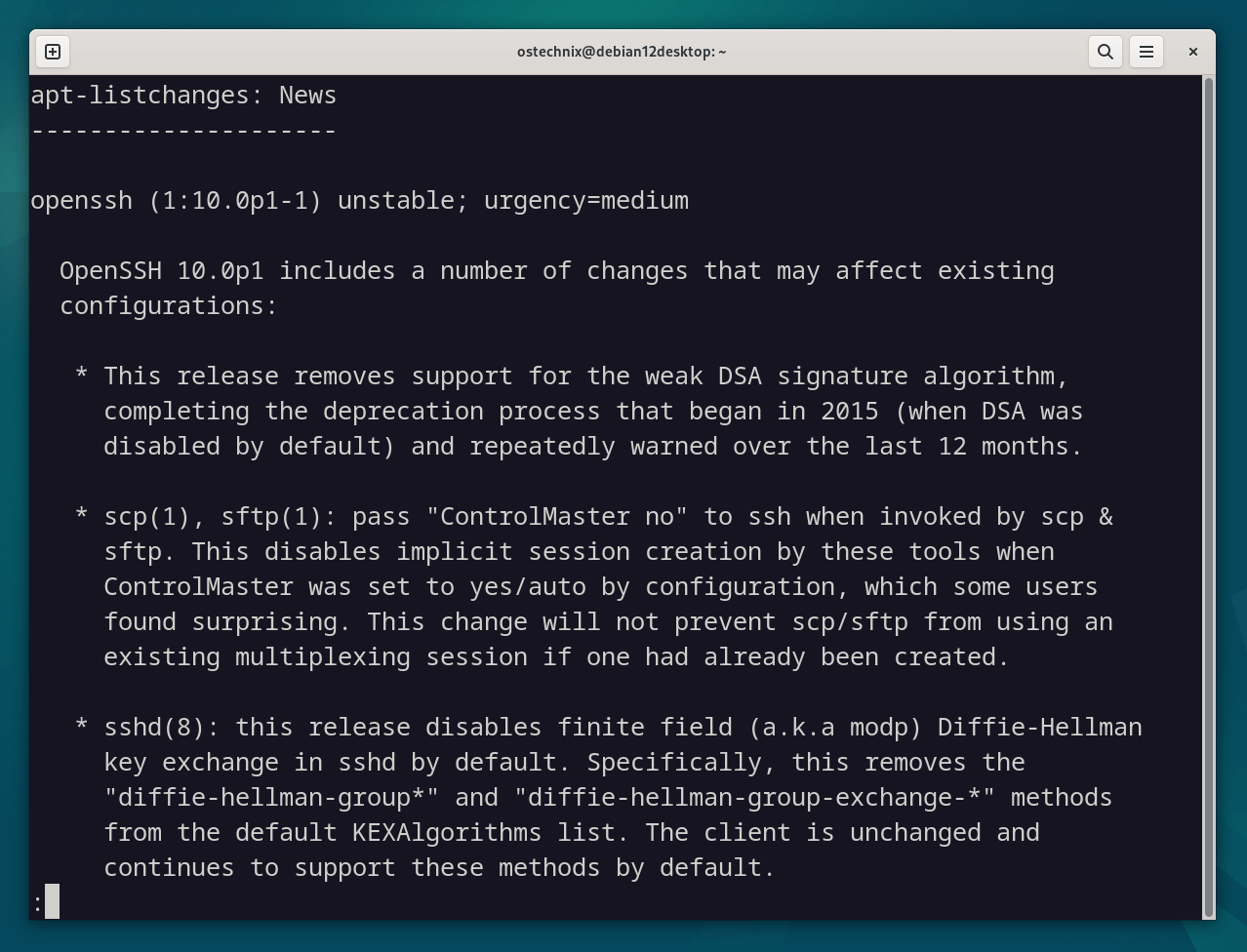
For example, if you have the apt-listchanges package installed, it will display important information about upgraded packages in a pager after downloading them.
To access the information, press ENTER to read through the details. If you wish to exit and return to the upgrade process, simply press the q key.
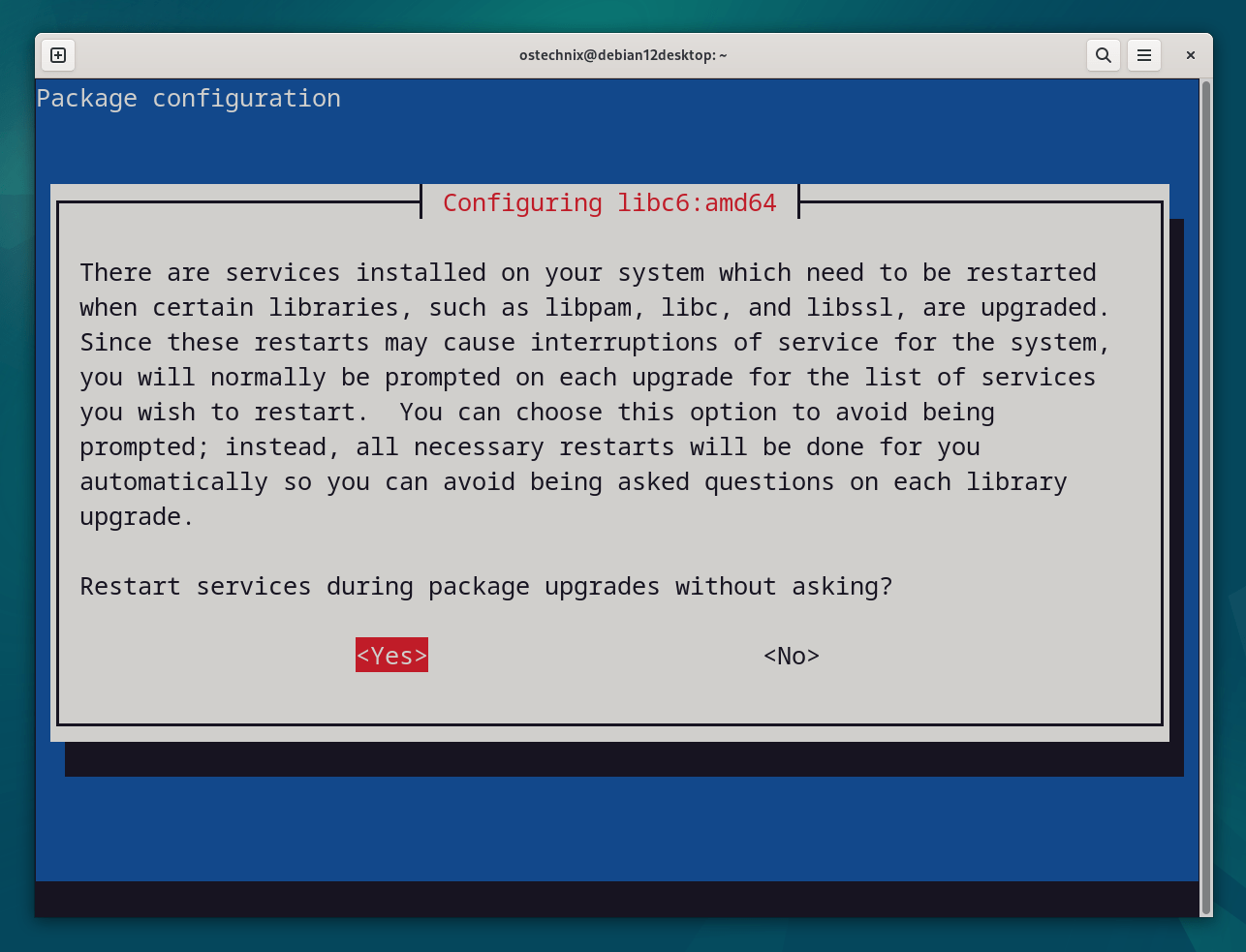
During the upgrade process, various services installed on your Debian system may require restarting when specific libraries like libpam, libc, and libssl are upgraded. Restarting these services may result in temporary interruptions of service.
To minimize these interruptions and avoid being prompted for each library upgrade, you have the option to choose a default action.
If you prefer not to be asked about restarting services individually, you can select "Yes" and press ENTER to proceed. This choice ensures that the upgrade process continues without interruption and automatically restarts the necessary services as needed.
The minimal upgrade process will be typically completed within a few minutes.
Step 6: Upgrade to Debian 13
Now that your package sources have been updated, you can upgrade your system.
Execute the following command to perform a full system upgrade to Debian 13 trixie:
sudo apt full-upgrade
Once again, it is important to pay attention to the screen during the upgrade process and respond to any prompts or questions that may arise.
As in the minimal upgrade phase, you will see essential information about the upgraded packages (if apt-listchanges is installed) in a pager. Press q to exit and continue the upgrade.
Some services may need to restart when libraries like libpam, libc, or libssl are upgraded, causing brief interruptions.
To avoid prompts for each restart, select "Yes" and press ENTER. This lets the upgrade proceed without interruption and restarts services automatically.
After completing the upgrade process to Debian 13 (trixie), it is recommended to reboot your system to ensure that all changes take effect.
To reboot your system, run:
sudo reboot
Once your system restarts and you log in, you can verify the Debian 13 trixie version using either of the following commands:
To check the version by reading the contents of the /etc/debian_version file, run:
$ cat /etc/debian_version
13.4
This command will display the version information, which should indicate "13.x" if the upgrade to Debian 13 (trixie) was successful.
If you want detailed output, use this command instead:
cat /etc/os-release
Sample Output:
PRETTY_NAME="Debian GNU/Linux 13 (trixie)"
NAME="Debian GNU/Linux"
VERSION_ID="13"
VERSION="13 (trixie)"
VERSION_CODENAME=trixie
DEBIAN_VERSION_FULL=13.4
ID=debian
HOME_URL="https://www.debian.org/"
SUPPORT_URL="https://www.debian.org/support"
BUG_REPORT_URL="https://bugs.debian.org/"
Alternatively, you can use the lsb_release command to obtain detailed information about the Debian release:
lsb_release -a
This command will provide comprehensive information, including the distribution ID, release number, codename, and more. Review the output to confirm that the Debian version is correctly identified as "trixie".
Sample Output:
No LSB modules are available.
Distributor ID:    Debian
Description:    Debian GNU/Linux 13 (trixie)
Release:    13
Codename:    trixie
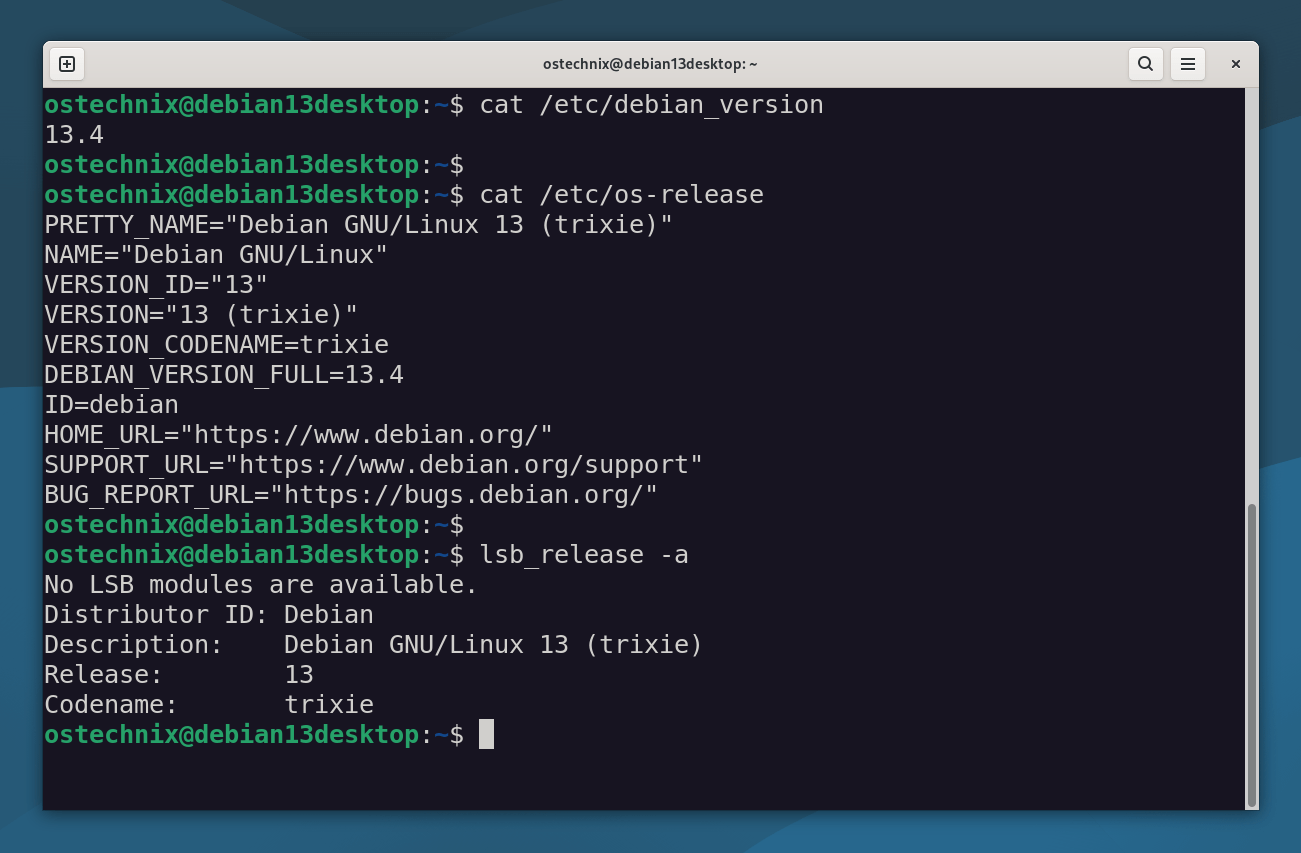
Congratulations on successfully upgrading Debian 12 (bookworm) to Debian 13 (trixie)!
To ensure a clean system and remove any packages that are no longer required, you can execute the following commands.
Remove all packages that are no longer needed, including their configuration files:
sudo apt --purge autoremove
This command will remove any unused packages from your system, freeing up disk space and eliminating unnecessary dependencies.
Clean up residual package files that are no longer required:
sudo apt autoclean
This command will remove cached package files from the system's package cache directory, helping to free up additional disk space.
Step 7: Verify if Everything Works Fine
After logging in to your newly upgraded Debian 13 system, check if everything is functioning correctly. Take the time to open and/or run various installed applications and verify that they are working as expected.
Ensure that all essential functionalities and features are operational. If you encounter any issues or if something breaks your system, please share your issues in the comment section below or seek assistance from the Debian forum.
Keep in mind that Debian 13 has just been released (August 9, 2025), so minor glitches might occur.
However, in my personal experience, the Debian 13 upgrade process was smooth, and all aspects of the system worked seamlessly.
Step 8: Restore the Backup (Optional)
If the upgrade process to Debian 13 (trixie) is smooth and error-free, it should not delete any important files.
However, as a precautionary measure, if you find any missing data or files, restore them from the backup you created before the upgrade.
Follow the appropriate procedure to restore your backup files, directories, and configuration settings. This step ensures that your system is set up exactly as it was before the upgrade, including any personalized configurations or data.
Additionally, you can take this opportunity to install new applications of your choice and start exploring the features and enhancements offered by the Debian 13 trixie edition.
That's it. Enjoy using Debian 13 and make the most out of its capabilities!
TL;DR
Here are the key steps to upgrade to Debian 13 (trixie):
- Update and upgrade all currently installed packages using
sudo apt update,sudo apt upgrade,sudo apt dist-upgrade,sudo apt autoremove,sudo apt autoclean, andsudo find /etc -name '.dpkg-' -o -name '.ucf-' -o -name '*.merge-error'. - Backup all important personal files, directories, and configuration files, such as
/etc,/var/lib/dpkg,/var/lib/apt/extended_states, and the output ofdpkg --get-selections "*"command. - Copy the current software source list and
sources.list.ddirectory usingsudo cp /etc/apt/sources.list ~/aptandsudo cp -rv /etc/apt/sources.list.d/ ~/apt. - Update the
sources.listfile and sources.list.d files to replace "bookworm" with "trixie" usingsudo sed -i 's/bookworm/trixie/g' /etc/apt/sources.listandsudo sed -i 's/bookworm/trixie/g' /etc/apt/sources.list.d/*. - After modifying the software sources list, run
sudo apt updatecommand to refresh the software repository list. - Perform a minimal upgrade using
sudo apt upgrade --without-new-pkgsand respond to any prompts or questions that may arise during the upgrade process. - Start the main upgrade using
sudo apt full-upgradeto upgrade all packages and dependencies. - Reboot your system after the upgrade process is completed with
sudo reboot. - Verify the Debian 13 trixie version using
cat /etc/debian_versionorlsb_release -a. - Optionally, remove packages that are no longer required using
sudo apt --purge autoremoveandsudo apt autoclean. - Log in to your upgraded system, check if everything works fine, and report any issues.
- If there are any data missing, restore the backup you took before upgrading the system.
- Install new applications of your choice and start using Debian 13 trixie edition!
Congratulations! You've successfully upgraded the Debian 12 bookworm to Debian 13 trixie.
Resource:

2 comments
PROBLEMS… Debian 13 has a problem with NVIDIA legacy cards again!!! Drivers no work or you will have problems. The main problem seems to be on NVIDIA’s end. If Debian has the code they can make it work..
Thanks for the update.