
Table of Contents
Quick Summary
- Bash expansion is what transforms your short commands into full instructions before they run.
- There are 9 types of Bash expansion: brace
{}, tilde~, parameter${}, command$(), arithmetic$(()), process<(), filename/glob*, word splitting, and quote removal. - The first six generate or substitute strings. The last three — globbing, word splitting, and quote removal — process the results of everything that ran before them.
- The order they run in matters, and mixing them up is the #1 source of beginner bugs.
Introduction
You type a command. Bash transforms it. Then it runs.
That transformation step — the thing happening between your keypress and execution — is called expansion. Most beginners using the Linux command line don't know it exists. Once you do, your shell scripting gets faster, cleaner, and far less repetitive.
This detailed guide breaks down every type of bash expansion with practical examples you can try right now in your terminal.
What Is Bash Expansion?
Bash expansion is the process the bash shell uses to transform a command before executing it. When you type a command, bash scans it for special patterns — variables, braces, wildcards, and more — and rewrites them into their full form. Only after that rewriting is complete does bash actually run the command.
Think of it like a behind-the-scenes find-and-replace. You write a short, clever command. Bash rewrites it into the full form. Then it executes.
Here's a simple example. You type this:
cp nginx.conf{,.bak}Bash expands it into this before it ever touches your filesystem:
cp nginx.conf nginx.conf.bak
One pattern. One command. No repetition. That's expansion in action.
How Bash Expansion Works: Step by Step
- You type a command and press Enter
- Bash scans the command for expansion patterns (braces,
$,~,*, etc.) - Bash rewrites the command, replacing each pattern with its expanded value
- The fully expanded command is sent to the OS for execution
- You see the result
Types of Bash Expansion
Bash runs several types of expansion in a fixed order, each doing a different job. Let's go through them one by one.
Note: All examples below are tested on bash 5.x (the default on most modern Linux distributions). Check your version with
bash --versioncommand.
1. Brace Expansion {}
This is the most flexible type of bash expansion. It generates strings by combining a prefix or suffix with a comma-separated list — or a sequence — inside curly braces. No filesystem check happens here; it's pure text generation.
echo {a,b,c}.txt
# Output: a.txt b.txt c.txt

mkdir -p project/{src,tests,docs,build}
# Creates 4 directories in one command
Use the .. range syntax to generate sequences:
echo file{1..5}.log
# Output: file1.log file2.log file3.log file4.log file5.log

echo {a..z}
# Output: a b c d e f g ... z
Add a step value as a third number (requires Bash 4.0+):
echo {0..20..5}
# Output: 0 5 10 15 20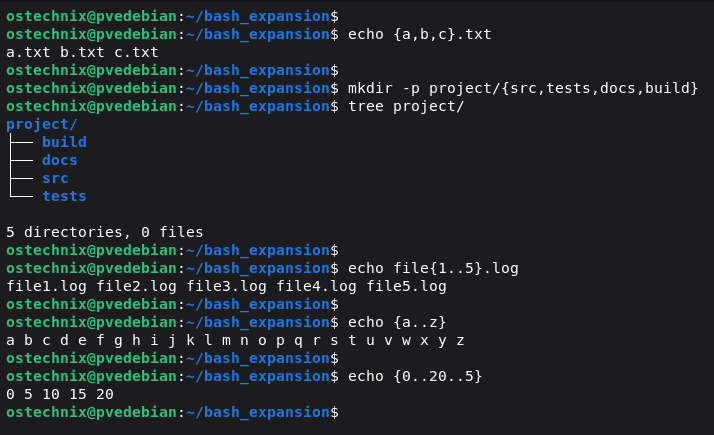
The backup file trick: The empty string before the comma expands to the original filename. .bak after gives you the backup. No need to type the filename twice.
cp .env{,.bak}
# Expands to: cp .env .env.bak

cp Makefile{,.$(date +%F)}
# Expands to: cp Makefile Makefile.2026-02-23
That last one uses command substitution (covered next) to timestamp your backup automatically.
2. Tilde Expansion ~
Simple but foundational. The ~ character expands to your home directory — the value of $HOME. Add a username and it expands to that user's home directory instead.
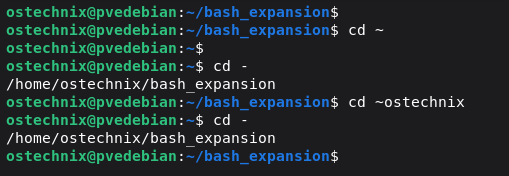
cd ~            # same as: cd /home/yourname
cd ~ostechnix   # navigates to ostechnix's home directory
You use this every day. Now you know why it works.
Tip: You can use cd - command to switch to the previous working directory immediately.
3. Parameter Expansion ${}
Basic bash variable substitution looks like $name. The ${} form unlocks a toolkit for bash string manipulation you'd otherwise need sed, cut, or awk to do — right inside the shell, with no extra tools.
name="world"

echo ${name}        # world
echo ${name^^}      # WORLD  (uppercase everything) — Bash 4.0+
echo ${name^}       # World  (capitalize first letter only) — Bash 4.0+
echo ${#name}       # 5      (length of the string)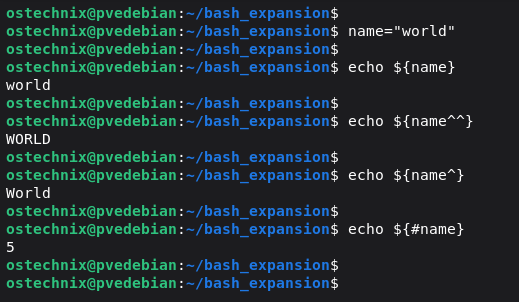
Stripping file extensions and paths is where this gets really practical. The # and % operators strip characters from the start or end of a string:
file="report.tar.gz"

echo ${file%.gz}    # report.tar    (strip shortest suffix match)
echo ${file%%.*}    # report        (strip longest suffix match)
echo ${file#*.}     # tar.gz        (strip shortest prefix match)
echo ${file##*.}    # gz            (strip longest prefix match)
One # or % = shortest match. Two (## or %%) = longest match. More symbols, more aggressive stripping.
Set default values for bash variables that might be empty:
echo ${name:-"stranger"}
# Prints "stranger" if $name is unset or empty

echo ${name:="stranger"}
# Same, but also assigns "stranger" to $name
4. Command Substitution $()
This runs a command and drops its output directly into your current command — inline, at the point where you wrote $().
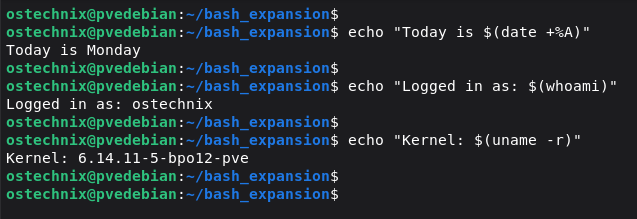
echo "Today is $(date +%A)"
# Output: Today is Monday

echo "Logged in as: $(whoami)"
echo "Kernel: $(uname -r)"
Capture output into a bash variable:
files=$(ls *.txt)
echo "Text files found: $files"
You may see the older backtick syntax `command` in legacy shell scripts. It works, but it's harder to nest and harder to read. Use $() — every modern shell supports it.
5. Arithmetic Expansion $(())
The Linux command line can do math natively. Use $(()) to evaluate integer expressions inline without calling any external tool.
echo $((2 + 2))         # 4
echo $((10 % 3))        # 1  (modulo / remainder)
echo $((2**10))         # 1024  (exponentiation)

x=5
echo $((x * x))         # 25
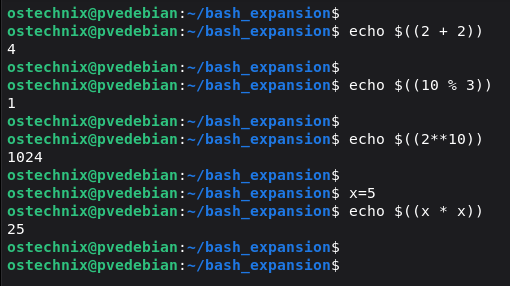
Limitation: bash handles integers only. For floating-point math, pipe into bc or use awk:
echo "scale=2; 10 / 3" | bc            # Output: 3.33
awk 'BEGIN { printf "%.2f\n", 10/3 }'  # Output: 3.33
6. Process Substitution <() and >()
The advanced one. It lets you treat the output of a command as if it were a file — useful when a program expects a filename argument but you don't want to create a temporary file.
diff <(sort file1.txt) <(sort file2.txt)
Without process substitution, you'd sort both files into temp files, diff them, and then clean up. With <(), bash handles the plumbing for you. No temp files, no cleanup.
7. Filename Expansion (Globbing) *, ?, [...]
Also called pathname expansion, this is where bash wildcards do their work. Unlike the previous six types — which are purely textual — filename expansion actually looks at your filesystem and replaces the pattern with the names of matching files.
echo file{1,2,3}.txt    # brace expansion — no filesystem check
echo file*.txt          # globbing — matches actual files on disk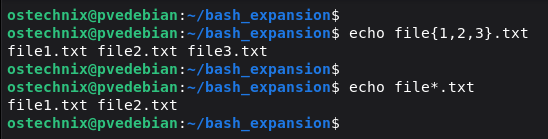
Common wildcard patterns:
*— matches any string of characters (including none)?— matches exactly one character[aeiou]— matches any single character in the set**— recursive match across subdirectories (requiresshopt -s globstar)
ls *.log            # all .log files in current directory
ls file?.txt        # file1.txt, fileA.txt, etc.
ls [aeiou]*         # files starting with a vowel
ls **/*.js          # all .js files, recursively (enable with: shopt -s globstar)
Important rule — quoting matters: *.txt unquoted expands to matching filenames on disk. "*.txt" quoted passes a literal asterisk to the program. This difference is one of the most common sources of bugs in shell scripting — and one of the most confusing for beginners because it fails silently.
8. Word Splitting
Word splitting is the step where bash takes the results of parameter expansion, command substitution, and arithmetic expansion and splits them into separate words wherever it finds whitespace.
The characters bash splits on are defined by the special variable $IFS (Internal Field Separator), which defaults to space, tab, and newline.
files="one.txt two.txt three.txt"
ls $files       # bash splits this into 3 separate arguments: ls one.txt two.txt three.txt
ls "$files"     # quoted — treated as one argument: ls "one.txt two.txt three.txt"
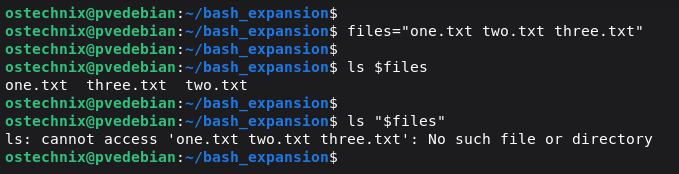
This is why quoting variables matters so much in bash. Without quotes, any variable containing spaces will be silently split into multiple words, often with unexpected results.
dir="my folder"
ls $dir         # ❌ ls sees two args: "my" and "folder"
ls "$dir"       # ✅ ls sees one arg: "my folder"
Word splitting does not apply to values in assignment statements or inside [[ ]]. It only happens in command context — when bash is building the argument list for a command.
9. Quote Removal
The very last step. After all other expansions have run, bash strips out any quote characters — single quotes ', double quotes ", and backslashes \ — that were used to control expansion but are not meant to appear in the final output.
echo "hello world"   # quotes removed — output: hello world  (no quotes)
echo 'it'\''s fine'  # backslash removed — output: it's fine
echo "\$HOME"        # backslash escapes $ — output: $HOME  (not expanded)
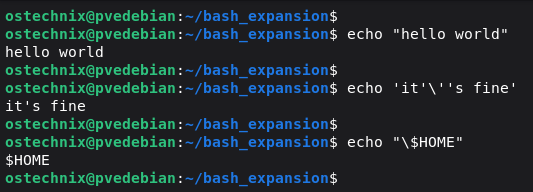
Quote removal is what makes the quoting system work end-to-end. When you write "$dir" to prevent word splitting, it's quote removal at the end that strips the double quotes so the final argument doesn't contain literal quote characters.
This step runs on every command, every time — it's automatic and invisible until you need to understand why something isn't behaving as expected.
The Expansion Order (and Why It Matters)
Bash doesn't run these expansions in random order. It follows a fixed sequence every time, as defined in the GNU Bash Reference Manual:
- Brace expansion
{} - Tilde expansion
~ - Parameter expansion
${} - Arithmetic expansion
$(()) - Command substitution
$() - Word splitting
- Pathname / glob expansion
*,?,[...] - Quote removal (always last — strips quote characters used to control expansion)
This order creates one of the most common bugs beginners hit: you can't use a bash variable inside brace expansion ranges.
n=5
echo {1..$n}    # prints literally: {1..5}  — WRONG
Brace expansion runs first — before $n is substituted. By the time bash reaches parameter expansion, the brace window has passed. Use seq instead:
seq 1 $n # correctly outputs: 1 2 3 4 5
This trips up a lot of people. Now you know why it happens.
Common Mistakes and How to Fix Them
Mistake 1: Spaces inside ${} or $(())
echo ${ name }    # ❌ bash: ${ name }: bad substitution
echo $( ( 2+2 ) ) # ❌ syntax error

echo ${name}      # ✅ correct
echo $((2+2))     # ✅ correct
Bash is strict about spaces inside expansion syntax. No spaces between the $ and the opening brace/paren.
Mistake 2: Using a variable in a brace range
n=5
for i in {1..$n}; do echo $i; done      # ❌ prints {1..5} literally
for i in $(seq 1 $n); do echo $i; done  # ✅ works correctly
Remember: brace expansion runs before variable expansion. Use seq for dynamic ranges.
Mistake 3: Forgetting to quote glob patterns in find or grep
find . -name *.txt      # ❌ shell expands *.txt BEFORE find sees it
find . -name "*.txt"    # ✅ quotes pass the pattern to find intact
When passing glob patterns as arguments to commands like find, grep, or rsync, always quote them so the shell doesn't expand them prematurely.
Mistake 4: Expecting {1..5} to work in sh
sh -c 'echo {1..5}'    # ❌ {1..5} — not expanded; sh doesn't support brace expansion
bash -c 'echo {1..5}'  # ✅ 1 2 3 4 5
Brace expansion is a bash feature, not a POSIX sh feature. If your script starts with #!/bin/sh, brace expansion won't work. Change the shebang to #!/bin/bash.
Mistake 5: Unquoted variables with spaces
dir="my folder"
ls $dir        # ❌ treated as two args: ls my folder
ls "$dir"      # ✅ treated as one arg: ls "my folder"
After parameter expansion, bash performs word splitting. If your variable might contain spaces, quote it with double quotes.
Bash Expansion Quick Reference Cheat Sheet
| Expansion Type | Syntax | What It Does |
|---|---|---|
| Brace | {a,b,c} or {1..5} | Generates strings or sequences |
| Tilde | ~ or ~user | Expands to home directory |
| Parameter | ${var}, ${var^^}, ${var##*.} | Variable substitution + string manipulation |
| Command | $(command) | Inserts command output inline |
| Arithmetic | $((expression)) | Integer math |
| Process | <(command) | Treats command output as a file |
| Filename / Glob | *, ?, [...] | Matches filenames on disk |
| Word Splitting | $IFS (space/tab/newline) | Splits expansion results into separate words |
| Quote Removal | ", ', \ | Strips quote characters after all other expansions |
Putting It All Together
Here's a real-world one-liner that combines multiple expansion types:
for f in *.log; do cp "$f" backups/${f%.log}_$(date +%F).log; doneLet us see what expands here.
1. Globbing (*.log)
for f in *.log
Bash expands *.log to matching filenames.
Example:
access.log error.log
So the loop becomes:
for f in access.log error.log
2. Variable Expansion ("$f")
cp "$f"
The quotes matter.
- Prevent word splitting
- Prevent glob expansion inside filename
- Protect filenames with spaces
Without quotes, this breaks on error file.log.
3. Parameter Expansion (${f%.log})
${f%.log}Removes the shortest match of .log from the end.
Example:
access.log → access
So the destination becomes:
access_2026-02-22.log
4. Command Substitution ($(date +%F))
$(date +%F)
Runs date and inserts output like:
2026-02-22
The final result: every log file gets backed up to a backups/ folder with an automatic datestamp. No temp files, no manual renaming, no loops written in Python.
If f=access.log, Bash builds:
cp access.log backups/access_2026-02-22.log
That's the compounding effect of these tools. Each one is simple on its own. Together, they let you do in one line what would otherwise take 10.
Frequently Asked Questions (FAQ)
A: Bash expansion is an umbrella term for all 9 ways bash transforms a command before running it — including brace expansion, variable substitution, command substitution, and more.
Globbing (filename expansion) is type 7 in that pipeline. It specifically matches patterns like * and ? against actual files on disk, making it the only type that checks the filesystem.
Word splitting and quote removal are types 8 and 9 — they process the results of the earlier expansions rather than generating new strings.
A: Most expansion types work in zsh since zsh is largely bash-compatible and adds its own extensions. POSIX sh is more limited — brace expansion ({a,b,c}) is not a POSIX feature and won't work in scripts with a #!/bin/sh shebang. Always use #!/bin/bash if you rely on bash-specific expansion features.
A: The most common causes are:
(1) you're running the script with sh instead of bash — check your shebang line;
(2) you're trying to use a variable inside a brace range like {1..$n}, which doesn't work because brace expansion runs before variable expansion — use seq 1 $n instead;
or (3) you have spaces inside the braces where bash doesn't expect them.
${variable:-default} mean in bash?A: It's a default value pattern in parameter expansion. If $variable is unset or empty, bash uses default as the value. If you use := instead of :-, bash also assigns the default back to the variable. This is useful for writing defensive shell scripts that don't break when expected variables are missing.
A: Bash's built-in arithmetic expansion $(()) handles integers only. For floating-point calculations, pipe an expression into bc with a scale setting: echo "scale=2; 10 / 3" | bc. Alternatively, use awk: awk 'BEGIN { printf "%.2f\n", 10/3 }'.
** in bash globbing?A: The ** wildcard matches files and directories recursively across subdirectories. It's disabled by default — enable it with shopt -s globstar. Once enabled, ls **/*.js lists every .js file in the current directory and all subdirectories, as documented in the GNU bash manual.
For the full technical specification of every expansion type, see the official GNU Bash Reference Manual — Shell Expansions. The expansion section is dense but worth bookmarking once you're past the basics.
Next steps: Practice each expansion type individually in your terminal. Then start combining them. The jump from beginner to comfortable bash user is mostly just repetition — and now you have the mental model to make that repetition stick.
Complete Bash Scripting Guide for Beginners
We've put together a clear, step-by-step series to help you learn Bash scripting from the ground up.
If you want to build real skills and write safe, practical shell scripts, start with the guide below.
