
Have you ever needed to make a program use a proxy, but the program simply doesn't support proxy settings? Maybe you're running a command-line tool that doesn't have built-in proxy options, or you want to route traffic through multiple proxies for extra anonymity. That's where ProxyChains comes to the rescue.
Table of Contents
What is ProxyChains?
ProxyChains is a powerful UNIX tool that forces any network connection made by a program to go through one or more proxy servers, even when that program doesn't support proxies natively.
It works by hooking network-related library calls in dynamically linked programs (via LD_PRELOAD), transparently redirecting those connections through proxies such as SOCKS4, SOCKS5, or HTTP servers.
ProxyChains supports Linux, BSD, macOS, and Haiku. Best of all, it's completely free and open-source.
Whether you're a security researcher, a penetration tester, or just someone who wants to bypass geo-restrictions, this guide will walk you through everything you need to know.
What Exactly Does ProxyChains Do?
Think of ProxyChains as a tunnel builder for your network traffic. When you run a program with proxychains in front of the command, its network connections get automatically redirected through the proxies you've defined.
ProxyChains works by hooking network-related library calls in dynamically linked programs via LD_PRELOAD, intercepting connections before they reach the network.
Note that this approach only works with dynamically linked programs, such as scripts, programs that use dlopen() to load modules, and programs that spawn multiple background processes may not work reliably.
Common use cases include:
- Hiding your real IP address when connecting to websites
- Chaining multiple proxies together for extra anonymity (like Tor → SOCKS5 → HTTP)
- Bypassing firewalls or geo-restrictions
- Using network tools like
nmaporcurlwithout built-in proxy support - Testing how applications behave behind proxies
For penetration testing and reconnaissance, the recommended order is: VPN → ProxyChains → Target. This way, your ISP only sees encrypted traffic to your VPN, your VPN provider sees connections to proxies rather than the final target, and the target sees only the last proxy in your chain.
Important Note: ProxyChains does not encrypt your traffic, and it routes TCP connections only. The UDP and ICMP are not supported regardless of the proxy type you configure. Your privacy depends entirely on the proxies you use and whether they support encryption (like Tor or SOCKS5 over TLS). ProxyChains alone only hides your IP address from the destination. For strong privacy, combine it with a VPN or Tor.
Install ProxyChains in Linux
ProxyChains is available in most Linux distribution repositories.
On Arch Linux and Manjaro:
sudo pacman -S proxychains-ng tor
On Debian, Ubuntu, and Pop!_OS:
sudo apt update
sudo apt install proxychains4 tor -y
On Kali Linux, ProxyChains comes pre-installed, but you may want to update it to the latest version.
On Red Hat, Fedora, AlmaLinux, and Rocky Linux:
For distributions using dnf or yum:
sudo dnf install proxychains-ng tor
If you need to compile from source, you can clone the repository:
git clone https://github.com/rofl0r/proxychains-ng
cd proxychains-ng
./configure --prefix=/usr --sysconfdir=/etc
make -j $(nproc)
sudo make install
sudo make install-config
This installs the configuration file at /etc/proxychains.conf. You'll need Tor installed as well, since the default configuration uses a local Tor proxy.
Starting the Tor Service
Before we configure anything, let's start the Tor service. Tor provides a SOCKS proxy on 127.0.0.1:9050 by default.
sudo systemctl start tor
sudo systemctl enable tor  # Starts Tor automatically at boot
Check if it's running properly:
sudo systemctl status tor
You should see "active (running)" in the output.
Configuring ProxyChains
Now comes the important part. The main configuration file is usually located at /etc/proxychains4.conf on Debian/Ubuntu/Kali (installed via the proxychains4 package) or /etc/proxychains.conf on source builds and some other distributions.
Open it with your favorite text editor:
sudo nano /etc/proxychains4.conf
Step 1: Choose a Chain Type
Look for the chain type section at the beginning of the file. You'll see several options, each with a specific behavior:
#dynamic_chain
#strict_chain
#round_robin_chain
#random_chain
Choose the one that fits your needs:
- dynamic_chain (recommended for beginners): Uses proxies in the listed order but skips dead ones. As long as at least one proxy works, the chain functions properly.
- strict_chain (the default): Uses proxies in strict order. If any proxy fails, the entire chain fails.
- round_robin_chain: Cycles through proxies in order, starting from where it left off with each new connection.
- random_chain: Picks random proxies from your list for each connection.
Uncomment your chosen type by removing the # at the start of the line, and comment out the others.
Step 2: Enable DNS Proxying
Find the #proxy_dns line and uncomment it. This prevents DNS leaks by routing DNS requests through your proxies as well:
proxy_dns
Step 3: Review Timeout Settings
The default timeout values are usually fine, but you can adjust them if needed:
tcp_read_time_out 15000
tcp_connect_time_out 8000
Step 4: Add Your Proxies
Scroll down to the [ProxyList] section at the end of the file. The default entry is a SOCKS4 proxy on localhost port 9050 (Tor):
socks4 127.0.0.1 9050
For use with the proxy_dns directive, replace it with a SOCKS5 entry. SOCKS5 enables proper proxy-side DNS resolution, which is what proxy_dns relies on to prevent leaks:
[ProxyList]
socks5 127.0.0.1 9050
The format for adding proxies is: type IP_address port [username] [password]. Proxy types supported include http, socks4, and socks5.
Save the file with Ctrl + O, press Enter, then Ctrl + X to exit nano.
Testing Your Setup
Let's verify everything works correctly. First, check your real IP address:
curl ifconfig.me
Now check what IP you appear to have through ProxyChains:
proxychains curl ifconfig.me
The IP should be different from your real one.
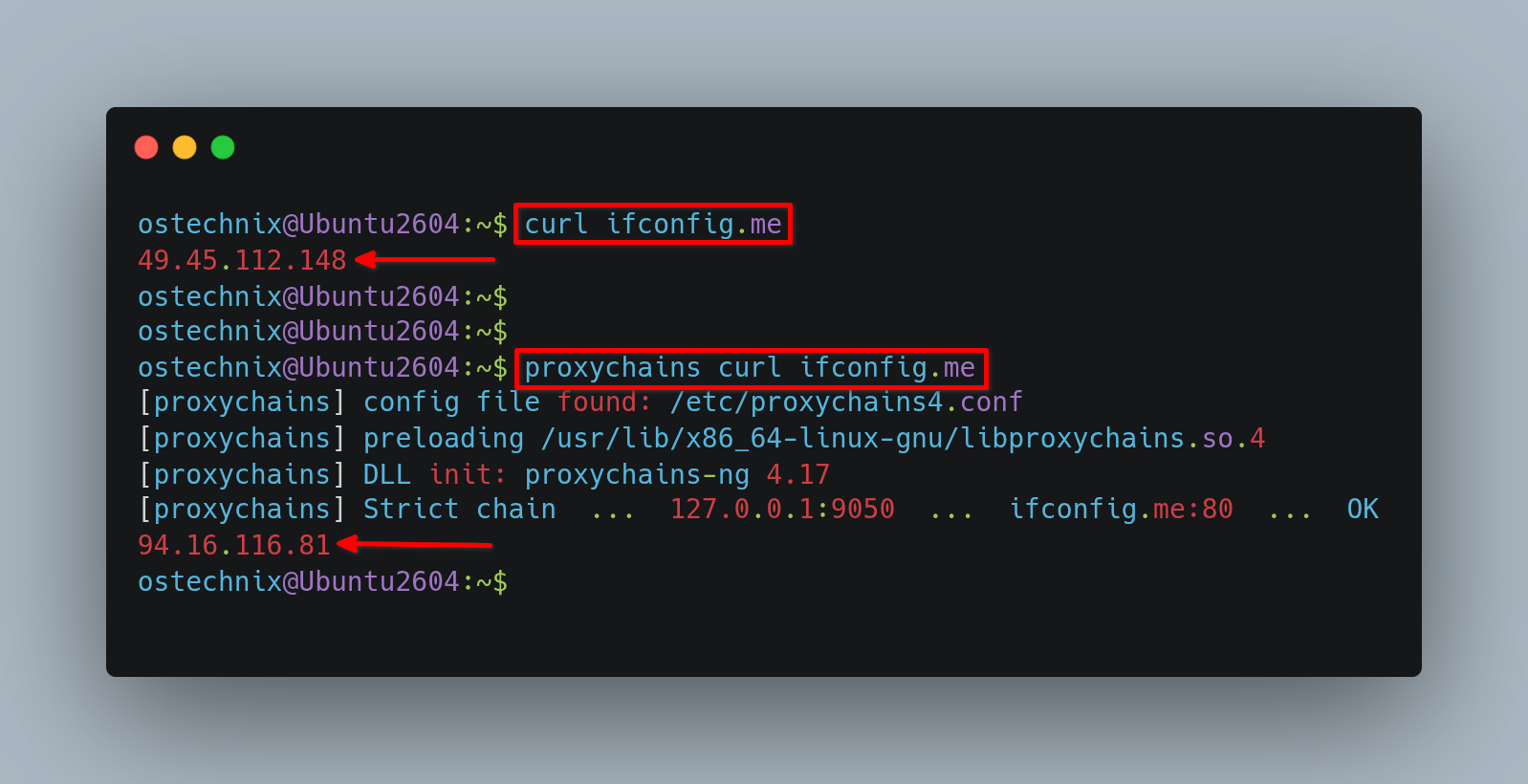
You can also test specifically with the Tor Project's checker:
proxychains curl https://check.torproject.org
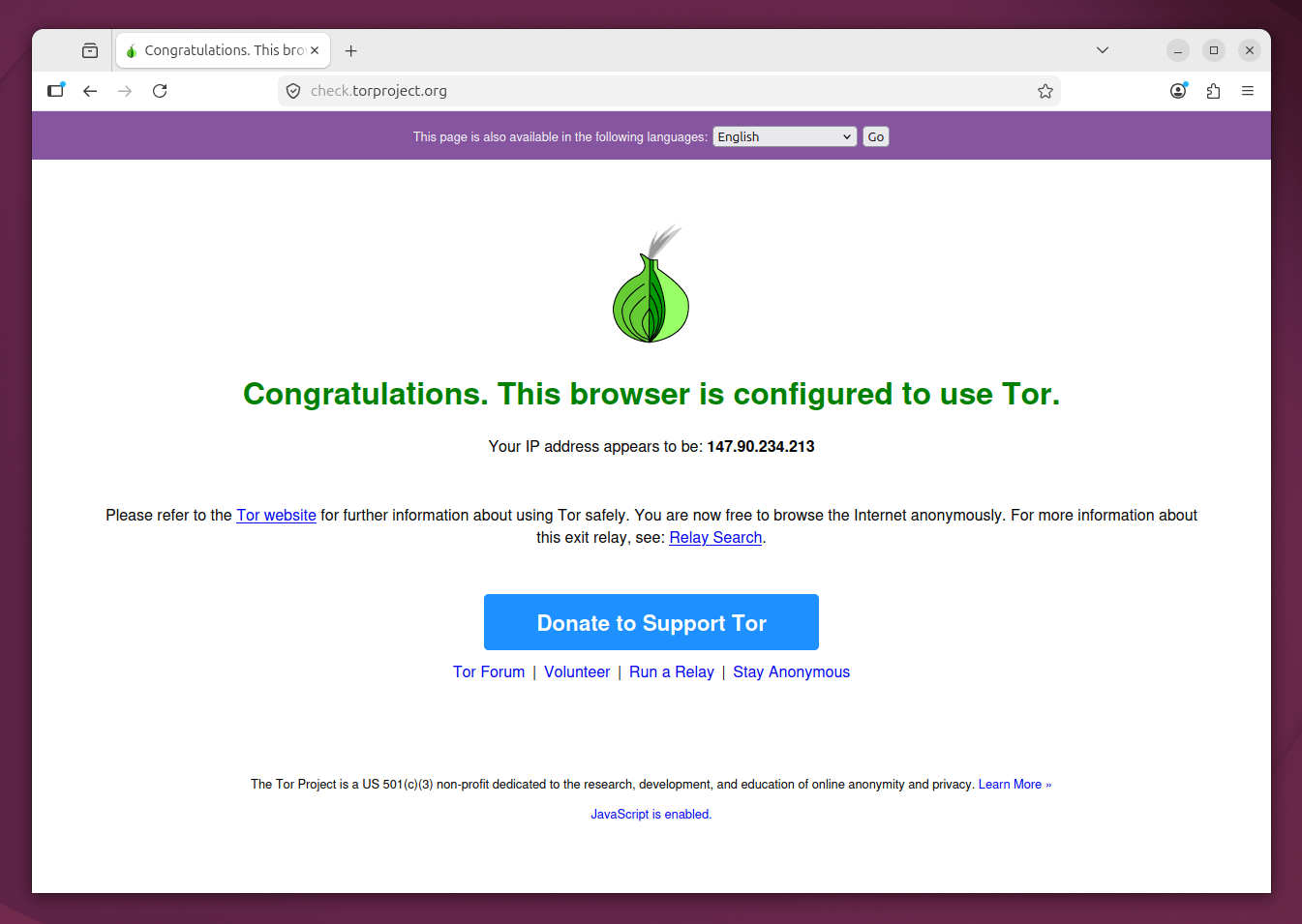
If everything is set up correctly, you should see a message saying "Congratulations. This browser is configured to use Tor."
Using ProxyChains with Command-Line Applications
Using ProxyChains is quite simple. Just prepend proxychains to any command:
# Downloading files
proxychains wget http://example.com/file.zip

# Network scanning with nmap
proxychains nmap -sT -Pn target.com

# SSH connections
proxychains ssh user@server.com
For network scanning tools like nmap, remember to use the -sT (TCP connect) flag, as SYN scans (-sS) use raw sockets and don't work through ProxyChains.
Using Firefox with Tor (Important Note)
You might be tempted to run Firefox with proxychains firefox. However, this approach doesn't work reliably because modern Firefox loads its networking code through dlopen()'d modules (like libxul), which don't inherit the LD_PRELOAD hooks that ProxyChains depends on. The official ProxyChains documentation explicitly notes this as a known limitation.
Here's the proper way to route Firefox through Tor:
Step 1: Confirm Tor is Running
sudo systemctl status tor
If it's not running, start it with:
sudo systemctl start tor
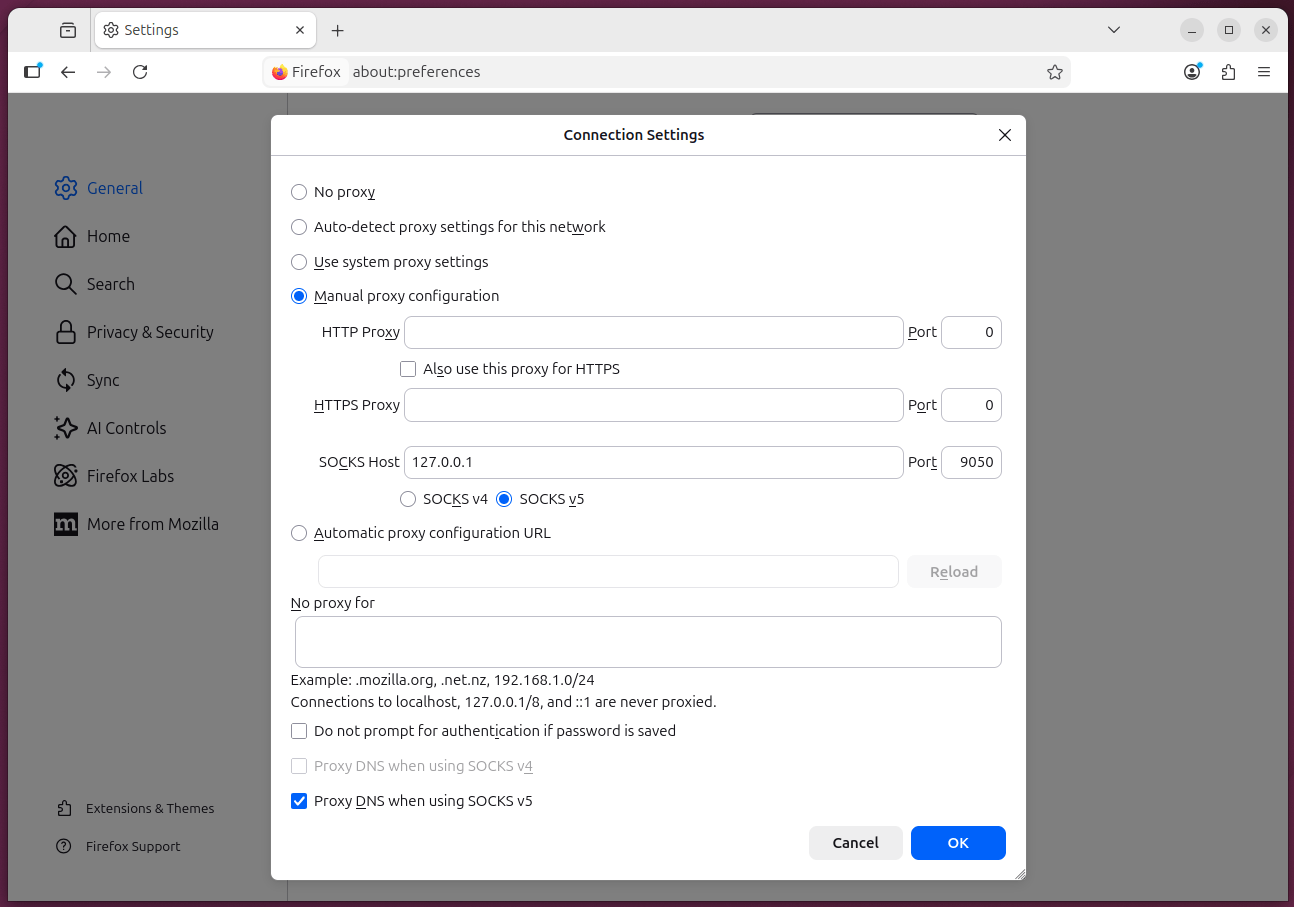
Step 2: Configure Firefox Manually
Open Firefox and follow these steps:
- Click on the menu button (three horizontal lines) in the top-right corner.
- Select Settings (or Preferences on some systems).
- Scroll down to the Proxy Settings section and click the Configure Proxy button.
- In the dialog that appears, select Manual proxy configuration.
- In the SOCKS Host field, enter
127.0.0.1and the Port9050. - Select SOCKS v5 as the SOCKS version.
- Most importantly, check the box that says Proxy DNS when using SOCKS v5. This prevents DNS leaks.
Step 3: Verify the Configuration (Optional)
For advanced verification, type about:config in the Firefox address bar and accept the warning. Search for these settings and confirm they match:
network.proxy.typeshould be1(Manual proxy configuration)network.proxy.socksshould be127.0.0.1network.proxy.socks_portshould be9050network.proxy.socks_versionshould be5network.proxy.socks_remote_dnsshould betrue
Step 4: Test Your Setup
Navigate to https://check.torproject.org/ in Firefox. If configured correctly, the page will display "Congratulations. This browser is configured to use Tor."
This manual configuration approach is much more reliable than using proxychains with Firefox. Your proxychains setup still works perfectly for command-line tools like curl, wget, and nmap.
Considering a Commercial Proxy (Optional)
The default Tor proxy is free and works well for privacy-focused tasks. However, the Tor network can be slower than regular proxies, and some websites block or limit connections from Tor exit nodes.
If you need faster speeds, a stable connection, or a dedicated IP address, you can replace the Tor entry in your ProxyList with a SOCKS5 or HTTP proxy from a commercial provider. Depending on the provider and proxy type, these services may offer better performance and may be less likely to encounter blocks than Tor.
For example, providers such as Proxy-Seller offer HTTP, HTTPS, and SOCKS5 proxies that work with Proxychains. Regardless of which provider you choose, compare features such as proxy type, server locations, authentication methods, uptime, and pricing before making a purchase. It's also a good idea to test the service and read independent reviews to ensure it meets your needs.
The Difference Between SOCKS4 and SOCKS5
When setting up proxies, you'll encounter both SOCKS4 and SOCKS5. Here's why SOCKS5 is generally preferred:
| Feature | SOCKS4 | SOCKS5 |
|---|---|---|
| Protocol support | TCP only | TCP and UDP* |
| DNS handling | No DNS proxy (plain SOCKS4; the SOCKS4a extension used by ProxyChains adds hostname forwarding) | Can proxy DNS requests |
| Authentication | None | Username/password support |
| IPv6 support | No | Yes |
| Security | Lower | Higher |
*SOCKS5 supports UDP at the protocol level, but ProxyChains routes TCP connections only, regardless of which proxy type is configured. The UDP capability of SOCKS5 is not accessible through ProxyChains.
SOCKS5 is preferred with ProxyChains primarily because it supports full proxy-side DNS resolution (used by the proxy_dns directive), authentication, and IPv6 addressing.
How Does ProxyChains Compare to a VPN?
You might wonder why you'd use ProxyChains when a VPN seems simpler. Both tools enhance anonymity, but they work very differently.
A VPN creates a system-wide encrypted tunnel that routes all your internet traffic through its server. It's an all-or-nothing approach that provides strong encryption and good speed. However, you must trust your VPN provider not to log your activity.
ProxyChains works at the application level. It forces only specific programs (like curl or nmap) through a chain of proxies, while other applications remain unaffected. This gives you fine-grained control but offers no encryption by itself. Your anonymity depends entirely on the proxies you use.
Speed-wise, a modern VPN is typically much faster because it uses optimized protocols like WireGuard. ProxyChains can be noticeably slower, especially if you chain multiple proxies or use the Tor network, which bounces traffic through several nodes worldwide.
In short: Use a VPN when you want fast, encrypted protection for everything. Use ProxyChains when you need to route specific tools through a custom proxy chain, such as for OSINT research or penetration testing.
Advanced Configuration Tips
Using Multiple Proxies in a Chain
You can chain multiple proxies for extra anonymity. Keep in mind that adding more proxies increases anonymity but reduces speed and increases the chance of connection failures. Add them all to the [ProxyList] section:
[ProxyList]
socks5 192.168.1.10 1080
http 192.168.1.20 8080
socks5 192.168.1.30 1080
Adding Proxies with Authentication
If your proxies require authentication, include the username and password:
socks5 proxy.example.com 1080 username password
Excluding Local Networks
You can exclude specific IP ranges from being proxied using the localnet directive:
localnet 127.0.0.0/255.0.0.0
localnet 192.168.0.0/255.255.0.0
Troubleshooting ProxyChains Issues
If things aren't working, try these steps:
- Check Tor status:
sudo systemctl status tor - Use verbose mode:
proxychains curl -v https://check.torproject.org - Verify your proxy list: Make sure addresses and ports are correct
- Restart Tor:
sudo systemctl restart tor - Check the configuration file path: Run
proxychains4 --helpto see which config file is being used - For Firefox issues: Remember that Firefox needs manual proxy configuration, not
proxychains, due to its use of dynamically loaded modules that bypass LD_PRELOAD hooks
Frequently Asked Questions (FAQ)
A: Yes. Proxychains is open-source software and free to use.
A: Yes. Proxychains supports SOCKS4, SOCKS5, and HTTP proxies.
A: Yes. Simply prepend the command with Proxychains:proxychains ssh user@host
A: No. It works primarily with applications that use TCP connections.
A: A VPN routes traffic at the system or network level. Proxychains routes specific application traffic through configured proxies.
Conclusion
ProxyChains is a powerful tool for anonymous network routing. It gives you fine-grained control over which applications use proxies. However, remember that it handles TCP traffic only and does not encrypt your data. For complete privacy, always combine it with encryption (like Tor or a VPN).
The beauty of ProxyChains is its simplicity. Once configured, any command-line tool becomes proxy-aware with just a few extra characters. Combined with a reliable proxy source like Tor, it provides a solid foundation for anonymous browsing and network testing.
Remember: always use these tools ethically and responsibly. ProxyChains is a powerful networking tool. You should use it to protect your anonymity, not to violate others'.
Have questions or run into issues? Drop a comment below and we'll help you troubleshoot your setup!
Related Read:
