
As a Network administrator, you need to know what your network is doing right now. Real-time network monitoring helps you catch spikes, anomalies, misbehaving processes, or unwanted connections as they occur. There are many real-time networking monitoring tools exist. Recently I came across a promising tool named RustNet.
RustNet is a terminal-based monitoring tool built with Rust. It gives live visibility into network connections: which process initiated them, in what state they are, and how much data they're transferring.
In this guide, we will learn What exactly RustNet is, and how to Install it in Linux, and how to monitor your Network using RustNet.
Table of Contents
What is RustNet?
RustNet is a cross-platform network monitoring terminal UI tool built with Rust. The primary goal of RustNet is to provide real-time visibility into network connections with detailed state information.
RustNet runs in a terminal window, making it suitable for environments where graphical tools like Wireshark are impractical, particularly on servers.
It supports various platforms including Linux, macOS, and Windows. On a Linux machine, it can be installed via Rust's Cargo package manager or Docker. For Fedora users, it is available via a COPR repository.
It is an open-source project available on GitHub. The project is licensed under the Apache License, Version 2.0.
Key Features of RustNet
1. Real-time Monitoring and Connection Tracking
RustNet monitors active TCP, UDP, ICMP, and ARP connections. It displays specific connection statuses, including detailed states for different protocols:
- TCP States:
ESTABLISHED,SYN_SENT,TIME_WAIT,CLOSED, and others. - QUIC States:
QUIC_INITIAL,QUIC_HANDSHAKE,QUIC_CONNECTED, andQUIC_DRAINING. - DNS States:
DNS_QUERY, andDNS_RESPONSE. - SSH States:
BANNER,KEYEXCHANGE,AUTHENTICATION, andESTABLISHED(for the SSH protocol).
2. Deep Packet Inspection (DPI)
The tool detects application protocols by inspecting packet content:
- It identifies HTTP connections, including host information.
- It detects HTTPS/TLS connections, displaying the Server Name Indication (SNI).
- It tracks DNS queries and responses.
- It provides tracking for SSH connections, including version detection and connection state.
- It monitors the QUIC protocol, specifically detecting the
CONNECTION_CLOSEframe and checking RFC 9000 compliance. DPI can be optionally disabled using the--no-dpicommand-line option to achieve lower overhead.
3. Process Identification
An important capability of RustNet is the ability to associate network connections with running processes on the system.
- On Linux, it offers experimental eBPF support for enhanced performance and lower overhead in process identification.
- When eBPF is not available or fails, RustNet falls back to standard platform-specific methods (like reading
/procfiles on Linux or usinglsofor PKTAP on macOS). - The TUI displays which process detection method is currently active.
4. Terminal User Interface (TUI) and Interactivity
RustNet utilizes the ratatui framework to provide an advanced terminal interface:
- Advanced Filtering: Users can filter connections in real-time using vim/fzf-style fuzzy search across all fields, including DPI data. Keyword filters are supported (e.g.,
port:44,process:firefox,sni:github.com,state:established). - Sorting: Connections can be sorted by various columns, including Protocol, Remote Address, State, Process, and Bandwidth (download or upload).
- Visual Indicators: Connections change color based on their approaching timeout: Yellow indicates 75–90% of the timeout reached (stale), and Red indicates over 90% (critical, removal is imminent).
5. Architecture and Requirements
RustNet uses a multi-threaded architecture with key components like a Packet Capture Thread (using libpcap), Packet Processors, Process Enrichment, and a Cleanup Thread.
Due to the need for packet capture, RustNet requires elevated privileges (like sudo) on most systems.
On Linux, specific network capabilities (CAP_NET_RAW and CAP_NET_ADMIN) can be granted to the binary to allow running without full root access.
Install RustNet in Linux
Make sure you have the following prerequisites:
- RustNet is cross-platform tool, so you need a system running Linux, macOS, or Windows.
- A working Rust toolchain (i.e.
rustcandcargo) - Permissions to capture / inspect network traffic (often root / administrator or equivalent)
Installing Rust
If you haven’t installed Rust yet, run:
curl --proto '=https' --tlsv1.2 -sSf https://sh.rustup.rs | sh
Follow the prompts. After installation, run:
rustc --version
cargo --version
You should see versions printed.
Installing RustNet
Once Rust is set up, install RustNet via cargo:
cargo install rustnet-monitor
Next run the following command to grant capabilities to run RustNet without sudo:
sudo setcap cap_net_raw,cap_net_admin=eip ~/.cargo/bin/rustnet
If you're using RHEL or Fedora, you can install Rustnet via a COPR repository:
sudo dnf copr enable domcyrus/rustnet
sudo dnf install rustnet
If you're on Arch-based systems, it is available in AUR. You can install it using any AUR helper tools like Paru:
paru -S rustnet
Or Yay:
yay -S rustnet
Alternatively, you can download the RustNet prebuilt binaries from the releases page and install it using your distribution's package manager:
Debian / Ubuntu:
sudo dpkg -i Rustnet_LinuxDEB_amd64.deb
sudo apt-get install -f

# Run with sudo
sudo rustnet

# Optional: Grant capabilities to run without sudo
sudo setcap cap_net_raw,cap_net_admin=eip /usr/bin/rustnet
rustnet
RHEL / Fedora:
sudo dnf install Rustnet_LinuxRPM_x86_64.rpm

# Run with sudo
sudo rustnet

# Optional: Grant capabilities to run without sudo
sudo setcap cap_net_raw,cap_net_admin=eip /usr/bin/rustnet
rustnet
Monitor Network Traffic in Real-time using RustNet
Monitoring live network traffic often requires elevated privileges:
- On Linux, run RustNet with
sudoor ensure your user is part of a group with access to/dev/net/tunor packet capture devices. - On macOS, you might need to allow "full disk access" or grant privileges to packet capture in System Settings.
- On Windows, run as Administrator.
Warning: Running capture tools with elevated privileges can be a security risk. Only use from trusted sources.
For demonstration purpose, I will be running RustNet on a Arch Linux VM.
Launch RustNet using command:
sudo rustnet
If you want to launch it without sudo, run:
sudo setcap cap_net_raw,cap_net_admin=eip $(which rustnet)
Now run the RustNet tool without sudo:
rustnet
This is how RustNet default interface looks like.
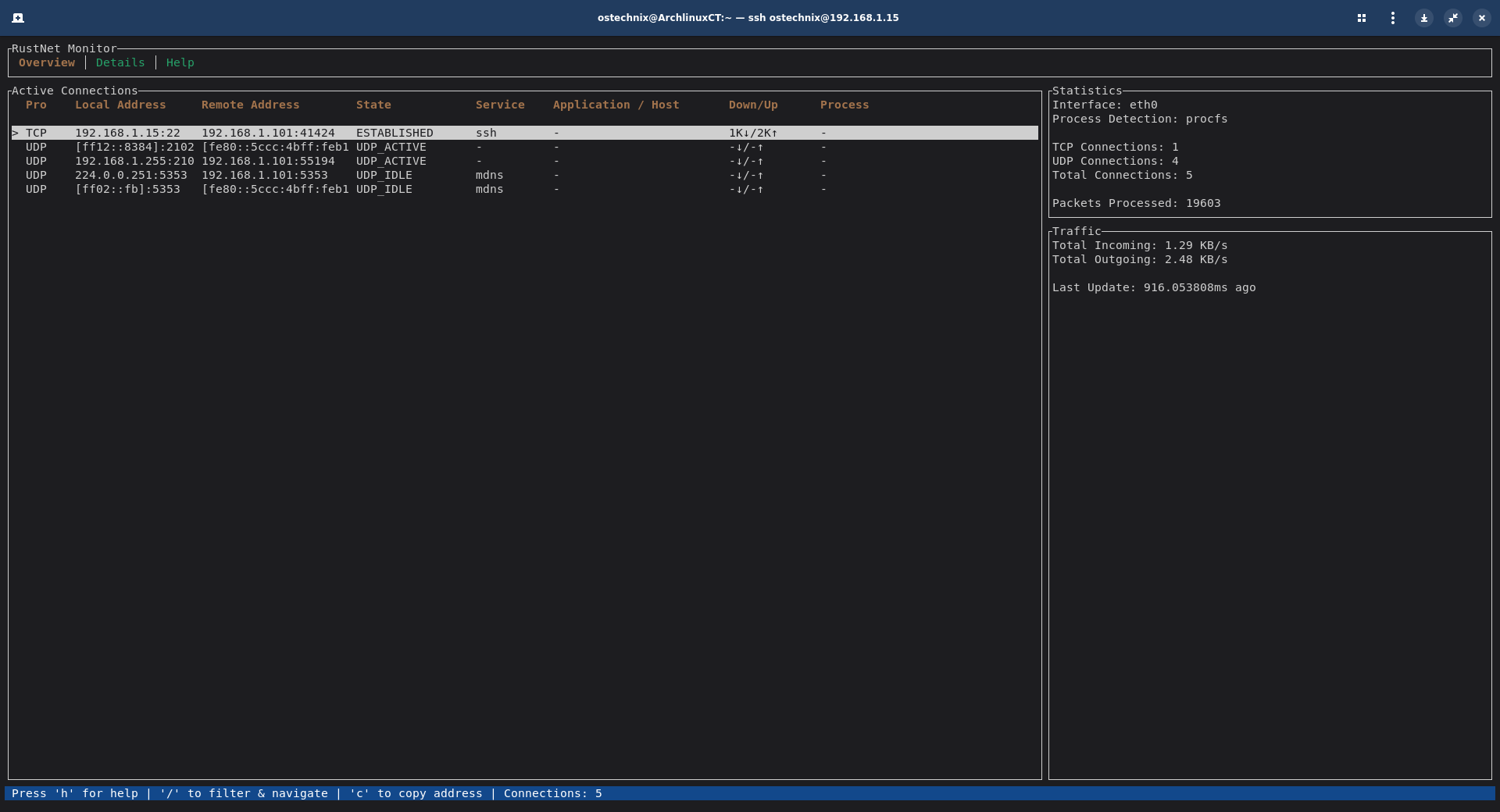
By default, you'll see an Overview view (See the below screenshot). This is the default screen showing active connections.
Overview Section
The Overview screen is divided roughly into:
- Active Connections list: Each row represents an active connection
- Columns: Local Address, Remote Address, State, Service, Application / Host, Down/Up (bytes), Process
- Right panels / sidebars: Summary statistics and traffic overview
- Status / key hints: at bottom, instructions such as "Press ‘h’ for help | ‘/’ to filter & navigate | ‘c’ to copy address | Connections: 3"
A few notes:
- The highlighted row (with
>) is the currently selected connection. - The right side shows interface statistics, processed packets, and total traffic (incoming / outgoing) along with "Last Update" time.
- Initially, the "Service" and "Application / Host" columns may be empty (
-) if RustNet cannot determine them for that connection.
Here's What Each Column / Metric Means:
- Local Address / Port: The local endpoint (your machine).
- Remote Address / Port: The remote peer.
- State: TCP states like ESTABLISHED, LISTEN, CLOSE_WAIT, etc.
- Bytes In / Bytes Out: Amount of data sent/received.
- Process / PID: Which process owns the connection (if available).
Understanding states:
- LISTEN: a service waiting for incoming connections
- ESTABLISHED: active, open connection
- CLOSE_WAIT, FIN_WAIT, etc.: connections in teardown stages
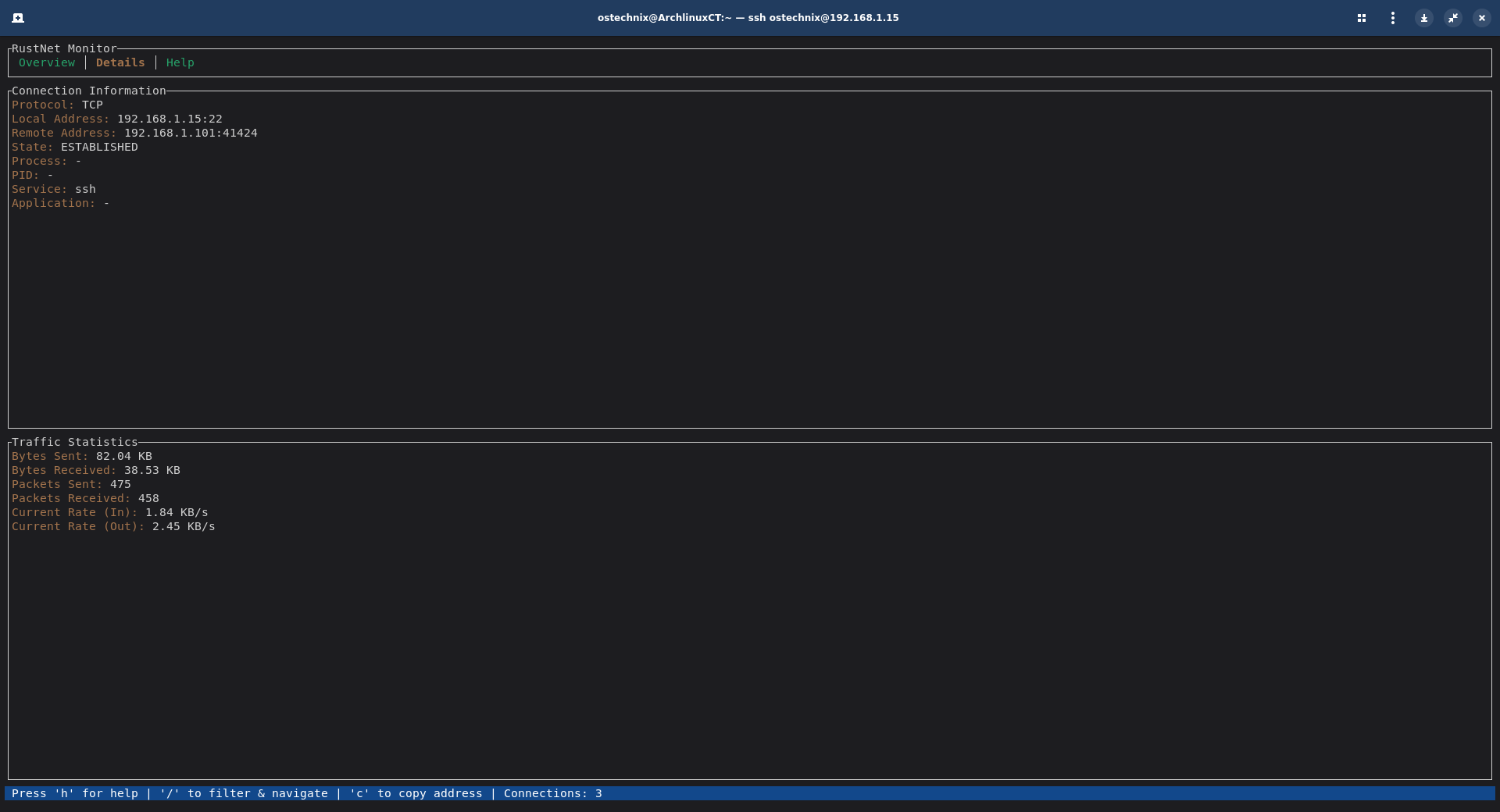
Details / Connection Information View
If you press Enter on a connection, you get this detailed view. It includes:
- Protocol, Local Address, Remote Address
- State (e.g. ESTABLISHED)
- Process name, PID (if available)
- Service name, application (if detected)
- Traffic stats: total bytes sent / received, packets sent / received, current rate
This lets you zoom into a single connection to understand its behavior. Use Esc (or the appropriate key) to return to the overview.
Help / Key Legend View
Pressing h (or tab)toggles the help screen.
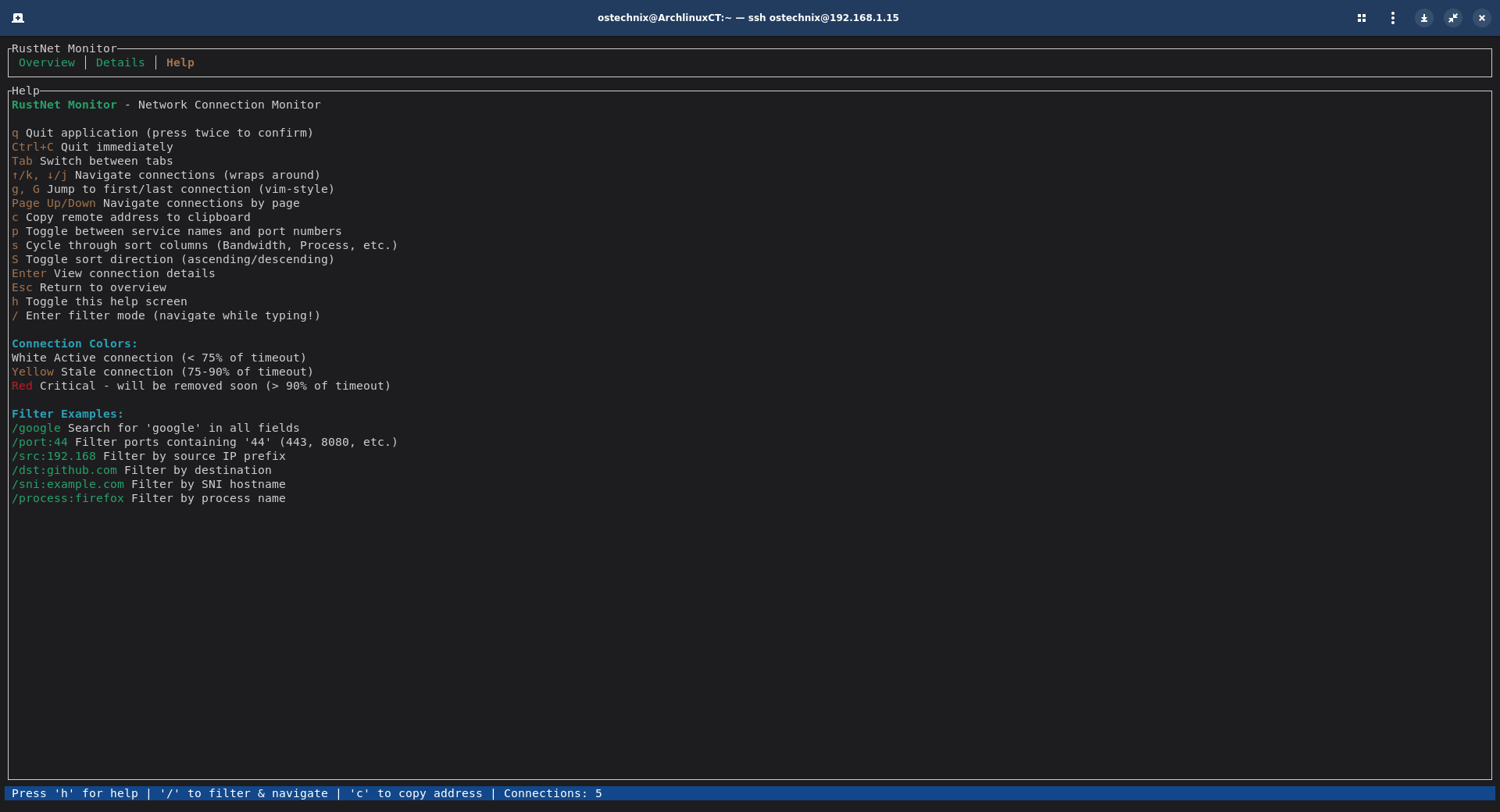
From the above screenshot, you can see:
qquits (with confirmation)Ctrl+Cquits immediatelyTabswitches between tabs (Overview, Details, Help)- Navigation keys:
j,k(or arrow keys) to move up/down ptoggles between showing service names vs port numbersscycles sort columns (Bandwidth, Process, etc.)Stoggles sort directionccopies remote address to clipboard/enters filter mode
The help section will list a few examples of filter syntax. You can use this a quick reference.
/port:44/src:192.168/dst:github.com/process:firefox
RustNet Use Cases
Using RustNet network monitoring tool, you can spot issues in real-time. Here's a few examples of how to use RustNet to spot problems.
1. Traffic Spike Detection
If you see a sudden large increase in bytes out / in one connection:
- Identify the process
- Check remote address
- Confirm whether it's expected (e.g. a backup, file download) or suspicious
2. Suspicious Connections / Unknown Hosts
If a connection shows to an IP/domain you don't recognize:
- Filter to that connection
- Look at the process and time
- Optionally resolve DNS or look up IP reputation
3. Service Monitoring
If you're running a web server:
- Filter for port 80 or 443
- Watch which clients are connecting
- See response size / timing
Conclusion
In this guide, we discussed what RustNet is, and how to install and use RustNet to monitor your network in real-time.
Real-time network monitoring is an important task of a system or network administrator. It lets you see what's happening under the hood, catch anomalies, and understand network behavior as it unfolds. RustNet TUI gives you a lightweight but effective tool to start with.
The best way to learn more about this tool is by using it daily. Try running RustNet on a test system, generate traffic (e.g. open a few browser tabs, transfer files), explore filters, and experiment.
As you get comfortable, you can extend this setup into scripts, alerts, or dashboards.
Resource:

2 comments
To install RustNet do this: cargo install rustnet-monitor followed by sudo setcap cap_net_raw,cap_net_admin=eip ~/.cargo/bin//rustnet after which you can run the application which is called rustnet.
Thanks for pointing it out. Updated the guide now. Appreciate it.