
Windows does not natively support the EXT4 file system, so connecting an EXT4 drive may leave you unable to open its files or even make Windows suggest formatting the disk. This guide explains how to access a healthy Linux EXT4 partition, restore a missing partition, or recover EXT4 individual files when the file system is damaged.
Why Windows Can't Read EXT4 Partitions
EXT4 is a file system commonly used by Linux distributions, but Windows File Explorer does not provide native support for it. Because of this, a healthy EXT4 drive can appear inaccessible on Windows even though there is nothing wrong with the drive or its files.
However, Windows compatibility is not always the only problem. An EXT4 partition can also become inaccessible or disappear because of:
- Deletion: Accidentally deleting a partition removes its entry from the partition table, so the operating system may no longer know where the EXT4 volume begins and ends.
- Damaged partition table: Partition table corruption can prevent the computer from locating an existing EXT4 partition even when much of its data is still present on the disk.
- System crash or power loss: An unexpected shutdown during a write operation can damage EXT4 metadata or partition information and leave the volume inaccessible.
The important part is to determine whether the EXT4 partition is simply unreadable in Windows, completely missing, or damaged. Each situation requires a different approach.
Before You Start
Before you try to access or recover the EXT4 drive:
- Don't format the drive: Formatting creates a new file system structure and can overwrite information that recovery tools may need to locate the original files.
- Don't write new data to it: Avoid copying files to the drive, creating partitions, or making other changes because new data can overwrite files that are still recoverable.
- Prepare another drive for recovery: Connect or prepare a separate healthy disk with enough free space to store the files you copy or recover from the EXT4 drive.
Method 1: Access Healthy EXT4 Data With a Linux Reader
If the EXT4 partition is healthy and Windows simply cannot open it, use an EXT4-compatible reader. DiskInternals Linux Reader provides a graphical interface and read-only access to Linux file systems. Ext2Fsd and WSL2 are other options for working with Linux-formatted storage on Windows.
To access EXT4 partition in Windows with DiskInternals Linux Reader, follow these steps:
1. Connect the EXT4 drive to your Windows PC and wait for Windows to detect the physical device. If Windows asks you to format the disk, close the prompt without formatting it.
2. Download DiskInternals Linux Reader from its official website, install it on your PC, and launch the program.
3. Find the EXT4 partition in the list of detected storage devices and check its size to make sure you select the correct volume.
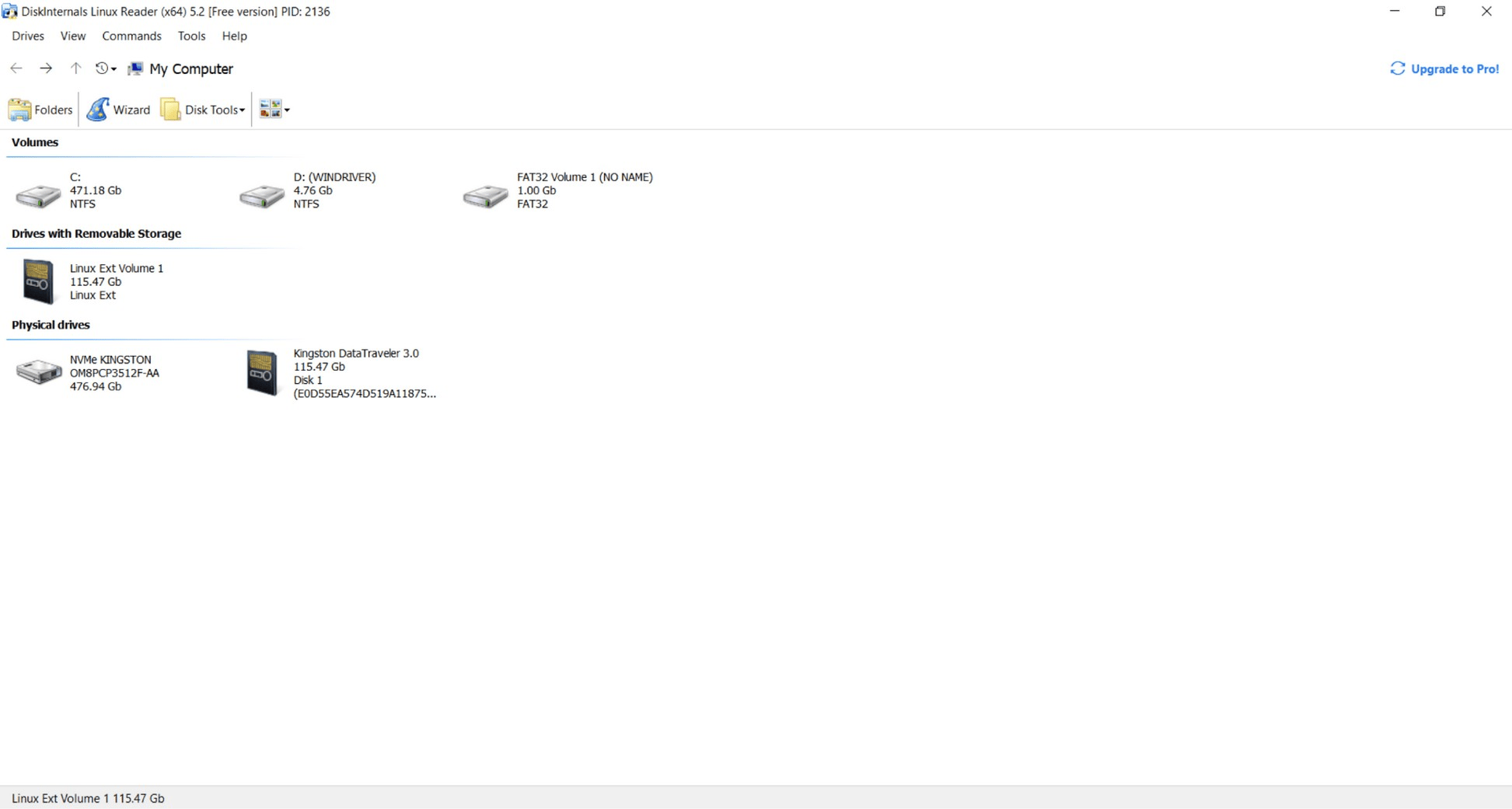
4. Double-click the EXT4 partition and browse through its folders until you find the files you need.
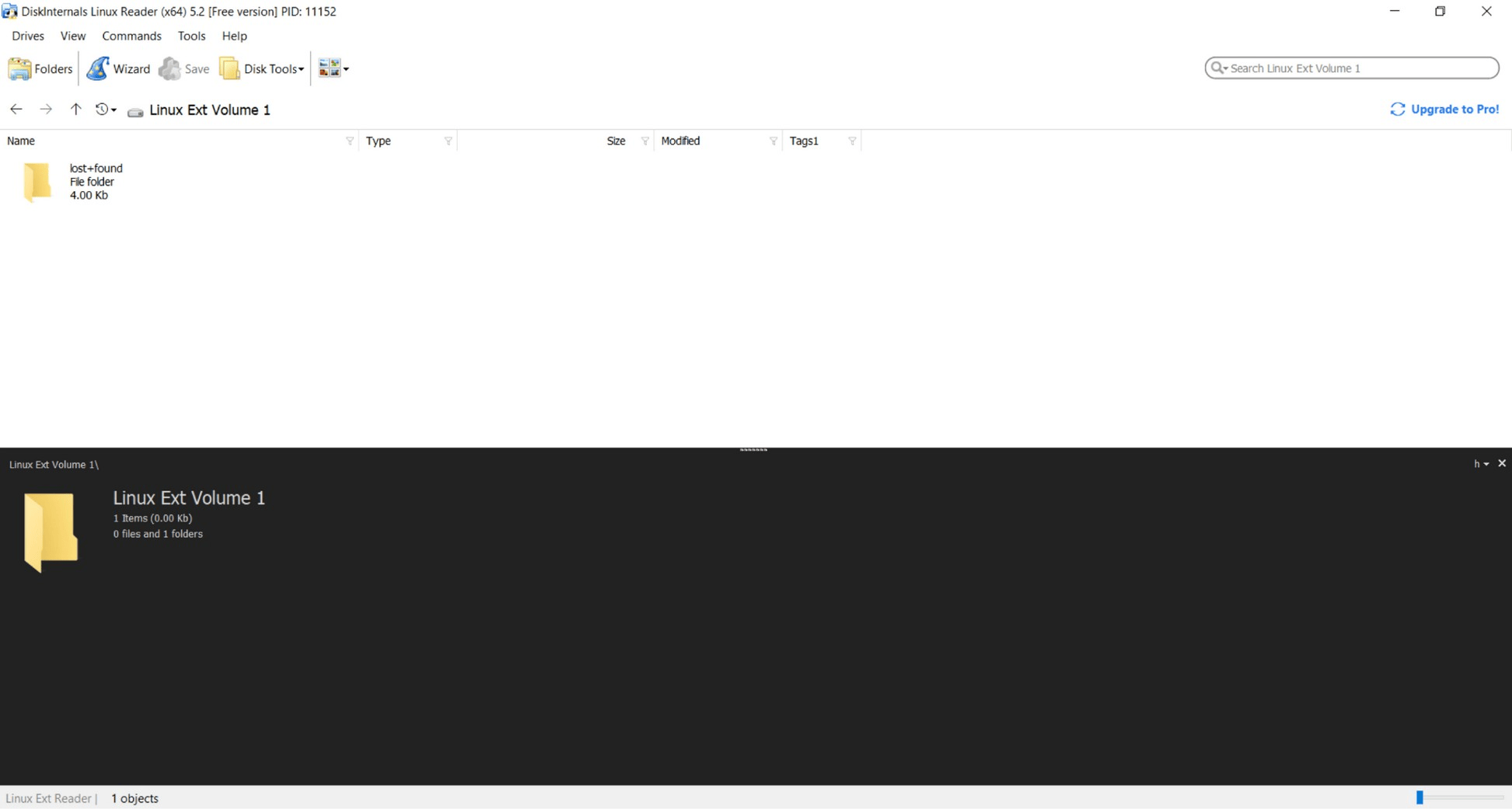
5. Select the required files or folders and use the available save option to export them from the EXT4 partition.
6. Choose your Windows system drive or another healthy external disk as the destination and start copying the files.
7. Open the destination folder in File Explorer and check several files to make sure they copied correctly.
If Linux Reader cannot find the partition, try TestDisk. If it finds the partition but cannot access the files correctly, use EXT4 file recovery software.
Method 2: Recover a Lost EXT4 Partition With TestDisk
If the EXT4 partition was deleted or disappeared because of partition table damage, TestDisk can search the physical disk for the missing partition and restore its entry. TestDisk is free and open source.
Warning: Be careful when using TestDisk to restore a partition. Selecting the wrong partition or writing incorrect partition information can make the situation worse and may affect access to your data. If only the partition entry is missing, you can proceed with this method. However, if you also need to recover files from the partition, recover them first using the next method or create a disk image before making changes to the original drive.
To restore EXT4 partition with TestDisk, follow these steps:
1. Download TestDisk from the official website, extract the archive, open the extracted folder, and launch testdisk_win.exe.
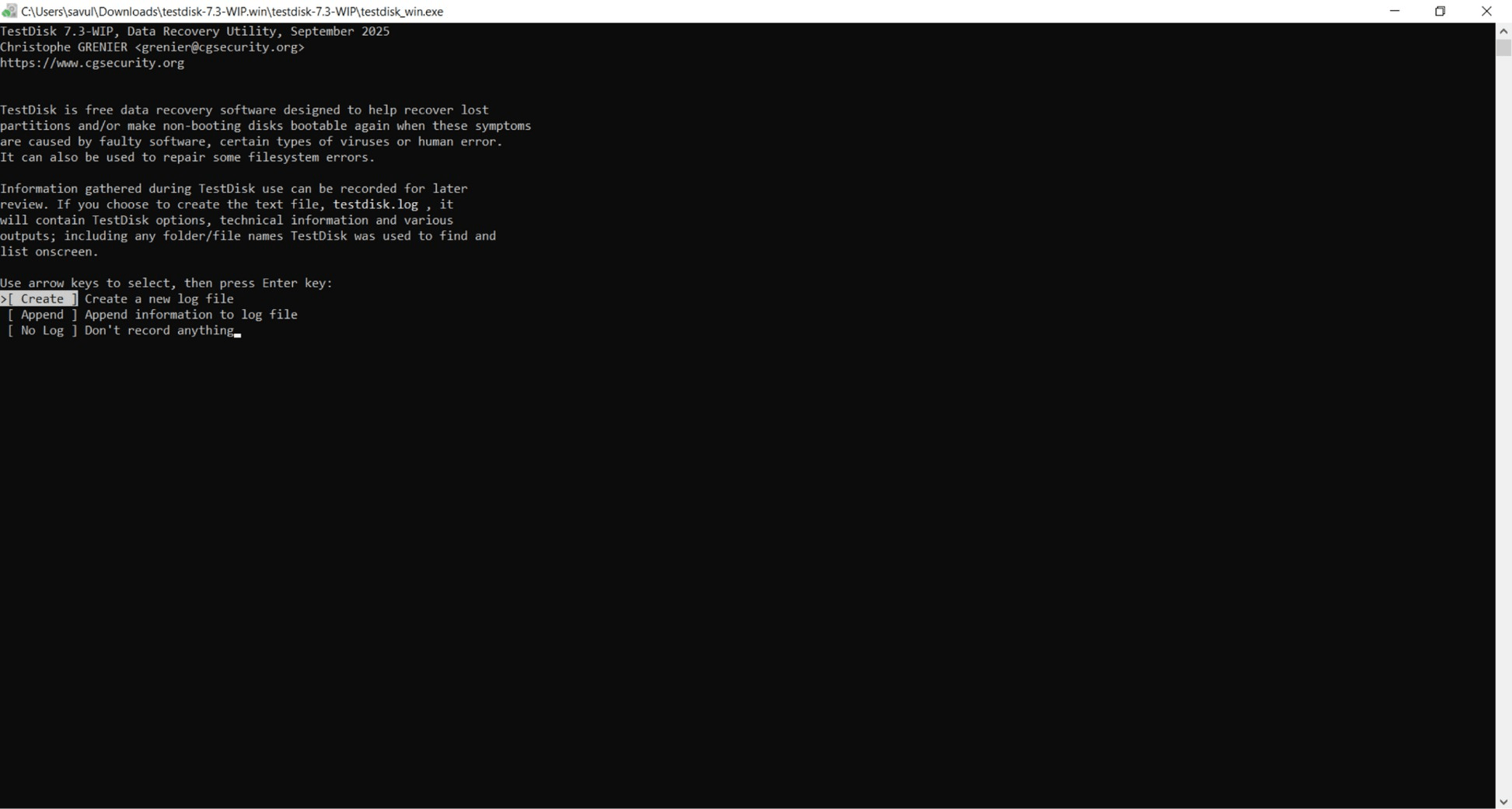
2. Use the arrow keys to select Create and press Enter to create a log file for the recovery session.
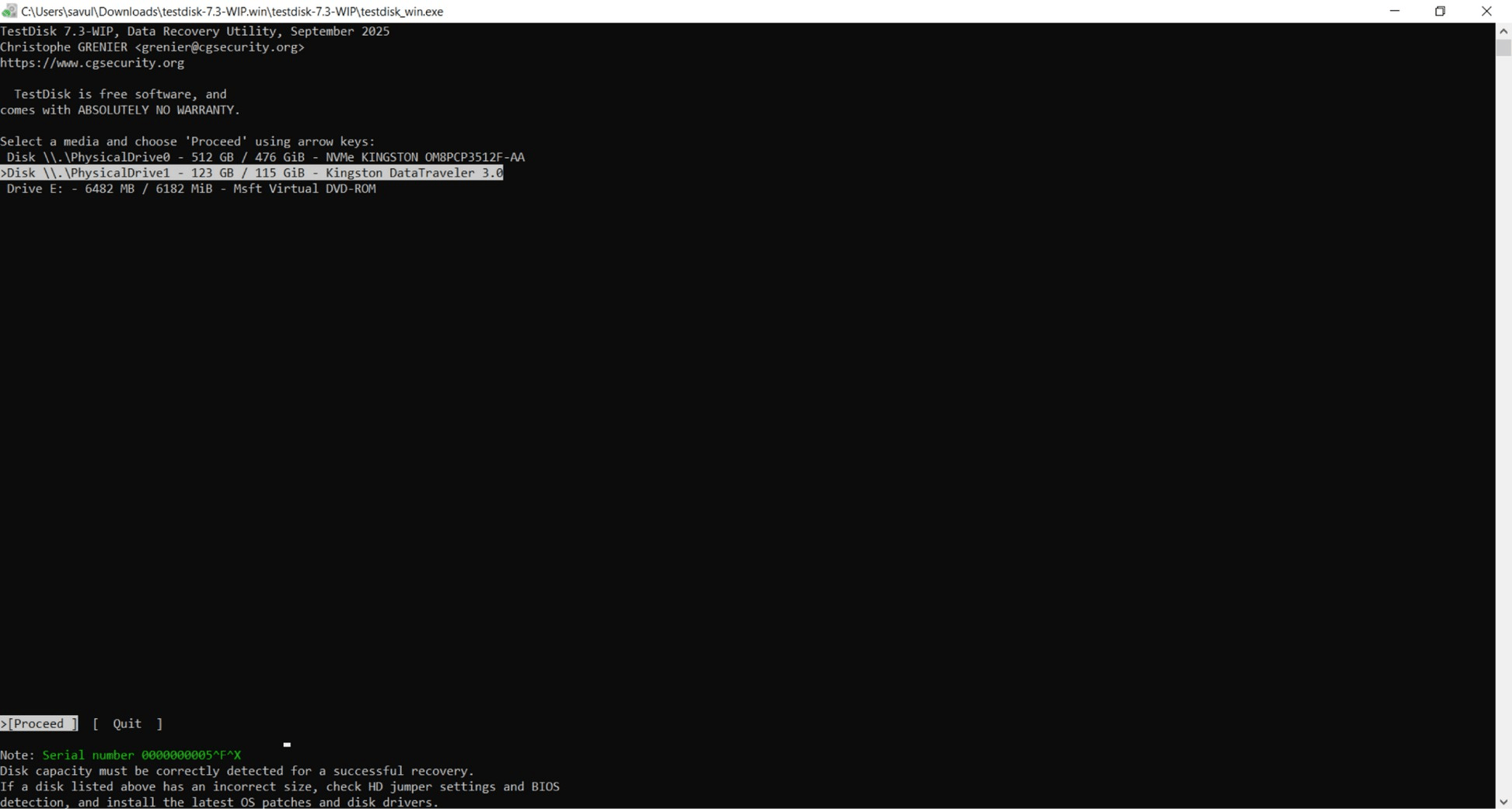
3. Select the physical disk that contains your EXT4 partition. Compare the displayed capacities to identify the correct drive and press Enter.
4. Leave the partition table type automatically suggested by TestDisk selected and press Enter unless you know the drive uses another type.
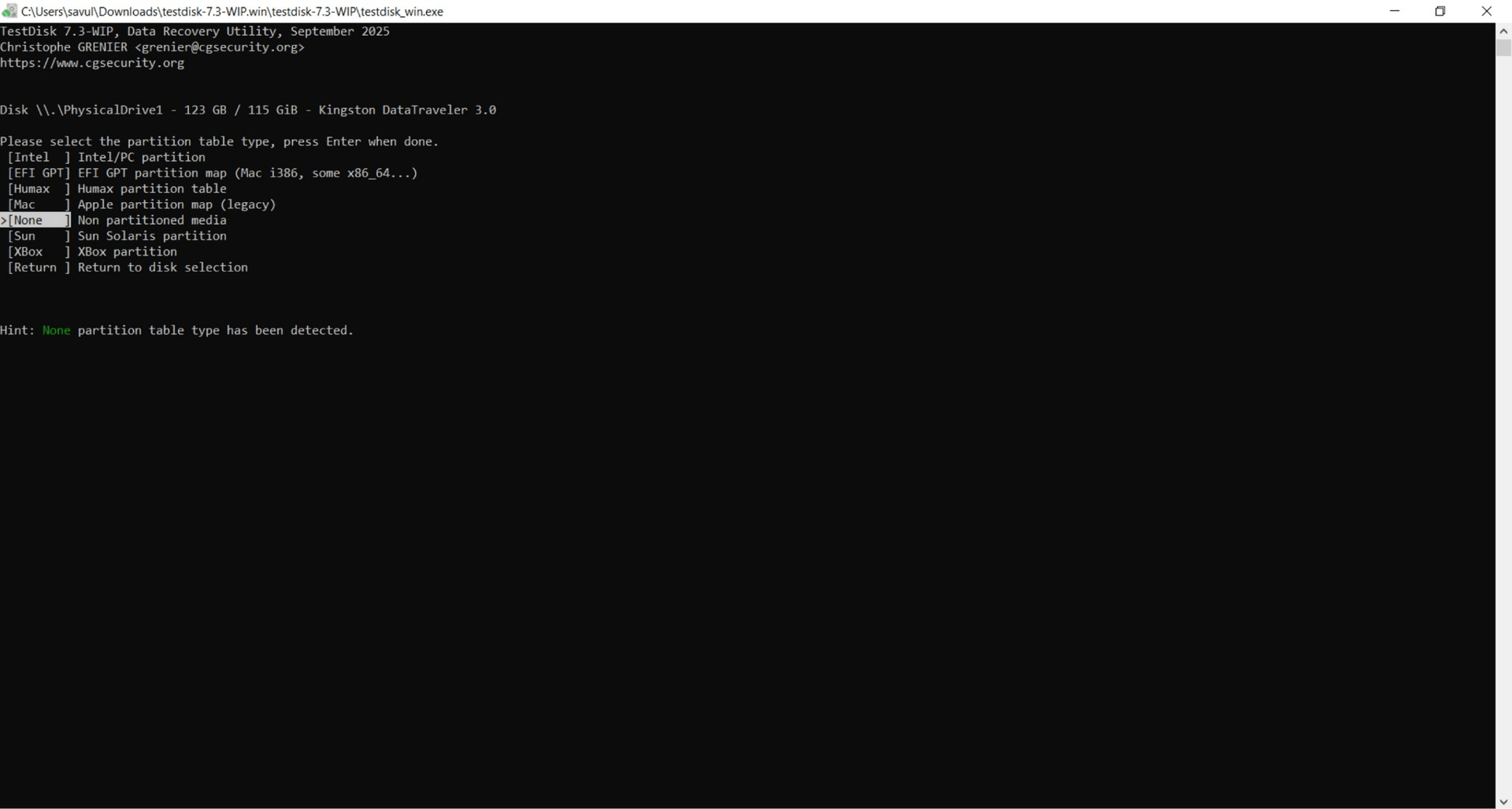
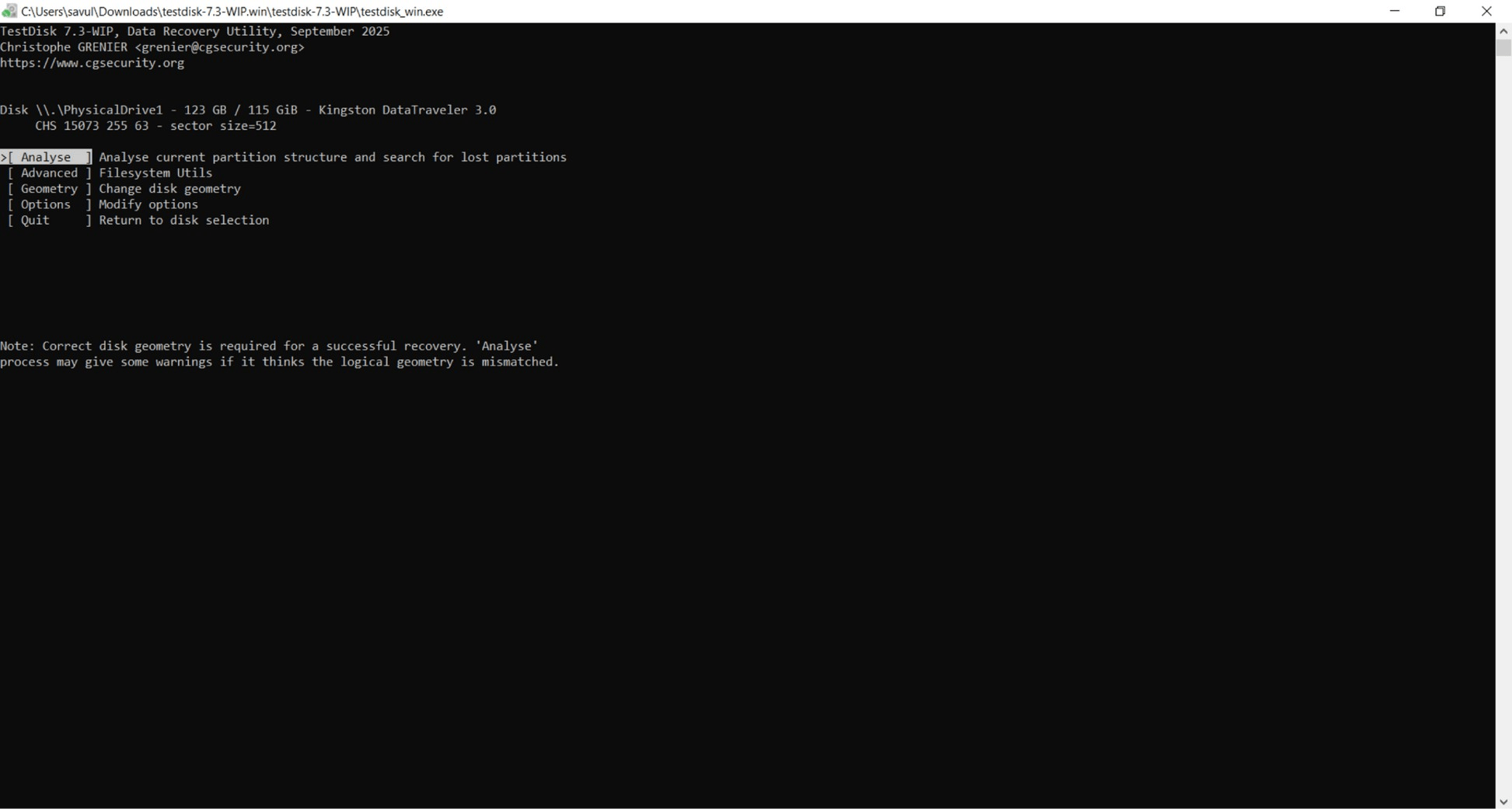
5. Select Analyse, press Enter.
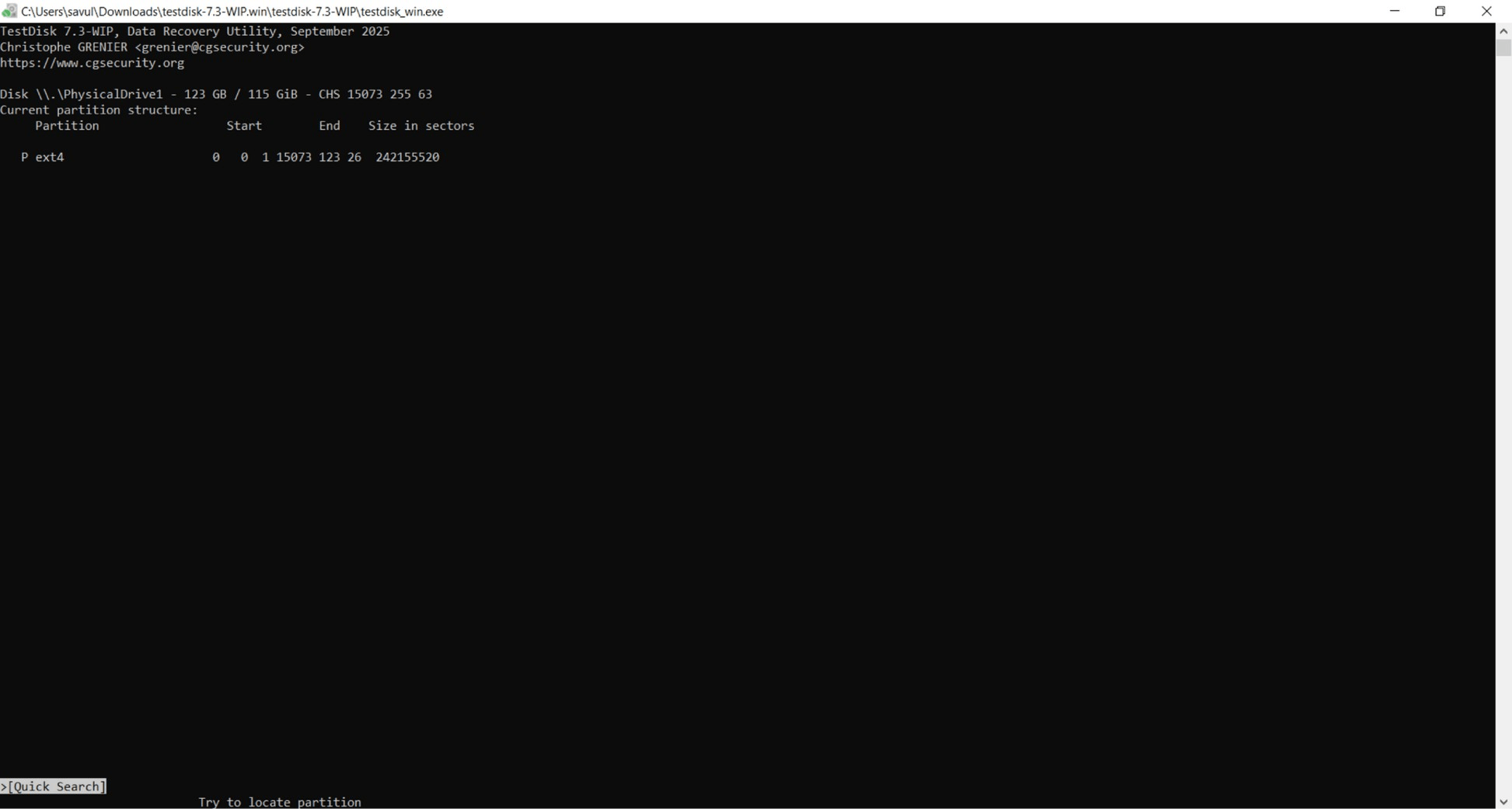
6. Choose Quick Search to search the disk for missing partitions.
7. Wait for the scan to finish, then highlight the EXT4 partition that matches the size and position of your missing volume.
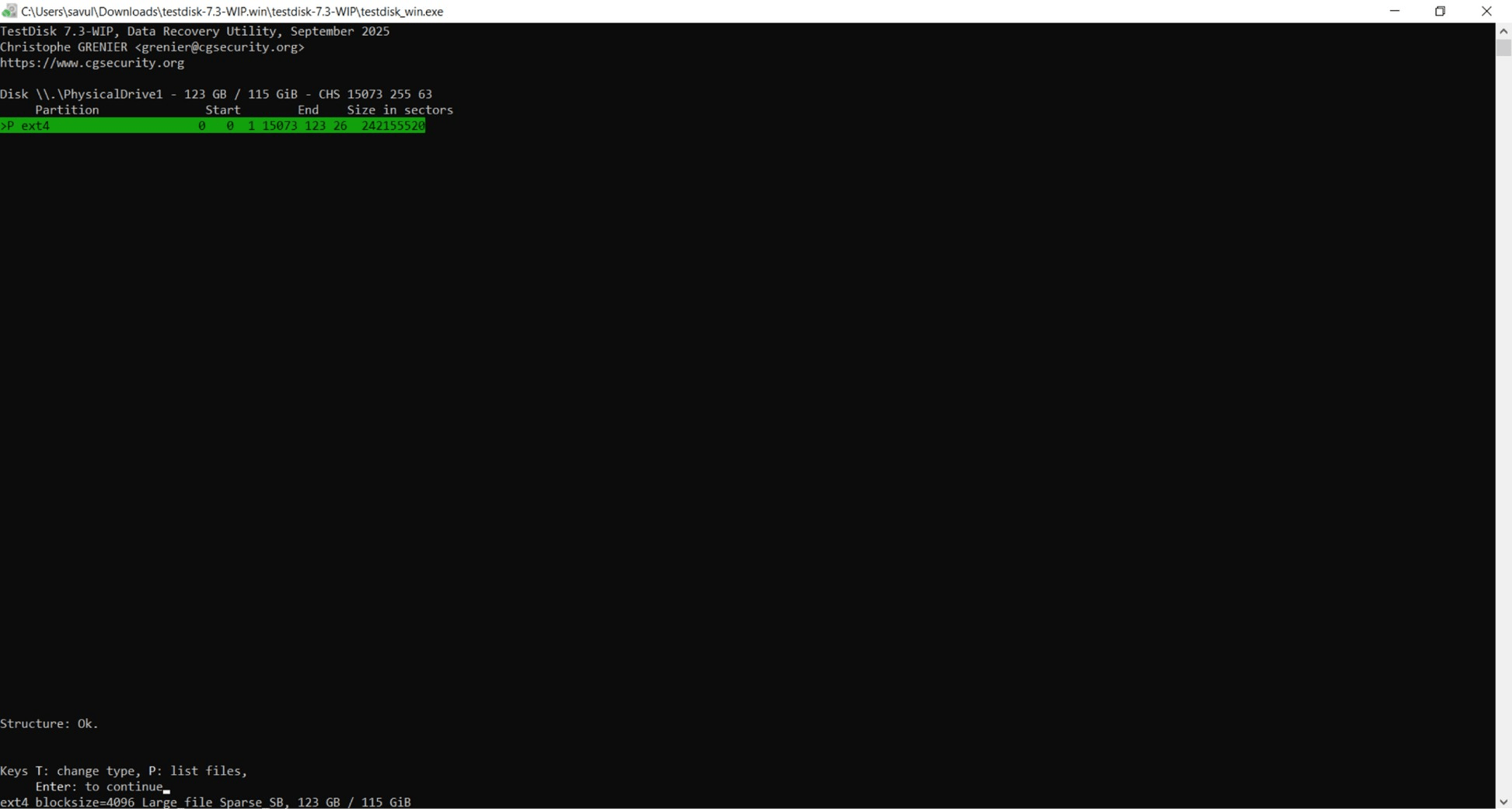
8. Press P to view the files inside the selected partition and check whether the original folders and files are present.
9. Press Q to return to the results. If Quick Search does not find the correct partition, select Deeper Search and let TestDisk perform a more thorough scan.
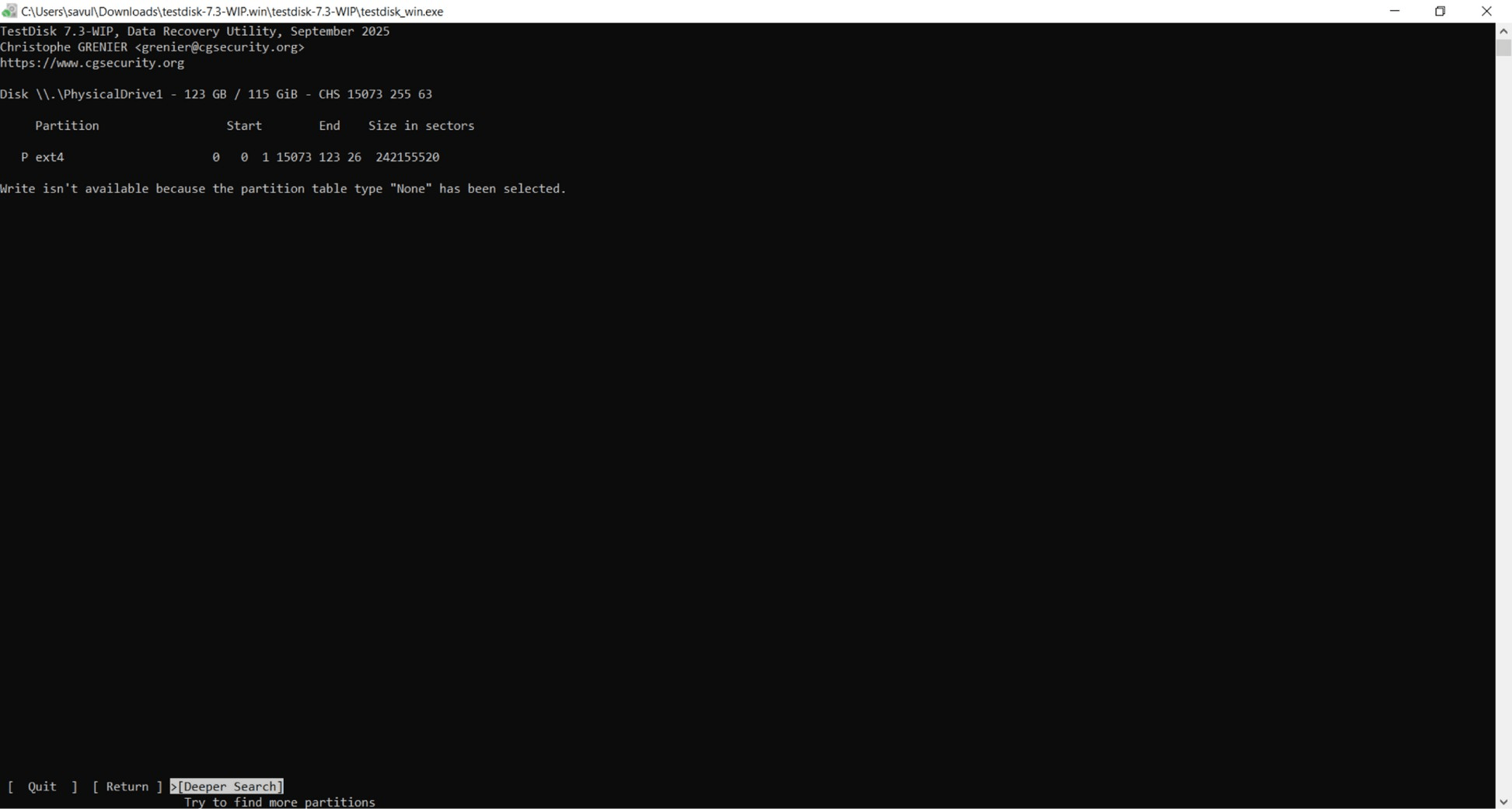
10. Highlight the correct partition, verify its files again, continue to the next screen, select Write, and confirm the operation to restore the partition entry.
11. Close TestDisk and restart your PC or reconnect the drive so the updated partition table can be detected.
Restoring the partition does not make Windows support EXT4. You may still need a Linux reader to access the restored volume. If TestDisk cannot find the correct partition or its files, move to partition EXT4 data recovery instead.
Method 3: Use Professional Windows Data Recovery Software
If the EXT4 file system is too damaged to restore, TestDisk cannot find a usable partition, or you only need particular files, the most reliable option is specialized windows data recovery software.
For the purpose of this guide, we will be using Disk Drill, as it has a good reputation among Windows users. Disk Drill is data recovery software for Windows with a simple interface and good recovery performance.
Disk Drill supports EXT4 and can scan a physical storage device when the original partition is damaged or missing. It also provides filters and file previews to help you check the results before recovery. Keep in mind that the free version has limits on how much data you can recover. You can recover up to 100 MB for free to see how well Disk Drill works.
To recover data from EXT4 partition on Windows with Disk Drill:
1. Download Disk Drill from the official CleverFiles website and install it on your Windows system drive or another healthy disk. Do not install it on the affected EXT4 drive because new data can overwrite recoverable files.
2. Connect the EXT4 drive to your PC and close any Windows prompt that asks you to format it.
3. Launch Disk Drill, find the affected storage device in the drive list, and check its name and capacity to make sure you select the correct physical disk.
4. Select the entire physical drive and click Search for lost data.
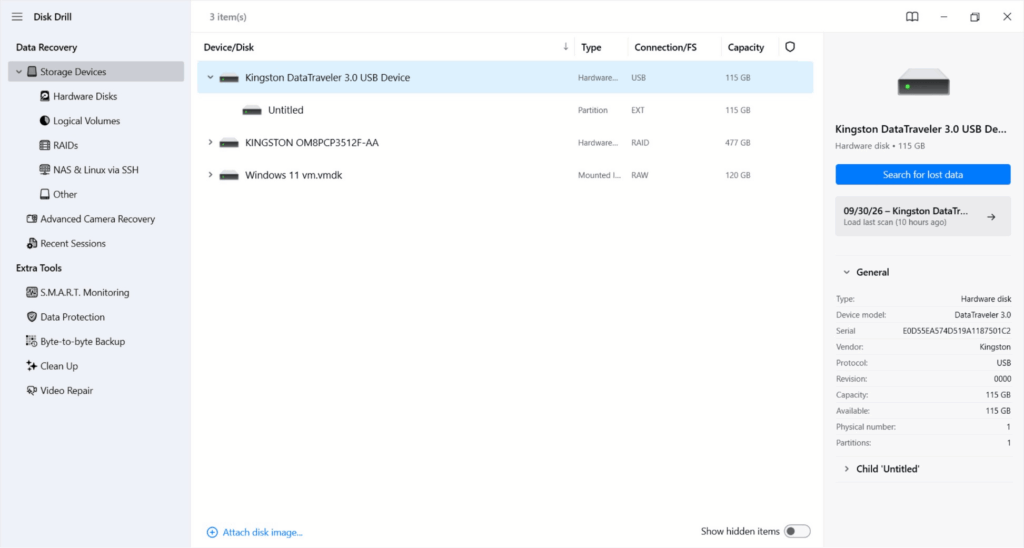
5. Select Universal Scan and let Disk Drill scan the drive for recoverable data. Allow the scan to finish.
6. Click Review found items to view the results and use the file categories, search field, or available filters to find the data you need.
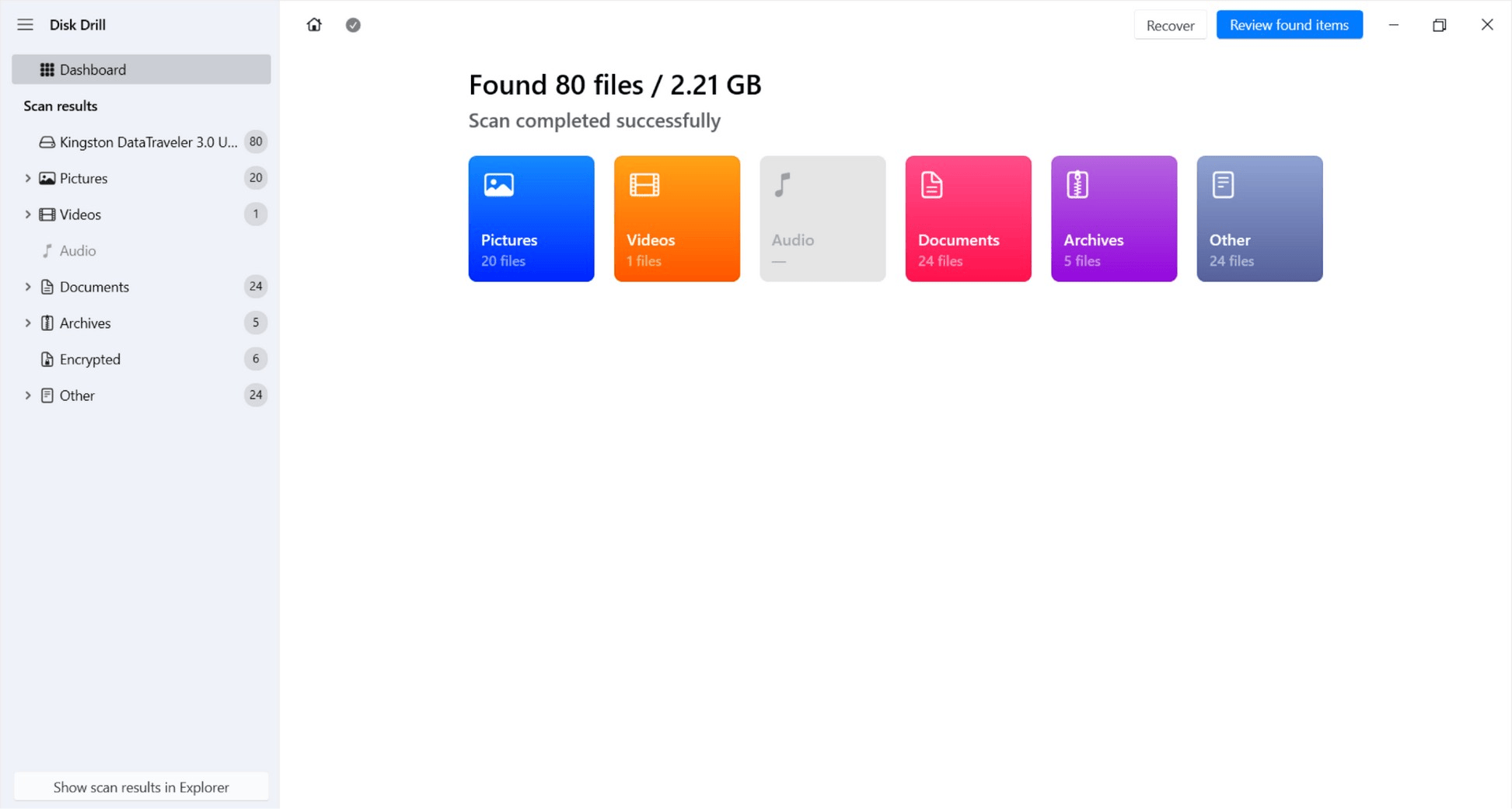
7. Select important files and use Preview feature to check their contents before recovery.
8. Check the boxes next to the files and folders you want to restore, then click Recover.
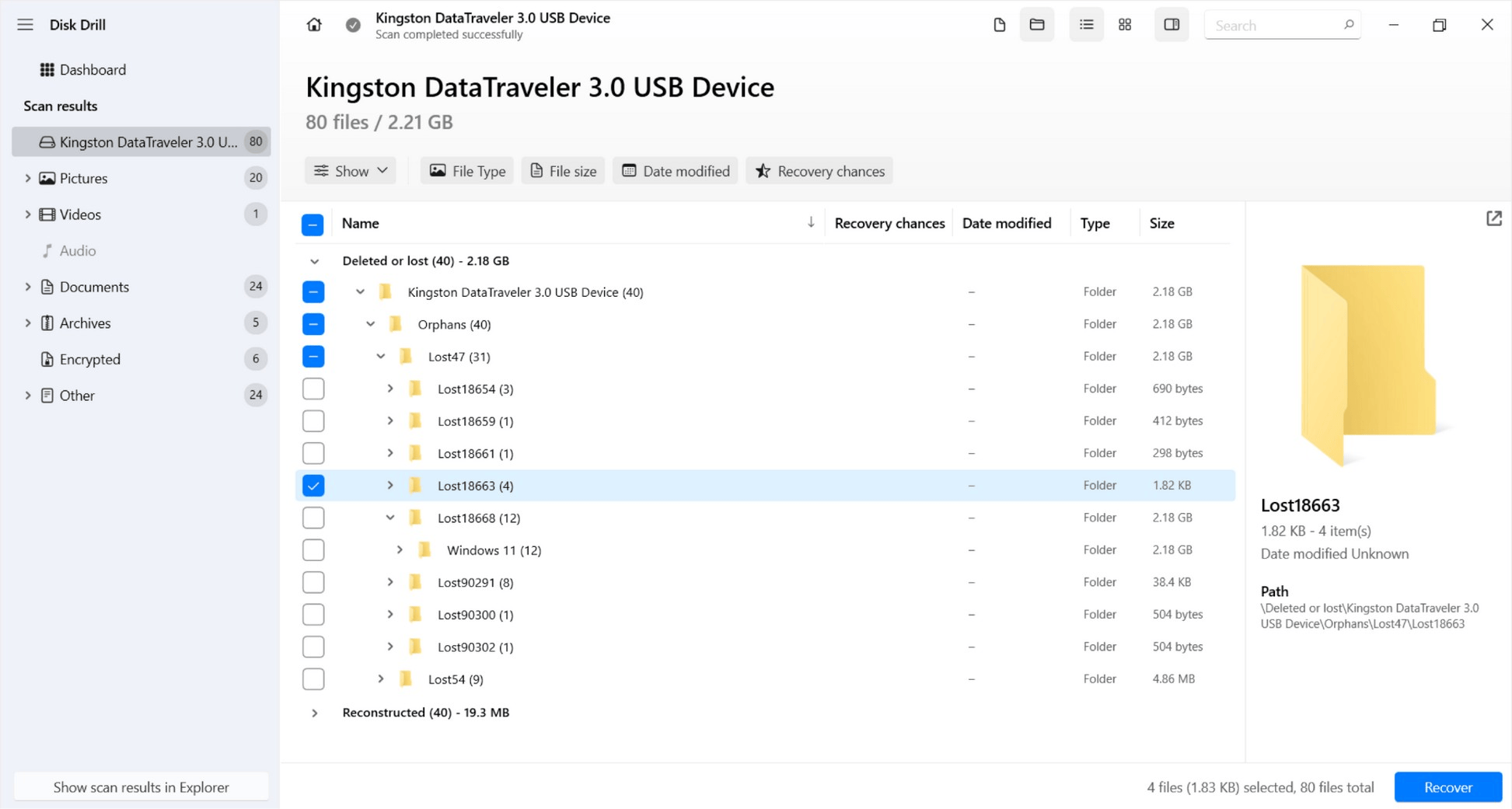
9. Select a separate healthy physical disk as the destination. Do not save recovered files back to the affected EXT4 drive.
10. Wait for recovery to finish, open the destination folder, and check several recovered files to make sure they work correctly.
Keep the original EXT4 drive unchanged until you have recovered and checked all important files. You can repair or format the drive afterward if necessary.
Recovering EXT4 Data on Linux
If you have access to a Linux computer or want to recover your EXT4 data directly from Linux, you have several recovery options. Linux supports EXT4 natively, so you can work with the drive without using an additional EXT4 reader.
These Linux methods can help you recover your data, depending on your situation. For example, you can:
- Restore recently deleted files from the Trash,
- Recover a missing or damaged partition using TestDisk,
- Use Linux data recovery tools like PhotoRec or Foremost to recover permanently deleted files when you have no backup.
Frequently Asked Questions (FAQ)
A: No. Windows File Explorer does not natively mount and browse EXT4 partitions in the same way it handles NTFS, FAT32, or exFAT. If the EXT4 partition is healthy, you can use a compatible Linux file system reader or access the drive through a Linux environment.
A: Yes, recovery may still be possible if the previous data has not been overwritten. Stop using the drive immediately after accidental formatting, do not create new partitions or copy files to it, and scan the physical disk with recovery software. Save anything you recover to another physical drive.
A: Windows can show an EXT4 partition as RAW or otherwise inaccessible when it cannot recognize the file system. However, RAW status can also indicate actual file system or partition damage. Do not format the drive based only on its RAW status; first check whether an EXT4 reader or recovery tool can detect the original partition and files.
Conclusion
Choose the recovery method based on the condition of your EXT4 drive. Use a Linux reader if the partition is healthy but inaccessible from Windows, TestDisk if the EXT4 partition has disappeared, and specialized data recovery software if the file system is damaged or you need to recover individual files.
Most importantly, do not format the affected drive or write new data to it before you recover the files you need. Keep the recovered data on another physical disk until you have verified that everything important is accessible.
Recommended Read:
