
There are plenty of ways to lose data on an Android phone. A wrong tap can remove a folder of photos, a factory reset can wipe years of messages, or a memory card can suddenly become unreadable. Sometimes the files aren't actually gone either. They may still be sitting on the phone, inside a WhatsApp database, on an SD card, or in an older backup.
This is where Android data recovery software can be useful.
These programs are generally installed on a desktop system and used to scan a connected Android phone or another supported storage source. What they can find depends on the phone, Android version, type of data, and how much the device has been used since the files disappeared.
We reviewed five data recovery tools for Android based on their features, compatibility claims, pricing, and official documentation. These tools take slightly different routes to finding lost Android data. Here is what stands out about each one.
Note: This article is a research-based comparison, not a hands-on test of actual recovery success rates.
Table of Contents
1. Stellar Data Recovery for Android
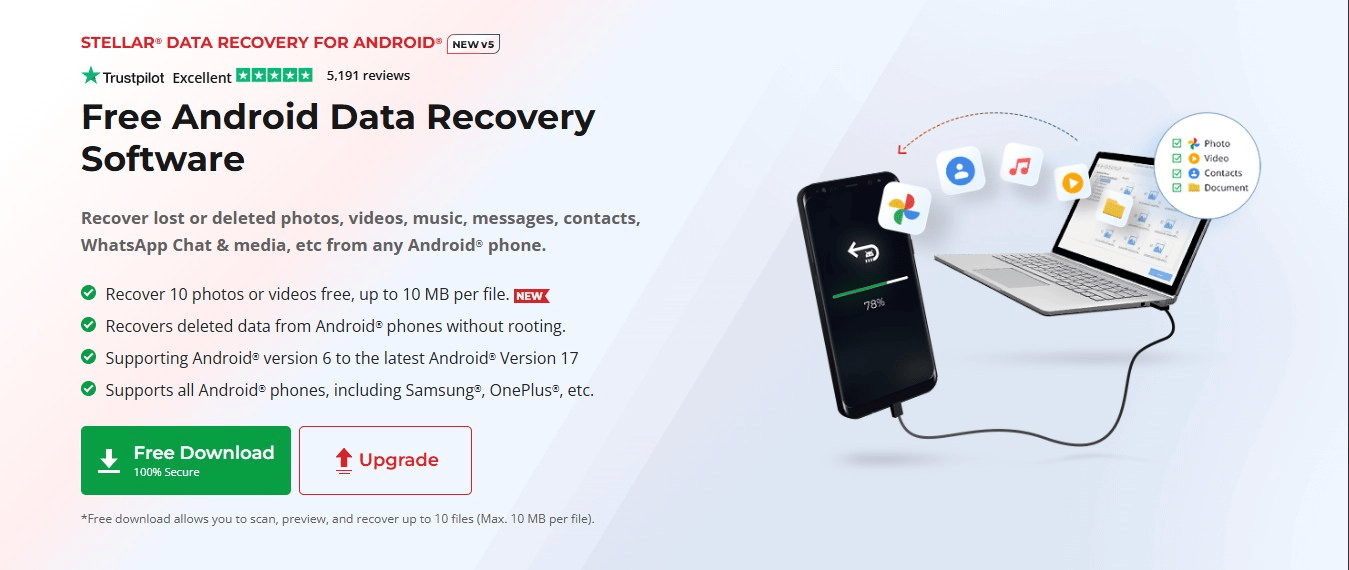
Stellar Data Recovery for Android covers most of the data people usually want to recover from a phone, such as:
- Audio,
- Call history,
- Contacts,
- Documents,
- Photos,
- Videos,
- Text messages,
- and WhatsApp data.
The software has separate options for WhatsApp and WhatsApp Business recovery. It can also work with supported Google Drive backups for WhatsApp, which is useful when the information you're looking for isn't available through the phone's storage anymore.
The recovery process is fairly straightforward. Connect the Android phone to a Windows computer, choose the type of data you want to look for, and start the scan. Once the scan finishes, you can preview the results and select individual files rather than recovering everything that appears.
One detail that matters in 2026 is Android compatibility. Stellar currently supports Android 6 through Android 17, including devices from Samsung, OnePlus, Xiaomi, Vivo, OPPO, ASUS, Google Pixel and other major brands.
The software doesn't require rooting the phone for its supported recovery process.
There's also a free version if you don't want to purchase the software without knowing what it can find. It lets you scan and preview recoverable data and recover up to 10 files, with a maximum file size of 10 MB.
For someone trying to recover a mixture of ordinary Android files and WhatsApp data, having the different recovery options in one application is convenient. It also gives you a chance to preview the results before committing to a paid license.
Price: The Standard edition is currently listed at $29.99 for one year. Check whether this is a one-time purchase or an auto-renewing subscription before buying.
2. EaseUS MobiSaver for Android
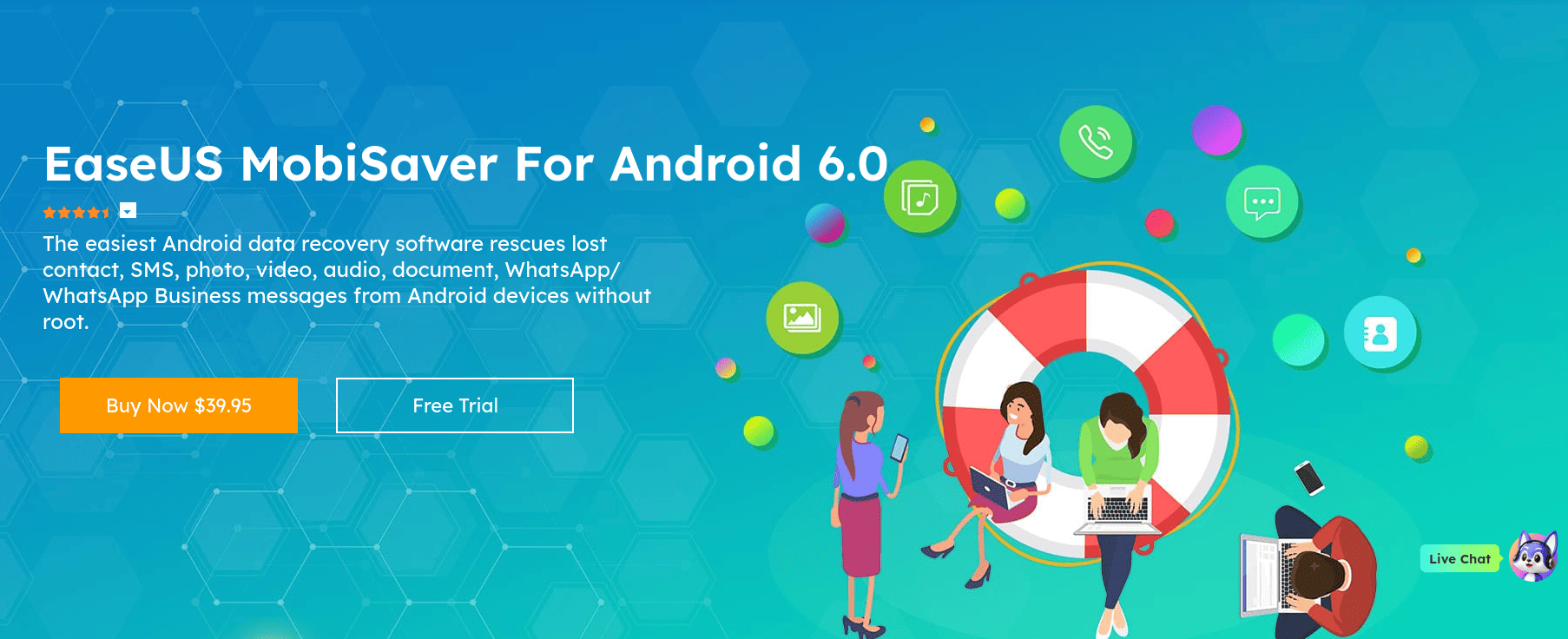
EaseUS MobiSaver has been around for quite a while, so it's one of the names people are likely to come across when searching for Android recovery software.
Its focus is fairly broad. You can use it to look for photos, videos, contacts, messages, call history, audio files, documents and WhatsApp data.
There are a couple of recovery sources beyond the phone itself. EaseUS supports Google Drive recovery and also has an option for SD cards.
The SD card part is easy to overlook, but it can make a real difference for an older Android phone. If your camera photos were being saved to a memory card, scanning the phone's internal storage isn't going to help much if the problem is actually with that card.
MobiSaver also has a preview function, so you can see what the scan has found before deciding what to recover. The free edition has recovery restrictions, while the paid version removes those limits.
One thing I'd check before buying is the compatibility information for your particular phone. Android recovery isn't quite as simple as plugging in any Android device and expecting identical results.
Price: EaseUS currently lists MobiSaver Pro at $39.95, although its store can show promotional pricing. Verify whether the license auto-renews, as this is common for EaseUS products.
3. Dr.Fone Data Recovery (Android)
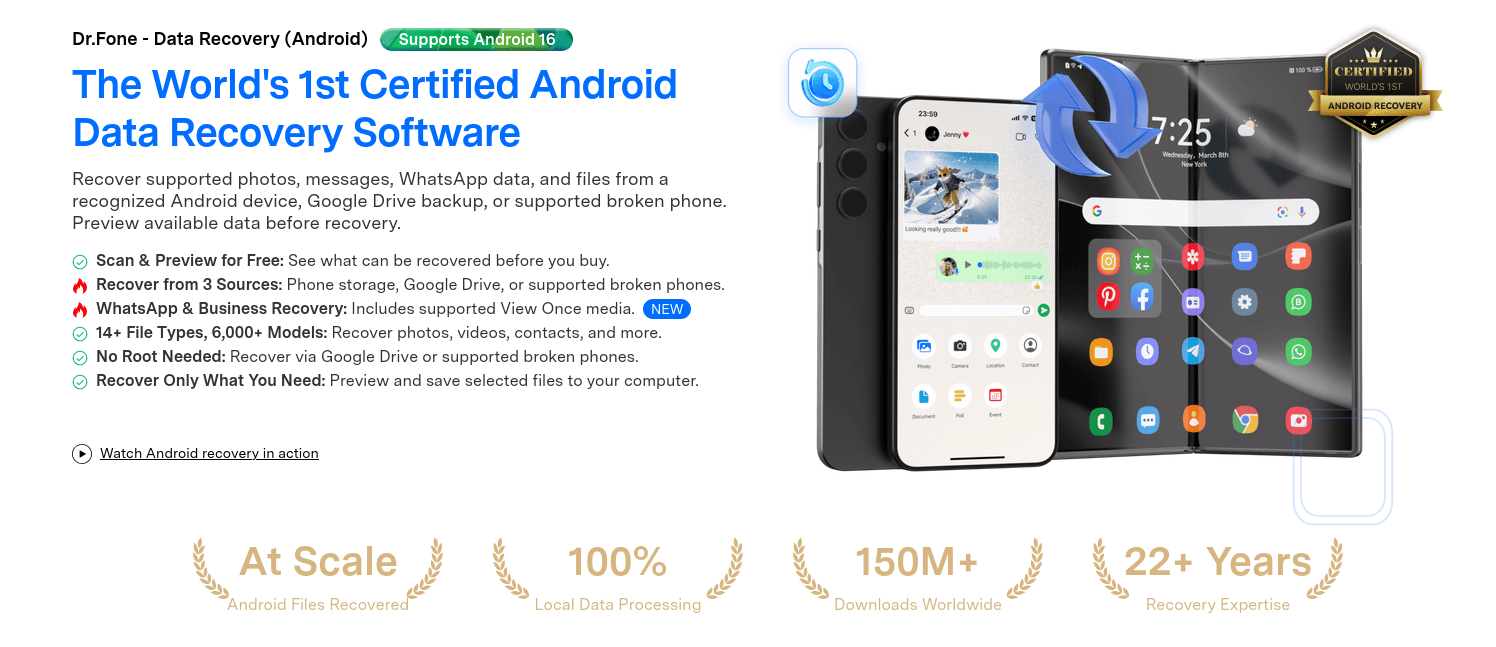
Dr.Fone is part of Wondershare's larger collection of Android utilities, and its Data Recovery tool is aimed at more than just accidentally deleted photos.
The software can recover common data such as photos, videos, contacts, messages, call logs, audio and documents, along with WhatsApp and WhatsApp Business data.
What makes Dr.Fone interesting is the number of recovery sources it covers. Besides Android phone storage, the company lists Google Drive backups and supported broken Android phones.
That can matter after a phone has been reset or when the device itself has stopped working properly. There are limits, though. Broken-device recovery depends on the particular phone and the condition of the device, so this isn't something I'd assume will work on every damaged Android phone.
The Google Drive option lets users access supported backup information and preview available data before recovery.
Dr.Fone currently lists support through Android 16.
If you're dealing with a normal deleted-file situation, the standard Android scan may be all you need. If the phone has been reset or damaged, the additional recovery routes are where Dr.Fone becomes more interesting.
Price: The Android Data Recovery plan is currently $39.95 for one year, with monthly and perpetual licensing options also available. If you choose the yearly plan, check for auto-renewal settings immediately after purchase.
4. Tenorshare UltData for Android
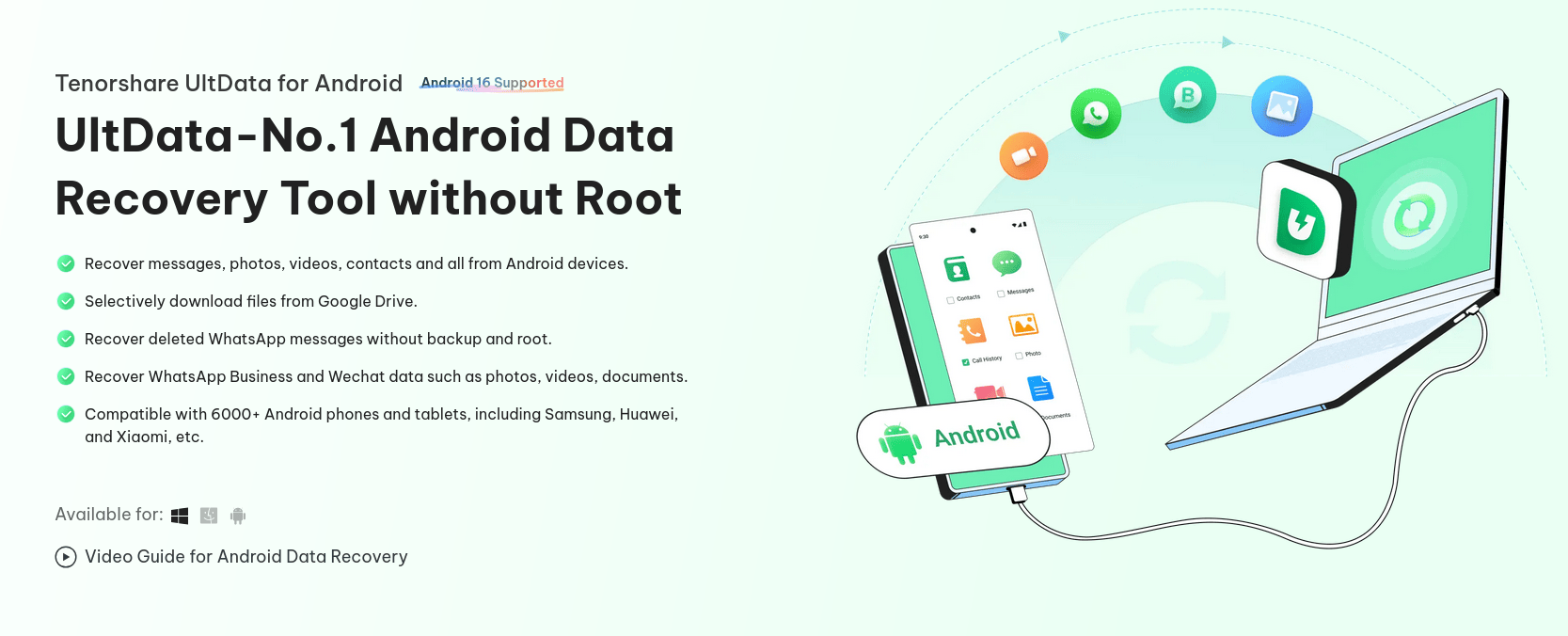
Tenorshare UltData is another option worth looking at if the missing data isn't limited to photos and documents.
The software supports common Android data types such as photos, videos, contacts, messages, call history, audio and documents. WhatsApp and WhatsApp Business have dedicated recovery options as well.
Google Drive is also part of the package. Tenorshare provides a way to access supported information from a Google Drive backup and select the data you want.
The company currently lists Android 5 through Android 16 for its Android, WhatsApp and Google Drive recovery functions.
Tenorshare also advertises recovery without rooting the Android device for supported functions. That's useful for people who don't want to modify the phone just to attempt a recovery.
As with the other products here, there's a preview stage before recovery. That gives you an opportunity to check whether the scan has found anything useful instead of paying first and discovering later.
UltData makes the most sense to investigate when WhatsApp or a Google Drive backup is part of the problem, rather than simply looking for one deleted photo.
Price: The current 1-year license is listed at $39.95. Monthly and lifetime plans are also available.
5. FoneLab Android Data Recovery
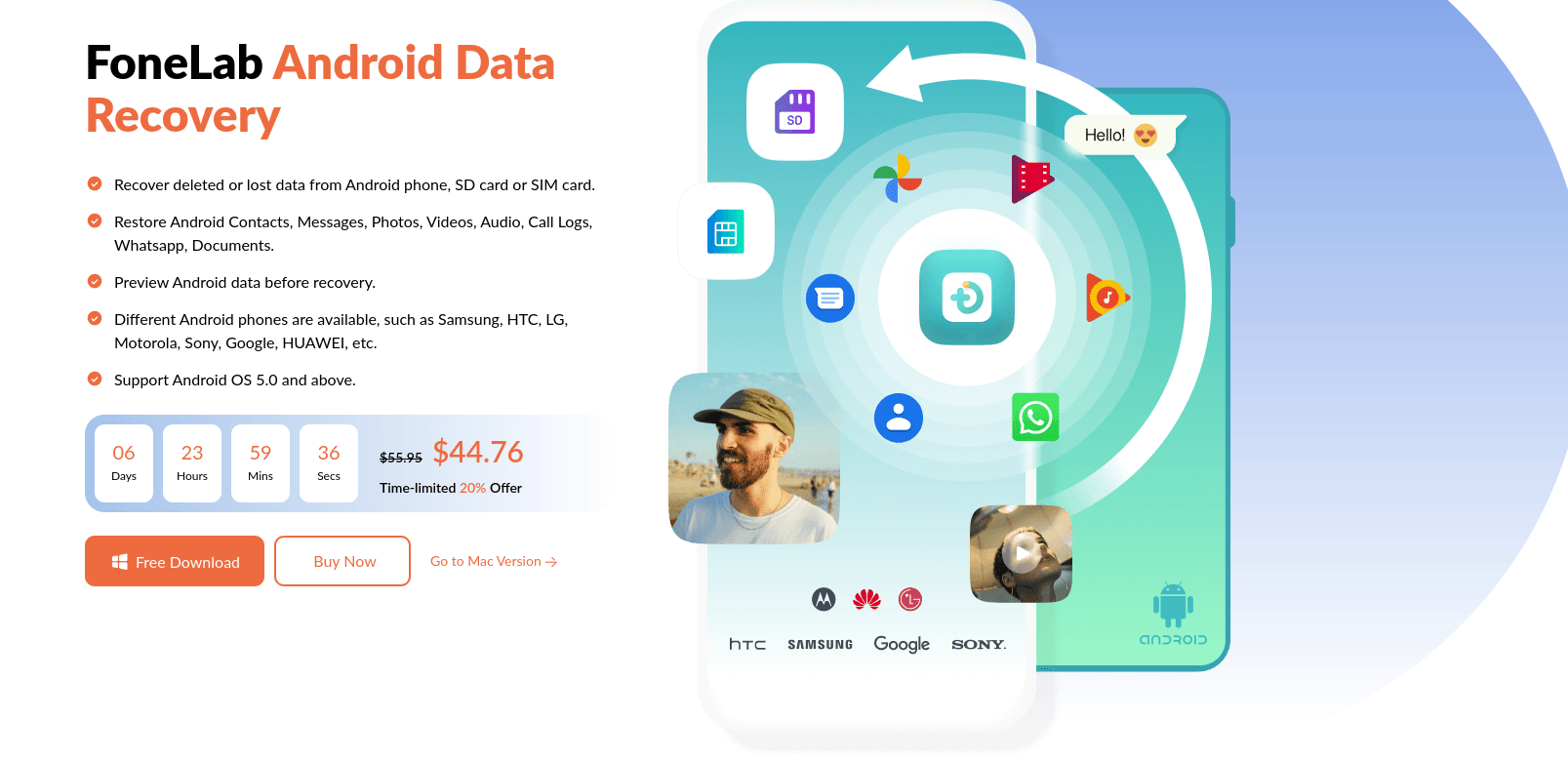
FoneLab Android Data Recovery covers the usual categories you'd expect from an Android recovery program: photos, videos, contacts, messages, call history, audio and documents.
It also has SD card recovery, which gives it a slightly different use case from tools that focus mainly on the phone's internal storage.
That's worth considering if you've used removable storage for years. A lot of older Android phones relied heavily on microSD cards, particularly for camera photos and videos. If those files were stored there, recovering them means dealing with the card rather than the phone.
FoneLab provides a preview of the data found during the scan. The company also has separate software for broken Android data extraction and Android backup and restore, so its product range covers some situations that go beyond conventional deleted-file recovery.
The current product information lists support starting from Android 5.0.
The SD card support is probably the first thing I'd look at here if the missing files originally lived on removable storage.
Price: FoneLab currently lists Android Data Recovery at $44.76 under its promotional pricing.
6. A Free Alternative Worth Trying First: PhotoRec
Before spending money on any of the tools above, there is one free option worth knowing about, especially if your missing files were stored on a removable SD card.
PhotoRec, which comes bundled with TestDisk, is an open-source data recovery tool that has been around for years. It is completely free, receives regular updates, and runs on Linux, macOS and Windows. You can download it directly from the official CGSecurity website without registering for anything or entering payment details.
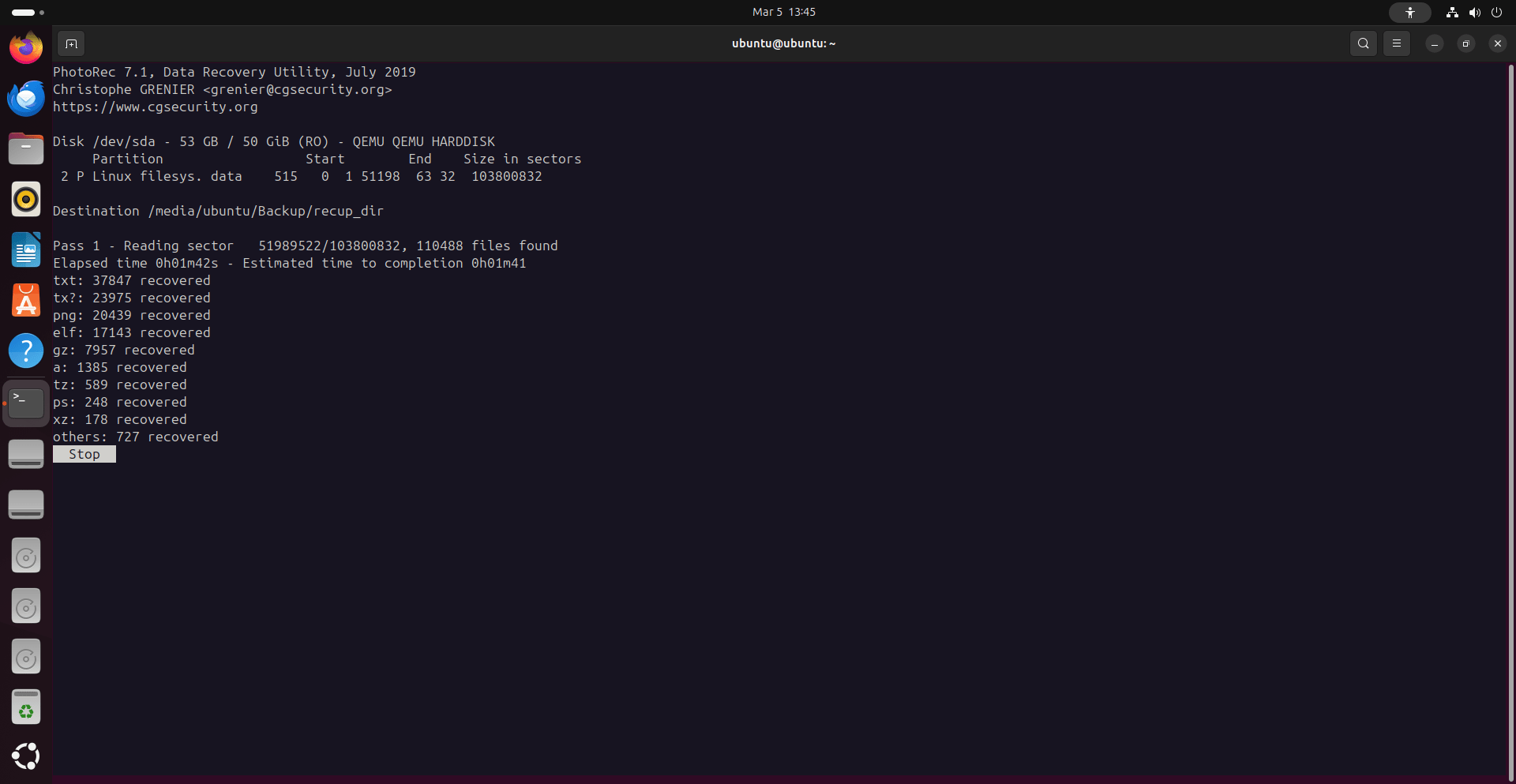
What PhotoRec does is simple but powerful. It ignores the file system and scans the raw data blocks of a storage device looking for recognizable file signatures: JPEG headers, MP4 structures, document footprints, and so on. If a memory card's directory structure has been corrupted or a quick format has wiped the file table, PhotoRec can often still pull photo and video data off the card itself.
6.1 Limitation
There is an important limitation, though. PhotoRec is designed for standard removable storage. It works well with microSD cards removed from a phone and inserted into a computer via a USB card reader.
It does not work for recovering deleted files from a modern Android phone's internal storage. Internal storage on recent Android devices uses file-based encryption, which means deleted files are unrecoverable by any tool, free or paid, once the encryption key is discarded. PhotoRec cannot change that, and neither can the commercial programs in this list.
6.2 Trade-offs
There are also usability trade-offs. PhotoRec is a command-line tool, not a polished desktop app with big green buttons. It recovers files without their original filenames or folder structure, so you will end up with folders full of files named things like f0012345.jpg. Sorting through the results takes patience. But if your alternative is paying $40 for software that may show the same results, PhotoRec costs nothing to try.
When to use it: If your camera photos or videos were saved to a microSD card, remove the card from the phone, put it in a card reader, and run PhotoRec on your computer before spending money elsewhere.
When to skip it: If your files were saved to the phone's internal storage, PhotoRec will not help, and you should focus on cloud backups and trash folders instead.
If you want to give Photorec a try, check our detailed guide in the following link:
7. Before You Try to Recover Anything
There's one mistake people often make after deleting something important: they continue using the phone as if nothing happened.
If the missing file is important, I'd stop there.
Don't spend the next hour taking new photos, downloading videos, installing apps and moving large amounts of data around. New information can overwrite storage space that was previously occupied by deleted data, which can make recovery harder. This is especially true for SD cards, where the original file structure may still be intact if you act quickly.
It also helps to figure out where the file was stored in the first place.
Was it in the phone's internal storage? An SD card? WhatsApp? Google Drive?
That answer can narrow down the recovery method considerably.
For example, if a set of old vacation photos was stored on a microSD card, there's little point starting with a tool's internal phone-storage recovery. In that case, you can try a free tool like PhotoRec. Remove the card from the phone, insert it into a card reader attached to your computer, and let PhotoRec scan the raw data.
Photorec costs nothing, works on Linux, macOS and Windows, and may recover photos and videos even if the card looks corrupted. It is not as polished as the paid options, and it will not recover original filenames, but it is a genuinely free way to find out whether the card still holds your data.
If you're looking for WhatsApp conversations, you'll want to consider the WhatsApp database and any available Google Drive backup as well. In many cases, WhatsApp's own daily backups to Google Drive are a more reliable path than recovery software.
7.1 Check free and built-in options before paying
This is probably the most practical advice I can give.
Before downloading any of the tools listed above, check the places where your file might already be hiding. Google Photos trash keeps deleted images for 60 days.
Samsung Cloud, Google Drive trash, and OneDrive or Dropbox sync folders can all contain copies you forgot about. If the file is sitting in a cloud trash bin, you do not need recovery software at all.
7.2 Check the preview before paying
If you do move on to a paid tool, don't choose it just because it says it can recover thousands of files. What matters is whether it can find your files.
If a product offers free scanning or previewing, use it. Look through the results and see whether the missing photos, documents or messages actually appear.
Be skeptical of preview screens that show large numbers of generic-looking files with strange names; these can be cache files, thumbnails, or fragments rather than your actual lost data.
7.3 Check Android compatibility
Android versions matter more than they might seem.
A recovery program that worked with an older phone isn't automatically going to provide the same recovery options on a recent Android release. Check the manufacturer's current compatibility information before purchasing.
For example, Stellar currently lists support through Android 17, while EaseUS, Dr.Fone, Tenorshare and FoneLab have their own device and Android-version requirements.
More importantly, understand that on modern Android devices with file-based encryption, internal storage recovery without root is extremely limited regardless of what the software claims.
We will discuss more about File-based encryption in the Section 8 below.
7.4 Don't assume a successful scan means everything can be recovered
A scan can find traces of deleted information without being able to restore every file completely.
The result depends on things such as the phone model, Android version, encryption, storage condition, whether the data has been overwritten, and how much time has passed since deletion.
On internal storage, encryption means a file may be gone permanently the moment it is deleted. On an SD card, your chances are better, which is why starting with a free tool like PhotoRec before spending money is a sensible first step.
That's why recovery software should be treated as an opportunity to retrieve accessible data, not a guarantee that every deleted file will come back.
8. The Reality of "No Root" Recovery on Modern Android
Every tool advertises recovery without rooting the phone. That sounds promising, but please understand what "no root" actually means on a modern Android device.
According to the Android Open Source Project, devices launching with Android 10 or higher are required to use file-based encryption (FBE). Instead of encrypting the entire storage volume with a single key, FBE uses a hierarchy of encryption keys to protect different categories of user data.
Independent security research from Quarkslab also describes Android's FBE key hierarchy and how encryption keys are protected as part of Android's security architecture.
This matters because recovering a genuinely deleted file from modern Android internal storage is not the same as recovering a deleted file from an old, unencrypted disk.
Even if remnants of encrypted data remain on the storage medium, turning those remnants back into a usable file generally requires access to the relevant encryption keys and the device's security context.
In other words, encryption is a major barrier to conventional low-level recovery of deleted files from modern Android internal storage. A desktop recovery program connected over USB cannot simply treat the phone like an unencrypted hard drive.
8.1 So what does "no root needed" actually mean?
It does not mean that the recovery software has unrestricted access to everything stored on the phone. Android's application sandbox and security model restrict access to protected app data and internal storage.
Depending on the product and recovery scenario, a no-root recovery tool may instead work with data that remains accessible, supported backups, application data that can legitimately be accessed, or remnants such as media and cache files.
Those are different from performing low-level recovery of deleted plaintext from encrypted internal storage.
For example, application databases and cached media can sometimes contain information that is still accessible even after something has disappeared from the app's normal interface.
A recovered image might therefore be a cached or thumbnail version rather than the original full-resolution file. Likewise, a supported backup may provide a recovery route even when the original data is no longer accessible from the phone itself.
This distinction is important for WhatsApp and other apps that maintain their own databases and backups. The existence of a database does not, by itself, mean that a desktop recovery program can freely read the app's private data over a USB connection. Access depends on the Android security model, the app, the device, and the recovery method being used.
This does not mean no-root recovery software is useless. It means its capabilities should not be confused with unrestricted forensic access to encrypted internal storage. Depending on the situation, these tools may still be useful for accessible data, supported backups, app-related recovery, or other supported recovery routes.
The situation can be different with a traditionally used portable SD card. It is a separate storage medium, so recovery software can sometimes work with the card directly rather than trying to access protected internal phone storage. However, not every SD card is necessarily equivalent: Android can also use an SD card as adoptable storage, in which case it can be encrypted and tied to the device.
That is why the location of the missing data matters so much.
If you deleted a photo from modern Android internal storage, a "no root needed" claim should not be interpreted as a promise that the software can perform low-level recovery of the original deleted file.
If the data still exists in an accessible location, backup, database, cache, or other supported source, recovery may be possible. If the only remaining copy is encrypted data that has genuinely been deleted from internal storage, the technical limitations are much more significant.
Key Takeaway: "No root" describes how the software operates; it does not tell you how much of the phone's deleted data the software can actually access or recover.
9. Which Android Recovery Tool Should You Look At?
The right choice depends on where your data was stored.
For a mix of regular files, WhatsApp data, and supported Google Drive backups in one place, Stellar is the most comprehensive option in this list.
If your missing files were on a removable SD card, EaseUS MobiSaver and FoneLab both include SD card recovery. Try a free tool like PhotoRec on the card first, since removable storage does not face the encryption barriers of internal phone memory. But if you want a guided interface, the paid options are worth previewing.
If the phone has been reset or damaged, Dr.Fone offers additional routes for supported devices, including Google Drive backups and certain broken-phone scenarios. Be realistic: broken-device recovery varies heavily by model and damage type, so the preview is essential here.
If WhatsApp or Google Drive is the core problem, Tenorshare UltData is built with dedicated options for those situations.
One reality applies to all five tools: on modern Android devices, internal storage recovery is technically difficult because of file-based encryption.
These programs are most useful when your data is in an accessible location: an SD card, an app database, a supported backup, or a cache file that has not been overwritten. That is why checking free and built-in options first, including cloud trash and app backups, is always sensible.
Don't pick software based on a long feature list. Start with the missing data, figure out where it lived, check whether a free solution can handle it, and use the preview to confirm a paid tool can actually find your files before spending anything.
