
Table of Contents
Quick Summary
- Kiwix is a free, open source application to build your own offline knowledge library on Linux. Install the Kiwix reader, download ZIM files, organize your collections, and access millions of articles, books, and educational resources without an Internet connection.
- Even though Kiwix is mostly used to browse Wikipedia without, it is much more than an offline copy of Wikipedia. It can become a permanent, searchable knowledge library containing books, programming references, educational content, and much more. All stored locally under your control.
- A single application can access hundreds of offline knowledge collections covering topics from software development to literature, making it possible to build a personal "offline Internet" that continues to work even when the network doesn't.
Introduction
The Internet has become our primary source of knowledge. We use it to learn Linux commands, read programming documentation, troubleshoot system errors, and research almost any topic within seconds.
Yet there's one problem: we don't own most of that knowledge.
The websites we rely on live on someone else's servers. If your Internet connection fails, a website disappears, or you're working in a place without reliable connectivity, access to that information becomes difficult or impossible.
This wasn't always the case. Desktop encyclopedias like Microsoft Encarta stored knowledge locally, allowing you to browse thousands of articles without an Internet connection. While the web eventually replaced these applications, the idea of owning an offline library never disappeared.
That's exactly what Kiwix brings back.
Kiwix is a free, open-source application that lets you download and browse complete knowledge collections offline. Although it's widely known for offline Wikipedia, it also supports dictionaries, books, educational resources, technical references, and many other collections. Once downloaded, everything stays on your computer and remains available without an Internet connection.
For Linux users, Kiwix offers much more than an offline encyclopedia. You can use it as a desktop application, host it on a home server, deploy it with Docker, or build a portable knowledge library on an external SSD or Raspberry Pi. The result is a personal, searchable library that you control.
In this guide, you'll learn what Kiwix is, how it works, the different ways to deploy it on Linux, and how to build an offline knowledge library that stays available wherever you go.
What Is Kiwix?
Kiwix is a free, open-source application that lets you browse websites offline. It stores websites in compressed ZIM files, allowing you to search and read their content without an Internet connection.
Although Kiwix is best known for offline Wikipedia, it supports many other knowledge collections, including Wiktionary, Wikibooks, Project Gutenberg, TED Talks, and Stack Exchange archives. This makes it useful for students, developers, researchers, and anyone who wants a personal offline library.
Kiwix doesn't contain any content by default. Instead, you download the ZIM files you need and store them locally. Once downloaded, they work entirely offline. You can keep them on your laptop, an external SSD, a NAS, or a home server.
For Linux users, Kiwix offers several deployment options. You can run it as a desktop application for personal use or use Kiwix Serve to share your library with other devices on your local network. The same knowledge collection can also be hosted in Docker, on a Raspberry Pi, or on a dedicated server.
Note: We'll explain how ZIM files work and compare the different deployment options later in this guide.
Beyond Offline Wikipedia
Wikipedia is the most popular collection available for Kiwix, but it's far from the only one. The Kiwix library includes hundreds of knowledge collections covering education, programming, literature, science, and more.
Some of the most useful collections include:
| Collection | Description |
|---|---|
| Wikipedia | The world's largest encyclopedia. Available in multiple languages and editions. |
| Wiktionary | A multilingual dictionary with definitions, pronunciations, and translations. |
| Wikibooks | Free textbooks and instructional guides on a wide range of subjects. |
| Wikiquote | Quotes from notable people, books, films, and speeches. |
| Wikisource | Public-domain books, historical documents, and literary works. |
| Project Gutenberg | Thousands of free eBooks and classic literature. |
| TED Talks | Talks with transcripts for offline viewing and reading. |
| Stack Overflow | Programming questions and answers covering many technologies. |
| Unix & Linux Stack Exchange | Community-driven solutions for Linux and Unix administration. |
The available collections continue to grow as the community publishes new ZIM archives. Depending on your interests, you can build a library for software development, system administration, education, history, medicine, or general reference.
This flexibility is what makes Kiwix more than an offline encyclopedia. It becomes a platform for building a personal knowledge library that matches your needs.
How Kiwix Stores Entire Websites in a Single File
Kiwix stores content in ZIM files. A ZIM file is a compressed archive that contains the snapshot of an entire website captured at a specific point in time, including its articles, images, hyperlinks, metadata, and search index. Instead of downloading thousands of individual files, you only need a single ZIM file.
For example, a Wikipedia ZIM file contains all the information needed to browse Wikipedia offline. Articles link to each other just as they do online, images appear where available, and the built-in search index lets you find content quickly without an Internet connection.
A ZIM file is read-only. You can search, browse, and bookmark articles, but you can't edit the content directly. When a newer version becomes available, you simply download the updated ZIM file.
This design offers several advantages:
| Advantage | Benefit |
|---|---|
| Single file | Easy to copy, move, and back up. |
| Compression | Stores millions of articles while using less disk space. |
| Fast search | Built-in indexes provide quick search results. |
| Portable | Works from internal drives, external SSDs, USB flash drives, or network storage. |
| Offline | No web server or Internet connection required for reading. |
Note: A ZIM file isn't limited to Wikipedia. Any website or knowledge collection prepared in the ZIM format can be opened with Kiwix.
Choosing the Right Kiwix Deployment
Kiwix supports multiple deployment methods. The right one depends on how you plan to use your offline library.
| If you want to... | Recommended deployment |
|---|---|
| Read on a single computer | Kiwix Desktop |
| Access your library from any web browser | Kiwix Serve |
| Self-host with other services | Docker |
| Build a portable offline library | External SSD or USB drive |
| Share knowledge on a local network | Kiwix Serve |
| Create a low-power offline server | Raspberry Pi |
Kiwix Desktop
The desktop application is the simplest option. Download your ZIM files, open them with Kiwix, and start reading. It's ideal for personal use on laptops and desktop computers.
Kiwix Serve
Kiwix Serve is a lightweight HTTP server that shares your ZIM library through a web browser. Any device on your network can access the content without installing Kiwix locally.
It is a good choice for families, classrooms, and small offices.
Docker
Running Kiwix in Docker provides a portable and reproducible deployment. It's well suited for homelabs, NAS devices, and Linux servers where you already manage services with containers.
Portable Storage
Because Kiwix uses portable ZIM files, you can keep your entire library on an external SSD or USB flash drive. Connect the drive to any supported computer, open the files with Kiwix, and your library is ready.
Raspberry Pi
A Raspberry Pi can host Kiwix as a lightweight offline knowledge server. Combined with external storage, it becomes an affordable solution for homes, classrooms, community centers, and locations with limited Internet access.
Which deployment should you choose?
If you're new to Kiwix, start with the desktop application. You can always reuse the same ZIM files later with Kiwix Serve, Docker, or Raspberry Pi.
Getting Started with Kiwix
Kiwix provides several applications for different use cases. You only need one to get started.
| Application | Best for |
|---|---|
| Kiwix Desktop | Reading ZIM files on a personal computer. |
| Kiwix Serve | Sharing a library over a local network or the Internet. |
| Kiwix JS | Reading ZIM files directly in a web browser without installing desktop software. |
| Mobile Apps | Accessing your offline library on Android and iOS devices. |
| Browser Extensions | Opening ZIM files from supported web browsers. |
If you're new to Kiwix, Kiwix Desktop is the best place to start. It provides a simple interface, supports all major desktop platforms, and makes it easy to download, organize, and search your offline library.
Installing Kiwix Reader (Desktop) on Linux
Kiwix Reader is available through several installation methods. If your Linux distribution provides an official package, installing it through the system package manager is the most convenient option. Otherwise, use the official AppImage or Flatpak release.
Install from your distribution's repository
Repository packages integrate with your system and receive updates through your package manager. Depending on your distribution, they may not always include the latest Kiwix release.
Debian / Ubuntu / Linux Mint / Pop!_OS:
sudo apt update
sudo apt install kiwix
Fedora / RHEL / AlmaLinux / Rocky Linux:
sudo dnf install kiwix
Arch Linux:
sudo pacman -S kiwix-desktop
openSUSE:
sudo zypper install kiwix
Install the latest release with AppImage
The AppImage is distributed directly by the Kiwix project and works on most modern Linux distributions. It doesn't require installation or administrator privileges. If you prefer not to install anything system-wide, use the AppImage.
First Install the FUSE 2 compatibility library:
Debian / Ubuntu:
sudo apt update
sudo apt install libfuse2t64
On some older releases, the package is still named:
sudo apt install libfuse2
Fedora:
sudo dnf install fuse-libs
Arch Linux:
sudo pacman -S fuse2
Next, download the latest AppImage from the official Kiwix downloads page.
wget https://mirror.download.kiwix.org/release/kiwix-desktop/kiwix-desktop_x86_64_2.5.1.appimage
As of writing this guide, the latest version was 2.5.1.
Make it executable:
chmod +x kiwix*.appimage
Run it using command:
./kiwix*.appimage
If you don't want to launch it from terminal every time, you can use AppImageLauncher or Gear leaver tools to add it to your application menu.
Install with Flatpak
Flatpak usually provides a newer release than many distribution repositories.
First, ensure Flatpak is installed.
And, install Kiwix Reader from Flathub.
flatpak install flathub org.kiwix.desktop
Launch it with:
flatpak run org.kiwix.desktop
Recommendation: Use your distribution's package if it is current enough for your needs. Otherwise, install the official AppImage to get the latest upstream release. Flatpak is an excellent cross-distribution alternative for users who already rely on Flathub.
Downloading Your First Offline Library
Kiwix Reader doesn't include content by default. Instead, you choose and download the collections you want.
Browse the Kiwix Library
Open Kiwix Reader application from application launcher or menu.
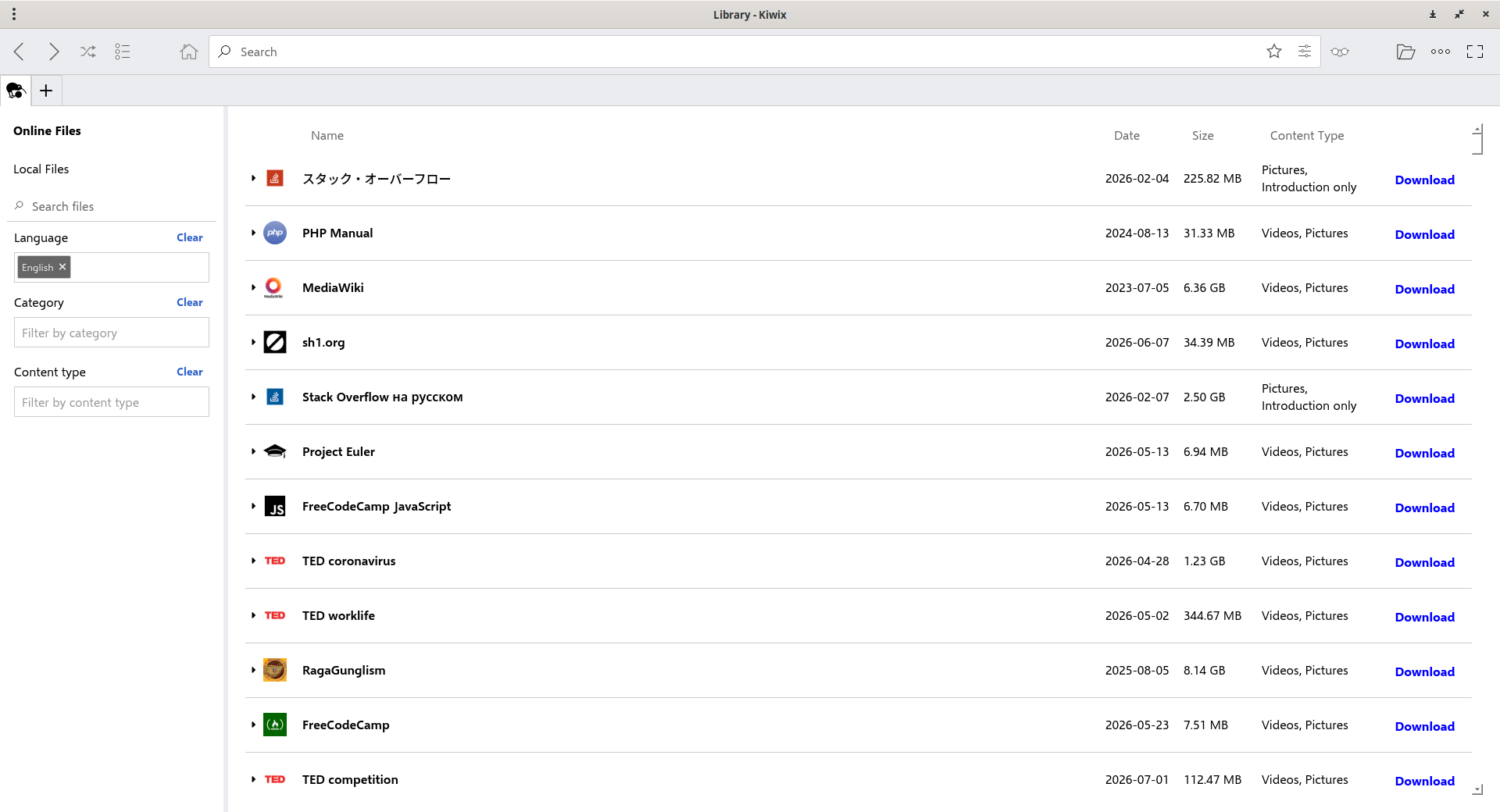
By default, you will see Library where you can browse the official catalog. You can search by language, category, or content type, then download collections directly from within the application.
If you prefer, you can also download ZIM files from the official Kiwix Library website and open them manually in Kiwix Reader.
Choose the Right Collection
Many projects are available in multiple editions. Before downloading, consider the following:
| Option | Best for |
|---|---|
| maxi | Complete articles with images. Best if storage isn't a concern. |
| nopic | Complete articles without images. Saves significant disk space. |
| mini | Article introductions and infoboxes only. Ideal for limited storage. |
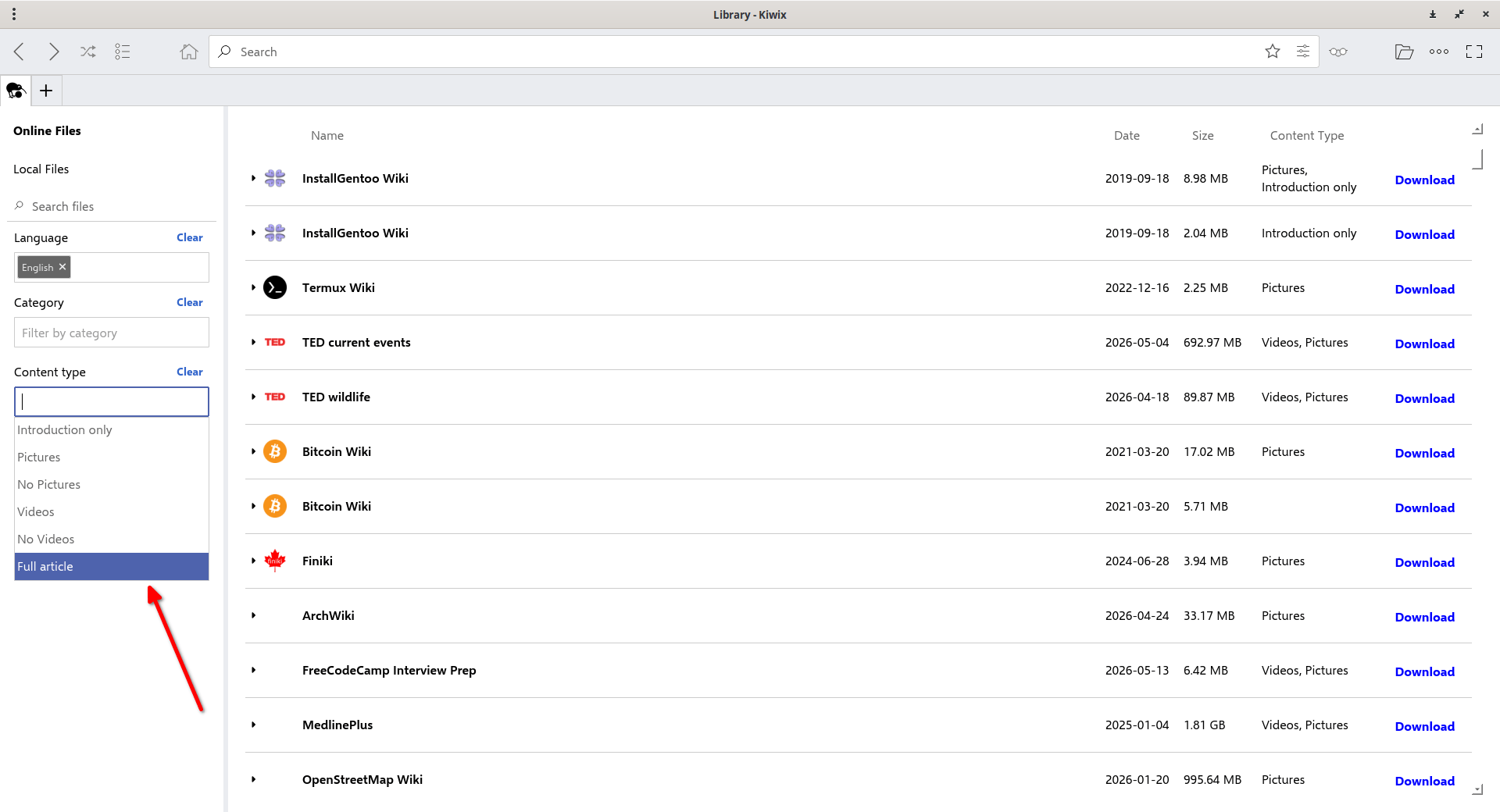
The latest kiwix graphical interface now uses descriptive filters like Introduction Only and No Pictures instead of exposing the technical flavor names. This makes it much more intuitive, especially for users who have never heard of "maxi" or "nopic."
In the latest Kiwix reader UI, you will these options under Content Type section:
- Introduction Only (mini)
- Pictures
- No Pictures (nopic)
- Videos
- No Videos
- Full Article (maxi)
Select Your Language
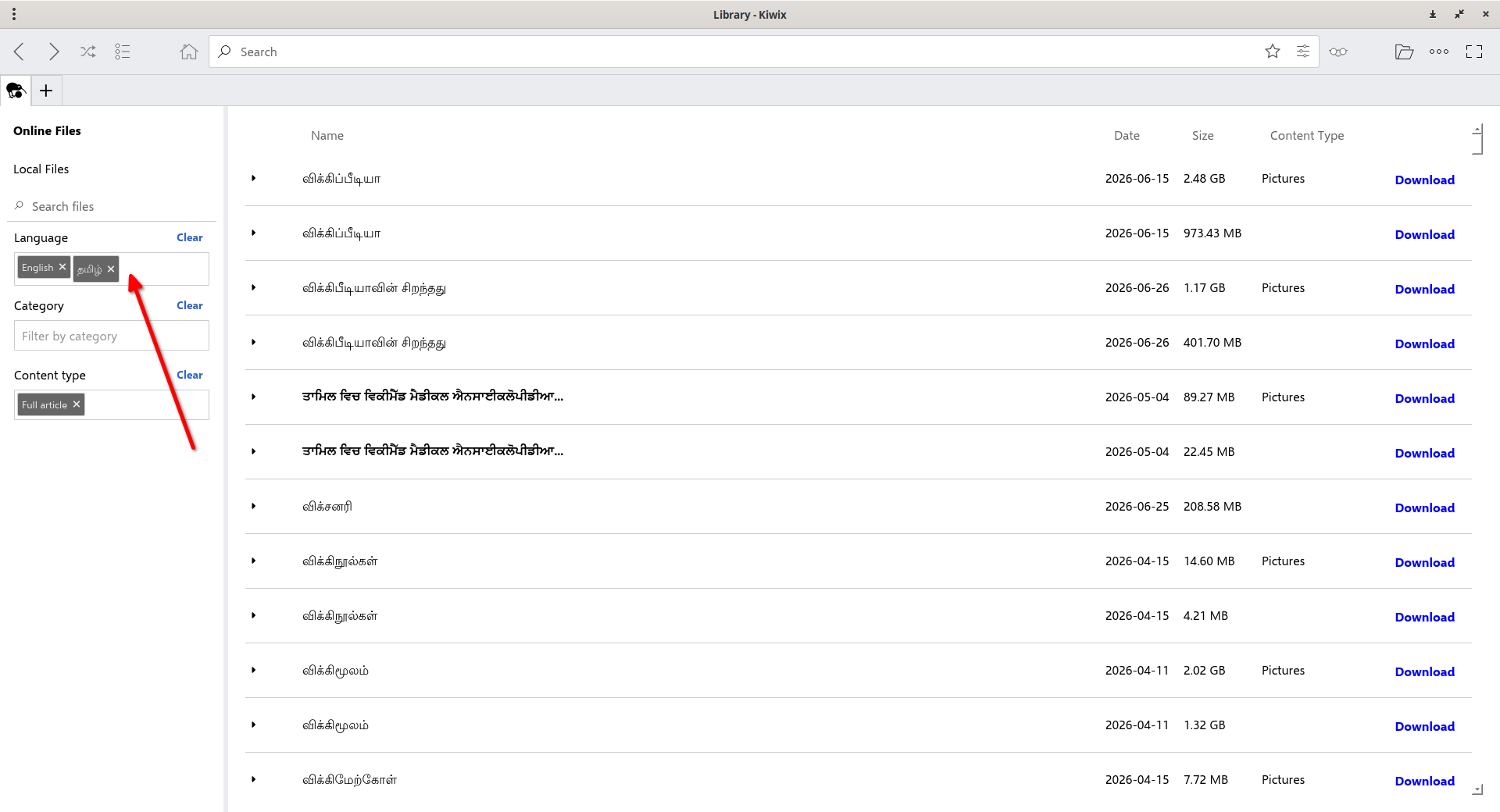
Most Wikimedia projects are available in multiple languages. Download the edition that matches your preferred language, or combine several languages to build a multilingual offline library.
Open Your First ZIM File
After the download finishes, Kiwix Reader automatically adds the collection to your library.
Click the Local Files tab on the left sidebar to view downloaded collections.
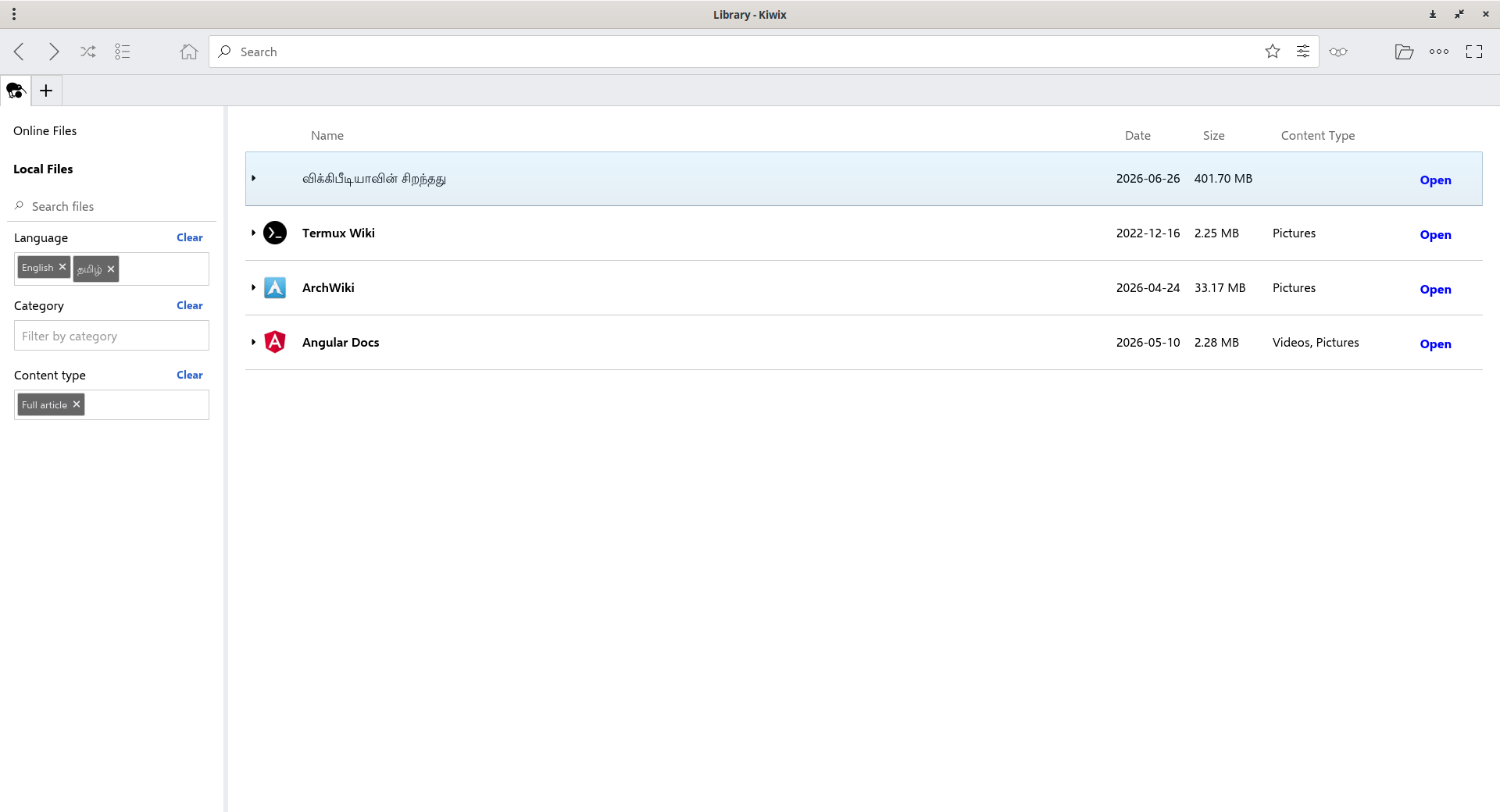
To switch back to the Kiwix online library, click Online Files tab.
If you downloaded a ZIM file manually, click the three dots (...) on the top right corner, select File -> Open File and choose the downloaded file.
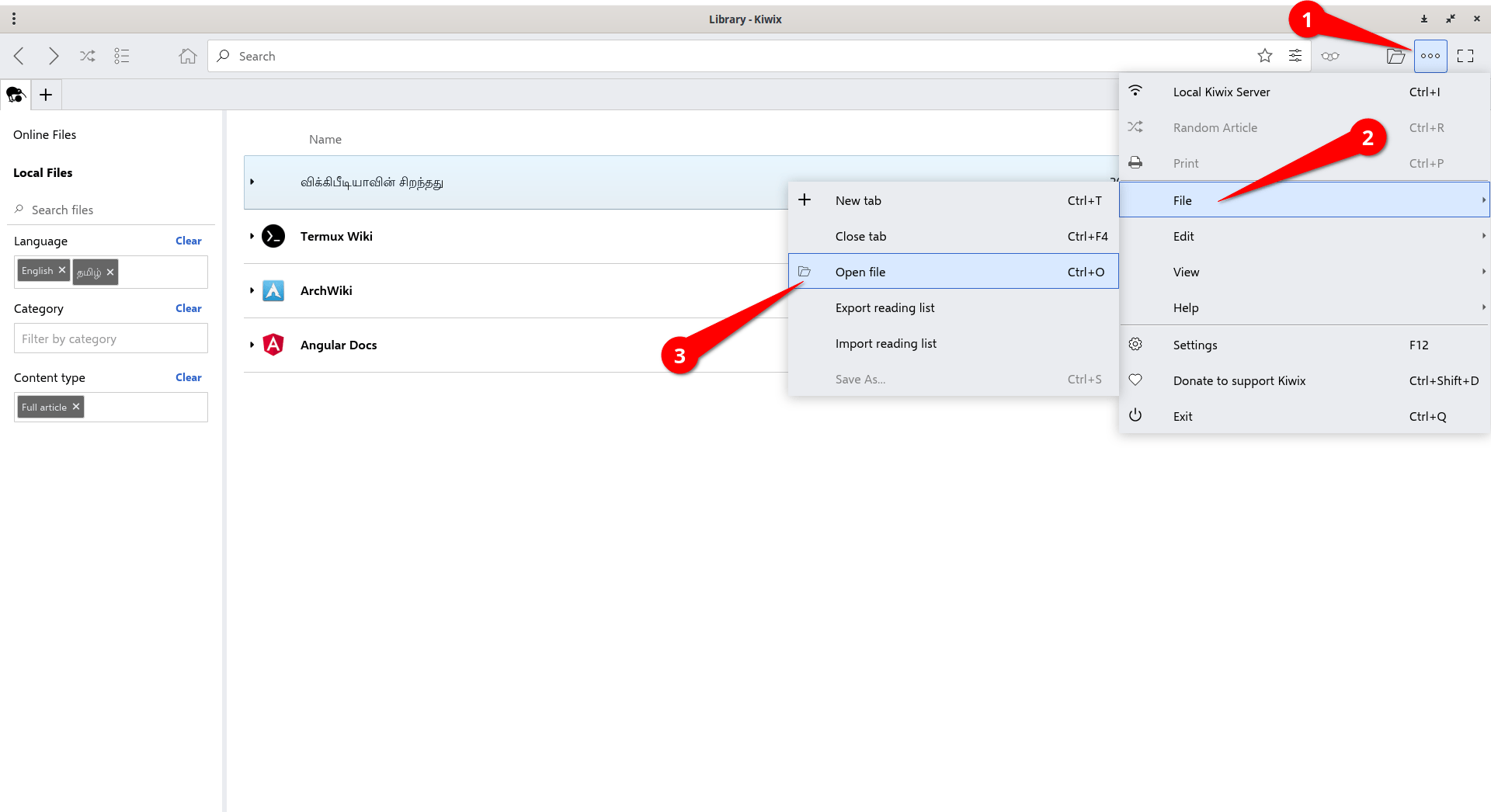
That's it. Your offline knowledge library is ready to use, even without an Internet connection.
Using Kiwix Reader
Once you've downloaded a knowledge collection, using Kiwix Reader feels much like browsing a website.
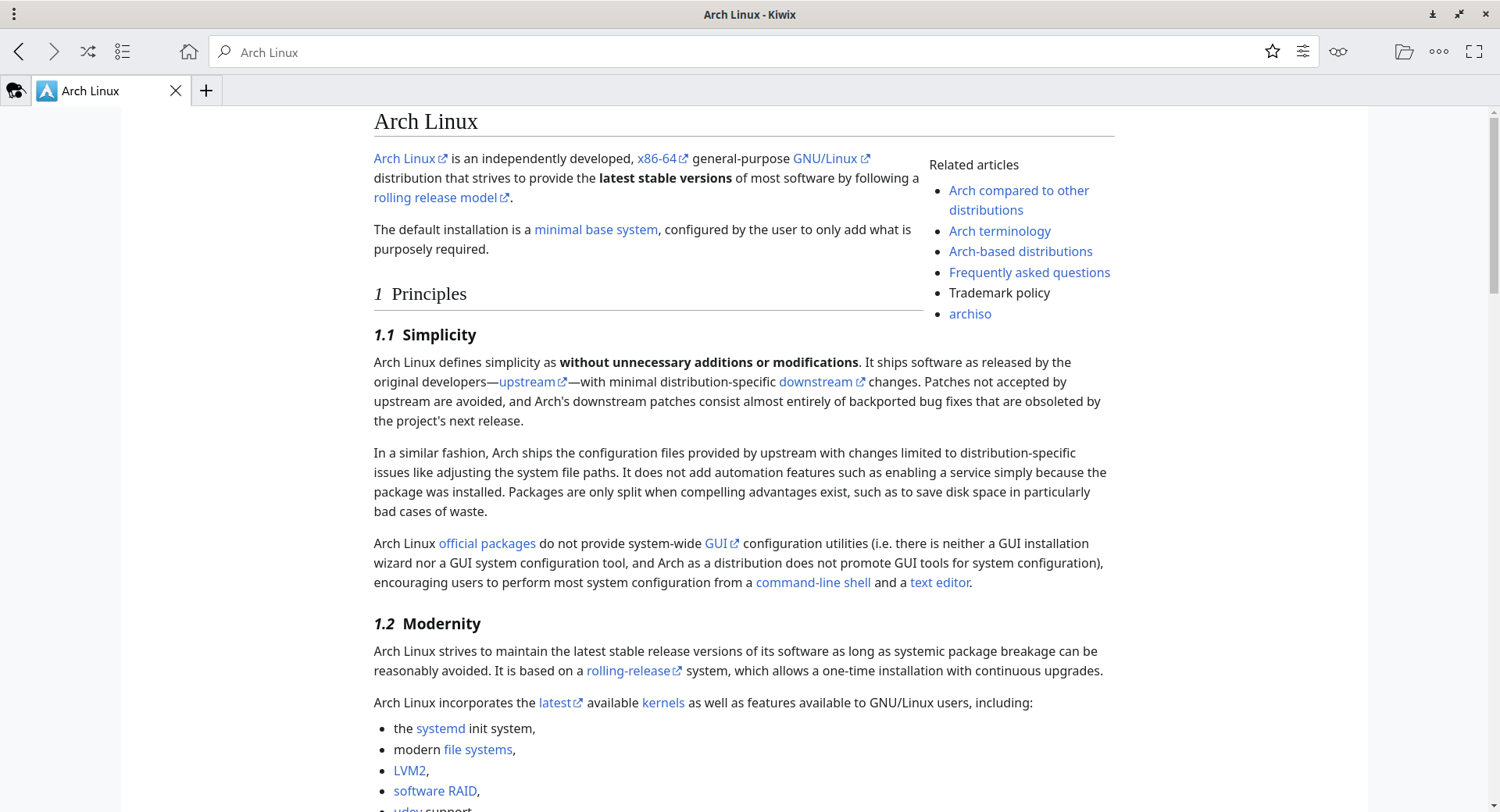
Browse Your Library
Open any page to start reading. Internal links work just like they do online, allowing you to move between related topics without an Internet connection.
Search Content
Use the search box on the left sidebar to find articles, books, or other content by keyword. Search results appear almost instantly because the required indexes are stored inside the ZIM file.
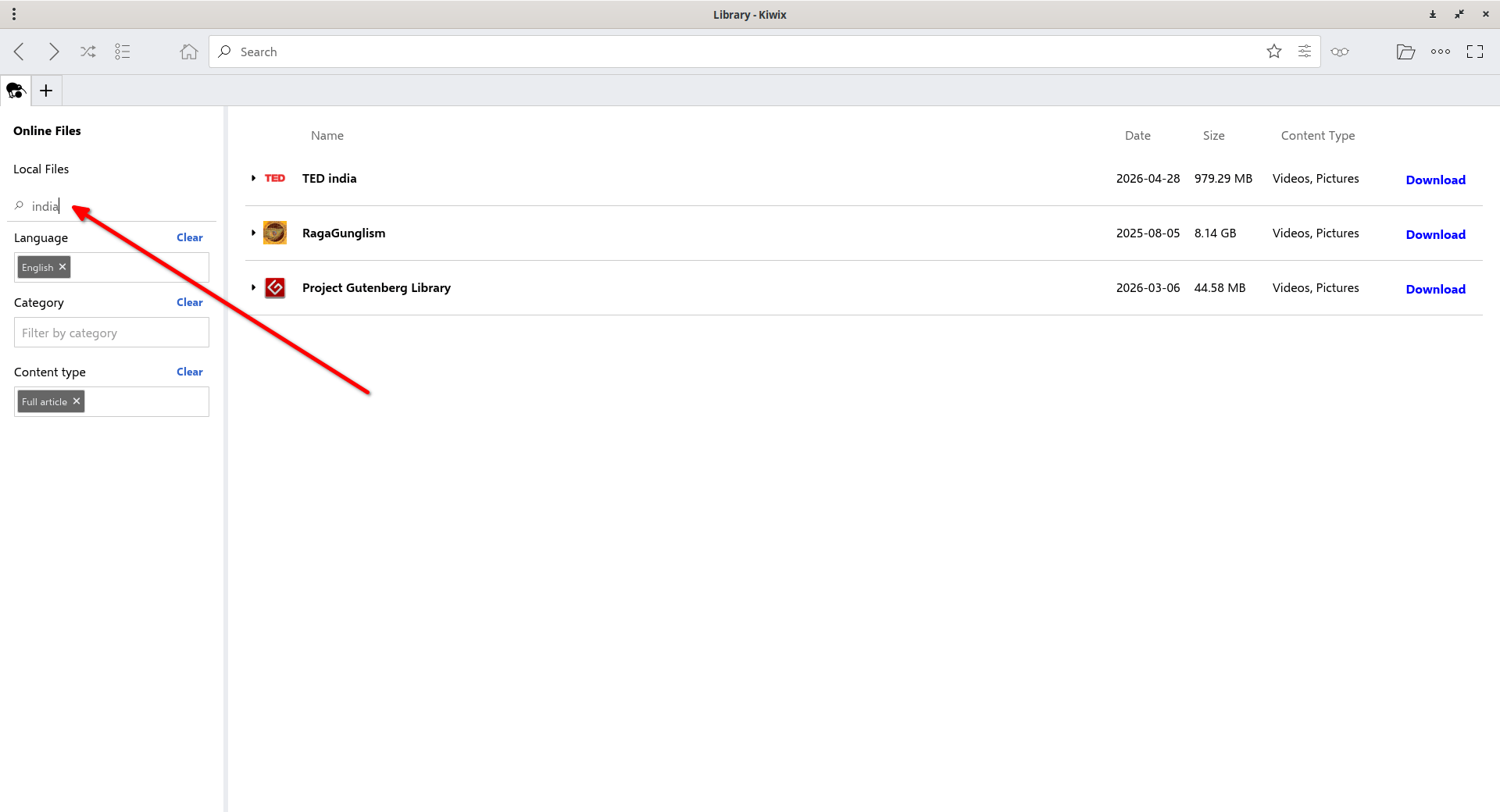
Read Multiple Collections
You aren't limited to a single ZIM file. Kiwix Reader can manage multiple knowledge collections, making it easy to switch between Wikipedia, Wiktionary, Project Gutenberg, Stack Overflow, and many others.
Preview Files Before Downloading
You can preview a ZIM file directly from the Kiwix online library before downloading it to your local drive. To do so, right click on any book and choose "Preview Book in the Web browser" option.
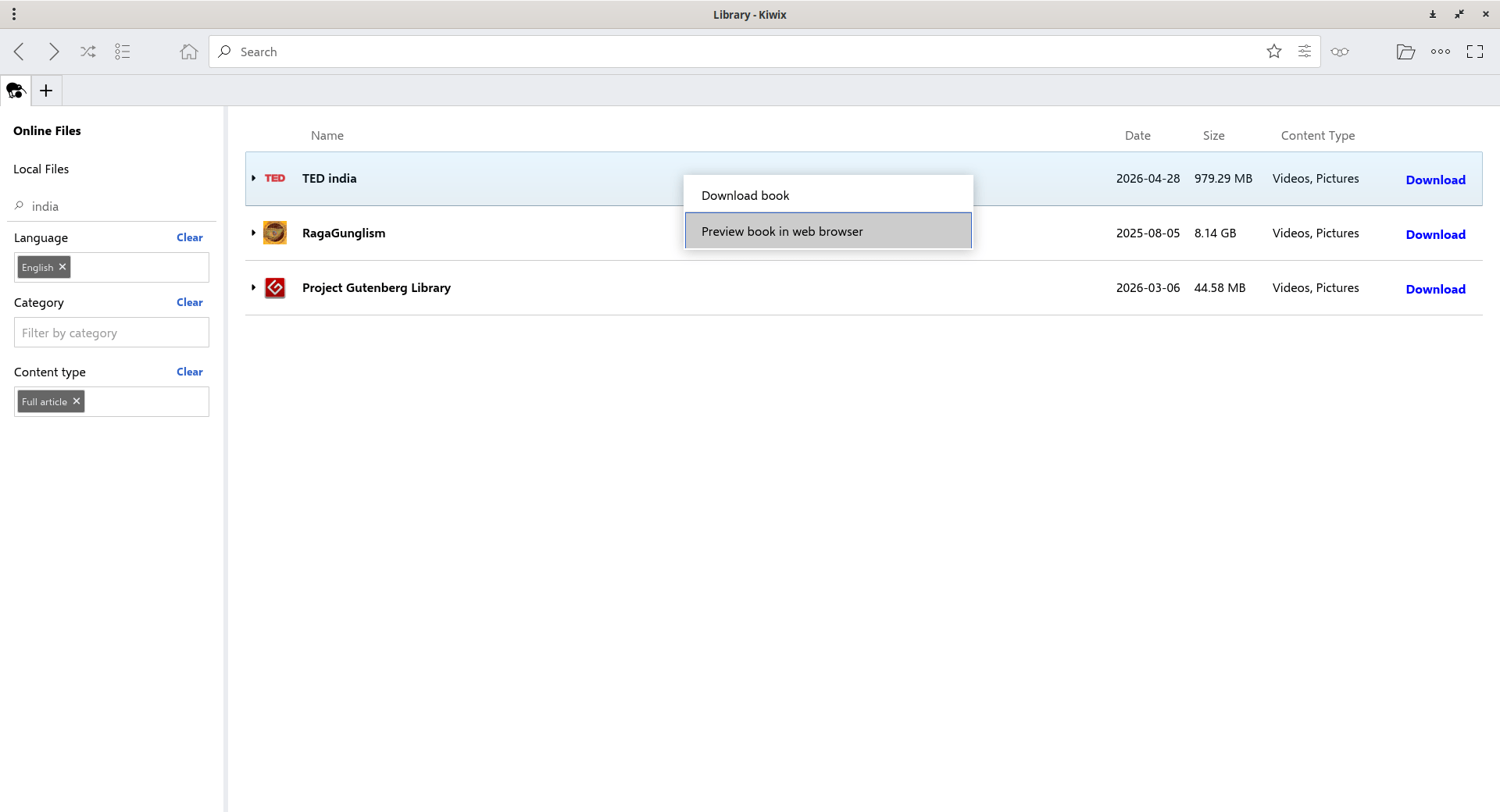
Go through the book and download it if you want to add it to your local collection.
Keep Your Library Up to Date
Knowledge collections are updated periodically. Kiwix doesn't automatically replace your downloaded ZIM files, so download the latest version when you want newer content. You can keep older versions until you're ready to switch.
By default, all the downloaded ZIM files are stored in ~/.local/share/kiwix-desktop/ directory.
You can change this location from the Settings section. To go to Settings section, click the three dots and then click Settings or simply press F12 key.
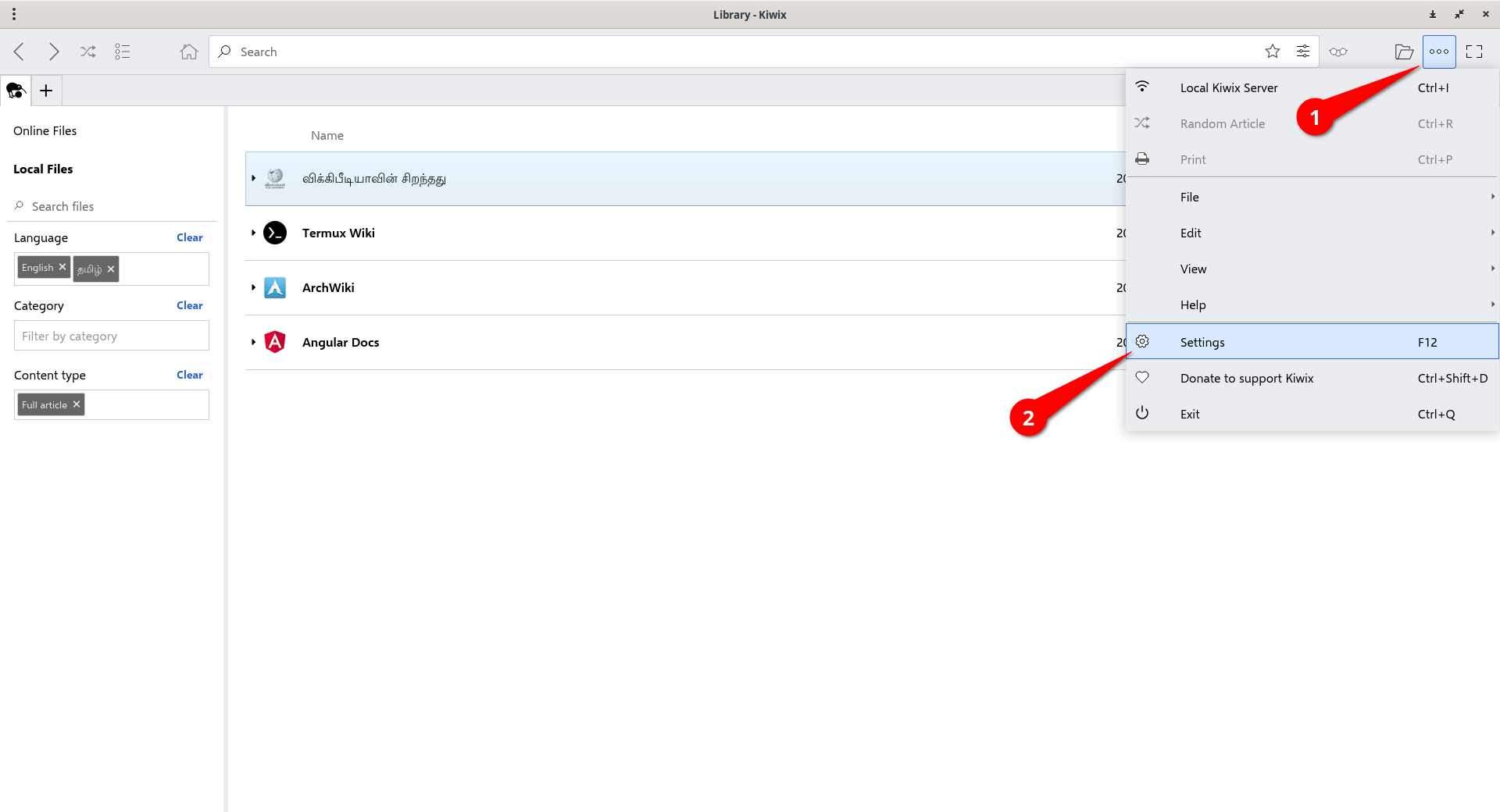
Choose a different download directory from the Settings section.
Tip: Store your ZIM files in a dedicated folder, such as
~/Documents/Kiwixor on an external SSD. Keeping everything in one place makes backups, updates, and migration much easier.
Delete Files
Right click on a book and click Delete. It will be permanently deleted from your local disk. You can re-download it if you want it again.
Building Your Personal Offline Internet
One of Kiwix's biggest strengths is flexibility. Instead of downloading a single encyclopedia, you can combine multiple knowledge collections into a library that matches your interests and daily work.
Here are a few ideas to get started:
| If you're a... | Recommended collections |
|---|---|
| Linux user | Wikipedia, ArchWiki, Unix & Linux Stack Exchange, Wikibooks, Wiktionary |
| Software developer | Stack Overflow, FreeCodeCamp, Wikipedia, Project Gutenberg |
| Student | Wikipedia, Wikibooks, TED Talks, Wiktionary |
| Teacher | Wikipedia, Wikibooks, Wikisource, Project Gutenberg |
| Book lover | Project Gutenberg, Wikisource, Wikiquote |
| Language learner | Wiktionary, Wikipedia, TED Talks |
You don't need to download everything at once. Start with the collections you use most often, then expand your library as your storage and interests grow.
If you use multiple computers, store your ZIM files on an external SSD or a NAS. This lets you reuse the same library without downloading everything again.
Your offline library doesn't have to replace the Internet. Instead, think of it as a permanent collection of knowledge that's always available, whether you're travelling, working remotely, troubleshooting a system without Internet access, or simply trying to avoid distractions while learning.
Best Kiwix ZIM Files to Download
With so many ZIM files available, it can be difficult to know where to begin. If you're wondering which collections are actually worth downloading, continue with our Best Kiwix ZIM Files to Download guide. It lists carefully curated recommendations, practical use cases, and guidance for choosing the right ZIM files for your needs.
Managing and Maintaining Your Offline Library
As your collection grows, keeping it organized becomes just as important as downloading new content. A little organization now will save time later.
Organize Your ZIM Files
Store your ZIM files in a dedicated directory instead of scattering them across your system. This makes them easier to find, back up, and migrate to another computer.
A simple directory structure works well for most users:
Kiwix/
├── Wikipedia/
├── Books/
├── Programming/
├── Education/
└── Archive/
Keep Older Versions Only When Necessary
Large collections such as Wikipedia are updated regularly. After verifying that a newer ZIM file works correctly, you can remove the older version to recover disk space.
If you need historical snapshots for research or archival purposes, keep both versions and rename them clearly.
Back Up Your Library
Downloading hundreds of gigabytes of content can take considerable time. Include your ZIM files in your regular backup routine or keep a second copy on an external SSD or NAS.
Monitor Available Storage
Some collections are very large. Check your available disk space before downloading additional content, especially if you're using a laptop or a small SSD.
Tip: Your ZIM files are independent of Kiwix Reader. If you reinstall the application or move to another computer, simply open your existing ZIM files instead of downloading everything again.
Where to Go Next
By now, you've built a fully functional offline knowledge library. As your needs grow, Kiwix offers several ways to expand your setup.
Share Your Library on Your Network
Use Kiwix Server (kiwix-serve) to make your ZIM files available through a web browser. This is a great option for homes, classrooms, and small offices where multiple people need access to the same library.
kiwix desktop application has built-in Kiwix local server. You can enable by clicking the three dots on top right and choose "Local Kiwix Server" or press CTRL+I.
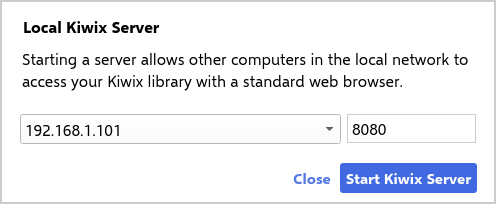
After starting the kiwix server, anyone can access your Kiwix library from the local network via a web browser.
Build a Personal Knowledge Server
A Raspberry Pi, mini PC, or home server can host Kiwix 24/7 with very little power consumption. Combined with a large external drive, it becomes a permanent offline knowledge server for your entire network.
Deploy with Docker
If you already run services in containers, Docker makes it easy to deploy and maintain Kiwix alongside your other self-hosted applications.
Expand Your Collection
Wikipedia is only the beginning. As your interests change, add new knowledge collections covering programming, literature, education, science, medicine, languages, and many other subjects.
What's next? In future guides, we'll explore Kiwix Server, Docker deployments, Raspberry Pi installations, and strategies for managing very large offline libraries.
Frequently Asked Questions (FAQ)
A: Yes. Once you've downloaded a ZIM file, Kiwix works entirely offline. You only need an Internet connection to download new content or update existing collections.
A: Yes. Kiwix can open ZIM files stored on internal drives, external SSDs, USB flash drives, and other supported storage devices. This is a convenient way to carry a large offline library between computers.
A: Kiwix doesn't automatically update downloaded ZIM files. When a newer version of a collection becomes available, download the latest ZIM file and replace the older one if you no longer need it.
A: Absolutely. Kiwix can manage multiple ZIM files, allowing you to build a library that includes resources such as Wikipedia, Wiktionary, Project Gutenberg, Stack Overflow, TED Talks, and many others.
A: It depends on the collections you choose. Smaller ZIM files may require only a few hundred megabytes, while larger collections, such as complete Wikipedia editions with images, can require tens or even hundreds of gigabytes. If you're just getting started, begin with the collections you use most and expand your library over time.
A: Yes. You can share your library over your local network using Kiwix Server (kiwix-serve) or simply keep your ZIM files on a shared location, such as a NAS or an external SSD, so they can be accessed from multiple computers.
Conclusion
The Internet has made knowledge easier to access than ever before. At the same time, it has made us dependent on a fast, reliable connection for even the simplest reference.
Kiwix offers a different approach. By storing knowledge locally, it gives you instant access to information whenever you need it - whether you're travelling, working in a remote location, troubleshooting a system without Internet access, or simply looking for a distraction-free reading experience.
The best part is that your offline library can grow with you. Start with a single Wikipedia archive, then add books, programming references, educational resources, technical documentation, and other collections that match your interests. Over time, you'll build a personal knowledge library that is always available, entirely under your control, and ready whenever you need it.
Whether you're a Linux enthusiast, a student, a software developer, an educator, or simply someone who enjoys learning, Kiwix is one of the most useful tools you can add to your system.
It's free, open source, and capable of preserving an incredible amount of human knowledge in a form that fits on a laptop, an external SSD, or even a small single-board computer.
Resources:
