
If your external hard drive opens but your files are missing, an empty folder does not necessarily mean the data is gone. Hidden files, file system errors, or accidental deletion can cause this problem, even when the drive still shows used space. This guide explains how to check what happened, restore access to your files, and use recovery software when simple fixes do not help.
Table of Contents
Quick Answer
If your external drive doesn’t show the files, do the following:
- Stop saving data to the drive immediately. This is very important.
- If the drive opens, check for hidden files.
- If it is missing from File Explorer, check its drive letter in Disk Management.
- If files remain inaccessible, restore a backup or use recovery software before repairing the file system.
- For clicking, repeated disconnections, or physical damage, stop DIY attempts and contact a data recovery service.
Why Are Files Not Showing Up on My External Hard Drive?
If files are not showing up on your external hard drive, several issues could explain why. Before choosing a fix, check whether you can open the drive or whether it is missing from File Explorer entirely.
- Hidden files: Files and folders may have the hidden attribute enabled, so they do not appear with the default viewing settings.
- File system corruption: Errors in the information used to organize files can make them inaccessible even when Windows still reports occupied space.
- Accidental deletion: Files may have been deleted or moved to another location.
- Connection problems: A faulty cable, insufficient power, or a failing USB port can interrupt access.
- Missing drive letter: Windows may detect the disk without displaying its volume in File Explorer.
- An unsupported file system: A disk formatted for one operating system may not be readable on another.
Hardware failure is another possibility, especially if the drive clicks, disconnects repeatedly, or becomes unusually slow.
What to Do Before You Start?
- Stop writing to the drive: Do not save files, install software, format it, or initialize it.
- Check for physical failure: If the drive clicks, repeatedly disconnects, or has physical damage, stop using it. Do not attempt DIY recovery; contact a qualified data recovery service.
- Check the connection: If there are no warning signs, try another cable, a direct USB port, or another computer.
- Check the disk’s status: Locate it in Disk Management on Windows or Disk Utility on Mac. If it appears as RAW or unallocated, skip to recovery without formatting or creating a partition.
How to Show Hidden Files on an External Hard Drive?
If the drive opens normally but files are missing, check whether they are hidden. This changes what you can see without modifying the files.
Windows 10/11:
1. Press Windows + E to open File Explorer.
2. Open This PC and select your external drive.
3. In Windows 11, select View > Show > Hidden items. In Windows 10, open the View tab and check Hidden items.
4. Look for files or folders with faded icons. If your missing files appear, copy them to another drive.
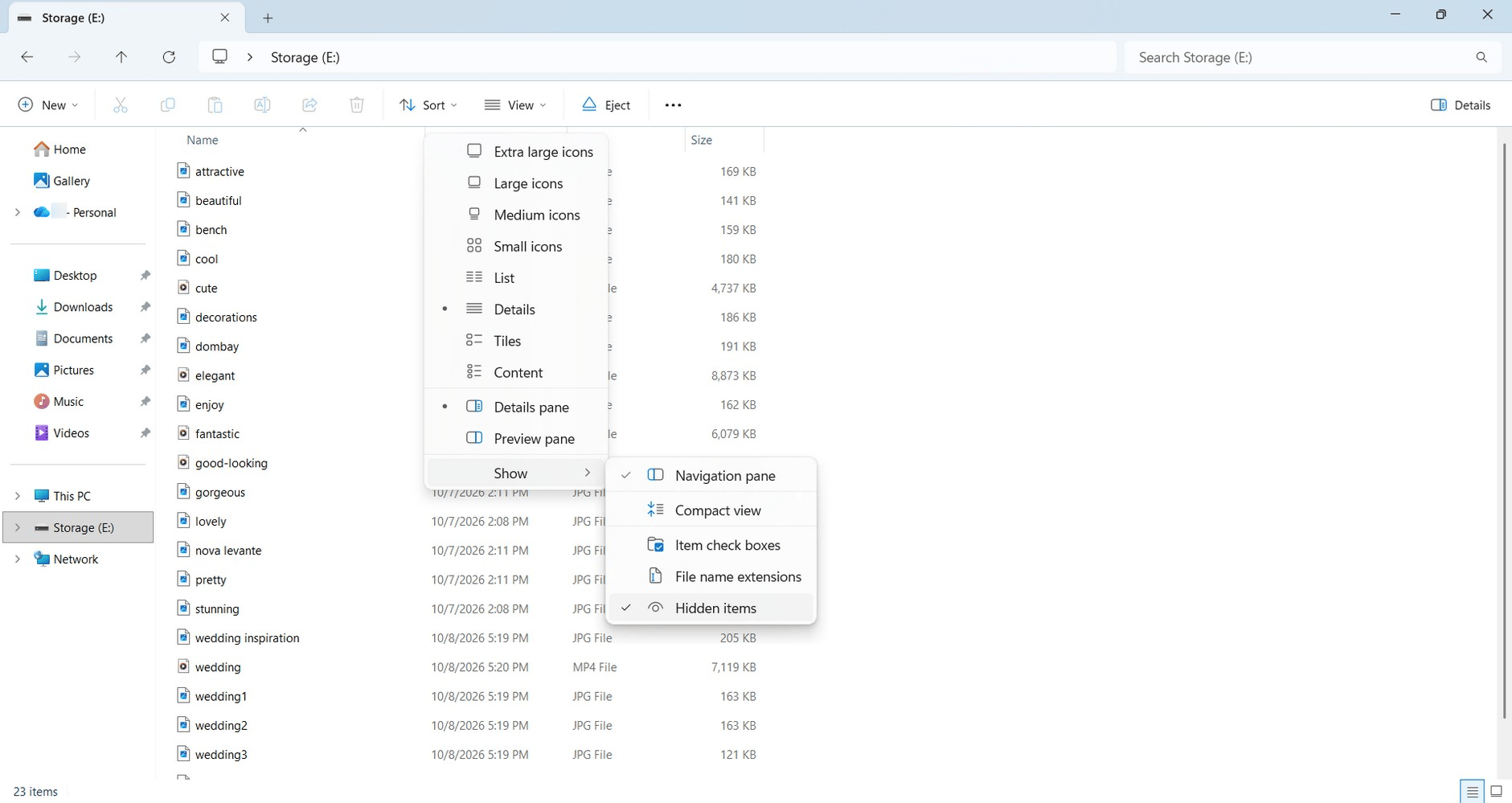
If your files appear as faded icons after enabling Hidden items, you can make them visible permanently. Right-click the affected file or folder, select Properties, clear the Hidden checkbox on the General tab, and click Apply. Only change this setting for your own files, leaving unfamiliar system folders untouched.
macOS:
1. Open Finder and select the external drive under Locations.
2. Press Command + Shift + . (period) to display hidden files.
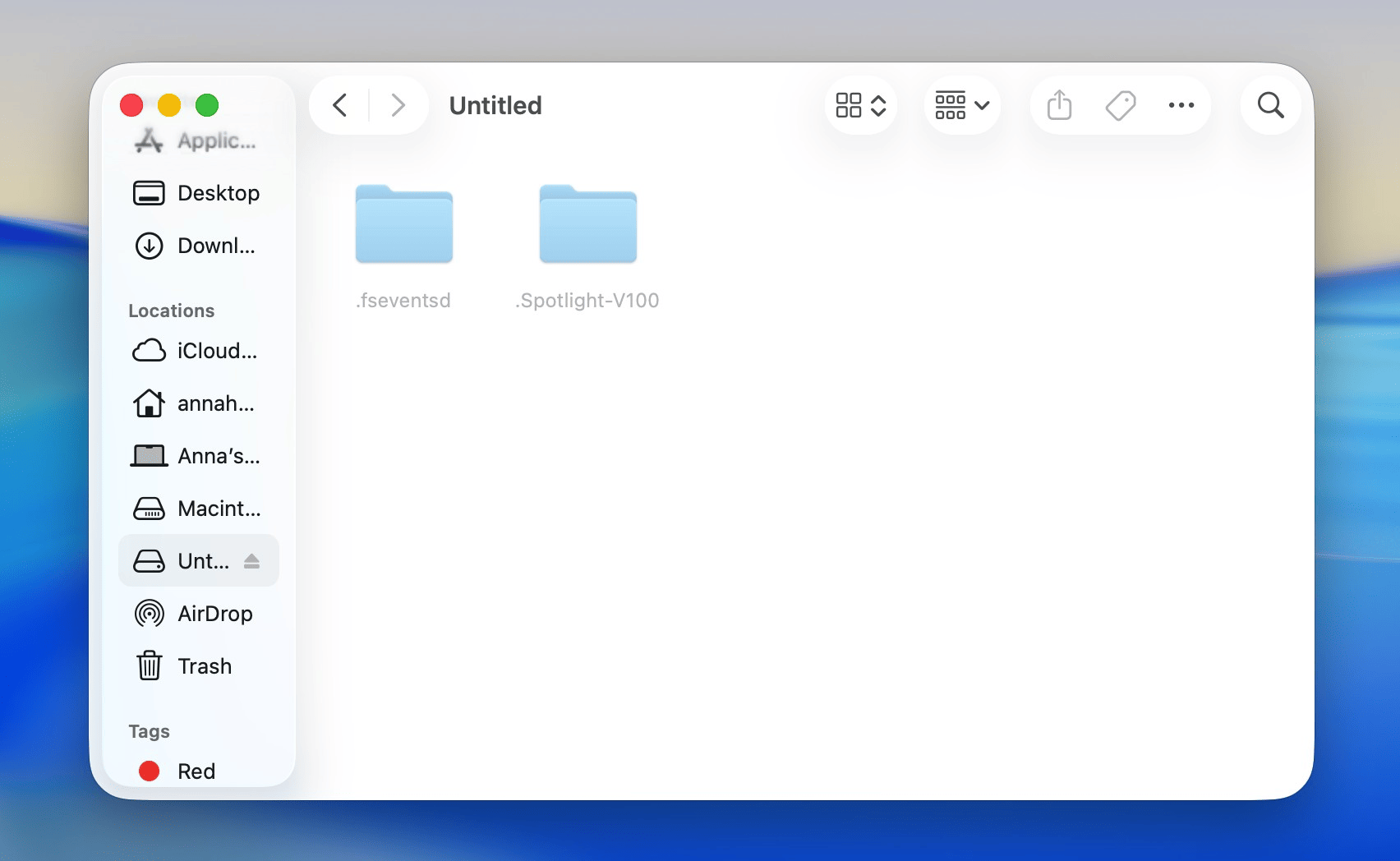
3. Check the folders and copy any important files to another drive. Press the shortcut again to hide hidden items.
The files may also have been moved to another folder. In Windows, open the external drive in File Explorer and use the search box to look for a filename or extension, such as .jpg or .pdf. On Mac, open the drive in Finder, press Command + F, and select the drive’s name under Search to limit the search to that location. If neither search finds the files, broaden it to This PC in Windows or This Mac in Finder.
Linux:
- Open the external drive in your file manager and enable Show Hidden Files. In GNOME Files, press Ctrl + H.
- If the drive is not accessible, open Terminal and run lsblk -o NAME,SIZE,FSTYPE,MOUNTPOINTS to check its capacity, file system, and mount location.
- If the drive’s partition has a blank MOUNTPOINTS entry, it is not mounted. Try opening the volume through your file manager or mounting it in Disks on GNOME-based systems.
- If mounting fails, note the error instead of formatting the drive. If your files become accessible, copy important ones to another drive.
Linux treats filenames beginning with a dot, such as .photos, as hidden. If the drive opens but a folder displays a “Permission denied” message, the files may still be present; access permissions, rather than visibility settings, need attention.
If the drive opens but a folder shows “Permission denied,” try accessing it from the Linux account or computer that originally saved the files. Avoid changing ownership or permissions across the entire drive, since this can affect access for other users.
If your files are still missing after these checks, choose the next method based on whether the drive is inaccessible or opens without showing the expected files.
How to Fix an External Hard Drive Not Showing Files by Assigning a Drive Letter?
If Disk Management shows an existing data partition without a letter, assigning a drive letter can make it accessible in File Explorer. If the drive already opens there, skip this section.
1. Right-click Start and select Disk Management.
2. Locate your external disk by its capacity and find its data partition in the lower pane.
3. Right-click the partition and select Change Drive Letter and Paths.
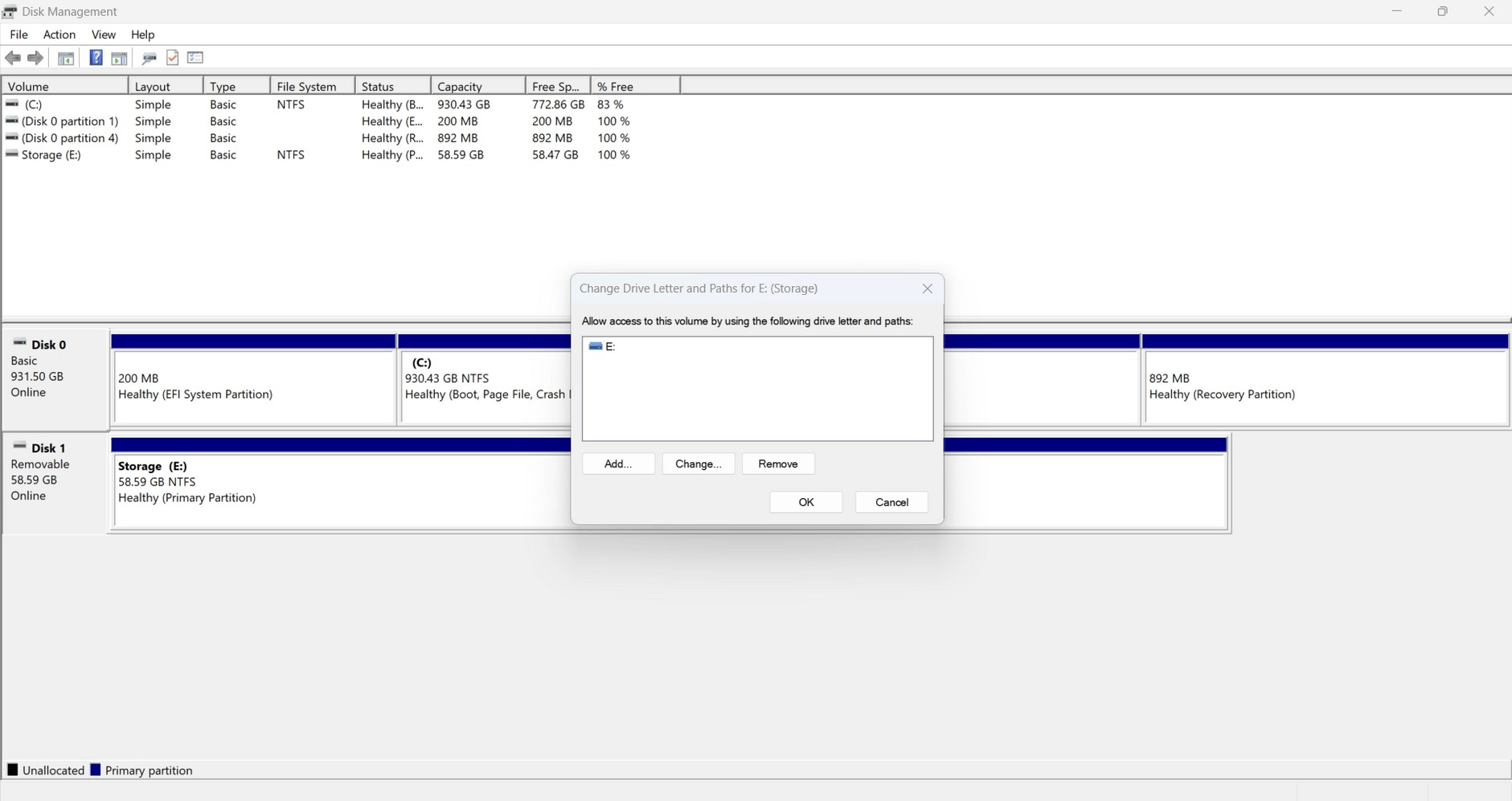
4. Click Add, select Assign the following drive letter, and choose an unused letter.
5. Click OK, then open This PC to check the drive.
How to Fix a Corrupted External Hard Drive?
File system errors can leave an external hard drive corrupted and its files inaccessible. Before attempting repairs, copy accessible files to another disk.
If important files are missing and you have no backup, follow the recovery section below first: repair tools modify file system information and may complicate later recovery.
Windows:
1. Open File Explorer > This PC.
2. Right-click the external drive and select Properties.
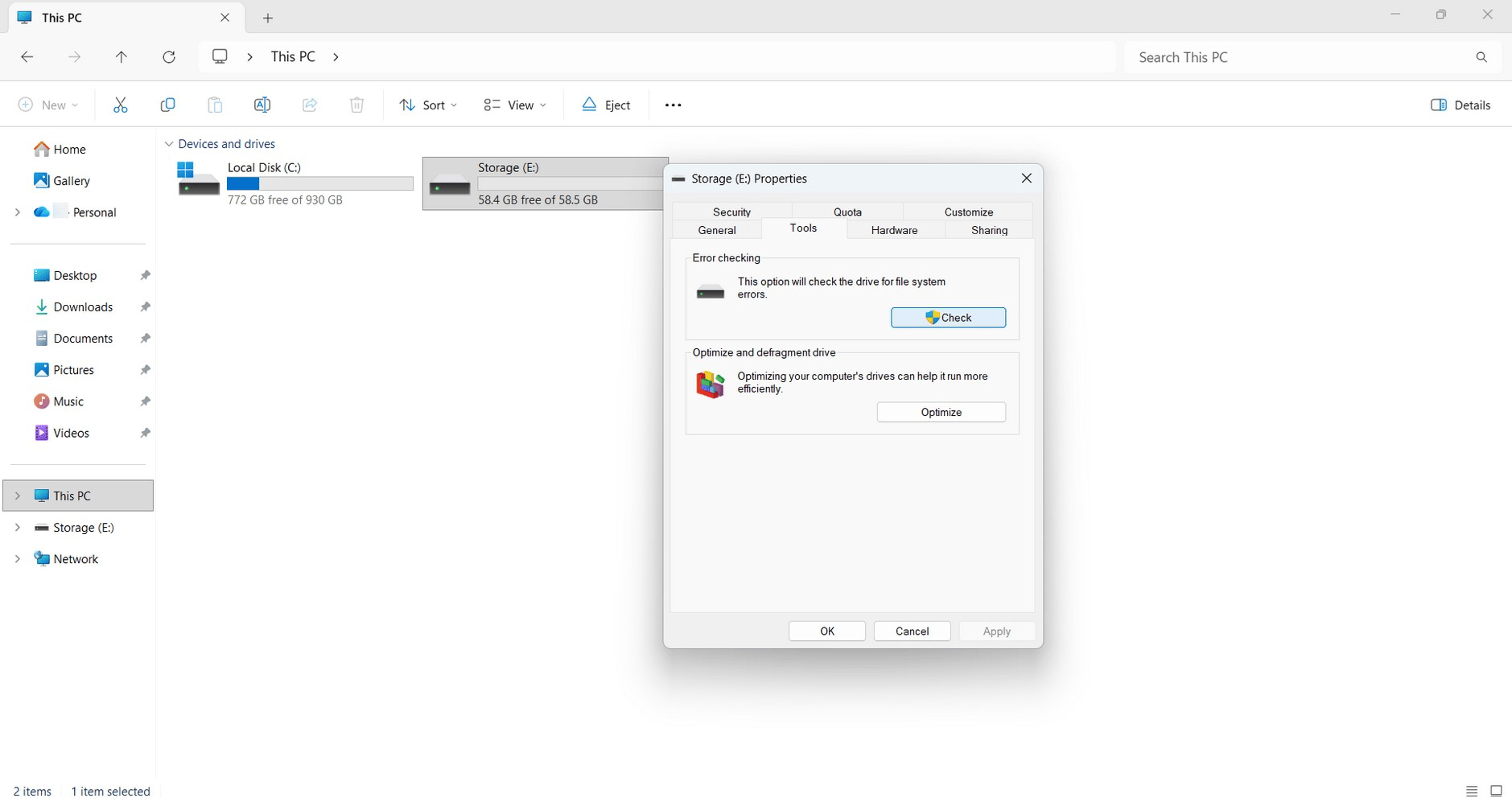
3. Open the Tools tab and click Check under Error checking.
4. Follow the prompts to scan the drive and repair any detected errors.
macOS:
1. Open Disk Utility and select View > Show All Devices.
2. Select the last volume listed under the external disk, click First Aid, then Run.
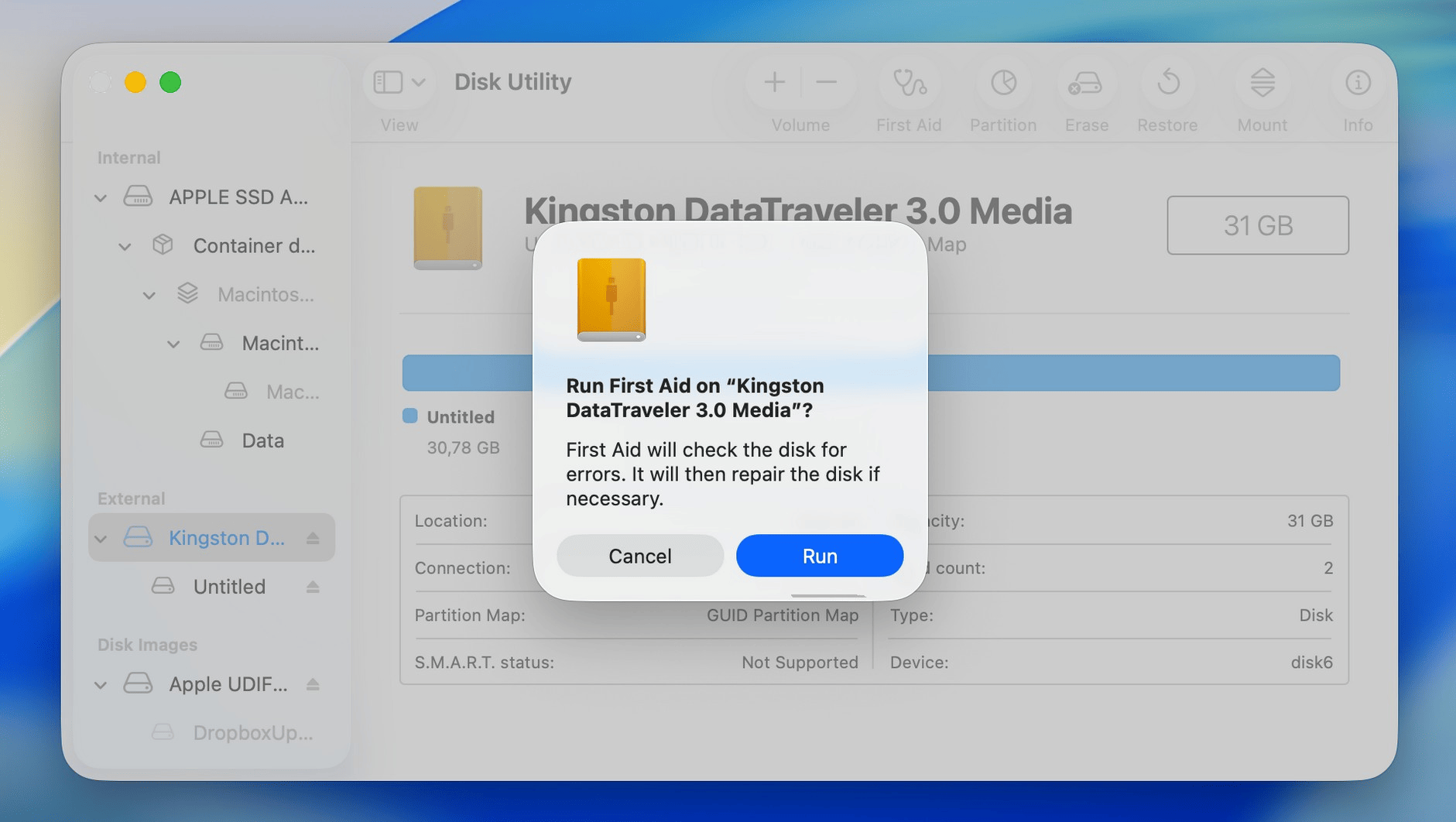
3. Repeat for each remaining volume, then any containers, and finally the physical disk, following Apple's First Aid instructions.
If these repairs do not help, reformatting may resolve file system corruption by creating a new file system. Recover your important files first and verify the saved copies, since formatting erases the existing file system and makes its files inaccessible.
If the drive shows signs of physical failure, do not attempt repairs, formatting, or DIY recovery in the first place. Stop using it and contact a qualified data recovery service.
How to Recover Files From an External Hard Drive With Hard Drive Recovery Software?
If files remain missing, hard drive recovery software can search the disk for data that File Explorer cannot access. Software recovery is an option if the drive stays connected and appears in Disk Management on Windows or Disk Utility on Mac with its correct capacity. The walkthrough below uses Disk Drill for Windows, which offers file previews and filters to help you select what to recover.
Windows users can recover up to 100 MB for free, while recovering deleted files on Mac generally requires a paid license; both versions offer free scanning and previews so you can check your files before purchasing.
Before scanning, consider creating a byte-to-byte backup in Disk Drill. Missing files may result from file system corruption or a developing drive problem, and an image lets you run recovery scans on a copy without repeatedly reading the original disk. Save it to another drive with enough free space for the source disk’s full capacity.
1. Install Disk Drill on your computer’s internal drive:
Keep the affected external disk connected, but do not install software or download anything onto it.
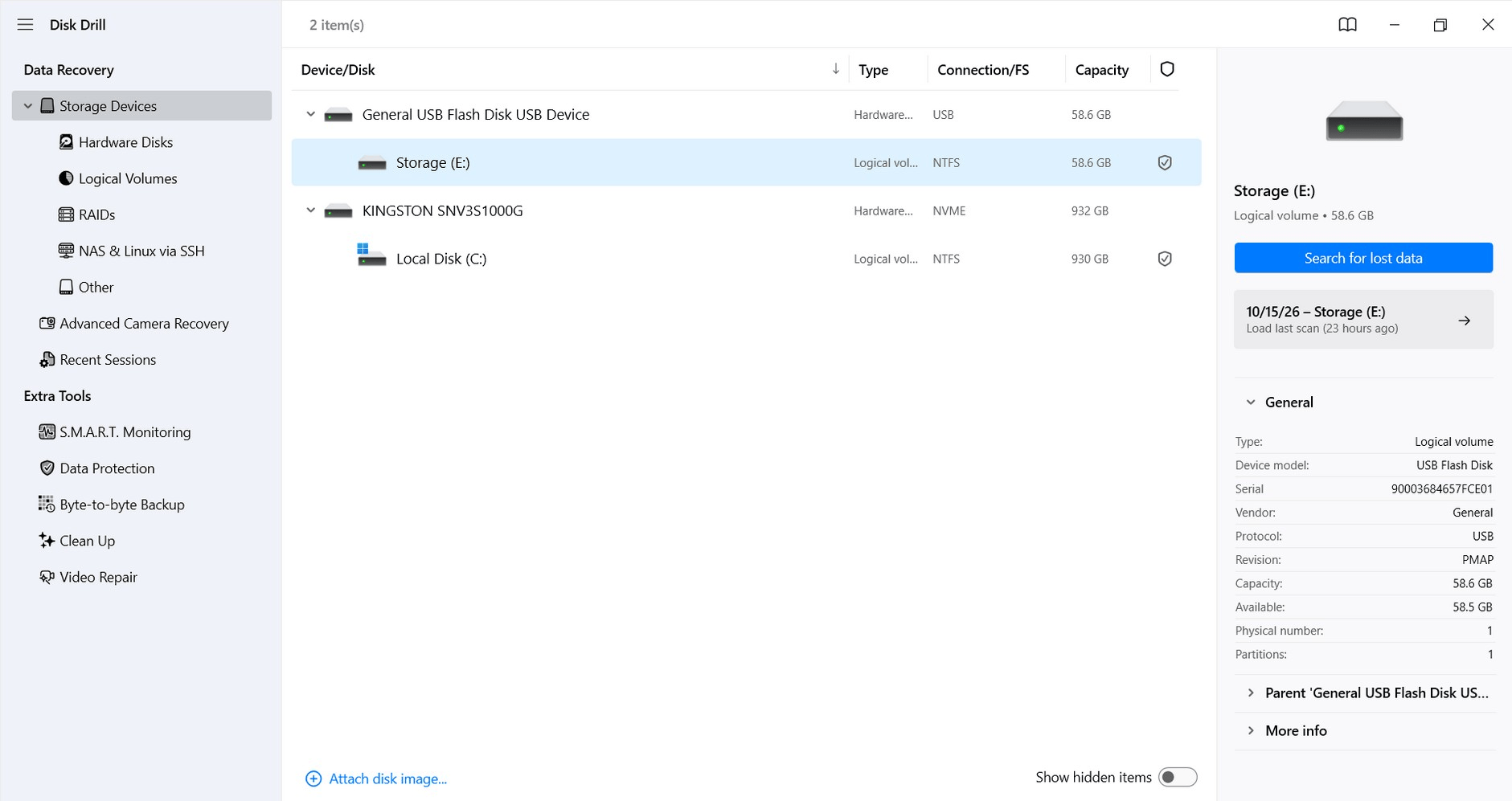
2. Select the external drive:
Choose its volume from the device list. If the volume is missing or damaged, select the physical disk instead, identifying it by its model and capacity. Click Search for lost data and choose Universal Scan if prompted.
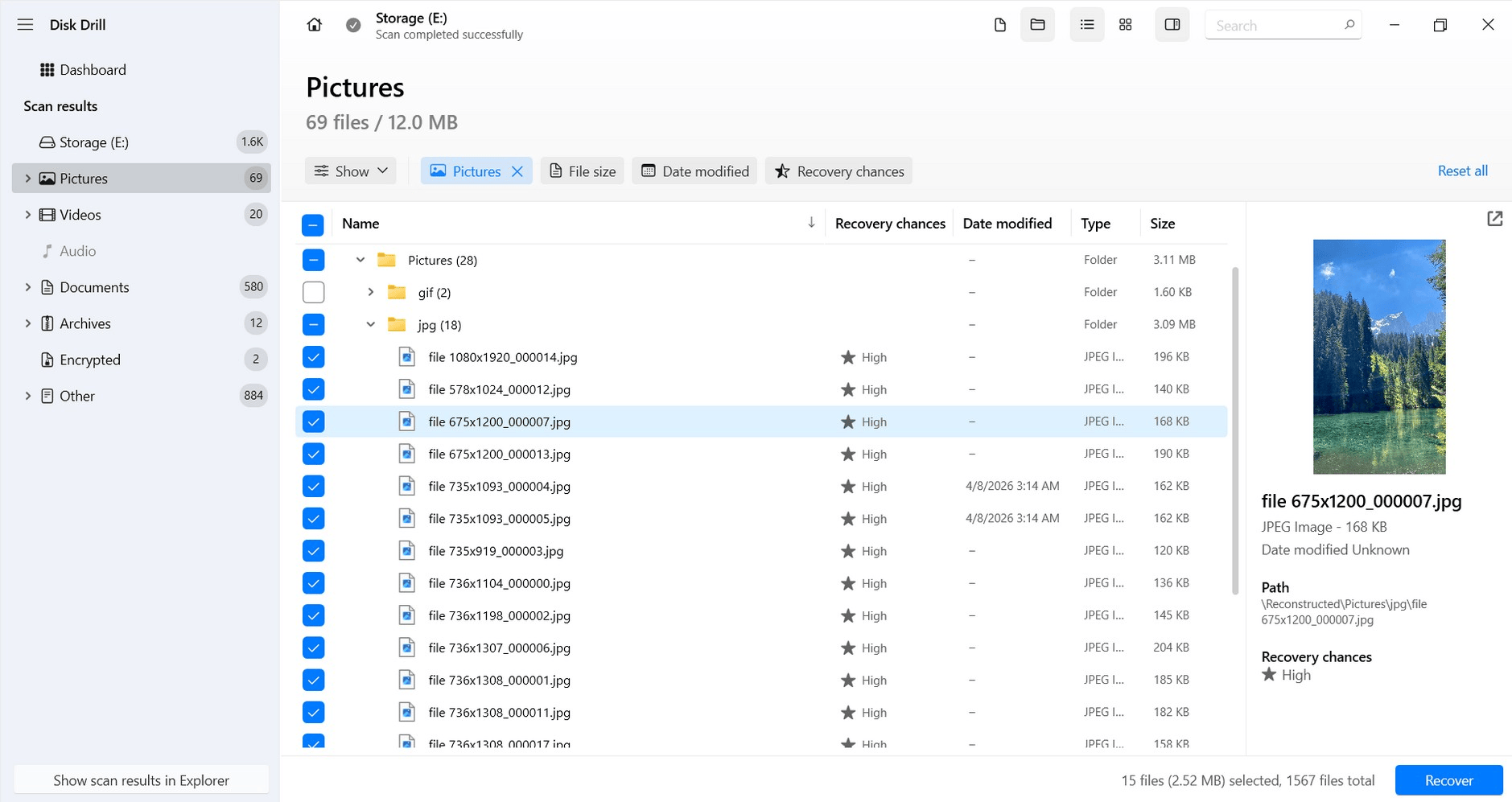
3. Review the scan results:
Click Review found items. Use file-type filters or search for a filename to narrow the list.
4. Preview and select your files:
Open previews of important photos and documents to check their contents, then select the files you need.
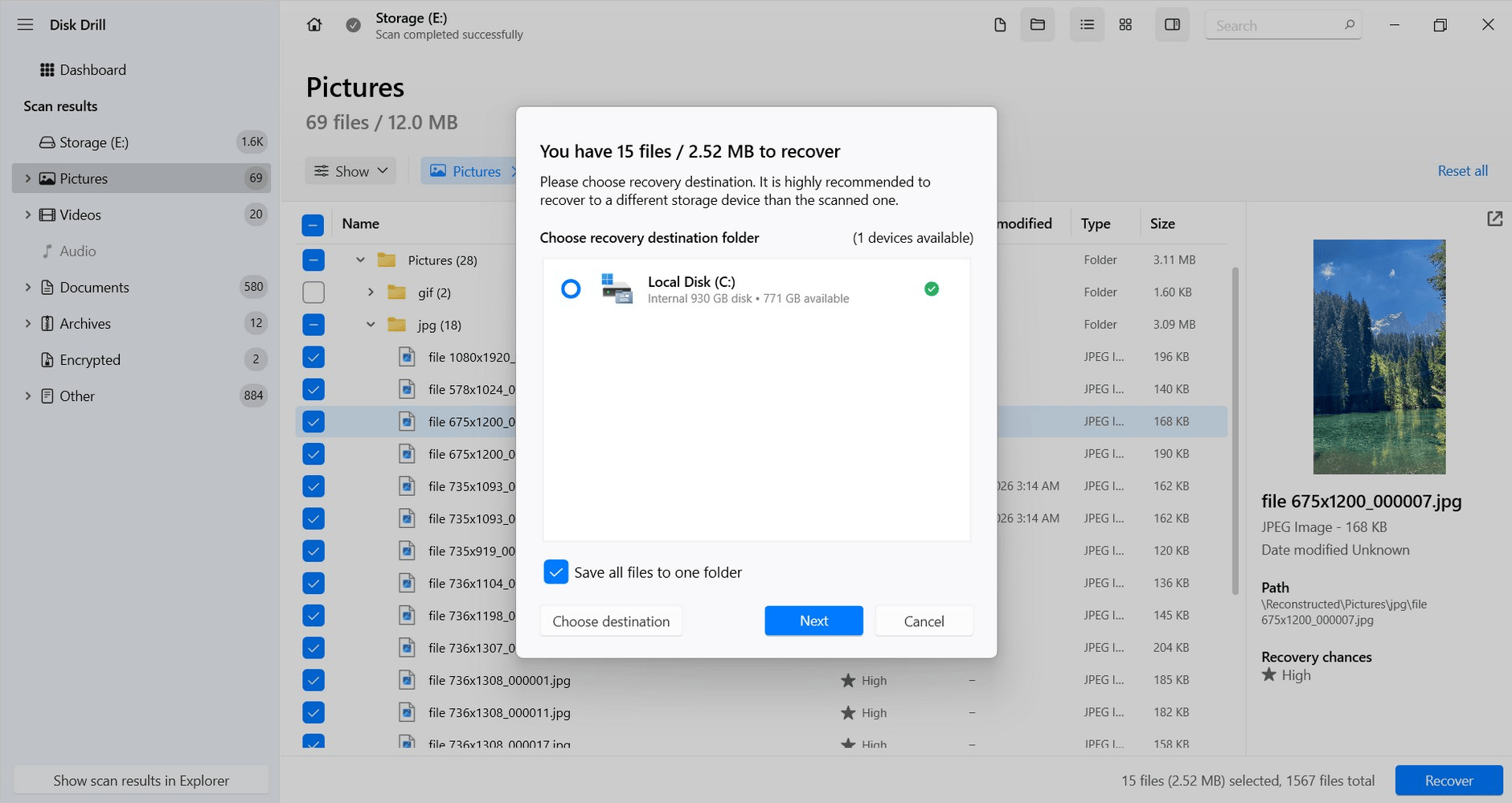
5. Save to another physical drive:
Click Recover and choose a destination on your internal disk or another external drive with enough free space. Click Next and follow the prompts to complete recovery.
Open the recovered files from their new location to verify them before making further changes to the original disk.
Disk Drill also helped a user in a similar case on Reddit, where files had disappeared from an external HDD even though Windows still showed occupied space. Their successful recovery shows why the program is a suitable choice for this type of problem.
How to Recover Deleted Files in Other Situations?
The next step depends on how the files were lost:
- Accidental deletion: Check the Recycle Bin or Trash first, then any existing backups. If neither contains the files, recovery software may help if the deleted data has not been overwritten.
- Accidental formatting: Restore a backup if available. After a quick format, recovery software may still find files whose data remains intact. A full format that overwrites the disk, or a secure erase, prevents recovery of the erased data.
- A drive that is not detected anywhere: If it remains absent from Disk Management or Disk Utility after basic connection checks, contact a professional recovery service. Software cannot scan a disk the system cannot access.
- Physical damage, even if the drive still works: Stop using it and contact a recovery service. Do not attempt DIY scans, repairs, or formatting, as continued use may worsen the damage.
Which Method Should You Use?
Choose the method that matches what you see. You do not need to try every fix.
| Situation | Best method | Risk to data |
| The drive opens, but some files are invisible | Show hidden files | Minimal; changes display settings only |
| An existing data partition has no drive letter | Assign a drive letter | Low when the correct partition is selected |
| Files were deleted and a backup exists | Recover from the backup to another drive | Low; avoids modifying the affected disk |
| Files are missing, or the partition is RAW or unallocated | Scan with recovery software and save elsewhere | Low on a stable drive; a byte-to-byte image helps protect the original during recovery scans. |
| File system errors remain after files are safely copied or recovered | Use Error checking or First Aid; reformat if repairs fail | Low if recovered copies are verified; repairs modify the file system, and formatting removes access to existing files. |
| The drive clicks, repeatedly disconnects, or has physical damage | Stop using it and contact a recovery service | High with continued use; stop DIY attempts and contact a recovery service. |
How to Avoid Losing Files on an External Hard Drive?
- Keep at least one separate backup of important files, and check periodically that you can open the copies.
- Eject the drive through your operating system before unplugging it, and never disconnect it during a file transfer.
- Protect the drive from drops, moisture, and excessive heat, especially while it is running.
- Copy files rather than move them between devices, and verify the destination copies before deleting the originals.
Frequently Asked Questions (FAQ)
A: No. Used space can include hidden files, system data, or space incorrectly marked as occupied because of file system errors. It is a useful clue, but it does not confirm that every missing file can be recovered.
A: Sometimes. Recovery software may preserve names and folder paths if the relevant file system records remain readable. When those records are missing, files may receive generated names and be grouped by type instead.
A: Recovery may be possible after a quick format if the original data has not been overwritten. Stop using the drive immediately. A full overwrite prevents software from restoring the overwritten data, so recovery is never guaranteed.
Conclusion
Missing files do not always mean the drive has failed. Start with the checks that match its condition, and recover important data before attempting file system repairs. Once your files are saved elsewhere, verify that they open correctly and keep a separate backup before putting the drive back into use.
Recommended Read:
