
If your Linux desktop shows only a black screen, do not assume the operating system has crashed or needs to be reinstalled. In many cases, only the graphical interface has failed.
This guide introduces a practical approach to troubleshooting and recovering Linux desktop startup failures. You will learn how to identify the failed component, regain access to the system using a TTY, Recovery Mode, or a Live USB, and use system logs to diagnose the problem. The guide uses a broken Xorg configuration as a practical example, but the same troubleshooting process applies to many desktop startup problems.
The exact repair depends on the underlying cause. Instead of providing a single fix, this guide teaches a systematic Linux desktop recovery process that you can apply to many different desktop startup failures.
Before we begin, let's review the basic components of the Linux desktop.
Table of Contents
How the Linux Desktop Starts
The Linux desktop consists of several independent components. Each component performs a specific task. If one component fails, the graphical interface may not start even though the operating system is still running.
The kernel is the core of the operating system. It manages the computer's hardware.
A display server creates graphical windows and displays them on the screen. As you may already know, most Linux systems use Xorg or Wayland as the display server. They perform the same role but use different technologies.
A desktop environment provides the desktop, panels, menus, and other graphical features. Popular desktop environments include GNOME, KDE Plasma, Xfce, and Cinnamon.
If the display server or desktop environment fails to start, you may see a black screen, a login loop, or a desktop that never loads.
As stated in the introduction, I use a broken Xorg configuration as an example. Modern Xorg usually works without an /etc/X11 directory because it can automatically detect most hardware. However, if required Xorg configuration files are missing or damaged, Xorg may fail to start or behave unexpectedly.
The troubleshooting methods in this guide also apply to many other Linux desktop startup problems.
Safely Modifying System Files
Before you begin troubleshooting, learn how to modify system files safely. A single incorrect command can make a recoverable problem much harder to fix.
Linux gives the root user full control over the operating system. The sudo command temporarily grants these administrator privileges. Linux assumes you know what you are doing. It does not stop you from deleting important system files.
Before you modify a system file or directory, find out what it is used for. Many files are installed and managed by your distribution's package manager. Deleting them manually can leave the software in an inconsistent state.
If you need to test a configuration change, create a backup instead of deleting the original file. For example:
sudo cp /etc/example.conf /etc/example.conf.bak
If a guide tells you to remove software, use your distribution's package manager instead of deleting files manually. The package manager keeps track of installed files and updates its database when software is installed, upgraded, or removed.
Find Which Package Manages a File
Before you modify or delete a system file, check whether it is managed by a software package. If it is, use your distribution's package manager to repair or reinstall the package instead of modifying or deleting its files manually.
Debian and Ubuntu
dpkg -S /path/to/file
Fedora, RHEL, and CentOS
rpm -qf /path/to/file
Arch Linux
pacman -Qo /path/to/file
If the command reports that no package owns the file, the file may have been created manually, generated by an application, or stored outside the package database. In that case, investigate its purpose before making changes.
Recommended Read: How To Find The Package That Provides A Specific File In Linux
Analyze System Logs Using Diagnostic Tools
This guide assumes your system uses systemd, which is the default init system on most modern Linux distributions.
When the Linux desktop fails to start, the first step is to identify the failed component. System logs record events and errors from the operating system and its services. They often provide enough information to identify the cause of the problem.
Tool 1: systemd Journal (journalctl)
The systemd journal collects log messages from the kernel, system services, and many applications. It is usually the best place to begin troubleshooting because it provides a system-wide view of what happened.
To display messages from the current boot, run:
journalctl -b
Tool 2: Xorg Log
If your system uses Xorg, you can also examine the Xorg log. It records information about the display server, including hardware detection, monitor initialization, and startup errors.
Depending on your Linux distribution and configuration, the log may be stored in /var/log/Xorg.0.log, ~/.local/share/xorg/Xorg.0.log, or the systemd journal.
Lines marked (EE) indicate errors. They are often the best place to begin your investigation.
| Tool | Best Used For |
|---|---|
systemd journal (journalctl) | System-wide errors and service failures |
| Xorg log | Xorg startup and graphics-related errors |
Choose the Right Recovery Method
The recovery method depends on how far your system boots.
- The system reaches a black screen or a frozen login screen: Switch to a TTY (Virtual Console) and repair the system from the command line.
- The system never reaches the login screen or a TTY: Boot from a Live USB and repair the installed system from a chroot environment.
Start with the TTY method. It is simpler and does not require external media. Use the Live USB method only if you cannot access a TTY.
Method 1: Recover from a TTY
A TTY (Virtual Console) is a text-based login screen that runs independently of the graphical interface. If the graphical interface fails, a TTY often remains available.
Press Ctrl + Alt + F2. If nothing happens, try F3 through F6.
Log in with your username and password. Linux does not display your password as you type. This is normal.
Check the system logs to identify the failed component:
journalctl -b
Repair the failed component. For example, reinstall a missing package, restore a deleted configuration file, or undo a recent configuration change.
Restart the system:
sudo reboot
Tip: If you cannot access a TTY, check whether your distribution provides a Recovery Mode or Rescue Mode from the GRUB menu. It may let you repair the installed system without using a Live USB. The available options vary by distribution.
Method 2: Recover from a Live USB
Use this method if your system does not reach the login screen or a TTY.
A Live USB is a bootable USB drive that lets you run Linux without using the installed operating system. A chroot (change root) environment lets you access and repair the installed system from the Live USB.
Boot your computer from a Linux Live USB. Open a terminal and identify your Linux root partition using command:
lsblk -f
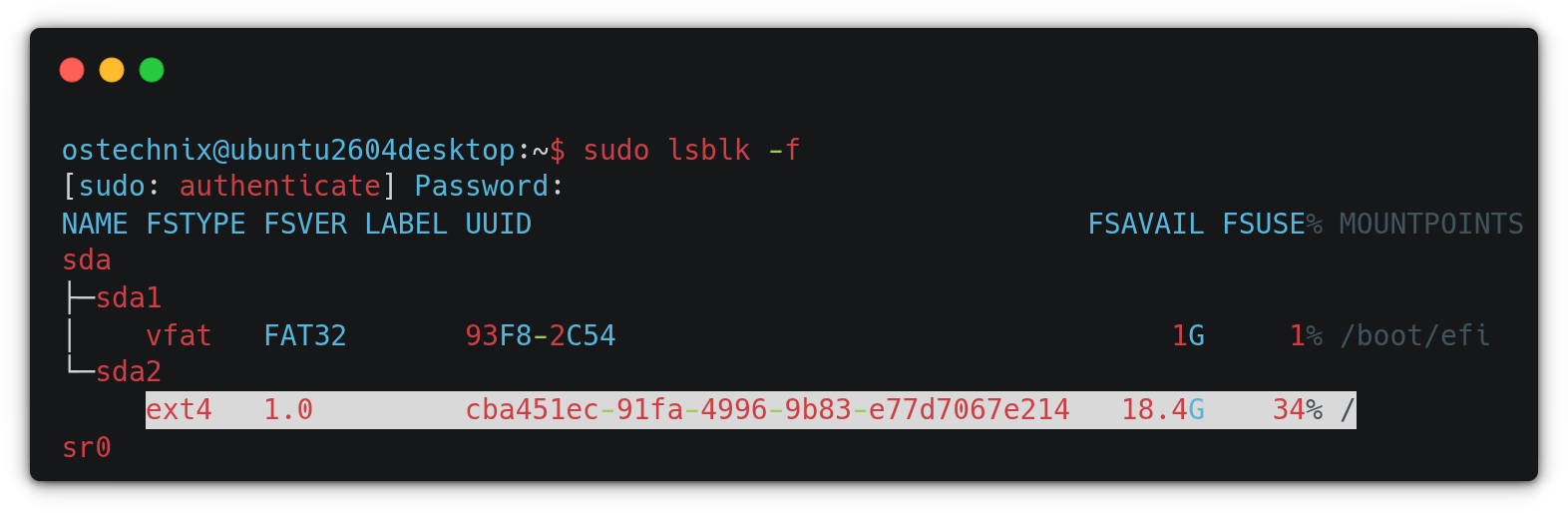
Next, mount the root partition. Replace /dev/sdXN with your root partition.
sudo mount /dev/sdXN /mnt
Note: If your system uses separate /boot, /boot/efi, LVM, LUKS encryption, or Btrfs subvolumes, mount the required partitions or subvolumes before continuing.
Bind the required virtual filesystems.
sudo mount --bind /dev /mnt/dev
sudo mount --bind /proc /mnt/proc
sudo mount --bind /sys /mnt/sys
sudo mount --bind /run /mnt/run
Enter the installed system.
sudo chroot /mnt
Diagnose and repair the problem. For example, restore a deleted configuration file or repair a damaged software package.
Exit the chroot environment.
exit
Unmount the filesystems and restart the computer.
sudo umount -R /mnt
sudo reboot
Prevent Future Desktop Startup Problems
You cannot prevent every problem, but you can reduce the risk of losing access to your desktop.
- Back up important configuration files before making changes. We have published guides about several backup tools. Check our Backup Tools category for more details.
- Use your distribution's package manager to install, update, and remove software.
- Test major configuration changes in a virtual machine when possible.
- Create regular system backups or snapshots before upgrading the operating system or modifying system files.
- Keep a Linux Live USB available. It can help you recover a system that no longer boots into the graphical interface.
- Make one change at a time. If a problem occurs, it is much easier to identify the cause.
Conclusion
A broken Linux desktop does not always mean the operating system is broken. In many cases, you can recover the graphical environment without reinstalling Linux.
The key is to follow a structured approach. Access the command line, review the logs, identify the failed component, and repair the underlying problem. With these skills, you can diagnose and recover many common Linux desktop startup failures with confidence.
Recommended Read:
- How To Fix Broken Ubuntu OS Without Reinstalling It
- How To Fix Busybox Initramfs Error On Ubuntu
- How to Use the Linux Magic SysRq Key to Safely Recover a Frozen System
- How To Fix “E: Could not get lock /var/lib/dpkg/lock” Error On Ubuntu
- How To Restore .bashrc File To Default Settings In Ubuntu
- How To Disable Unattended Upgrades On Ubuntu
- How To Restore Broken Arch Linux To Previous Working State
