
Every time you open an app on your computer, it may try to contact a remote server without asking you. This behavior is known as "phoning home", and it usually happens quietly in the background. Little Snitch for Linux brings that hidden activity into view.
As an application-level firewall, Little Snitch lets you see, allow, or block outgoing connections on a per-app basis.
Most Linux firewalls focus on blocking unauthorized access into your system. Little Snitch takes a different approach: it monitors what leaves your machine. Its focus is privacy, not perimeter defense.
Think of it as a traffic cop for your system. When an app tries to connect to the internet, Little Snitch intercepts the request. You decide whether to allow it or block it, with a single click.
Table of Contents
What is Little Snitch for Linux?
Little Snitch for Linux is an application-level firewall designed primarily for privacy, rather than hardened system security. While traditional Linux firewalls (like ufw or iptables) often focus on blocking incoming connections from external threats, Little Snitch monitors outbound network traffic on a per-application basis.
The tool makes "quiet" background activity visible, such as applications "phoning home" for telemetry, updates, or currency rates.
Unlike the standard firewall, which allows all outbound connections by default without restriction, Little Snitch intercepts connection attempts and allows the user to approve or deny them.
How Little Snitch Works
Little Snitch uses a modern technology called eBPF to hook into the Linux kernel. This allows it to monitor traffic directly at the source.
It has three main parts:
- eBPF Kernel Program: Written in Rust, this component is "hooked" into the Linux network stack. It observes and intercepts outgoing connections directly within the kernel.
- Background Daemon: The core engine (
littlesnitch --daemon) tracks statistics, preconditions rules, and serves the web interface. It must be running when a process starts to identify it reliably. - Web User Interface: A JavaScript-based UI that runs in a browser (typically at
http://localhost:3031) or as a Progressive Web App (PWA). It provides the "Connections View" for real-time monitoring and a "Traffic Diagram" to visualize data volume over time.
Key Things You Must Know
Before you install Little Snitch, you should understand a few technical details:
- System Requirements: You need Linux Kernel 6.12 or newer and BTF support. Currently, it does not work with the Btrfs filesystem, which is the default on Fedora.
- Privacy Limits: Because of limits in the Linux kernel, the tool sometimes makes "educated guesses" about which app is sending data. Under very heavy traffic, it might even lose track of some connections.
- The Hybrid Licensing: While the kernel code and UI are open-source (GPLv2), the daemon is proprietary. This means the core engine is a "black box" that you must trust.
Install Little Snitch for Linux
To deploy Little Snitch for Linux, you must ensure your system meets specific modern technical requirements as stated in the following section.
1. Verify System Prerequisites
Before attempting to install, you must ensure your system meets the following hardware and kernel requirements:
- Kernel Version: You must be running a Linux kernel between 6.12 and 6.19.0. Kernels newer than 6.19.0 currently reject the eBPF program. You can check your version by running
uname -rin the terminal. - BTF Support: The kernel must be built with BTF (BPF Type Format) support. You can verify this by checking if the directory
/sys/kernel/btf/exists on your system. - Architecture: Little Snitch provides packages for x86_64, aarch64 (ARM64), and riscv64 architectures.
- Filesystem Warning: Version 1.0.0 does not work with the Btrfs filesystem. If you are on a distribution that uses Btrfs by default (like Fedora), the software will fail to identify processes until a future fix is released.
- Rebooting is Best: The daemon identifies apps most reliably if it starts before they do. Therefore, you should reboot your system after you finish the installation.
2. Download and Install the Package
Get the latest version from Little Snitch download page.
Official packages are provided for the three major package management systems:
- .deb: For Debian, Ubuntu, Mint, and Kali.
- .rpm: For Fedora, RHEL, openSUSE, and CentOS.
- .pkg.tar.zst: For Arch Linux, Manjaro, and EndeavourOS.
It is recommended to verify the integrity of your download by using the provided .hashes.txt and signature files from the official download page. Once downloaded, use your distribution's standard package manager (such as apt, dnf, or pacman) to install the file.
For instance, if you're on Debian, Ubuntu, follow these instructions:
Step 1: Confirm BTF
ls /sys/kernel/btf/vmlinux
If that file exists, you're good to go. Latest Linux distributions' kernels (E.g. Debian 13) usually include it.
Step 2: Install Little Snitch
Download the appropriate version for your Linux distribution from the link above. For demonstration purpose, I have downloaded the .deb version.
Then go the download location and run:
sudo dpkg -i littlesnitch_*.deb
sudo apt install -f
Step 3: Start the service
sudo systemctl enable --now littlesnitch
Check:
systemctl status littlesnitch
You will see the service is running:
\u25cf littlesnitch.service - Little Snitch network monitor daemon
     Loaded: loaded (/usr/lib/systemd/system/littlesnitch.service; enabled; pre>
     Active: active (running) since Sat 2026-04-11 11:48:57 IST; 26s ago
 Invocation: 9351d30d8cc94c0e975272786a32659d
   Main PID: 2827 (littlesnitch)
      Tasks: 6 (limit: 9449)
     Memory: 311.8M (peak: 312.1M)
        CPU: 9.968s
     CGroup: /system.slice/littlesnitch.service
             \u2514\u25002827 /usr/bin/littlesnitch --daemon
For Little Snitch to identify applications reliably, the background daemon must be running when a process starts. The developers strongly recommend rebooting your computer immediately after installation so the daemon starts before everything else.
Step 4: Access Little Snitch Web UI
You can open the interface by typing the following command in your terminal:
littlesnitch
Alternatively, you can access it directly through a web browser at http://localhost:3031/.
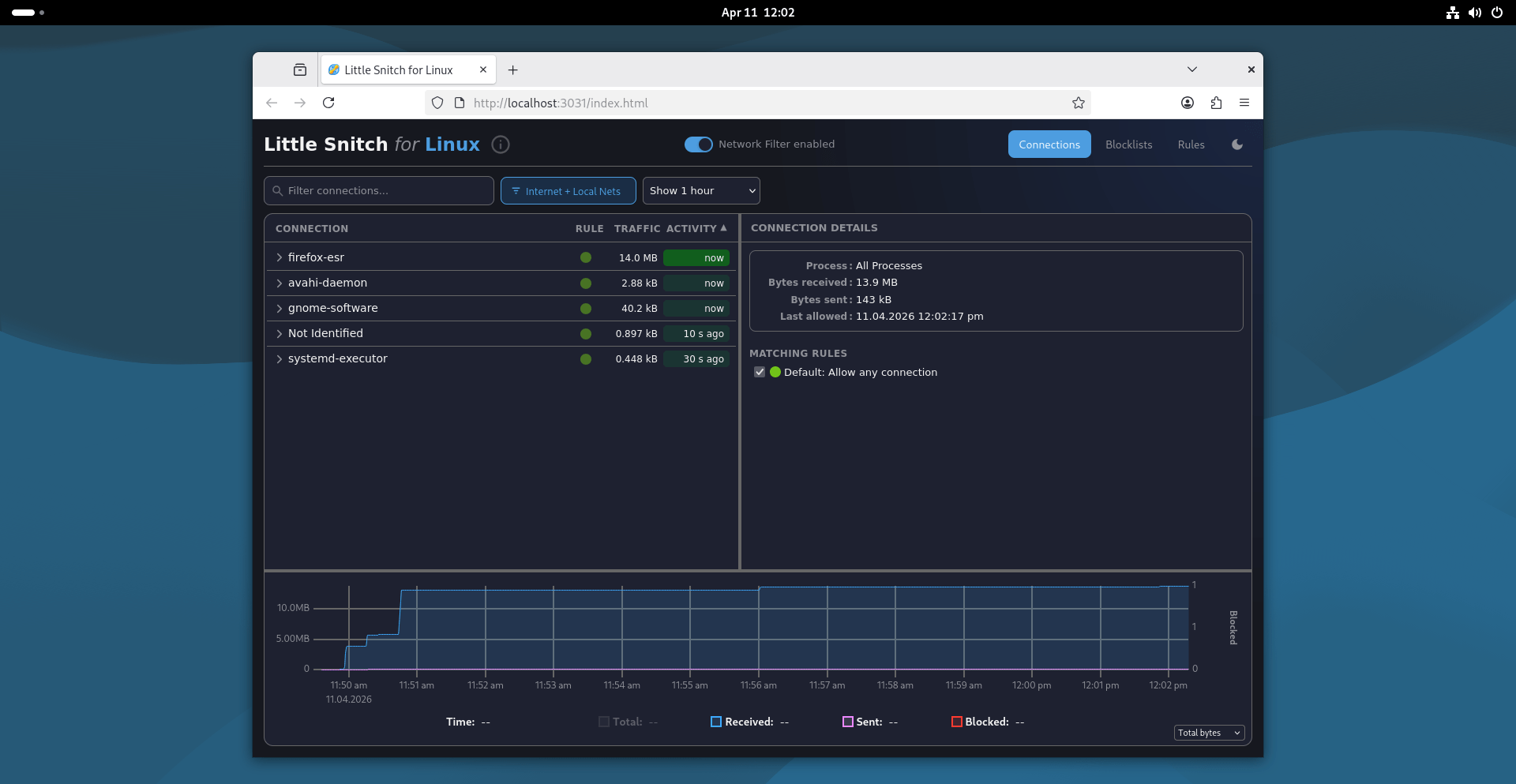
You can bookmark the local URL or install it as a Progressive Web App (PWA) for easier access. This is supported natively by Chromium-based browsers, while Firefox users can achieve this through an extension.
Step 5: If something breaks
With your setup, failures will usually be subtle, not obvious.
Check logs:
journalctl -u littlesnitch -xe
Things to look for:
- eBPF load errors
- permission issues
If UI doesn't load, check the port status:
ss -tulnp | grep 3031
If there is no output, service didn't bind properly.
Security and Configuration
Authentication:
By default, the web UI is open to any local user or application. If your system has multiple users, you should enable authentication in the web_ui.toml configuration file to prevent unauthorized changes to your rules.
Configuration Overrides:
If you need to change technical settings, do not edit the files in /var/lib/littlesnitch/config/ directly. Instead, copy them to /var/lib/littlesnitch/overrides/config/ and make your changes there; the system will always prefer the override.
As I stated earlier, while you can build the eBPF program and Web UI from source, the core daemon (littlesnitch --daemon) is proprietary but remains free to use and redistribute.
Monitor Your Network with Little Snitch
You have two main ways to monitor outbound network traffic and control your data.
First, you can use Blocklists to stop thousands of known ad trackers and malware sites at once. Little Snitch downloads these lists and updates them for you automatically.
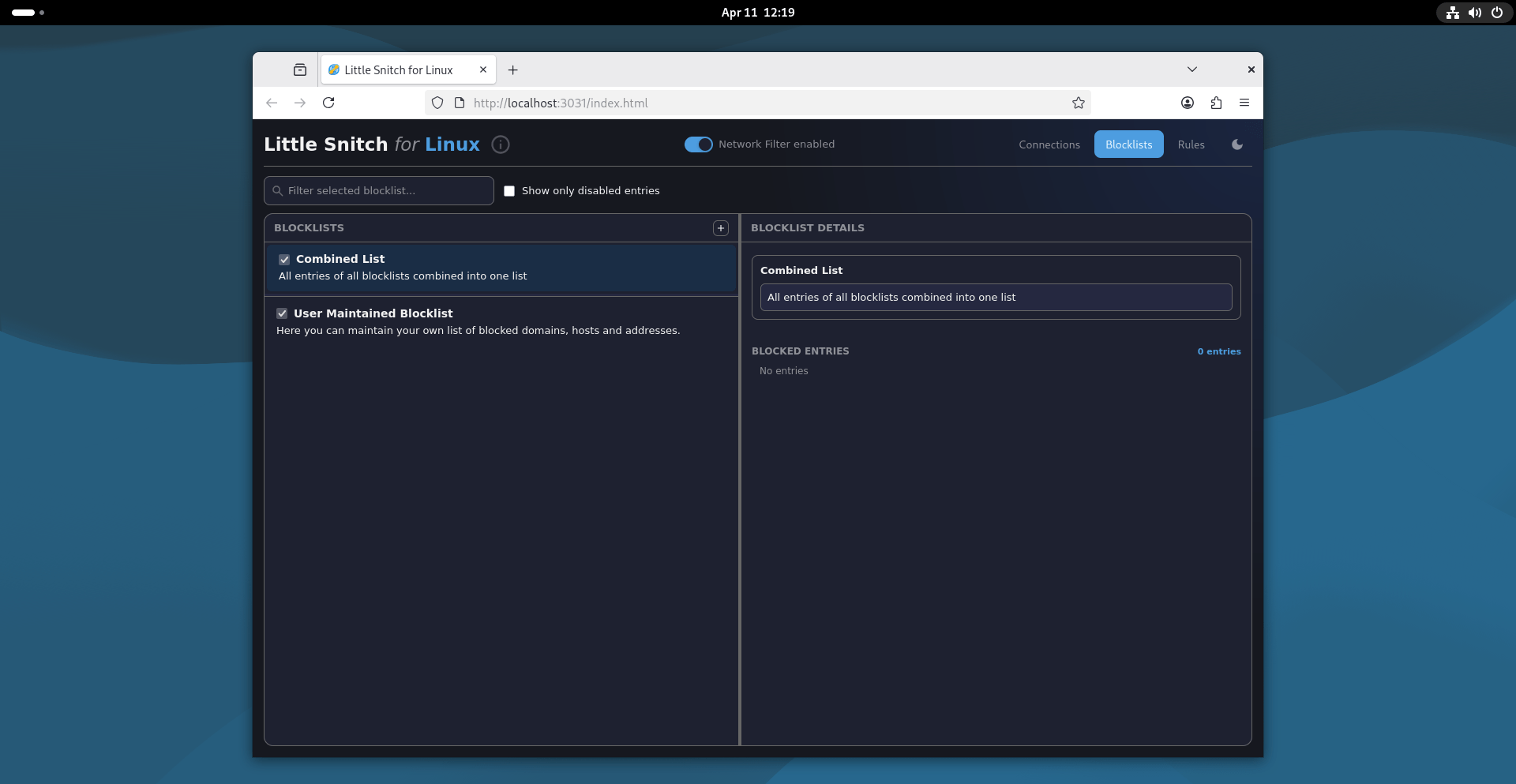
Second, you can create Rules for specific apps. For example, you might want to block the GNOME Calculator from checking currency rates or stop VS Code from sending data back to developers. You can make these rules broad or very narrow, depending on your needs.
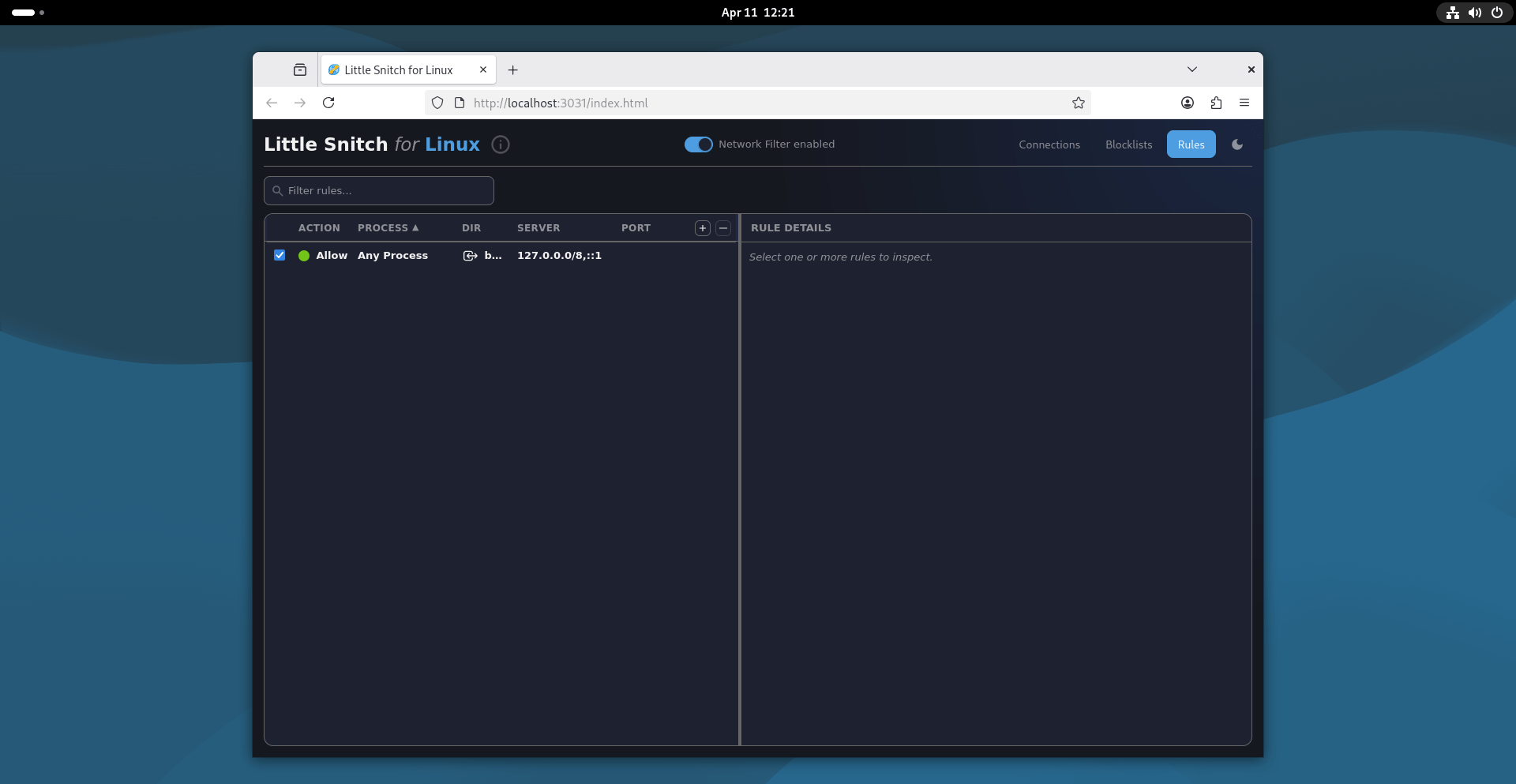
Little Snitch uses a file called executables.toml to group apps smartly. This ensures that when you update an app, the firewall recognizes it as the same program instead of asking you for permission all over again.
Related Read: How To Effortlessly Monitor Your Internet Traffic Using Sniffnet Network Monitoring Tool In Linux And Unix
How Does It Compare to OpenSnitch?
If you want a 100% open-source tool, you might look at OpenSnitch. It has been around for years and provides similar interactive filtering.
While Little Snitch is often praised for its beautiful maps and traffic charts, OpenSnitch is completely free and transparent. Additionally, OpenSnitch can manage multiple computers from one screen, which is a great feature for power users.
Little Snitch for Linux is an excellent choice for users who want a polished way to stop their apps from spying on them. By making the invisible visible, you take back control of your privacy.
Resource:
