
Your computer's disk drive stores all your important files. Photos, documents, videos, and everything lives on your disk. But what happens when your disk starts to fail? You could lose everything. Worry not! Linux has built-in tools to check your disk health. You can spot disk-related problems early and save your data.
In this detailed guide, we will discuss how to:
- Test SSD and HDD health using S.M.A.R.T. data,
- Interpret S.M.A.R.T data (i.e understanding various S.M.A.R.T attributes),
- Understand key warning signs of a failing drive,
- Run Self-Tests using smartctl,
- Scan for bad sectors,
- Check File system integrity,
- Setting up monitoring for SSD wear levels,
- Troubleshooting common issues.
Let's get started.
Table of Contents
Why Check Your Disk Health?
Just like a car needs regular maintenance, your hard drive or SSD can wear out over time. Here's what can go wrong:
- Mechanical failure - Moving parts break down
- Bad sectors - Parts of the disk become unreadable
- Wear and tear - SSDs have limited write cycles
- Temperature issues - Heat damages components
Some common signs of a failing disk include:
- Slow performance (files take forever to load)
- Strange noises (clicking or grinding sounds from HDDs)
- Frequent crashes or errors
- Missing or corrupted files
This is why you need to regularly monitor your disk's health. By checking disk health early, you can:
- Prevent data loss by backing up before failure,
- Extend disk lifespan by catching issues early,
- Avoid sudden crashes that disrupt your work.
What is SMART Data?
SMART stands for Self-Monitoring, Analysis and Reporting Technology. It's built into most modern hard drives and SSDs. Think of it as your disk's health report card.
SMART tracks important metrics like:
- How many times the disk has been powered on
- Current temperature
- Number of bad sectors found
- How much data has been written (for SSDs)
Essential Linux Disk Scanning Tools You'll Need
For the purpose of this guide, we will be using the following tools:
- smartctl: A command-line utility from the
smartmontoolspackage that reads S.M.A.R.T. data from drives. - badblocks: Scans for physical bad sectors on a disk.
- fsck: Checks and repairs filesystem errors.
- GNOME Disks: A graphical tool for viewing disk information and running tests.
Install Necessary Disk Scanning Tools in Linux
Most Linux systems come with smartctl already installed. If not, here's how to install it:
Arch Linux:
sudo pacman -S smartmontools
Debian, Ubuntu, Linux Mint:
sudo apt update
sudo apt install smartmontools
Fedora, RHEL, AlmaLinux, Rocky Linux:
sudo dnf install smartmontools
For a graphical interface, install GNOME Disks:
sudo apt install gnome-disk-utility
Finding Your Disk Names
Before checking disk health, you need to know your disk names. There are several tools exist to help you find your disk drive details in Linux.
Here, we will be using the lsblk command:
lsblk
You'll see output like:
NAME        MAJ:MIN RM   SIZE RO TYPE MOUNTPOINTS
sda           8:0    0 931.5G  0 disk
├─sda1        8:1    0 931.5G  0 part /media/ostechnix/WD_SSD
└─sda2        8:2    0    32M  0 part
nvme0n1     259:0    0 465.8G  0 disk
├─nvme0n1p1 259:1    0   512M  0 part /boot/efi
├─nvme0n1p2 259:2    0 464.3G  0 part /
└─nvme0n1p3 259:3    0   976M  0 part [SWAP]
Your main disk is probably sda, sdb, or similar. NVMe SSDs show as nvme0n1.
Run Basic Disk Health Check
To perform a basic disk health check using smartctl, run:
sudo smartctl -H /dev/sda
Replace sda with your actual disk name.
You'll get a quick health summary like below:
smartctl 7.3 2022-02-28 r5338 [x86_64-linux-6.14.5-1-bpo12-pve] (local build)
Copyright (C) 2002-22, Bruce Allen, Christian Franke, www.smartmontools.org

=== START OF READ SMART DATA SECTION ===
SMART overall-health self-assessment test result: PASSED
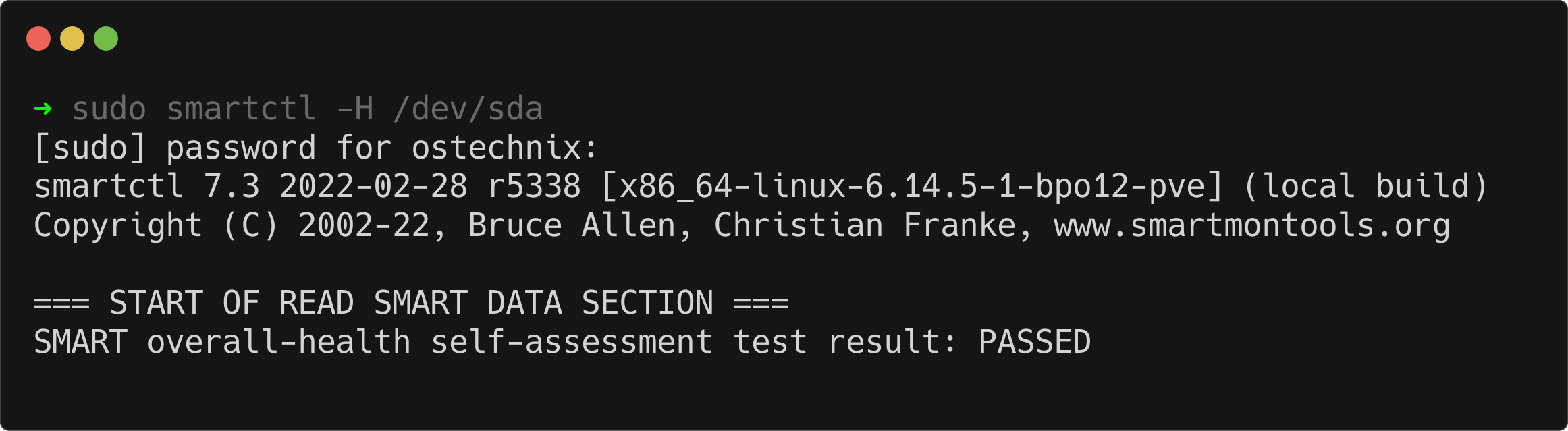
If the output says "PASSED", your disk looks good. If it says "FAILED", you have a problem.
Getting Detailed Disk Health Information
To collect more details about your disk, use -a flag:
sudo smartctl -a /dev/sda
This shows everything about your disk.
Sample Output:
smartctl 7.3 2022-02-28 r5338 [x86_64-linux-6.14.5-1-bpo12-pve] (local build)
Copyright (C) 2002-22, Bruce Allen, Christian Franke, www.smartmontools.org

=== START OF INFORMATION SECTION ===
Model Family:     WD Blue / Red / Green SSDs
Device Model:     WDC WDS100T2G0A-00JH30
Serial Number:    21XXXXXXXXX
LU WWN Device Id: 5 002c45 7av462801
Firmware Version: UH450400
User Capacity:    1,000,204,886,016 bytes [1.00 TB]
Sector Size:      512 bytes logical/physical
Rotation Rate:    Solid State Device
Form Factor:      2.5 inches
TRIM Command:     Available, deterministic
Device is:        In smartctl database 7.3/5319
ATA Version is:   ACS-3, ACS-2 T13/2015-D revision 3
SATA Version is:  SATA 3.2, 6.0 Gb/s (current: 6.0 Gb/s)
Local Time is:    Tue Jun  3 13:32:12 2025 IST
SMART support is: Available - device has SMART capability.
SMART support is: Enabled

=== START OF READ SMART DATA SECTION ===
SMART overall-health self-assessment test result: PASSED

General SMART Values:
Offline data collection status:  (0x00)    Offline data collection activity
                    was never started.
                    Auto Offline Data Collection: Disabled.
Self-test execution status:      (   0)    The previous self-test routine completed
                    without error or no self-test has ever
                    been run.
Total time to complete Offline

[...]

SMART Attributes Data Structure revision number: 1
Vendor Specific SMART Attributes with Thresholds:
ID# ATTRIBUTE_NAME          FLAG     VALUE WORST THRESH TYPE      UPDATED  WHEN_FAILED RAW_VALUE
  5 Reallocated_Sector_Ct   0x0032   100   100   000    Old_age   Always       -       0
  9 Power_On_Hours          0x0032   100   100   000    Old_age   Always       -       6425
 12 Power_Cycle_Count       0x0032   100   100   000    Old_age   Always       -       1220
165 Block_Erase_Count       0x0032   100   100   000    Old_age   Always       -       597
166 Minimum_PE_Cycles_TLC   0x0032   100   100   ---    Old_age   Always       -       4
167 Max_Bad_Blocks_per_Die  0x0032   100   100   ---    Old_age   Always       -       105
168 Maximum_PE_Cycles_TLC   0x0032   100   100   ---    Old_age   Always       -       9
169 Total_Bad_Blocks        0x0032   100   100   ---    Old_age   Always       -       773
170 Grown_Bad_Blocks        0x0032   100   100   ---    Old_age   Always       -       0
171 Program_Fail_Count      0x0032   100   100   000    Old_age   Always       -       0
172 Erase_Fail_Count        0x0032   100   100   000    Old_age   Always       -       0
173 Average_PE_Cycles_TLC   0x0032   100   100   000    Old_age   Always       -       4
174 Unexpected_Power_Loss   0x0032   100   100   000    Old_age   Always       -       662
184 End-to-End_Error        0x0032   100   100   ---    Old_age   Always       -       0
187 Reported_Uncorrect      0x0032   100   100   000    Old_age   Always       -       0
188 Command_Timeout         0x0032   100   100   ---    Old_age   Always       -       0
194 Temperature_Celsius     0x0022   055   067   000    Old_age   Always       -       45 (Min/Max 0/67)
199 UDMA_CRC_Error_Count    0x0032   100   100   ---    Old_age   Always       -       0
230 Media_Wearout_Indicator 0x0032   100   100   000    Old_age   Always       -       0x014600500146
232 Available_Reservd_Space 0x0033   100   100   005    Pre-fail  Always       -       100
233 NAND_GB_Written_TLC     0x0032   100   100   ---    Old_age   Always       -       3518
234 NAND_GB_Written_SLC     0x0032   100   100   000    Old_age   Always       -       8056
241 Host_Writes_GiB         0x0030   100   100   000    Old_age   Offline      -       3794
242 Host_Reads_GiB          0x0030   100   100   000    Old_age   Offline      -       3427
244 Temp_Throttle_Status    0x0032   000   100   ---    Old_age   Always       -       0

SMART Error Log Version: 1
No Errors Logged

SMART Self-test log structure revision number 1
No self-tests have been logged.  [To run self-tests, use: smartctl -t]

Selective Self-tests/Logging not supported
Interpreting S.M.A.R.T DATA
Based on the above SMART data, here's an analysis of key attributes:
Overall Health Status
SMART overall-health self-assessment test result: PASSED
This indicates that the drive has not detected any critical issues and is functioning within normal parameters.
Understanding SMART Attributes
The attributes table is the most important part. Each line shows a different health metric.
Each attribute has several columns:
- ID - Attribute number
- ATTRIBUTE_NAME - What it measures
- VALUE - Current value (higher is usually better)
- THRESH - Failure threshold
- RAW_VALUE - Actual measurement
The RAW_VALUE is often most useful. It shows the real numbers.
Let us understand some of the important SMART attributes.
1. Reallocated_Sector_Ct (ID 5): 0
No sectors have been reallocated, suggesting that the drive hasn't encountered unreadable sectors that needed remapping.
2. Power_On_Hours (ID 9): 6425 hours
The drive has been powered on for approximately 267 days. This is a moderate usage duration and doesn't raise immediate concerns.
3. Power_Cycle_Count (ID 12): 1220
The drive has undergone 1,220 power cycles. Frequent power cycles can contribute to wear, but this number is within a typical range for consumer drives.
4. Grown_Bad_Blocks (ID 170): 0
No new bad blocks have developed during the drive's operation, indicating stable NAND flash memory.
5. Program_Fail_Count (ID 171) & Erase_Fail_Count (ID 172): 0
No failures have occurred during program or erase operations, which is a positive sign for data integrity.
6. Average_PE_Cycles_TLC (ID 173): 4
Each cell has undergone an average of 4 program/erase cycles. Considering that TLC NAND typically endures thousands of such cycles, this indicates minimal wear.
7. Temperature_Celsius (ID 194): 45°C (Min/Max 0/67°C)
The current temperature is within a safe operating range. The maximum recorded temperature of 67°C is high but still acceptable for SSDs.
8. Host_Writes_GiB (ID 241): 3794 GiB
Approximately 3.7 TB of data has been written to the drive. This is a relatively low amount for a 1TB SSD and suggests light usage.
9. Host_Reads_GiB (ID 242): 3427 GiB
About 3.3 TB of data has been read from the drive, aligning with the write volume and indicating balanced usage.
Western Digital forum has detailed coverage about all the S.M.A.R.T attributes. Please have a look and get familiar with important attributes.
Self-Test Logs
No self-tests have been logged.
I haven't done any self-tests, that's why I get this. It's advisable to run a short self-test to proactively check for potential issues:
sudo smartctl -t short /dev/sda
After completion, review the results with:
sudo smartctl -l selftest /dev/sda
In summary, my SSD's SMART data indicates that it is in good health, with no signs of significant wear or failure.
Warning Signs to Watch For
These signs mean your disk might be failing:
Red Flags:
- Overall health shows "FAILED"
- Reallocated sectors above 0
- Pending sectors above 0
- Uncorrectable sectors above 0
- Temperature above 60°C consistently
Yellow Flags:
- Disk is very old (5+ years for HDDs, 3+ years for cheap SSDs)
- Many power-on hours (40,000+ for HDDs)
- High wear leveling count on SSDs
Running Self-Tests using smartctl
SMART can run actual tests on your disk:
Short test (2 minutes):
sudo smartctl -t short /dev/sda
Long test (hours):
sudo smartctl -t long /dev/sda
Check test results with:
sudo smartctl -l selftest /dev/sda
You will see an output like below:
=== START OF READ SMART DATA SECTION ===
SMART Self-test log structure revision number 1
Num  Test_Description    Status                  Remaining  LifeTime(hours)  LBA_of_first_error
# 1  Short offline       Completed without error       00%      6428
Scan for Bad Sectors with badblocks
The badblocks utility allows you to identify bad sectors that could lead to data loss.
Non-Destructive Read-Only Test:
sudo badblocks -v /dev/sdX
This test is safe and won't modify data.
Destructive Write Test (erases data):
sudo badblocks -wsv /dev/sdX
Use this only if you're prepared to lose all data on the drive.
Recommended Read: Can You Really Fix Bad Sectors? The badblocks, SMART, and Drive Firmware Explained
Check Filesystem Integrity with fsck
Ensure your filesystem is free from errors using fsck command.
sudo umount /dev/sdX1
sudo fsck /dev/sdX1
Replace /dev/sdX1 with your specific partition. It's best to run this on unmounted partitions or in recovery mode.
Related Read: How To Use Fsck Command To Check And Repair Linux File Systems
Optional: Use GNOME Disks for a Graphical Interface
For those who prefer a GUI:
- Open GNOME Disks.
- Select your drive from the list.
- Click the menu (☰) and choose SMART Data & Self-Tests.
- Review the health status and initiate tests as needed.
Setting Up Monitoring
Don't just check once, you need to monitor your disks regularly. The smartd daemon watches your disks automatically.
Edit the S.M.A.R.T config file:
sudo nano /etc/smartd.conf
Add this line to monitor all disks:
DEVICESCAN -a -o on -S on -s (S/../.././02|L/../../6/03)
This configuration ensures that smartd automatically monitors all SMART-capable devices, performs daily short self-tests at 2:00 AM, and conducts weekly long self-tests every Saturday at 3:00 AM.
Make the changes according to your preference. Save and close the file.
Start the service:
sudo systemctl enable smartd
sudo systemctl start smartd
When to Worry and What to Do
Take Action Immediately If:
- Health check shows "FAILED"
- You see reallocated or pending sectors
- Disk makes unusual noises
- System becomes very slow
Steps to Take:
- Back up important data right away. Check our Backup Tools category. We have reviewed a few important backup tools such as BorgBackup, Deja Dup, Rsync, Restic, Proxmox Backup Server. Pick one that suitable for you.
- Run a long SMART test
- Consider replacing the disk
- Don't ignore the warnings
Special Notes for SSDs
SSDs are different from traditional hard drives:
- They don't have moving parts
- They wear out from writes, not age
- Temperature is less critical
- Look for wear leveling and program/erase counts
Most SSDs show a "wear indicator" that counts down from 100 to 0.
Troubleshooting Common Issues
1. SMART support is not available
- Your disk might be too old
- Try a different interface (USB to SATA adapters often don't support SMART)
2. Permission denied
- Use
sudowith smartctl commands - Make sure you're in the disk group
3. No such device
- Double-check disk names with
lsblk - Disk might be failing completely
Conclusion
Regularly monitoring your disk's health helps prevent data loss and ensures system reliability.
By using tools like smartctl, badblocks, and fsck, you can proactively identify and address potential issues. For a user-friendly experience, GNOME Disks offers a graphical alternative.
Your data is important. Taking a few minutes to check disk health can save you hours of heartache later. Linux makes it easy with built-in tools.
Please note that SMART monitoring isn't perfect always, but it catches most problems before they become disasters. Combined with regular backups, it's your best defense against data loss.
Featured Image by Myo Min Kyaw from Pixabay.
