
Navigating complex project folders can feel like a maze. Traditional tools might be slow or lack modern features. What if there was a better way? Meet lstr, a lightning-fast, minimalist directory tree viewer, written in Rust. It's here to transform how you explore your files!
Table of Contents
What is lstr?
lstr is a fast, minimalist and feature-rich tree command alternative to get a clean, uncluttered directory tree view with optional icons, permissions, file sizes, and .gitignore support for a superior experience.
Inspired by the classic tree command-line program, lstr brings a modern twist to directory viewing. Its core philosophy rests on three pillars:
- Speed:
lstris blazingly fast. It scans directories in parallel by default, using your computer's multiple processing cores to achieve maximum speed. No more waiting around for large directory scans! - Minimalism:
lstrfocuses on essential features without any unnecessary extras. Its core experience is clean and uncluttered, giving you exactly what you need without the bloat. - Interactivity: Beyond a simple list,
lstroffers an optional, powerful interactive mode. This Text User Interface (TUI) allows for fluid, keyboard-driven exploration of your file system.
lstr Features
lstr isn't just another directory viewer; it's built to enhance your workflow with smart features and seamless integrations.
Classic and Interactive Views for Every Need
You can use lstr in two main ways:
- Classic Mode: This is similar to the traditional
treecommand, perfect for quick overviews or piping into other tools. Just typelstrfollowed by a path. - Interactive Mode: For a more engaging experience, launch
lstr interactive. Here, you can navigate your files with your keyboard, expanding and collapsing directories with ease. PressEnterto open files or explore folders, andCtrl + sto select a path and exit.
Smart Filtering and Rich Displays
lstr helps you see what matters:
- Git Integration: See at a glance which files are
Modified,New, orUntrackeddirectly in your tree view using the-Gflag. - Ignore Files: It respects your
.gitignoreand other standard ignore files when you use the-gflag, keeping your view tidy. - Depth Control: Limit how deep
lstrgoes into your directories with-L <LEVEL>. - Display Options: Choose to show file-specific icons (requires a Nerd Font) with
--icons, file permissions (-p), or file sizes (-s). You can even list only directories with-dor include hidden files with-a.
Seamless Integrations for Power Users
lstr shines when combined with other command-line tools:
- Fuzzy Finding with
fzf: Pipelstr's output directly intofzffor an interactive search prompt. This lets you quickly filter and find any file in huge projects. For example:lstr -a -g --icons | fzf. - Paging Large Trees: If your directory is too big for one screen, send
lstr's output to pagers likeless -R(to keep colours) orbat. - Visual
cd(Change Directory): This is a game-changer! Add a simple function to your shell (likelcd) that launcheslstr interactive. Navigate to your desired directory, pressCtrl + s, and your terminal will instantly change to that folder. It's a visual way to jump around your file system!
Install lstr on Linux
Ready to experience a faster, more intuitive way to view your directories? lstr is written in Rust, ensuring performance and safety.
To install lstr on Linux, you will need the Rust installed on your system. Once you have the Rust toolchain, follow these steps:
1. Clone the repository:
git clone https://github.com/bgreenwell/lstr.git
cd lstr
2. Build and install lstr using Cargo:
cargo install --path .
Please mind the dot (.) at the end. This command compiles lstr in release mode and copies the binary to your ~/.cargo/bin directory.
lstr Command Examples
Here are some command examples for lstr, demonstrating its classic and interactive modes, as well as its integration capabilities.
1. lstr Basic Usage
To list the contents of the current directory, run:
lstr
You can also specify the directory name (the absolute path, of course):
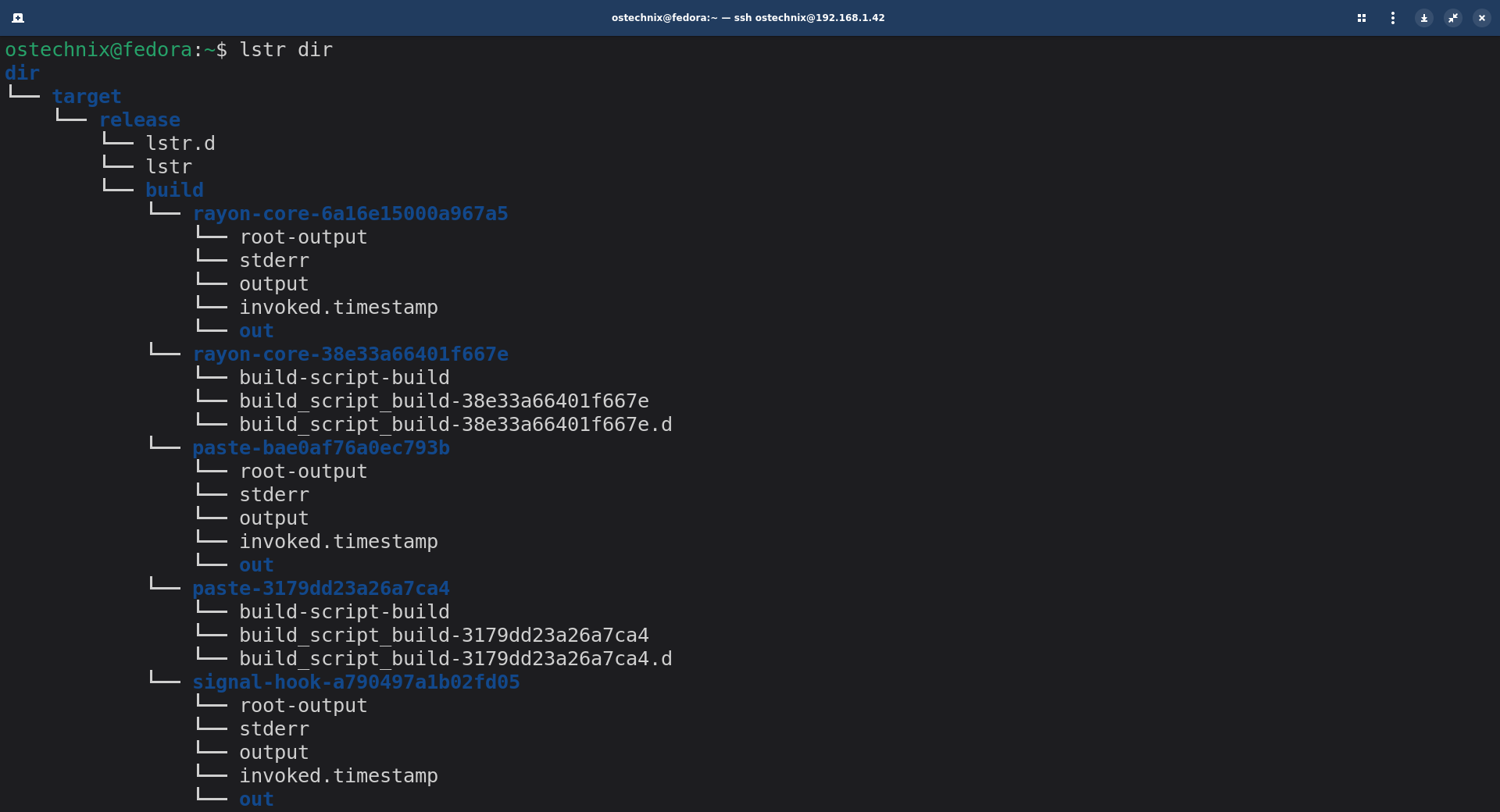
lstr dir
Sample Output:
dir
└── target
    └── release
        └── lstr.d
        └── lstr
        └── build
            └── rayon-core-6a16e15000a967a5
                └── root-output
                └── stderr
                └── output
                └── invoked.timestamp
                └── out
            └── rayon-core-38e33a66401f667e
                └── build-script-build
                └── build_script_build-38e33a66401f667e
                └── build_script_build-38e33a66401f667e.d
            └── paste-bae0af76a0ec793b
                └── root-output
                └── stderr
                └── output
                └── invoked.timestamp
                └── out
[...]
2. Classic View with Options
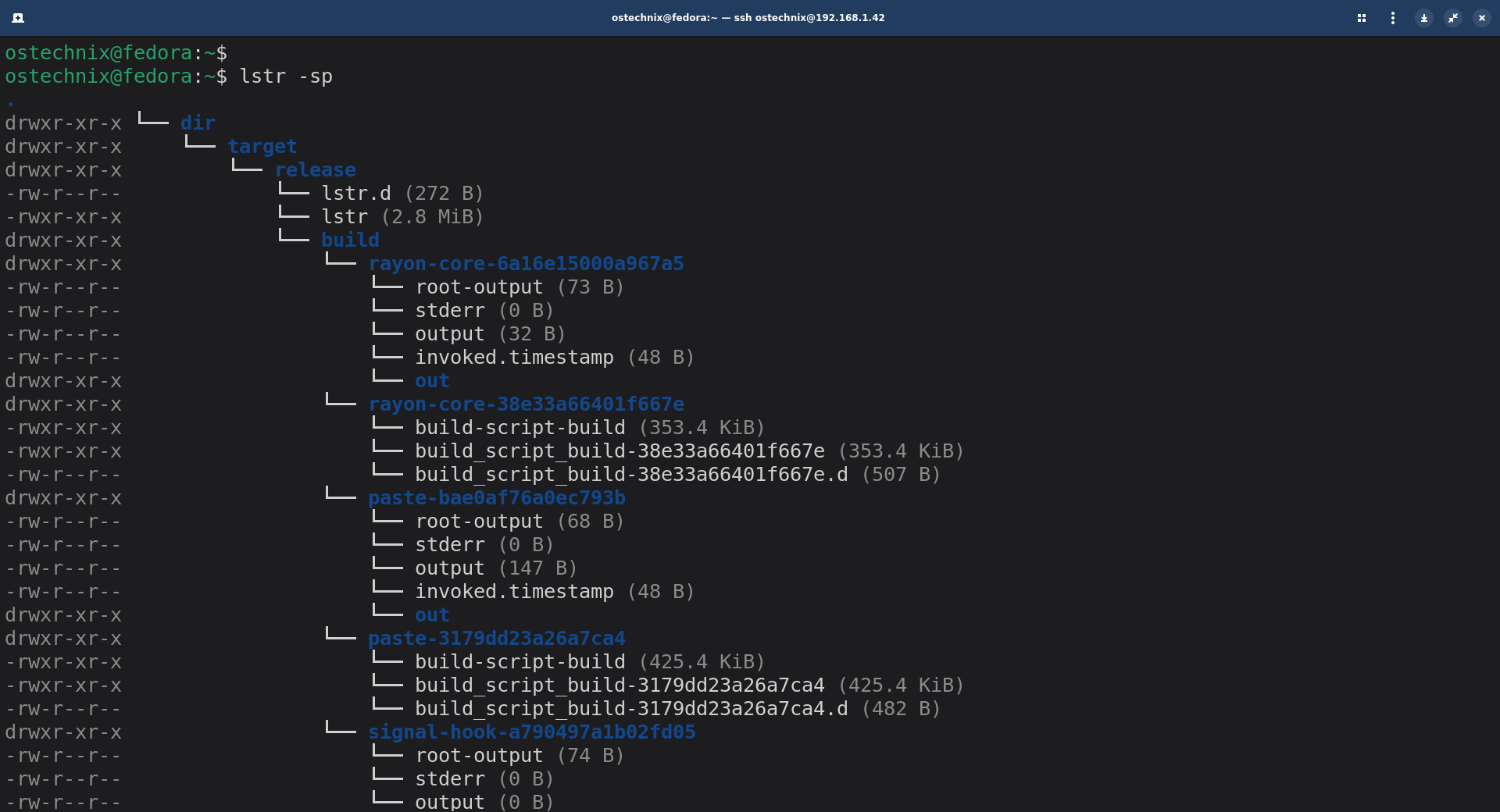
Display a directory with file sizes and permissions:
lstr -sp
See the Git status of all files in a project (including hidden ones):
lstr -aG
Force single-threaded (serial) execution for advanced use cases like benchmarking:
RAYON_NUM_THREADS=1 lstr .
Note: lstr by default employs a parallel directory walker to ensure it runs as fast as possible on hardware with multiple processing cores. This parallelism is managed by Rayon's thread pool, which lstr utilizes internally for its directory traversal engine
3. Interactive Mode Usage
Explore a project interactively, ignoring .gitignore files and displaying icons:
lstr interactive -g --icons
This will open an interactive mode where you can navigate through the directory structure using the UP/DOWN arrows or j/k keys. Once done, press Ctrl+s to quit the interactive mode and print the selected path stdout.
Please note that your should have Nerd Fonts installed to correctly display the icons in the output.
Start an interactive session with all data displayed (Git status, icons, sizes, permissions, ignoring Git files):
lstr interactive -gG --icons -s -p
4. Piping and Shell Interaction
Interactive fuzzy finding with fzf (to filter the tree from lstr):
lstr -a -g --icons | fzf
Paging large trees with less (preserving colour, descending to level 10):
lstr -L 10 | less -R
Press q to exit.
Paging large trees with bat (A cat clone with syntax highlighting and Git integration):
lstr --icons | bat
You can use lstr as a visual cd command with a shell function named lcd. First, add this function to your shell's startup file (e.g., ~/.bashrc, ~/.zshrc):
lcd() {
    local selected_dir
    selected_dir="$(lstr interactive -g --icons)"

    if [[ -n "$selected_dir" && -d "$selected_dir" ]]; then
        cd "$selected_dir"
    fi
}
Then, run this command in your shell:
lcd
Here's how it works and what it does:
- Launches
lstrinteractively: When you runlcd, it executeslstr interactive -g --icons, which launches thelstrinteractive Text User Interface (TUI). The-gflag ensures it respects.gitignorefiles, and--iconsdisplays file-specific icons if you have a Nerd Font installed. - Captures selected path: Within the
lstrTUI, you navigate to the desired directory using keyboard controls like↑/kand↓/j. Once you've highlighted the directory you want to change to, pressingCtrl + swill quitlstrand print the selected path to standard output. Thelcdfunction captures this output into a local shell variable namedselected_dir. - Changes directory: The function then checks if a path was actually selected (
-n "$selected_dir") and if that selected path is indeed a directory (-d "$selected_dir"). If both conditions are met, it executes thecdcommand, changing your shell's current working directory to theselected_dir.
In essence, lcd provides a more visual and interactive alternative to the standard cd command, allowing you to browse your file system and then jump directly to a chosen directory.
Conclusion
lstr is more than just a viewer; it's a powerful tool designed to make your command-line life easier and more efficient. Give it a try and see your files in a whole new light!
For more details, check the lstr GitHub repository.
Related Read:
