
Are you running Plasma on Arch Linux and its variants such as EndeavourOS, or CachyOS? If you rely on the X11 display server, there's a small but important step you need to take when updating to Plasma 6.4.0. You might face X11 login issues after the update. Your X11 session could even disappear entirely.
The solution to avoid these login problems and ensure a smooth update is simple: you just need to manually install the plasma-x11-session package.
Make sure to do this either during your main system update or right before you reboot.
Table of Contents
Why the Manual Step?
With the new Plasma 6.4 release, the core kwin package, which manages your desktop window system, has been split into two separate parts: kwin-wayland and kwin-x11.
By default, your system will only install the Wayland session unless you specifically ask for kwin-x11.
Arch Linux package manager, pacman, is smart, but it can't guess your personal setup or whether you prefer X11.
Plus, it wouldn't be ideal to install both plasma-x11-session and kwin-x11 for every single Plasma user. This is why a small manual step is needed for X11 users.
Who Needs to Do This?
If you are still using the X11 session for your Plasma desktop, this update affects you.
If you don't take action, you might find yourself unable to log in to your familiar X11 desktop after the update, or your X11 session might even disappear.
Some users found themselves greeted by a Wayland session instead.
Not sure which display server are you running? Read this guide: How To Check If You’re Running Wayland Or X11 Display Server In Linux
Install plasma-x11-session to Fix Plasma 6.4 X11 Login Issue in Arch Linux
The good news is that the solution is very straightforward! You just need to install the plasma-x11-session package.
You can do this during or after your main system update, but always before rebooting. Here's the command you'll want to use:
sudo pacman -Syu plasma-x11-session
Or, if you use paru for package management, run:
paru -Syu plasma-x11-session
If you use yay for package management:
yay -Syu plasma-x11-session
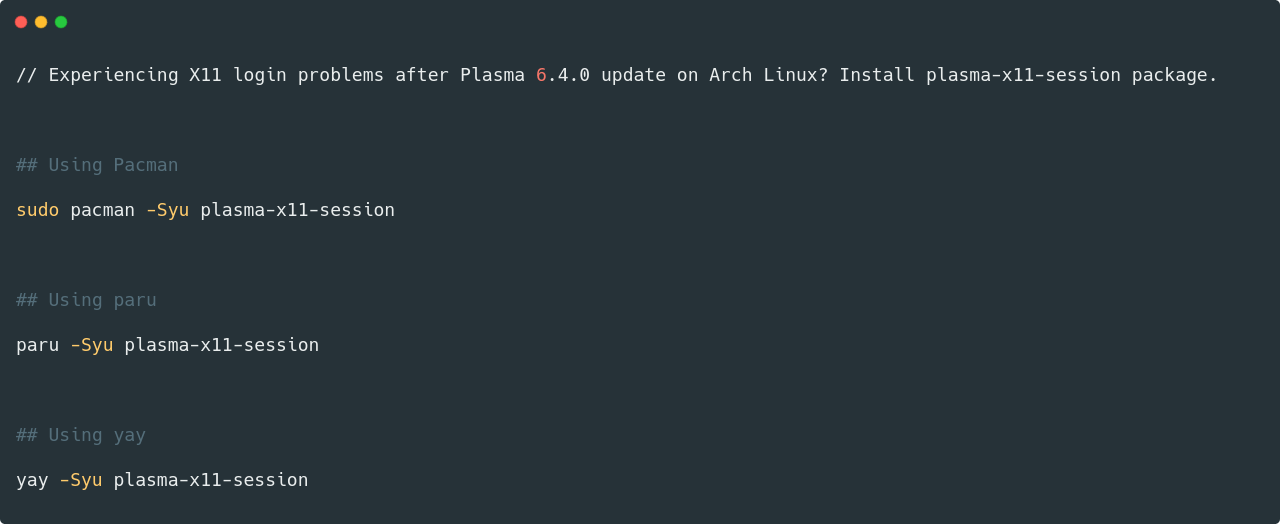
Running this command will ensure that your X11 session components are properly installed alongside the Plasma 6.4 update.
Quick Note for SDDM Auto-Login Users (Solved!)
Initially, there was a temporary issue where this update could break auto-login for X11 sessions when using SDDM (Simple Desktop Display Manager).
This was due to a change in a configuration file (/etc/sddm.conf.d/kde_settings.conf), where Session=plasmax11 needed to be updated to Session=plasma-x11.
Thankfully, this was a known packaging bug and has already been fixed in plasma-x11-session version 6.4.0-4. So, if you're updating now, you likely won't need to manually edit any files for auto-login.
What About Wayland?
While this post focuses on X11, many users are exploring Wayland, the newer display server. Nvidia support on Wayland has been getting better.
Some users report it's more stable and less glitchy than Nvidia's X11 support. Others have found it to be an "absolute dream" with multiple Nvidia cards and monitors after recent driver updates.
However, some specific applications, like cv2.imshow(), might still only work reliably on X11 for some users, even with Xwayland installed.
And a few users have reported memory leaks ("PlasmasHell") on specific hardware setups, leading them back to X11. It seems the experience can vary.
Don't Get Caught Off Guard!
This small manual step ensures a smooth transition to Plasma 6.4.0 if you're an X11 user. Remember to install plasma-x11-session either during or right after your update, before you reboot your system. Many users appreciate the warning that saved them from issues.
