
Ever wished you could remove the background from an image without uploading it to a website? With rembg, you can do exactly that on your own computer!
Rembg is a free Python tool that removes image backgrounds automatically in seconds. It works right from the command line or in a Python script.
In this detailed article, I'll explain how to install rembg, use it, and get clean, transparent images (without background) in Linux.
Table of Contents
What is Rembg?
Rembg is a free, open-source Python library that removes backgrounds from images using AI. You don't need Photoshop skills or expensive proprietary software. Just install Rembg, and you can remove backgrounds from photos instantly.
The tool works with Python and uses deep learning models to detect foreground objects. It then removes the background automatically. You get clean, transparent PNG images ready to use.
It's completely free to use for unlimited images and runs on your computer offline. No cost, No cloud, and your images don't leave your device.
How Rembg Works Behind the Scenes
Understanding how Rembg works helps you use it better.
The AI Technology
Rembg uses deep learning models called U-Net and BiRefNet. These neural networks learned to detect foreground objects by training on millions of images.
When you process an image, the AI analyzes every pixel. It decides which pixels belong to the foreground (keep) and which belong to the background (remove).
Model Files
Models download automatically to ~/.u2net folder on your local system. Here's what gets downloaded:
- Model files (.onnx format)
- Weights (the AI's learned knowledge)
Files range from 40 MB to 300 MB depending on the model.
$ ls ~/.u2net
u2net.onnx
Rembg keeps improving. Recent updates include:
- BiRefNet models added (for better accuracy)
- Python 3.13 support
- Improved processing speed
- Better handling of complex images
- New models for specific use cases
The tool continues to evolve based on user feedback and AI advancements.
Processing Speed
Speed depends on several factors:
- Your computer's CPU/GPU
- Image size and complexity
- Which model you use
- Whether you're using a session (faster for multiple images)
Typical processing times:
- Small images (under 1 MB): 1-2 seconds
- Medium images (1-5 MB): 2-5 seconds
- Large images (over 5 MB): 5-10 seconds
Why Use Rembg to Remove Image Background?
Many background remover tools exist online. Here's why Rembg stands out:
1. It's free forever.
No monthly fees, no watermarks, no limits. Unlike Remove.bg or other paid services, Rembg costs nothing. You can often get very close to the same quality (in terms of resolution) as the input image.
2. Your images stay private.
Rembg runs on your computer. Your photos never go to the cloud. All AI models are downloaded and saved in your home folder in the .u2net directory. This matters for confidential work.
3. It's fast.
Process images in 2-3 seconds each. Batch process hundreds of photos at once.
4. It works offline.
No internet needed after setup. Perfect for working anywhere.
5. It's accurate.
The AI models handle complex images well. Even photos with hair, fur, and fine details turn out great.
6. Multiple ways to use it.
Run it from command line, write Python scripts, or set it up as a web server.
Prerequistes
Before you remove backgrounds with Rembg Python library, you need to set things up properly.
What You Need
First, check your Python version. Open your terminal and type:
python --version
You need Python 3.10 or newer. Rembg works with Python 3.10, 3.11, 3.12, and 3.13. If you have an older version, download the latest Python from python.org and install it.
How to Install Rembg Python Library
Installing Rembg takes just one command. First, make sure you have installed Pip on your Linux box. I recommend you to run Rembg inside a Python virtual environment.
I already have a Python environment in my Debian Linux system activated using this command:
source Pyenv/bin/activate
Once you're inside the environment, choose the install option that fits your needs:
For beginners (easiest option):
pip install "rembg[cli]"
For better performance:
pip install "rembg[cpu,cli]"
For GPU acceleration (if you have NVIDIA graphics):
pip install "rembg[gpu,cli]"
The installation downloads Rembg and everything it needs. Wait a few minutes for it to finish. Now you're ready to remove backgrounds!
Remove Background from Image using Rembg Python Library: Getting Started
Let's remove your first background. It's easier than you think.
Remove Background from Single Image
Open your terminal and use this command:
rembg i input.jpg output.png
Replace "input.jpg" with your image name. The tool creates "output.png" with a transparent background.
The first time you use Rembg to remove an image's background, it downloads AI models (100-300 MB each) and save them to ~/.u2net in your home folder.
Example:
To remove the background of an image, run:
rembg i photo.jpg photo-no-bg.png
That's it! Our background-free image is ready in seconds.
Here's the side-by-side comparison. The top image (photo.jpg) is the original image and the bottom image (photo-no-bg.png) is the resulting image without background.
Input Image with Background:

Output Image without Background:

Great, yeah? The result is 99% accurate. I don't see any loss in the image resolution or quality.
Now, let us try another image with complex background with text in it.
Input Image with Background and Text:

Output Image without Background:

Not bad, right? As you can see, Rembg removed the background 95% accurately. There are minor differences (note the flowers on the right side), but it's not that bad.
Next, I tried with one of my old passport photo. The result is 100% accurate. If you use high quality image, you will get almost 99% result.
Remove Background from Multiple Images
Need to process many images? Use the p option:
rembg p ./photos ./output
This removes backgrounds from all images in the "photos" folder. Results save to the "output" folder. Rembg creates the output folder if it doesn't exist.
Watch for New Images
Want automatic processing? Add the watch flag:
rembg p -w ./photos ./output
Now Rembg watches the photos folder. When you add new images, it processes them automatically.
Best AI Models for Background Removal
Rembg includes several AI models. Each works best for different image types.
Available Models
- birefnet-general - The newest and most accurate model. Great for most images. Use this for professional results.
- u2net - The default model. Good for general use. Slightly faster than birefnet.
- u2net_human_seg - Designed specifically for people. Perfect for portraits and full-body photos.
- isnet-anime - Made for anime and cartoon characters. Handles drawn art better than photo models.
- birefnet-portrait - Optimized for face photos and headshots. Excellent for profile pictures.
It supports more models. Refer to the project's github repository (link at the end of this guide) for all supported models.
How to Use Different Models
Add the -m flag followed by the model name:
rembg i -m birefnet-general photo.jpg output.png
For people photos:
rembg i -m u2net_human_seg portrait.jpg output.png
For anime images:
rembg i -m isnet-anime character.jpg output.png
The first time you use a model, Rembg downloads it automatically. Models save to your computer, so you only download once.
Advanced Background Removal Options
Rembg offers powerful features beyond basic removal.
Get Better Edges with Alpha Matting
For images with fine details like hair or fur, use alpha matting:
rembg i -a photo.jpg output.png
This creates smoother, more natural-looking edges. It takes slightly longer but gives professional results.
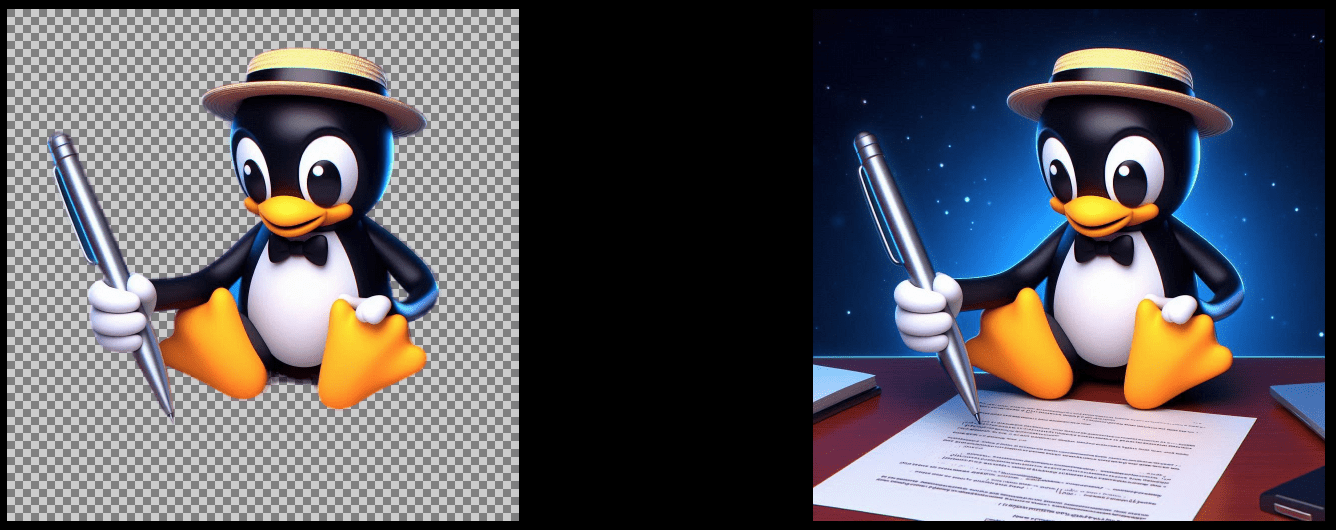
For those wondering, alpha matting is a post processing step that can be used to improve the quality of the output.
Extract Just the Mask
Sometimes you only need the selection mask:
rembg i -om photo.jpg mask.png
This creates a black and white image. White shows the foreground, black shows the background.
Process from URL
Remove background from online images:
curl -s http://example.com/photo.jpg | rembg i > output.png
How to Remove Background Using Python Code
Want to integrate background removal into your Python projects? Here's how.
Simple Python Script
from rembg import remove
from PIL import Image

# Open your image
input_image = Image.open('photo.jpg')

# Remove the background
output_image = remove(input_image)

# Save the result
output_image.save('photo-no-bg.png')
This basic script does exactly what the command line does. You get more control in your code.
Working with Bytes
For more control over file handling:
from rembg import remove

input_path = 'photo.jpg'
output_path = 'photo-no-bg.png'

with open(input_path, 'rb') as input_file:
    input_data = input_file.read()
    output_data = remove(input_data)

    with open(output_path, 'wb') as output_file:
        output_file.write(output_data)
Process Multiple Images Fast
When processing many files, create a session for better performance:
from pathlib import Path
from rembg import remove, new_session

# Create one session for all images
session = new_session()

# Process all images in folder
for file in Path('~/photos').glob('*.jpg'):
    with open(file, 'rb') as f:
        input_data = f.read()
        output_data = remove(input_data, session=session)

        output_file = file.parent / f"{file.stem}-no-bg.png"
        with open(output_file, 'wb') as out:
            out.write(output_data)
This approach is much faster. The AI model loads once instead of reloading for each image.
Use Specific Models in Python
from rembg import remove, new_session

# Create session with specific model
session = new_session("birefnet-general")

# Remove background
output = remove(input_image, session=session)
Set Up Rembg as Web Server
Want to use Rembg through a web interface? Run it as a server.
Start the Rembg server using command:
rembg s --host 0.0.0.0 --port 7000
Now open your browser and go to http://localhost:7000. You'll see a web interface for uploading images. After uploading the image, click Submit to process the image.
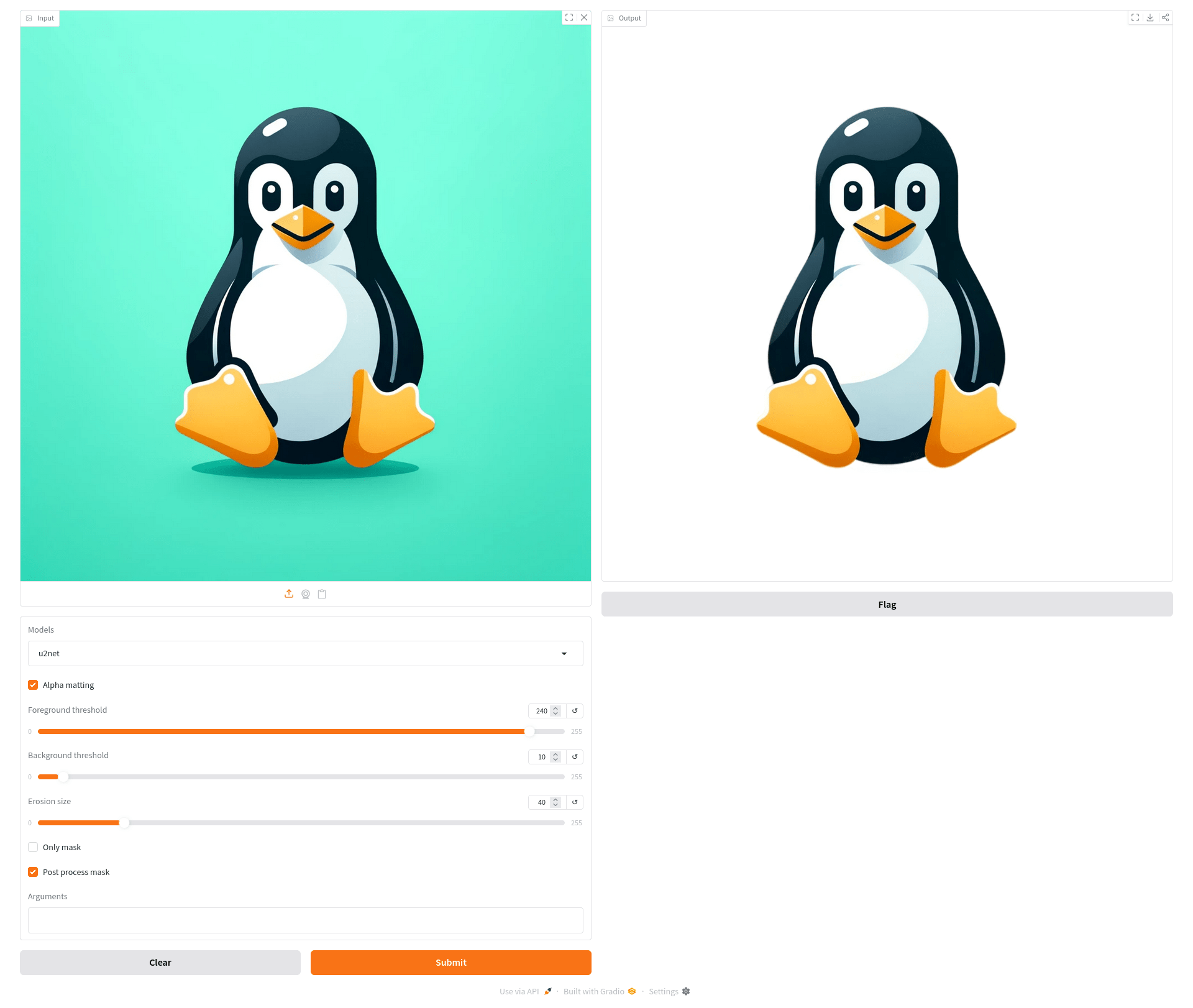
You can choose your model from the models drop down box.
Remove Image Background via API
Use the API to remove backgrounds programmatically:
curl -s "http://localhost:7000/api/remove?url=http://example.com/photo.jpg" -o output.png
Or upload a local file:
curl -s -F file=@photo.jpg "http://localhost:7000/api/remove" -o output.png
This is perfect for integrating Rembg into web applications or sharing with non-technical users.
Fixing Common Problems
Running into issues? Here are solutions to common problems.
1. Installation Fails
If you get errors during installation, try:
pip install "rembg[cpu]"
This avoids GPU-related issues that cause most installation problems.
2. Models Won't Download
The first time you use Rembg, it downloads AI models (100-300 MB each). They save to ~/.u2net in your home folder.
ls ~/.u2net
birefnet-general.onnx  u2net_cloth_seg.onnx  u2net.onnx
If downloads fail:
- Check your internet connection
- Make sure you have enough disk space (at least 1 GB free)
- Try again - sometimes servers are busy
3. Python Version Error
Rembg needs Python 3.10 or newer. If you get a version error, upgrade Python:
- Download from python.org
- Install the latest version
- Restart your terminal
- Try installing Rembg again
4. Out of Memory Errors
Processing very large images uses lots of RAM. If you run out of memory:
- Resize your images before processing
- Use the CPU version instead of GPU
- Process images one at a time instead of in batches
- Close other programs to free up memory
5. Images Look Wrong
If results aren't perfect:
- Try a different model (birefnet-general usually works best)
- Use alpha matting for images with fine details
- Make sure your input image is high quality
- Check that the image isn't too dark or blurry
Using Rembg with Docker
Want to run Rembg in a container? Docker makes it easy.
Run Rembg docker image:
docker run -v /path/to/images:/rembg danielgatis/rembg i input.png output.png
Replace /path/to/images with your image folder path.
Benefits of Docker method:
- No Python installation needed
- Isolated environment
- Easy to deploy on servers
- Works the same everywhere
Tips for Best Results
Follow these tips to get professional-looking results every time.
- Start with quality images: Better input gives better output. Use well-lit, in-focus photos.
- Try different models: Don't stick with the default. Test models to find which works best for your images.
- Use alpha matting for tricky images: Photos with hair, fur, or fine details benefit from the
-aflag. - Save as PNG format: Always use PNG for transparent backgrounds. JPEG doesn't support transparency.
- Batch similar images together: Group similar photos and use the same settings for all of them.
- Resize large images first: Very large images take longer and use more memory. Resize them if you don't need full resolution.
- Check your lighting: Good lighting in original photos helps the AI work better.
Real-World Practical Uses for Rembg
Wondering what you can do with Rembg? Here are practical examples.
- E-commerce product photos: Online stores need clean product images. Remove distracting backgrounds instantly.
- Social media graphics: Create eye-catching posts by removing backgrounds and adding custom designs.
- ID and passport photos: Get proper photos with plain backgrounds without visiting a photo studio.
- Real estate listings: Remove clutter from property photos to make them more professional.
- Profile pictures: Get clean profile photos for LinkedIn, resumes, and social media.
- Graphic design projects: Extract elements from photos to use in your designs.
- Print-on-demand products: Prepare images for t-shirts, mugs, and other products.
- Marketing materials: Create professional-looking brochures and flyers.
Remove the Downloaded Rembg Models
By default, rembg stores its downloaded models in ~/.u2net. You can check the downloaded models by listing the contents of this directory:
ls ~/.u2net/
Go to ~/.u2net directory and delete the models you don't need. For example:
rm ~/.u2net/u2net.onnx
To delete all models, simply remove the folder:
rm -rf ~/.u2net
Note: If you run rembg again after deletion, and request a model you removed, it will download that model again.
Optional: Set a custom model path
If you want rembg to use a different directory for models (so that newly downloaded models go somewhere else), you can set the environment variable for specific models.
For example:
export U2NET_PATH="/my/custom/path/u2net.onnx"
Then rembg will look at that path instead of ~/.u2net.
This is especially useful if you have limited space in your home directory.
Be careful with custom paths. If you use a custom model path, make sure it's consistent across your scripts or command-line usage so Rembg doesn’t try to re-download.
Remove Rembg
If you don't need Rembg anymore, you can safely uninstall it using command:
pip uninstall rembg
Make sure you have deleted all the downloaded models as shown in the previous section.
Rembg vs Other Background Removers
How does Rembg compare to alternatives?
Rembg vs Remove.bg
- Rembg: Free, unlimited, runs offline
- Remove.bg: Limited free images, requires internet, charges for high-resolution
Rembg vs Photoshop
- Rembg: Automatic, free, no learning curve
- Photoshop: Manual work, expensive subscription, steep learning curve
Rembg vs Adobe Express
- Rembg: No limits, works offline, fully free
- Adobe Express: Requires account, online only, premium features cost money
Rembg vs Canva
- Rembg: Unlimited use, better for batch processing
- Canva: Easy for beginners, but requires paid subscription for background removal
For developers and power users, Rembg offers the best value. For casual users who prefer web interfaces, online tools might be easier.
Frequently Asked Questions (FAQ)
A: Yes! Rembg has an MIT license. Use it for personal or commercial projects freely.
A: Yes, after the initial model download. Process images without internet connection.
A: Very accurate for most images. Results rival paid services like Remove.bg.
A: Yes, advanced users can train and use custom models with Rembg.
A: Absolutely. Process entire folders with one command.
A: Input: JPG, JPEG, PNG, and more.
Output: Always PNG with transparency.
A: Yes, Rembg is a cross-platform, background removal application that works on Windows, Mac, and Linux.
A: About 1-2 GB for the library and models.
A: For privacy, unlimited use, and offline work - yes. For occasional use with no setup - online tools might be simpler.
Conclusion
Rembg proves that powerful tools don't need to be complicated or expensive. With just a few commands, you can remove backgrounds from images like a professional.
Whether you're building an app, working on design projects, or just editing some photos, Rembg handles it all. Best of all, it's free, fast, and protects your privacy by working offline.
Install Rembg now and see the difference. Your first background-free image is just one command away:
pip install "rembg[cli]"
rembg i your-photo.jpg output.png
No subscriptions. No watermarks. No hassle. Just clean, professional images in seconds.
For more details, I highly recommend you to check the Rembg GitHub repository.
