
As a developer, you will often handle various projects, which may belong to different clients, and having appropriate separation for these projects is necessary for privacy and security reasons. Running different browser profiles for each project or client is one of the most effective ways to create this separation.
However, having these profiles run on the same Linux machine with a single fingerprint and one exit IP can quietly link accounts you meant to keep separate. That's where the use of other tools like proxies comes in.
This guide walks through three levels of browser isolation, from lightweight to airtight, including native browser profiles, Firejail sandboxes, and full containers. We will discuss how each method works in detail to help you choose the most appropriate one for your use case.
Table of Contents
Linux Browser Isolation: Key Takeaways
- The challenge: Native browser profiles separate data but not processes or network traffic. This makes it easier for the platforms you’re using to interlink the accounts.
- Using Firejail: Firejail adds process-level isolation via namespaces and seccomp. namespaces control what the process can see and seccomp controls what it's allowed to do. Together they contain the browser more tightly than just running it with a separate profile folder.
- Using Containers: Containers are the only method that also isolates the network stack. They give each browser instance its own separate networking layer, which means its own network interface, IP routing, and DNS resolution
- The role of a proxy: Separate profiles alone do not change your IP address hence the need to use a reliable proxy. Each profile should get its own proxy, set per-instance, and not system-wide.
- Profile interlinking: A matching fingerprint can still link profiles, even with clean cookies. Browser and device characteristics can identify a profile independently of stored data.
- Credentials and extensions management: These should be managed per profile, not shared. Reusing logins or add-ons across profiles creates a link between them regardless of technical isolation.
- Lifecycle management: Wipe a profile when a project ends rather than reusing it. Reusing the profile risks carrying over cookies, cache, or credentials into a new, unrelated context.
What Is an Isolated Browser Environment
An isolated browser environment means one browser identity, including its profile data, cookies, cache, and extensions is kept in its own storage, separate from every other identity on the machine.
On Linux this separation comes in three levels of strength:
- A native browser profile isolates the data itself
- A Firejail sandbox adds process isolation on top of that
- A container goes further still, isolating the filesystem, process tree, and network stack.
Developers use these levels to keep data cleanly separated across different projects or clients, choosing the level of isolation that matches how sensitive the separation needs to be.
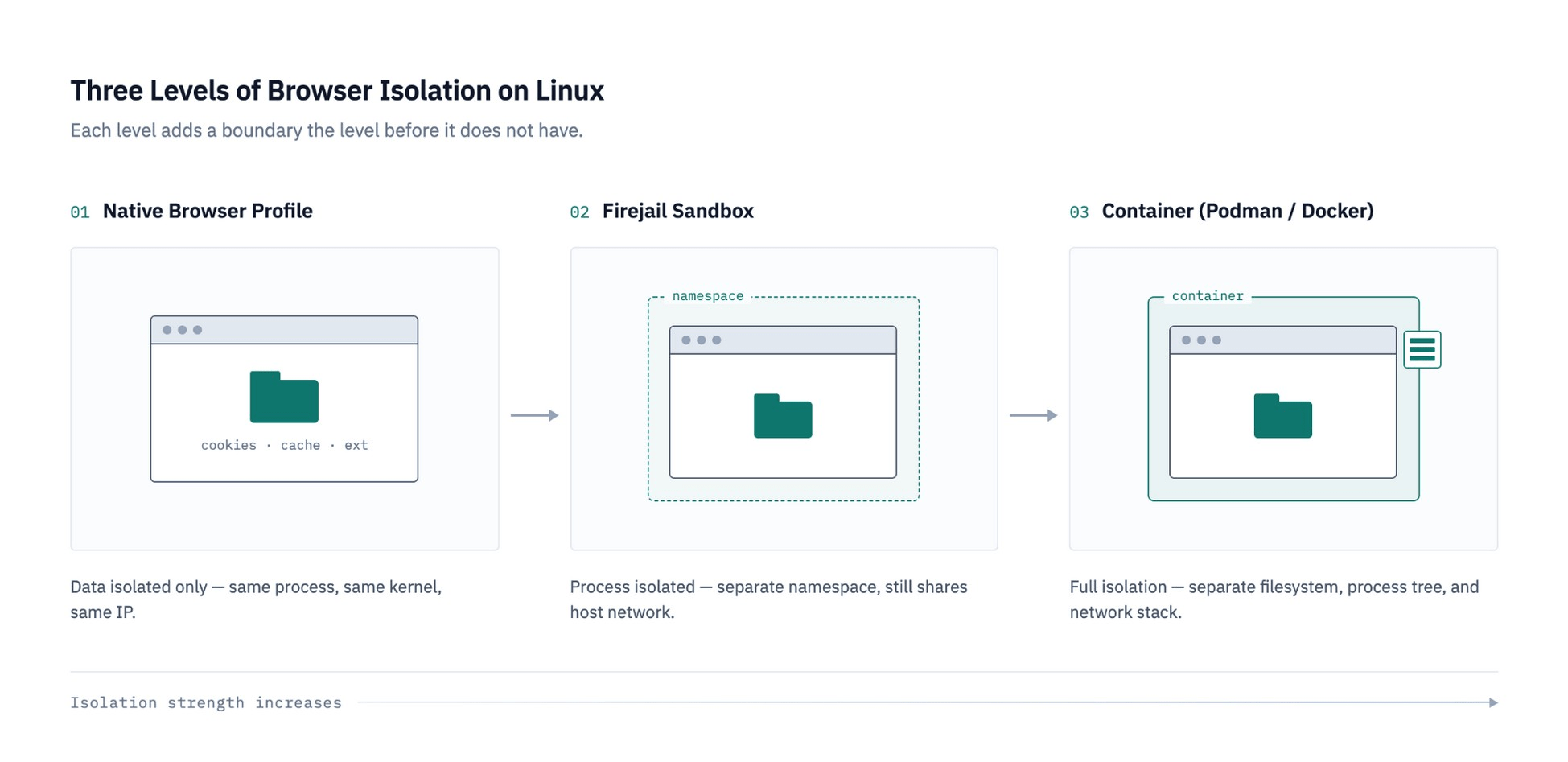
As shown in the images above, each level adds an isolation boundary the one before it lacks; from data-only separation, to process isolation within a shared network, to full filesystem, process, and network isolation in a container.
What Leaks Between Profiles That Are Not Isolated
Without proper isolation, browser profiles can share data and signals with each other in several ways, undermining the separation they're meant to provide. This may include:
- Shared cookies and localStorage let sites read data saved by another profile
- One shared IP ties all profiles to the same network origin
- An identical browser fingerprint (fonts, screen size, hardware details) can identify profiles as related even with clean storage
- Sessions saved in the OS keyring can auto-log a profile into an account meant for a different one.
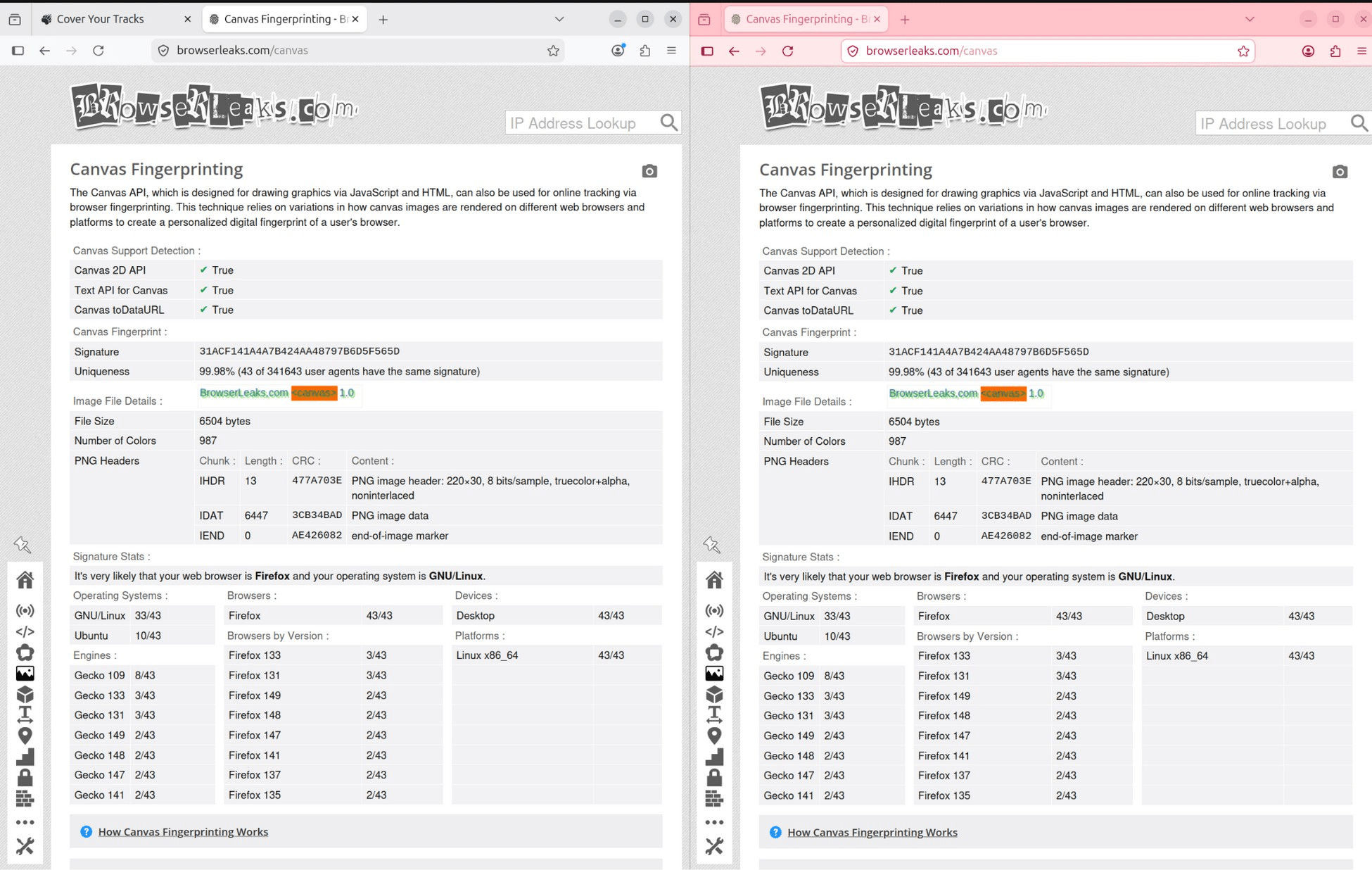
In the above screenshot, both profiles were run through BrowserLeaks' Canvas Fingerprinting test and returned the identical signature (31ACF141A4A7B424AA48797B6D5F565D) despite being separate, unisolated profiles. Same GPU, same OS, same rendering output. That is enough for platforms to link them as one visitor without needing a single cookie.
What Profile Isolation Cannot Do
Profile isolation can sometimes be assumed to play a lot of other security and privacy that it obviously doesn’t. Here is what profile isolation can’t do:
- It doesn't encrypt traffic
- Change your fingerprint
- Hide your IP address.
To achieve total separation for projects or client data, you may need to pair profile isolation with fingerprint management and a per-profile proxy.
Three Levels of Browser Isolation on Linux, Compared
| Method | What It Isolates | Setup Effort | Resource Cost | Best For |
|---|---|---|---|---|
| Native | Cookies, cache | Low | Minimal | Casual multi-account use |
| profiles | extensions | |||
| Firejail | Above + process/filesystem | Medium | Low | Client separation |
| Containers | Above + network stack | High | Higher | Testing that must not touch the host |
Prerequisites
Here is what you will need to implement the above isolation methods:
- A Linux desktop environment: This is needed to run and view the browser GUIs described throughout.
- Sudo rights: These rights are required to install Firejail and Podman via the package manager commands in Method 2 and Method 3.
- Firefox and/or Chromium: We will use these to implement method 1; native browser profiles, which is the simplest of three.
- Firejail and Podman: These are only needed for implementing Method 2 (Firejail) and Method 3 (containers). Not required if you're only doing native profiles.
- Tested versions: Ubuntu 24.04 LTS, Firefox ESR 128, Chromium 126, Firejail 0.9.72, Podman 5.0).
Now, let us explore the 3 methods to safely run multiple browser profiles on Linux.
Method 1: Native Browser Profiles
This is the easiest and fastest option, no extra software required. However, it only separates data and not the processes.
Follow these three steps to implement profiles in Firefox:
Step 1: Create Separate Firefox Profiles with the Profile Manager
Run firefox -P in the terminal, or open Firefox and go to about:profiles, to create and name a new profile. To run two profiles at the same time, launch the second one by running firefox -no-remote -P "ProfileName"
The -no-remote flag is needed on builds where Firefox defaults to single-instance mode and would otherwise just open a new window in the profile that's already running instead of starting a separate one.
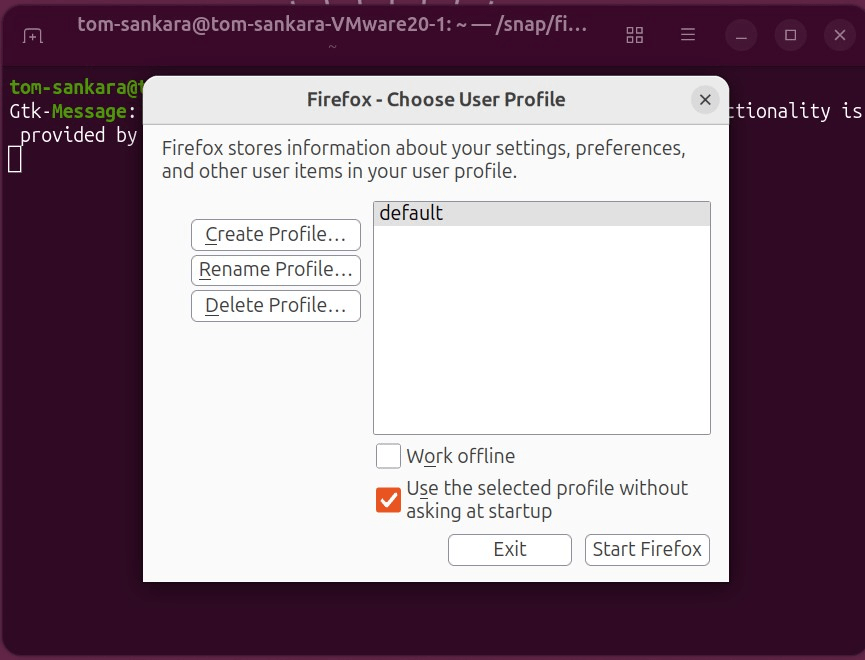
In the above screenshot, the Firefox Profile Manager, opened with firefox -P command, is where new profiles get created and named before launching each one independently.
Step 2: Run Chromium with a Dedicated --user-data-dir
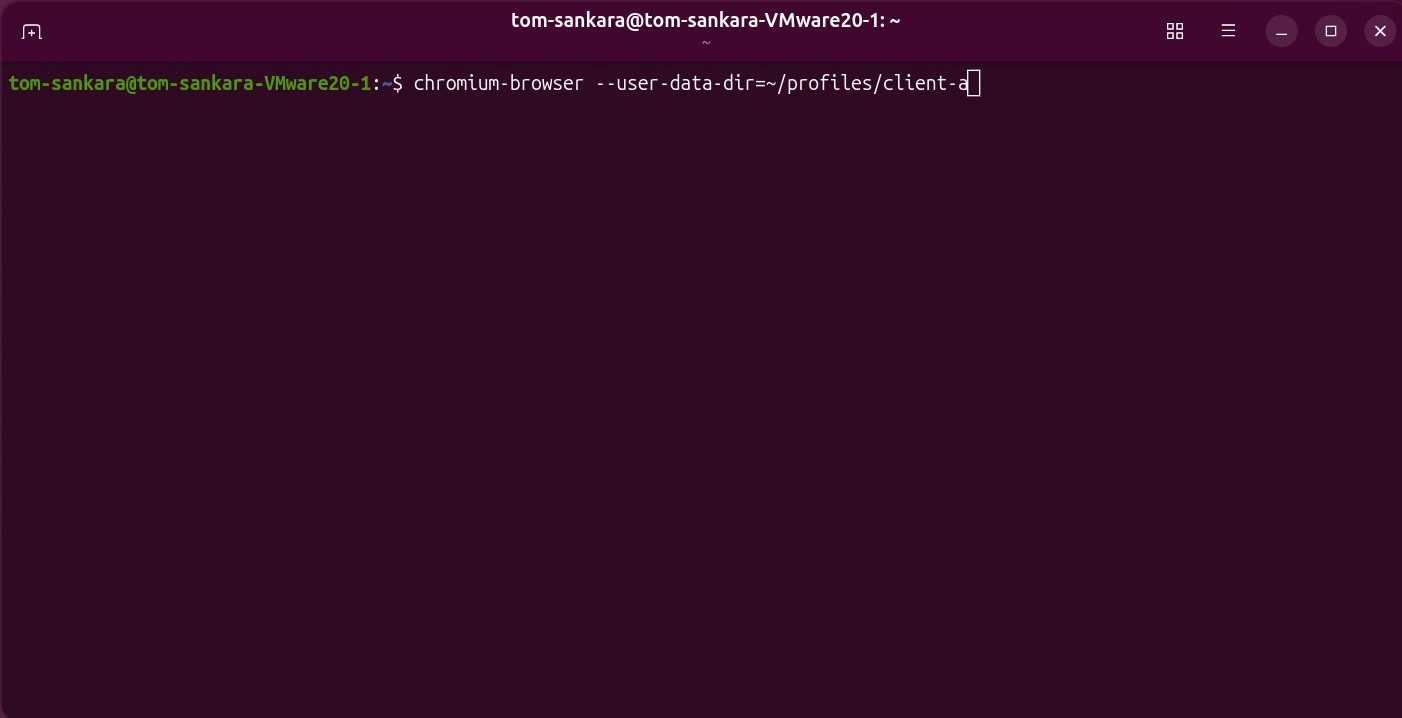
Create a profile in Chromium by running the following command in the terminal:
chromium-browser --user-data-dir=~/profiles/client-a
This tells Chromium to store all of that session's data, including cookies, extensions, cache, saved logins, and browsing history in the folder ~/profiles/client-a instead of its default location.
Each time you launch Chromium with a different --user-data-dir path, you get a separate, isolated profile.
If you launch Chromium without the flag, it falls back to its default profile instead.
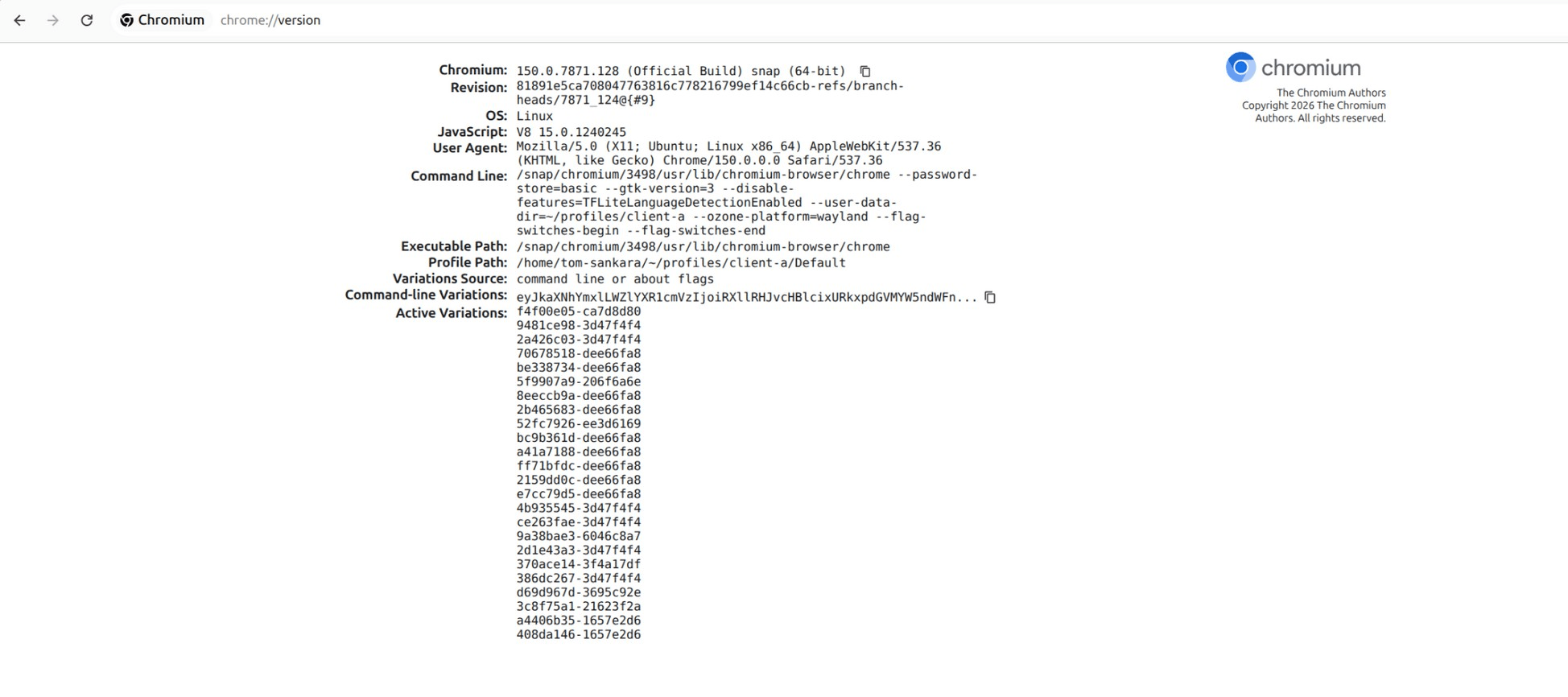
In the above screenshot, chrome://version confirms the --user-data-dir flag actually took effect. The Profile Path reads /home/tom-sankara/~/profiles/client-a/Default, matching the directory passed on launch, which is proof this session's data is writing to the isolated folder, not Chromium's default profile.
Step 3: Split Cookies Further with Firefox Multi-Account Containers
Install the Firefox Multi-Account Containers add-on, then create a separate container for each project and pin its relevant sites to that container.
This can be useful when a full separate profile is overkill; for example, testing multiple logged-in accounts on the same site, or keeping a few side projects from cross-contaminating cookies, all within a single profile. Containers still share one profile and one IP, so they add convenience, not full isolation.
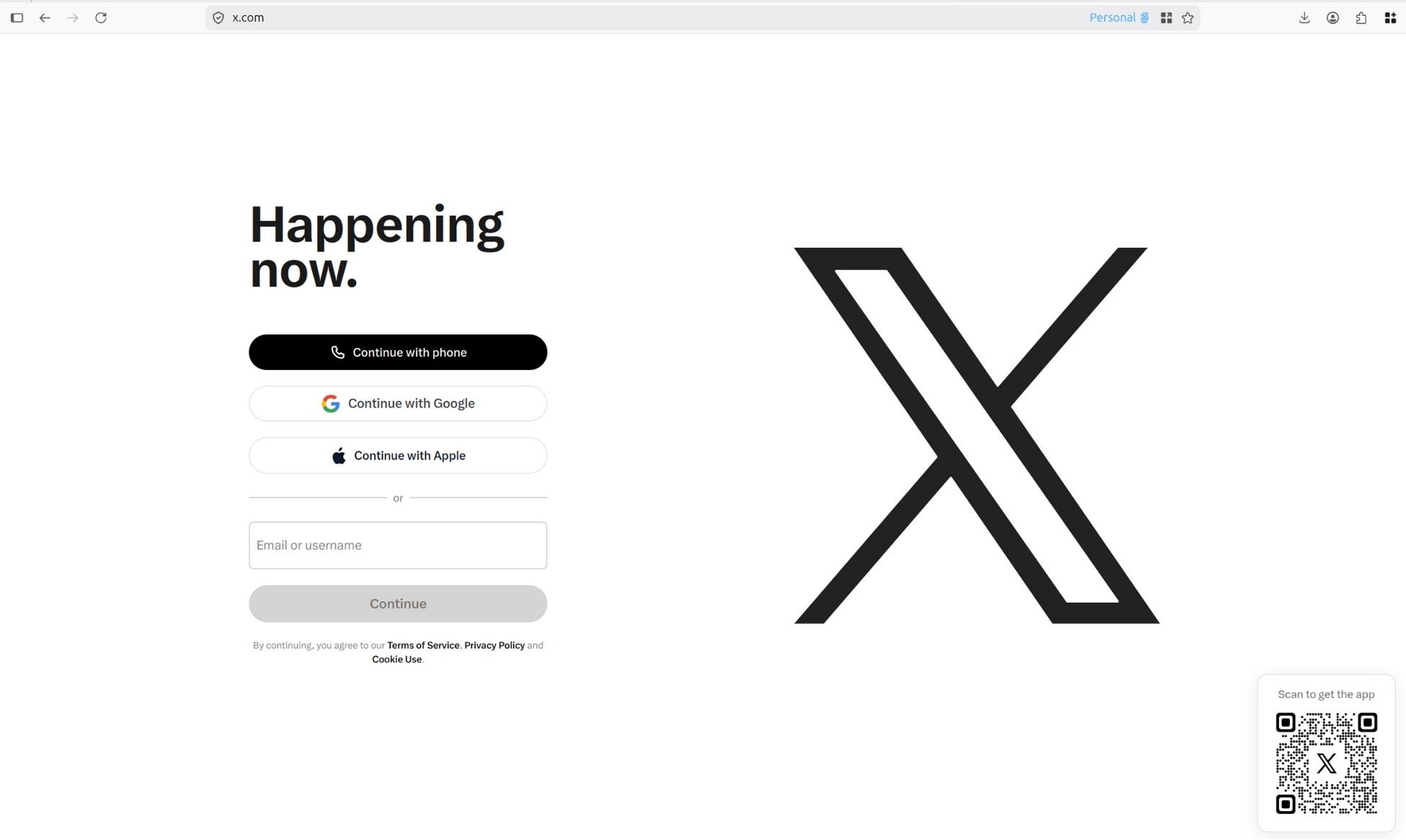

As shown in the above screenshots, both container tabs (Work and Personal) load x.com with no shared session. Since containers share one browser process and one IP, this only proves cookie/storage separation, not network isolation.
Method 2: Sandbox Each Profile with Firejail
Firejail runs a browser inside a restricted environment, isolating it from the rest of your system. This steps up from the data-only separation of native profiles to full process separation, using namespaces to control what the sandboxed process can see and seccomp to restrict what it's allowed to do.
Let’s explore the steps for sandboxing profiles using Firejail:
Step 1: Install Firejail on Your Distribution
For Debian/Ubuntu:
sudo apt install firejail
Fedora:
sudo dnf install firejail
Arch:
sudo pacman -S firejail
For the purpose of this guide, we will be using Ubuntu.
Step 2: Give Each Profile a Private Home Directory
Run this command to give the profile its own private home directory:
firejail --noprofile --private=~/profiles/client-a /home/tom-sankara/firefox/firefox
Replace “tom-sankara” with your own username; the screenshots in this guide were captured on a test machine, so your terminal will show a different name. That's expected and doesn't affect anything. This remaps everything the sandbox sees as $HOME to ~/profiles/client-a; the browser has no visibility into your real home directory, only what's inside that folder.
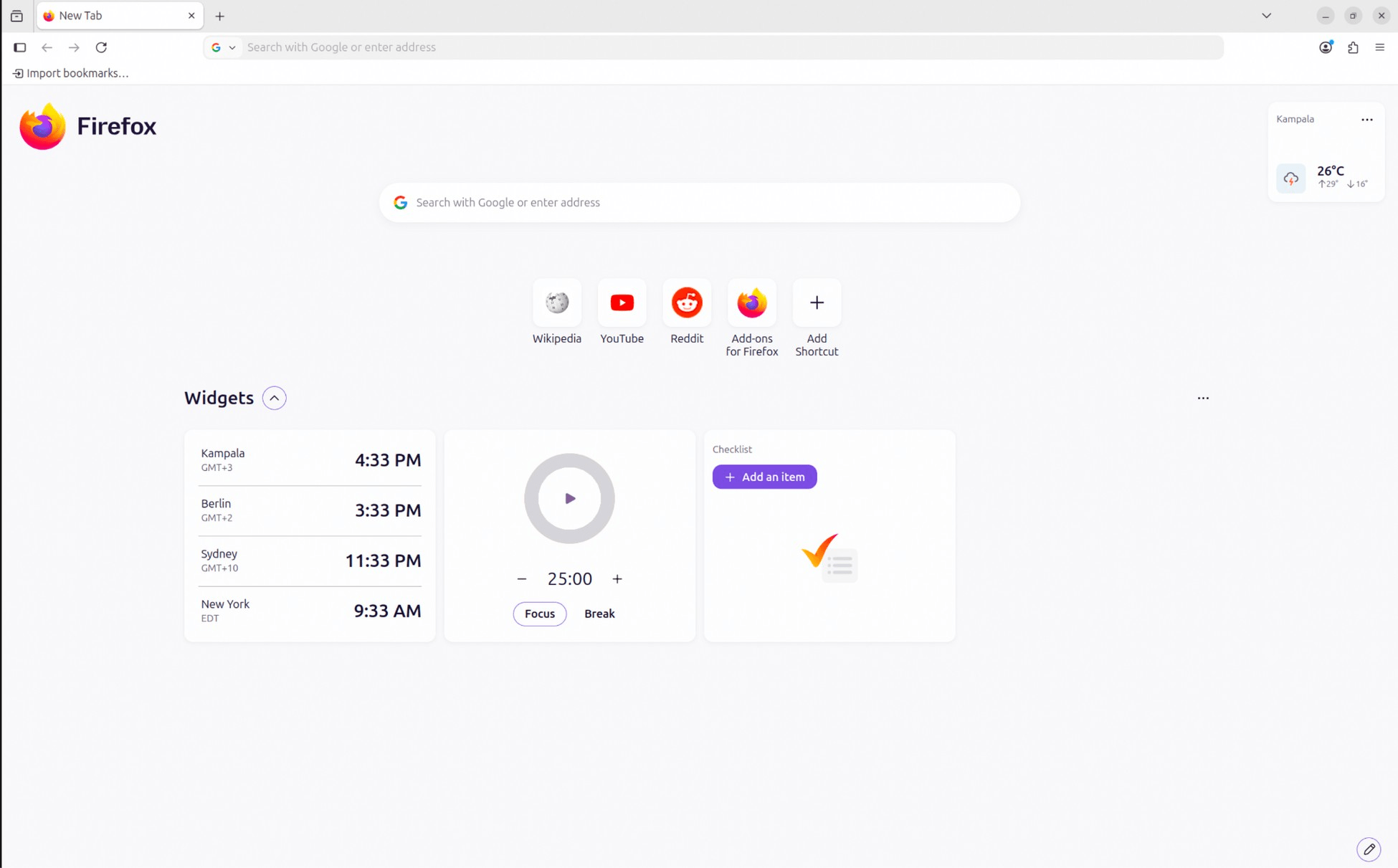
The fresh Firefox window (shown above) that opens confirms it: no imported bookmarks, no saved logins, no existing history, just the default new-tab widgets, as shown above. That's the isolation working as intended, not a bug.
Step 3: Launch the Sandbox and Confirm It Is Active
With the sandbox still running, open a second terminal and run:
firejail --list
firejail --tree
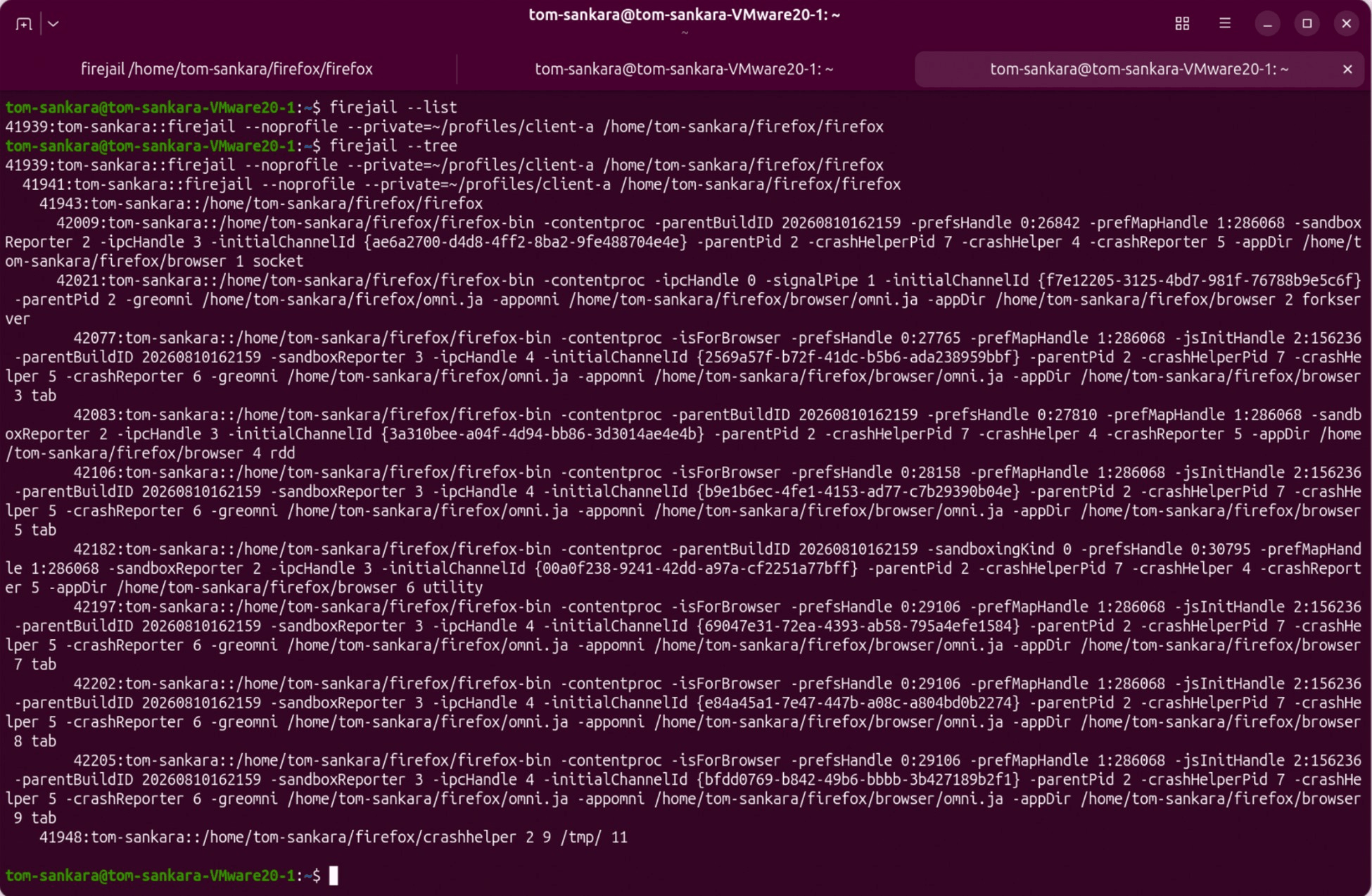
As shown in the screenshot above, firejail --list command confirms an active sandbox tied to the exact --private= command that launched it. And firejail --tree command shows the full process nested underneath it; the Firefox binary, its content processes, and its crash helper all running as children of the firejail wrapper rather than directly on the host. Your own output will show your machine's username in place of the one pictured.
This is the real proof the browser is sandboxed, not just that a window opened.
Method 3: Run Each Profile in a Podman or Docker Container
Containers package a browser and its dependencies into a fully isolated environment, with its own filesystem, process space, and network stack. This is the strongest of the three methods and the only one that also separates networking.
Let’s explore the steps for implementing this method:
Step 1: Pull or Build a Browser Container Image
Download the Firefox container image using Docker or Podman:
podman pull docker.io/jlesage/firefox
This command downloads a pre-built Firefox container image, so you don't need to build one yourself. If you want a custom setup, you can instead build from a minimal Containerfile that installs the browser and its dependencies. Docker users can run the equivalent docker pull docker.io/jlesage/firefox.
Step 2: Start One Container per Developer Profile
Run this command in your terminal:
podman run -d \
--name firefox-client-a \
--shm-size=2gb \
-p 5800:5800 \
-v client-a-profile:/config \
jlesage/firefox
Each flag serves a specific purpose:
--name firefox-client-agives the container a readable name instead of a random string, so later commands (stop, logs, remove) are easy to target--shm-size=2gballocates enough shared memory for the browser to run smoothly, as the container's default is often too small-p 5800:5800maps the container's built-in noVNC web interface to a port on your host. Unlike a locally installed browser, this image has no direct access to your display, so it serves Firefox as a stream you view in a regular browser tab-v client-a-profile:/configmounts a named volume so that profile's data persists across restarts
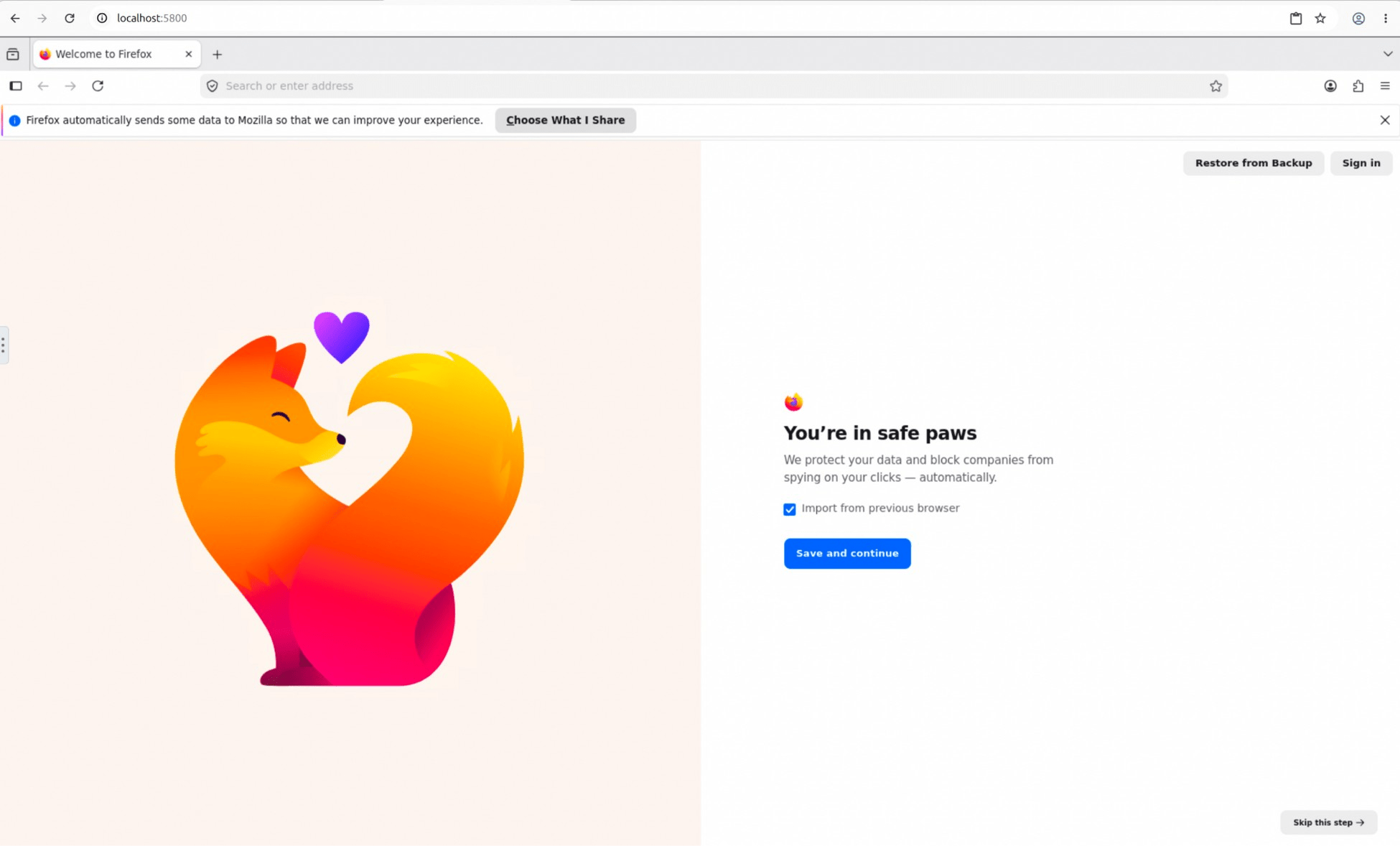
After running the command, open http://localhost:5800 in any browser on your host. Firefox loads inside the page itself, rendered through noVNC, as shown below.
Repeat with a different name, port, and volume to spin up a separate container per developer profile:
podman run -d \
--name firefox-client-b \
--shm-size=2gb \
-p 5801:5800 \
-v client-b-profile:/config \
jlesage/firefox
Access this second instance at http://localhost:5801.
Run the podman ps command to confirm both containers are up, each with its own port mapping and volume (as shown below); proof that the two profiles are running in fully separate containers rather than sharing one.
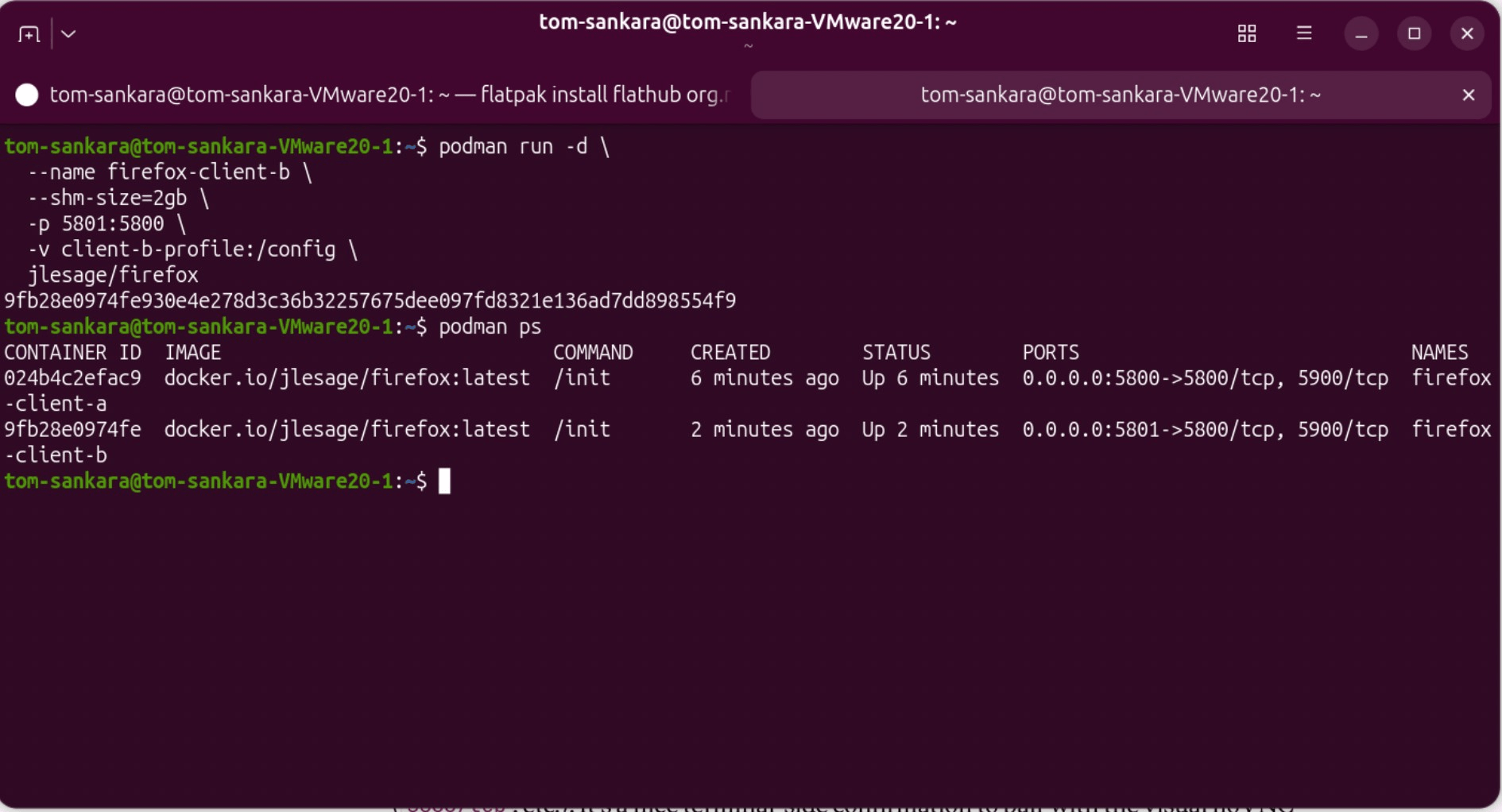
As shown above podman ps confirms both containers running independently, each with its own port mapping and named volume, proving the two Firefox instances are fully separate from each other.
Step 3: Persist Profile Data Between Sessions
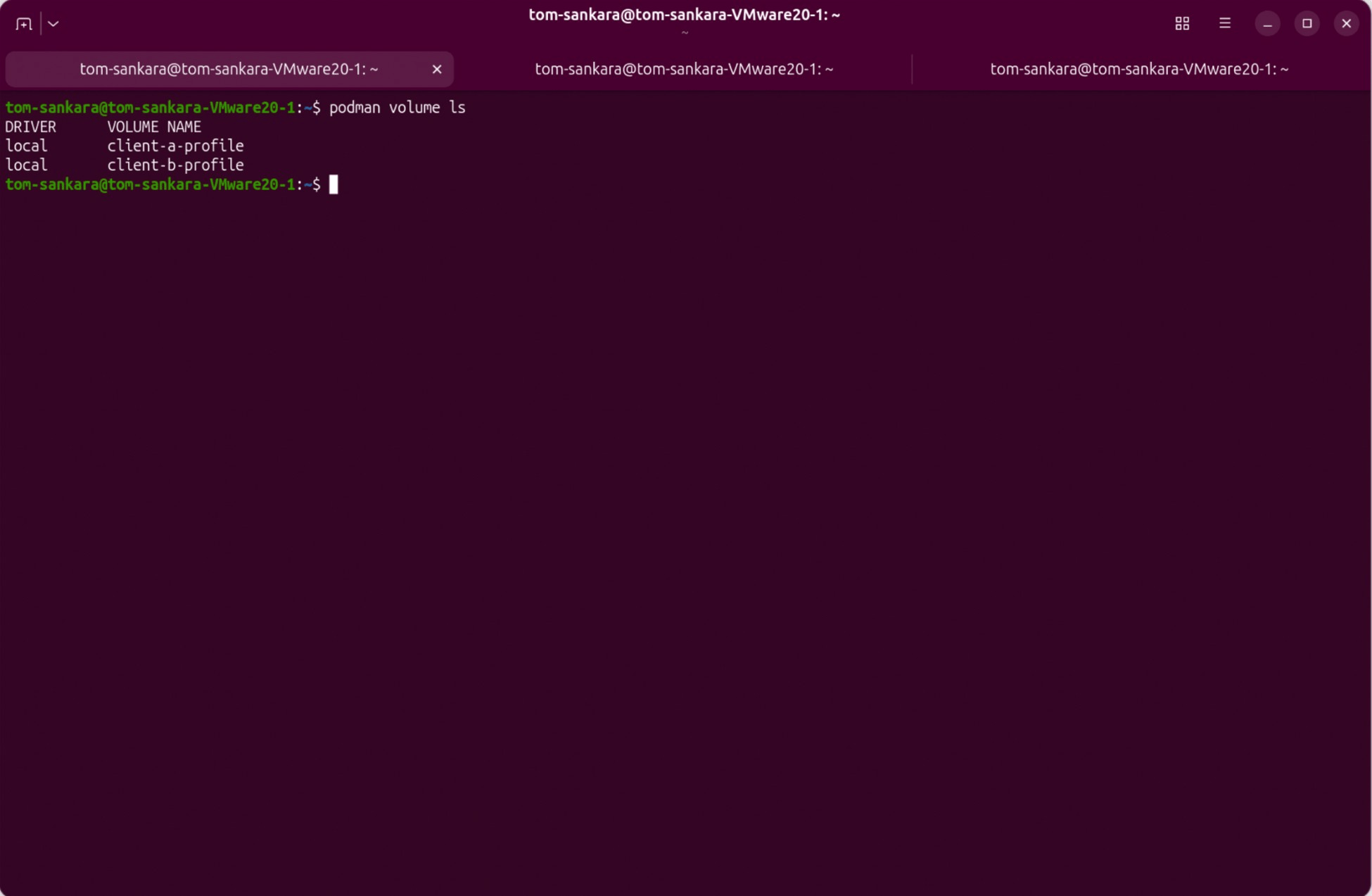
Named volumes (like client-a-profile and client-b-profile above) are managed by Podman automatically and persist between container restarts without extra setup. Run podman volume ls command to confirm they exist, as shown above.
To back up a profile, find its real path with podman volume inspect client-a-profile and copy the contents elsewhere. To reset one to a clean state, stop the container, remove the volume, and let Podman recreate it on the next run:
podman stop firefox-client-a && podman rm firefox-client-a
podman volume rm client-a-profile
podman run -d --name firefox-client-a --shm-size=2gb -p 5800:5800 -v client-a-profile:/config jlesage/firefox
Give Every Profile Its Own IP Address
Even with perfect data, process, and network isolation, three profiles that all exit through the same home IP address are still easily linkable; any website can see they're coming from the same network or device.
This matters most for account management, where platforms actively look for shared IPs to flag related accounts.
You can easily fix this by giving each profile a different IP address using a commercial proxy provider.
Choose a Proxy Provider
For demo purpose, we have used ProxyWing service for this setup. ProxyWing offers residential, mobile, ISP, and datacenter proxy endpoints with login/password or IP-allowlist authentication and country targeting; one endpoint per profile. This fits naturally into the proxy step below without extra infrastructure, making the whole experience seamless.
As always, do your own research and compare pricing before committing to any provider.
Step 1: Set the Proxy per Browser Instance, Not System-Wide
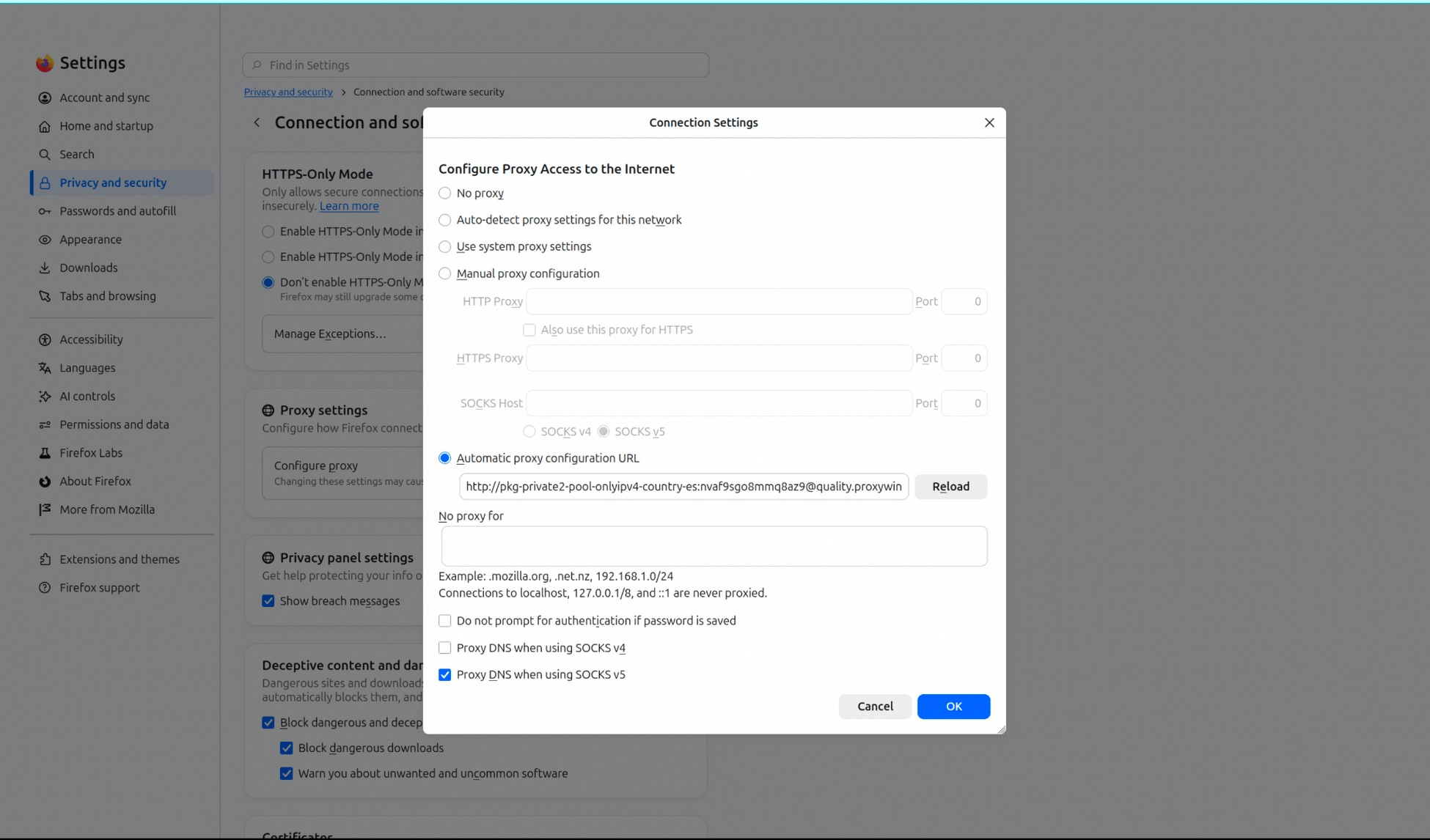
Configure the proxy at the browser level. In Firefox, go to Settings > Privacy & Security > Connection & Software Security > Configure proxy and then enter that profile's proxy details (as shown below).
You will be prompted to enter the authentication credentials the first time you try to connect through this proxy. Since this is stored per-profile, other Firefox profiles are unaffected.
In Chromium, there's no per-profile GUI equivalent, so pass the proxy directly at launch using this command; --proxy-server=http://user:pass@host:port, which applies only to that instance.
Step 2: Verify the IP, DNS and WebRTC of Each Profile
Configuring a proxy doesn't guarantee it's actually working. Misconfigurations or leaks can still expose your real network or device IP address. Open an IP lookup tool (E.g. ProxyWing’s IP checker) and a WebRTC leak test (like browserleaks.com/webrtc) in each profile, then compare the results side by side. The screenshot below shows the proxy routing to France for one of the profiles.
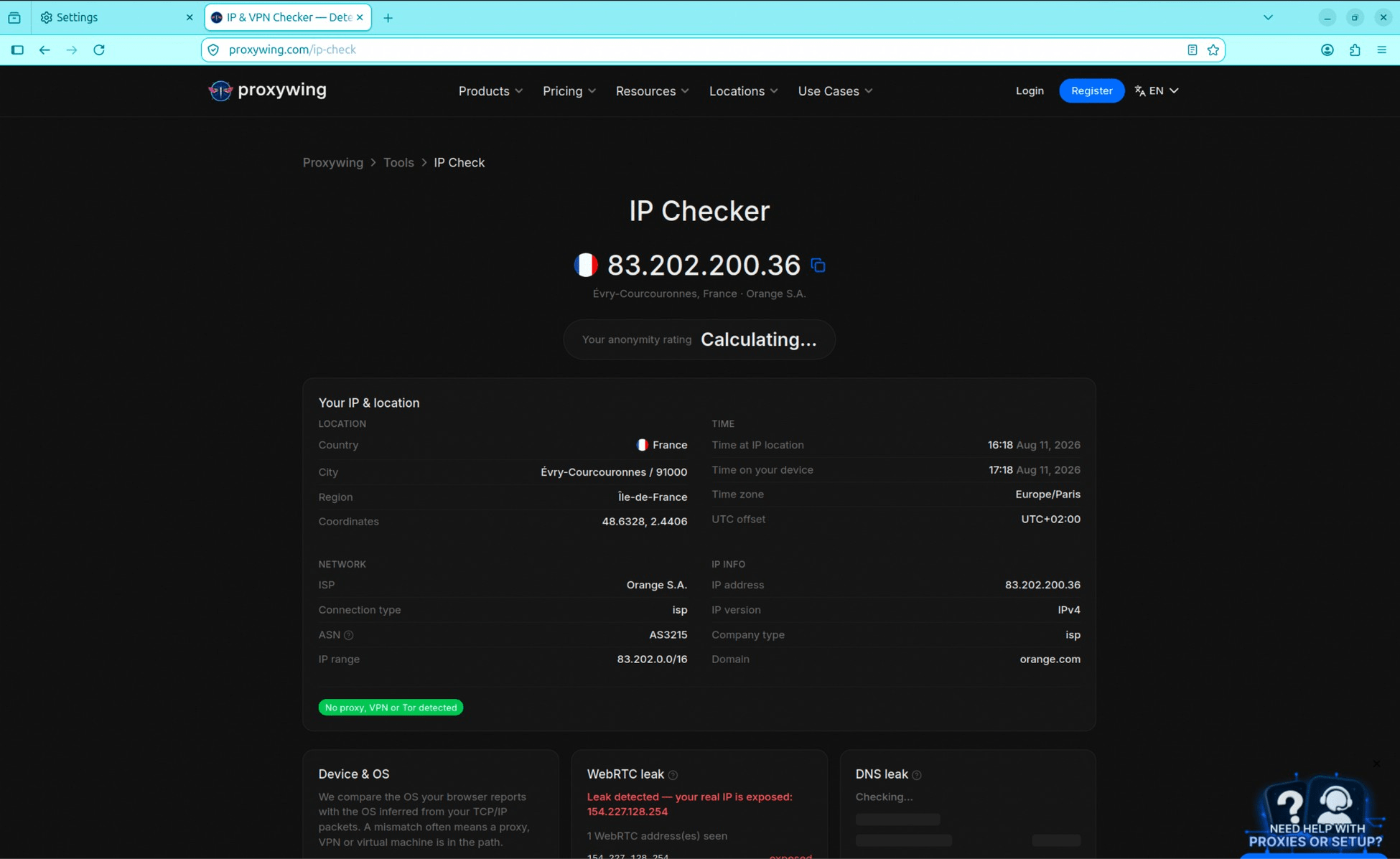
A correct setup shows a distinct IP per profile matching the proxy's location, with the DNS resolution also routing through the proxy rather than your ISP, and no WebRTC leak revealing your real local or public IP.
Automate Profile Launch with a Script and Desktop Entries
A short shell script takes a profile name and launches the right browser, sandbox, and proxy together in one command. Pairing it with a .desktop file turns each profile into its own launcher icon in the app menu.
Security Best Practices for Multiple Developer Profiles
- Never reuse one profile for two clients
- Keep credentials in a separate vault per profile
- Disable browser sync
- Audit extensions per profile
- Wipe the profile when the project ends
- Confirm the proxy is active before logging in
- Never copy cookies or session data between profiles
Common Problems and How to Fix Them
1. The Second Browser Window Opens in the First Profile
Both browsers default to single-instance mode, so a second launch just opens a window in the running profile. To fix this:
- For Firefox, add the
-no-remoteflag to force a genuinely new instance. - For Chromium, make sure each launch uses a distinct
--user-data-dirpath since reusing the same path (or omitting it) is what causes the fallback.
2. Sites Still Link Your Profiles to One Person
To resolve this issue, check these in order
- A shared exit IP (fix with a unique proxy per profile)
- An identical fingerprint (fix with fingerprint-randomizing settings)
- Matching timezone/locale (adjust to match the proxy region)
- A signed-in sync account (disable sync on other profiles).
3. The Sandboxed or Containerized Browser Will Not Start
Some of the common causes for this include:
- Missing display socket permissions
- A too-small
/dev/shm(increase with--shm-size) - SELinux denials on the mount (adjust context or add
:z) - A Firejail rule blocking the path (edit the profile).
Look at the error output; it usually points to which one applies.
Which Setup Should You Choose
The setup you choose to use largely depends on your requirements. Here is a simple framework that can make your choice easier:
- Casual multi-account use: Native profiles are enough
- Client separation: Use Firejail since it adds real protection without much overhead.
- Testing that must not touch the host: For such projects containers are the only reliable solution.
Frequently Asked Questions (FAQ)
A: Yes, you can. After launching the first, launch the second with -no-remote -P "ProfileName" if your build defaults to single-instance.
A: It isolates filesystems and processes, not networks. You still need a separate proxy per profile. A proxy allows you to allocate a unique IP address to each profile.
A: For most casual use cases, you may use the same IP. However, for tasks like account management or geo testing, you will need a different IP address for each profile.
A: A container splits cookies within one profile. A profile is a fully separate identity with its own storage.
A: Some overhead from the runtime and display socket. However, the difference in performance is usually minor on modern hardware.
A: Generally yes, as long as it complies with each platform's terms of service.
