
Atomic Chat is a free, open-source AI coding assistant that runs open-weight LLMs entirely on your own machine and exposes them through a built-in OpenAI-compatible server at http://localhost:1337/v1. That means you can point your existing code, or a coding agent, at a local endpoint and get completions with no cloud API key or usage caps. Keep a local model selected and network tools off, and your prompts stay on your device.
Atomic Chat currently combines four layers in one app:
- Local model runner: Download and run 1,000+ open-weight models, including Llama, Qwen, Gemma, Mistral, DeepSeek and others.
- Agent workspace: Built-in agent mode can read/write files, execute commands, use skills, request approvals, and work with web search.
- Agent integration hub: One-click launchers for coding agents such as Claude Code, Codex CLI, Cline, OpenCode, Goose, OpenHands, Kilo Code, Copilot CLI and Zed.
- Local API server: Exposes the loaded model through an OpenAI-compatible endpoint, allowing external applications and agents to use it.
It also supports MCP, custom assistants, projects, artifacts, vision models, cloud providers, and multiple inference backends.
In this guide, we will explain how to install Atomic Chat on Linux, download a coding model, and use it to complete a real programming task both in the GUI and from the terminal.
The installation commands target Ubuntu 22.04+ or Debian 12+ (x86_64, glibc 2.35+). Download the app, inference backend and model before going offline.
Table of Contents
What you need
- A 64-bit Linux desktop (x86_64): Ubuntu 22.04+ or Debian 12+
- Around 8 GB RAM for a small quantized 3B model; 16 GB gives more room for a 7B. Context length and other apps also affect memory use.
- Roughly 5–10 GB free disk for the app plus one model
- On Linux, Atomic Chat runs GGUF models only. Keep that in mind when picking a model.
Step 1: Install Atomic Chat on Linux
Atomic Chat ships as an AppImage for Linux, so there's nothing to compile. Download the latest Atomic Chat appimage from the official releases page.
As of writing this, the latest version was Atomic Chat v2.0.37.
Go to the location where you downloaded the file. I have downloaded it in my ~/Downloads directory:
cd ~/Downloads
Make it executable:
chmod +x ./Atomic.Chat_2.0.37_amd64.AppImage
And run Atomic Chat appimage using command:
./Atomic.Chat_2.0.37_amd64.AppImage
If launch fails with a missing libfuse.so.2 error, install the FUSE compatibility library. On Ubuntu 24.04 systems, you can install it using command:
sudo apt update
sudo apt install libfuse2t64
On Ubuntu 22.04, use libfuse2 instead. Do not replace an existing FUSE 3 installation:
sudo apt install libfuse2
When you launch Atomic Chat for the first time, it will automatically scan your system's hardware and suggest a best suitable model to download.
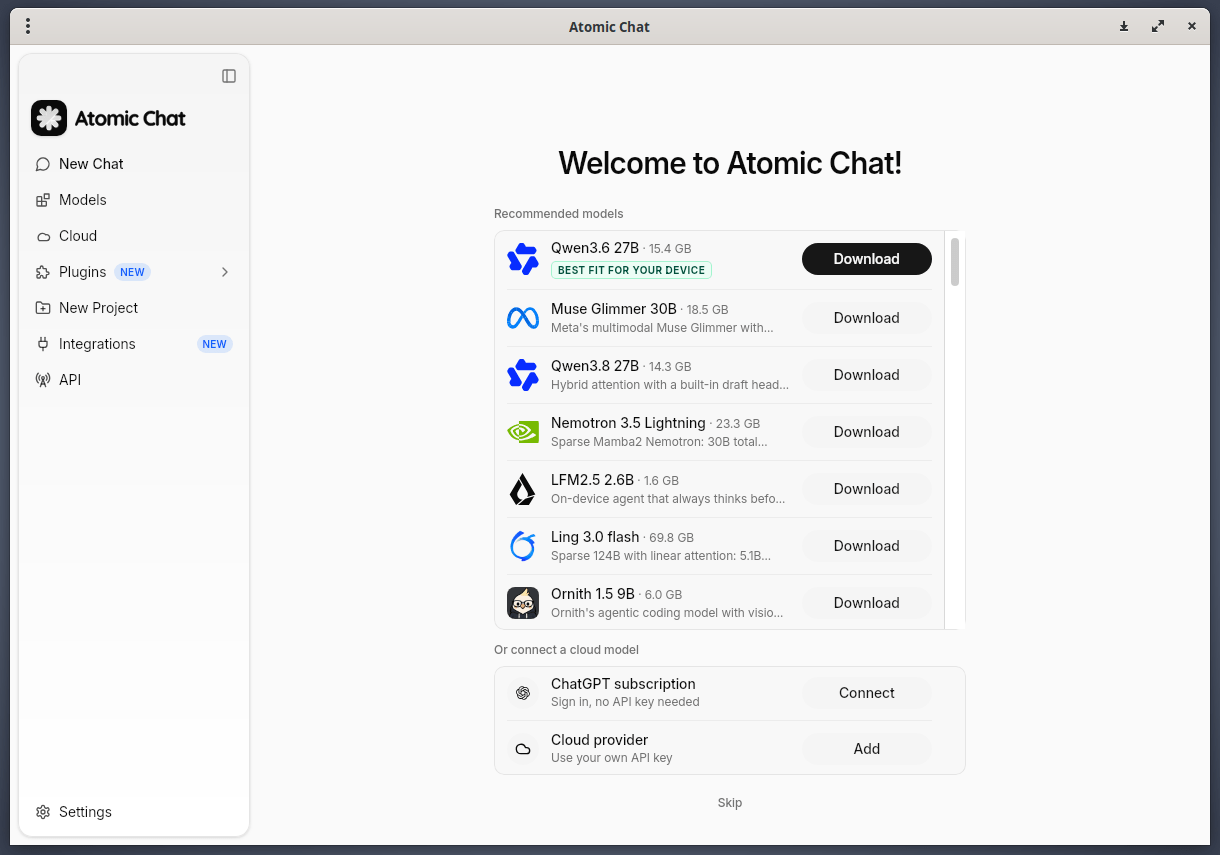
Of course, you don't have to download the model immediately. You can skip this step and continue to the Atomic Chat's main interface.
Here's how Atomic Chat default interface looks like:
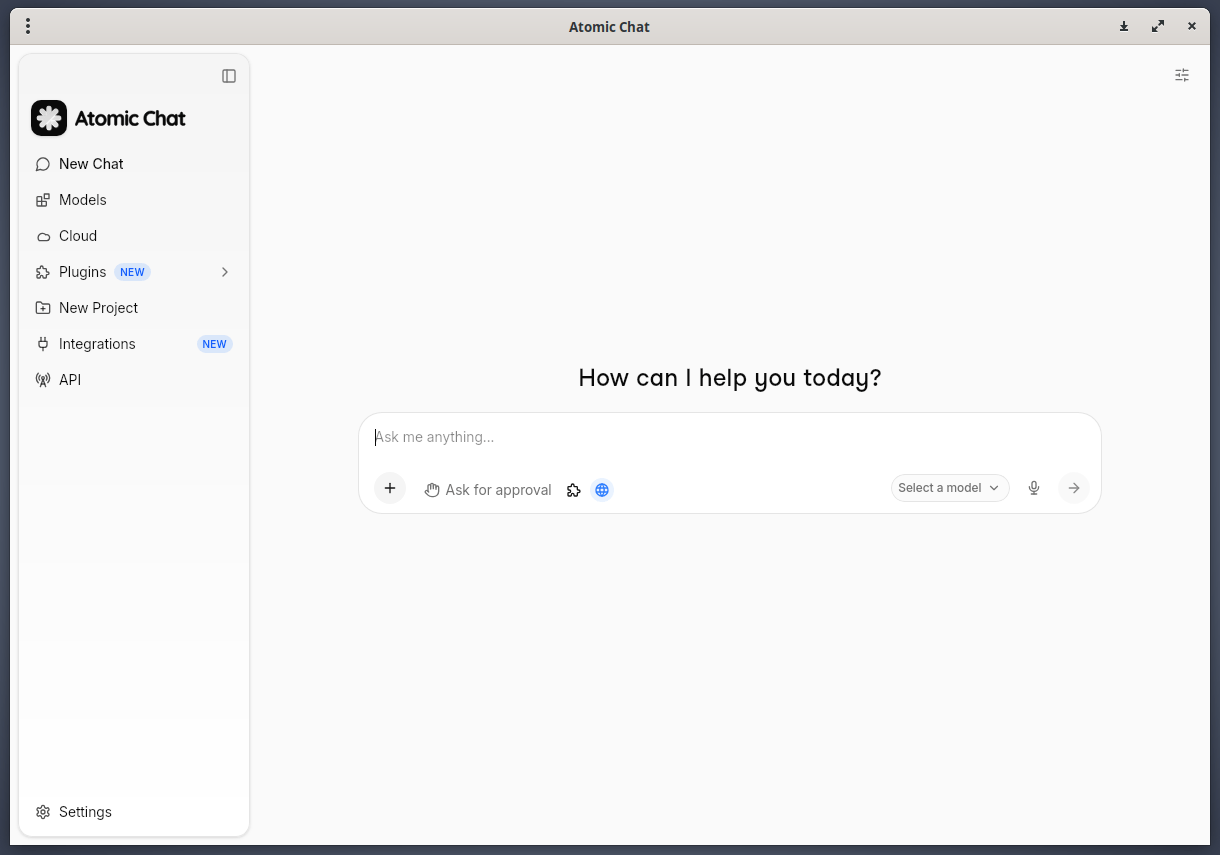
The above screenshot shows Atomic Chat 2.0.37 running in Debian.
Step 2: Download a Coding Model
Atomic Chat has a built-in option to directly download the models from the interface itself, so you don't have to touch the terminal to get a model.
Click the "Select a model" option from the Chat window.
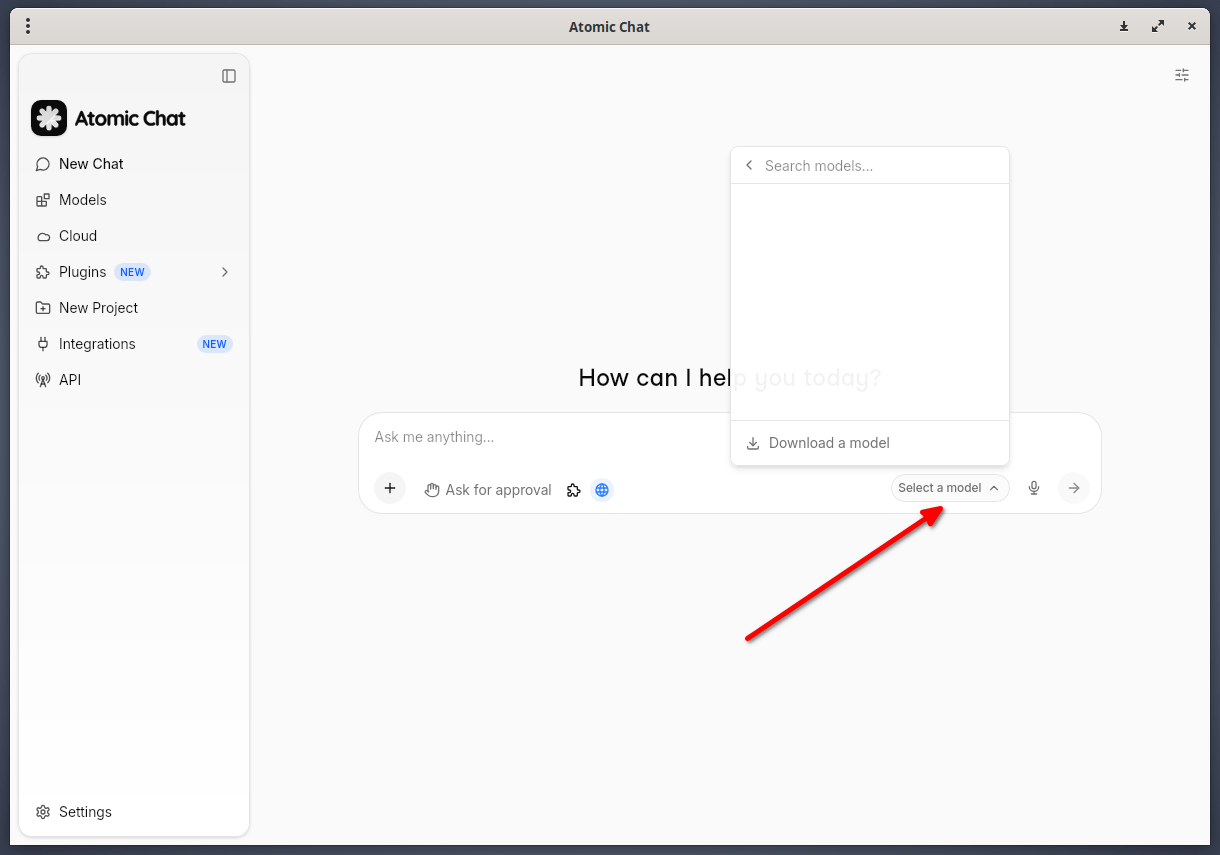
A search box will appear, type the name of the model you want to download. Or click the "Download model" option. You will be redirected to the Models section where you see a list of available models.
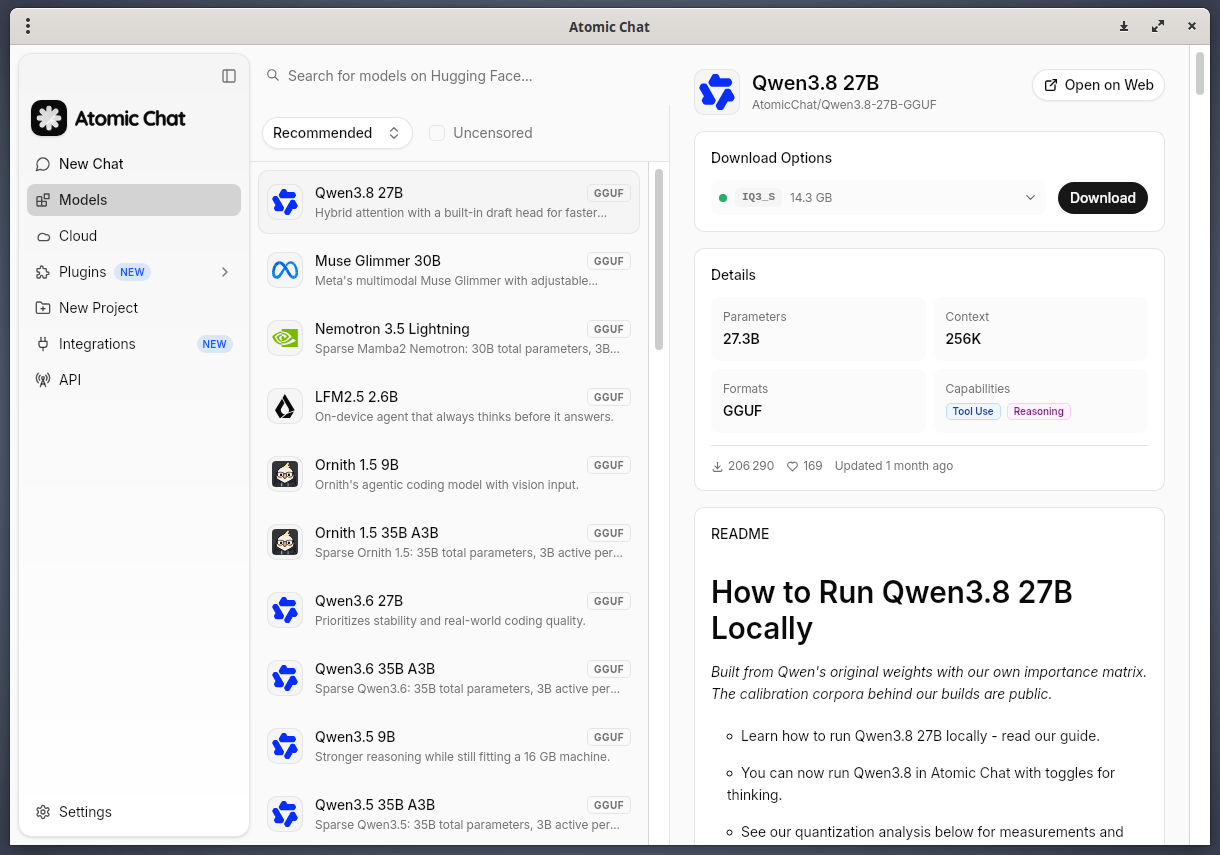
If you don't know which one to download, simply go with the default suggestion. As stated earlier, Atomic Chat will automatically scan your hardware and suggest a suitable model for you.
Note: On an 8 GB machine, start with a 3B model; try 7B with 16 GB, allowing room for context and other apps.
For demo purpose, we will download Qwen/Qwen2.5-Coder-3B-Instruct-GGUF, Q4_K_M.
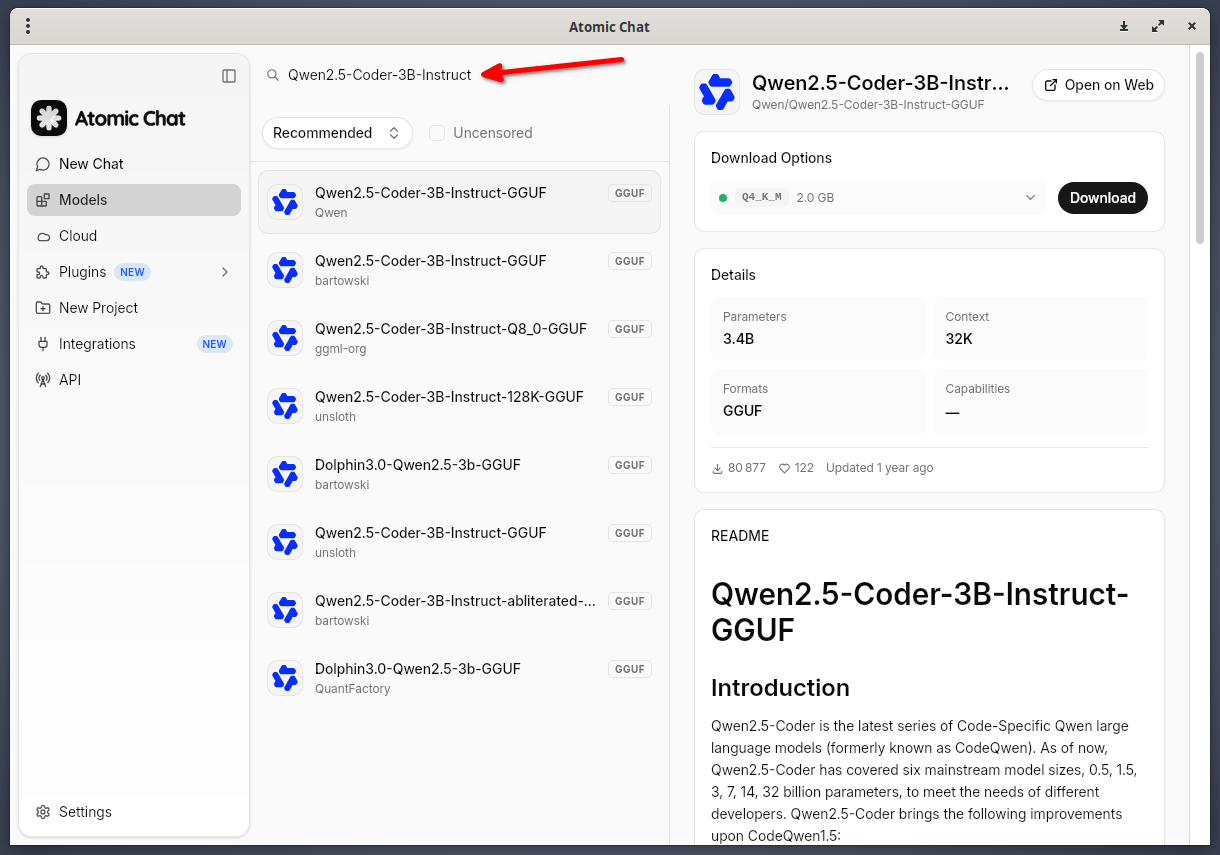
Please wait while Atomic Chat downloads the model. It will take a while depending upon the model size and the Internet speed.
Once the download finishes, start a new chat.
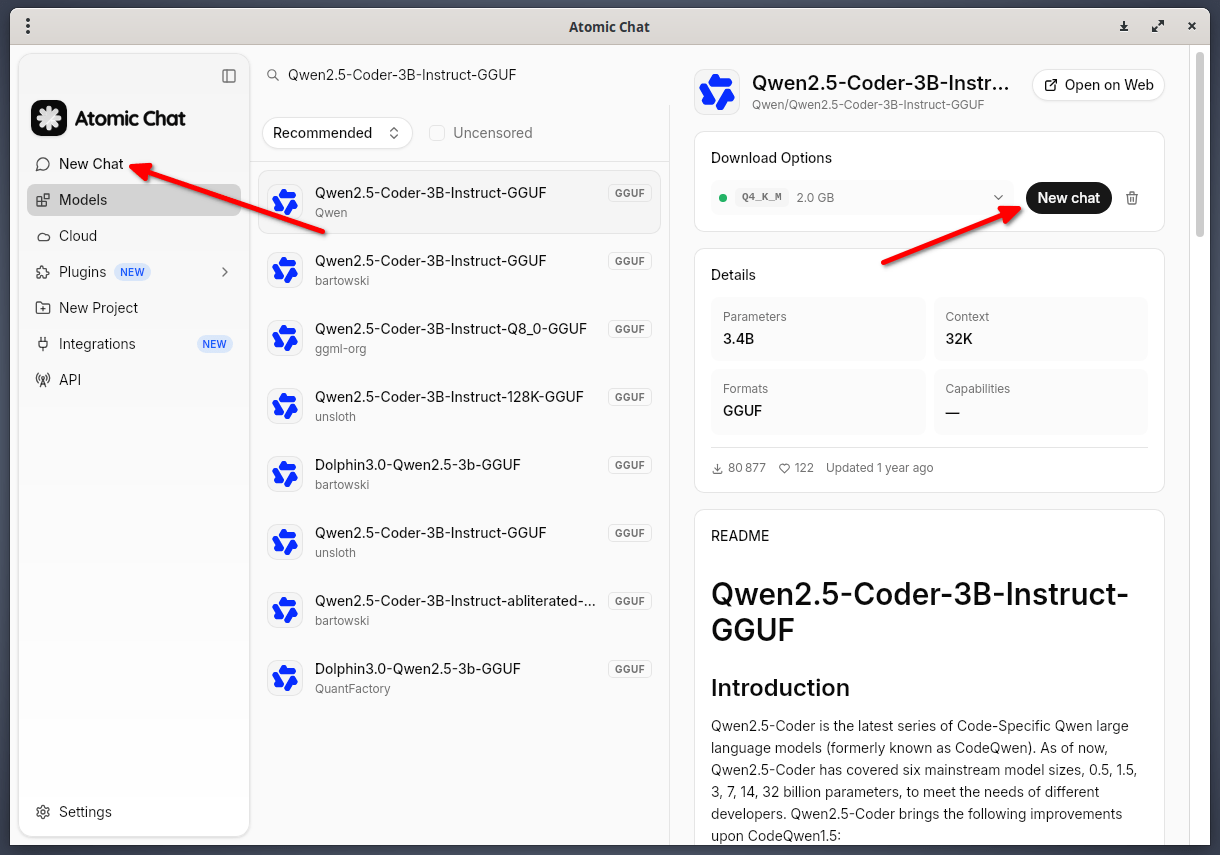
If you have downloaded only one model, Atomic Chat will automatically load it. If there are more than one model, you can select one from the "Select a model" drop-down box.
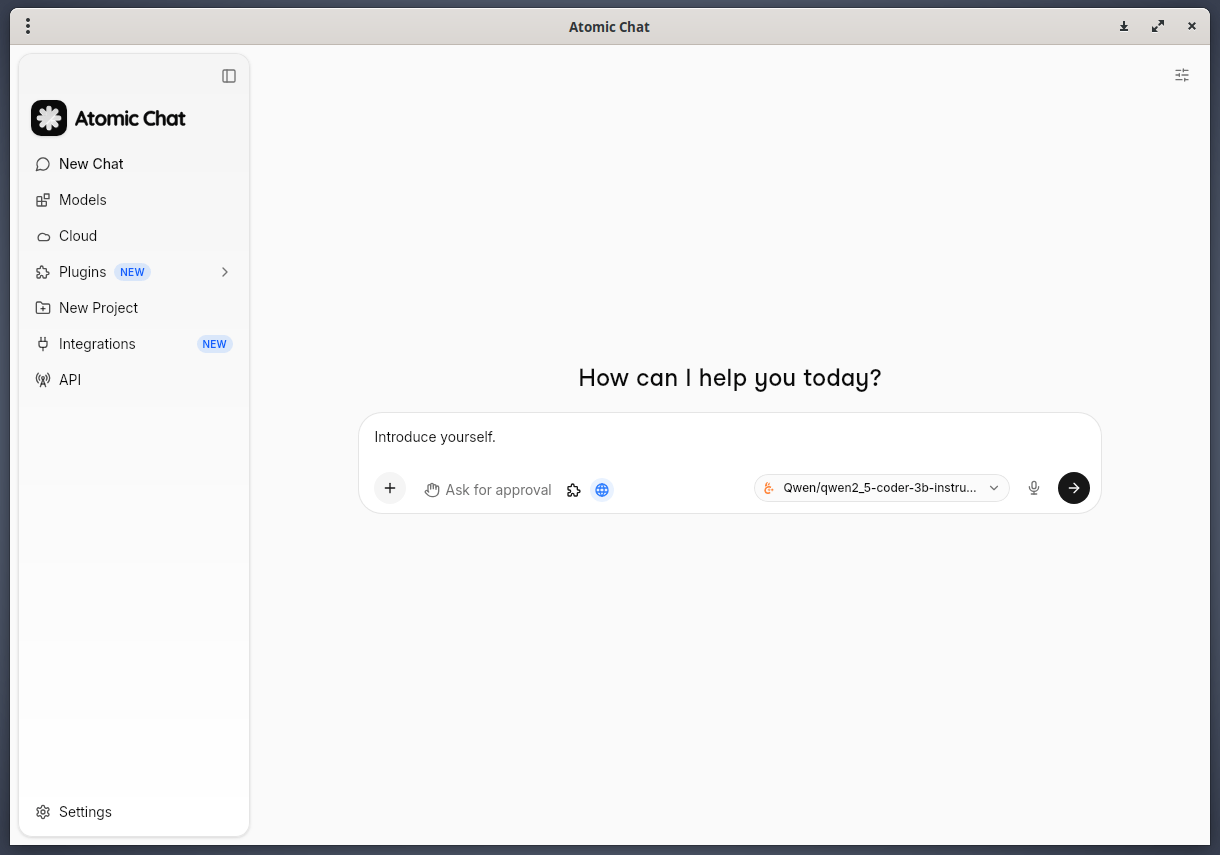
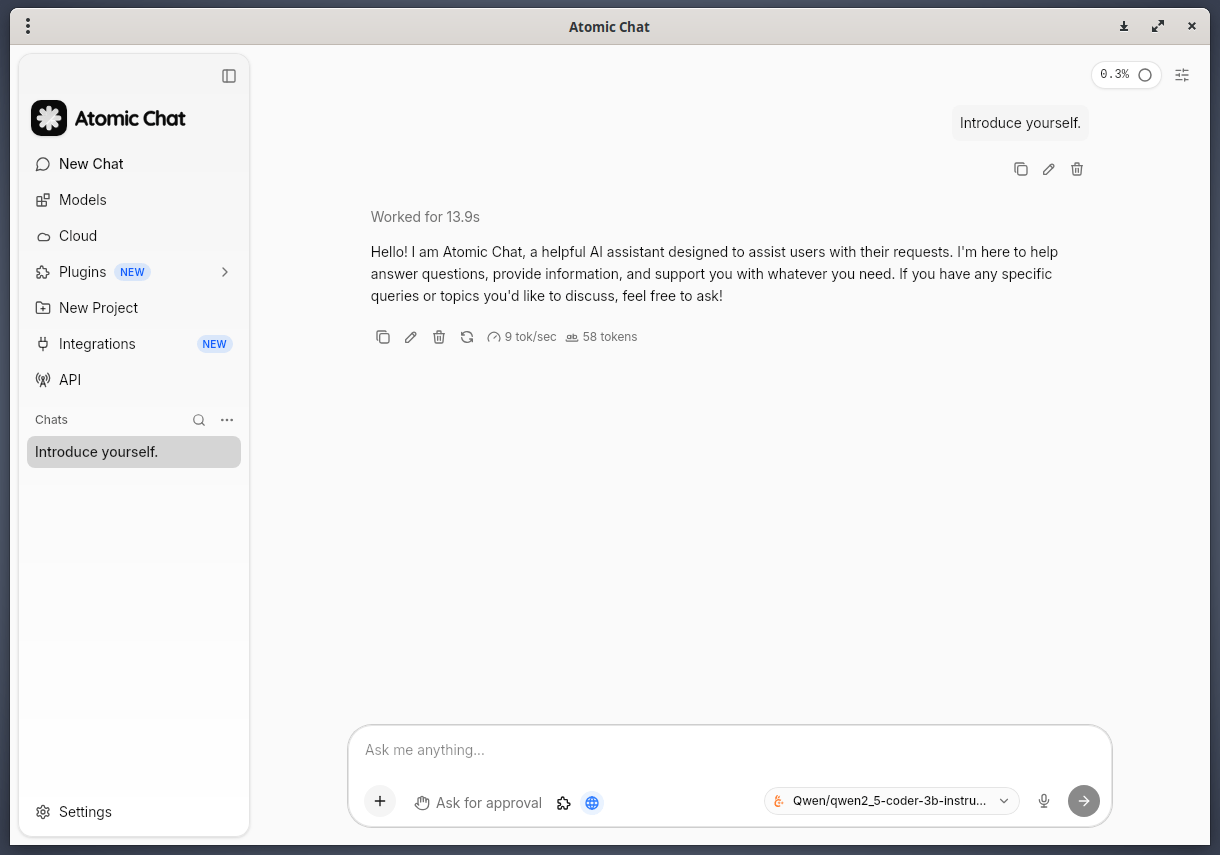
The Qwen model is now running fully on your hardware.
That's it. Start interacting with your AI agent.
Step 3: Generate and Refactor a Python Script in the Atomic GUI
Let’s give it a concrete, checkable job rather than a toy prompt. In the chat, enter the following prompt:
Write a Python script dirscan.py that walks a directory given as a command-line argument and prints the 10 largest files with human-readable sizes. Use only the standard library.
You’ll get a script back in a few seconds along with the explanation. Review it and fix any errors before running it.
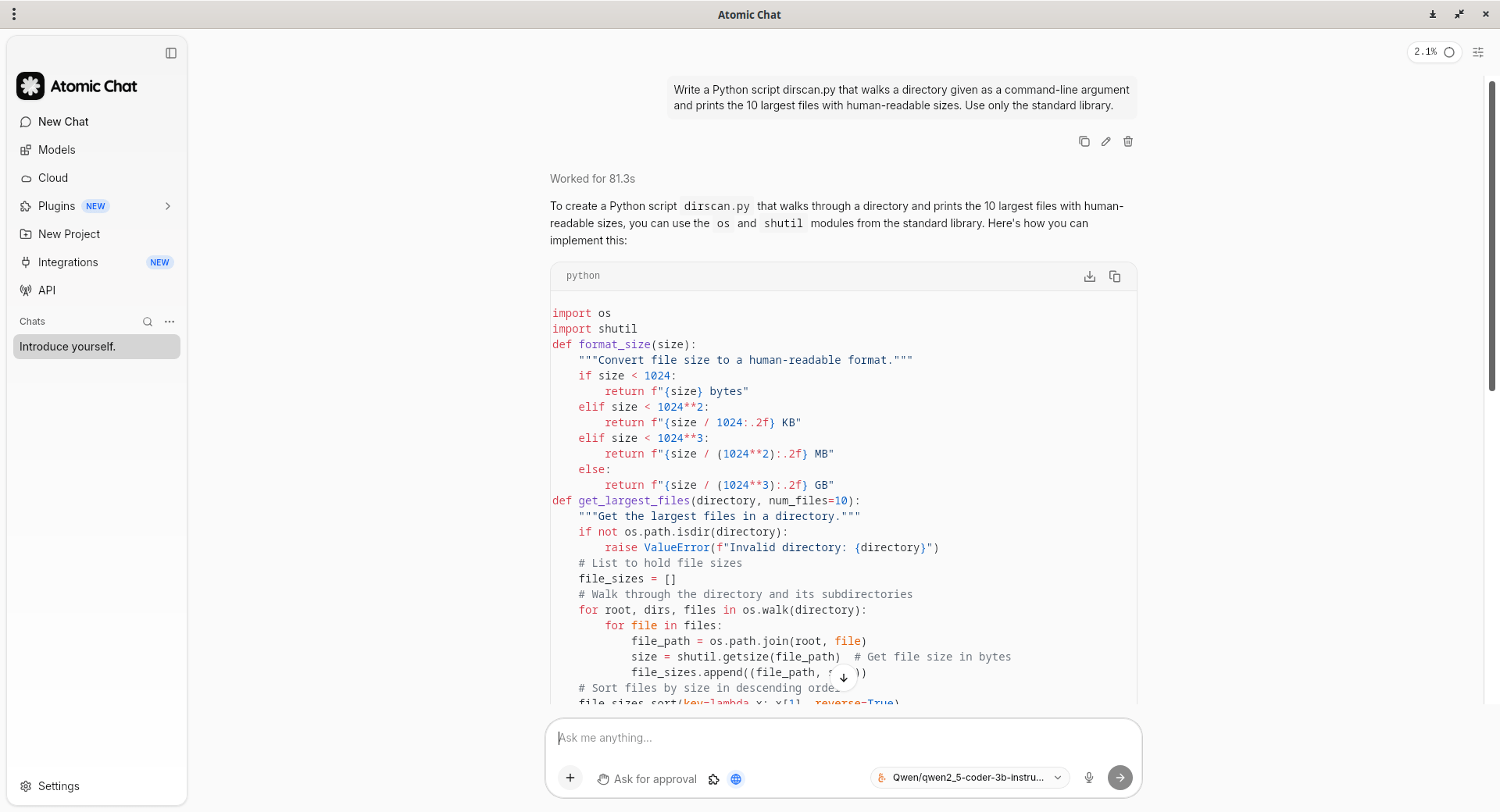
If there are no errors, save it in a file namely dirscan.py, then run it against a folder of test files.
Create dirscan-demo directory and put a few disposable files in it first. Run the Python script against it:
python3 dirscan.py ./dirscan-demo
Now test refactoring — the real value of a coding assistant.
From the Chat window, enter the following prompt:
Refactor it to accept a --limit flag (default 10) and handle permission errors without crashing.
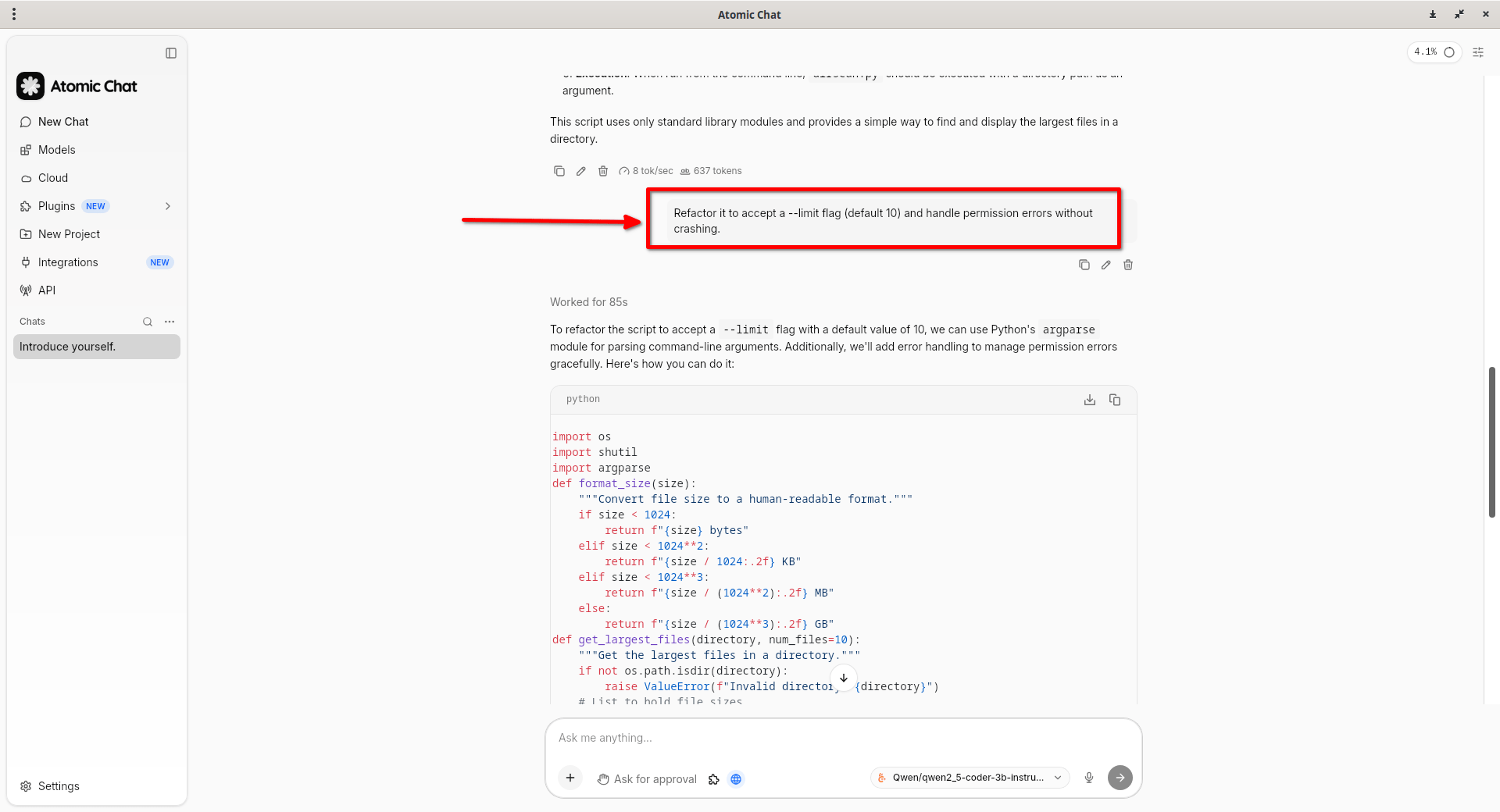
Update the script with the new code and run the Python script again:
python3 dirscan.py --limit 5 ./dirscan-demo
Because inference is local, you can do all of this with your network cable unplugged. Download the app, backend, model and any client dependencies first, and keep web search and remote tools off.
Step 4: Use the Local Server from the Terminal (OpenAI-compatible)
The GUI is only half of it. Atomic Chat runs an OpenAI-compatible server at http://localhost:1337/v1, bound to 127.0.0.1 by default, so any tool that speaks the OpenAI API can use your local model.
Open the API panel, start the server if it is stopped, and check that it is Ready. A placeholder key works only when API authentication is disabled; otherwise use the configured key.
Test it with curl. First query http://localhost:1337/v1/models and copy the ID of your downloaded local model.
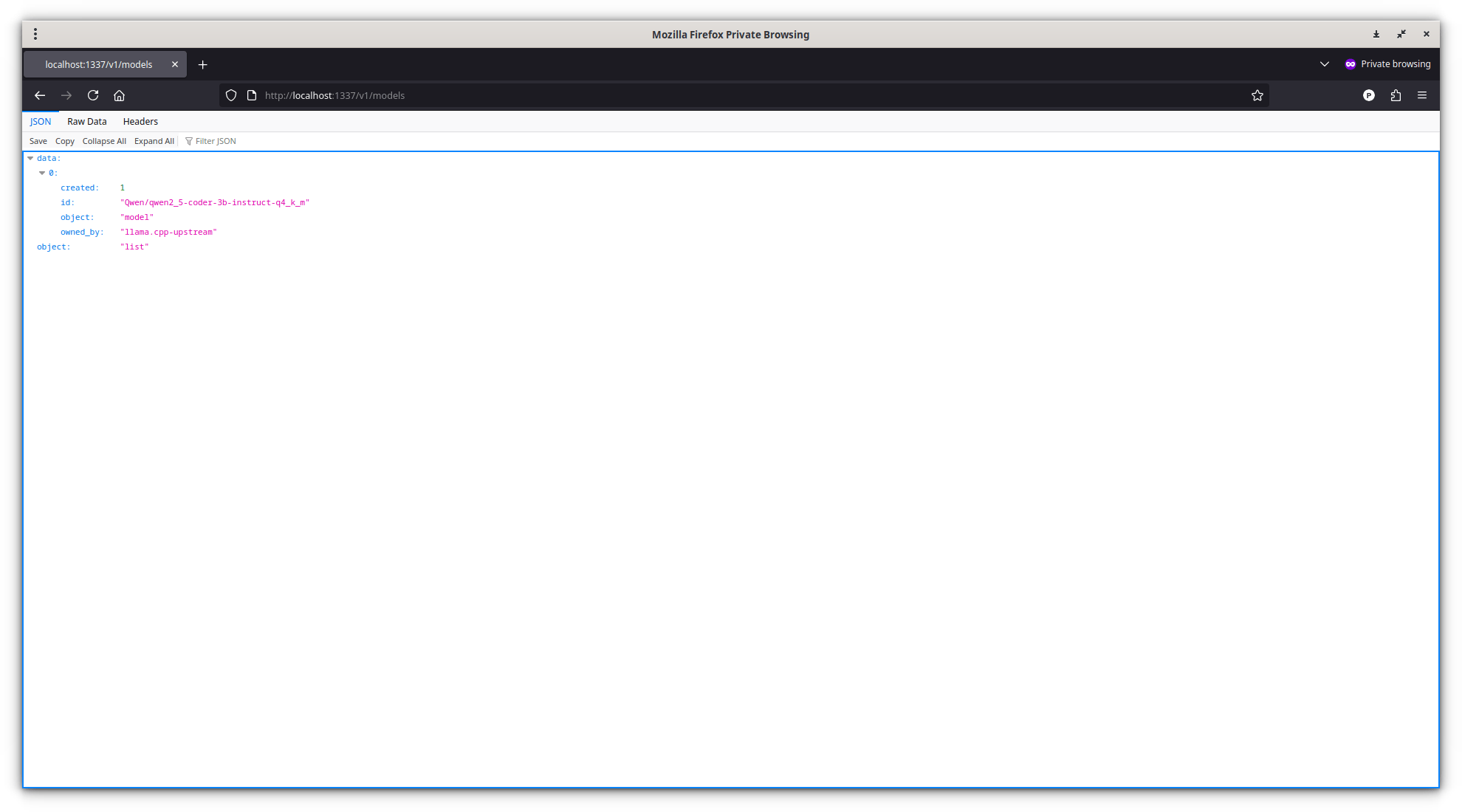
The example below uses the ID returned for the Qwen download above:
curl http://localhost:1337/v1/chat/completions \
   -H "Content-Type: application/json" \
   -d '{
      "model": "Qwen/qwen2_5-coder-3b-instruct-q4_k_m",
      "messages": [
        {"role": "user", "content": "Write a bash one-liner to count lines in all .py files under the current dir."}
  ]
}'
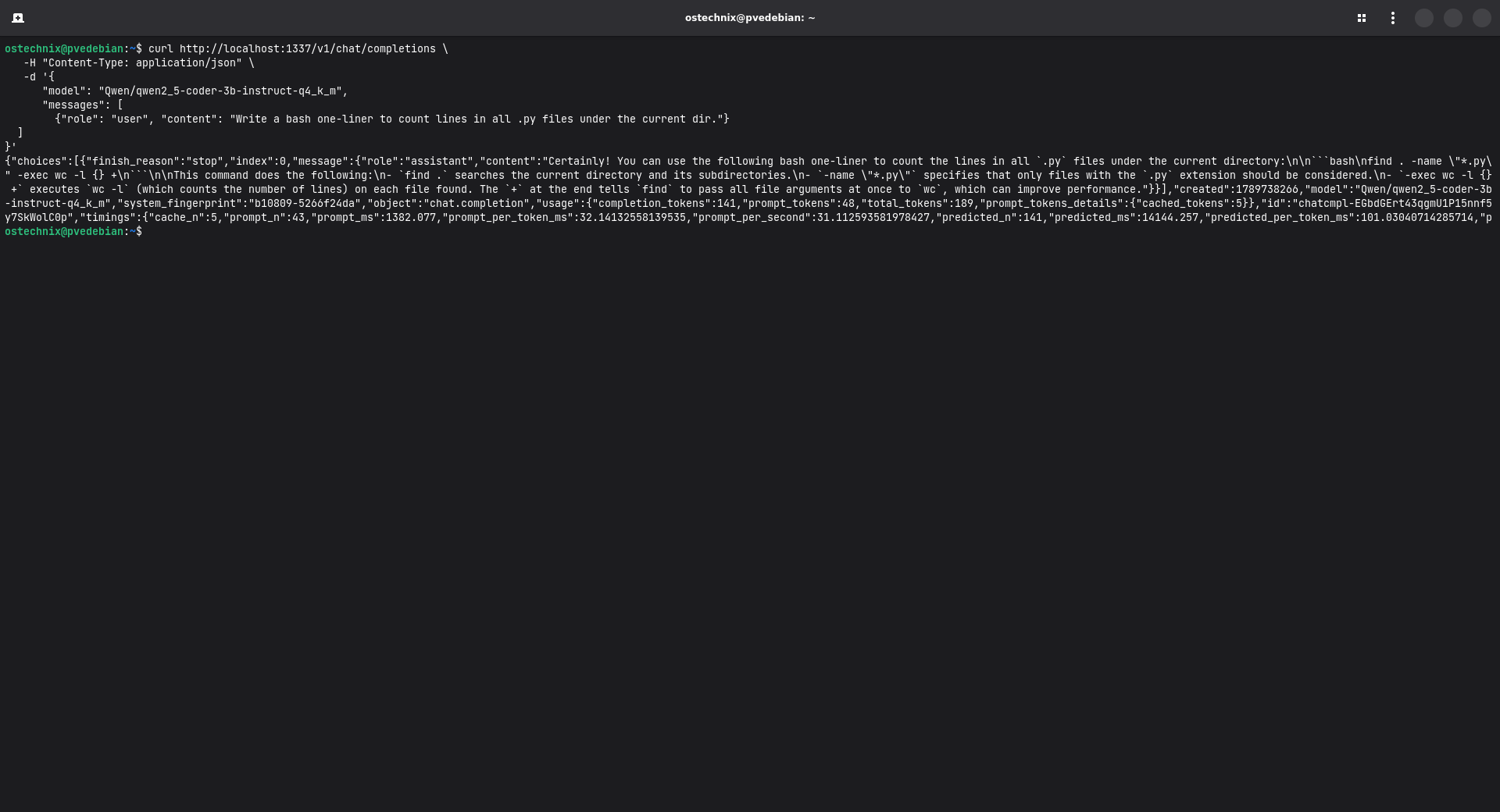
Or drop it straight into the official OpenAI Python SDK by changing only the base_url: Install the openai package in a Python virtual environment first.
from openai import OpenAI
client = OpenAI(
    base_url="http://localhost:1337/v1",
    api_key="not-needed", # only when API authentication is off
)

resp = client.chat.completions.create(
    model="Qwen/qwen2_5-coder-3b-instruct-q4_k_m",
    messages=[{"role": "user", "content": "Refactor this into a function: "
               "x=[i*i for i in range(10) if i%2==0]"}],
)
print(resp.choices[0].message.content)
Use the model identifier exactly as it appears in the /v1/models response. If you’ve changed the port, check the current value in the app’s API panel.
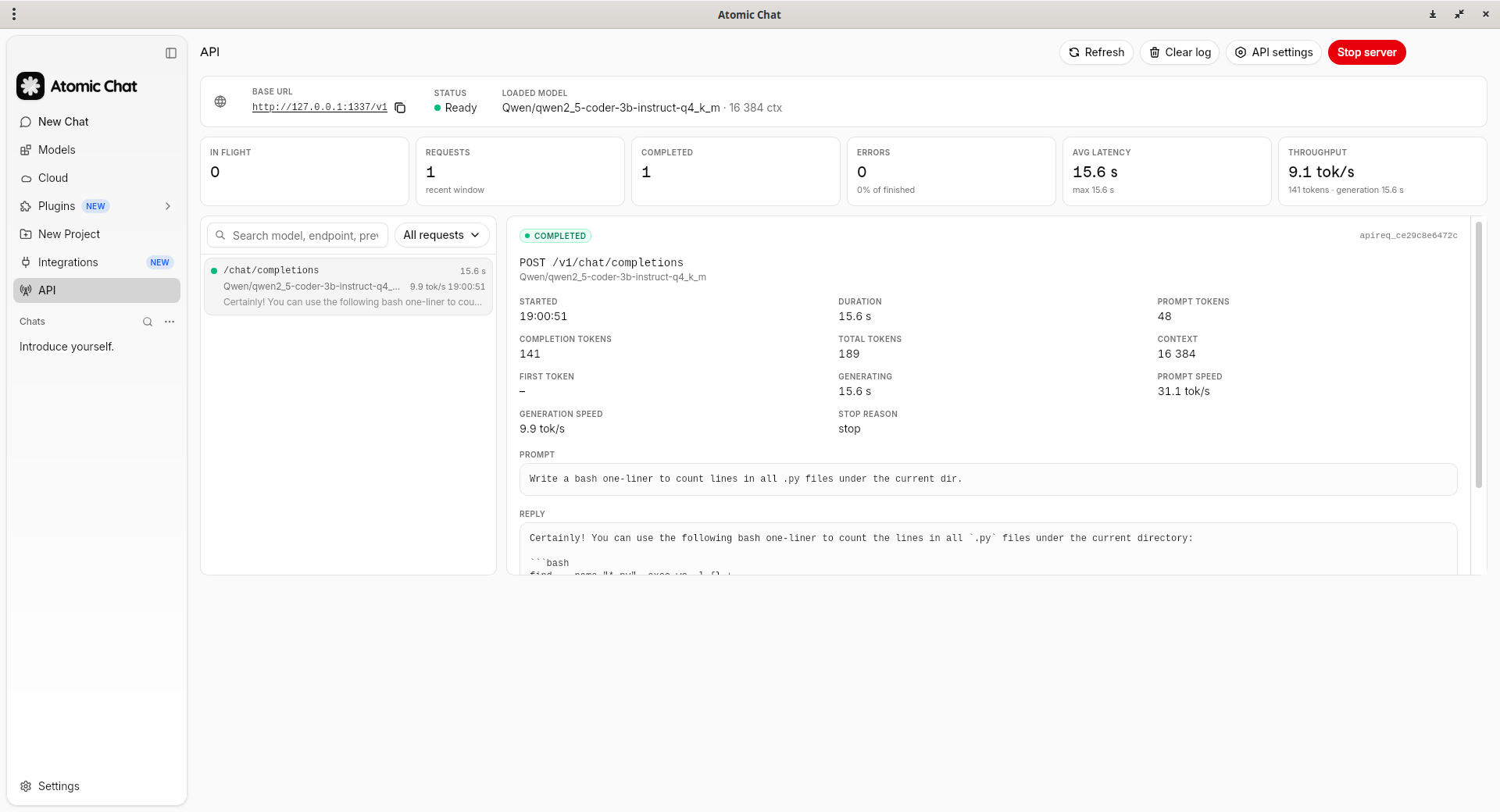
As you can see, the local API panel showing a real request and response. The terminal examples use this same loopback endpoint.
Step 5: Integrate Third-Party Agentic Coding Tools
Because the endpoint is OpenAI-compatible, many agentic coding CLIs can connect to it as well. Atomic Chat provides one-click launchers for a wide range of tools, including:
- Popular coding assistants: Atomic Agent, Hermes Agent, OpenClaw, and others.
- Coding agents: Kilo Code, Claude Code, Codex CLI, OpenCode, OpenClaude, Cline CLI, GitHub Copilot CLI, DeepSeek Harness, Zed, and many more.
- Editors and IDEs: VS Code, JetBrains IDEs, Xcode, and others.
To use these tools, point them to: http://localhost:1337/v1
This allows an agent or coding assistant to use a model running locally on your own machine. Before getting started, check that both the selected model and agent support the tool-calling capabilities you need. For a fully offline workflow, all required tools must also be available locally, with no cloud fallback enabled.
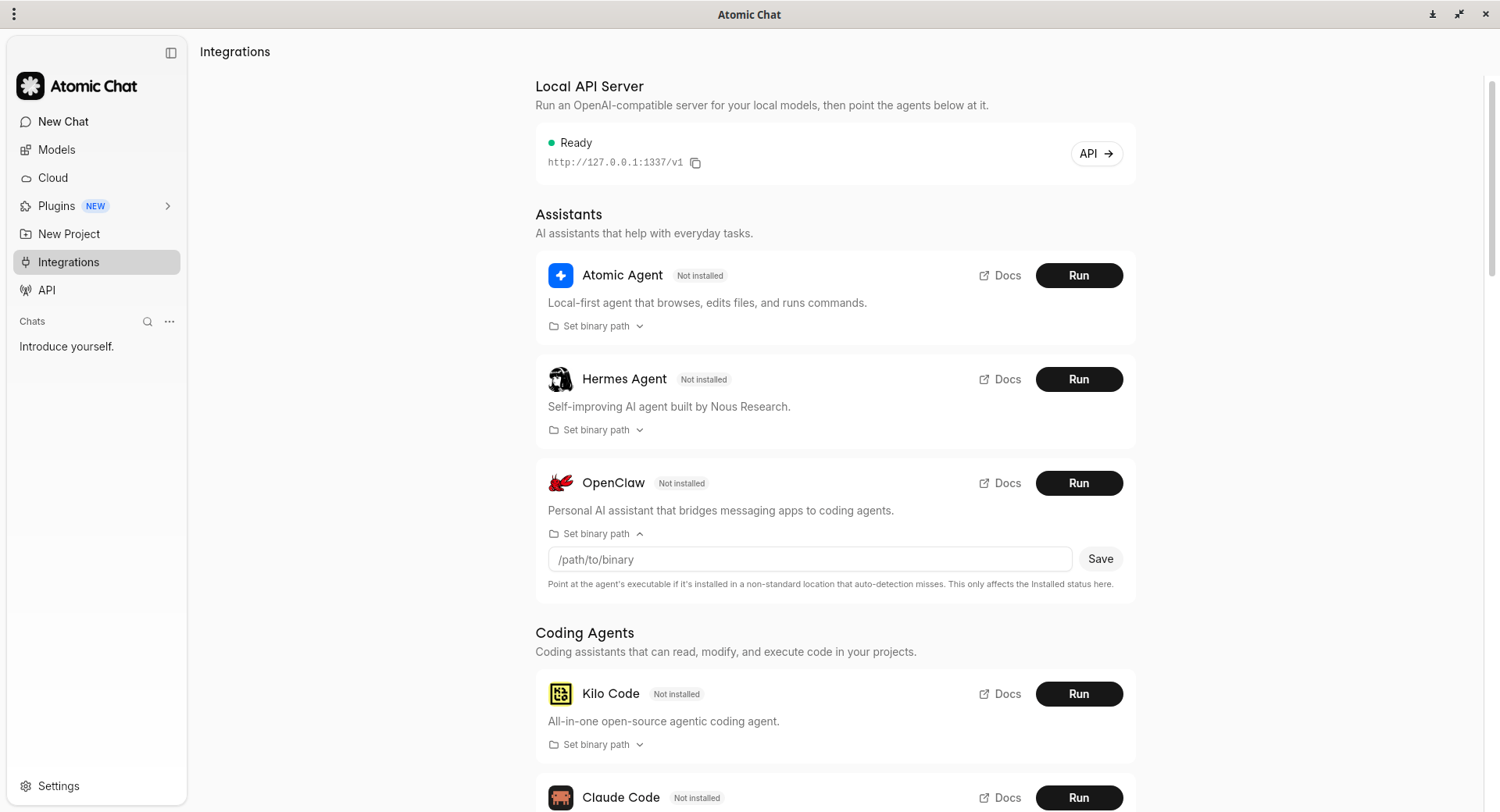
Note: Tools availability and setup requirements vary by platform and agent.
Where Does Atomic Chat Store Downloaded Models?
On Linux, Atomic Chat keeps its persistent application data outside the AppImage, under the user's local data directory:
~/.local/share/Atomic Chat/data/
Downloaded llama.cpp models are stored under:
~/.local/share/Atomic Chat/data/llamacpp/models/
For example, a Qwen model may appear in a directory such as:
~/.local/share/Atomic Chat/data/llamacpp/models/Qwen/qwen2_5-coder-3b-instruct-q4_k_m/
You can inspect the downloaded models with:
ls -lah ~/.local/share/Atomic\ Chat/data/llamacpp/models
The llama.cpp runtime is stored separately. Atomic Chat keeps the downloaded backend binaries under:
~/.local/share/Atomic Chat/data/llamacpp/backends/
For example:
~/.local/share/Atomic Chat/data/llamacpp/backends/
└── b10269-1.6.0/
    └── linux-x64-vulkan/
You can verify it using find command:
find ~/.local/share/Atomic\ Chat/data/llamacpp \
     ~/.local/share/Atomic\ Chat/data/llamacpp-upstream \
     -maxdepth 3 -type d
Sample Output:
/home/ostechnix/.local/share/Atomic Chat/data/llamacpp
/home/ostechnix/.local/share/Atomic Chat/data/llamacpp/models
/home/ostechnix/.local/share/Atomic Chat/data/llamacpp/models/Qwen
/home/ostechnix/.local/share/Atomic Chat/data/llamacpp/models/Qwen/qwen2_5-coder-3b-instruct-q4_k_m
/home/ostechnix/.local/share/Atomic Chat/data/llamacpp/backends
/home/ostechnix/.local/share/Atomic Chat/data/llamacpp/backends/b10269-1.6.0
/home/ostechnix/.local/share/Atomic Chat/data/llamacpp/backends/b10269-1.6.0/linux-x64-vulkan
/home/ostechnix/.local/share/Atomic Chat/data/llamacpp-upstream
/home/ostechnix/.local/share/Atomic Chat/data/llamacpp-upstream/backends
/home/ostechnix/.local/share/Atomic Chat/data/llamacpp-upstream/backends/b10809
/home/ostechnix/.local/share/Atomic Chat/data/llamacpp-upstream/backends/b10809/linux-cpu-x64
This separation is useful to understand when managing disk space or backing up your local AI setup: the models directory contains the model files, while backends contains the inference runtime used to execute them.
Because Atomic Chat is distributed as an AppImage, these files are not stored inside the AppImage itself. The AppImage provides the application, while the model files and other persistent data remain in your home directory and survive when you replace or update the AppImage.
How Atomic Chat compares to Ollama and LM Studio
If you’ve used Ollama or LM Studio, the model here is similar, a local runtime with an OpenAI-style API, with two practical differences.
Atomic Chat pairs the desktop app with native iOS and Android apps, and it’s Apache-2.0 with no message caps. If you’re weighing options, Atomic Chat keeps a rundown of Ollama alternatives that lays out where each tool fits.
Troubleshooting
1. AppImage won’t start
Read the terminal error. For a missing FUSE 2 library, use libfuse2t64 on Ubuntu 24.04 or libfuse2 on Ubuntu 22.04 (Step 1).
2. A model won’t load on Linux
Confirm it’s a GGUF build. MLX models are Apple-Silicon only and won’t run on Linux.
3. The API returns connection refused
Make sure Atomic Chat is open, the API server is started, and a model is loaded; the server runs inside the app. Confirm the port in the API panel.
4. Responses are slow
Drop to a smaller quantization or a 3B model; close other memory-heavy apps.
TL;DR
Atomic Chat is more than a local LLM chat app. It's becoming a local inference hub for AI coding agents. It runs open-weight models locally and exposes them through an OpenAI-compatible API at http://localhost:1337/v1, allowing tools such as Claude Code, Codex CLI, Cline, OpenCode, Goose, OpenHands, Kilo Code, Copilot CLI, and Zed to use the local model with minimal configuration.
Key Insight
The important architectural idea is separating the model from the agent.
Atomic Chat handles inference; the agent handles the coding workflow, tools, context, and actions. Because Atomic Chat presents a standard OpenAI-compatible interface, you can change the underlying local model or inference backend without reconfiguring every client. Its documentation says three different inference engines are exposed through the same API.
That makes Atomic Chat less of a "ChatGPT alternative" and more of a local model backend that plugs into an existing AI-development ecosystem.
One Surprising Detail
Atomic Chat itself is a hard fork of Jan. Its repository explicitly notes that much of the codebase still contains jan* and @janhq/* names.
And there’s an even more interesting technical detail: its current stack includes a custom llama.cpp fork with TurboQuant KV-cache optimizations, alongside upstream llama.cpp and Apple's MLX-VLM backend. The project claims the TurboQuant backend can substantially reduce KV-cache memory usage, including on Windows and Linux.
Bottom line: the interesting story isn't simply "run an LLM locally." It's "turn your local model into a drop-in backend for the agentic coding tools you already use."
Conclusion
Using Atomic Chat, you can have a private LLM running on Linux, complete a real coding task in the GUI, and connect the same model to your own scripts and agents through a local, OpenAI-compatible endpoint, all in just a few steps.
The result is local inference without a cloud API key or usage caps. It’s a straightforward way to keep your code and prompts on your own machine while continuing to use the tools and workflows you already know.
Frequently Asked Question (FAQ)
A: Yes. It’s released under the Apache-2.0 license at no cost, with no message limits.
A: Yes, when you select a local model and keep web search, cloud providers and remote tools off. The API binds to 127.0.0.1 by default; the local address alone does not prevent requests to a cloud provider.
A: GGUF models. You can browse and download them from the built-in Hugging Face browser; MLX builds are for Apple Silicon only.
A: Yes. Point the SDK’s base_url at http://localhost:1337/v1 and use the model ID from /v1/models. A placeholder API key works when server authentication is off; otherwise use the configured key.
A: About 8 GB for a 3B model; 16 GB is more comfortable for 7B models. These are starting points; context length, quantization and other apps affect the actual requirement.
A: About 8 GB for a 3B model; 16 GB is more comfortable for 7B models. These are starting points; context length, quantization and other apps affect the actual requirement.
A: When configured to use a local model and its built-in server, the workflow does not require a cloud API key.
A: Atomic Chat exposes an OpenAI-compatible endpoint at http://localhost:1337/v1.
A: Yes, provided the application, inference backend, and required model have already been downloaded and configured before disconnecting from the internet.
A: The local inference setup runs the model on the user's own machine rather than sending prompts to a remote AI API.
A: Atomic Chat stores downloaded llama.cpp models under ~/.local/share/Atomic Chat/data/llamacpp/models/. The llama.cpp backend binaries are stored separately under ~/.local/share/Atomic Chat/data/llamacpp/backends/.
Related Read:
