
You downloaded Fedora and grabbed the CHECKSUM file from the download page. Now you want to make sure the ISO is actually the one Fedora published.
There are two parts to that job.
First, you verify the signature on the CHECKSUM file. Then you use that verified file to check the SHA256 hash of your ISO.
The signature check and the checksum check serve different purposes. If you only compare your ISO with a checksum from an unverified file, you have no way to know whether that checksum was changed along with the ISO.
This brief guide explains how to verify a Fedora ISO's checksum and authenticity from the command line.
Table of Contents
What you need
You'll need:
- the Fedora ISO you downloaded
- the matching CHECKSUM file
- Fedora's OpenPGP certificates
- a terminal with
curl,gpgv, andsha256sum
Put the ISO and CHECKSUM file in the same directory. It isn't required, but it makes the commands easier to follow.
For demo purpose, we will be using the latest Fedora 45 beta ISO. For Fedora Workstation 45 Beta on an Intel or AMD 64-bit system, the current files are:
Fedora-Workstation-Live-45_Beta-1.3.x86_64.iso
Fedora-Workstation-iso-45_Beta-1.3-x86_64-CHECKSUM
Fedora currently lists these files and the corresponding verification commands on its Fedora Workstation 45 Beta download page.
Click the small tick mark button.
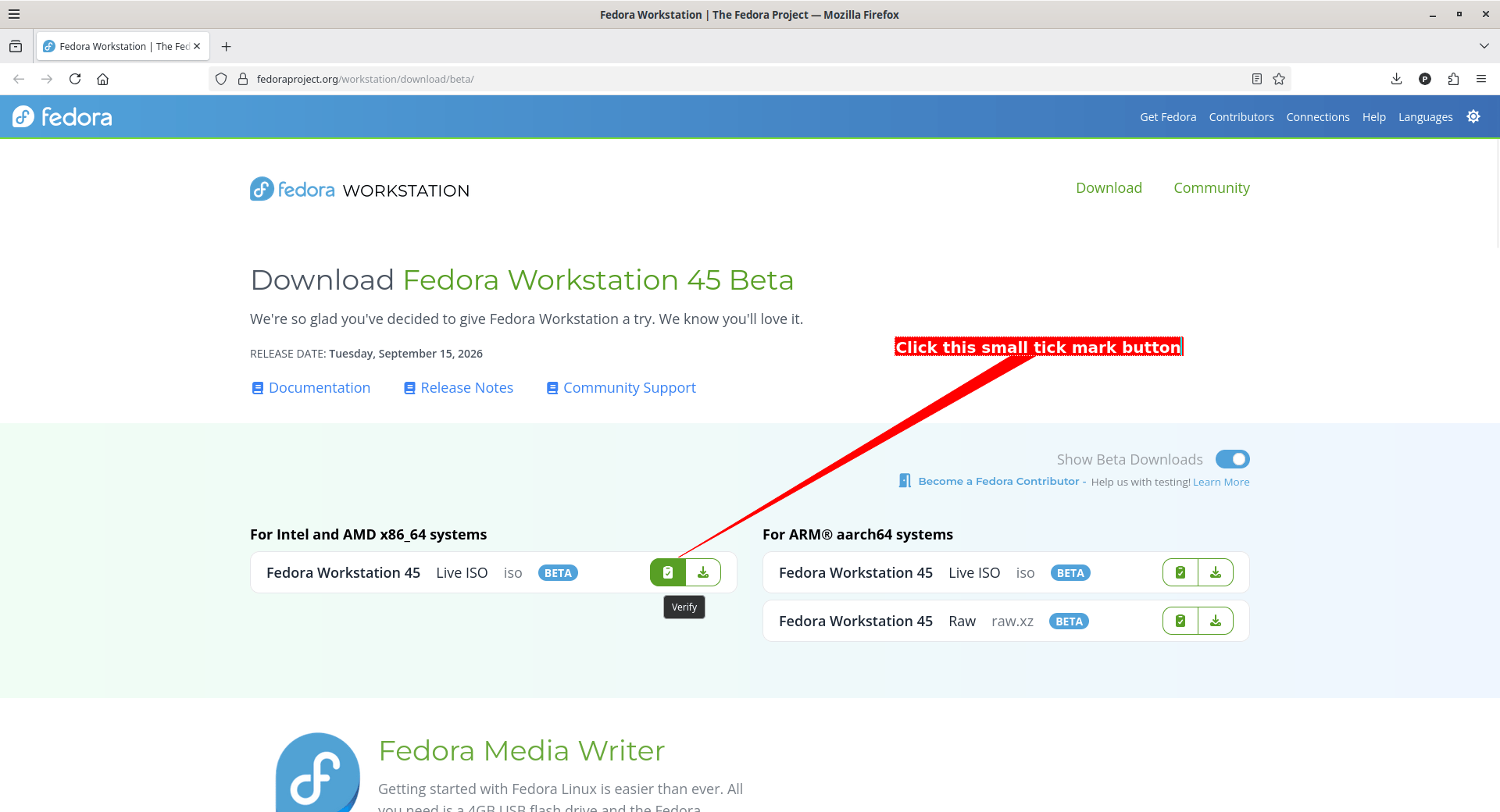
After clicking that icon, you will now the instructions to verify the ISO:
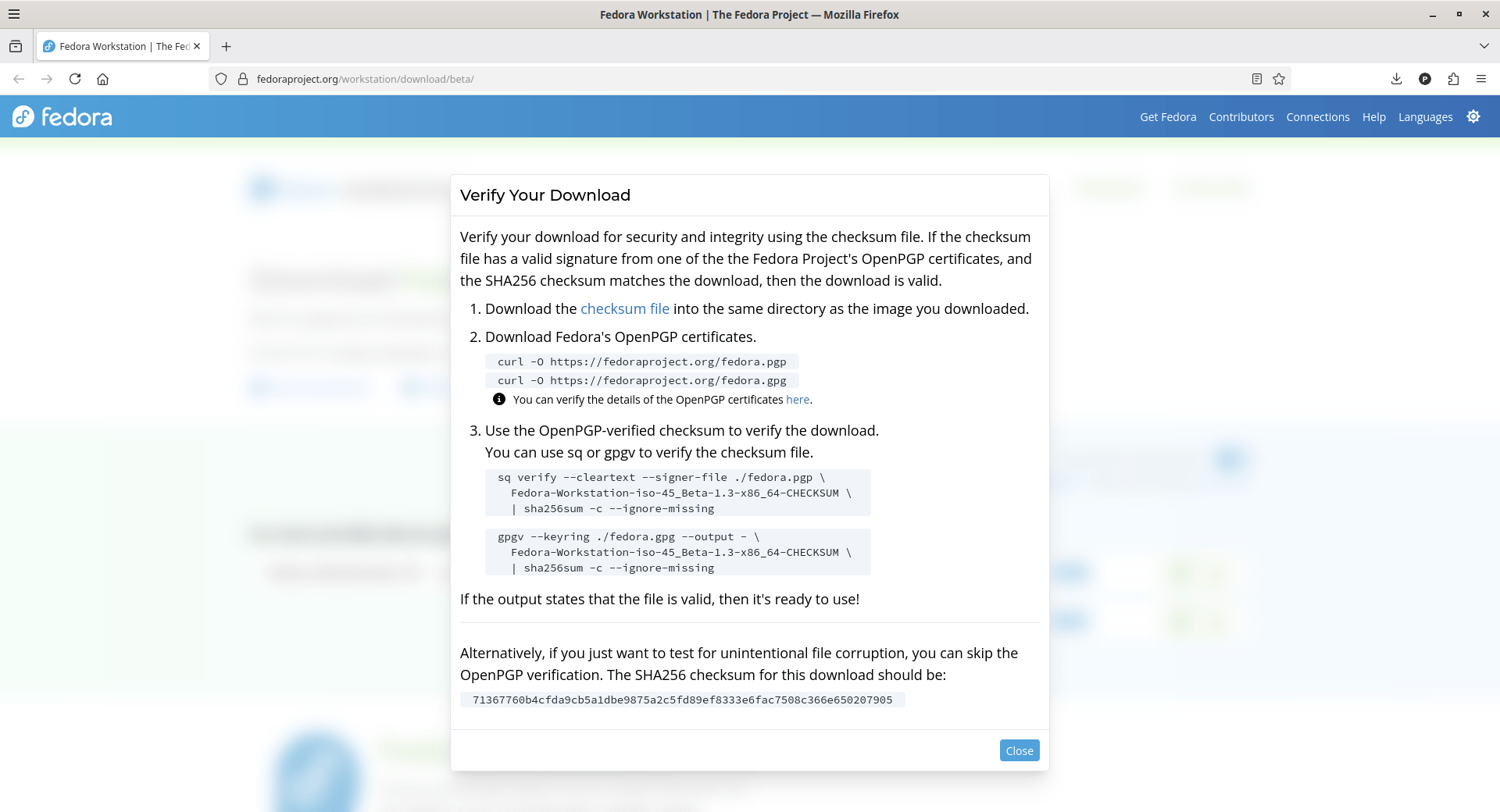
This isn't specific to Fedora Beta images; the same applies to all Fedora releases. You'll see a small checkmark next to the download buttons for Fedora images.
Why the CHECKSUM needs a signature
A SHA256 hash tells you whether two pieces of data match. It doesn't tell you who produced the hash.
Imagine that somebody replaced your Fedora ISO and also supplied a new CHECKSUM file containing the hash of the replacement. A simple hash comparison would succeed because the two files agree with each other.
Fedora solves that problem by signing the CHECKSUM file with an OpenPGP key.
The process therefore looks like this:
Fedora signing key
       ↓
signed CHECKSUM file
       ↓
SHA256 value
       ↓
your ISO
The first step establishes that the checksum information came from a Fedora signing key. The second checks that your ISO matches it.
Step 1: Download Fedora's OpenPGP certificates
From the directory containing your ISO and CHECKSUM file, download Fedora's certificates:
curl -O https://fedoraproject.org/fedora.pgp
curl -O https://fedoraproject.org/fedora.gpg
Fedora provides both files on its current Fedora 45 Beta download page.
You should now have something like:
Fedora-Workstation-Live-45_Beta-1.3.x86_64.iso
Fedora-Workstation-iso-45_Beta-1.3-x86_64-CHECKSUM
fedora.pgp
fedora.gpg
Inspect the Keyring
A public key downloaded from the internet is not automatically a trusted key.
Fedora publishes information about its OpenPGP certificates, including their fingerprints. Check the certificate details and compare the relevant fingerprint with Fedora's published information before relying on the key for verification. Fedora links to that certificate information directly from its current download instructions.
You can inspect the keyring with:
gpg --show-keys --with-fingerprint ./fedora.gpg
The exact key shown depends on the certificates currently included by Fedora. As of writing this guide, the certificates details are given for Fedora 43, 44, 45 and 46 when entering the above command:
pub   rsa4096 2024-08-10 [SCE]
      C6E7 F081 CF80 E131 4667  6E88 829B 6066 3164 5531
uid                      Fedora (43) <fedora-43-primary@fedoraproject.org>

pub   rsa4096 2025-01-14 [SCE]
      36F6 12DC F27F 7D1A 48A8  35E4 DBFC F71C 6D9F 90A6
uid                      Fedora (44) <fedora-44-primary@fedoraproject.org>

pub   rsa4096 2025-07-29 [SCE]
      4F50 A611 4CD5 C697 6A7F  1179 655A 4B02 F577 861E
uid                      Fedora (45) <fedora-45-primary@fedoraproject.org>

pub   rsa4096 2026-01-30 [SCE]
      D924 B10D 3E81 0DAB DD8B  56B5 96E7 E914 9121 1FCE
uid                      Fedora (46) <fedora-46-primary@fedoraproject.org>
The important part is that the fingerprint you trust comes from Fedora's published information, rather than from the downloaded file alone.
Step 2: Verify the CHECKSUM file
Now verify the CHECKSUM file's OpenPGP signature:
gpgv --keyring ./fedora.gpg \
  Fedora-Workstation-iso-45_Beta-1.3-x86_64-CHECKSUM
Sample Output:
gpgv: Signature made Friday 11 September 2026 07:13:24 PM IST
gpgv:                using RSA key 4F50A6114CD5C6976A7F1179655A4B02F577861E
gpgv: Good signature from "Fedora (45) <fedora-45-primary@fedoraproject.org>"
Don't interpret Good signature in isolation. It means the signature is mathematically valid for the public key being used. You also need to know that the public key is the Fedora key whose fingerprint you checked.
That's why the fingerprint check comes first.
If you get BAD signature
Stop there.
Don't use that CHECKSUM file to verify the ISO. Check that you downloaded the correct CHECKSUM file and that you're using Fedora's current certificates. If necessary, download the files again from Fedora's official download page and repeat the verification.
A bad signature is not something to work around.
Step 3: Check the Fedora ISO Integrity and Authenticity
Once the CHECKSUM file has been authenticated, you can use it to check your ISO.
Use this command for the Workstation 45 Beta x86_64 image:
gpgv --keyring ./fedora.gpg --output - \
  Fedora-Workstation-iso-45_Beta-1.3-x86_64-CHECKSUM \
  | sha256sum -c --ignore-missing
Fedora documents this gpgv pipeline alongside an equivalent sq command.
There are two commands here, connected by |. The first command verifies the CHECKSUM file and sends its authenticated contents to standard output and the second command, sha256sum, reads those checksums and compares them with files on your computer.
For Fedora 45 beta ISO, you will see the following output:
gpgv: Signature made Friday 11 September 2026 07:13:24 PM IST
gpgv:                using RSA key 4F50A6114CD5C6976A7F1179655A4B02F577861E
gpgv: Good signature from "Fedora (45) <fedora-45-primary@fedoraproject.org>"
Fedora-Workstation-Live-45_Beta-1.3.x86_64.iso: OK
OK means the ISO's SHA256 hash matches the corresponding entry in the authenticated CHECKSUM file.
Congratulations! You've just verified the ISO against checksum information protected by Fedora's signature.
What does --ignore-missing do?
The CHECKSUM file can contain entries for several Fedora images. You may have downloaded only one of them.
--ignore-missing tells sha256sum not to complain about the other images that aren't on your computer.
It does not ignore a failed checksum.
For example:
Fedora-Workstation-Live-45_Beta-1.3.x86_64.iso: FAILED
is a real problem. Stop and investigate it.
What about the "improperly formatted" warning?
You may see output such as:
Fedora-Workstation-Live-45_Beta-1.3.x86_64.iso: OK
sha256sum: WARNING: ... lines are improperly formatted
This can happen because the signed CHECKSUM file contains material that sha256sum doesn't interpret as an ordinary checksum entry.
The important thing is the result for the ISO you actually downloaded.
OK is what you want.
A FAILED result, a missing file error, or another unexpected error needs investigation.
So don't adopt a blanket rule that every warning can be ignored. Read the output.
Checking the hash Manually
You can calculate the ISO's SHA256 hash yourself:
sha256sum Fedora-Workstation-Live-45_Beta-1.3.x86_64.iso
For the current Fedora Workstation 45 Beta x86_64 image, Fedora publishes this SHA256 value:
71367760b4cfda9cb5a1dbe9875a2c5fd89ef8333e6fac7508c366e650207905
A manual comparison is useful for checking an ISO for accidental corruption. Fedora itself notes that you can use the published SHA256 value when that is all you need to test for unintentional corruption.
For authenticity, however, the signed CHECKSUM procedure is the more complete method.
A Note about Windows and macOS
The basic idea doesn't change on other operating systems.
On Windows, PowerShell can calculate a SHA256 hash with:
Get-FileHash "C:\Downloads\Fedora-Workstation-Live-45_Beta-1.3.x86_64.iso" -Algorithm SHA256
You can then compare the result with the appropriate entry in the verified CHECKSUM file. For full signature verification, you'll also need an OpenPGP implementation such as GnuPG.
On macOS, the built-in shasum command can calculate the hash:
shasum -a 256 Fedora-Workstation-Live-45_Beta-1.3.x86_64.iso
Again, calculating the hash is only the second part of the verification process. If you want to establish authenticity, verify the CHECKSUM signature as well.
If you don't want to use the command line, Fedora Media Writer provides a graphical way to download Fedora and create installation media. Fedora's download pages also provide the manual verification instructions for users who want to perform the cryptographic checks themselves.
Common mistakes
Checking the wrong checksum
Make sure the checksum belongs to the exact ISO you downloaded. Workstation, Server, KDE, ARM, and x86_64 images have different files and checksums.
Trusting an unverified CHECKSUM file
A matching SHA256 value isn't enough if the checksum itself came from an untrusted source.
Verify the OpenPGP signature first.
Treating Good signature as the whole process
The signature must be made by the Fedora key you intended to trust. That's why checking the key's fingerprint matters.
Ignoring a failed checksum
If your ISO says FAILED, don't install it and don't explain the result away as a harmless warning. Download the ISO again and check it from the beginning.
Using a wildcard without checking what it matches
You might see commands using:
*-CHECKSUM
That is convenient when there is only one CHECKSUM file in the directory. If you've downloaded several Fedora images, use the exact filename instead so there is no ambiguity.
Fedora 45 Beta is pre-release software. A successful checksum verification tells you that your ISO matches the image Fedora published. It doesn't say anything about whether the beta is bug-free or ready for production use.
Related Read:
