
Ever wanted to show off your computer setup with a cool, quick display of your system information? That's where Fastfetch comes in. Fastfetch is a command-line tool that shows you all sorts of details about your system. Think of it as a souped-up version of the older tool, Neofetch, which is no longer being updated.
Table of Contents
What is Fastfetch?
Fastfetch gathers information about your computer's operating system (like Windows, macOS, or Linux), software, and hardware, and then displays it in an easy-to-read way.
Fastfetch is designed to be used in screenshots, making it perfect for sharing your setup online, but it is also handy for quickly checking your system's specs.
Here’s some of the info it can display:
- Operating system's name (e.g. Ubuntu, macOS),
- Version of the software that runs your computer (the kernel),
- How long your computer has been running,
- How many software packages you have installed,
- Which shell (command-line interface) you are using,
- Screen resolution,
- Desktop environment (e.g. GNOME, KDE),
- Window manager,
- Computer's theme, icons and fonts,
- CPU and GPU details,
- Computer's memory usage,
- Local IP address,
- And a lot more.
Why Choose Fastfetch?
Fastfetch isn't just another system information tool. It has some real advantages over older tools like Neofetch:
- It’s Faster: As the name suggests, Fastfetch is built for speed. It's written in the C programming language, which makes it very quick.
- More Accurate: Fastfetch is more accurate with the information it displays. For example, it correctly shows your memory usage and supports the Wayland protocol.
- Actively Updated: Fastfetch is constantly being updated and improved. This means you'll always have the latest features and bug fixes.
- Highly Customisable: Fastfetch is extremely flexible. You can change almost everything about how it looks and what information it shows. It uses a special configuration file that is easy to read and edit called a JSONC file. This is unlike the older, plain text configuration files used by tools like Neofetch.
- JSON configuration: JSON is a standard format that is well-supported in most code editors and IDEs. This gives you helpful features like syntax highlighting, validation and formatting. The JSONC format also lets you add comments.
Install Fastfetch
Fastfetch can be installed on Linux, macOS and Windows operating systems.
If you're on Linux, use your distribution's default package manager, such as apt (Debian, Ubuntu), pacman (Arch), dnf (Fedora), or apk (Alpine).
For example, run the following command to install Fastfetch in Debian Trixie systems:
sudo apt install fastfetch
Fedora:
sudo dnf install fastfetch
Gentoo:
emerge --ask app-misc/fastfetch
NixOS:
nix-shell -p fastfetch
openSUSE:
sudo zypper install fastfetch
Solus:
sudo eopkg install fastfetch
In FreeBSD systems, you can install Fastfetch using pkg:
pkg install fastfetch
In Android, you can use Termux to install Fastfetch:
pkg install fastfetch
Install Latest Fastfetch in Linux
Please note that some distributions may package an outdated version of Fastfetch. If you want to use the up-to-date version, you can download the latest Fastfetch version from the official releases page and install it using the default package manager like below:
wget https://github.com/fastfetch-cli/fastfetch/releases/download/2.36.0/fastfetch-linux-amd64.deb
sudo apt install ./fastfetch-linux-amd64.deb
The macOS users can use brew or port, and the Windows users use scoop, choco, or winget to install Fastfetch.
Once installed, you can run Fastfetch with the command fastfetch.
To see all the available options, use fastfetch --help. You can also use fastfetch -c all.jsonc to see all the modules supported by Fastfetch.
Display System Information with Fastfetch
Here are a few examples of how you can use Fastfetch:
Run with default settings:
fastfetch
Sample Output:
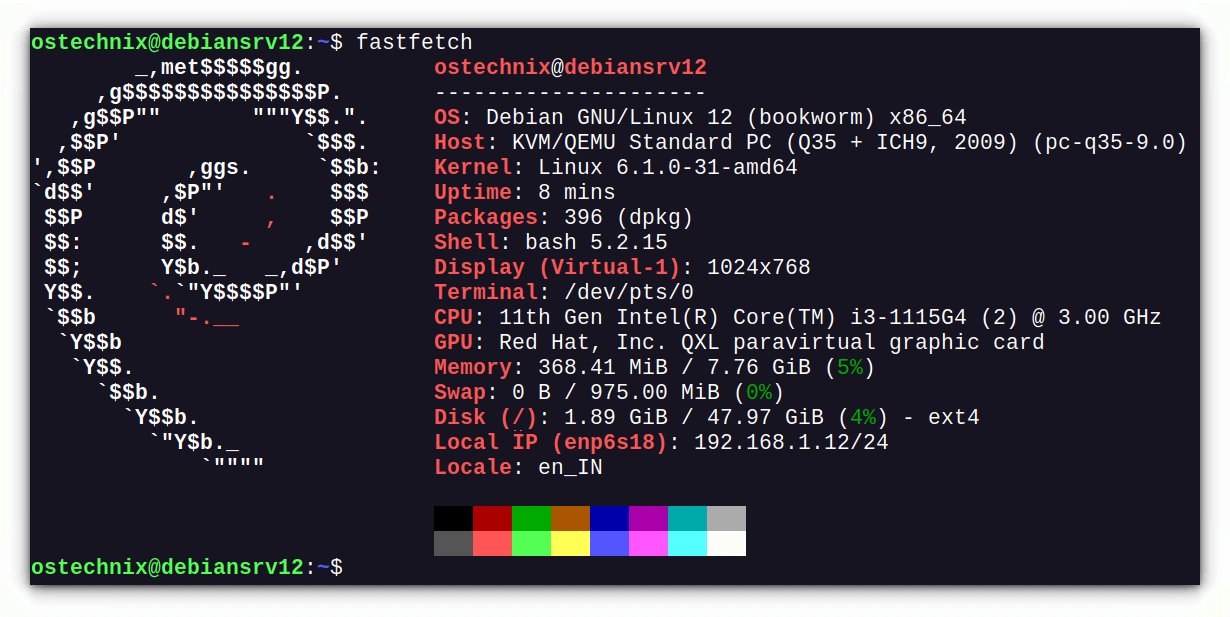
To Show all modules, run:
fastfetch -c all.jsonc
Show GPU information:
fastfetch -s gpu
Show GPU name only:
fastfetch -s gpu --gpu-format '{name}'Use a custom logo:
fastfetch -l /path/to/your/logo.png
Use a custom logo type:
fastfetch --logo-type kitty -l /path/to/your/logo.png
Use a specific logo color:
fastfetch --logo-color-1 red --logo-color-2 green
Display Help with all options:
fastfetch --help
Customise Your Fastfetch Output
Here are some of the ways you can customise Fastfetch:
Configuration File
Fastfetch uses a file called config.jsonc, located in the ~/.config/fastfetch directory. You can create this with the command fastfetch --gen-config. This file lets you control which modules (like CPU, Memory, etc.) are displayed and how they look.
Multiple Modules
You can print the same module multiple times, which you cannot do with older tools.
Logo Customisation
You can choose to display different kinds of logos alongside your system information, including:
- Built-in Logos: Use a built-in logo.
- Small Logos: Use a smaller version of the built-in logo.
- Text Files: Display the content of a text file.
- Images: Show an image using various methods. Fastfetch can display images using different graphics protocols such as sixel, kitty, kitty-direct, and iterm.
- Raw Data: Show raw data as a logo.
- No Logo: Turn off the logo completely.
- Logo Colors: You can use the
--logo-color-option to change the colours in logos that support it.
Conclusion
Fastfetch is a fantastic tool for anyone who wants a quick, customisable way to display their system information. It's fast, actively developed, and highly flexible.
Whether you're showing off your setup online or just want to check your system specs, Fastfetch is a great choice.
