
Table of Contents
Quick Summary
- Before troubleshooting any Linux system, run a small set of read-only commands to capture the system's current state before any intervention disturbs the evidence.
- The essential checks are: system identity (
hostnamectl,uname -a), resource pressure (top,free -h,df -h,df -i), recent errors (journalctl -p 3 -xb), failed services (systemctl --failed), and network status (ip a,ss -tulnp). - Observe first, change nothing, and let the system tell you what is wrong.
Introduction
After years of running Linux systems in production, I've learned that most problems are not complex. They're just poorly observed.
When a system comes in for troubleshooting, I don't reach for fixes. I take a quick read of the system. Within a minute or two, I usually know where the problem lives. Not the exact fix, but the direction.
Before You Start
Is your system using systemd?
Most modern Linux distributions, such as Ubuntu 16.04+, Debian 8+, RHEL/CentOS 7+, Fedora 15+, use systemd as their init system.
To check, run:
ps -p 1 -o comm=
Sample Output:
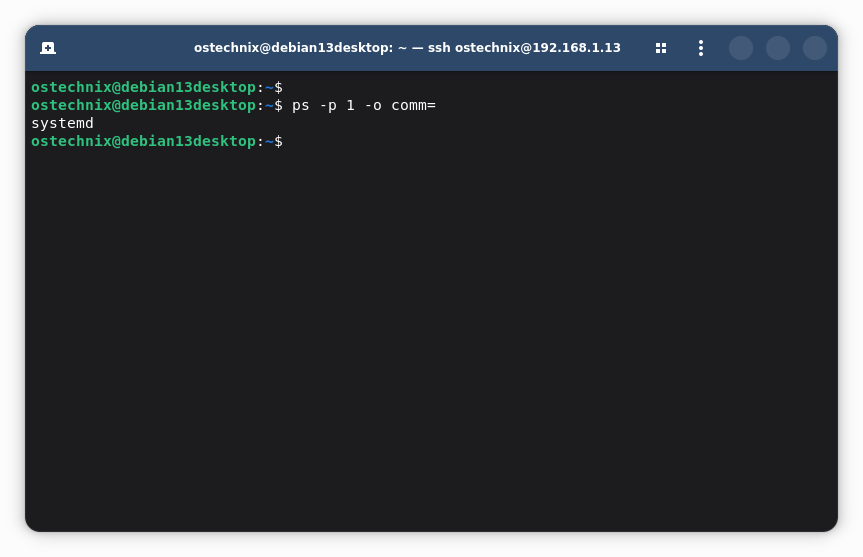
If the output is systemd, you are on a systemd-based system and all commands in this guide apply. If it shows init or sysvinit, use the fallback commands noted in each section.
Do you need root access?
Some commands return incomplete output for regular users. When in doubt, prefix commands with sudo. Members of the systemd-journal, adm, or wheel groups can read system journals without full root access.
Quick-Reference: The Full Command Set
For admins who want the commands without the explanations. If you are new to Linux administration, skip this block and read the full guide below — context matters more than speed.
# 1. System identity
hostnamectl; uname -a; cat /etc/os-release; whoami; uptime; date

# 2. Resource pressure
top -b -n1 | head -20
free -h && df -h && df -i

# 3. Logs — errors from current boot
journalctl -p 3 -xb

# 4. Service failures
systemctl --failed
journalctl -p 3 -b -1     # also check previous boot

# 5. Disk layout and mounts
lsblk && mount | column -t

# 6. Network
ip a; ip route
ss -tulnp
ping -c 3 8.8.8.8

# 7. Recent activity
last -n 5; who
ps aux --sort=-%cpu | head

# 8. Session logging — run this FIRST on production systems
script troubleshoot.log
# ... run your diagnostic commands ...
# When finished, type: exit
# Then immediately set permissions:
chmod 600 troubleshoot.log
Step 1: Establish System Identity
The first thing I want is a sense of what I'm dealing with.
hostnamectl
uname -a
cat /etc/os-release
whoami
uptime
date
This takes thirty seconds.
The hostnamectl command gives the OS, kernel, and hostname in one shot.
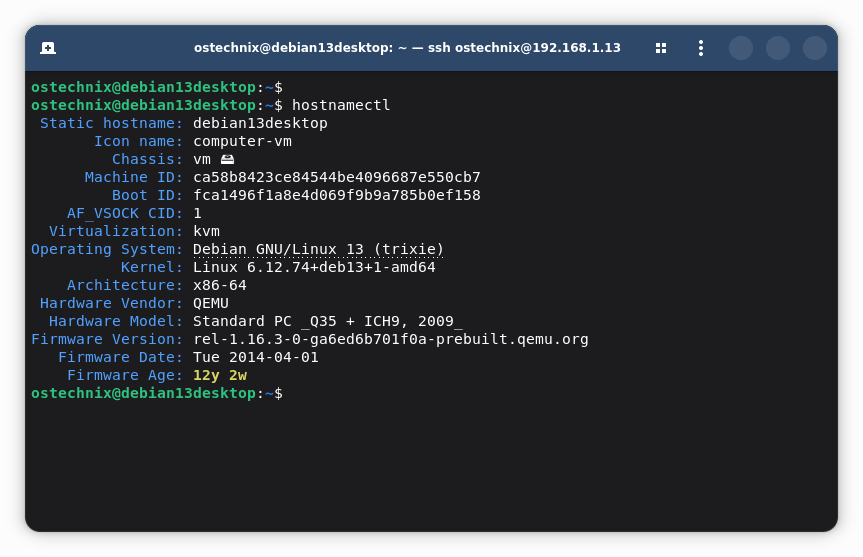
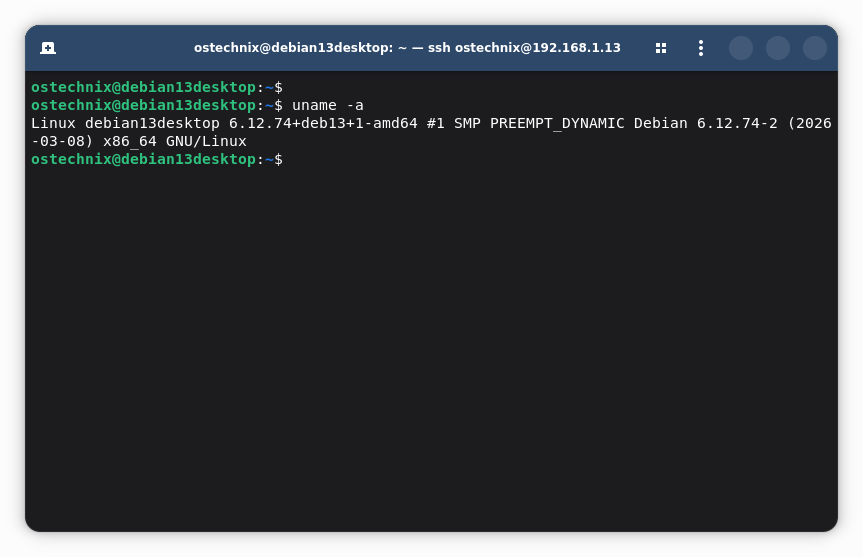
uname -a confirms the CPU architecture.
And the cat /etc/os-release command fills in the distribution name and version.
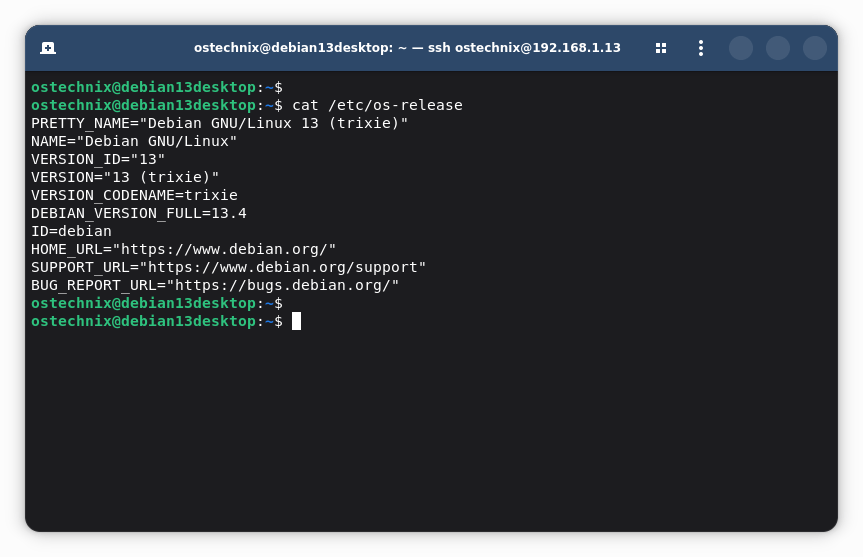
These three together tell you what environment you are walking into before you assume anything.
uptime shows how long the system has been running and its current load average. date confirms the system clock is correct.
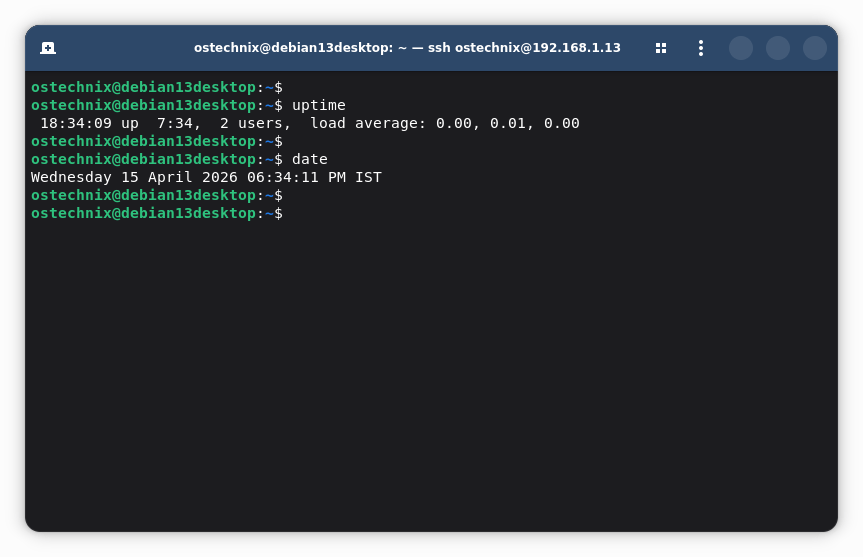
What to look for:
- A very recent reboot timestamp in
uptimeis a finding on its own — something caused that restart. - Load averages above the number of CPU cores (shown in
nproc) indicate the system is under stress. - A
dateoutput that is minutes or hours off from real time means time drift is present. Even a few minutes of drift silently breaks TLS certificate validation, Kerberos authentication, cron job scheduling, and log timestamps across systems.
Example of a concerning uptime output:
up 3 minutes, 1 user, load average: 0.02, 0.08, 0.03
Three minutes of uptime on a server that should be running continuously — something caused a recent restart.
Step 2: Check System Resource Pressure
Before digging into logs, I want to rule out the most common root causes immediately.
top -b -n1 | head -20
free -h
df -h
df -i
What each command tells you:
top -b -n1 | head -20 runs top in batch mode (non-interactive), takes one snapshot, and shows the first 20 lines.
Take a look at the following:
%Cpu(s): ifsy(system) orwa(I/O wait) is high, the kernel is under stress.load average: three numbers showing the average number of processes waiting to run over the last 1, 5, and 15 minutes. A value consistently higher than your CPU core count is a problem.- The process list: anything consuming unusually high
%CPUor%MEM.
free -h shows RAM and swap usage in human-readable sizes (MB/GB).
              total        used        free      shared  buff/cache   available
Mem:           15Gi        12Gi       512Mi       256Mi       2.5Gi       2.8Gi
Swap:           2Gi         2Gi          0B
Swap at 100% with almost no available RAM means the system is memory-exhausted and paging everything to disk - a common cause of extreme slowness.
df -h shows disk space for every mounted filesystem.
Filesystem      Size  Used Avail Use%  Mounted on
/dev/sda1        20G   20G     0  100% /
A filesystem at 100% is one of the most common causes of cascading failures. Services that cannot write logs, temp files, or database records will crash or behave unpredictably.
df -i shows inode usage. An inode is a data structure the filesystem uses to track each file's metadata. On ext4 filesystems, the number of inodes is fixed at format time. When all inodes are used, the system cannot create new files — even if gigabytes of disk space remain free. This produces the same "no space left on device" error as a full disk, with no obvious cause in df -h.
Filesystem      Inodes  IUsed   IFree IUse% Mounted on
/dev/sda1      1310720 1310720      0  100% /
IUse% at 100% with free disk space = inode exhaustion. Note: this only affects ext4. XFS and btrfs allocate inodes dynamically and do not have this limit.
| Command | What You're Looking For |
|---|---|
top -b -n1 | High I/O wait, load average above core count |
free -h | Swap fully used with low available RAM |
df -h | Any filesystem at or near 100% |
df -i | Inode exhaustion on ext4 (IUse% = 100%) |
If top is not available, use this command instead:
ps aux --sort=-%cpu | head
Recommanded Read:
- Disk Space Analysis Made Easy: Understanding df And du Commands In Linux
- Why Every Linux Admin Should Monitor the /var Directory
Step 3: Read the Logs First
Once I know the system is not obviously resource-starved, I go straight to the logs. This is where most answers come from.
systemd is the init system and service manager used by most modern Linux distributions. It keeps a structured log called the journal, queryable with journalctl.
journalctl -p 3 -xb
Breaking down the flags:
-p 3— filter by priority level 3 (error) and above. Linux uses syslog priority levels where lower number = higher severity:0=emerg,1=alert,2=crit,3=err. This flag shows only the four most serious levels.-x— add explanatory context to log entries where available.-b— show only entries from the current boot. Without this, you see the entire history.
What a concerning entry looks like:
Apr 10 14:32:01 hostname kernel: Out of memory: Killed process 1234
Apr 10 14:32:01 hostname systemd[1]: nginx.service: Main process exited
Apr 10 14:32:01 hostname systemd[1]: nginx.service: Failed with result
This tells you the kernel ran out of memory, killed a process, and nginx went down as a result. That is your root cause in three lines.
Read a few lines before and after each error. Patterns matter more than single messages. One error at 3 AM is different from the same error repeating every 30 seconds.
Kernel messages (hardware, disk errors, driver issues):
# Note: -T timestamps may be inaccurate on systems
# that have been suspended or resumed since last boot.
dmesg -T | tail -50
The -T flag converts raw boot-relative timestamps into human-readable dates and times. However, this conversion can be inaccurate on any machine that has been suspended since its last full boot — the kernel's time source is not updated during suspend/resume. If you are diagnosing a laptop or any system that suspends, use journalctl for reliable timestamps instead.
On systems without systemd, read log files directly:
cat /var/log/syslog      # Debian / Ubuntu
cat /var/log/messages    # RHEL / CentOS / Fedora
What to do with what you find: If the log shows a specific service crashing, a disk error, or a permission failure — that is your starting point. Move to Step 4. If the log shows nothing at all, widen the filter with journalctl -p 5 -xb (includes warnings) or check application-specific logs under /var/log/.
Recommended Read:
Step 4: Identify Failed Services
systemd tracks the state of every service. When a service crashes and does not recover, it enters a failed state and remains there until manually reset. This command lists every service currently in that state.
systemctl --failed
Healthy system output:
0 loaded units listed.
Unhealthy system output:
  UNIT                 LOAD   ACTIVE SUB    DESCRIPTION
● nginx.service        loaded failed failed A high performance web server
● postgresql.service   loaded failed failed PostgreSQL RDBMS

LOAD   = Reflects whether the unit definition was properly loaded.
ACTIVE = The high-level unit activation state.
SUB    = The low-level unit activation state.

2 loaded units listed.
Two failed services with one command. This immediately tells you where to look.
Important caveat: The failed state is cleared when a service is restarted successfully or when someone runs systemctl reset-failed. On a system you are inheriting, the list may already be empty even though failures occurred earlier. Always check the previous boot's journal as well:
journalctl -p 3 -b -1
(-b -1 means "the boot before the current one.")
Once you identify a failing service, go straight to its logs:
journalctl -u nginx.service -b
Replace nginx.service with the name of the failed unit. This shows everything that service logged in the current boot — far more useful than the system-wide view.
For a broader look at what is currently running, use this command:
systemctl list-units --type=service --state=running
On systems without systemd:
service --status-all
Then review relevant files under /var/log/.
Step 5: Inspect Disk Layout and Mounts
Even if disk space looked fine in Step 2, I take a closer look at how storage is physically laid out.
lsblk
mount | column -t
lsblk lists all block devices (physical disks, partitions, and logical volumes) in a tree layout.
A healthy server might look like:
NAME   MAJ:MIN RM  SIZE RO TYPE MOUNTPOINT
sda      8:0    0   50G  0 disk
├─sda1   8:1    0   49G  0 part /
└─sda2   8:2    0    1G  0 part [SWAP]
Look for: disks that are missing (disappeared from the list), partitions without a mount point, or unexpected devices.
mount | column -t shows all currently mounted filesystems with their options. Look for any filesystem mounted with ro (read-only) in the options column:
/dev/sda1 / ext4 ro,relatime 0 0
A filesystem mounted read-only usually means the kernel detected errors and remounted it to prevent further damage. The system will appear functional until something tries to write — then everything breaks at once with no obvious cause. Check dmesg -T | tail -50 for the underlying disk error. You may need to prefix sudo with this command.
Recommended Read:
Step 6: Check Network Connectivity (When Relevant)
I do not start with networking unless the symptoms point there. When I do:
ip a
ip route
ss -tulnp
ping -c 3 8.8.8.8
ip a lists all network interfaces and their IP addresses. Look for interfaces that are DOWN when they should be up, or interfaces missing an IP address entirely.
ip route shows the routing table. The important line is the default route:
default via 192.168.1.1 dev eth0
No default route means the system cannot reach anything outside its local network.
ss -tulnp lists all listening network sockets with the process that owns them. This answers a common question: is the service actually listening on the port it should be?
Netid  State   Local Address:Port   Process
tcp    LISTEN  0.0.0.0:80          users:(("nginx",pid=1234))
tcp    LISTEN  0.0.0.0:22          users:(("sshd",pid=5678))
If nginx is supposed to be serving on port 80 but it does not appear here, it is not running — regardless of what systemctl status might claim.
ping -c 3 8.8.8.8 sends three packets to Google's DNS server. Important: a failed ping does not always mean the network is down. ICMP (the protocol ping uses) can be blocked by a firewall while TCP traffic flows normally. Use ping to confirm basic outbound connectivity, not to diagnose specific application failures.
| Command | What You're Looking For |
|---|---|
ip a | Interface status, assigned IPs |
ip route | Default gateway presence |
ss -tulnp | Whether your service is actually listening |
ping -c 3 8.8.8.8 | Basic outbound connectivity |
If connectivity tests pass but nothing connects, check firewall rules and DNS next — not more ping tests:
iptables -L -n      # Traditional iptables (most systems)
nft list ruleset    # nftables (modern systems — check which applies)
To check if your system uses iptables or nftables:
iptables -V         # shows version if present
nft -v              # shows version if present
For DNS issues:
resolvectl status       # Only if systemd-resolved is running
cat /etc/resolv.conf    # Always works — shows configured DNS servers
Recommended Read:
Step 7: Look for Human or Process Causes
Not every issue is hardware or configuration. Sometimes something changed, or a process is misbehaving right now.
last -n 5
who
ps aux --sort=-%cpu | head
last -n 5 shows the five most recent logins. If an unexpected user logged in shortly before the problem started, that is a lead worth following.
who shows who is currently logged in. Multiple active sessions on a server that should be unattended can indicate unauthorized access or a runaway maintenance script.
ps aux --sort=-%cpu | head shows the ten processes consuming the most CPU. A legitimate process should be recognizable by name. An unknown process at the top of this list warrants investigation.
Step 8: Log Your Session Before Acting
If you are about to spend real time diagnosing a production issue, record everything first.
script troubleshoot.log
This starts a session recorder. Everything you type and every line of output is written to troubleshoot.log. Work normally. When you are finished, end the session by typing:
exit
Immediately after, lock down the file:
chmod 600 troubleshoot.log
The log will contain everything typed in the session, including any passwords entered at prompts. On a shared or multi-user system, leaving it world-readable is a security risk.
If a full session log is not practical, capture a snapshot of the current state instead:
( set -x; uname -a; uptime; df -h; df -i; free -h; systemctl --failed ) &> snapshot.txt
This is your timestamped baseline. If the system crashes mid-diagnosis, you have a record of what it looked like when you started.
$ cat snapshot.txt
+ uname -a
Linux debian13desktop 6.12.74+deb13+1-amd64 #1 SMP PREEMPT_DYNAMIC Debian 6.12.74-2 (2026-03-08) x86_64 GNU/Linux
+ uptime
 19:02:23 up  8:02,  2 users,  load average: 0.00, 0.00, 0.00
+ df -h
Filesystem      Size  Used Avail Use% Mounted on
udev            3.9G     0  3.9G   0% /dev
tmpfs           795M  1.3M  794M   1% /run
/dev/sda1        47G  8.9G   36G  21% /
tmpfs           3.9G   12K  3.9G   1% /dev/shm
tmpfs           5.0M  8.0K  5.0M   1% /run/lock
tmpfs           1.0M     0  1.0M   0% /run/credentials/systemd-journald.service
tmpfs           3.9G   16K  3.9G   1% /tmp
tmpfs           795M  104K  795M   1% /run/user/1001
+ df -i
Filesystem      Inodes  IUsed   IFree IUse% Mounted on
udev           1008030    407 1007623    1% /dev
tmpfs          1017316    743 1016573    1% /run
/dev/sda1      3106880 264616 2842264    9% /
tmpfs          1017316      4 1017312    1% /dev/shm
tmpfs          1017316      4 1017312    1% /run/lock
tmpfs             1024      1    1023    1% /run/credentials/systemd-journald.service
tmpfs          1048576     35 1048541    1% /tmp
tmpfs           203463    148  203315    1% /run/user/1001
+ free -h
               total        used        free      shared  buff/cache   available
Mem:           7.8Gi       1.4Gi       5.7Gi       6.1Mi       881Mi       6.3Gi
Swap:          2.6Gi          0B       2.6Gi
+ systemctl --failed
  UNIT LOAD ACTIVE SUB DESCRIPTION

0 loaded units listed.
What the First Pass Tells You
By the time you have run through these eight steps, you are not guessing. You have a direction. Here is how the findings map to next actions:
| Finding | What It Means | Next Step |
|---|---|---|
Filesystem at 100% (df -h) | Disk full — most failures stem from this | Find and remove large files; check /var/log/ and /tmp/ first |
Inode exhaustion (df -i) | Too many small files | Find directories with millions of files: find / -xdev -printf '%h\n' \| sort \| uniq -c \| sort -rn \| head |
Swap fully used (free -h) | Memory exhausted | Find the memory-consuming process in top; consider restarting it after investigation |
Failed service (systemctl --failed) | Service crashed | Read its logs: journalctl -u <service> -b |
Error in journal (journalctl -p 3 -xb) | Application or kernel failure | Read the full log around the error; search the error message |
Read-only filesystem (mount) | Disk error detected | Check dmesg -T \| tail -50 for hardware errors; consider fsck after backup |
Process at 100% CPU (ps aux) | Runaway process | Investigate what it is before killing it |
No default route (ip route) | Network misconfiguration | Restore routing: ip route add default via <gateway> |
Three Typical Cases
Case 1: "The server is slow"
Check df -h. Root filesystem is at 100%.
Check journalctl -p 3 -xb. Log is full of write errors and service restart attempts.
Conclusion: disk full. Everything else — the slowness, the restarts, the application errors — is a downstream effect. Clear disk space first. The "slowness" will resolve itself.
Case 2: "The website is down"
Check systemctl --failed. nginx.service appears in the list.
Check journalctl -u nginx.service -b. Log shows:
nginx: [emerg] bind() to 0.0.0.0:80 failed (98: Address already in use)
Something else is already listening on port 80. Check ss -tulnp | grep :80 to find it. Resolve the port conflict before restarting nginx.
Case 3: "Nobody can reach the server"
ping from another machine fails. But the server itself seems fine.
Check iptables -L -n. An overly broad rule is blocking all inbound traffic except SSH. A recent security change introduced the rule without testing it.
Conclusion: firewall misconfiguration. The server is healthy — the traffic is being dropped before it arrives at any service.
What Experienced Admins Don't Do
- Don't restart services without understanding the problem. A crashed service leaves logs, core dumps, and lock files that explain what happened. A restart wipes that evidence.
- Don't reboot "just to see if it helps." A reboot clears the current-boot journal scope, so
journalctl -bbecomes useless for what just happened. Always read logs before rebooting. - Don't edit configuration before reading the logs. You may be solving the wrong problem entirely and making things worse.
Every one of these actions destroys evidence. Once it is gone, you are guessing instead of diagnosing.
The Only Process That Matters
Over time, this has settled into a simple pattern:
- Observe : Read the system before touching it
- Narrow the scope : Rule out the common causes first
- Act : Make one change, verify the effect, repeat
If the first step is done well, the rest follows naturally. If not, everything becomes slower and less reliable.
Frequently Asked Questions (FAQ)
A: Widen the priority filter. journalctl -p 5 -xb includes warnings (severity levels 0–5). If that still shows nothing, check application-specific logs in /var/log/ — not all software writes to the systemd journal. Also check the previous boot: journalctl -p 3 -b -1.
A: The bottleneck is likely disk I/O — the system is waiting for reads or writes to complete rather than being short of CPU or RAM.
Install iostat if not present:sudo apt install sysstat # Debian / Ubuntu
sudo dnf install sysstat # RHEL / Fedora
Then run:iostat -xz 1 5
The first of the five reports shows averages since boot — ignore it. Focus on reports 2–5. In the output, the await column (measured in milliseconds) shows average I/O latency per device. Values above 20–30ms on a spinning disk indicate a storage problem.
On SSDs and NVMe, focus on await rather than %util — NVMe drives handle many I/O requests in parallel, so %util near 100% does not necessarily mean the device is saturated.
systemctl --failed is empty but something is still broken.A: The failed state is cleared by systemctl reset-failed or a successful restart. Check the service directly:journalctl -u <service-name> -b
Also check the previous boot: journalctl -p 3 -b -1. On inherited systems, someone may have cleared failures before you arrived.
A: Run df -i. On ext4, inode exhaustion produces identical errors to a full disk but does not appear in df -h. XFS and btrfs are not affected, they allocate inodes dynamically.
A: Basic connectivity tests do not tell the full story. Check firewall rules and DNS:iptables -L -n # Traditional iptables
nft list ruleset # nftables (modern systems)
resolvectl status # Only if systemd-resolved is running
cat /etc/resolv.conf # Always available — shows DNS servers
dmesg -T shows timestamps that look wrong.A: Documented limitation. The kernel's time source is not updated after system suspend and resume. On any machine suspended since its last full boot, timestamps after the resume point will be shifted. Cross-reference with journalctl for accurate timing.
A: Steps 1 to 7 are entirely read-only. They produce no side effects. Step 8 (script) writes a log file to disk. Just verify you have space with df -h first on a system where disk may be an issue.
A: Most commands work as a regular user, but journalctl, ss -tulnp, and some lsblk details return incomplete output without elevated privileges. Use sudo when in doubt.
A: Replace journalctl -p 3 -xb with cat /var/log/syslog (Debian/Ubuntu) or cat /var/log/messages (RHEL/CentOS). Replace systemctl --failed with service --status-all and review files under /var/log/ manually.
Read Next:
References:
