
The Linux Mint team recently announced the release of their latest version, Linux Mint 22.3, codenamed "Zena". This release is a Long Term Support (LTS) version. This means your Linux Mint 22.3 can get security updates and support until April 2029.
In this guide, we will explore what's new in Linux Mint 22.3 "Zena" and how to upgrade to the latest Linux Mint 22.3 from Linux Mint 22.2 and older versions.
What's New in Linux Mint 22.3 "Zena"
Linux Mint 22.3 "Zena" brings many refinements and new features that make your computer easier and more comfortable to use. Here is a look at what makes this release special.
1. A Fresh Look for Cinnamon 6.6
If you use the Cinnamon edition, you will notice a brand-new application menu. The team redesigned the layout to include a handy sidebar. This sidebar holds your avatar, your favourite apps, and your most-used folders.

Because the team wants you to have control, you can fully customise this menu. For example, you can hide the sidebar or move the search bar to a different spot.
Additionally, the new menu code is simpler, which makes it faster and more reliable.
2. Better Troubleshooting Tools
Sometimes things do not work perfectly right away. To help with this, the team rebranded the "System Reports" tool as "System Information".
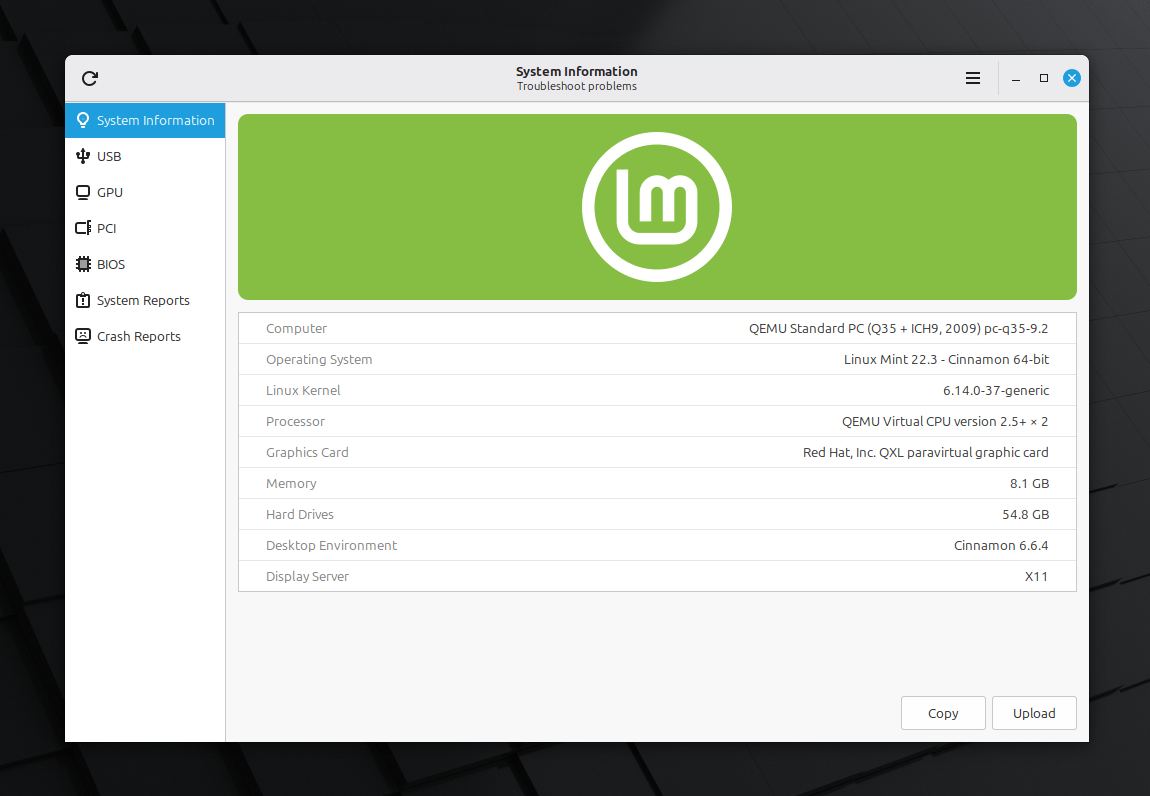
This tool now includes four new pages that show details about your USB, GPU, PCI, and BIOS. These pages help you identify exactly which driver or device is causing a problem.
The developers also added a "System Administration" tool. This tool allows you to easily manage your boot menu settings and add special boot parameters.
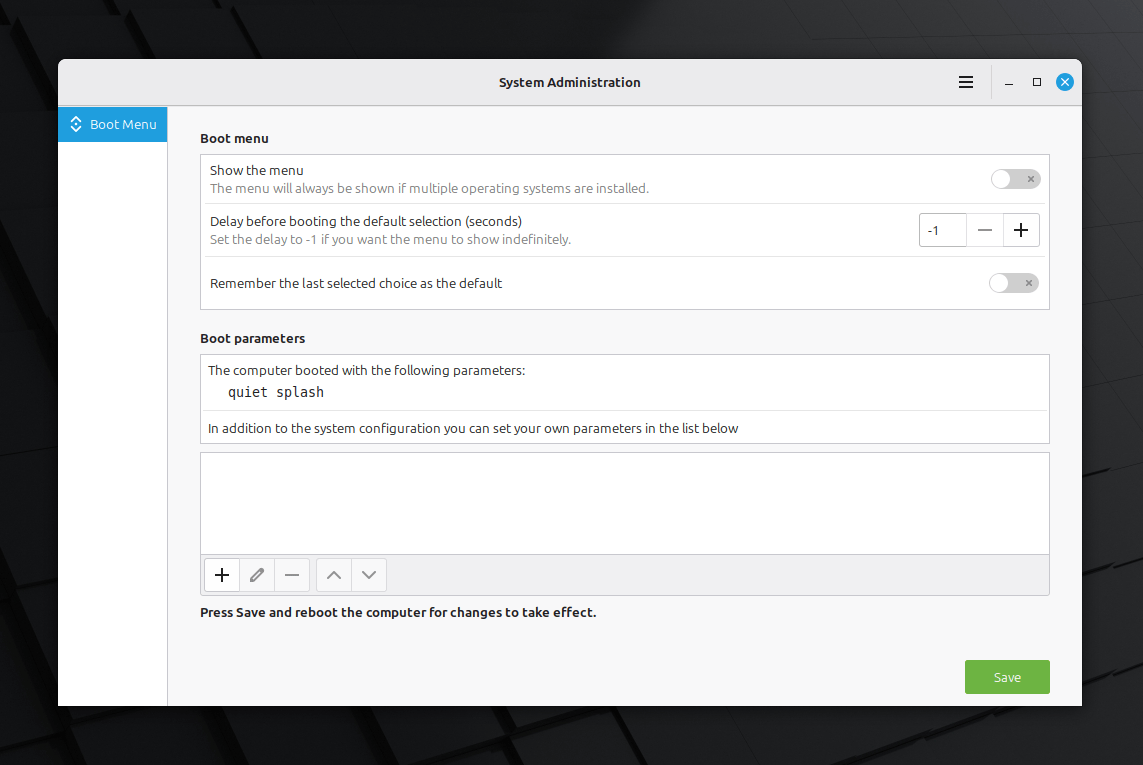
These features are very helpful if you run multiple operating systems on one computer.
3. Faster File Management with Nemo 6.6
The Nemo file manager also received some great updates. You can now pause and resume file operations like copying or moving.
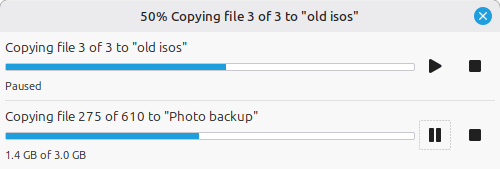
This is perfect if you need to free up system resources suddenly. Nemo also includes a new template manager and improved search accuracy.
4. Other Key Improvements
- Visual Consistency: Mint now uses its own project called XApp Symbolic Icons (XSI). This ensures your icons look great in both light and dark themes and prevents missing icons.
- Wayland Support: The Cinnamon window manager is now much more compatible with Wayland. The new keyboard settings and on-screen keyboard also work fully with Wayland and various input methods.
- Pipewire Sound: Linux Mint has moved to the Pipewire sound server as the new standard.
- Small Refinements: You will see notification badges in your window list when you miss an alert. Also, Warpinator now supports IPv6 and text messaging.
System Requirements for New Linux Mint Installation
If you want to install Linux Mint 22.3 "Zena", make sure your computer meets these needs:
- RAM: At least 2GB, though 4GB is recommended for smooth use.
- Disk Space: At least 20GB, but the team suggests 100GB.
- Resolution: 1024×768 or higher.
How to Upgrade to Linux Mint 22.3 "Zena" from Linux Mint 22.2 "Zara"
If you are already running Linux Mint 22, 22.1, or 22.2, you can upgrade easily. Follow these steps for a safe transition:
Step 1: Create a System Snapshot
First, you should protect your data by creating a backup. Use the Timeshift tool to make a system snapshot before you begin the upgrade.
You can launch Timeshift from the application menu and follow the on-screen instructions to configure it.
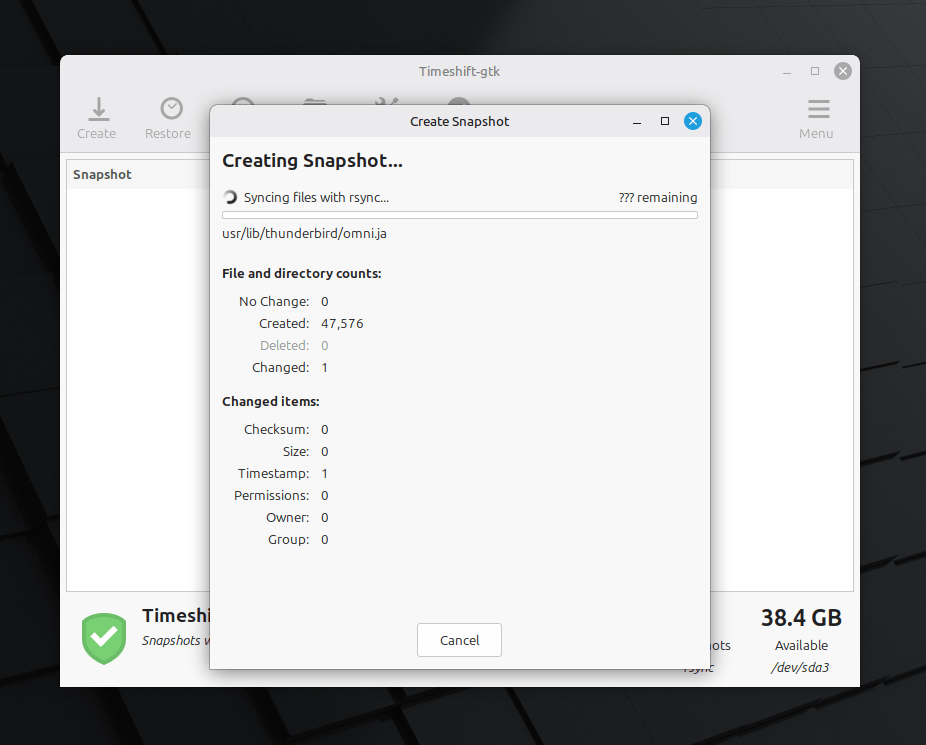
If anything goes wrong during the process, you can use this snapshot to restore your operating system to its previous state.
Step 2: Prepare for the Upgrade
Second, you need to update your desktop extras. If you have installed any Cinnamon spices, such as applets, desklets, extensions, or themes, you must upgrade them. You can find these options within your System Settings.
Step 3: Update Linux Mint
Third, launch the Update Manager to perform the actual upgrade. Start by clicking the Refresh button to check for new versions of "mintupdate" or "mint-upgrade-info".
If the system finds updates for these packages, apply them immediately.
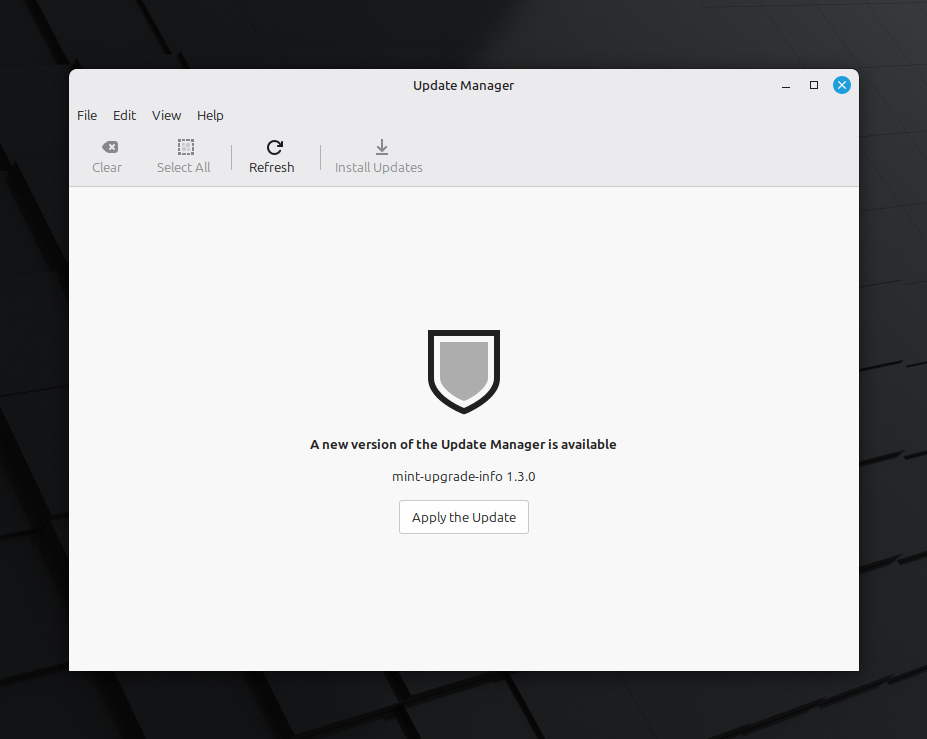
Wait for the updates to download and install.
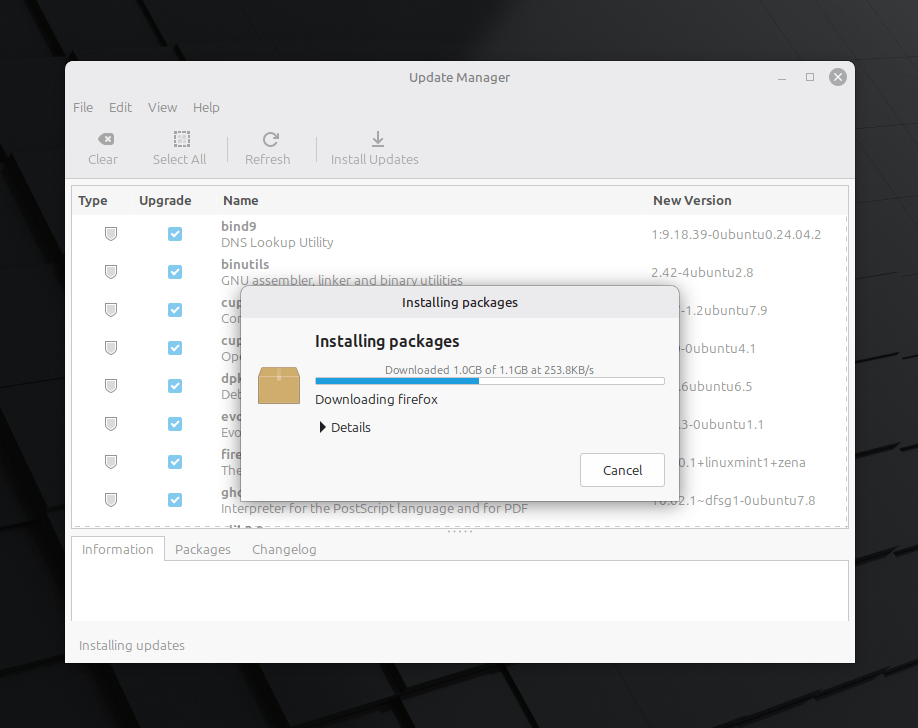
After applying all updates, you might be required to restart your system to apply all updates. Reboot your system to do so.
Step 4: Start Linux Mint 22.3 Upgrade
From the Mint Update Manager, click on the Edit menu in the Update Manager and select "Upgrade to Linux Mint 22.3 Zena".
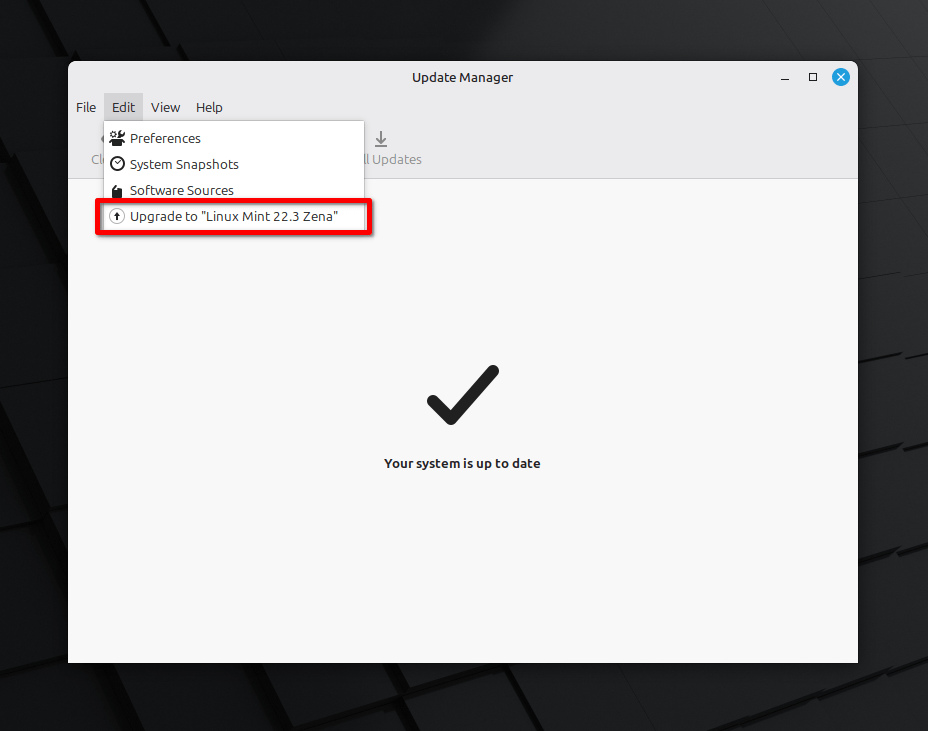
Follow the instructions that appear on your screen.
Click Next to start Linux Mint 22.3 Upgrade:
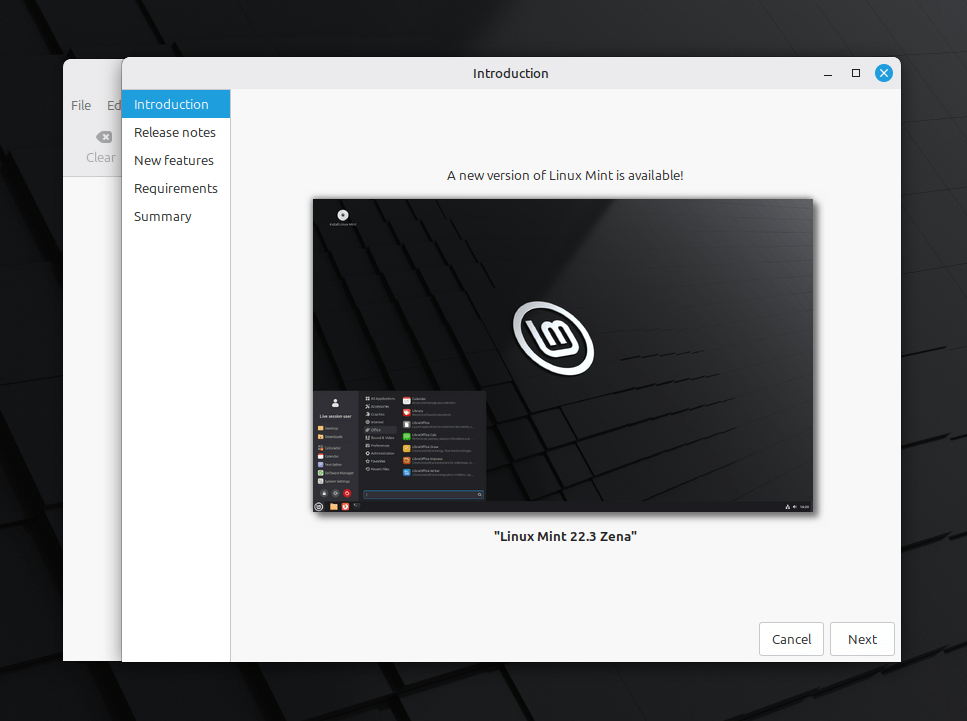
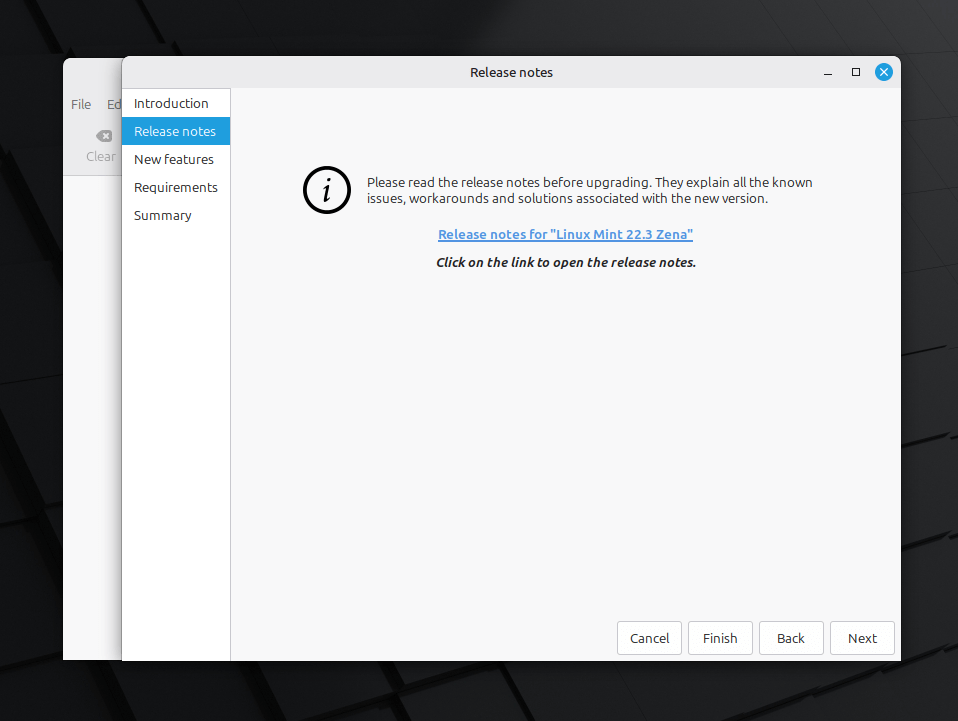
The update Manager will prompt you if you want to read the Linux Mint 22.3 release notes. If you want to get glimpse all known issues about this version, click on the link. If you want to continue the upgrade task, simply click Next:
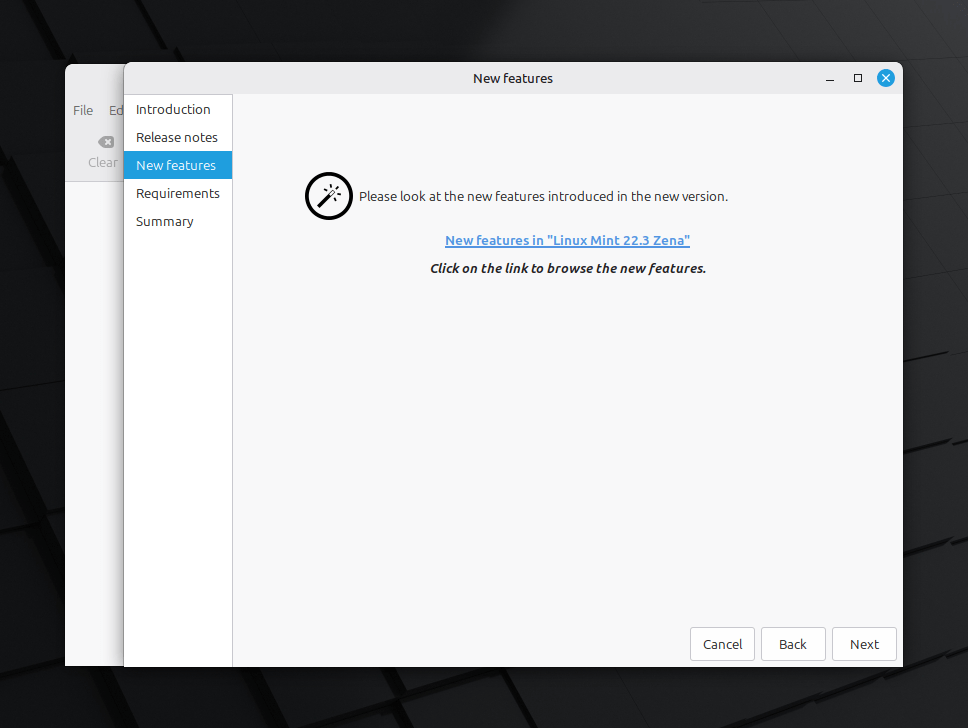
Now, the update manager will prompt you if you want to read the Linux Mint 22.3 new features. If you want to know what's new in Linux Mint 22.3 before upgrading, you can click on the link. Otherwise, simply click Next:
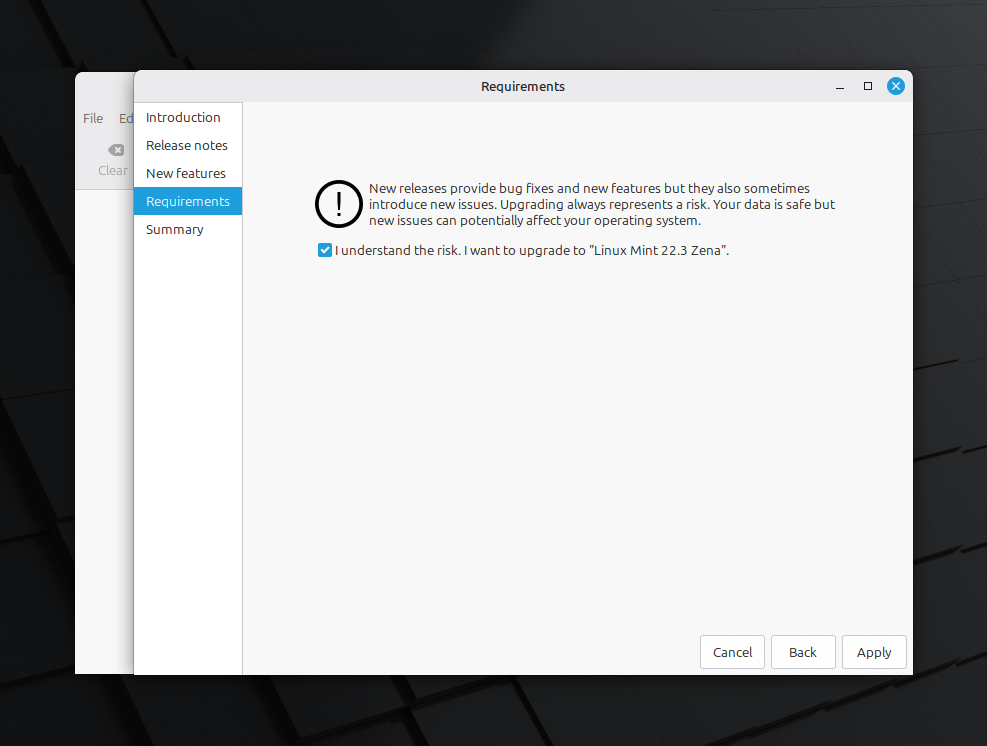
Check the box that says "I understand the risk…" and click Next:
Now, the actual upgrade process will start:
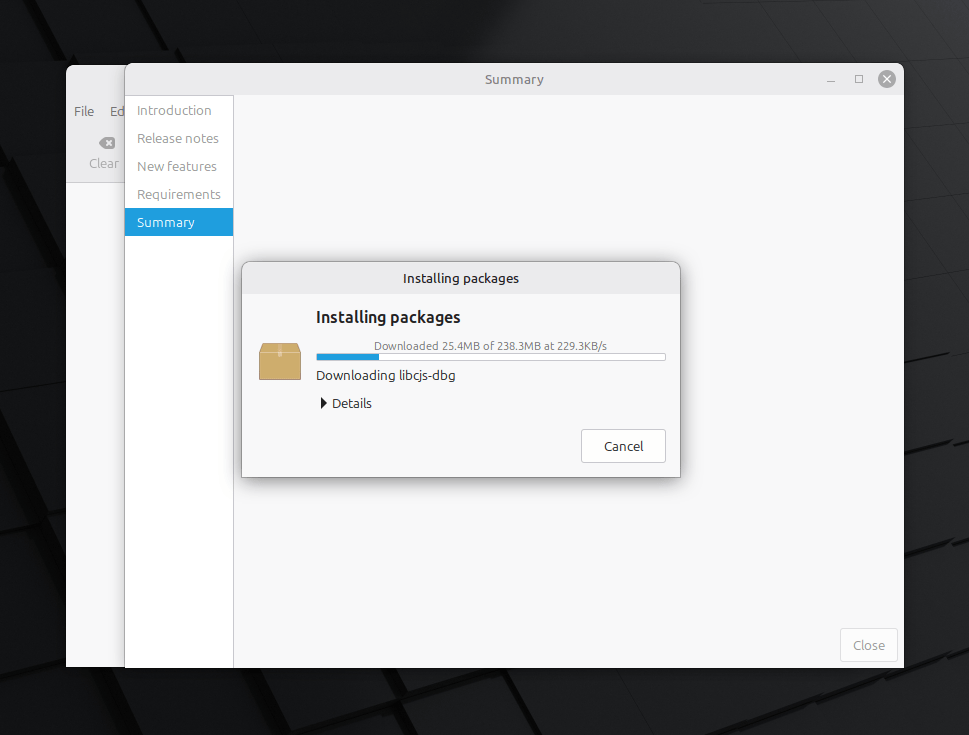
If the installer asks whether you want to keep or replace configuration files, you should choose to replace them.
Step 4: Reboot the Computer
Finally, you must restart your computer once the upgrade finishes.
Step 5: Reset Menu Settings (Fix the Menu)
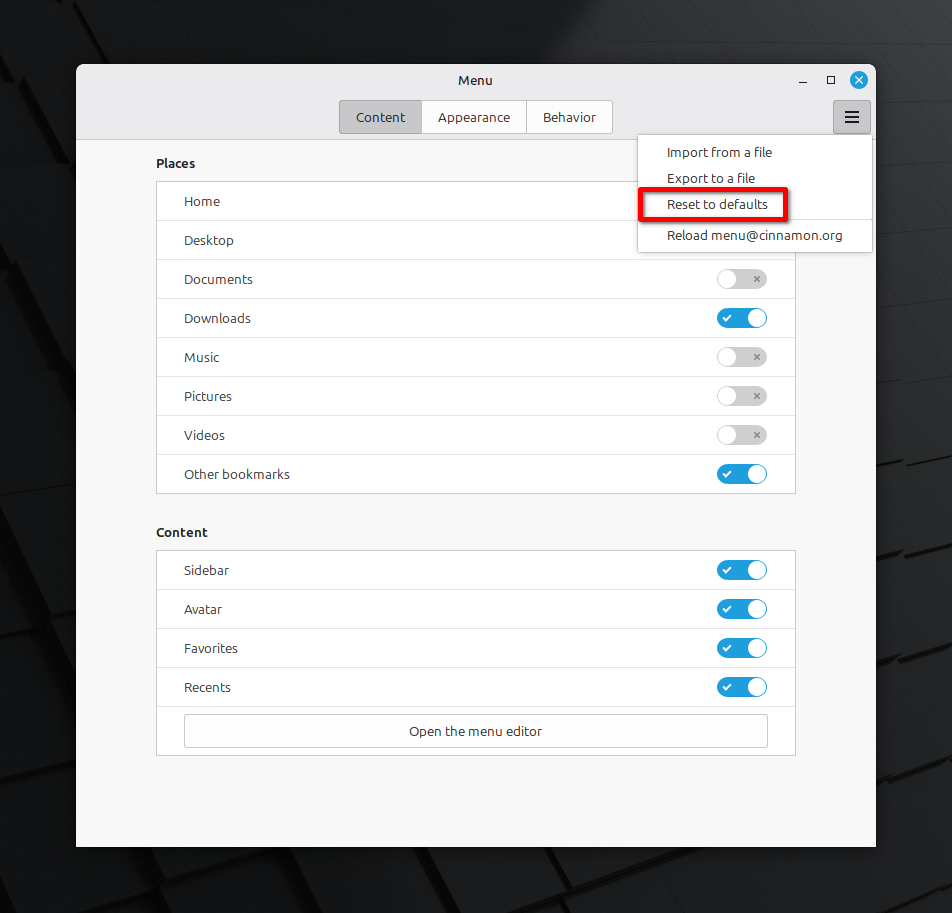
After you log back in, there is one extra recommendation for users of the Cinnamon Edition. Because the team redesigned the main menu, you should reset your menu settings to avoid mixing old and new layouts.
To do this, right-click your Cinnamon menu, select "Configure…", click the burger menu in the top-right corner, and choose "Reset to defaults".
Congratulations! You have successfully upgraded your Linux Mint 22.2 "Zara" to Linux Mint 22.3 "Zena".
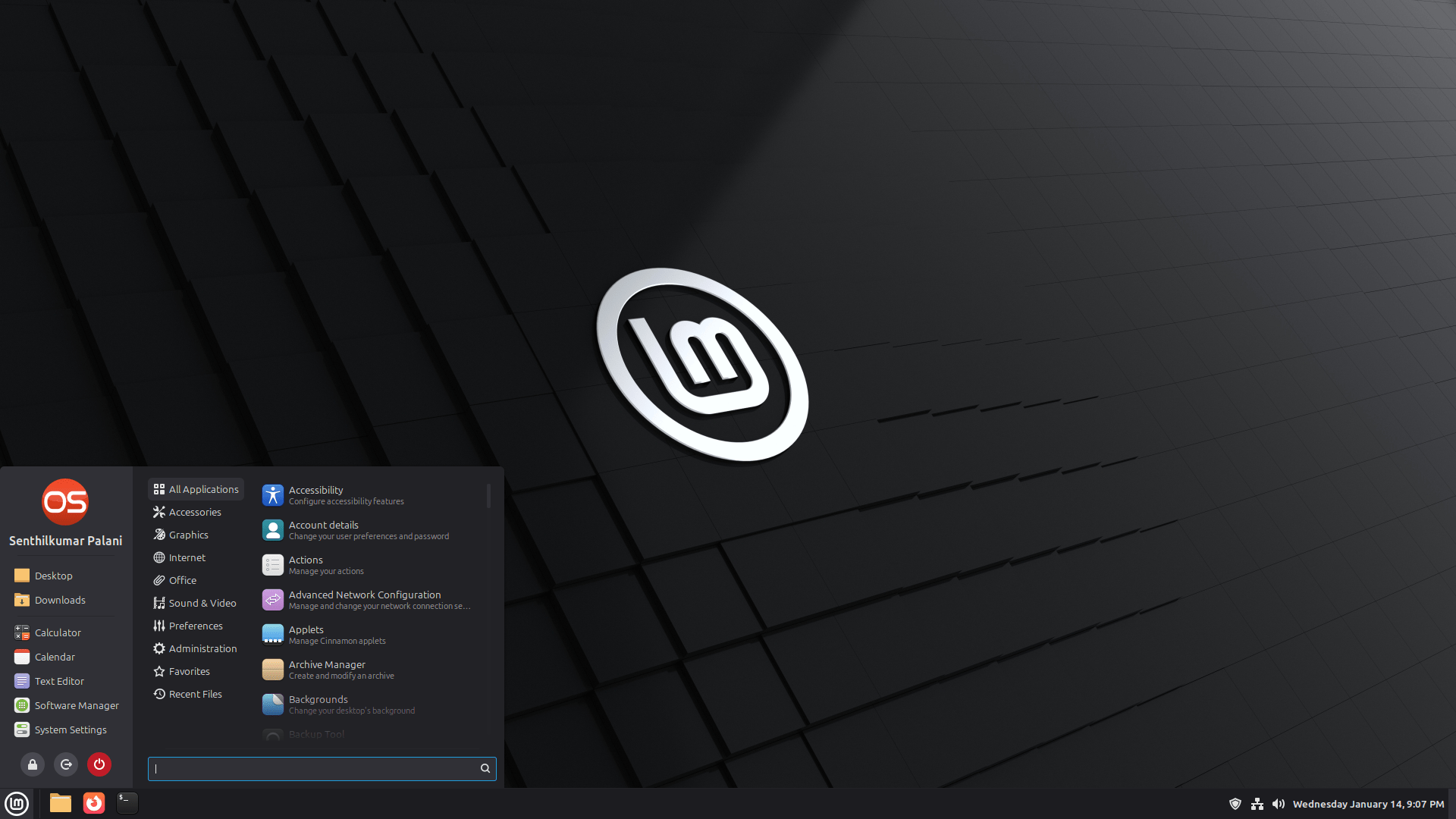
Start using the newly upgraded Linux Mint.
Important Things to Note
While Zena is stable, you should be aware of a few known issues. The new Linux kernel 6.14 has some trouble with VirtualBox and very old NVIDIA cards (those using the 470 driver). If you use these, the team recommends staying on Linux Mint 22.1 for now.
Additionally, some users have reported stability issues when testing the Wayland session, such as screen freezes. If you encounter these, you should stick to the default X11 session for a more reliable experience.
Resource:
