
Ever wondered if someone you know (or maybe someone you want to know a bit more about) has a presence on different social media platforms? It's a common curiosity, and thankfully, there's a fantastic tool out there that can help you uncover those digital footprints. I'm talking about Sherlock, a Python CLI tool that can discover social media accounts by username across a large number of social networks.
Think of it like this: instead of manually typing a username into every single social media site you can think of, Sherlock does the legwork for you. Sounds good, yeah?
This brief post explains what Sherlock is and how you can use it to find anyone online (in a respectful way, of course!).
Table of Contents
What Exactly is Sherlock?
Sherlock is a command-line tool to discover social media accounts associated with a specific username across a staggering 400+ social networks.
This tool is open source written in Python. Its code is freely available in GitHub for anyone to use and even contribute to.
It's a popular choice in the world of OSINT (Open-Source Intelligence), cybersecurity, and anyone interested in gathering information publicly available online.
Install Sherlock
There are a few different ways to install Sherlock in your system.
Using pipx:
This is the recommended method. If you have pipx installed (which is a tool to run Python applications in isolated environments), you can simply run the command:
pipx install sherlock-project
You can also use pip in place of pipx if you prefer.
Using Docker:
If you're familiar with Docker (a platform for running applications in containers), you can use the command:
docker run -it --rm sherlock/sherlock
Community-maintained packages:
There are community-maintained packages available for various Linux distributions like Debian, Ubuntu, Kali, and even macOS via Homebrew.
Please be aware that these aren't directly supported by the Sherlock Project developers.
Discover Social Media Accounts by Username Using Sherlock
Finding social media accounts using Sherlock is straightforward.
Searching for a Single Username
To search for just one username, you open your command line (Terminal on macOS/Linux, Command Prompt or PowerShell on Windows) and type:
sherlock username123
Replace username123 with the actual username you want to search for. Sherlock will then go through its list of supported social networks and tell you if an account with that username exists on each one.
Any accounts found will have their links displayed, and the results will also be saved in a text file named after the username (e.g., username123.txt).
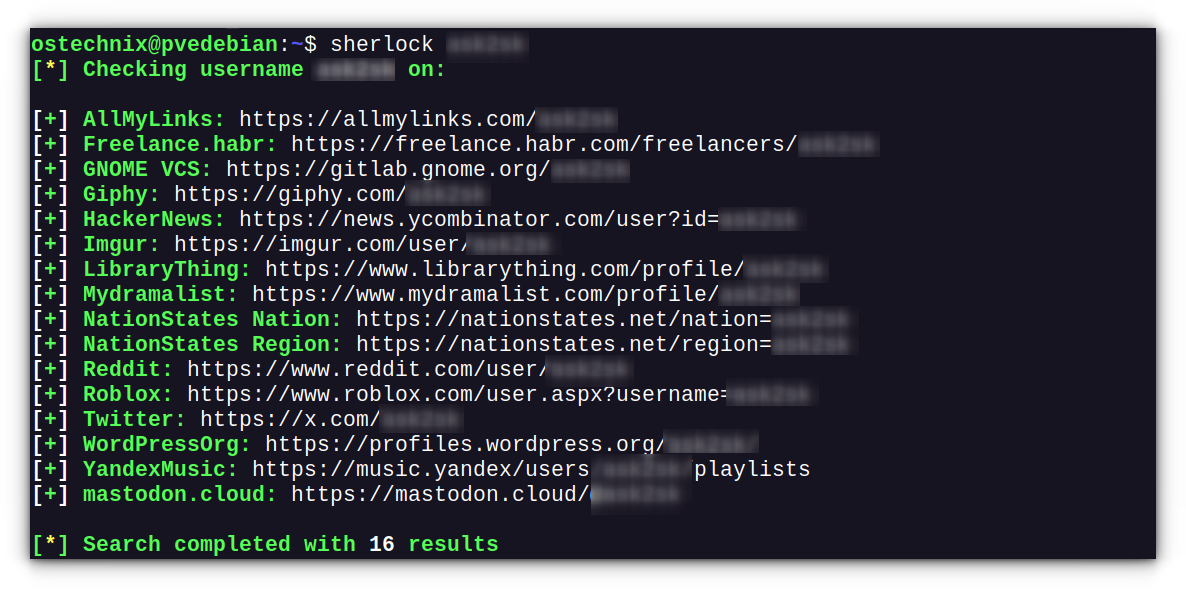
I noticed Sherlock produced some non-existent data. Some online accounts it listed did not exist. I think it is a bug, though I am not sure.
Searching for Multiple Users
You can even search for several usernames at once by simply listing them after the sherlock command, like this:
sherlock user1 user2 user3
When searching for multiple users, the output for each username will be saved in individual text files within a folder. You can even specify a particular folder to save these results using the --folderoutput or -fo option.
Helpful Options to Know About
Sherlock comes with several useful options that can enhance your searches:
--verboseor-v: This will give you more detailed information about what Sherlock is doing.--outputor-o: If you're searching for a single user, you can use this to specify a different name for the output file. For example:sherlock username -o results.txt.--site: If you only want to check a specific social media platform or a few specific ones, you can use the--siteoption followed by the site name. You can use this option multiple times to specify more than one site. For example:sherlock username --site twitter --site instagram.--toror-t: For increased anonymity (and potentially to bypass some network restrictions), you can route your requests through the Tor network. Keep in mind this will likely slow down the search. You'll need to have Tor installed on your system for this to work.--proxy: If you prefer to use a different proxy, you can specify its URL using the--proxyor-poption (e.g.,--proxy socks5://127.0.0.1:1080).--print-all: By default, Sherlock only shows you where the username was found. Using--print-allwill also show you the sites where the username was not found.--browseor-b: This handy option will automatically open all the found social media profiles in your default web browser.
You can see a full list of available options by using the --help command:
sherlock --help
Important: Responsible Use is Key
While Sherlock is a powerful tool, it should always be used responsibly and ethically. Respect people's privacy, and don't use this tool for any malicious purposes. The information you find is publicly available, but how you use it is your responsibility.
Conclusion
Sherlock is a fantastic tool for anyone curious about the social media presence of a particular username. Again, I request everyone to use this tool responsibly.
Have you tried using Sherlock? Do you have any questions or tips to share? Let me know in the comments below! I'd love to hear your experiences.
Resource:
Featured Image by Pixabay.
