
Are you still using the default, slow and uninspiring terminal prompt? Don't be. Say hello to Starship, the minimal, blazing-fast, and infinitely customisable prompt for any shell.
Starship is not only lightning-fast but also adapts to your every task, showing you only the information you need, exactly when you need it.
In this detailed blog post, we will learn what Starship is, and how to install and customize the Starship shell prompt on Linux.
Table of Contents
What is Starship?
Starship is a fast and lightweight cross-shell prompt written in Rust. It works with Bash, Zsh, Fish, PowerShell, Ion, Xonsh, and more.
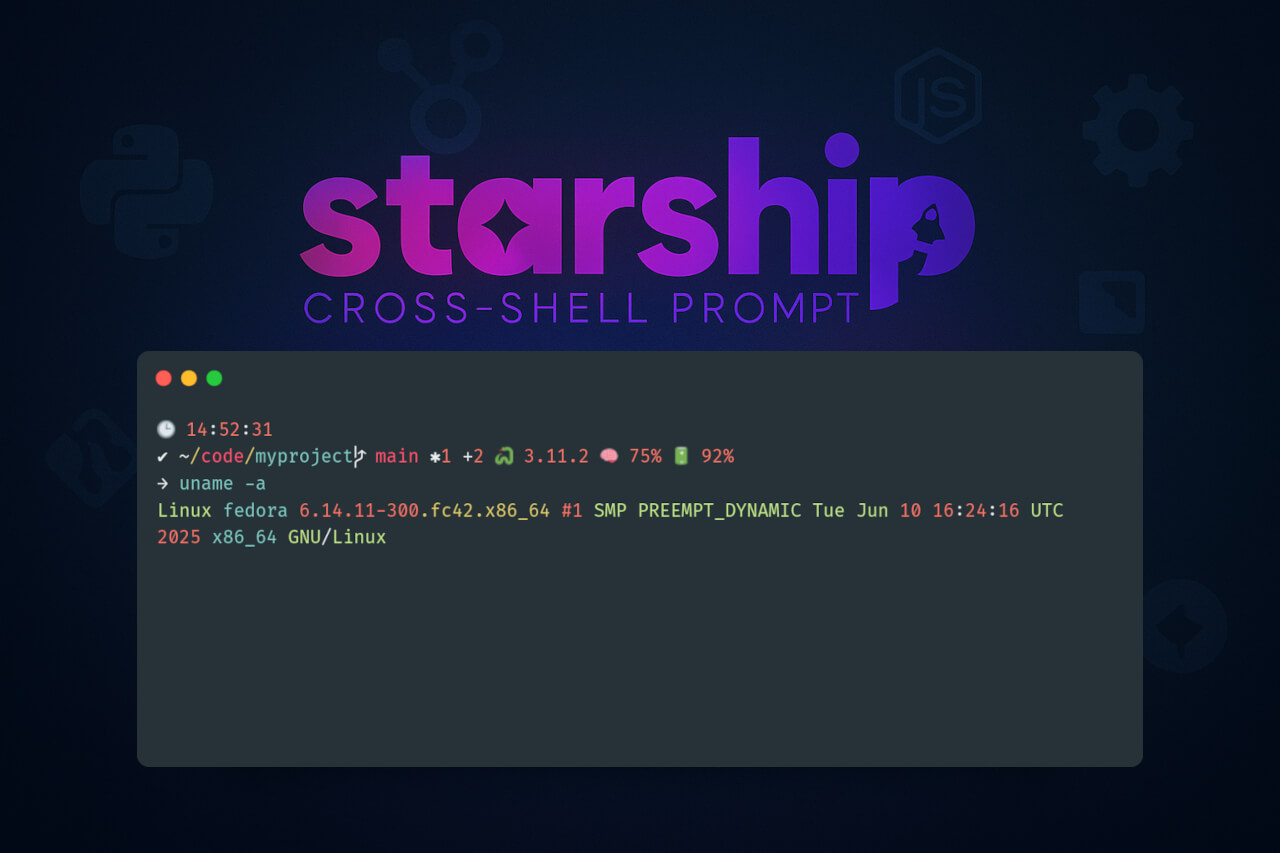
It only shows information when it's needed, such as:
- Git branch and its status
- Runtime versions (Python, Node.js, Go, Rust)
- Kubernetes context, battery state, background jobs
- Command execution time and shell exit status
This is especially helpful for developers or power users who need context at a glance, but without clutter.
What Makes Starship Useful?
Starship is more than just a pretty prompt; it’s a powerful tool designed to enhance your terminal experience across any shell on any operating system.
It's built with Rust, bringing top-tier speed and safety to your prompt, making it incredibly quick and reliable.
Many users have noted its "lightning fast" performance, often taking mere milliseconds to gather and display prompt information, a significant improvement over other, slower prompt customisation tools.
This speed means no noticeable lag when you press Enter, even with many active modules.
Features
Starship is quickly becoming a favourite among developers and system administrators.
1. Blazing-Fast Performance
Thanks to its Rust-powered core, Starship is remarkably quick. It can gather information and render your prompt in milliseconds, ensuring your command line always feels responsive.
Starship includes a command_timeout setting to prevent it from hanging if a command takes too long to execute.
2. Infinitely Customisable
Every single aspect of your prompt can be tweaked to your liking. All configuration is done through a simple starship.toml file.
You can choose from nearly 100 modules to display contextual information, from your current Git branch and status to the version of your programming language runtime.
3. Intelligent Information Display
Starship modules are designed to show relevant information at a glance.
For instance, the git_branch module shows your active branch, while git_status can display symbols indicating untracked, modified, or staged files in your repository.
The aws module can show your current AWS region and profile, and the kubernetes module can display your current context, namespace, user, and cluster.
4. Dynamic Styling
You can customise the appearance of each module using "Style Strings". This allows you to set colours (standard, hex, or ANSI codes) and attributes like bold, italic, or underline.
The character module, for example, can change colour or shape to indicate if your last command succeeded or failed.
5. Advanced Prompt Features
Starship supports sophisticated functionalities like TransientPrompt in shells such as PowerShell, Cmd, and Fish, which replaces the previous prompt with a custom, often simpler, string when input is not needed.
It also allows for TransientRightPrompt to display information on the right side of the input line.
Furthermore, you can define custom pre-prompt and pre-execution commands to run functions right before your prompt is drawn or a command is executed.
6. Universal Compatibility
Starship works seamlessly across a wide range of shells and operating systems.
Whether you use Bash, Zsh, Fish, PowerShell, Cmd (with Clink), Elvish, Ion, Nushell, or Tcsh, Starship has you covered.
Its stateless and shell-agnostic design ensures broad support.
Is It "Minimalist" or "Maximalist"?
Starship is marketed as "minimal", which can sometimes be confusing given its extensive features.
The "minimal" refers to its configuration approach and its ability to be as sparse or as feature-rich as you desire.
While its default configuration might feel "maximalist" to some, displaying various tool versions and Git information, you have complete control to disable any module or change its appearance to create a truly minimal prompt that suits your workflow.
For example, many users find value in displaying the exit code of the last command, the current working directory, or the Git branch, while opting to hide runtime versions of languages if they work in containerised environments.
This flexibility allows for a prompt that provides just the right context, preventing unnecessary clutter while saving you time and avoiding mistakes.
Getting Started with Starship
To begin your journey with Starship, there's one key prerequisite: you'll need a Nerd Font installed and enabled in your terminal. This ensures that all the fantastic glyphs and symbols display correctly.
Once install the prerequisite, run the Starship installer script to install it:
curl -sS https://starship.rs/install.sh | sh
Alternatively, Starship can be installed via your Linux distribution's package manager (e.g., apt, pacman, dnf).
# For Debian 13/Ubuntu
sudo apt install starship

# For Arch Linux
sudo pacman -S starship

# For Fedora
sudo dnf install starship
Once installed, you simply add a small initialisation script to your shell's configuration file (e.g., ~/.bashrc for Bash, ~/.config/fish/config.fish for Fish, or ~/.zshrc for Zsh).
Bash: Add to ~/.bashrc
eval "$(starship init bash)"
Fish: Add to ~/.config/fish/config.fish
starship init fish | source
Zsh: Add to ~/.zshrc
eval "$(starship init zsh)"
After the setup, run source on your shell's config file (E.g. source ~/.bashrc) or launch a new shell session, and you'll immediately see your beautiful new prompt in action.
This is my Bash prompt before installing Starship:

This is how my shell prompt looks after installing Starship:
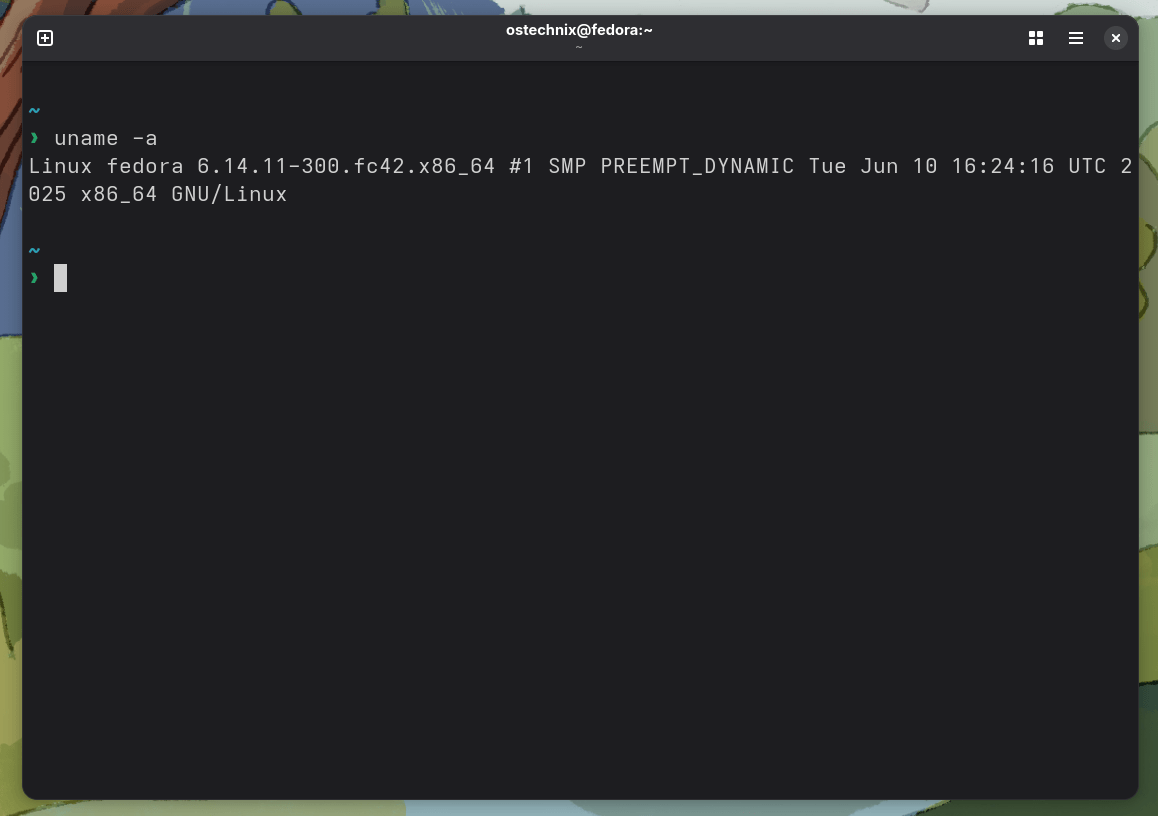
Did you notice the shell prompt? It is changed now!
Still don't like it? No problem, we can further tweak it as per our wish.
Customizing Your Prompt
The real magic happens in ~/.config/starship.toml. Here's a sample configuration to get you started.
Open or create a ~/.config/starship.toml file and paste the following code into it:
add_newline = true
scan_timeout = 20
format = """
$time\
$character $directory$git_branch$git_status$python$nodejs$rust$golang$memory_usage$battery$cmd_duration
→ """
[time]
format = "🕒 [$time]($style) "
time_format = "%H:%M:%S"
style = "dimmed green"
disabled = false
[directory]
style = "bold cyan"
truncation_length = 3
truncate_to_repo = true
home_symbol = "~"
[git_branch]
symbol = " "
style = "bold magenta"
[git_status]
style = "white"
format = "$all_status "
untracked = "✱${count} "
modified = "✎${count} "
staged = "+${count} "
ahead = "↑${count} "
behind = "↓${count} "
conflicted = "‼ "
[python]
symbol = "🐍 "
style = "bold green"
format = "$symbol[${version}]($style) "
[nodejs]
symbol = " "
style = "bold blue"
format = "$symbol[${version}]($style) "
[rust]
symbol = "🦀 "
style = "bold red"
format = "$symbol[${version}]($style) "
[golang]
symbol = "🐹 "
style = "bold cyan"
format = "$symbol[${version}]($style) "
[memory_usage]
disabled = false
threshold = 70
symbol = "🧠 "
style = "bold blue"
format = "$symbol[$ram_pct]($style) "
[battery]
disabled = false
full_symbol = "🔋"
charging_symbol = "⚡"
discharging_symbol = "🔌"
unknown_symbol = "❓"
empty_symbol = "🪫"
format = "$symbol[$percentage]($style) "
style = "bold yellow"
[cmd_duration]
min_time = 2000
format = "⏱ [$duration]($style) "
style = "yellow"
[character]
success_symbol = "[✔](bold green)"
error_symbol = "[✘](bold red)"
vicmd_symbol = "[🕪](bold blue)"
If the directory doesn’t exist, create it:
mkdir -p ~/.config
I use this configuration, because it provides a comprehensive and informative prompt with:
- Time display
- Directory information
- Git repository status
- Language version detection
- System resource monitoring
- Command execution feedback
- Battery percentage
You can adjust icons or colors as needed.
Save the file and close it. Restart your terminal or reload your shell config (source ~/.bashrc, etc.) to apply it.
Your prompt will now look like this:
🕒 14:52:31 ✔ ~/code/myproject main ✱1 +2 🐍 3.11.2 🧠 75% 🔋 92% →
Here's the summary of the above Starship prompt configuration:
| Module | Purpose | Example Output |
|---|---|---|
time | Shows the current time in HH:MM:SS format | 🕒 14:52:31 |
directory | Shows current directory, truncated after 3 parts | ~/code/projects/ |
git_branch | Shows the current Git branch | main |
git_status | Shows Git changes: untracked, staged, etc. | ✱2 ✎1 +3 |
python | Displays Python version in Python projects | 🐍 3.11.2 |
nodejs | Displays Node.js version if applicable | 20.5.1 |
rust | Displays Rust version when relevant | 🦀 1.72.0 |
golang | Displays Go version in Go projects | 🐹 1.21.0 |
memory_usage | Shows RAM % if usage exceeds 70% | 🧠 83% |
battery | Shows battery charge + charging/discharging icon | ⚡ 54% |
cmd_duration | Shows how long a command took (>2 seconds) | ⏱ 3s |
character | Shows ✔ on success, ✘ on error | ✔ or ✘ |
If you're not seeing the battery percentage in your actual prompt, it could be because:
- You're on a desktop/system without a battery - Starship only shows battery info on devices that actually have a battery
- Battery detection issue - Sometimes Starship can't detect the battery on certain systems
- The battery percentage might be at 100% - Check if it appears when your battery is not fully charged
Test Starship Configuration
To test for syntax or runtime errors:
starship explain
This command will:
- Show how your prompt is built
- Highlight missing modules
- Report syntax problems (e.g. bad TOML)
If you see errors like "failed to parse config", it means something is wrong in the starship.toml.
If everything is OK, you will see which modules would be active in current directory:
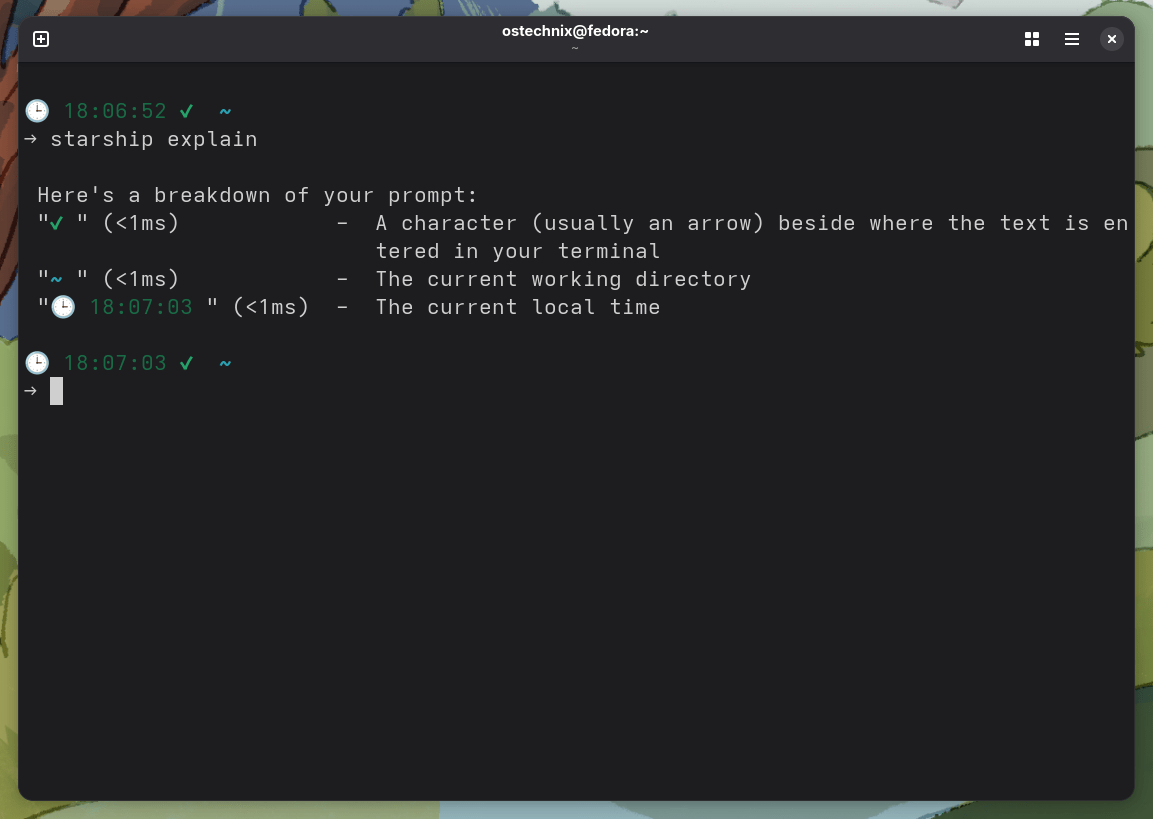
This confirms each component is being parsed and rendered.
Testing Modules
You can verify if all modules are working as expected.
1. Test git_branch
mkdir test-git && cd test-git
git init
You should now see something like:
🕒 16:30:12 ✔ ~/test-git master →
2. Test memory_usage
Use stress or open many programs to exceed 70% RAM. Or lower the threshold:
[memory_usage]
threshold = 10
3. Test battery
If you use a laptop, unplug your charger or modify:
[battery]
disabled = false
4. Test cmd_duration
Run:
sleep 3
You should see:
🕒 17:24:54 ✔ ~ ⏱ 3s
If a command fails, you will see an output like this:
🕒 17:26:54 ✘ ~ ⏱ 45s
Test Individual Modules
You can debug individual modules like below:
# Test specific modules
starship module time
starship module directory
starship module git_branch
starship module python
starship module battery
To get detailed prompt breakdown, run:
starship prompt --help
Make Your Shell Prompt Beautiful Today!
Starship offers an unparalleled blend of speed, customisation, and versatility, making your terminal a more efficient and pleasant place to work.
It gives you all the information you need without clutter, looks great out of the box, and offers endless customization for power users.
It also strikes the perfect balance between functionality and simplicity.
If you're still using your shell's default prompt, do yourself a favor and give Starship a try. Whether you prefer a lean, information-focused prompt or a rich, detailed overview of your environment, Starship can be configured to meet your exact needs.
Don't forget to install a Nerd Font (like FiraCode Nerd Font) to get the most out of Starship's icon support. Happy customizing!
For more details, check the Starship documentation.
Resources:
Related Read:
- Install Nerd Fonts To Add Glyphs In Your Code On Linux
- How to Install JetBrains Mono on Linux (Nerd Font and Ligatures)
- Nefoin: Auto-Install Nerd Fonts in Linux and macOS with One Command
- How To Add Fonts In Fedora Linux
- Font Finder – Easily Search And Install Google Web Fonts In Linux
- How To Find All Installed Fonts From Commandline In Linux
