
Do you often need to record your desktop screen? Maybe you create tutorials or share complex workflows with colleagues. However, maintaining privacy during a screencast can be tricky, as stray chat windows or sensitive documents can accidentally appear.
Good news! The Plasma 6.6.0 update introduces a highly useful tool: the Exclude windows from screen capture feature. This clever new function lets you easily keep certain parts of your desktop screen windows private when recording.
Table of Contents
What This Feature Does
Simply put, when you mark a window using this option, it becomes invisible during your screencast. Hence the recording software skips over that specific window.
This exclusion works intelligently and recursively. Therefore, if you select your main application window, the system automatically marks and excludes all associated transient windows. This includes pop-ups, context menus, and other temporary elements.
So, you do not need to worry about accidentally revealing sensitive details through minor interface elements.
Three Simple Ways to Exclude Certain Windows From Screen Recording in Plasma
Excluding a specific window from screen capture is very simple in Plasma 6.6. You can activate this feature using three simple methods:
- Use the titlebar context menu.
- Find the option in the Task Manager context menu.
- Set up window rules for permanent exclusion.
To exclude a certain window from screen recording, open the context menu from that window title bar, and then select More actions -> Hide from ScreenCast from the context menu. It's that simple!
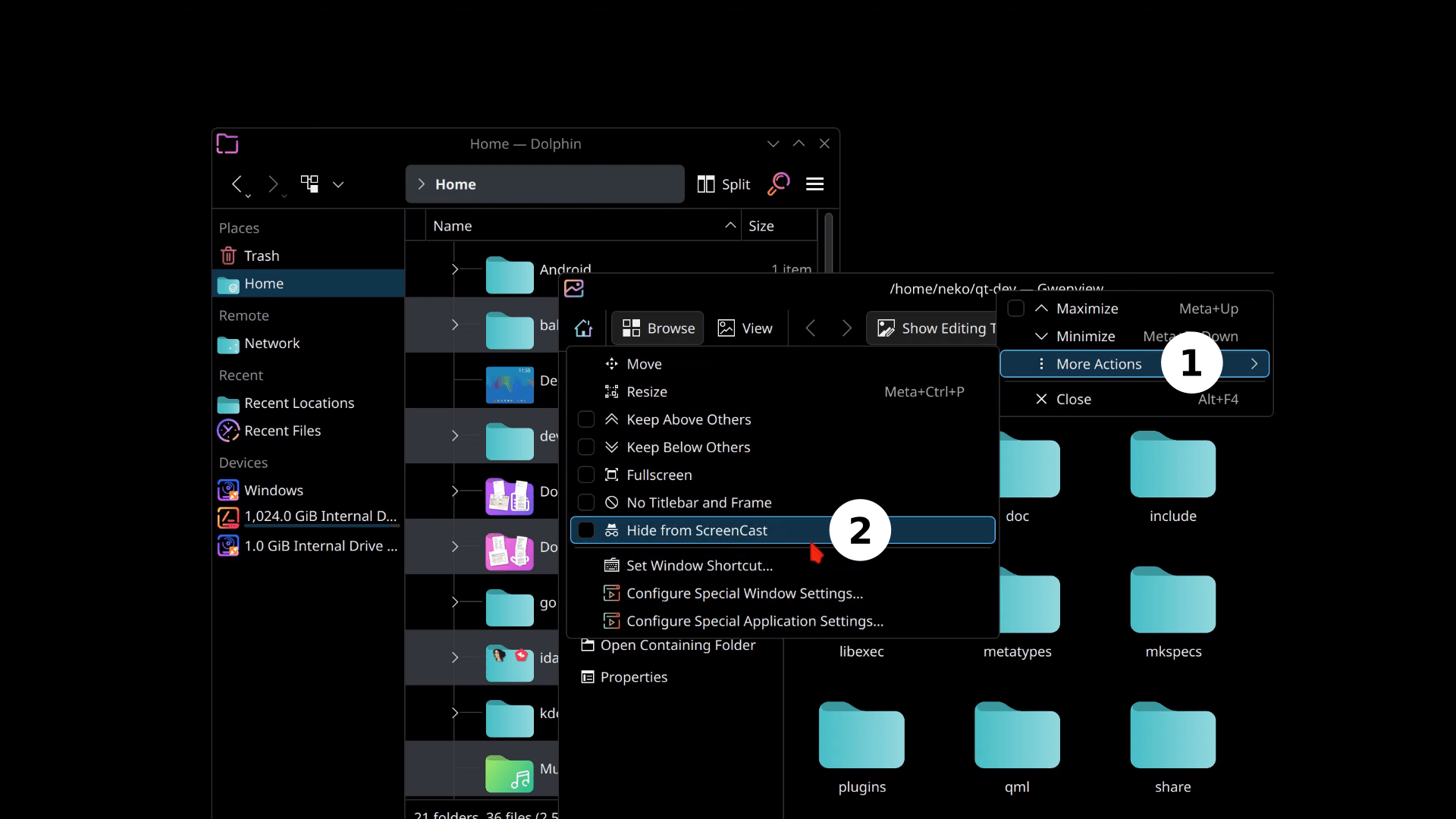
Here's a quick video demo that shows how this works.
A Quick Note on Screenshots
Please note that this exclusion option will not hide windows from standard screenshots.
Why?
The logic is simple: when a user takes a static screenshot, they can easily minimize or move any unwanted windows out of the frame.
Therefore, adding the exclusion setting to screenshots felt unneeded, keeping the feature focused specifically on dynamic screen recording.
The "Exclude windows from capture" feature makes sharing your desktop safer and more professional.
This feature is implemented in KDE Plasma 6.6.0. You can now record your screen with confidence, ensuring that only the content you intend to show is actually captured.
Other Notable Updates in KDE Plasma 6.6
The Plasma 6.6.0 release, along with accompanying updates in Frameworks 6.21, brought several notable new features, UI improvements, and technical enhancements (in addition to the "Exclude windows from capture" feature we previously discussed).
Here are the other key features and improvements in KDE Plasma 6.6.0:
Notable UI Improvements (Plasma 6.6.0)
1. Blur Effect Configuration:
The blur effect now produces a darker and more vibrant blur, aiming to revert to the appearance seen in Plasma 6.4 when a dark colour scheme is used.
For those who prefer a different look, the saturation value of the blur effect is now user-configurable.
2. Task Manager Window Cycling:
When clicking grouped Task Manager icons to cycle through windows, full-screen windows no longer always raise first. Instead, windows are now raised in the order of their last use.
3. Portal Remote Control Dialog:
The UI received polishing to improve its appearance and make it read more naturally.
4. Kickoff Application Launcher Updates:
- When the launcher opens and the pointer is directly on an item in the Favourites view, that item will not be selected automatically.
- The widget now attempts to keep the first item of the search results view selected until the user focuses the list and starts navigating elsewhere.
5. Discover Language:
Discover software center now employs more user-friendly language when assisting users in finding applications capable of opening specific file types.
6. Drag-and-Drop Safety:
Users are now far less likely to accidentally raise an unintended application if a notification happens to appear directly underneath an object they are dragging-and-dropping.
7. KMenuEdit Enhancements:
KMenuEdit now allows users to select multiple items simultaneously for faster deletion.
8. Inline QR Codes:
The QR code dialogue that could be invoked from the clipboard has been removed. The QR code is now shown inline in the widget, making it large enough for practical use and reducing unnecessary code.
Performance and Technical Enhancements (Plasma 6.6.0 and Frameworks 6.21)
- Animation Smoothness: There was a major improvement to the smoothness of animations throughout Plasma and KWin, particularly benefiting users with screens that have a refresh rate higher than 60 Hz.
- KWin Compositing Optimisation: KWin now performs less unnecessary work during its compositing pipeline.
- System Settings Shortcuts Management: When you delete an entire category of shortcuts on the System Settings Shortcuts page, all the shortcuts become grayed out and non-interactive. A warning message appears informing the user they will soon be deleted, offering a chance to undo the action before it is executed.
- KConfig (Frameworks 6.21): KConfig now parses configuration files in a stream, rather than opening them all at once. This change allows KConfig to detect early when a file is corrupted or improperly formatted, which helps prevent freezes in several areas.
- Systemd Integration (Frameworks 6.21): When using Systemd integration (which is the default if Systemd is present), programs will no longer fail to launch if environment variables start with a digit, which is not supported by Systemd.
Notable Bug Fixes (Plasma 6.6.0)
- XWayland Typing Fix: A workaround was implemented for a bug in some XWayland-using games that made it impossible to type text into certain popups.
- KRunner History Clearance: Clearing KRunner's search history now takes effect immediately, instead of only after KRunner is restarted.
- Login Screen Display: On very narrow displays combined with a high scale factor, the buttons on the login, lock, and logout screens can no longer get cut off; they now wrap onto the next line.
For more details, refer to the official KDE weekly blog post.
