
In this guide, we explain how to install WP-CLI step by step on Debian, Ubuntu, Fedora, RHEL, AlmaLinux, Rocky Linux, macOS, and Windows (via WSL).
This article also covers installation of PHP, MySQL, required extensions, and full preliminary checks. Follow every step in order, especially on a fresh server or a clean OS install.
Reading time: ~12 minutes
Level: Beginner to Intermediate
Last updated: May 2026
PHP requirement: 7.2.24 or higher
Part 2 of 4 in the WP-CLI series
Table of Contents
Before You Start
This is Part 2 of the WP-CLI series. If you have not read Part 1 yet, start there.
It explains what WP-CLI is, why professionals use it, and which hosting plans support it.
Prerequisites Checklist
Before you download WP-CLI, your system needs five things in place. If any one of them is missing, WP-CLI will either fail to install or throw fatal errors the moment you run your first command. Work through this checklist top to bottom.
Prerequisite 1: A UNIX-like Environment
WP-CLI runs natively on Linux, macOS, and FreeBSD. On Windows, use WSL (Windows Subsystem for Linux). WP-CLI does not run in native Windows Command Prompt or PowerShell.
Confirm your shell works:
whoami
pwd
Both commands should return output without errors. If they do, your environment is ready.
Prerequisite 2: SSH Access
WP-CLI needs terminal access to your server. On a local machine, this is already available. On a remote server, you need SSH enabled on your hosting plan.
Verify SSH access is working:
echo "SSH is working"
If you see that line printed back, you have the access you need. If you are unsure whether your hosting plan includes SSH, refer to the Hosting Requirements section in Part 1 of this series.
Prerequisite 3: PHP 7.2.24 or Higher with Required Extensions
If this is a fresh server or a clean OS install, PHP may not be present at all. Run this check first:
php --version
If you see "command not found", install PHP before anything else.
You need PHP 7.2.24 or higher (this is the exact minimum per official docs). If your version is older, update PHP before continuing.
Install PHP with required extensions in Ubuntu / Debian:
sudo apt update
sudo apt install php php-cli php-mysql php-curl php-xml php-mbstring php-zip php-gd php-intl php-bcmath
Fedora / RHEL / CentOS / AlmaLinux / Rocky Linux:
sudo dnf install php php-cli php-mysqlnd php-curl php-xml php-mbstring php-zip php-gd php-intl php-bcmath
openSUSE:
sudo zypper install php8 php8-cli php8-mysql php8-curl php8-xml php8-mbstring php8-zip php8-gd php8-intl php8-bcmath
macOS (via Homebrew):
brew install php
Note: Most required extensions are included by default on macOS.
After installation, confirm PHP is ready:
php --version
php -m | grep -E 'mysqli|curl|xml|mbstring|zip|gd|intl'
Both checks should return output before you move to the next step.
When querying php extensions, you should see each extension name printed back. If any are missing from the output, install the version-specific package for that extension and rerun the check.
Here is what each extension does so you know exactly why it is required:
| Extension | Why it is needed |
|---|---|
mysqli | Database connection. WP-CLI cannot talk to MySQL without this. |
curl | Downloads plugins, themes, and WP-CLI packages from remote servers. |
xml | Parses WordPress XML exports and plugin metadata. |
mbstring | Handles multi-byte characters and international text. |
zip | Installs plugins and themes from ZIP archives. |
gd | Image processing. Required for media thumbnail regeneration. |
intl | Internationalization and locale support. |
bcmath | Arbitrary precision math. Required by WooCommerce and other plugins. |
Prerequisite 4: MySQL or MariaDB Running and Accessible
WordPress stores everything (content, settings, users, and options) in a database. Without a running database server, wp config create and wp core install will both fail immediately with a connection error.
WordPress recommends MySQL 8.0+ or MariaDB 10.6+ as a safe, modern baseline for performance and security. For any new install, use MySQL 8.4 LTS or MariaDB 10.11 LTS. Both have long support windows.
Check if a Database Server is Already Installed
mysql --version
# or
mariadb --version
If you see "command not found" for both, install one now.
Install MySQL
Debian / Ubuntu / Linux Mint:
sudo apt update
sudo apt install mysql-server
RHEL / CentOS / AlmaLinux / Rocky Linux:
sudo dnf install mysql-server
Install MariaDB (Recommended as a Drop-in Replacement)
Debian / Ubuntu / Linux Mint:
sudo apt update
sudo apt install mariadb-server
Fedora / RHEL / CentOS / AlmaLinux / Rocky Linux:
sudo dnf install mariadb-server
openSUSE:
sudo zypper install mariadb
macOS (via Homebrew):
brew install mariadb
Start and Enable the Service
# For MySQL
sudo systemctl start mysql
sudo systemctl enable mysql

# For MariaDB
sudo systemctl start mariadb
sudo systemctl enable mariadb
The enable flag makes the service start automatically every time your server reboots. Without it, you have to start the database manually each time.
Run the Secure Installation Wizard
Recommended for any non-Docker, non-local environment:
# For MySQL
sudo mysql_secure_installation

# For MariaDB
sudo mariadb-secure-installation
This removes default test databases, disables remote root login, and sets a strong root password. It takes about two minutes and significantly improves your database security.
Create the WordPress Database and User
sudo mysql -u root -p
Then inside the MySQL/MariaDB prompt, run these SQL commands:
CREATE DATABASE wordpress CHARACTER SET utf8mb4 COLLATE utf8mb4_unicode_ci;
CREATE USER 'wpuser'@'localhost' IDENTIFIED BY 'StrongPassword123';
GRANT ALL PRIVILEGES ON wordpress.* TO 'wpuser'@'localhost';
FLUSH PRIVILEGES;
EXIT;
Replace the following with your own values:
wordpress- your preferred database name (e.g.mysite_db).wpuser- your preferred database username.StrongPassword123- a strong, unique password. Never use a simple password on a live server.
The CHARACTER SET utf8mb4 setting ensures WordPress handles international characters, emoji, and special symbols correctly from the start. The FLUSH PRIVILEGES line tells the database server to reload its permission tables immediately.
Verify the Database Connection
Before moving on, confirm the new user can actually connect:
mysql -u wpuser -p wordpress
If this opens the MySQL prompt without error, your database is ready. Type exit to leave.
Why use
127.0.0.1instead oflocalhostsometimes: When you pass--dbhost=localhost, PHP connects via a Unix socket file. If that socket path differs between PHP and MySQL on your system, you get error 2002 "No such file or directory." Using--dbhost=127.0.0.1forces PHP to use a TCP connection instead, which bypasses the socket completely. Switch to127.0.0.1iflocalhostthrows that error.
Prerequisite 5: WordPress 4.9 or Higher
WP-CLI requires WordPress 4.9 or later. Versions older than the latest WordPress release may have degraded functionality. This is not a concern for fresh installs, because downloading WordPress core with wp core download always pulls the latest stable version. However, if you are running WP-CLI against an existing older site, check your WordPress version first:
wp core version
If the version is below 4.9, update WordPress before relying on WP-CLI:
wp core update
Full Preliminary Check
Run all four checks before downloading WP-CLI. Every line must return clean output with no errors before you proceed.
# 1. Confirm PHP version is 7.2.24 or higher
php --version

# 2. Confirm all required extensions are loaded
php -m | grep -E 'mysqli|curl|xml|mbstring|zip|gd|intl|bcmath'

# 3. Confirm MySQL or MariaDB is running
sudo systemctl status mysql    # or: sudo systemctl status mariadb

# 4. Confirm you can log into the database with the WordPress user
mysql -u wpuser -p wordpress -e "SELECT 'Connection OK';"
All four checks must pass cleanly. Once they do, download WP-CLI.
Step 1: Verify SSH Access
Before downloading WP-CLI, do a quick final check to confirm your shell session is active and you are in the right place on the server:
whoami   # shows which user you are running as
pwd      # shows which directory you are currently in
Both commands should return output without errors. If you are on a remote server, make sure you are connected over SSH before continuing. If you are working locally, for example inside a Docker container or a local Linux environment, you already have access and can move straight to Step 2.
Step 2: Download WP-CLI
Download the latest stable WP-CLI release with:
curl -O https://raw.githubusercontent.com/wp-cli/builds/gh-pages/phar/wp-cli.phar
Or use wget if curl is not available on your system:
wget https://raw.githubusercontent.com/wp-cli/builds/gh-pages/phar/wp-cli.phar
For those unaware, a PHAR file is a self-contained PHP application.
Verify the PHAR Signature
This step is recommended for production servers and security-conscious environments. It confirms the downloaded file has not been tampered with.
Download the signature file:
curl -O https://raw.githubusercontent.com/wp-cli/builds/gh-pages/phar/wp-cli.phar.asc
Then verify it against the WP-CLI public key:
gpg --keyserver keyserver.ubuntu.com --recv-keys 63AF7AA15067C05616FDDD88A3A2E8F226F0BC06
gpg --verify wp-cli.phar.asc wp-cli.phar
A valid file returns Good signature from "WP-CLI (Signing Key)". If verification fails, delete the PHAR file and download it again. Do not install a file that fails signature verification.
Step 3: Verify the Download
Test that the downloaded file runs correctly before installing it system-wide:
php wp-cli.phar --info
This should display WP-CLI version information and your system configuration, PHP binary path, PHP version, and OS details. If you see that output, the file is valid and ready to install.
Step 4: Make It Globally Accessible
Give the file executable permissions, then move it to your system path so you can run wp from any directory:
chmod +x wp-cli.phar
sudo mv wp-cli.phar /usr/local/bin/wp
Step 5: Confirm the Installation
Verify the wp command works from anywhere on your system:
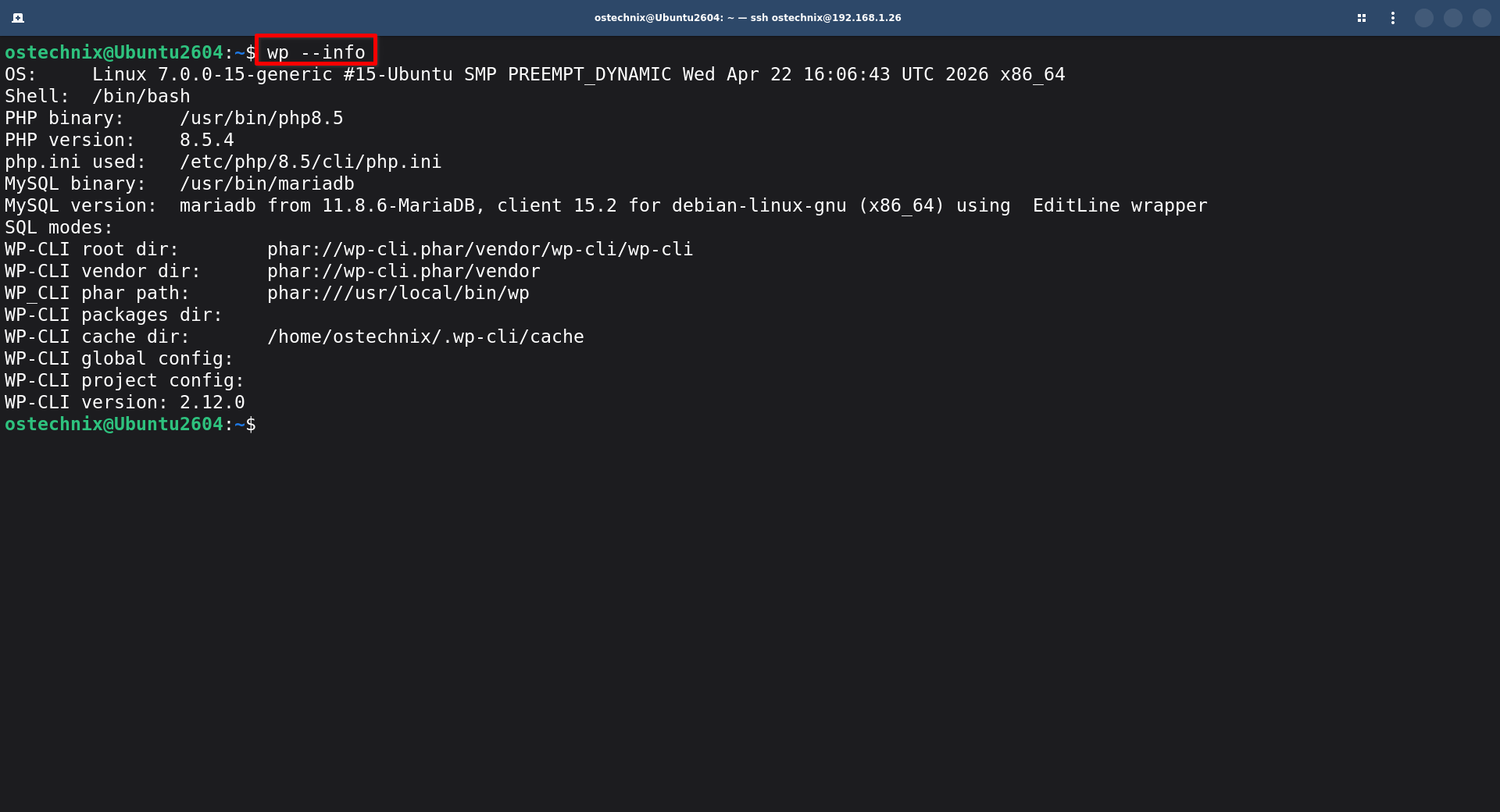
wp --info
If you see version and system information, WP-CLI is fully installed and ready to use. This is the output you should expect:
OS:	Linux 7.0.0-15-generic #15-Ubuntu SMP PREEMPT_DYNAMIC Wed Apr 22 16:06:43 UTC 2026 x86_64
Shell:	/bin/bash
PHP binary:	/usr/bin/php8.5
PHP version:	8.5.4
php.ini used:	/etc/php/8.5/cli/php.ini
MySQL binary:
MySQL version:
SQL modes:
WP-CLI root dir:	phar://wp-cli.phar/vendor/wp-cli/wp-cli
WP-CLI vendor dir:	phar://wp-cli.phar/vendor
WP_CLI phar path:	phar:///usr/local/bin/wp
WP-CLI packages dir:
WP-CLI cache dir:	/home/senthilkumar/.wp-cli/cache
WP-CLI global config:
WP-CLI project config:
WP-CLI version:	2.12.0
For the official installation documentation, visit: https://wp-cli.org/#installing.
Alternative Install Methods
The PHAR method above works on every system. However, two alternatives may suit your workflow better.
Ubuntu PPA (apt install)
If you manage Ubuntu or Debian servers and prefer installing tools through apt, a community-maintained PPA provides a packaged version of WP-CLI:
sudo add-apt-repository ppa:tiagohillebrandt/wp-cli
sudo apt update
sudo apt install wp-cli
The PPA is maintained by a community volunteer and may lag slightly behind the latest WP-CLI release. For the very latest version, use the PHAR method above. Verify which version you have with wp cli version after installing.
Composer Global Install
If you already use Composer in your PHP development workflow, you can install WP-CLI as a global Composer package:
composer global require wp-cli/wp-cli-bundle
Make sure your Composer global bin directory is in your $PATH. On most systems it is ~/.composer/vendor/bin or ~/.config/composer/vendor/bin:
export PATH="$HOME/.composer/vendor/bin:$PATH"
Add that line to your ~/.bash_profile to make it permanent. Then confirm WP-CLI works:
wp --info
The Composer method is ideal if you want WP-CLI pinned to a specific version in a project or if your team uses Composer for dependency management across tools.
Installing on Shared Hosting
Some shared hosts include WP-CLI pre-installed. Check your host's documentation or run wp --info directly after logging in via SSH. If it returns output, WP-CLI is already there.
If it is not pre-installed but your plan includes SSH access, you can run the PHAR file directly without moving it to a global path:
php wp-cli.phar --info
To make this slightly easier to type, add an alias to your ~/.bash_profile:
alias wp='php ~/wp-cli.phar'
Then reload the profile:
source ~/.bash_profile
After that, wp --info works as if it were installed globally.
Enable Tab Completion
WP-CLI supports tab completion in Bash, Zsh, and Fish. You can download the completion script from this link: https://github.com/wp-cli/wp-cli/raw/main/utils/wp-completion.bash.
For Bash, download the completion script and source it from ~/.bash_profile:
source /FULL/PATH/TO/wp-completion.bash
Then reload your profile:
source ~/.bash_profile
For Zsh with Oh My Zsh, add wp-cli to your plugins line in ~/.zshrc:
plugins=(wp-cli git ...)
For Fish shell, download wp.fish and place it in ~/.config/fish/completions/wp.fish. Fish sources it automatically when you type wp and press Tab.
Frequently Asked Questions (FAQ)
A: WP-CLI requires PHP 7.2.24 or later. The recommended version for 2026 is PHP 8.4. It is faster, actively supported, and the version most hosts currently use. Confirm yours with php --version.
A: PHP is installed but the php-mysql extension is missing. Install it with sudo apt install php-mysql (Ubuntu/Debian) or sudo dnf install php-mysqlnd (RHEL/Fedora). Then confirm it loaded with php -m | grep mysqli.
A: Replace --dbhost=localhost with --dbhost=127.0.0.1. This forces PHP to use a TCP connection instead of a Unix socket, which fixes the mismatch between PHP and MySQL socket paths on some systems.
A: Yes. Skip the sudo mv step and instead run the PHAR file directly with php wp-cli.phar <command>, or save it to a directory in your user PATH like ~/bin/wp and add ~/bin to your $PATH.
A: No. WP-CLI is a self-contained PHAR file and does not need reinstalling after a PHP update. However, run wp cli update periodically to keep WP-CLI itself current.
A: Run this command from anywhere:wp cli update
Check for available updates first without applying them:wp cli check-update
What Next
WP-CLI is installed and verified. You are now ready to start running commands. Continue to Part 3 of the WP-CLI series to learn essential WP-CLI commands:
That guide covers every command category in detail - plugins, themes, users, databases, multisite, automation scripts, CI/CD integration, custom commands, and security best practices. It also includes a full cheat sheet you can bookmark and return to any time.
Also in this series:
- Part 1: What Is WP-CLI and Why Every WordPress Pro Uses It
- Part 4: How to Create a Disposable WordPress Multisite Lab for Practicing WP-CLI
Found this guide useful? Share it with someone setting up WordPress for the first time. Drop any questions in the comments below.
