
This comprehensive guide covers exactly what WP-CLI is, how to install it, essential WP-CLI commands to manage WordPress from the command line, automation techniques, and security best practices.
As a complete WP-CLI command reference, this guide includes every command category you will use in real WordPress work (plugins, themes, users, databases, multisite, automation, CI/CD, security, and troubleshooting), with example commands and a full cheat sheet at the end.
Bookmark this page and return whenever you need a command.
Reading time: ~39 minutes
Level: Beginner to Advanced
Last updated: June 2026
Part 3 of 4 in the WP-CLI series
Table of Contents
Before You Start
Before running any command in this guide, make sure you have read Part 1 and Part 2, which will help you understand what WP-CLI is and how to install it on different operating systems.
- Part 1: What Is WP-CLI and Why Every WordPress Pro Uses It
- Part 2: How to Install WP-CLI in Linux, macOS and Windows
Now, confirm if WP-CLI is installed. To do so, open a terminal window and verify the wp command version details:
wp --info
Sample output:
OS:	Linux 7.0.0-15-generic #15-Ubuntu SMP PREEMPT_DYNAMIC Wed Apr 22 16:06:43 UTC 2026 x86_64
Shell:	/bin/bash
PHP binary:	/usr/bin/php8.5
PHP version:	8.5.4
php.ini used:	/etc/php/8.5/cli/php.ini
MySQL binary:
MySQL version:
SQL modes:
WP-CLI root dir:	phar://wp-cli.phar/vendor/wp-cli/wp-cli
WP-CLI vendor dir:	phar://wp-cli.phar/vendor
WP_CLI phar path:	phar:///usr/local/bin/wp
WP-CLI packages dir:
WP-CLI cache dir:	/home/senthilkumar/.wp-cli/cache
WP-CLI global config:
WP-CLI project config:
WP-CLI version:	2.12.0
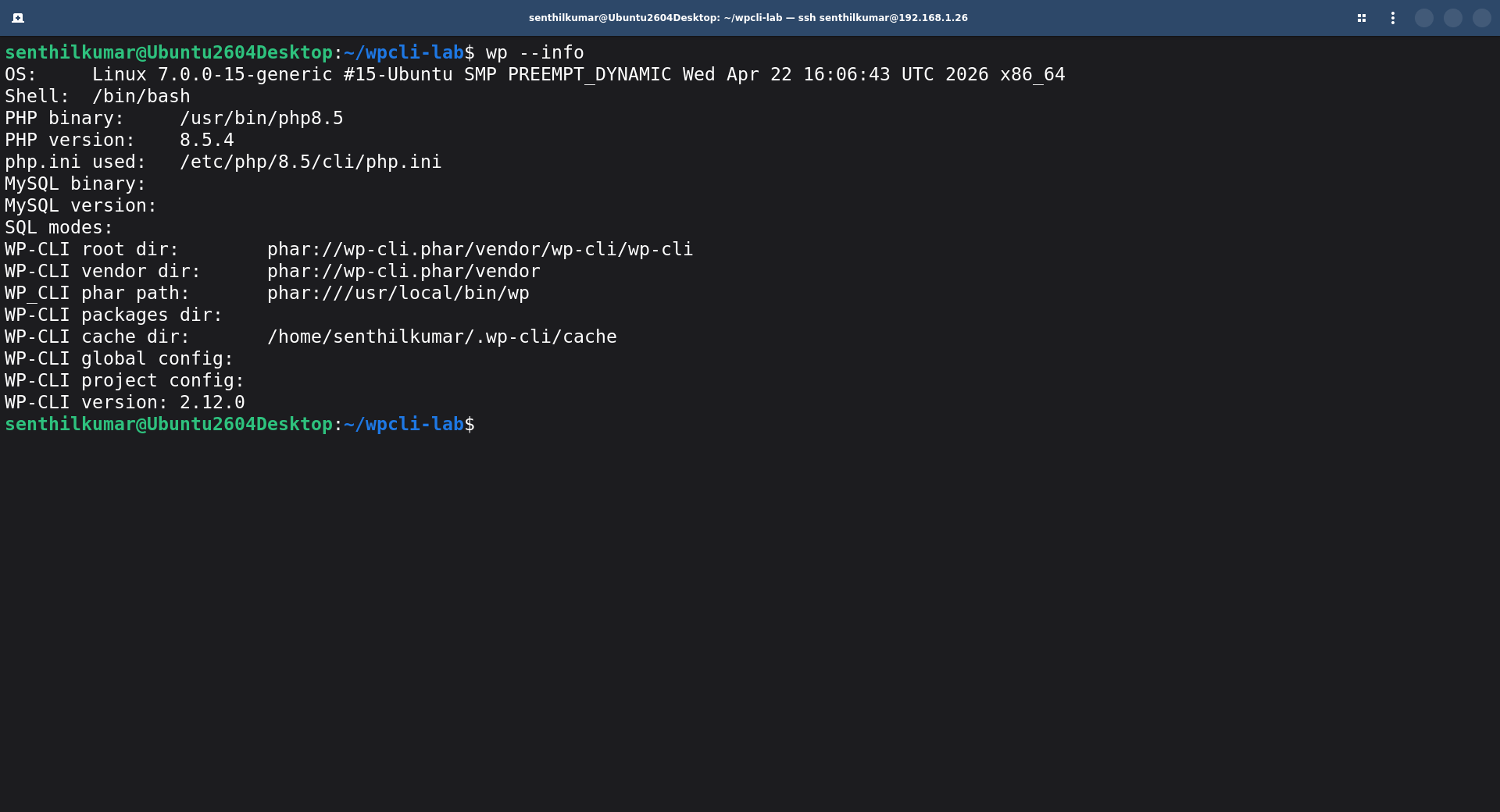
If you see version and system information, WP-CLI is fully installed and ready to use.
Core WordPress Commands
Every WP-CLI command follows the same pattern:
wp <command> <subcommand> [options]
Here are the core commands you will use most often.
Check WordPress Version
To see which version of WordPress is currently installed, run:
wp core version
Add --extra to see additional details about your installation.
Check Installation Status
To confirm WordPress is fully installed before running other commands, run:
wp core is-installed
This confirms whether WordPress is fully installed. It is especially useful inside scripts to prevent errors from running on an incomplete install.
Download WordPress Core
Download the latest WordPress using command:
wp core download
Sample output would be:
Downloading WordPress 7.0 (en_US)...
md5 hash verified: 3f931837b01ce4ef308de24fa802f014
Success: WordPress downloaded.
To download a specific version of WordPress (E.g. WordPress 6.7) in a specific language (E.g. English), run:
wp core download --version=6.7 --locale=en_US
Replace 6.7 with the version you need, and en_US with your locale code (for example en_GB, fr_FR, or de_DE). Leave both flags out to download the latest version in English.
Create wp-config.php
Generate the wp-config.php file using your database credentials:
wp config create \
  --dbname=my_database \
  --dbuser=my_user \
  --dbpass=my_password \
  --dbhost=localhost
Replace my_database, my_user, and my_password with your own values in the above command.
Install WordPress
Run the WordPress installer and create the admin account:
wp core install \
  --url="https://your-domain.com" \
  --title="My Site" \
  --admin_user=admin \
  --admin_password=StrongPassword123 \
  --admin_email=admin@your-domain.com \
  --skip-email
Replace the following with your actual values:
https://your-domain.com: your real domain on a live server (e.g.https://mysite.com), orhttp://localhost:8000if you are running a local practice lab. Do not typeexample.com- that is a real website owned by IANA.My Site: the name you want to appear in the browser tab and admin dashboardadmin: your preferred admin usernameStrongPassword123: a strong, unique passwordadmin@your-domain.com: a real email address you can access
This sets up a complete WordPress install in one command. No browser needed.
Check for Core Updates
To see whether a newer version of WordPress is available, run:
wp core check-update
Update WordPress Core
To update WordPress to the latest available version, run:
wp core update
Update the Database After a Core Update
To apply any database structure changes that come with a new WordPress version, run:
wp core update-db
Always run this after updating core. It applies any database structure changes the new version requires.
Verify Core Files
Check every WordPress core file against the official checksums and detect any modifications:
wp core verify-checksums
This checks every core file against the official WordPress checksums. Run it if you suspect your installation has been tampered with.
Get and Update Site Options
To read or change WordPress settings stored in the options table, use:
# Read the current site URL
wp option get siteurl

# Update the site name
wp option update blogname "My New Blog Name"

# List all stored options
wp option list
Replace "My New Blog Name" with the actual name you want to set.
Manage wp-config.php Constants
To read or change constants in your wp-config.php file without opening it manually, use:
# Read a specific constant
wp config get DB_NAME

# Enable debug mode
wp config set WP_DEBUG true --raw

# Refresh all security salts (recommended after a suspected breach)
wp config shuffle-salts

# List every constant and variable in wp-config.php
wp config list
Managing Plugins with WP-CLI
Plugin management is one of the most popular uses of WP-CLI. Furthermore, it is significantly faster than the dashboard, especially when you manage multiple sites.
Install a Plugin
Install a plugin from the WordPress.org plugin repository:
wp plugin install woocommerce
Add --activate to install and activate in one step:
wp plugin install woocommerce --activate
Install from a Local ZIP File
Install a plugin from a ZIP file you have already downloaded (for example, a premium plugin):
wp plugin install /path/to/my-plugin.zip --activate
This is particularly useful for premium plugins you have downloaded locally.
Install Multiple Plugins at Once
Install and activate several plugins in a single command:
wp plugin install akismet contact-form-7 wordfence --activate
Activate and Deactivate Plugins
wp plugin activate contact-form-7
wp plugin deactivate contact-form-7

# Deactivate all plugins at once
wp plugin deactivate --all
Update Plugins
# Update a specific plugin
wp plugin update woocommerce

# Update all plugins at once
wp plugin update --all

# See which plugins have updates available
wp plugin list --update=available
List Installed Plugins
# List all plugins
wp plugin list

# Filter by status
wp plugin list --status=inactive
wp plugin list --status=active
Delete a Plugin
wp plugin delete hello-dolly
This removes the plugin files completely, not just deactivates it.
Search the Plugin Repository
Search WordPress.org for plugins without leaving the terminal:
wp plugin search "contact form" --per-page=5
Get Detailed Plugin Information
View the version, description, author, and status of a specific plugin:
wp plugin get woocommerce
Managing Themes with WP-CLI
Just like plugins, you can fully manage themes from the command line.
Install and Activate a Theme
To install a theme from WordPress.org and set it as the active theme in one step, run:
wp theme install astra --activate
List All Themes
View all installed themes and their current status:
wp theme list
Switch the Active Theme
wp theme activate twentytwentyfive
Replace twentytwentyfive with the slug of the theme you want to activate. The theme must already be installed.
Update All Themes
Update every installed theme to its latest version:
wp theme update --all
Delete a Theme
Permanently remove a theme's files from the server:
wp theme delete twentytwentythree
Managing Navigation Menus with WP-CLI
Navigation menus are part of your site's structure. WP-CLI lets you create, list, and populate them without touching the dashboard, which is useful when scripting a full site setup.
List All Registered Menus
See all navigation menus and the theme location they are assigned to using command:
wp menu list
Create a New Menu
To create a new navigation menu, run:
wp menu create "Main Navigation"
Replace "Main Navigation" with your preferred menu name.
Add a Page to a Menu
Add an existing page to a menu by its post ID:
wp menu item add-post main-navigation 42 --title="About Us"
Replace main-navigation with the menu slug (from wp menu list), 42 with the page's post ID (from wp post list --post_type=page), and "About Us" with the link label.
Add a Custom Link to a Menu
Add a custom URL to a menu, for example, an external link:
wp menu item add-custom main-navigation "Blog" "https://mysite.com/blog"
Assign a Menu to a Theme Location
Assign a menu to a registered theme location:
wp menu location assign main-navigation primary
Replace primary with the theme location slug. Run wp menu location list to see all registered locations in your active theme.
Delete a Menu
To permanently remove a menu and all its items, run:
wp menu delete main-navigation
Managing Users with WP-CLI
WP-CLI gives you full control over WordPress users. As a result, you can create, update, delete, and manage roles and passwords without touching the dashboard.
Create a New User
Add a new user to WordPress with a specific role and password:
wp user create senthil senthil@mysite.com \
  --role=editor \
  --first_name=John \
  --last_name=Doe \
  --user_pass=SecurePassword123
Replace senthil with the username, senthil@mysite.com with the user's real email address, and editor with the desired role (administrator, editor, author, contributor, or subscriber).
List All Users
View all registered users on the site:
wp user list

# Filter by role
wp user list --role=administrator
Update a User's Role
Change an existing user's role:
wp user set-role senthil editor
Replace senthil with the username or user ID, and editor with the new role.
Reset a User's Password
Set a new password for a user:
wp user update senthil --user_pass=NewSecurePassword456
This is extremely useful when a client loses access and needs a quick password reset. No need to log into the dashboard at all.
Delete a User
Remove a user and reassign their content to another user using command:
wp user delete senthil --reassign=1
The --reassign flag moves that user's posts to another user ID before deletion. Without it, their posts become unassigned.
Generate Test Users
Create a batch of dummy users for testing membership plugins or user-based features:
wp user generate --count=10 --role=subscriber
Replace 10 with how many users you need, and subscriber with the role to assign them.
This creates dummy users instantly. It is great for testing membership plugins or user-based features during development.
List User Capabilities
View every capability assigned to a specific user:
wp user list-caps senthil
Working with the WordPress Database
The database is the heart of every WordPress site. WP-CLI makes it easy to query, export, import, and repair the database, without ever opening phpMyAdmin.
Export the Database
Save a full backup of your WordPress database to a .sql file:
wp db export backup.sql
Always run this before making major changes. It saves your entire database to a .sql file that you can restore at any time.
Import a Database
Restore a database from a backup file or migrate a site from another server:
wp db import backup.sql
Use this to restore a backup or migrate a site from one server to another.
Run a Custom SQL Query
Execute any SQL command directly against the WordPress database:
wp db query "SELECT * FROM wp_users;"
You can run any valid SQL command directly through WP-CLI.
Search and Replace in the Database
To find and replace a string across the entire database, for example when migrating to a new domain, run:
wp search-replace 'http://old-domain.com' 'https://new-domain.com'
This is one of the most powerful commands in WP-CLI. It correctly handles serialized data, something a plain SQL find-and-replace cannot do. Always preview changes first with --dry-run:
wp search-replace 'http://old-domain.com' 'https://new-domain.com' --dry-run
To replace across all database tables including custom plugin tables:
wp search-replace 'oldsite.com' 'newsite.com' --all-tables
Optimize and Repair the Database
wp db optimize  # Clean up overhead and improve database performance
wp db repair    # Repair corrupted database tables after a crash
wp db check     # Run an integrity check without making changes
Run optimize periodically to keep your database lean and fast. Run check after a server crash to look for corruption.
Check Database Size
See how much disk space your database uses:
wp db size --human-readable

# See the size of each individual table
wp db size --tables
Reset the Entire Database
To wipe all data and drop every table in the WordPress database, run:
wp db reset
Warning: This permanently deletes everything (posts, pages, users, settings, and all content). There is absolutely no undo. Always export your database first with
wp db exportbefore running this command.
Cache and Performance Commands
Flush the Object Cache
Clear all cached data stored by WordPress's object cache (or a caching plugin like Redis or Memcached):
wp cache flush
Run this after making changes that should immediately appear on the frontend.
Flush Rewrite Rules
Regenerate WordPress's URL rewrite rules after changing permalink settings or registering new post types:
wp rewrite flush
Run this after changing your permalink structure or registering new post types.
Delete Transients
Remove temporary cached data stored in the database.
# Delete all transients
wp transient delete --all

# Delete only expired transients
wp transient delete --expired
Use --expired for routine cleanup. Use --all only when you need a complete cache reset.
Regenerate Image Thumbnails
wp media regenerate
Run this after switching themes or adding new image sizes to regenerate all existing images.
Manage WordPress Multisite with WP-CLI
WordPress Multisite lets you run a network of sites from one WordPress installation. WP-CLI handles multisite tasks very well, and most operations simply need a small addition to standard commands.
Convert a Single Site to Multisite
To convert an existing single WordPress install into a multisite network, run:
wp core multisite-convert
Apache users: After running this command, you also need to update your
.htaccessfile with multisite rewrite rules. WP-CLI adds the constants towp-config.phpbut does not update.htaccessautomatically. Review the WordPress multisite documentation for the correct rewrite rules.
Install a Fresh Multisite Network
Set up a brand new WordPress multisite installation from scratch with command:
wp core multisite-install \
  --url="https://your-network-domain.com" \
  --title="My Network" \
  --admin_user=admin \
  --admin_password=StrongPassword123 \
  --admin_email=admin@your-domain.com
Replace https://your-network-domain.com with your real domain. Do not use example.com - that is a real website. Replace My Network, admin, StrongPassword123, and admin@your-domain.com with your own values.
List All Sites in the Network
See every site in your multisite network:
wp site list

# See more detail
wp site list --fields=blog_id,url,registered,last_updated
Create a New Subsite
Add a new site to your multisite network:
wp site create --slug=news --title="News Site" --email=news@your-domain.com
Replace news with the URL slug for the new subsite (e.g. shop, blog, client1). Replace "News Site" with the site's display name, and the email with a real address.
Delete a Subsite
Remove a subsite from the network:
# Move to deleted status
wp site delete 3

# Permanently delete without confirmation prompt
wp site delete 3 --yes
Replace 3 with the blog_id of the site you want to delete. Get the correct ID by running wp site list first.
Activate a Plugin Across the Entire Network
Activate a plugin on every site in the network at once:
wp plugin activate woocommerce --network
The --network flag is the key difference in multisite. Without it, the command only affects the current site.
Target a Specific Subsite
Use --url to run any command on a specific site within the network:
wp plugin list --url=https://your-network-domain.com/news
wp plugin update --all --url=https://your-network-domain.com/marketing
Replace https://your-network-domain.com/news with the full URL of the subsite you want to target. Get the correct URL from wp site list.
Bulk Operations Across All Network Sites
# Update plugins on every site in the network
for site in $(wp site list --field=url); do
  echo "Updating $site"
  wp plugin update --all --url=$site
done

# Clear cache on every site
for site in $(wp site list --field=url); do
  wp cache flush --url=$site
done

# Export database for every site
for site in $(wp site list --field=url); do
  site_slug=$(echo $site | cut -d'/' -f4)
  wp db export "${site_slug}-backup.sql" --url=$site
done

# Regenerate thumbnails network-wide
for site in $(wp site list --field=url); do
  wp media regenerate --yes --url=$site
done
Network-Wide User Management
# List all super admins
wp super-admin list

# Grant super admin privileges
wp super-admin add username

# Add a user role to every site in the network
wp site list --field=url | xargs -I {} wp user set-role manager --url={}
New Site Setup Workflow
When you onboard a new client to your multisite network, this script handles the full setup in seconds:
# Create the site
wp site create --slug=newclient --title="New Client Site" \
  --email=admin@newclient.com

# Activate required plugins on the new site
wp plugin activate contact-form-7 yoast-seo \
  --url=newclient.yournetwork.com

# Create default pages
wp post create --post_type=page --post_title="Home" \
  --post_status=publish --url=newclient.yournetwork.com
wp post create --post_type=page --post_title="About" \
  --post_status=publish --url=newclient.yournetwork.com
wp post create --post_type=page --post_title="Contact" \
  --post_status=publish --url=newclient.yournetwork.com

# Create the client's admin user
wp user create clientadmin client@email.com \
  --role=administrator --url=newclient.yournetwork.com
Domain Migration for Multisite
To replace the old network domain with a new one across every site in the network, run:
# Replace old domain across all sites
for site in $(wp site list --field=url); do
  wp search-replace 'oldnetwork.com' 'newnetwork.com' --url=$site
done
Automating WordPress Maintenance
Automation is where WP-CLI truly shines. When you combine it with shell scripts and cron jobs, you can put routine maintenance on complete autopilot.
Weekly Maintenance Script
Create a file called weekly-wordpress-maintenance.sh:
#!/bin/bash
# weekly-wordpress-maintenance.sh

# Navigate to WordPress directory
cd /var/www/html/wordpress

# Back up the database first
wp db export backups/backup-$(date +%Y%m%d-%H%M%S).sql

# Update everything
wp plugin update --all
wp theme update --all
wp core update
wp core update-db

# Clean up
wp cache flush
wp db optimize
wp transient delete --expired
wp rewrite flush

# Report completion
echo "Maintenance completed at $(date)"
Make it executable:
chmod +x weekly-wordpress-maintenance.sh
Test it manually before scheduling:
./weekly-wordpress-maintenance.sh
Schedule It with Cron
Open your crontab editor:
crontab -e
Add this line to run every Sunday at 3 AM:
0 3 * * 0 /path/to/weekly-wordpress-maintenance.sh > /var/log/wp-maintenance.log 2>&1
The > /var/log/wp-maintenance.log 2>&1 part saves all output to a log file so you can review it later.
Automated Daily Database Backup
#!/bin/bash
# daily-backup.sh

DATE=$(date +%Y-%m-%d)
BACKUP_DIR="/var/backups/wordpress"
SITE_DIR="/var/www/html"

mkdir -p "$BACKUP_DIR"
cd "$SITE_DIR"

wp db export "$BACKUP_DIR/db-backup-$DATE.sql" --allow-root
echo "Backup completed: db-backup-$DATE.sql"
Manage Multiple Sites from One Script
#!/bin/bash
# update-all-wordpress-sites.sh

SITES=(
  "/var/www/site1.com"
  "/var/www/site2.com"
  "/var/www/site3.com"
)

for site in "${SITES[@]}"; do
  echo "Updating $site..."

  # Backup first
  wp db export "$site/backup-$(date +%Y%m%d).sql" --path="$site"

  # Update
  wp plugin update --all --path="$site"
  wp theme update --all --path="$site"
  wp core update --path="$site"

  # Clean up
  wp cache flush --path="$site"

  echo "Completed $site"
  echo "---"
done

echo "All sites updated."
Automated Fresh WordPress Setup
If you frequently set up new sites, this script saves you enormous time:
#!/bin/bash
# setup-new-site.sh

wp core download
wp config create \
  --dbname=mydb \
  --dbuser=myuser \
  --dbpass=mypassword \
  --dbhost=localhost
wp core install \
  --url="https://example.com" \
  --title="New Site" \
  --admin_user=admin \
  --admin_password=admin123 \
  --admin_email=admin@example.com \
  --skip-email

# Remove default plugins
wp plugin delete hello-dolly
wp plugin delete akismet

# Install and activate essentials
wp plugin install wordfence contact-form-7 yoast-seo --activate
wp theme install astra --activate

echo "Site setup complete."
WP-CLI in Modern Development Workflows
WP-CLI integrates naturally with the tools modern developers already use. It bridges the gap between WordPress and contemporary DevOps practices.
WP-CLI with Docker
Docker is one of the best environments to practice WP-CLI safely. You can spin up a disposable WordPress site, run every command you want, and tear everything down without touching a live site.
The docker-compose.yml below uses tmpfs (RAM-only) volumes. As a result, all data wipes automatically the moment you stop the containers. No cleanup needed!
# docker-compose.yml
name: wp-cli-lab

services:

  db:
    image: mysql:8.0
    environment:
      MYSQL_ROOT_PASSWORD: rootpass
      MYSQL_DATABASE:      wordpress
      MYSQL_USER:          wpuser
      MYSQL_PASSWORD:      wppass
    tmpfs:
      - /var/lib/mysql
    healthcheck:
      test: ["CMD", "mysqladmin", "ping", "-h", "localhost", "-u", "root", "-prootpass"]
      interval: 5s
      timeout: 5s
      retries: 10
    networks: [wpnet]

  wordpress:
    image: wordpress:latest
    depends_on:
      db:
        condition: service_healthy
    environment:
      WORDPRESS_DB_HOST:     db
      WORDPRESS_DB_NAME:     wordpress
      WORDPRESS_DB_USER:     wpuser
      WORDPRESS_DB_PASSWORD: wppass
    tmpfs:
      - /var/www/html
    ports:
      - "8080:80"
    networks: [wpnet]

  wpcli:
    image: wordpress:cli
    depends_on:
      - wordpress
    environment:
      WORDPRESS_DB_HOST:     db
      WORDPRESS_DB_NAME:     wordpress
      WORDPRESS_DB_USER:     wpuser
      WORDPRESS_DB_PASSWORD: wppass
    volumes_from:
      - wordpress
    user: "33:33"
    working_dir: /var/www/html
    entrypoint: ["tail", "-f", "/dev/null"]
    networks: [wpnet]

networks:
  wpnet:
    driver: bridge
Start the environment:
docker compose up -d
Run WP-CLI commands:
docker compose exec wpcli wp --allow-root plugin list
docker compose exec wpcli wp --allow-root core install \
  --url="http://localhost:8080" \
  --title="WP-CLI Lab" \
  --admin_user=admin \
  --admin_password=admin123 \
  --admin_email=admin@mysite.com \
  --skip-email
Tear everything down when you are done:
docker compose down
All containers stop, all data disappears. It is a completely clean slate every time.
WP-CLI with GitHub Actions (CI/CD)
You can integrate WP-CLI directly into a GitHub Actions pipeline. This example sets up WordPress, installs your plugin, and runs verification checks on every push:
name: WordPress Tests
on: [push]

jobs:
  test:
    runs-on: ubuntu-latest
    steps:
      - uses: actions/checkout@v2

      - name: Setup PHP
        uses: shivammathur/setup-php@v2
        with:
          php-version: '8.2'

      - name: Install WP-CLI
        run: |
          curl -O https://raw.githubusercontent.com/wp-cli/builds/gh-pages/phar/wp-cli.phar
          chmod +x wp-cli.phar
          sudo mv wp-cli.phar /usr/local/bin/wp

      - name: Setup WordPress
        run: |
          wp core download --allow-root
          wp config create --dbname=test --dbuser=root \
            --dbpass=root --allow-root
          wp core install --url=localhost --title=Test \
            --admin_user=admin --admin_password=admin \
            --admin_email=test@test.com --allow-root

      - name: Run Tests
        run: |
          wp plugin activate my-plugin --allow-root
          wp plugin list --allow-root
          wp core verify-checksums --allow-root
Source: https://github.com/shivammathur/setup-php
Deployment Script
#!/bin/bash
# deploy.sh

# Pull latest code
git pull origin main

# Update Composer dependencies
composer install --no-dev

# Update WordPress core
wp core update

# Apply database updates
wp core update-db

# Update plugins
wp plugin update --all

# Clear all caches
wp cache flush
wp transient delete --all
wp rewrite flush

echo "Deployment complete at $(date)"
Sync Production Database to Local
#!/bin/bash
# sync-from-production.sh

# Export production database over SSH
ssh production "wp db export -" > production-db.sql

# Import into local environment
wp db import production-db.sql

# Replace production URLs with local URLs
wp search-replace 'https://production.com' 'http://localhost:8000'

# Update file paths if they changed
wp search-replace '/var/www/production' '/Users/dev/local-wp'

# Clear caches
wp cache flush
echo "Sync complete"
WordPress Studio
WordPress Studio is a free desktop application for local WordPress development. It comes with WP-CLI pre-configured and ready to use, which is perfect if you want to avoid the command line entirely for local setup. You can download it from: https://developer.wordpress.com/studio/.
Configuring WP-CLI with wp-cli.yml
wp-cli.yml is a configuration file that sits in your project root and lets you define default values and environment aliases. Instead of typing --path, --url, and --allow-root on every command, you set them once in this file and WP-CLI picks them up automatically.
Basic wp-cli.yml Setup
Create a file called wp-cli.yml in your WordPress root directory:
path: /var/www/html
url: https://yoursite.com
user: admin
Now wp plugin list automatically targets that path and URL without any flags.
Environment Aliases
The most powerful feature of wp-cli.yml is environment aliases. You define @local, @staging, and @production once, then run any command against any environment from your local terminal. No SSH session needed.
@local:
  path: /Users/yourname/sites/mysite

@staging:
  ssh: user@staging.yoursite.com
  path: /var/www/staging

@production:
  ssh: user@yoursite.com
  path: /var/www/html
To use an alias, prefix your command with @environment:
# Update plugins on staging
wp @staging plugin update --all

# Export the production database to your local machine
wp @production db export - > production-backup.sql

# Run search-replace on staging after pulling a production database
wp @staging search-replace 'yoursite.com' 'staging.yoursite.com'

# Check core version on all three environments at once
wp @local core version && wp @staging core version && wp @production core version
The wp-cli.yml file should be committed to version control. If it contains sensitive SSH credentials, use wp-cli.local.yml instead. WP-CLI reads both files, and .local.yml is ignored by Git if you add it to .gitignore.
Extending WP-CLI with Packages
WP-CLI's functionality does not stop at built-in commands. You can extend it with community-created packages that add entirely new capabilities.
What Are WP-CLI Packages?
Packages are third-party command sets for WP-CLI, similar to plugins for WordPress itself. The official package index lives at https://wp-cli.org/package-index/.
How to Install Packages
wp package install <package-name>
Recommended Packages
Doctor: site health diagnostics:
wp package install wp-cli/doctor-command
wp doctor check --all
This runs comprehensive health checks covering file permissions, core integrity, and common configuration issues.
Profile: performance profiling:
wp package install wp-cli/profile-command
wp profile stage --all
This identifies slow plugins, themes, and database queries. It is extremely useful when you need to find what is slowing a site down.
Login Command: instant magic login links:
wp package install aaemnnosttv/wp-cli-login-command
wp login create admin
This generates a one-time login URL that logs you in without a password. It is perfect for quick admin access during development.
Dist-Archive: create distribution ZIP files:
wp package install wp-cli/dist-archive-command
wp dist-archive . my-plugin.zip
Find: advanced content search:
wp package install wp-cli/find-command
wp find "search term" --field=post_title
Manage Installed Packages
wp package list
wp package update
wp package uninstall aaemnnosttv/wp-cli-login-command
Package Security
Only install packages from trusted sources. Packages have full access to your WordPress files and database. Packages from the official index are generally safe, but always review the source before installing anything you do not recognize.
Creating Custom WP-CLI Commands
Beyond packages, you can write custom commands directly inside your theme or plugin. Custom commands are especially valuable for agencies that manage many client sites with similar requirements.
Why Create Custom Commands?
Custom commands are useful for:
- Automating site-specific maintenance tasks
- Building developer tools for your own plugin
- Creating repeatable deployment scripts
- Running custom data migrations
Basic Custom Command
Add this to your theme's functions.php or a plugin file:
<?php
if ( defined( 'WP_CLI' ) && WP_CLI ) {

    class Custom_Maintenance_Command {

        /**
         * Clear all transients.
         *
         * ## EXAMPLES
         *
         *   wp maintenance clear-transients
         */
        public function clear_transients() {
            global $wpdb;
            $wpdb->query( "DELETE FROM $wpdb->options WHERE option_name LIKE '_transient_%'" );
            $wpdb->query( "DELETE FROM $wpdb->options WHERE option_name LIKE '_site_transient_%'" );
            WP_CLI::success( 'All transients cleared.' );
        }

        /**
         * Delete all spam comments.
         *
         * ## EXAMPLES
         *
         *   wp maintenance delete-spam
         */
        public function delete_spam() {
            $spam_comments = get_comments( [ 'status' => 'spam', 'number' => 0 ] );
            foreach ( $spam_comments as $comment ) {
                wp_delete_comment( $comment->comment_ID, true );
            }
            WP_CLI::success( sprintf( 'Deleted %d spam comments.', count( $spam_comments ) ) );
        }
    }

    WP_CLI::add_command( 'maintenance', 'Custom_Maintenance_Command' );
}
Use your new commands:
wp maintenance clear-transients
wp maintenance delete-spam
Custom Command with Arguments and Formats
<?php
if ( defined( 'WP_CLI' ) && WP_CLI ) {

    class User_Report_Command {

        /**
         * Generate a user report by role.
         *
         * ## OPTIONS
         *
         * <role>
         * : The user role to report on.
         *
         * [--format=<format>]
         * : Output format. Options: table, json, csv. Default: table.
         *
         * ## EXAMPLES
         *
         *   wp user-report generate administrator
         *   wp user-report generate subscriber --format=csv
         */
        public function generate( $args, $assoc_args ) {
            list( $role ) = $args;
            $users = get_users( [ 'role' => $role ] );
            $data  = [];

            foreach ( $users as $user ) {
                $data[] = [
                    'ID'         => $user->ID,
                    'Username'   => $user->user_login,
                    'Email'      => $user->user_email,
                    'Registered' => $user->user_registered,
                ];
            }

            $format = $assoc_args['format'] ?? 'table';
            WP_CLI\Utils\format_items( $format, $data, [ 'ID', 'Username', 'Email', 'Registered' ] );
        }
    }

    WP_CLI::add_command( 'user-report', 'User_Report_Command' );
}
Use it:
wp user-report generate administrator
wp user-report generate subscriber --format=csv > subscribers.csv
Custom Command with a Progress Bar
For long-running operations, a progress bar keeps the user informed:
public function all() {
    $attachments = get_posts( [
        'post_type'      => 'attachment',
        'post_mime_type' => 'image',
        'posts_per_page' => -1,
    ] );

    $progress = \WP_CLI\Utils\make_progress_bar(
        'Processing images',
        count( $attachments )
    );

    foreach ( $attachments as $attachment ) {
        $this->process_image( $attachment->ID );
        $progress->tick();
    }

    $progress->finish();
    WP_CLI::success( sprintf( 'Processed %d images.', count( $attachments ) ) );
}
For the complete command creation guide, visit: https://make.wordpress.org/cli/handbook/guides/commands-cookbook/.
Scaffolding Plugins and Themes with wp scaffold
wp scaffold generates boilerplate code for plugins, themes, and other WordPress components. Instead of copying a starter template manually, you run one command and get a correctly structured starting point instantly.
Scaffold a New Plugin
To generate a plugin with a standard file structure, readme, and PHPUnit test setup, run:
wp scaffold plugin my-plugin --plugin_name="My Plugin" \
  --plugin_description="A short description" \
  --plugin_author="Your Name" \
  --activate
Replace my-plugin with your plugin slug and fill in the other details. WP-CLI creates the folder, the main PHP file, readme.txt, and a basic test directory. Add --activate to activate it immediately after scaffolding.
Scaffold a Child Theme
To generate a child theme based on an existing parent theme, run:
wp scaffold child-theme my-child-theme --parent_theme=twentytwentyfive
Replace my-child-theme with your slug and twentytwentyfive with the installed parent theme's slug.
Scaffold a Custom Post Type
Generate the code for registering a custom post type inside a plugin or theme:
wp scaffold post-type product --label="Product" --textdomain=my-plugin
WP-CLI outputs the registration code directly to the terminal. Copy it into your plugin or theme file. This saves writing the register_post_type() boilerplate by hand and ensures the arguments follow WordPress standards.
Scaffold a Custom Taxonomy
Generate the code for registering a custom taxonomy:
wp scaffold taxonomy product-category --post_types=product --label="Product Category"
WP-CLI Security Best Practices
WP-CLI is a powerful tool, and with that power comes real security responsibility.
Never Run WP-CLI as Root
Running WP-CLI as root creates files that the web server cannot modify later. It also poses a serious security risk. Instead, find your web server user and run commands as that user:
# Find your web server user
ps aux | grep -E 'apache|nginx|httpd'

# Common users: www-data, apache, nginx
# Run as the correct user
sudo -u www-data wp plugin update --all
Fix File Ownership Problems
sudo chown -R www-data:www-data /var/www/html/wordpress
Restrict SSH Access
Only authorized users should have SSH access to servers where WP-CLI runs. WP-CLI has full access to your WordPress files and database, so a compromised SSH account means a compromised site. Use SSH keys instead of passwords for all authentication.
Never Store Credentials in Scripts
WP-CLI reads database credentials from wp-config.php automatically. Do not hardcode passwords into your shell scripts. Instead, use environment variables or rely on wp-config.php directly.
Protect wp-config.php
Set strict permissions on your config file so only the web server user can read it:
chmod 640 /var/www/html/wordpress/wp-config.php
sudo chown www-data:www-data /var/www/html/wordpress/wp-config.php
Always Use --dry-run Before Destructive Commands
Test dangerous commands before you commit to them:
wp search-replace 'old-domain.com' 'new-domain.com' --dry-run
This shows exactly what would change without actually changing anything.
Always Backup Before Major Changes
Run a database export before any of these operations:
wp db export pre-change-backup.sql
Do this before search-replace operations, WordPress version updates, plugin updates on production, and any database structure changes.
Use --no-color in Automated Scripts
When you redirect WP-CLI output to log files, use --no-color to keep the logs readable:
wp plugin update --all --no-color >> /var/log/wp-updates.log 2>&1
Limitations and Risks
WP-CLI is powerful, but it is also unforgiving. Understanding its limitations helps you avoid costly mistakes.
1. There Is No Undo Function
Command-line operations are permanent. Unlike the WordPress dashboard, there is no trash bin or revision history. For example, wp db reset deletes your entire database after just one confirmation. A single typo can cost you all your data. Because of this, always back up before running any destructive command.
2. Search-Replace Can Corrupt Serialized Data
WordPress stores some data in serialized PHP format. A naive string replacement breaks it and causes silent failures - plugins stop working, widget settings disappear, and theme options reset, even though the site still loads.
WP-CLI handles serialized data correctly when you use it properly. However, always use --dry-run first and test on a staging site before running on production.
3. Running as the Wrong User Causes Permission Errors
If you run WP-CLI as root or the wrong system user, it creates files your web server cannot read or write. As a result, WordPress cannot upload media or update its own files. Always run as www-data, apache, or whichever user your web server runs under.
4. Plugin Updates Can Break Sites
New plugin versions sometimes introduce bugs or compatibility issues. Moreover, updating 50 plugins at once makes it impossible to identify which one caused a problem. Because of this, always test updates on staging before running them on production. On high-traffic production sites, update plugins one at a time.
5. WP-CLI Does Not Validate Input
WP-CLI trusts you completely. It executes whatever command you give it. For instance, wp post delete $(wp post list --format=ids) deletes every post on your site with only one confirmation prompt. Double-check every command, especially those using subshell substitution, before you press Enter.
6. Large Database Operations Can Time Out
Search-replace on a multi-gigabyte database takes a long time. If your SSH connection times out mid-operation, the database ends up in an inconsistent state. To prevent this, wrap long-running commands in a screen or tmux environment:
screen -S wp-migration
wp search-replace 'old-domain.com' 'new-domain.com' --all-tables
If your connection drops, reconnect with screen -r wp-migration and the command keeps running.
Common Mistakes and How to Fix Them
Mistake 1: Running Commands as Root
Symptom: "Permission denied" errors in WordPress. Cannot upload media or update plugins through the admin.
Fix:
# Check file ownership
ls -la wp-content/

# Fix ownership
sudo chown -R www-data:www-data /var/www/html/wordpress

# Run future commands correctly
sudo -u www-data wp plugin update --all
Mistake 2: No Backup Before Database Changes
Symptom: Data loss after search-replace or database reset with no way to recover.
Fix: Make this a habit. Backup first, and then make changes:
wp db export backup-$(date +%Y%m%d-%H%M%S).sql
wp search-replace 'old-value' 'new-value'
Mistake 3: Running From the Wrong Directory
Symptom: "Error: This does not seem to be a WordPress install."
Fix: Navigate to the WordPress root directory first, or use --path:
cd /var/www/html/wordpress
wp plugin list

# Or from anywhere
wp plugin list --path=/var/www/html/wordpress
Mistake 4: Skipping --dry-run on Search-Replace
Symptom: Plugin settings break, widgets disappear, theme options reset after a search-replace.
Fix: Always preview first:
# Preview changes first
wp search-replace 'http://old.com' 'https://new.com' --dry-run

# Only run without dry-run if the preview looks correct
wp search-replace 'http://old.com' 'https://new.com'
Mistake 5: Scripts Continue After Failures
Symptom: Later commands in a script run against a broken state because an earlier command failed silently.
Fix: Add error handling to every script:
#!/bin/bash
set -e  # Exit immediately on any error

wp plugin update --all
if [ $? -ne 0 ]; then
  echo "Plugin update failed — stopping"
  exit 1
fi
wp theme update --all
Mistake 6: Updating Plugins Directly on Production
Symptom: Site breaks after a plugin update at 3 AM.
Fix: Use a staging-first workflow:
# Test on staging first
wp plugin update plugin-name --path=/var/www/staging

# After confirming it works, update production
wp plugin update plugin-name --path=/var/www/production
Mistake 7: Not Reading Command Output
Symptom: Automated scripts appear to run but nothing actually changes.
Fix: Always redirect output to a log file and review it:
wp plugin update --all --no-color > /var/log/wp-cli.log 2>&1
tail -f /var/log/wp-cli.log
Troubleshooting WP-CLI Errors
"This does not seem to be a WordPress install"
You are not in the WordPress root directory. Navigate there, or use --path:
cd /var/www/html/wordpress
wp plugin list
"Error establishing a database connection"
Your wp-config.php has incorrect credentials. Verify them:
wp config get DB_NAME
wp config get DB_USER
wp db check
"Warning: table 'wp_options' doesn't exist"
WordPress is not fully installed. Run the full install command:
wp core install --url=... --title=... --admin_user=... \
  --admin_password=... --admin_email=...
PHP Extension Warnings
Install the missing extensions:
# Ubuntu/Debian
sudo apt install php-mysql php-curl php-xml php-mbstring
sudo systemctl restart apache2

# Fedora/RHEL
sudo dnf install php-mysql php-curl php-xml php-mbstring
Permission Denied Errors
Run WP-CLI as the web server user, or fix file ownership:
sudo -u www-data wp plugin update --all
sudo chown -R www-data:www-data /var/www/html/wordpress
Memory Limit Errors on Large Operations
Increase the PHP memory limit for that single command:
php -d memory_limit=512M /usr/local/bin/wp search-replace 'old' 'new'
Or increase it permanently in your php.ini:
memory_limit = 512M
Getting Built-in Help
Every WP-CLI command has detailed built-in documentation:
wp help
wp help plugin
wp help plugin install
wp help search-replace
When NOT to Use WP-CLI
WP-CLI is not always the right tool. Use the WordPress admin dashboard when:
- Visual feedback matters: Theme customization, page builders, and visual editors need a browser.
- The task is quick and one-off: Clicking "update" on one plugin is faster than typing a command.
- You are unfamiliar with the task: Learn the manual process through the dashboard first. WP-CLI amplifies mistakes when you do not know what a command actually does.
- Complex content migrations: Specialized migration plugins handle edge cases better than manual commands.
- Working with non-technical stakeholders: Clients need visual confirmation of changes, not a terminal window.
WP-CLI Command Cheat Sheet
Core WordPress
wp core version                   # Show WordPress version
wp core check-update              # Check for updates
wp core update                    # Update to latest
wp core update-db                 # Update database after core update
wp core download                  # Download WordPress files
wp core verify-checksums          # Verify core file integrity
wp core install [options]         # Install WordPress
Plugins
wp plugin list                            # List all plugins
wp plugin list --status=active            # List active plugins
wp plugin list --update=available         # List plugins with updates
wp plugin install <name>                  # Install plugin
wp plugin install <name> --activate       # Install and activate
wp plugin update --all                    # Update all plugins
wp plugin update <name>                   # Update specific plugin
wp plugin activate <name>                 # Activate plugin
wp plugin deactivate <name>               # Deactivate plugin
wp plugin deactivate --all                # Deactivate all plugins
wp plugin delete <name>                   # Delete plugin files
wp plugin get <name>                      # Get plugin info
Themes
wp theme list                             # List all themes
wp theme install <name>                   # Install theme
wp theme install <name> --activate        # Install and activate
wp theme activate <name>                  # Switch active theme
wp theme update --all                     # Update all themes
wp theme update <name>                    # Update specific theme
wp theme delete <name>                    # Delete theme
Menus
wp menu list                              # List all menus
wp menu create "Menu Name"               # Create a menu
wp menu item add-post <menu> <post-id>   # Add page/post to menu
wp menu item add-custom <menu> "Label" <url>  # Add custom link
wp menu location assign <menu> <location>     # Assign to theme location
wp menu location list                    # List theme locations
wp menu delete <menu>                    # Delete a menu
Scaffold
wp scaffold plugin <slug>                # Generate plugin boilerplate
wp scaffold child-theme <slug> --parent_theme=<parent>  # Child theme
wp scaffold post-type <slug> --label=<label>  # Custom post type code
wp scaffold taxonomy <slug> --post_types=<type>  # Custom taxonomy code
Users
wp user list                              # List all users
wp user list --role=administrator         # Filter by role
wp user create <user> <email> --role=<r>  # Create user
wp user update <user> --user_pass=<pass>  # Update password
wp user update <user> --user_email=<e>    # Update email
wp user set-role <user> <role>            # Change role
wp user delete <user> --reassign=<id>     # Delete user
wp user generate --count=10               # Generate test users
wp user list-caps <user>                  # List user capabilities
wp super-admin list                       # List super admins
wp super-admin add <user>                 # Grant super admin
Posts and Pages
wp post list                              # List all posts
wp post list --post_type=page             # List pages
wp post list --post_status=draft          # List drafts
wp post create --post_title="T" --post_status=publish   # Create post
wp post update <id> --post_title="New T"  # Update post
wp post delete <id>                       # Delete post
wp post generate --count=50               # Generate test posts
wp post meta list <id>                    # List post meta
Database
wp db export                              # Export database
wp db export backup.sql                   # Export to specific file
wp db import backup.sql                   # Import database
wp db optimize                            # Optimize tables
wp db repair                              # Repair tables
wp db check                               # Check integrity
wp db size --human-readable               # Show database size
wp db size --tables                       # Size per table
wp db query "SQL HERE"                    # Run SQL query
wp db reset                               # Reset entire database (DESTRUCTIVE)
wp search-replace 'old' 'new'             # Search and replace
wp search-replace 'old' 'new' --dry-run   # Preview changes
wp search-replace 'old' 'new' --all-tables # Replace in all tables
Cache and Performance
wp cache flush                            # Flush object cache
wp rewrite flush                          # Flush rewrite rules
wp transient delete --all                 # Delete all transients
wp transient delete --expired             # Delete expired transients
wp media regenerate                       # Regenerate thumbnails
Comments
wp comment list                           # List comments
wp comment list --status=spam             # List spam
wp comment approve <id>                   # Approve comment
wp comment spam <id>                      # Mark as spam
wp comment delete $(wp comment list --status=spam --format=ids)  # Delete spam
wp comment generate --count=100           # Generate test comments
Configuration
wp config get DB_NAME                     # Read config value
wp config set WP_DEBUG true --raw         # Set config value
wp config shuffle-salts                   # Refresh security salts
wp config list                            # List all constants
Cron
wp cron event list                        # List scheduled events
wp cron event run --all                   # Run all cron events now
wp cron event delete <hook>               # Delete cron event
wp cron test                              # Test cron system
Multisite
wp site list                              # List all sites
wp site create --slug=<s>                 # Create new site
wp site delete <id> --yes                 # Delete site
wp plugin activate <p> --network          # Activate plugin network-wide
wp plugin list --url=site.example.com     # Target specific site
wp super-admin add <user>                 # Grant super admin
Import and Export
wp export                                 # Export to WXR
wp export --start_date=2024-01-01         # Export date range
wp import <file>.xml --authors=create     # Import WXR file
Maintenance Mode
wp maintenance-mode activate              # Enable maintenance mode
wp maintenance-mode deactivate            # Disable maintenance mode
wp maintenance-mode status                # Check status
WP-CLI Itself
wp cli version                            # Check WP-CLI version
wp cli update                             # Update WP-CLI
wp --info                                 # System information
wp help <command>                         # Built-in help
Useful Flags
--dry-run           # Preview changes without executing
--yes               # Skip confirmation prompts
--format=json       # Output as JSON
--format=csv        # Output as CSV
--format=table      # Output as table
--format=ids        # Output IDs only
--quiet             # No output
--debug             # Verbose output
--path=/path/to/wp  # Specify WordPress directory
--url=site.com      # Target specific site (multisite)
--allow-root        # Allow running as root (use with caution)
--no-color          # Disable colors (useful in log files)
--ssh=user@host     # Run command on remote server
wp-cli.yml Environment Aliases
# Run against a named environment defined in wp-cli.yml
wp @local plugin list
wp @staging plugin update --all
wp @production db export backup.sql
wp @production db export - > local-copy.sql   # Stream to local file

# Check version across all environments
wp @local core version && wp @staging core version && wp @production core version
Scripting Examples
# Daily backup
wp db export backups/db-$(date +%Y%m%d).sql && wp db optimize

# Full update cycle
wp core update && wp plugin update --all && wp theme update --all && wp cache flush

# Site health check
wp core verify-checksums && wp plugin verify-checksums --all && wp doctor check --all

# Complete maintenance in one line
wp db export backup.sql && wp plugin update --all && wp theme update --all \
  && wp core update && wp cache flush && wp db optimize && wp rewrite flush
Frequently Asked Questions (FAQ)
A: Yes. WP-CLI is completely free and open source, maintained under the MIT license by the WordPress community. You can use it on unlimited sites without any cost.
A: It depends on the host. Kinsta, WP Engine, Cloudways, and Pressable all support WP-CLI through SSH. However, some budget shared hosts block SSH entirely. Always check your hosting documentation before assuming it works.
A: SSH is the connection protocol that gives you terminal access to your server. WP-CLI is the tool you use inside that terminal to manage WordPress specifically. You need SSH to reach your server, then you use WP-CLI to interact with WordPress.
A: Yes, if you misuse it. Commands like wp db reset, wp post delete --all, or an incorrect search-replace can cause permanent data loss. Because of this, always take a database backup before running commands that modify data, and use --dry-run to preview destructive commands first.
A: Not for most tasks. The majority of WP-CLI commands follow a simple, readable pattern and are easy to learn within a day. That said, basic shell scripting knowledge helps if you want to build automation scripts. Creating custom commands requires PHP knowledge.
A: WP-CLI requires PHP 7.2.24 or later. Always verify your PHP version with php --version before installing.
A: Yes. Docker is actually one of the best environments to practice WP-CLI safely. The official wordpress:cli Docker image makes setup simple, and using tmpfs volumes means everything disappears automatically when you stop the containers. No leftover test data anywhere.
A: Yes. Use the --ssh flag to run commands on a remote server directly from your local machine:wp plugin update --all --ssh=user@yourserver.com
No need to SSH in first. WP-CLI handles the connection itself.
A: Check for updates monthly with wp cli check-update and apply them with wp cli update. Staying current ensures you get bug fixes and compatibility with the latest WordPress versions.
A: Yes. Use cron jobs for scheduled automation and shell scripts for complex multi-step workflows. This combination is one of the most powerful aspects of WP-CLI.
Final Thoughts
WP-CLI is one of the most valuable tools in any WordPress developer's toolkit. Whether you manage one site or a hundred, WP-CLI makes the work faster, cleaner, and more reliable. Moreover, when you combine it with shell scripts, cron jobs, and CI/CD pipelines, you build a WordPress workflow that practically runs itself. Once you start using it, going back to clicking through dashboards feels slow and inefficient.
The most important habits to build from day one are simple: back up before major changes, use --dry-run before destructive commands, and always run as the web server user. Do those three things consistently, and WP-CLI becomes genuinely indispensable.
Start small. Pick three or four commands from this guide and practice them on a test site, ideally a Docker environment so you can experiment freely without risk. After a short time, you will reach for the terminal naturally, and tasks that used to take minutes will take seconds.
Found this guide helpful? Share it with a fellow WordPress developer. And if you have a favourite WP-CLI tip not covered here, drop it in the comments below. We will review and update the guide.
Ready to practice everything in this guide safely? Check the following link to build a disposable local WordPress multisite lab where you can run every command without touching a live site:
WP-CLI Official Resources:
