
Docker is one of the most popular containerization platforms, allowing you to run applications in isolated environments. By default, Docker runs in rootful mode, meaning it uses the system's root privileges for managing containers. This setup is best for most users who want better compatibility and fewer configuration issues.
In this guide, you'll learn how to install and configure Docker engine and Docker compose on a clean Debian system using rootful mode.
Table of Contents
Why Choose Rootful Docker?
Rootful Docker means the Docker daemon runs as root and manages containers with elevated privileges.
Advantages:
- Full compatibility with most images and applications
- Easier networking and port mapping
- Better integration with system tools
Disadvantages:
- Less secure than rootless mode because the daemon runs with root privileges
Rootful Docker is perfectly okay if:
- You're the only user on the system.
- You run trusted images (e.g., official, verified sources).
- You don’t expose the Docker socket.
- You avoid privileged containers and dangerous capabilities.
This is why many production systems still use rootful Docker.
If security isolation is your top priority, you can later switch to Rootless Docker. We will post a guide about it soon.
Docker Requirements
To install and configure Docker, your system must meet the following minimum requirements.
- 64 bit Linux or Windows operating systems.
- If you're on Linux, the Kernel version should be 3.10 or above.
- An user account with
sudoprivileges. - VT (virtualization technology) support enabled on your system BIOS. [Read: How To Find If A CPU Supports Virtualization Technology (VT)]
- Your system should be connected to Internet.
Step 1. Update Your System
Keeping your system updated ensures you have the latest security patches.
To update your Debian system, run:
sudo apt update && sudo apt upgrade -y
Step 2. Uninstall Old Docker Versions (Optional)
Note: If it is freshly installed Debian system, you can skip this step.
If you have previously installed Podman, Docker, or other container runtimes, remove them first:
sudo apt remove -y docker docker-engine docker.io containerd runc podman
sudo apt autoremove -y
Also, delete any leftover repositories:
sudo rm /etc/apt/sources.list.d/docker.list
sudo rm /etc/apt/sources.list.d/podman.list
Step 3. Add the Official Docker Repository
Install dependencies:
sudo apt install -y ca-certificates curl gnupg lsb-release
Add Docker’s GPG key:
sudo mkdir -p /etc/apt/keyrings
curl -fsSL https://download.docker.com/linux/debian/gpg | sudo gpg --dearmor -o /etc/apt/keyrings/docker.gpg
Add the Docker repository:
echo "deb [arch=$(dpkg --print-architecture) signed-by=/etc/apt/keyrings/docker.gpg] https://download.docker.com/linux/debian $(lsb_release -cs) stable" | sudo tee /etc/apt/sources.list.d/docker.list > /dev/null
In latest Debian 13, it is recommended to modernize the apt sources.
To do so, run:
sudo apt modernize-sources
Update package lists:
sudo apt update
Step 4. Install Docker Engine and Docker Compose on Debian
To install docker engine, docker compose along with all required components in Debian 13, run:
sudo apt install -y docker-ce docker-ce-cli containerd.io docker-buildx-plugin docker-compose-plugin
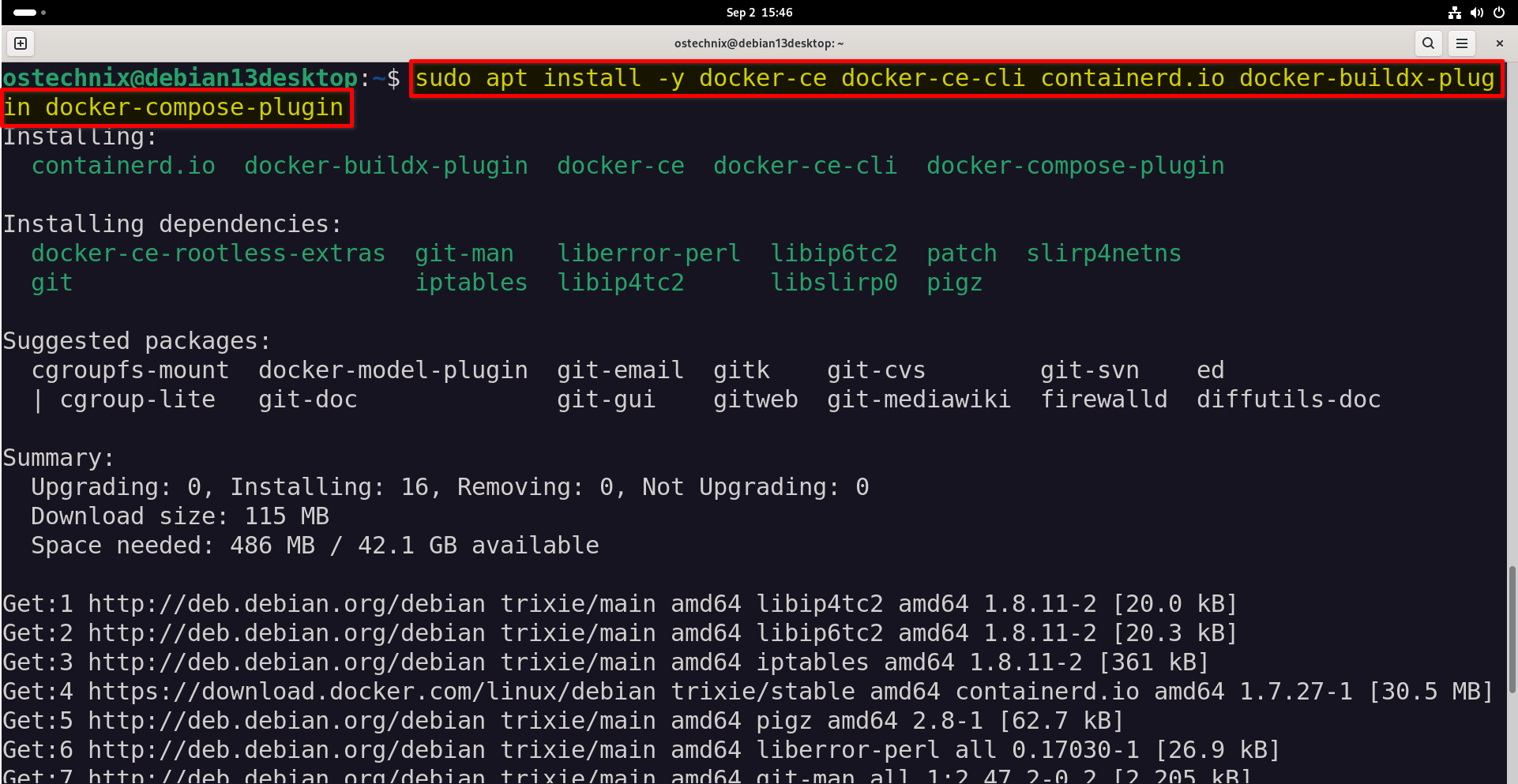
This command installs:
- Docker Engine
- Docker CLI
- Docker Compose plugin
Step 5. Enable and Start Docker
Enable the docker service on system startup using commands:
sudo systemctl enable docker
sudo systemctl start docker
Check the service status:
sudo systemctl status docker
Sample Output:
docker.service - Docker Application Container Engine
     Loaded: loaded (/usr/lib/systemd/system/docker.service; enabled; preset: enabled)
     Active: active (running) since Tue 2025-09-02 15:46:43 IST; 7min ago
 Invocation: a87449e79b744dbbb36c7bfd131415fc
TriggeredBy: \u25cf docker.socket
       Docs: https://docs.docker.com
   Main PID: 3427 (dockerd)
      Tasks: 9
     Memory: 21.9M (peak: 23.4M)
        CPU: 337ms
     CGroup: /system.slice/docker.service
             /usr/bin/dockerd -H fd:// --containerd=/run/containerd/containerd.sock
[...]
As you can see in the output above, the docker service is loaded and running.
Step 6. Verify Docker Installation
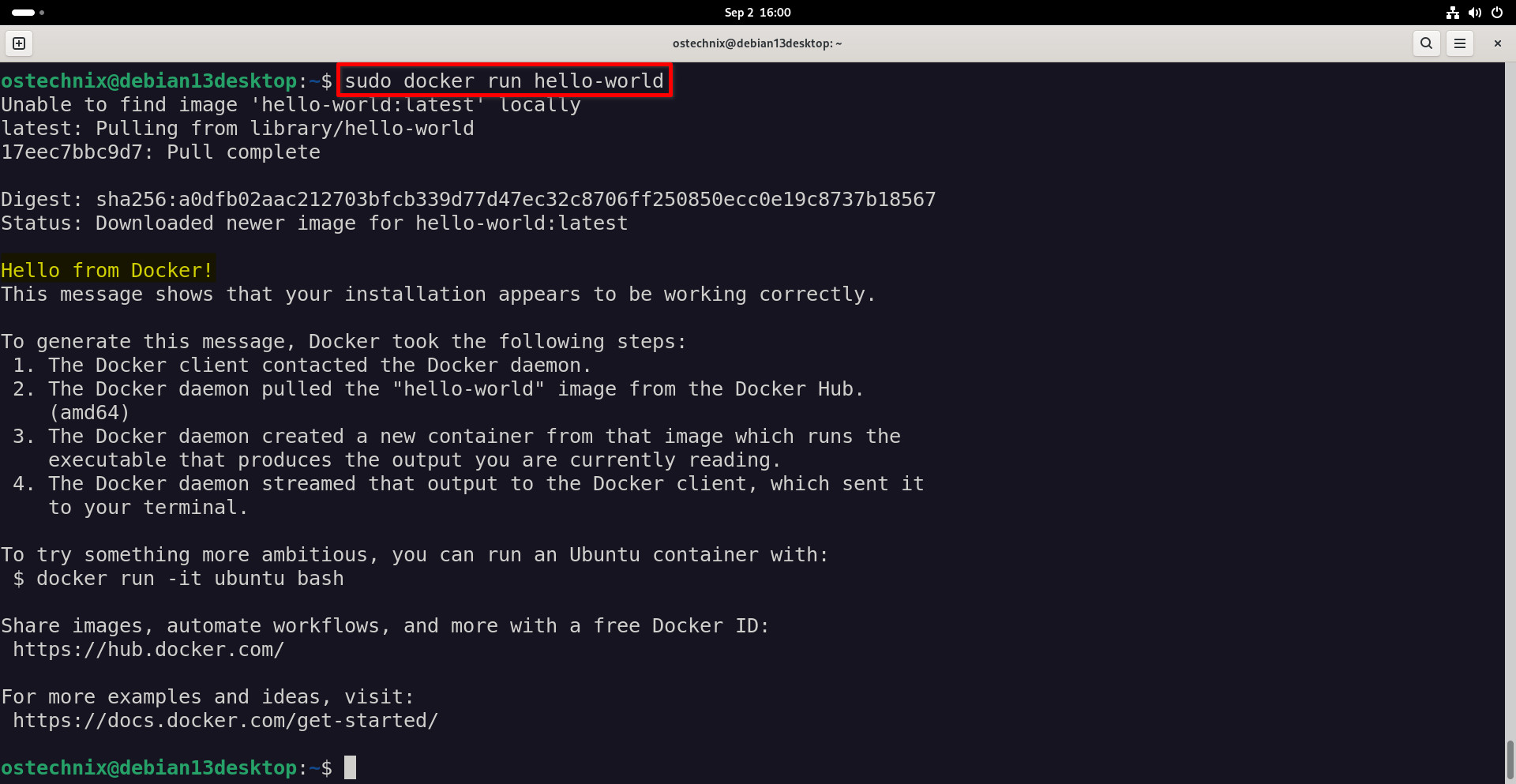
To make sure if Docker is properly installed and working, run the hello-world test container:
sudo docker run hello-world
If successful, you’ll see a confirmation message.
Unable to find image 'hello-world:latest' locally
latest: Pulling from library/hello-world
17eec7bbc9d7: Pull complete
Digest: sha256:a0dfb02aac212703bfcb339d77d47ec32c8706ff250850ecc0e19c8737b18567
Status: Downloaded newer image for hello-world:latest

Hello from Docker!
This message shows that your installation appears to be working correctly.

To generate this message, Docker took the following steps:
 1. The Docker client contacted the Docker daemon.
 2. The Docker daemon pulled the "hello-world" image from the Docker Hub.
    (amd64)
 3. The Docker daemon created a new container from that image which runs the
    executable that produces the output you are currently reading.
 4. The Docker daemon streamed that output to the Docker client, which sent it
    to your terminal.

To try something more ambitious, you can run an Ubuntu container with:
 $ docker run -it ubuntu bash

Share images, automate workflows, and more with a free Docker ID:
 https://hub.docker.com/

For more examples and ideas, visit:
 https://docs.docker.com/get-started/
Step 7: Check Docker Version
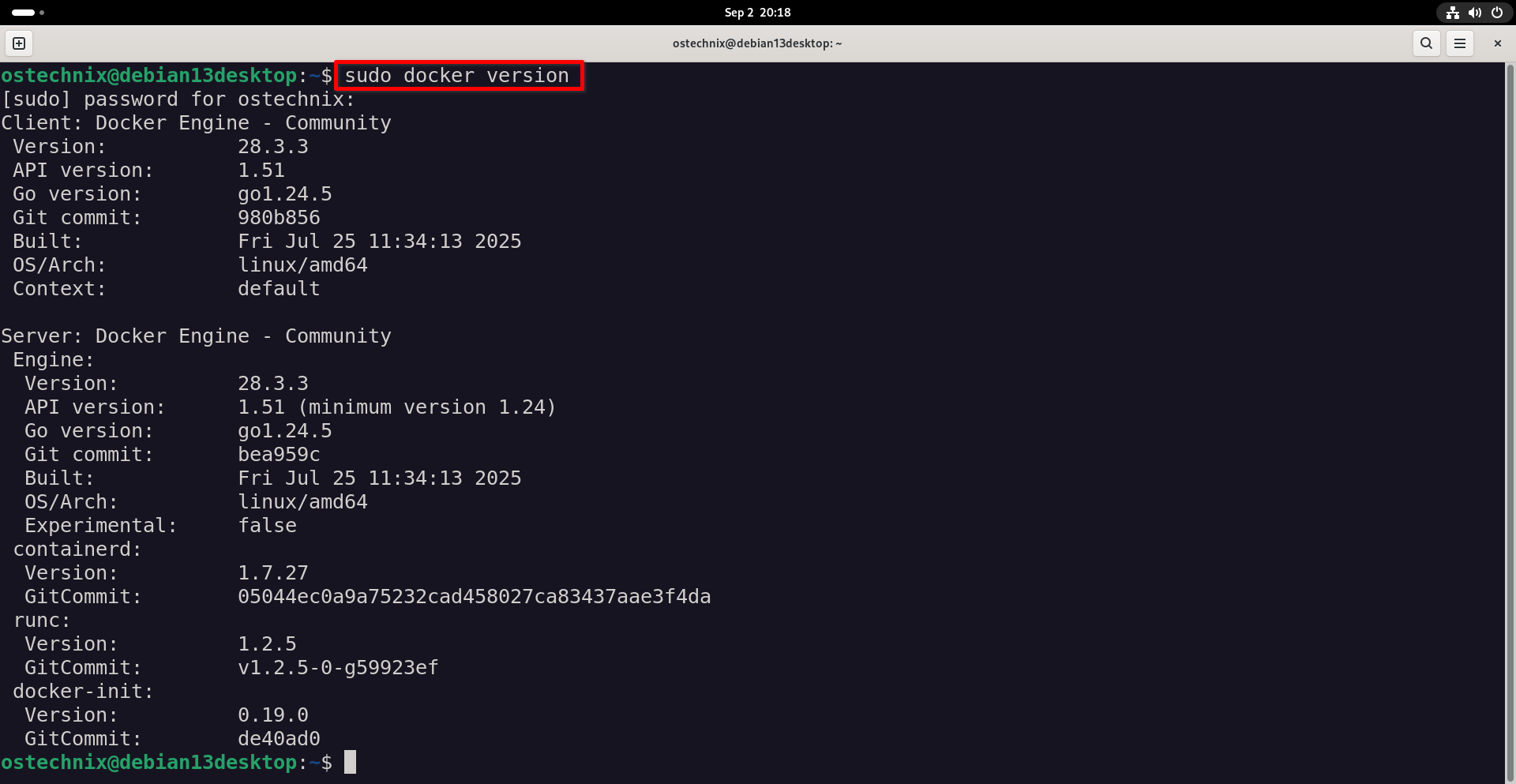
To verify the installed Docker version, run:
sudo docker version
Sample Output:
Client: Docker Engine - Community
 Version:           28.3.3
 API version:       1.51
 Go version:        go1.24.5
 Git commit:        980b856
 Built:             Fri Jul 25 11:34:13 2025
 OS/Arch:           linux/amd64
 Context:           default

Server: Docker Engine - Community
 Engine:
  Version:          28.3.3
  API version:      1.51 (minimum version 1.24)
  Go version:       go1.24.5
  Git commit:       bea959c
  Built:            Fri Jul 25 11:34:13 2025
  OS/Arch:          linux/amd64
  Experimental:     false
 containerd:
  Version:          1.7.27
  GitCommit:        05044ec0a9a75232cad458027ca83437aae3f4da
 runc:
  Version:          1.2.5
  GitCommit:        v1.2.5-0-g59923ef
 docker-init:
  Version:          0.19.0
  GitCommit:        de40ad0
Step 8. Manage Docker Without sudo (Optional)
By default, Docker requires root privileges.
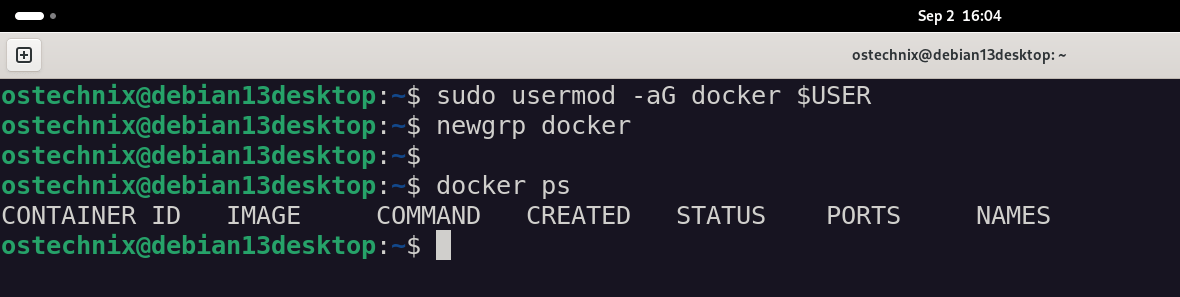
To manage containers without sudo, add your user to the docker group:
sudo usermod -aG docker $USER
newgrp docker
Now verify if you can be able to manage docker without using sudo:
docker ps
If no permission errors occur, you’re good to go.
Step 9. Check If Docker Is Running in Rootful Mode
Run:
sudo docker info | grep -i rootless
If you see nothing, Docker is running in rootful mode.
Check who runs the daemon process:
ps aux | grep dockerd
Sample Output:
root 3427 0.0 1.0 2045556 84480 ? Ssl 15:46 0:00 /usr/bin/dockerd -H fd:// --containerd=/run/containerd/containerd.sock
Here,
- The
dockerdprocess is running as root. So it confirms rootful Docker. - The daemon is using the system containerd socket:
/run/containerd/containerd.sock.
Step 10. Enable Docker Compose
Docker now includes Compose as a plugin:
docker compose version
If you need most recent version, you can download the standalone Compose binary from Docker Compose GitHub official releases page:
sudo curl -L "https://github.com/docker/compose/releases/download/$(curl -s https://api.github.com/repos/docker/compose/releases/latest | grep tag_name | cut -d '"' -f4)/docker-compose-$(uname -s)-$(uname -m)" -o /usr/local/bin/docker-compose
sudo chmod +x /usr/local/bin/docker-compose
docker-compose --version
Step 11: Getting Started with Docker
After installing you can start deploying your containerized applications in Docker. We have compiled a detailed guide on Docker usage with examples. Please check the following link:
[Optional] Migrate to Rootless Docker
Rootless mode allows you to run Docker without root privileges for improved security.
A few important benefits of rootless Docker mode are:
dockerdruns as your normal user.- Even if a container escapes, it only has user-level access on the host.
- Provides stronger isolation, especially on shared or untrusted environments.
Rootless Docker is worth considering if:
- You're in a multi-user environment.
- You use untrusted images.
- You want stronger defense-in-depth.
- You need to meet strict compliance/security policies.
Please note that rootless Docker isn't a silver bullet, but it makes container breakouts less catastrophic.
If you want maximum isolation and peace of mind, especially when experimenting with third-party images, switch to rootless Docker as explained in the guide below.
Troubleshooting
1. Old Repository Conflicts
If you accidentally added a Ubuntu repo for Docker on Debian, you can remove it:
sudo rm /etc/apt/sources.list.d/docker.list
sudo apt update
And then add the correct repository for your Debian system.
2. Docker Daemon Not Starting
Restart the Docker service and check logs for potential clues:
sudo systemctl restart docker
sudo journalctl -u docker --no-pager
3. Port Conflicts
Make sure the ports you map in containers are not already in use:
sudo ss -tulnp | grep 8000
Frequently Asked Questions (FAQs)
A: Rootful: Easier setup, better compatibility and recommended for most users.
Rootless: More secure, but slightly harder to configure.
A: Uninstall rootful Docker and follow the official Rootless Docker Installation Guide. You can also use Podman, which runs in rootless mode by default.
A: Yes, Docker Compose v2 is included as a plugin.
Conclusion
In this step-by-step guide, we learned how to install and configure Docker engine in Rootful mode in latest Debian 13 system. We also covered how to install Docker compose and some common troubleshooting tips.
Suggested Read:
- Setup Docker And Docker Compose With DockSTARTer
- How To Automatically Update Running Docker Containers
- ctop – A Commandline Monitoring Tool For Linux Containers
- Portainer – An Easiest Way To Manage Docker
- PiCluster – A Simple, Web-based Docker Management Application
- Dockly - Manage Docker Containers From Terminal
