
Have you ever felt like you have too many computers to look after? Maybe you have websites, personal servers, or play around with coding projects on different machines. Managing your entire server infrastructure and getting into each device can be a bit of a headache, right?
Well, say hello to XPipe! Think of it as your one-stop shop for managing all your servers and online spaces from your very own computer. It's like having a control centre for your entire server infrastructure, right on your desktop.
Table of Contents
What is XPipe?
XPipe is a desktop application designed for managing your entire server infrastructure directly from a local machine. It acts as a central hub for various remote connections, such as SSH, containers (like Docker and Kubernetes), virtual machines, and more, without requiring any setup on the remote systems themselves.
XPipe integrates with existing command-line tools, terminals, and editors, offering features like file management, terminal launching, and a versatile scripting system. For remote access in a browser, XPipe also offers a Webtop Docker container image.
While the core application is open source, additional features are available through paid plans. XPipe supports Linux, Windows, and macOS.
XPipe Features
1. Everything in One Place:
Instead of using lots of different programs to connect to your servers, XPipe puts them all together. You can organise your connections neatly, so you always know where everything is.
2. Uses What You Already Have:
The best part? You don't need to install anything special on your servers. XPipe works with the tools you probably already use, like ssh (a common way to talk to servers). If you can use those tools now, you can use XPipe!
3. Simple File Management:
Need to grab a file from a server or put a new one on? XPipe lets you see and touch the files on your servers in a way that's easy to understand. You can even open and edit files using the programs on your own computer.
4. Quickly Open Terminals:
If you're someone who likes using command lines (those black screens with text), XPipe makes it super fast to open a terminal on any of your servers with just one click. It can even remember passwords for you.
5. Keeps Your Secrets Safe:
XPipe stores all your important login details and server information safely on your own computer in a secure vault. It doesn't send your private information anywhere else.
6. Access From Anywhere (Almost!):
While XPipe is a desktop app, they also have something called XPipe Webtop. This is like a mini computer inside a box (called a Docker container) that you can access through your web browser. So, if you're away from your main computer, you might still be able to manage things.
7. Plays Well With Others:
XPipe works with lots of different kinds of servers and tools you might be using, like Docker (for running apps in containers), Kubernetes (for managing lots of containers), and even virtual machines.
Supported Connections
XPipe currently supports a wide range of tools, systems, and connection types. Here's a breakdown of what XPipe supports:
1. Connection Types and Protocols:
- SSH connections, config files, and tunnels. This includes full support for your existing SSH client, SSH config files (including wildcard definitions and include statements), SSH agents, jump servers, and all types of SSH tunnels (local, remote, and dynamic).
- Tailscale and Teleport connections.
- RDP and VNC connections. XPipe can tunnel these connections over SSH, eliminating the need to expose the ports directly.
2. Container Runtimes and Orchestration:
- Docker, Podman, LXD, and incus containers. XPipe can automatically detect containers on local and remote systems, allowing you to access their file systems, open shell sessions, and manage their state (start, stop, inspect logs).
- Kubernetes clusters, pods, and containers. XPipe can automatically detect your
kubectlclient and connected clusters, allowing you to access container file systems, open shell sessions, and manage pod configurations.
3. Virtualisation Platforms:
- Proxmox PVE virtual machines and containers. XPipe allows you to jump into shell sessions of remote VMs via SSH and control their state.
- Hyper-V, KVM, VMware Player/Workstation/Fusion virtual machines. Similar to Proxmox, XPipe integrates with these hypervisors to manage and access VMs.
4. Operating System Environments:
- Windows Subsystem for Linux (WSL), Cygwin, and MSYS2 environments. XPipe can integrate with these local environments.
- Powershell Remote Sessions.
5. Integration with Local Tools:
- Your favourite text/code editors, terminals, shells, command-line tools and more. XPipe is designed to work on top of your existing tools.
- Password managers via their command-line interface for retrieving secrets automatically.
- Git for synchronising connection information across systems. XPipe integrates with your existing Git client.
- VSCode for launching its SSH remote development feature for compatible connections.
6. Terminal and Shell Support:
- Support for all commonly used terminal emulators across all operating systems.
- Works with all common command shells such as bash, zsh, cmd, PowerShell, and more, both locally and remote.
Please note that XPipe achieves much of this by leveraging your existing command-line tools. It does not require any special setup on your remote systems beyond what you would normally need to connect with those tools.
Who Should Use XPipe?
If you ever find yourself:
- Connecting to more than one server.
- Wanting an easier way to see and manage your server files.
- Tired of typing in long commands all the time.
- Looking for a safer way to keep your server details.
- Wanting to manage your servers from a simple, central place.
Then XPipe could be a great tool for you!.
Is XPipe Free?
XPipe has a free version for personal use, which lets you manage unlimited connections and files. They also have paid plans with extra features for more advanced users or teams.
Install XPipe Server Manager on Linux
As I already mentioned, XPipe supports Linux, macOS, and Windows. The following steps cover all possible methods to install XPipe on various Linux distributions.
Method 1: Using Installation Script (Quickest Method)
This is often the fastest way to get XPipe on your system, as it tries to automatically detect your distribution and use the appropriate package manager.
Open your terminal and run the following command:
bash <(curl -sL https://github.com/xpipe-io/xpipe/raw/master/get-xpipe.sh)
This script will attempt to install XPipe using your system's package manager (apt, dnf, yum, zypper, rpm, or pacman).
Method 2: Using Package Managers (Distribution Specific)
Install XPipe in Arch Linux
There is an official AUR (Arch User Repository) package available.
If you have an AUR helper like paru or yay installed (recommended):
yay -S xpipe
If you don't have an AUR helper:
git clone https://aur.archlinux.org/packages/xpipe
cd xpipe
makepkg -sirc
This will download the necessary files, build the package, and install it.
Install XPipe on Debian-based distributions (Debian, Ubuntu, Mint, etc.)
You have a couple of options here: using the .deb installer directly or adding the official APT repository.
Option a: Using the .deb Installer
First, download the appropriate .deb installer for your architecture (x86-64 or ARM 64) from the XPipe downloads page. You can use wget for this, for example:
wget https://github.com/xpipe-io/xpipe/releases/latest/download/xpipe-installer-linux-x86_64.deb
(Replace x86_64 with arm64 if needed)
Navigate to the directory where you downloaded the file using the cd command. and Install the package using apt:
sudo apt install ./xpipe-installer-linux-*.deb
Important: Please use apt for installing .deb packages as other package managers like dpkg might not handle dependencies correctly.
Option b: Using the APT Repository
This method allows for easier installation and upgrades through the standard apt commands.
Install the necessary packages wget and gpg:
sudo apt install wget gpg
Download the XPipe GPG key:
wget -qO- https://xpipe.io/signatures/crschnick.gpg > xpipe.gpg
Install the GPG key:
sudo install -D -o root -g root -m 644 xpipe.gpg /etc/apt/keyrings/xpipe.gpg
Add the XPipe repository to your APT sources:
sudo sh -c 'echo "deb [signed-by=/etc/apt/keyrings/xpipe.gpg] https://apt.xpipe.io/ stable main" > /etc/apt/sources.list.d/xpipe.list'
Update your package lists and install XPipe::
sudo apt update
sudo apt install xpipe
You can also install early access builds by replacing xpipe with xpipe-ptb.
Finally, remove the temporary GPG key file:
rm xpipe.gpg
Install XPipe on RHEL-based distributions (Red Hat, CentOS, Fedora, etc.)
Similar to Debian, you can use the .rpm installer or add the official RPM repository.
Option a: Using the .rpm Installer
Download the appropriate .rpm installer for your architecture (x86-64 or ARM 64) from the XPipe downloads page.
For example:
wget https://github.com/xpipe-io/xpipe/releases/latest/download/xpipe-installer-linux-x86_64.rpm
(Replace x86_64 with arm64 if needed)
Navigate to the directory where you downloaded the file.
Import the XPipe GPG key** to verify the release signature:
sudo rpm --import https://xpipe.io/signatures/crschnick.asc
Install the package using a package manager that supports dependency resolution** like yum or dnf:
For yum:
sudo yum install ./xpipe-installer-linux-*.rpm
For dnf:
sudo dnf install ./xpipe-installer-linux-*.rpm
Option b: Using the RPM Repository
This allows for easy installation and updates via your distribution's package manager.
Import the XPipe GPG key:
sudo rpm --import https://xpipe.io/signatures/crschnick.asc
Add the XPipe repository:
For yum:
sudo yum install yum-config-manager
sudo yum-config-manager --add-repo https://rpm.xpipe.io/xpipe.repo
For dnf 4:
sudo dnf config-manager --add-repo https://rpm.xpipe.io/xpipe.repo
For dnf 5:
sudo dnf config-manager addrepo --from-repofile=https://rpm.xpipe.io/xpipe.repo
For zypper:
sudo zypper ar -f https://rpm.xpipe.io xpipe
Install XPipe:
For yum:
sudo yum install xpipe --refresh
For dnf:
sudo dnf install xpipe
For zypper:
sudo zypper install xpipe
You can install early access builds by replacing xpipe with xpipe-ptb in the repository configuration and install command.
Install XPipe on NixOS
There's an official Nixpkg, but it might not always be the latest version. A custom repository with up-to-date releases also exists.
Option a: Official Nixpkg
Install XPipe:
nix-env -iA nixos.xpipe
Option b: Custom Repository
Follow the instructions provided in the linked repository: https://github.com/xpipe-io/nixpkg. This repository will have the most up-to-date instructions for installing XPipe.
Method 3: Install XPipe using Portable Archive (.tar.gz or .AppImage)
These versions can be extracted and run without full installation.
Option a: .tar.gz Archive
Download the appropriate .tar.gz archive for your architecture from the XPipe downloads page. For example:
https://github.com/xpipe-io/xpipe/releases/latest/download/xpipe-portable-linux-x86_64.tar.gz
(Replace x86_64 with arm64 if needed)
Navigate to the directory where you downloaded the file and extract the archive:
tar -xzvf xpipe-portable-linux-*.tar.gz
Navigate into the extracted directory:
cd xpipe-portable-linux-*
Run the XPipe executable:
./XPipe
Note: The portable version assumes you have some basic graphical system packages already installed.
Option b: .AppImage
Download the appropriate .AppImage file for your architecture from the XPipe downloads page. For example:
wget https://github.com/xpipe-io/xpipe/releases/latest/download/xpipe-portable-linux-x86_64.AppImage
(Replace x86_64 with arm64 if needed)
Navigate to the directory where you downloaded the file and make the .AppImage executable:
chmod +x xpipe-portable-linux-x86_64.AppImage
Run XPipe by double-clicking the file in your file manager or by executing it in the terminal:
./xpipe-portable-linux-x86_64.AppImage
Note: Similar to the .tar.gz version, the .AppImage also assumes some basic graphical packages are present.
Choose the installation method that best suits your Linux distribution and your comfort level with command-line tools. The package manager methods are generally recommended for easier updates in the future.
Getting Started with XPipe Server Manager
Access XPipe Dashboard
Launch the XPipe application from the Menu or command line as shown above.
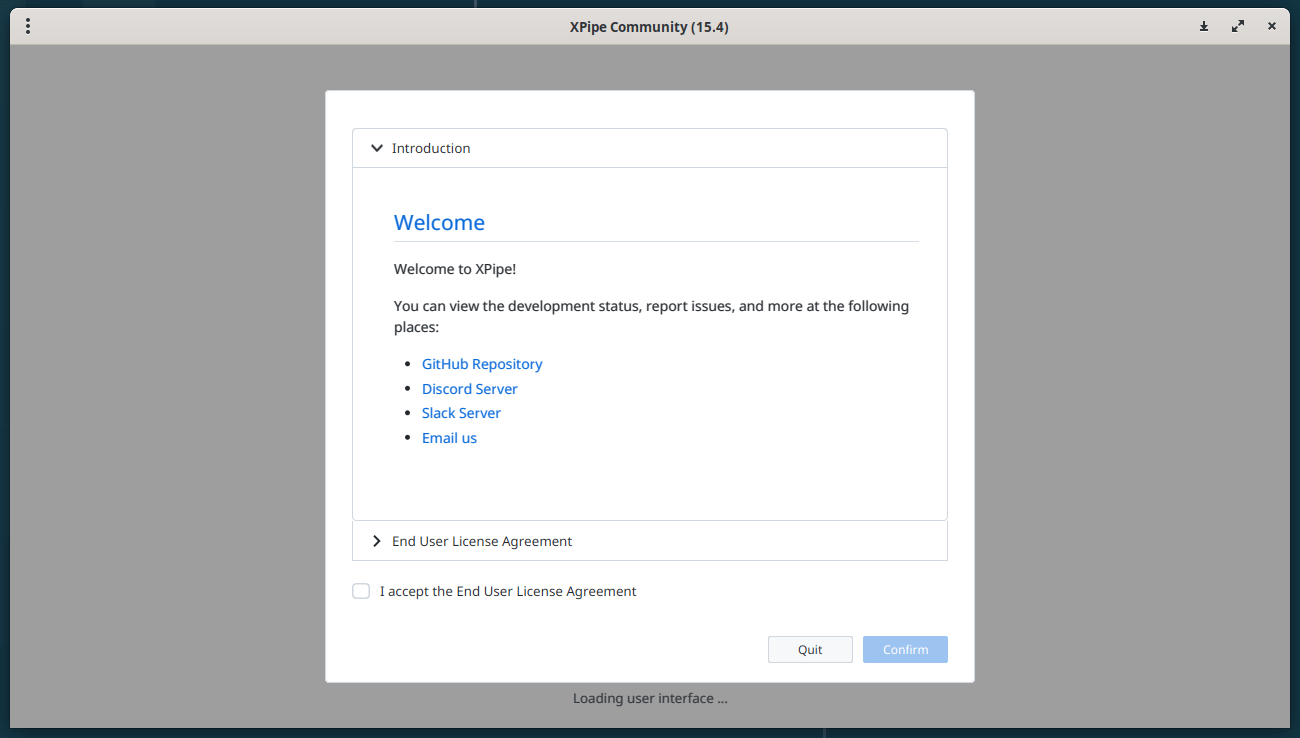
You will be greeted with license agreement. Just check the "I accept…" check box and click Confirm.
This is how XPipe default dashboard looks like in my Debian 12 desktop system.
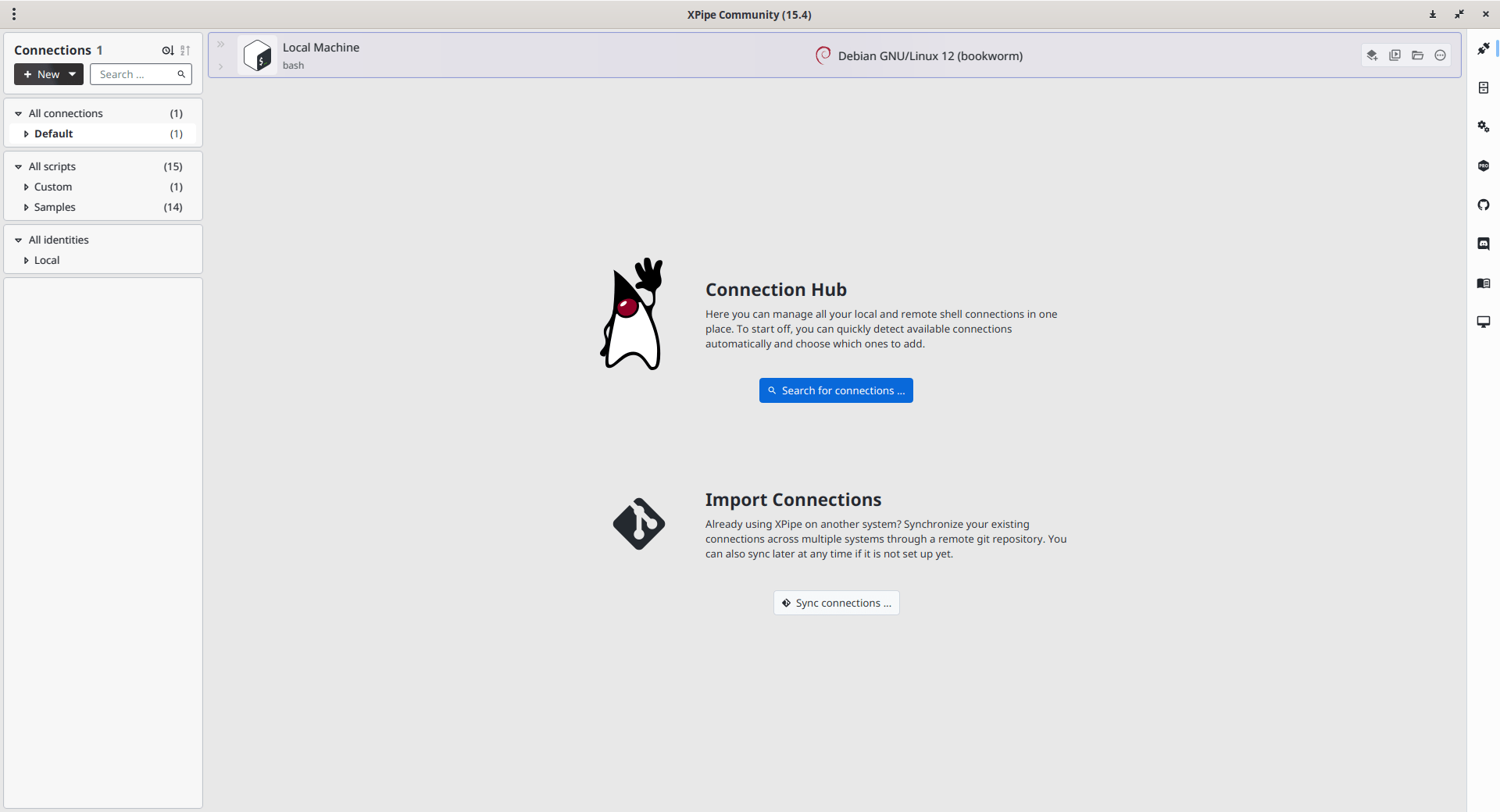
Now, it's time to add remote servers that you want to manage from the XPipe dashboard from your local machine.
Add Connections on Remote Systems
XPipe acts as a connection hub that orchestrates and interacts with the existing local command-line tools to automatically establish connections with remote systems.
Click the "Search for Connections" option from the Dashboard.
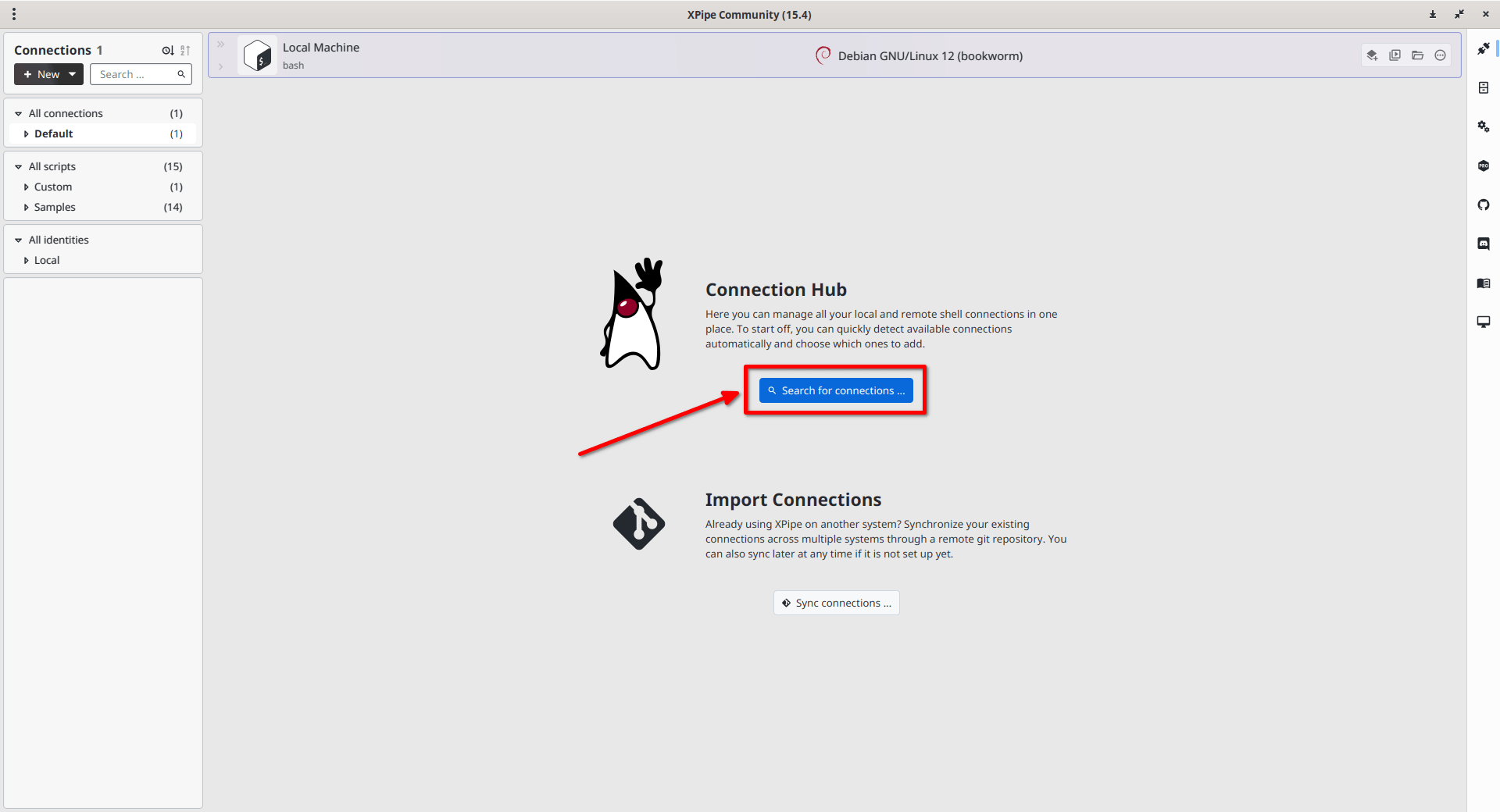
Clicking on the button will automatically start the search for available and supported integrations. All detected integrations are shown with a checkbox to either select or unselect them. Integrations that were not found are greyed out.
Choose the Target where to search for connections and click OK. In my case, I am searching for connections from my Local machine (Debian 12).
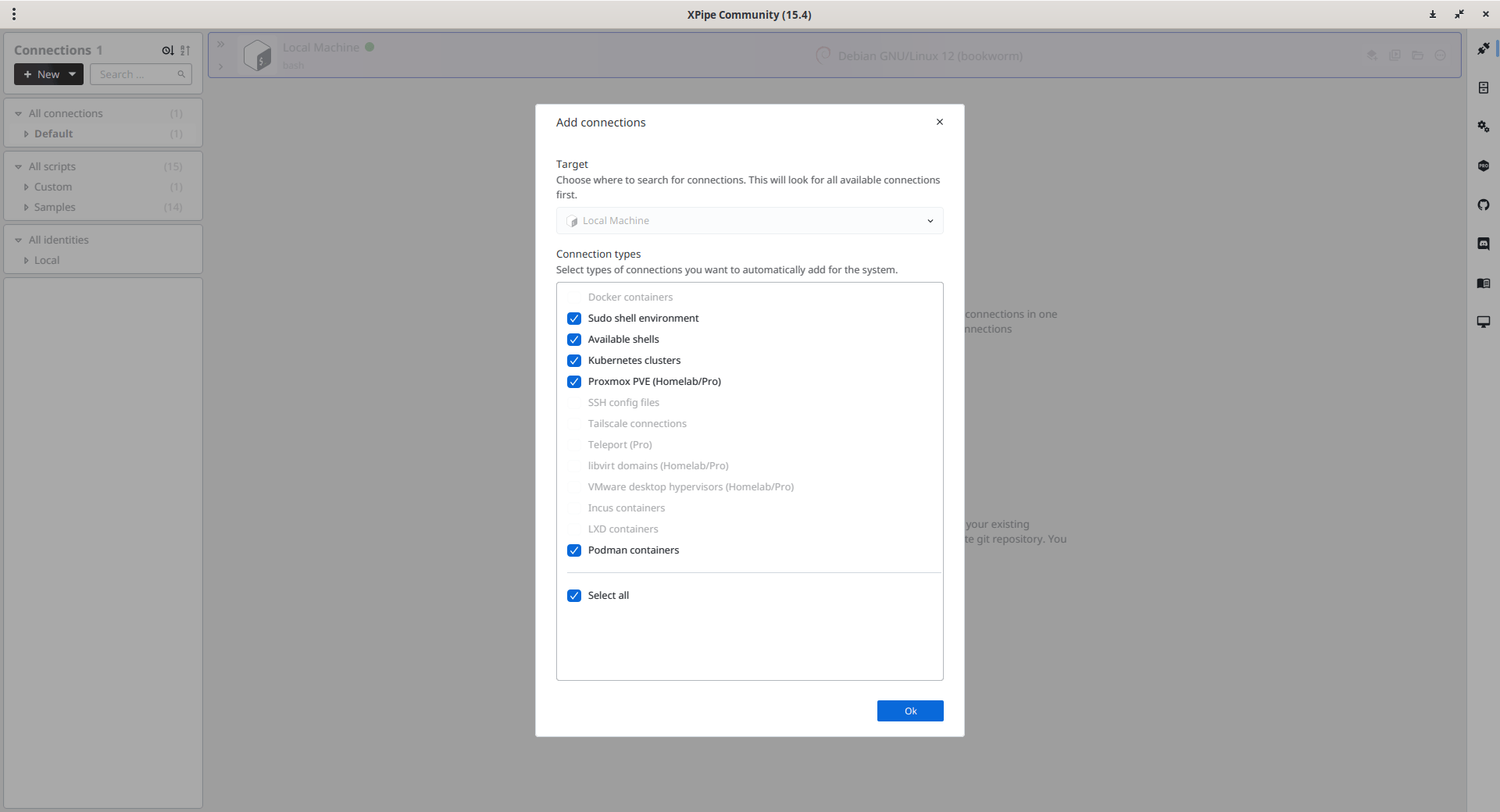
And, that's it. Now, XPipe will automatically detect available connections and list them. If you are running any virtual environment like Podman, Proxmox on your local desktop, XPipe will list the running virtual machines/containers too.
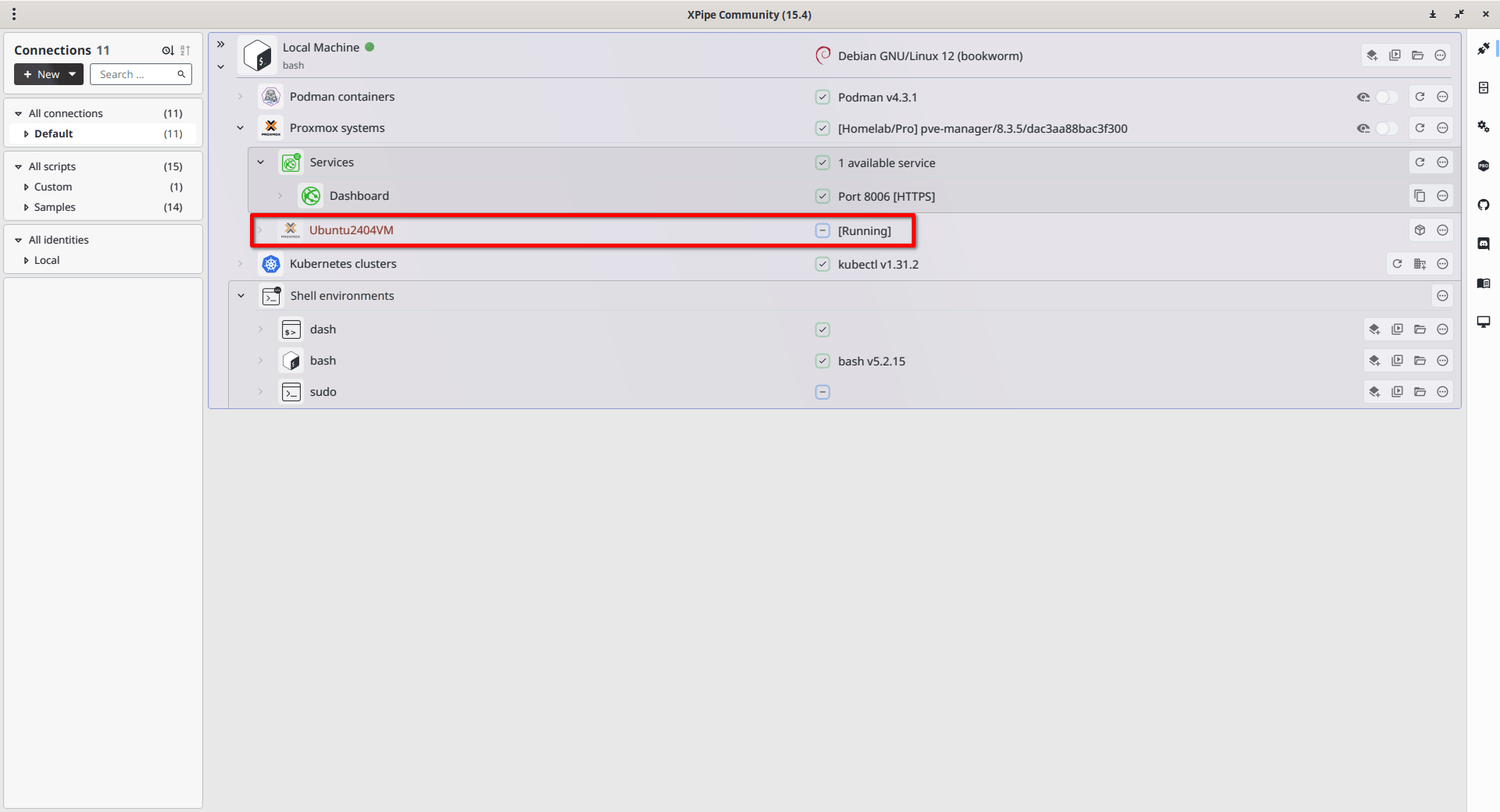
As you can see in the screenshot above, XPipe has automatically detected the Proxmox VE running on my local Debian system, including the currently running VMs. In this case, I have an Ubuntu VM running within my Proxmox VE.
Not just VMs, XPipe will automatically detect services, containers, shell environments and many.
Simply click the VM or the service that you want to add. For demo purpose, I add the Ubuntu VM.
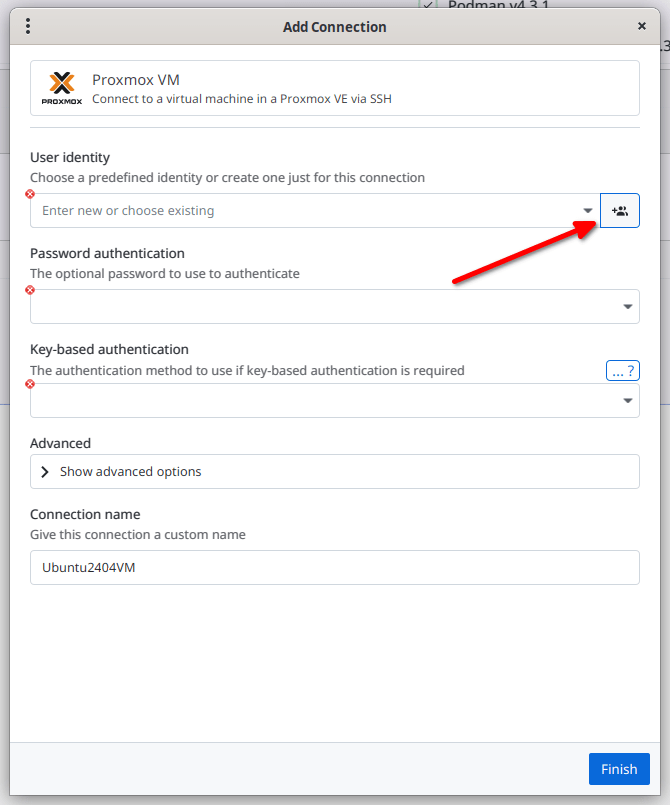
Next, choose a predefined identity from the drop-down box. if you don't have one, you can create a new identity.
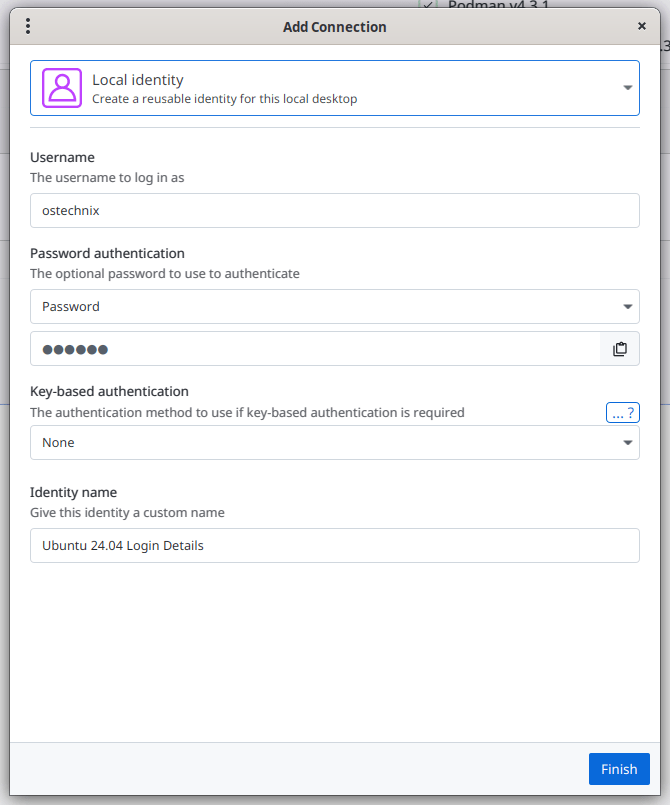
Enter the details for the new reusable user identity, such as username, authentication type, password, connection name etc.
You can also define the SSH port, enable X11 forwarding, and other additional SSH config options etc. Once you've defined all settings, click Finish button again.
From now on, you can directly manage the VM from the XPipe dashboard. You can perform various management operations, such as:
- Connect to the VM via SSH,
- Browse the VM files,
- Run a script on the VM,
- Start, stop, restart and Shutdown the VM, and much more.
Just click one of a action buttons next to the VM to perform the respective action.
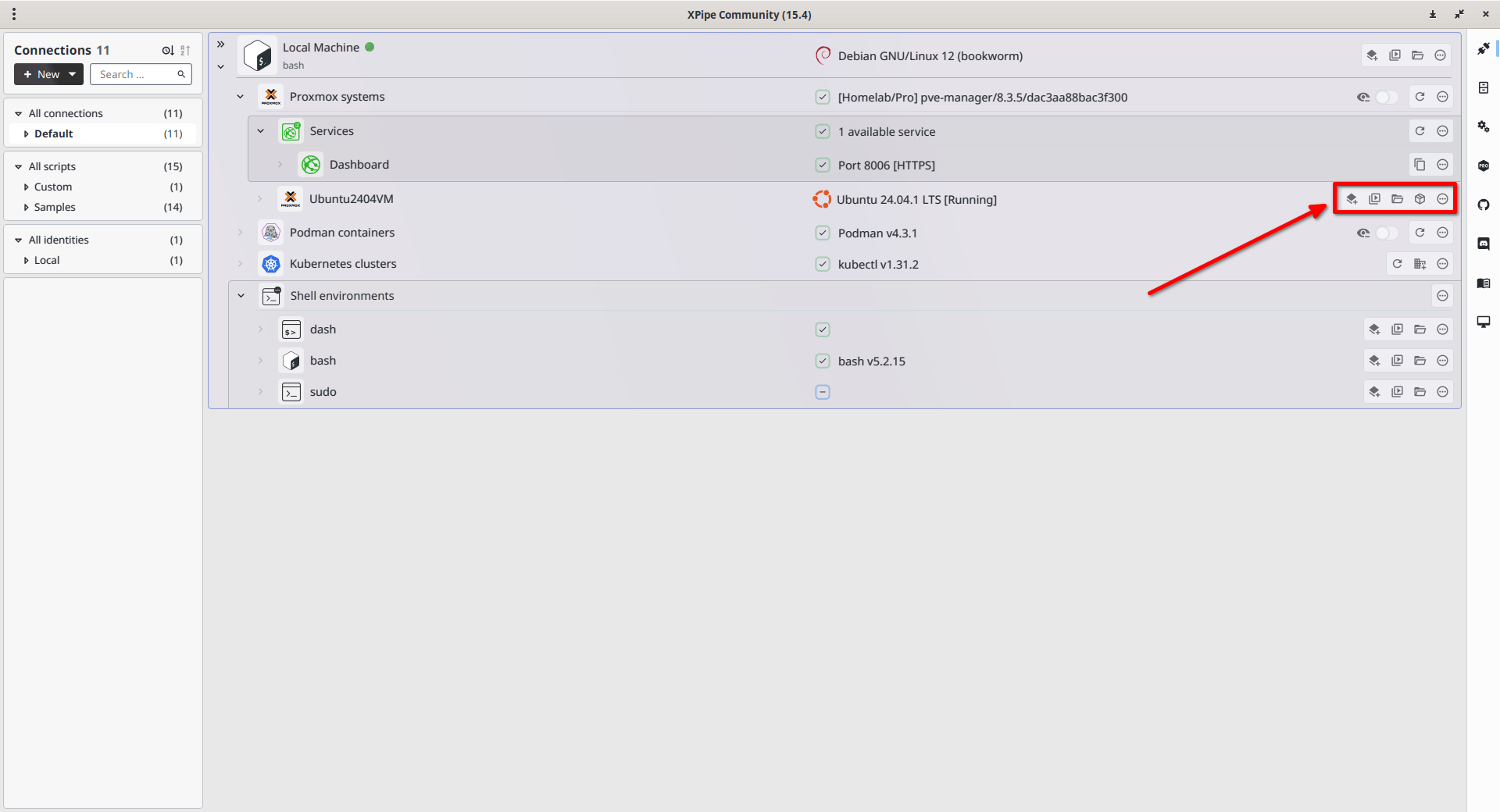
In this demo, I have shown you how to connect to a Virtual machine in a Proxmox VE via SSH. If you remember, I have chosen the local machine when creating a new connection. In this example, the integration is automated.
In the following section, we will manually create new simple SSH connection for a remote system.
Creating a New SSH Connection for Accessing Remote Systems
Before going further, please keep this mind.
XPipe treats SSH integration as a core component for connecting to your servers. A key aspect of XPipe's design is that it delegates all connection and shell handling to your existing command-line OpenSSH client, which must be available in your system's PATH.
This means XPipe itself doesn't have its own SSH capabilities . As a result, the security and features of your SSH connections within XPipe are directly dependent on your installed SSH client; it's VERY IMPORTANT to keep it updated
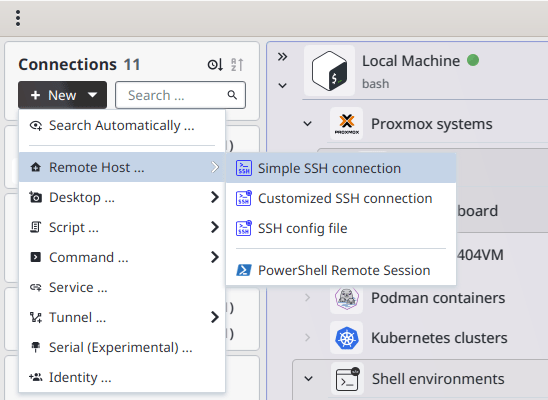
Now, let us create a new SSH connection for a remote host. To do so, click the New -> Remote Host -> Simple SSH Connection.
Enter your SSH details such as,
- Remote system's IP address,
- Default SSH port,
- Gateway,
- Choose existing User Identity or create a new one (Refer the previous section to learn how to create a user identity),
- Enter advanced SSH configurations such as enabling X11 forwarding, and other SSH config options,
- And finally a name for the connection for easier identification.
Once entered the above details, click Finish. Review the enabled options and click OK to create the new connection. You will now see the newly created connection on the XPipe dashboard.
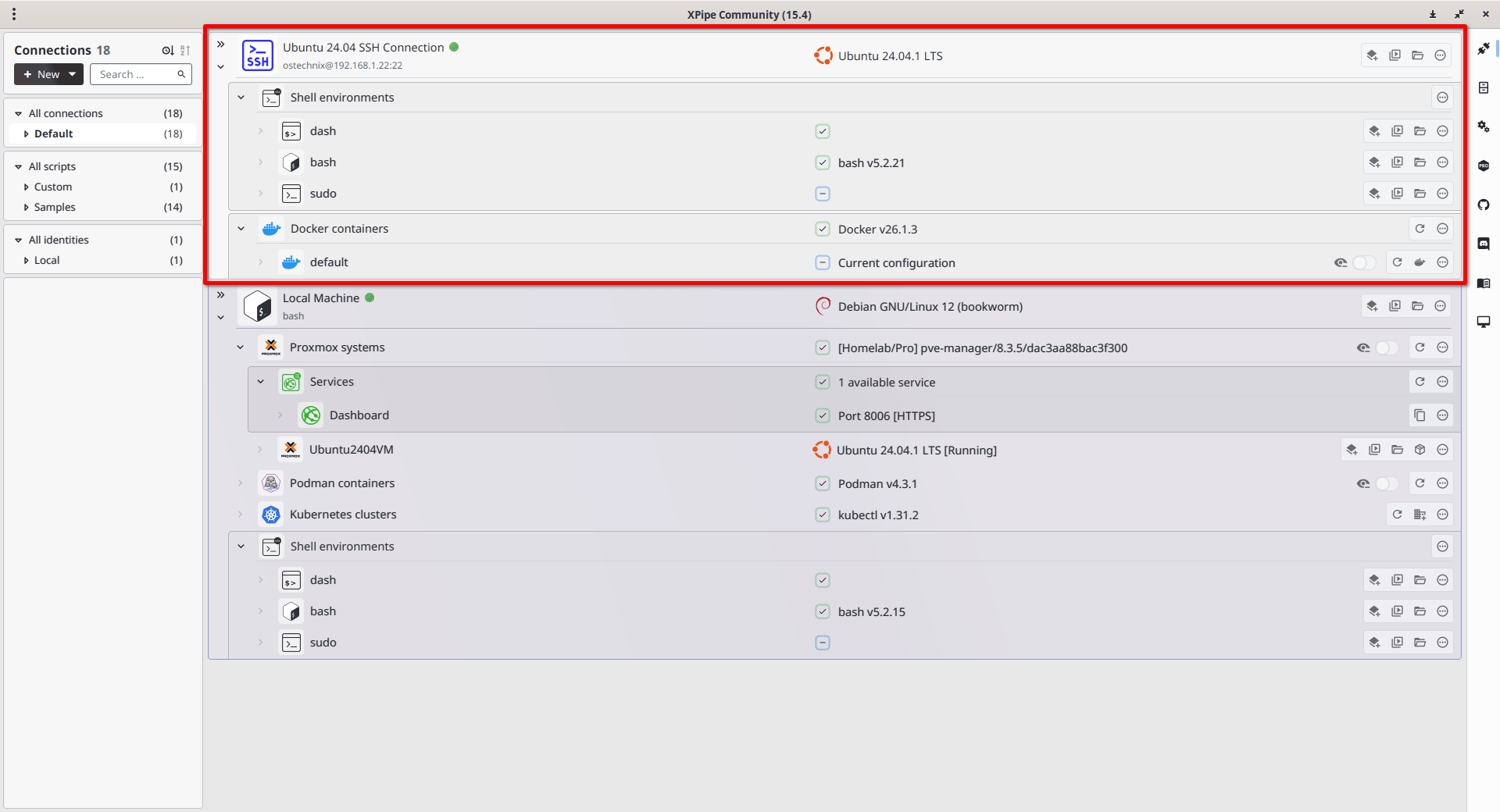
Simply click on the newly added remote system to access it via SSH:
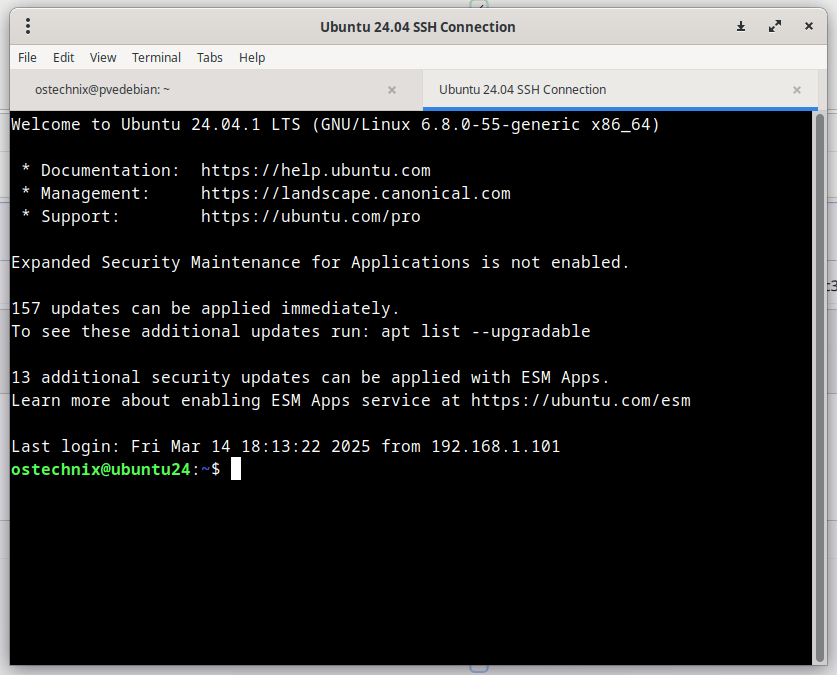
Similarly, we can attach multiple remote systems to XPipe and manage them all via single interface.
Please note that some features are disabled in the XPipe free community edition. You can try the paid version for using all features.
Managing remote systems via SSH is just one of the many things you can do with XPipe. To learn more, check out the official documentation at https://docs.xpipe.io.
Resources:
