
Table of Contents
Quick Summary
- Flatpak supports offline install. Use
flatpak create-usbcommand to copy apps to a USB drive (or a shared directory) on an Internet-connected machine, then runflatpak install --sideload-repocommand on the offline machine. Runtimes and dependencies come along automatically. No internet needed on the receiving end. - You only need internet on the source machine during preparation. The offline target machine never touches the network at any point. The same USB drive that installs apps can also update them later using
flatpak update --sideload-repo. flatpak create-usbdoesn't actually require a USB drive. Despite the name, it works on any directory i.e. a local folder, a network share, an external hard drive. In an air-gapped lab with multiple machines, you can point it at a shared network directory and skip the USB drive entirely.
The following steps are verified on Flatpak version 1.14.x · Tested on Debian 13, Fedora 43 and Ubuntu 24.04 LTS · Last reviewed March 2026.
Introduction
You're setting up a fresh Linux machine — no internet connection. You need your Flatpak apps. If you'd prepared them for offline installation beforehand, you'd already be done.
Flatpak is designed with internet connectivity in mind, but it does support fully offline installs.
This detailed guide covers two ways to install Flatpak apps on an offline Linux system without internet: flatpak create-usb for USB drive transfers, and flatpak build-bundle for single portable files.
Both let you sideload Flatpak apps on any Linux system — no network connection required.
What You Need Before Starting
- A Linux system with Flatpak installed and internet access (the source machine)
- The app you want to install offline (already installed on the source machine)
- A USB drive or any storage destination
- The target offline Linux system must have the relevant Flatpak remote already configured (e.g. Flathub)
Mount point note: USB paths vary by distro. Ubuntu typically mounts drives at
/media/youruser/Drive-Name. Fedora uses/run/media/youruser/Drive-Name. You can use use thedfcommand to identify the mount point for the USB drive. Adjust all paths in the commands below to match your system.
Check that Flatpak is installed:
flatpak --version
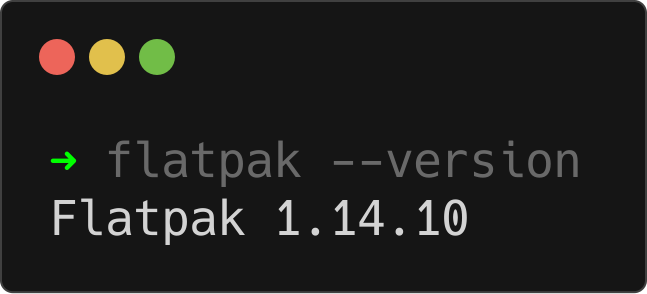
If you get a version number back, you're ready.
Method 1: Using flatpak create-usb (Recommended)
This is the method the official Flatpak documentation recommends for offline distribution. It copies apps directly to a USB drive using Flatpak's built-in sideloading system, the standard way to install Flatpak apps on an offline Linux system without internet.
Unlike build-bundle, it handles runtimes and dependencies automatically, so there's no risk of landing on the target machine with a broken install.
Step 1: Find the App's ID
Every Flatpak app has a unique Application ID. List your installed apps — using --app to filter out runtimes:
flatpak list --app
Sample output from Debian system:
Name                              Application ID                     Version    Branch    Installation
Ptyxis                            app.devsuite.Ptyxis                49.3       stable    system
Gradia                            be.alexandervanhee.gradia          1.12.1     stable    system
Czkawka                           com.github.qarmin.czkawka          10.0.0     stable    system
Flatseal                          com.github.tchx84.Flatseal         2.4.0      stable    system
Archives                          dev.geopjr.Archives                0.6.0      stable    system
HandBrake                         fr.handbrake.ghb                   1.10.2     stable    system
SMPlayer                          info.smplayer.SMPlayer             25.6.0     stable    system
Warehouse                         io.github.flattool.Warehouse       2.2.0      stable    system
Podman Desktop                    io.podman_desktop.PodmanDesktop    1.25.1     stable    system
Obsidian                          md.obsidian.Obsidian               1.12.4     stable    system
Joplin                            net.cozic.joplin_desktop           3.5.13     stable    system
Typesetter                        net.trowell.typesetter             0.11       stable    system
GNU Image Manipulation Program    org.gimp.GIMP                      3.2.0      stable    system
LocalSend                         org.localsend.localsend_app        1.17.0     stable    system
Firefox                           org.mozilla.firefox                148.0.2    stable    system
Upscayl                           org.upscayl.Upscayl                2.15.0     stable    system
VLC                               org.videolan.VLC                   3.0.23     stable    system
The Application ID is the value in the second column. Copy the one you need.
Step 1.5: Verify the Collection ID
Before copying, confirm that the app's remote has a Collection ID configured. This is required for create-usb to work.
flatpak remotes -d
Check the Collection ID column for your remote (e.g. flathub). If it's empty, set it:
sudo flatpak remote-modify --collection-id=org.flathub.Stable flathub
Flathub meets this requirement by default on most systems. If you're using a different remote, check with your remote's maintainer.
Step 2: Find the App's Origin Remote
Confirm which remote your app comes from before running the install command on the target machine:
flatpak info -o org.videolan.VLC
This tells you the remote name (e.g. flathub). You'll need this in Step 3.
Step 3: Copy the App to Your USB Drive
Plug in your USB drive. Then run:
flatpak create-usb /media/youruser/USB-Drive org.videolan.VLC
Replace the path /media/youruser/USB-Drive with your actual USB mount point and the ID with your target app. Flatpak copies the app along with its runtime and dependencies directly to the drive.
This can take several minutes. If your USB drive or port is USB 2.0, expect significantly longer transfer times. Use USB 3.0 where possible.
Despite the name, create-usb works on any directory — not just USB drives. For instance, you can create a local directory (E.g. flatpak_share) and save the flatpaks for offline install and distribute the flatpak apps to other systems.
mkdir ~/flatpak_share
flatpak create-usb ~/flatpak_share org.videolan.VLC
Note: The relevant remote (E.g. Flathub) must already be configured on the receiving machine.
For the purpose of this guide, I will be using a USB drive.
Once the copy finishes, you will see an output like below:
Warning: Omitting related ref ‘runtime/org.freedesktop.Platform.openh264/x86_64/2.5.1’ because it's extra-data.
Warning: Related ref ‘runtime/org.kde.Platform.Locale/x86_64/5.15-24.08’ is partially installed. Use --allow-partial to suppress this message.
Warning: Related ref ‘runtime/org.videolan.VLC.Locale/x86_64/stable’ is partially installed. Use --allow-partial to suppress this message.
Writing objects: 1739
Writing objects: 1
Writing objects: 4010
2059 metadata, 29476 content objects imported; 911.5 MB content written
12 metadata, 8 content objects imported; 83.4 MB content written
Writing objects: 1
17 metadata, 15 content objects imported; 51.6 MB content written 256 metadata, 2250 content objects imported; 139.8 MB content written  sucessfully from ‘/var/lib/flatpak/repo’ to ‘.ostree/repo’ repository in ‘/media/ostechnix/Mydrive/’.
Please note that app content will be stored in a hidden directory named .ostree in your USB drive or the target directory.
Next, unmount the drive before physically removing it to avoid data corruption:
umount /media/youruser/USB-Drive
Step 4: Install the Flatpak App on the Offline Machine
As stated already, make sure you have flatpak installed and flathub remote repository is enabled on the offline system. Otherwise, the following commands will not work.
On the target machine, plug in the USB drive. Then install using the sideload-repo flag:
flatpak install --sideload-repo=/media/youruser/USB-Drive/.ostree/repo flathub org.videolan.VLC
Flatpak version differences:
- Before 1.8.0: Use plain
flatpak installwith no extra flags — the command works without--sideload-repoon older versions. - 1.8.0 and later: If your distro has packaged the relevant systemd units,
flatpak installmay detect the USB drive automatically. If it doesn't, use the--sideload-repocommand above explicitly.
Check your version with flatpak --version if you're unsure.
The app installs entirely from the USB drive. No internet required!
Method 2: Using flatpak build-bundle (Manual)
Use this method when create-usb isn't available, or when you need to download a Flatpak for offline use as a single portable file rather than copying an entire repository to a drive.
It's also useful when the target offline Linux system has no remotes configured at all and you just need to get one app across.
Important: A
.flatpakbundle contains the app itself, but not its runtime or dependencies. You must ensure the correct runtime is present on the target machine before installing. See the Handling Runtimes section below.
Step 1: Find the App's ID
Same as above. Run flatpak list --app and copy the Application ID.
Step 2: Create a Flatpak Bundle
To create a flatpak bundle with all dependencies and runtime, use this command:
flatpak build-bundle /var/lib/flatpak/repo your-app.flatpak org.example.AppName
For example, to bundle VLC:
flatpak build-bundle /var/lib/flatpak/repo vlc.flatpak org.videolan.VLC
This creates vlc.flatpak in your current directory.
Per-user install? If Flatpak is installed per-user rather than system-wide, use this path instead:
flatpak build-bundle ~/.local/share/flatpak/repo vlc.flatpak org.videolan.VLC
Step 3: Copy the Bundle to Your Storage Device or Shared Directory
cp vlc.flatpak /media/youruser/USB-Drive/
Or drag and drop it in your file manager. The .flatpak file is self-contained.
Step 4: Install the Flatpak Bundle on the Offline Machine
On the target machine:
flatpak install --bundle /media/youruser/USB-Drive/vlc.flatpak
Press y to confirm. The app installs without internet.
Verify it worked:
flatpak list --app
Handling Runtimes
Applies to the build-bundle method only. If the offline machine doesn't already have the correct runtime, the install will fail. The create-usb method handles runtimes automatically and does not require this step.
Check Which Runtime Your App Needs
flatpak info org.videolan.VLC | grep Runtime
Bundle the Runtime on the Source Machine
The --runtime flag is required when exporting a runtime instead of an application — without it, the command will fail:
flatpak build-bundle --runtime /var/lib/flatpak/repo gnome-runtime.flatpak org.gnome.Platform
Install the Runtime First on the Offline Machine
flatpak install --bundle gnome-runtime.flatpak
Then install your app bundle. Runtime first, app second — every time.
Preparing Multiple Apps for Offline Install
Using create-usb (copies all installed apps with dependencies)
flatpak list --app --columns=application | while read app; do
  flatpak create-usb /media/youruser/USB-Drive "$app"
done
This loops through every installed app and copies each one — with its runtime and dependencies — to the USB drive. Give it time; it can take a while depending on how many apps you have.
Using build-bundle (creates individual .flatpak files)
for app in org.videolan.VLC org.gimp.GIMP org.mozilla.firefox; do
  flatpak build-bundle /var/lib/flatpak/repo "${app##*.}.flatpak" "$app"
done
This creates VLC.flatpak, GIMP.flatpak, and firefox.flatpak in one shot. Copy the folder to your USB drive.
Updating Apps Offline
The same sideload mechanism works for updates, not just fresh installs. If you've used create-usb to copy a newer version of an app to your drive, run this on the offline machine to apply the update:
flatpak update --sideload-repo=/media/youruser/USB-Drive/.ostree/repo org.videolan.VLC
No internet needed. Flatpak pulls the update entirely from the USB drive.
Using a Local Network Instead of USB
If you're managing multiple offline machines on the same network — or running an air-gapped environment — you don't need a USB drive at all.
After running create-usb to a shared directory, expose that directory over the network (via NFS, Samba, or a simple HTTP server) and point --sideload-repo at the network path.
This is especially useful in lab or enterprise environments where physically swapping a USB drive between machines isn't practical.
Which Method Should You Use?
| Situation | Use |
|---|---|
| Transferring to a USB drive | flatpak create-usb |
| Need a single portable file | flatpak build-bundle |
| Target machine has no remotes configured | flatpak build-bundle |
| Want runtimes handled automatically | flatpak create-usb |
| Managing multiple offline machines on a network | create-usb + shared directory |
| Updating apps offline | flatpak update --sideload-repo |
Troubleshooting
Error 1: No configured collection ID
It appears when running flatpak create-usb. The remote doesn't have a Collection ID set.
Solution:
Fix it using command:
sudo flatpak remote-modify --collection-id=org.flathub.Stable flathub
Then retry the create-usb command.
Error 2 : app/org.App.ID not installed
The app you're trying to export isn't installed on the source machine.
Solution:
Install it first with flatpak install flathub org.App.ID, then run create-usb or build-bundle again.
Error 3: Remote not found on target machine during sideload install
The remote name you passed (e.g. flathub) isn't configured on the offline machine.
Solution:
Either add the remote first:
flatpak remote-add --if-not-exists flathub https://dl.flathub.org/repo/flathub.flatpakrepo
Or use flatpak build-bundle on the source machine instead, which doesn't require a configured remote on the target.
Error 4: Runtime missing on target machine (build-bundle method)
The install fails because the app's runtime isn't present.
Solution:
Go back to the source machine, bundle the runtime with flatpak build-bundle --runtime, transfer it, and install it before the app. See Handling Runtimes section above.
Frequently Asked Questions (FAQ)
A: Flatpak is designed to work with internet access by default, but it does fully support offline installation. To install Flatpak apps on an offline Linux system, you need a connected source machine to prepare the apps first.
Use flatpak create-usb to copy the app and its dependencies to a USB drive, or flatpak build-bundle to create a single portable .flatpak file.
The install process on the offline machine requires no network connection — only the preparation step needs internet.
A: Sideloading means installing a Flatpak from a local source instead of a remote repository. Use flatpak install --sideload-repo=/path/to/.ostree/repo remote-name org.App.ID. The .ostree/repo directory is created automatically by flatpak create-usb.
A: No. flatpak build-bundle exports the app only. The runtime must be present on the target machine separately. Use flatpak create-usb if you want runtimes handled automatically.
flatpak create-usb with a regular folder instead of a USB drive?A: Yes. Despite the name, create-usb works on any directory — not just USB drives. Point it at any writable path on your system.
A: Yes. Use flatpak update --sideload-repo=/path/to/.ostree/repo org.App.ID on the target machine, pointing at the same USB repository you created with create-usb.
A: Yes, especially if you're new to Flatpak offline installs. Spin up a Linux VM with networking disabled and run through the full process there first. It saves you from surprises on real hardware.
--bundle and --sideload-repo?A: --bundle installs from a single .flatpak file created with build-bundle. --sideload-repo installs from a local OSTree repository created by create-usb. They are two separate offline install methods.
flatpak create-usb fail even though the app is installed?A: The most common cause is a missing or unconfigured Collection ID on the remote. Run flatpak remotes -d and check the Collection ID column. If it's empty, set it with flatpak remote-modify --collection-id=org.flathub.Stable flathub.
Summary
You now have two reliable paths for Flatpak offline installation. For most users, flatpak create-usb is the right choice. Run it once on a connected machine, carry the drive, and install on as many offline systems as you need.
If you're in a managed environment, consider pointing --sideload-repo at a network share so the USB step disappears entirely.
A few things worth doing before you need this in production:
- Run through the full process once in a VM with networking disabled. Catch errors before they happen on real system.
- Confirm the Collection ID is set on your remote now, not when you're standing in front of an offline machine.
- If you're using
build-bundle, bundle the runtime alongside the app in the same session and keep them together on the drive. - Bookmark the official Flatpak USB drives documentation. Check this link from time to time for any changes between Flatpak versions.
Good luck.
Related Read:
- How To Manage Flatpak Applications Effortlessly With Warehouse In Linux
- How To Easily Configure Flatpak Apps Permissions With Flatseal
- Why Flatpak Apps Use So Much Disk Space On Linux
- Linux Package Managers Compared – AppImage vs Snap vs Flatpak
- How To Fully Update And Upgrade Offline Debian-based Systems Using Apt-offline
