
In this comprehensive guide, we will learn what Openmediavault (OMV) is, its benefits, and why you should use OMV for your home server. We will also explore what's new in the latest OMV version 8, how to install openmediavault 8 using its ISO and how to install openmediavault on top of an existing Debian 13 installation.
Let us start with a brief introduction to Openmediavault.
Table of Contents
1. What is Openmediavault?
Openmediavault is a Network Attached Storage (NAS) solution built on Debian Linux. It is designed to be a simple, "out-of-the-box" system that allows home or small office users to manage a storage server through a web-based interface without needing deep technical knowledge.
Key features that define OMV include:
- Essential Services: Built-in support for file sharing (SMB/CIFS, (S)FTP), RSync, SSH, and email notifications.
- Hardware Flexibility: It is famous for being lightweight enough to run on "a potato" (very low-spec hardware) and supports modern ARM devices like the Raspberry Pi.
- The "Debian with Benefits" Philosophy: It is a stable Debian system enhanced with a user-friendly GUI for storage management.
- Modular Architecture: Its functionality can be expanded through a wide variety of plugins, notably MergerFS and SnapRAID, which allow users to combine drives of different sizes, a flexibility not often found in enterprise systems like TrueNAS.
2. What is New in Openmediavault 8?
Openmediavault 8.0.1, codenamed "Synchrony", is released on 24 December 2025. This release marks a big step forward for home and small office servers. If you want a simple way to manage your data, this update offers a fresh and stable foundation.
2.1. A Solid Foundation with Debian 13
The most important change in OMV 8 is the move to Debian 13 (Trixie). Since OMV relies on Debian, this update brings the latest software versions and better security fixes.
Please note that OMV 8 now only supports 64-bit architectures. You can run it on AMD64 (Intel and AMD chips) or ARM64 (like the Raspberry Pi 4 or 5).
If you have an older 32-bit system, the openmediavault team suggests staying on OMV 7 for now.
2.2. Other Notable Features
While the new feature list looks short, the developers focused on making the system run faster. Here are the highlights:
- Dramatically Faster Speed: The developers improved how the system handles user and group data. This change makes the web interface feel much more responsive.
- Better Wireless Security: You can now use WPA3 (SAE) for your wireless connections.
- Better Backups for Mac Users: If you use Apple’s Time Machine, you can now limit the disk size that OMV reports. This helps keep your backups from filling up the entire drive.
- Clearer Updates: The update page now shows you the old version of a package alongside the new one. Additionally, the system will tell you exactly which modules it updated after you apply changes.
OpenMediaVault 8 continues to be the most flexible NAS solution on the market. It stays "rock solid" while adding modern features that keep your data safe and accessible.
Whether you use a Raspberry Pi or a powerful server, OMV 8 provides a professional, free way to take control of your storage.
For more details, check the official OMV 8 release announcement:
3. Should You Use OpenMediaVault for Your Home Server?
If you are building a home server, choosing the operating system is the first real decision that matters. Once your data lives on a system, changing it later is time consuming and also painful.
OpenMediaVault (OMV) is often recommended, but the advice is usually shallow: “It's easy” or “It’s just Debian with a UI.” That does not help you decide.
This section answers an important question: is OMV the right choice for your home server?
Read on to find out why OMV is often recommended for small and home lab server setup.
3.1. What OMV is Good At
OMV is strongest when your server is centered around files and services that use files.
Typical use cases:
- Media servers (Jellyfin, Plex)
- Photo servers (Immich)
- File sharing (SMB / NFS)
- Docker containers
- Gradually expanding storage
If your server's main job is storing and serving data, OMV fits well.
3.2. Why Users Choose OMV Instead of Plain Debian
You can do everything OMV does on plain Debian. The difference is how much work you want to do yourself.
OMV gives you:
- A clear view of disks and filesystems
- Safe mounting of existing drives
- Easy SMB and NFS configuration
- Centralized management for Docker, users, and shares
You still get:
- Full shell access
- Standard Debian packages
- Normal Linux filesystems (ext4, xfs)
OMV does not lock your data into a special format.
3.3. Why Users Prefer Openmediavault Over other NAS Solutions
Many Users generally choose OMV because it is less "over-engineered" for home needs, costs nothing, and handles mixed hard drive setups more gracefully than ZFS-based systems.
The OMV 8 upgrade from older version is very smooth. Of course, there are a few technical "loose ends", such as rocky upgrade paths for ZFS users and minor bugs in the network interface display. But they will be fixed in the upcoming versions.
For many, the OMV 8 release is about maintaining a balance between the simplicity they love and the modern technical foundation required to keep the project secure and up-to-date.
3.4. OMV and Data Safety
One reason OMV is popular is that it works well with:
These tools sit on top of normal filesystems.
That means:
- Each disk remains readable on its own
- You can add disks over time
- You are not forced to wipe drives to "join an array"
This is very different from traditional RAID or ZFS.
Please note that OMV itself will not protect you from mistakes. If you click "format", data will be lost. OMV makes things easier, not foolproof. Used carefully, it is quite safe.
3.5. When OMV is a Bad Choice
OMV is not for everyone.
OMV may not be right if:
- You want advanced ZFS-only features
- You prefer managing everything by hand
- You are running complex clustered workloads
- Your server is mostly compute, not storage
If you enjoy building everything yourself and rarely touch storage tools, plain Debian may suit you better.
3.6. OMV vs Desktop Linux for Servers
Some people start with Ubuntu, Mint, or another desktop OS. This works at first.
Over time, problems appear:
- Desktop updates break services
- Storage management is scattered
- Docker data fills the root filesystem
- Permissions become messy
OMV avoids this by:
- Staying minimal
- Avoiding desktop components
- Treating storage as the primary concern
For a machine that runs all day, this matters.
3.7. Docker on OMV
OMV does not replace Docker. It supports it.
Most users run:
- Jellyfin
- Immich
- Pi-hole
- Navidrome
- Backup tools
Docker works the same way as on any Debian system. The benefit is structure:
- Clear separation between OS, app data, and media
- Easier permission management
- Fewer "where did my data go?" problems
3.8. Who OMV is Best For
OMV is a strong choice if you:
- Want a reliable home server
- Plan to add drives over time
- Care about data safety
- Use Docker but don't want chaos
- Prefer boring systems that keep working
OMV is not exciting, but stable. That is the point.
3.9. So, Should You Use OpenMediaVault?
Use OMV if:
- Storage is central to your server
- You want structure without lock-in
- You value predictability over novelty
Avoid OMV if:
- You want to build everything manually
- Storage is a minor concern
- You need enterprise or clustered features
For most home servers, OMV is a sensible, low-risk choice.
Now we will see how to install the latest openmediavault 8. Before that, make sure you have the right hardware.
4. Hardware Requirements for Running OMV 8
The hardware requirements for OpenMediaVault (OMV) vary significantly depending on whether you are running a basic setup or a high-performance server. For OMV 8 (Synchrony), please note that support is strictly limited to AMD64 and ARM64 architectures.
4.1. Minimal Hardware Requirements
These specifications are suitable for low-power systems, such as a Raspberry Pi or older 64-bit machines.
- Architecture (CPU): 64-bit AMD64 (x86-64) or ARM64 (ARMv8).
- Memory (RAM): 1 GiB is the absolute minimum required to run the system.
- System Drive Storage (SDS): One drive (SSD, HDD, or USB) with at least 4 GiB of capacity.
- Data Drive Storage (DDS): At least one storage disk separate from the system drive.
- Network (NIC): Any supported interface (WiFi, Ethernet, or USB) capable of at least 10 Mb speeds.
- Boot Type: BIOS, UEFI, or UBOOT.
4.2 Recommended Hardware Requirements
For stable, high-performance operations, especially for novice administrators or those running multiple services like Docker, the following is recommended:
- Architecture (CPU): Intel Dual Core or AMD Ryzen processors.
- Memory (RAM): 8 GiB or more, ideally configured in dual-channel mode (DDR3 or DDR4) to improve data processing speeds.
- System Drive Storage (SDS): A dedicated disk with a 120 GiB root partition and an 8 GiB swap partition. SSDs are preferred for the system drive, though high-quality Helium Hard Drives (HHD) are also a strong option.
- Data Drive Storage (DDS): High-end hard drives such as Seagate IronWolf, WD Black, or Seagate Firecuda. SSDs are recommended for the best performance, while HDDs are preferred for long-term durability.
- Network (NIC): A 1 GbE or 10 GbE (SFP fibre) Full-duplex network card. Full-duplex is vital because modern storage drive speeds far exceed the capacity of older 10/100 Mbit/s half-duplex connections.
5. How to Install Openmediavault 8 from ISO
5.1. Download Openmediavault ISO
For those starting fresh, you can download an ISO image for AMD64 systems. The ISO images are hosted on SourceForge:
Once downloaded, you need to check if the downloaded openmediavault ISO is legit.
5.2 Verify the Integrity and Authenticity of Openmediavault ISO
Step 1: Verify file integrity (checksum)
This ensures the ISO was not damaged or altered during download.
SHA256 (preferred):
sha256sum -c openmediavault_8.0-12-amd64.iso.sha256
Expected result:
openmediavault_8.0-12-amd64.iso: OK
If you see OK, the file is intact.
Note: MD5 exists only for legacy reasons. SHA256 is the real check.
Step 2: Import the OpenMediaVault signing key
This key is used to verify the signature.
gpg --import openmediavault_8.0-12-amd64.iso.key
You will see the "Key imported successfully" message.
Step 3: Verify the ISO signature (authenticity)
This confirms the ISO was signed by OpenMediaVault.
gpg --verify openmediavault_8.0-12-amd64.iso.asc \
             openmediavault_8.0-12-amd64.iso
Expected output (important parts):
gpg: Good signature from "OpenMediaVault.org ..."
This means:
- The ISO matches the signed checksum
- The signer owns the private key used
When you check the authenticity, you will also see this line:
WARNING: This key is not certified with a trusted signature!
This is normal.
It means:
- You have not personally signed this key
- GPG does not know if you trust the key owner
It does NOT mean:
- The ISO is unsafe
- The signature is invalid
For vendor ISOs, this warning is expected.
Step 4: (Optional) Verify key fingerprint
If you want an extra check, compare the fingerprint shown by GPG with the one published by OpenMediaVault.
gpg --fingerprint packages@openmediavault.org
Expected fingerprint (example):
D675 06C8 78E0 8A94 FD7E 0094 2486 3F0C 716B 980B
If it matches, authenticity is confirmed.
Well, the ISO check is done. It is time to proceed the installation.
5.3. Starting Openmediavault Installation
First, create a bootable USB drive with OMV 8 ISO. There are many USB creation tools exist. We have reviewed a bunch of bootable USB creation software. You can pick one that suits you.
Next, boot your system with USB drive to start Openmediavault 8 installation. The procedure is same as the normal Debian installation method.
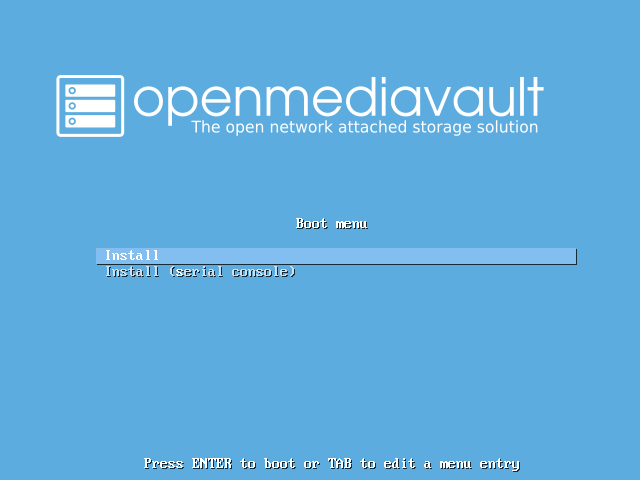
Choose "Install" option from the list and hit Enter key to continue OMV8 installation:
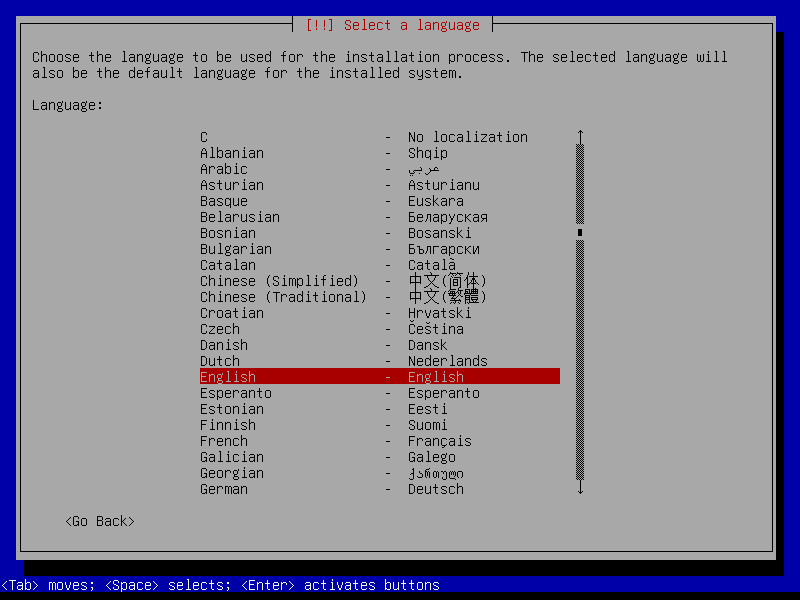
Select a language to used for the OMV Installation process:
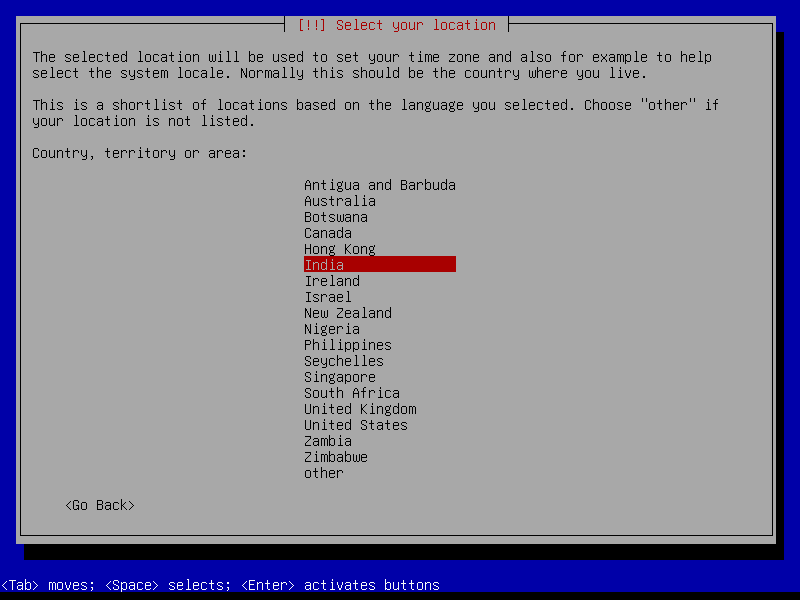
Select your country location:
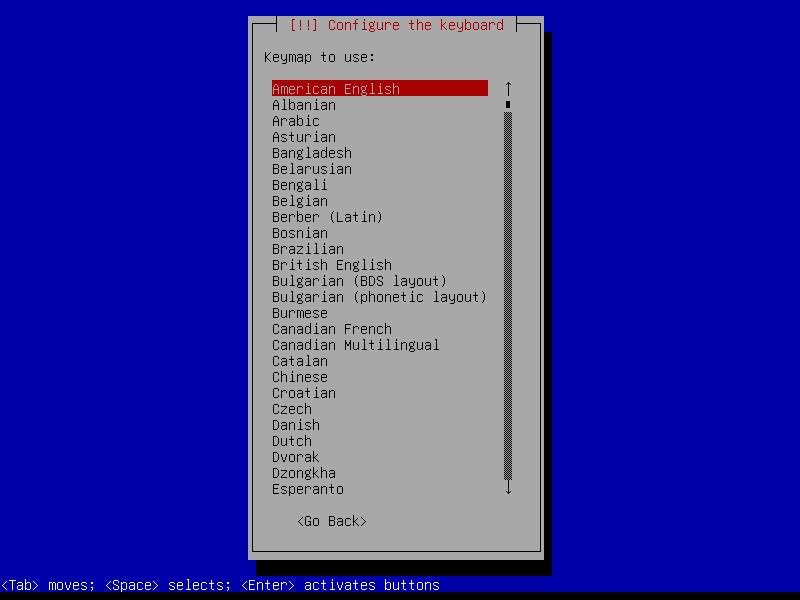
Choose a Keymap to Use:
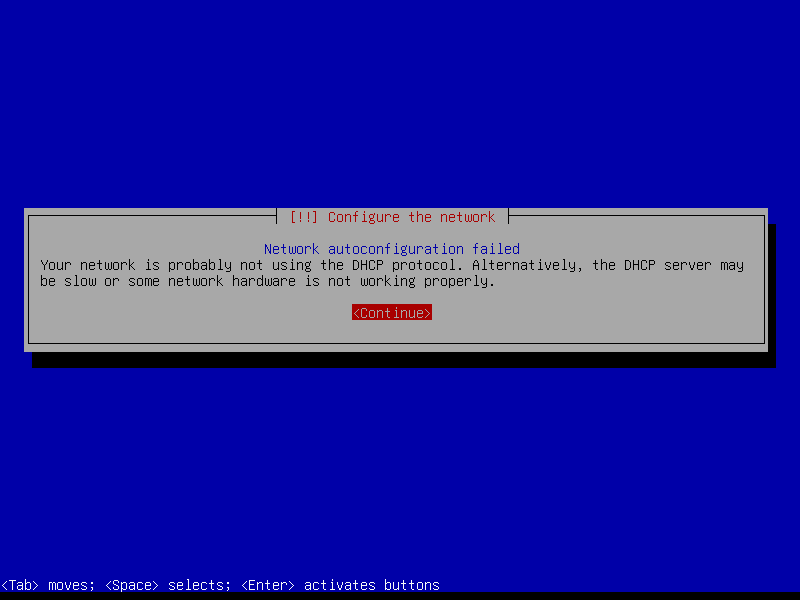
If there is a DHCP server in your network, the installer will automatically fetch an IP address for your OMV box. If there is no DHCP, you need to manually configure the network settings in the subsequent steps.
In my case, I don't have a DHCP server, so I am going to configure network manually. To do so, I click Continue.
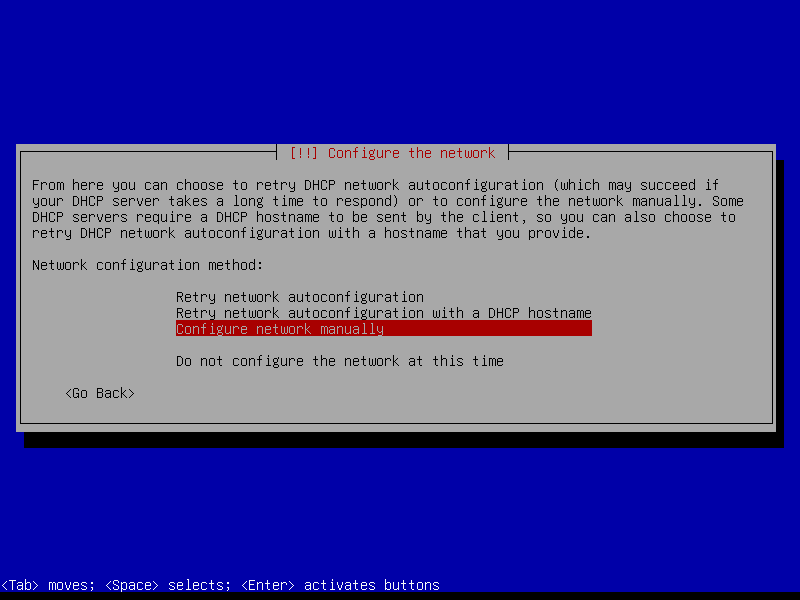
Choose a suitable network configuration method. I chose "Configure network manually" option.
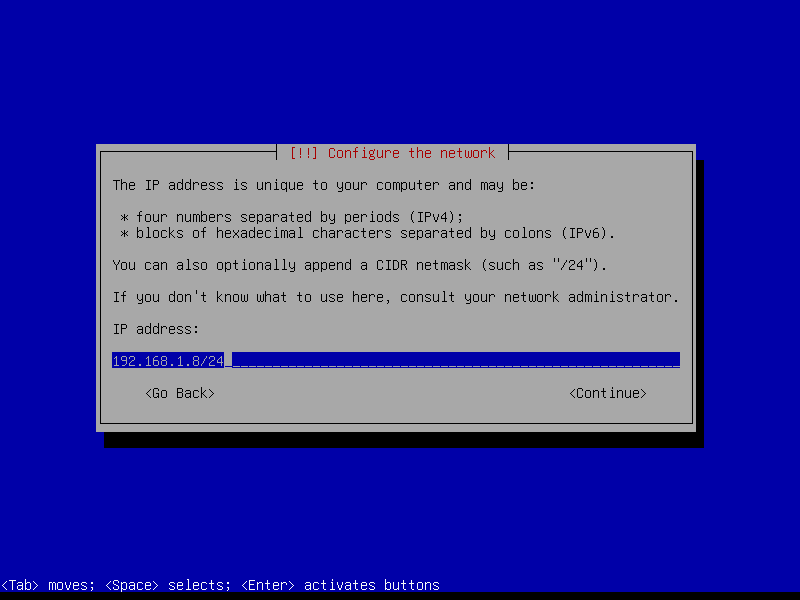
Enter your IP address. You can also optionally append a subnet mask in this step. For example, you could enter: 192.168.1.8/24. This means we assigned the IP address as 192.168.1.8 and subnet mask as 255.255.255.0.
Replace the IP address and subnet mask with your own and hit ENTER key.
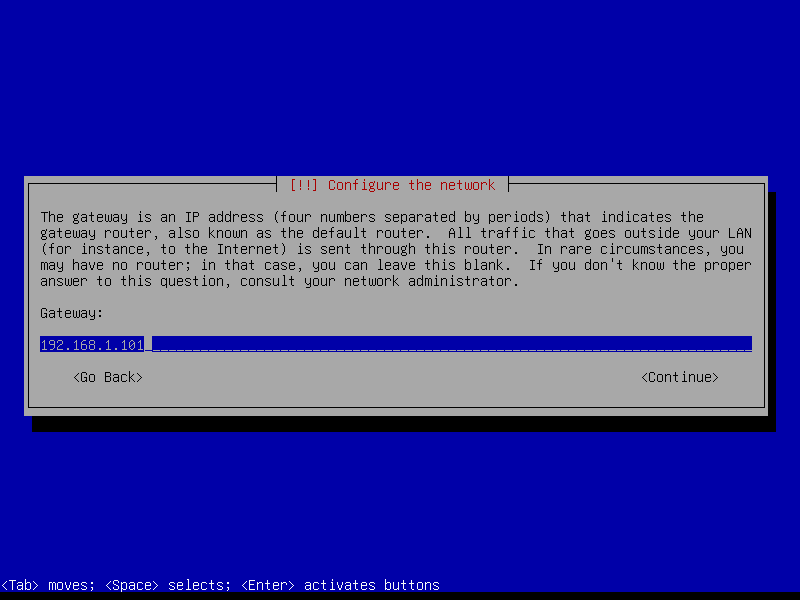
Enter your gateway address:
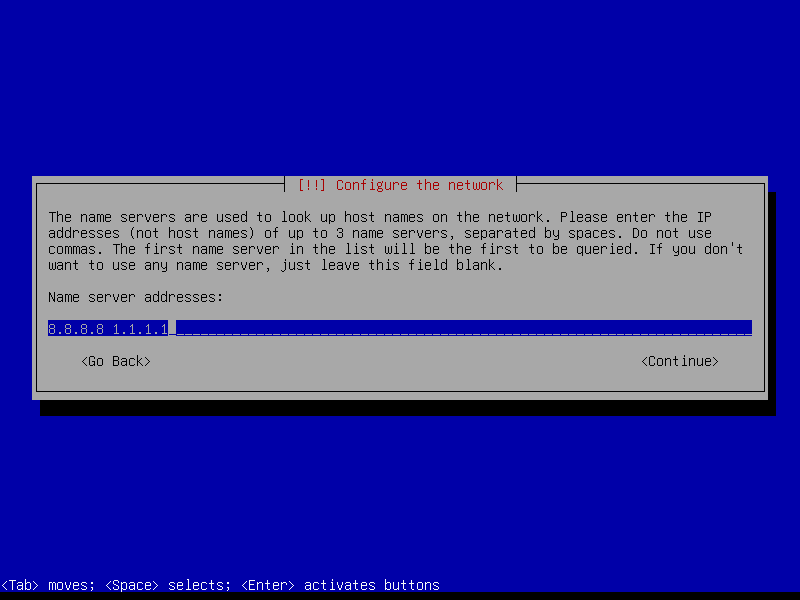
Now, enter your DNS server details. You can enter up to three nameservers separated by spaces.
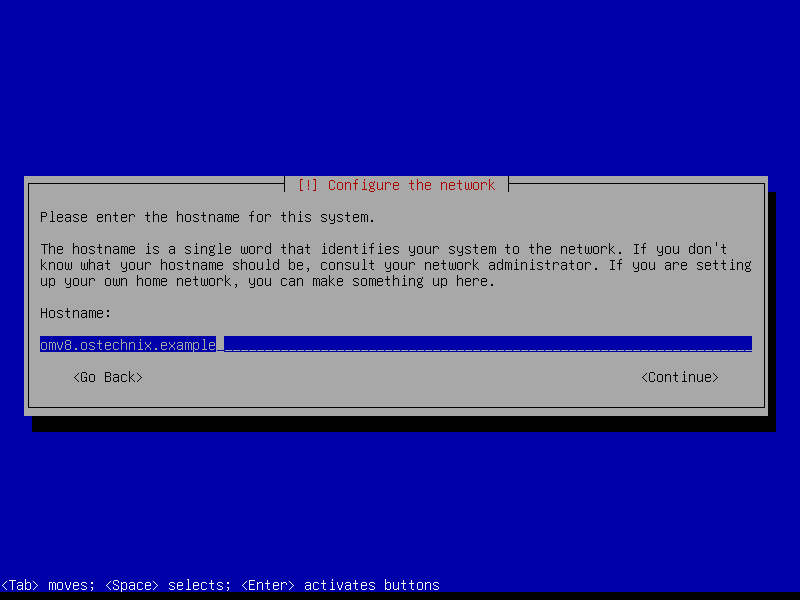
Enter a hostname for your openmediavault server:
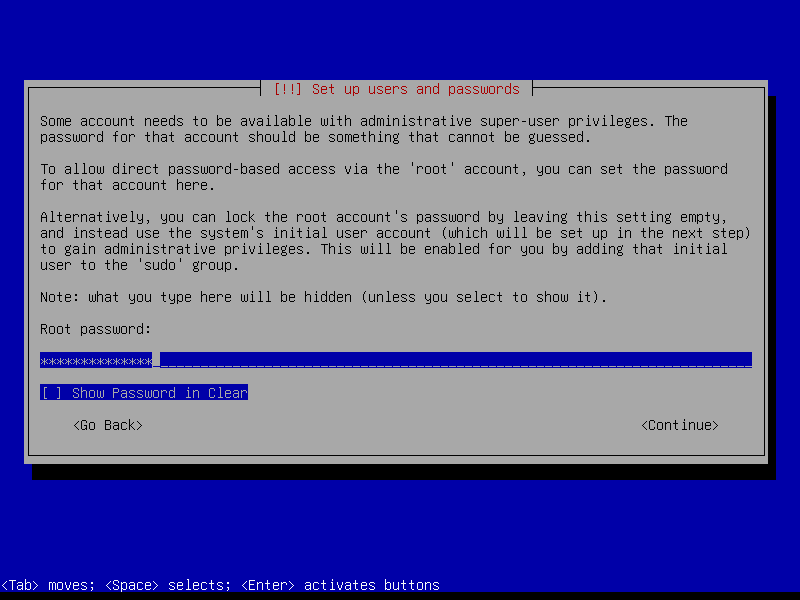
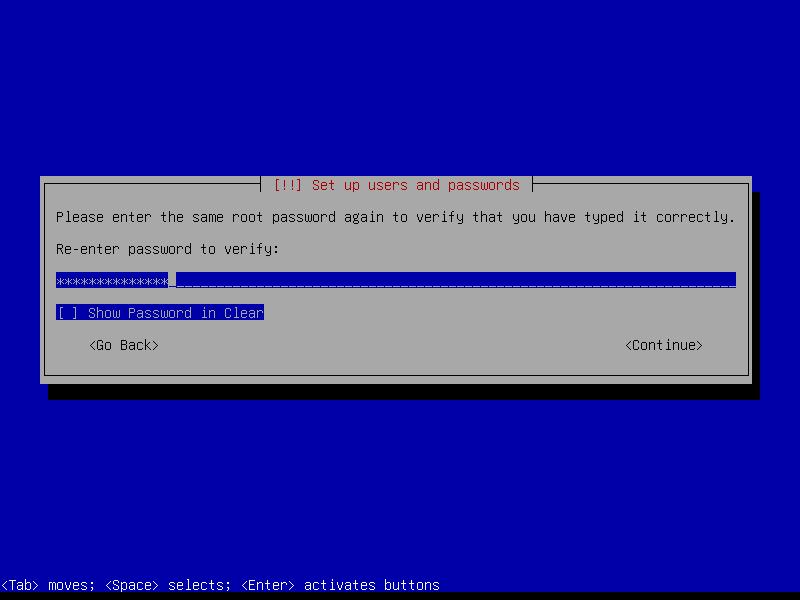
Set a password for the Root user. Make sure the password is strong, combined with letters and numbers.
Re-enter Root User Password:
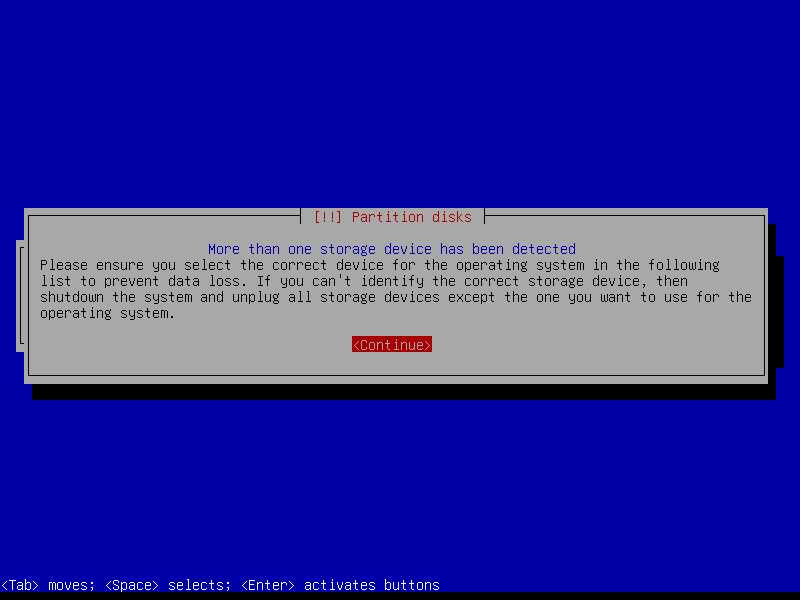
Now comes the important part. You need to partition your disk for the OS.
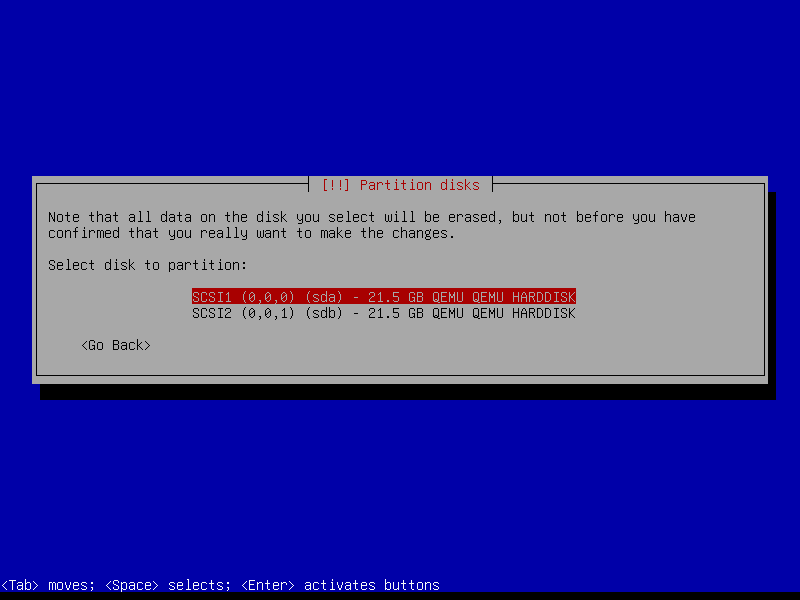
As mentioned already, we need atleast two disks, one for OS and another for data. Choose your preferred disk for OMV installation:
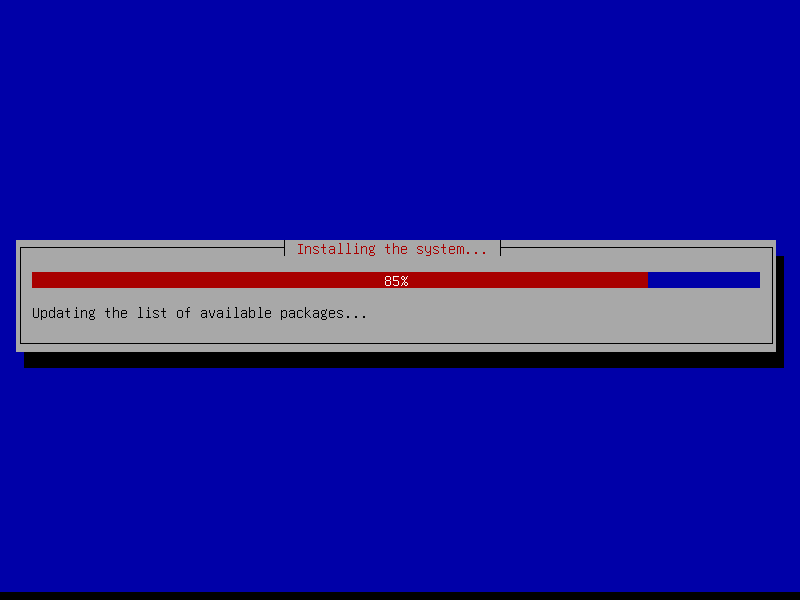
The Openmediavault installation will start now. It will take a few minutes to complete.
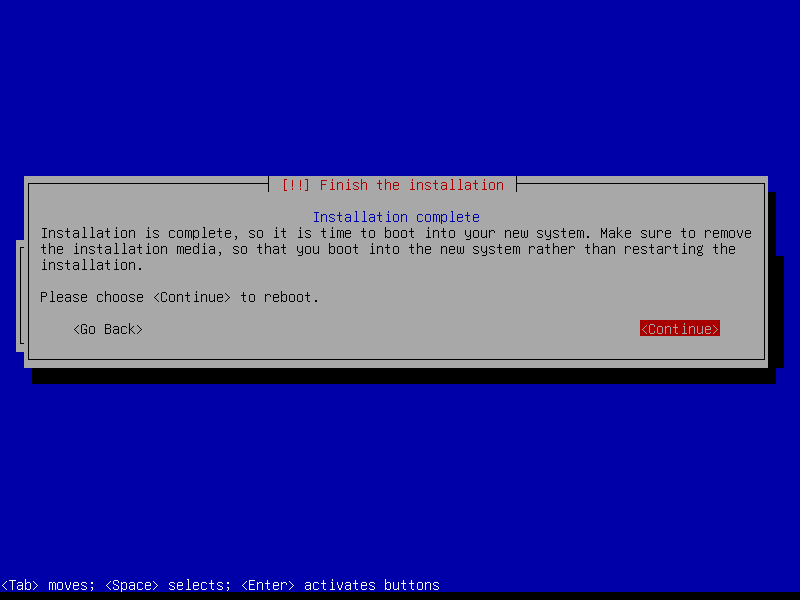
Congratulations! OMV 8 installation is successfully completed! Remove the ISO, choose "Continue" and hit ENTER key to reboot your system:
After reboot, you will see:
- A login prompt
- The assigned IP address
Login to Openmediavault Console as root user with its password that you set during the installation:
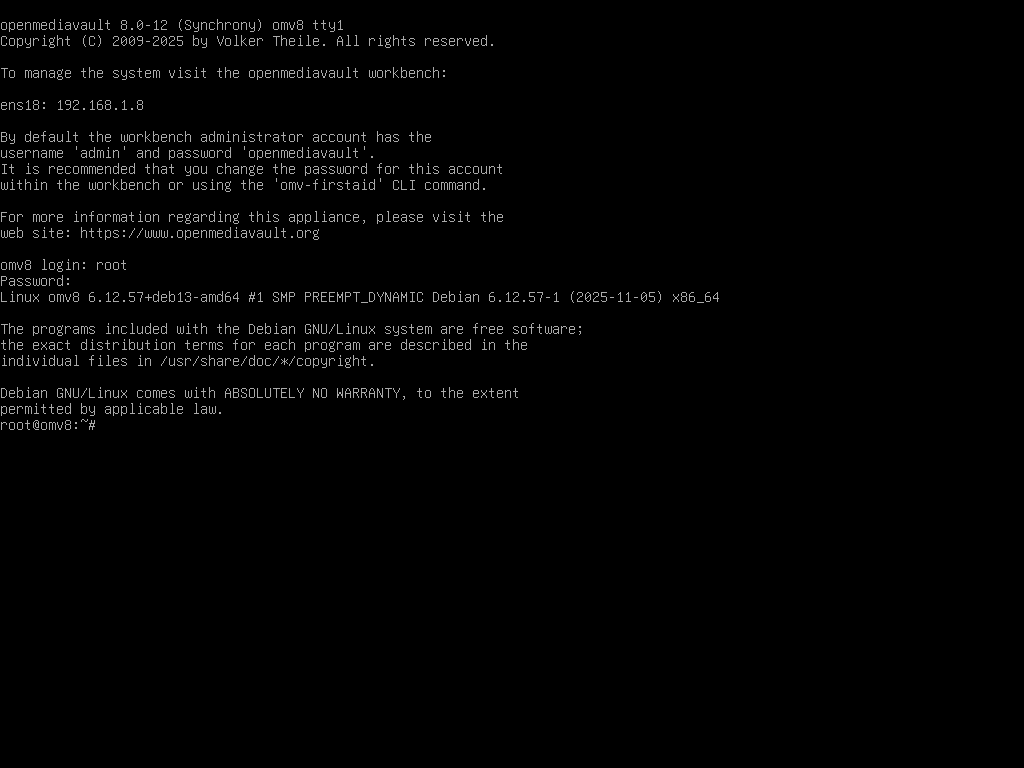
From the OMV console, run:
omv-upgrade
This command will:
- Update Debian packages
- Update OMV core
- Apply post-install fixes
Wait patiently. Do not interrupt.
Finally, reboot your openmediavault NAS:
reboot
If you want to access the OMV web dashboard, open the Web browser (from a remote system) and enter: http://<omv-ip>/
The default username to OMV web dashboard is admin and password is the one you set during installation.
For more details, skip to section 7. Log in to the Openmediavault Web Interface.
6. Install Openmediavault 8 on Debian 13
Alternatively, you can install OMV on a clean, minimal version of Debian 13. Just remember that the system will block the installation if it finds a graphical desktop environment. So you must be running a clean minimal installation of Debian 13 (Trixie) to install OpenMediaVault (OMV) 8 on an existing system.
6.1. Prerequisites and Preparation
- Minimal Install: Use the Debian netinst image to install only the "SSH server" and "standard system utilities". Do not install a web server or desktop environment.
- ARM Devices: If using an ARM-based board, it is recommended to use an Armbian image and its
armbian-configtool to install OMV in a single step. Raspberry Pi OS requires a specific installation script as standard instructions may only partially work. - Configuration Warning: OMV will not import existing system settings (except for network and time) and will overwrite existing configurations for services it manages.
6.2. Network and DNS Setup
Before installing the OMV package, you must ensure systemd-resolved is installed and configured. If this is skipped, the OMV installation will likely fail because it will lose DNS resolution while trying to download required packages.
To install and enable systemd-resolved, run the following commands as root:
apt-get install --yes systemd-resolved psmisc
systemctl enable --now systemd-resolved.service
Next, set your DNS server manually using:
resolvectl dns <INTERFACE> <DNS_SERVER_IP>
If DNS is already set, just skip it and reboot your system.
If your IP is configured via DHCP, the client might interfere with systemd-resolved. If package downloads fail, run:
killall dhcpcd
and repeat the DNS configuration command.
Reboot your system:
reboot
6.3. Add Openmediavault Keyring and Package Repositories
First, you need to manually add the OpenMediaVault keyring and package repositories to your Debian 13 system as root user:
Add the Openmediavault key using commands:
apt-get install --yes gnupg
wget --quiet --output-document=- https://packages.openmediavault.org/public/archive.key | gpg --dearmor --yes --output "/usr/share/keyrings/openmediavault-archive-keyring.gpg"
Add the Openmediavault software repositories using command:
cat <<EOF >> /etc/apt/sources.list.d/openmediavault.list
deb [signed-by=/usr/share/keyrings/openmediavault-archive-keyring.gpg] https://packages.openmediavault.org/public synchrony main

deb [signed-by=/usr/share/keyrings/openmediavault-archive-keyring.gpg] https://downloads.sourceforge.net/project/openmediavault/packages synchrony main

# Uncomment the following line to add software from the proposed repository.

deb [signed-by=/usr/share/keyrings/openmediavault-archive-keyring.gpg] https://packages.openmediavault.org/public synchrony-proposed main

deb [signed-by=/usr/share/keyrings/openmediavault-archive-keyring.gpg] https://downloads.sourceforge.net/project/openmediavault/packages synchrony-proposed main

# This software is not part of OpenMediaVault, but is offered by third-party

# developers as a service to OpenMediaVault users.

deb [signed-by=/usr/share/keyrings/openmediavault-archive-keyring.gpg] https://packages.openmediavault.org/public synchrony partner

deb [signed-by=/usr/share/keyrings/openmediavault-archive-keyring.gpg] https://downloads.sourceforge.net/project/openmediavault/packages synchrony partner
EOF
6.4. Disable Debian Security Repository
On Debian 13, OpenMediaVault provides its own trixie-security repository with a newer signing key. So the default Debian security entry must be disabled to avoid APT Signed-By conflicts and allow omv-upgrade to run successfully.
To let OpenMediaVault manage the Debian security repository and disable the Debian security entry, open the Debian sources file:
nano /etc/apt/sources.list.d/debian.sources
Find the security block:
Types: deb deb-src
URIs: http://security.debian.org/debian-security/
Suites: trixie-security
Components: main non-free-firmware
Signed-By: /usr/share/keyrings/debian-archive-keyring.gpg
Add # before each line to comment out the security block:
# Types: deb deb-src
# URIs: http://security.debian.org/debian-security/
# Suites: trixie-security
# Components: main non-free-firmware
# Signed-By: /usr/share/keyrings/debian-archive-keyring.gpg
Save and exit.
Update software repository list:
apt update
Why disable Security repository?
When running omv-upgrade on OpenMediaVault 8 installed on Debian 13 (trixie), the command fails with this error:
E: Conflicting values set for option Signed-By regarding source
http://security.debian.org/debian-security/ trixie-security:
 /usr/share/keyrings/debian-archive-keyring.gpg !=
 /usr/share/keyrings/debian-archive-trixie-security-automatic.gpg
E: The list of sources could not be read.
This happens because the same Debian security repository is defined twice, but with different signing keys.
Debian’s default sources use:
/usr/share/keyrings/debian-archive-keyring.gpg
OpenMediaVault adds its own security source using:
/usr/share/keyrings/debian-archive-trixie-security-automatic.gpg
APT does not allow the same repository (trixie-security) to use different Signed-By keys, so it stops with an error.
This is common on Debian 13 because it uses the newer .sources format and stricter key handling. For more details, refer this link:
6.5. Install Openmediavault 8 in Debian 13
Now, run the Openmediavault installation command while setting environment variables to ensure it is non-interactive:
export LANG=C.UTF-8
export DEBIAN_FRONTEND=noninteractive
export APT_LISTCHANGES_FRONTEND=none
apt-get update
apt-get --yes --auto-remove --show-upgraded \
    --allow-downgrades --allow-change-held-packages \
    --no-install-recommends \
    --option DPkg::Options::="--force-confdef" \
    --option DPkg::Options::="--force-confold" \
    install openmediavault
This will take a few minutes to complete. Please be patient.
When installing OpenMediaVault on Debian 13, warnings about
ntp.serviceorsystemd-timesyncd.servicenot existing are normal. Debian 13 no longer enables these services by default, and OpenMediaVault safely handles this during setup.
Once installed, populate the OMV database with your existing system settings (like network configuration) using the following command as root:
omv-confdbadm populate
6.6. Finalizing Network and Access
Re-deploy the network configuration via the services used by OMV with command:
omv-salt deploy run systemd-networkd
If the database population fails (common if the network was configured via NetworkManager), use the following command to perform the initial network configuration from the CLI:
omv-firstaid
By default, the root user is granted SSH access as a fallback, but this should be disabled after setup for security.
Note that standard users created during the Debian install cannot use SSH until they are manually added to the _ssh group.
Example:
Let us add an user called ostechnix to the _ssh group using command:
adduser ostechnix _ssh
Restart your ssh service:
systemctl restart ssh
Now the user ostechnix can login via ssh.
6.7. Update OMV
Run the following command as root to update your OMV installation:
omv-upgrade
This command will update Debian packages, update OMV core and apply post-install fixes. This will take a few minutes.
Finally, reboot your OMV:
reboot
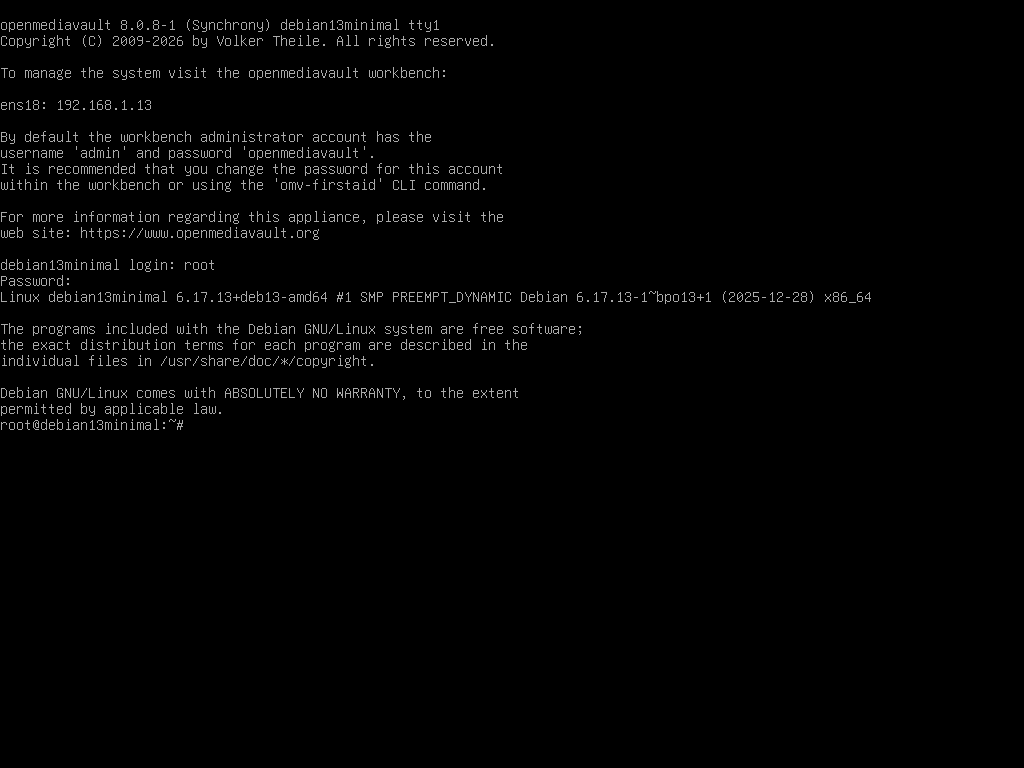
After reboot, you will see:
- A login prompt
- The assigned IP address to access your OMV CLI and web console.
Login to Openmediavault Console as root user with its password that you set during the installation:
7. Login to the Openmediavault Web Interface
Enter the IP address of your Openmediavault server in a browser's address bar to access the web dashboard.
http://<omv-ip>/
Default login for openmediavault web interface:
- User:
admin - Password: (the one you set during installation)
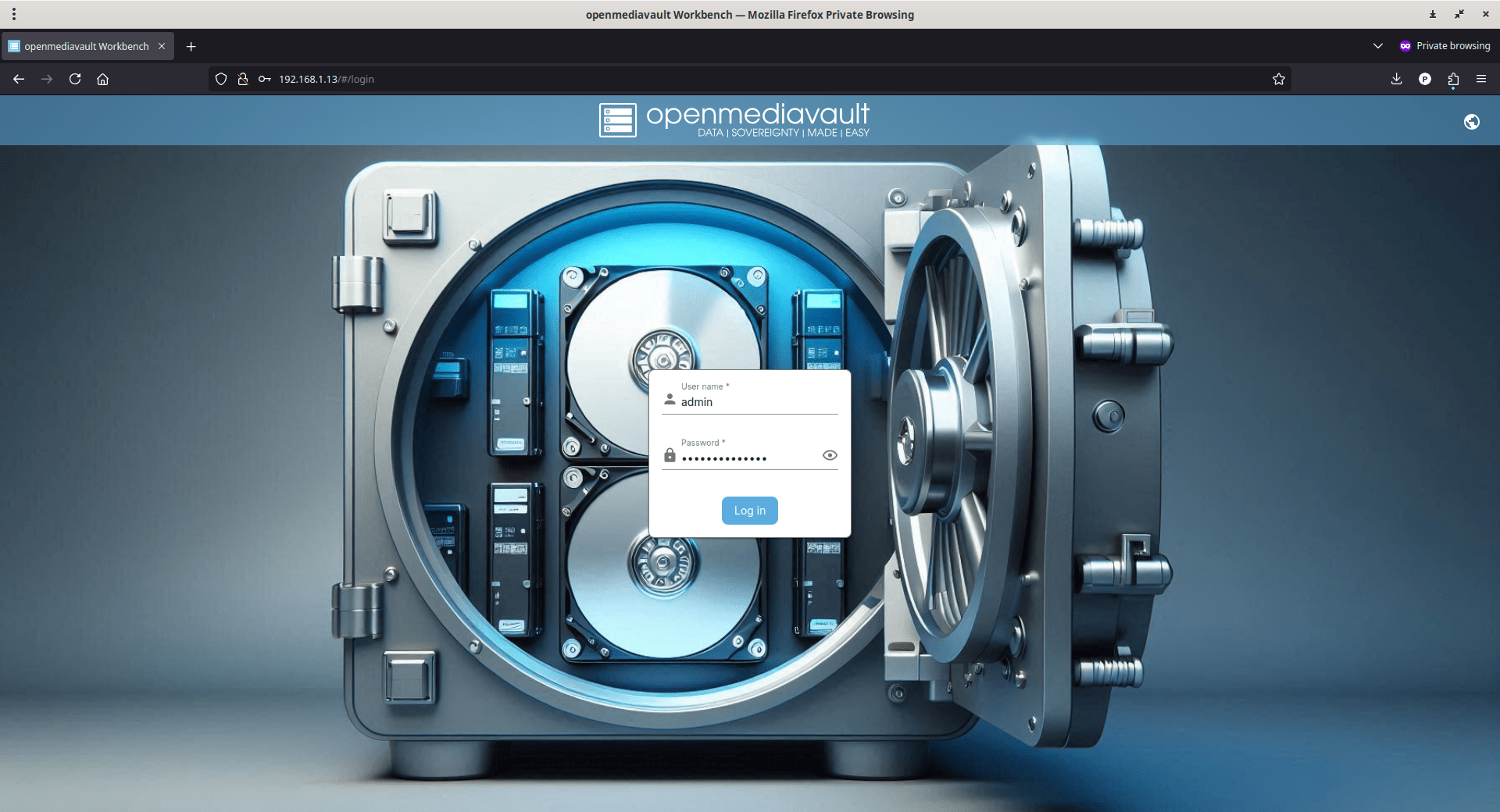
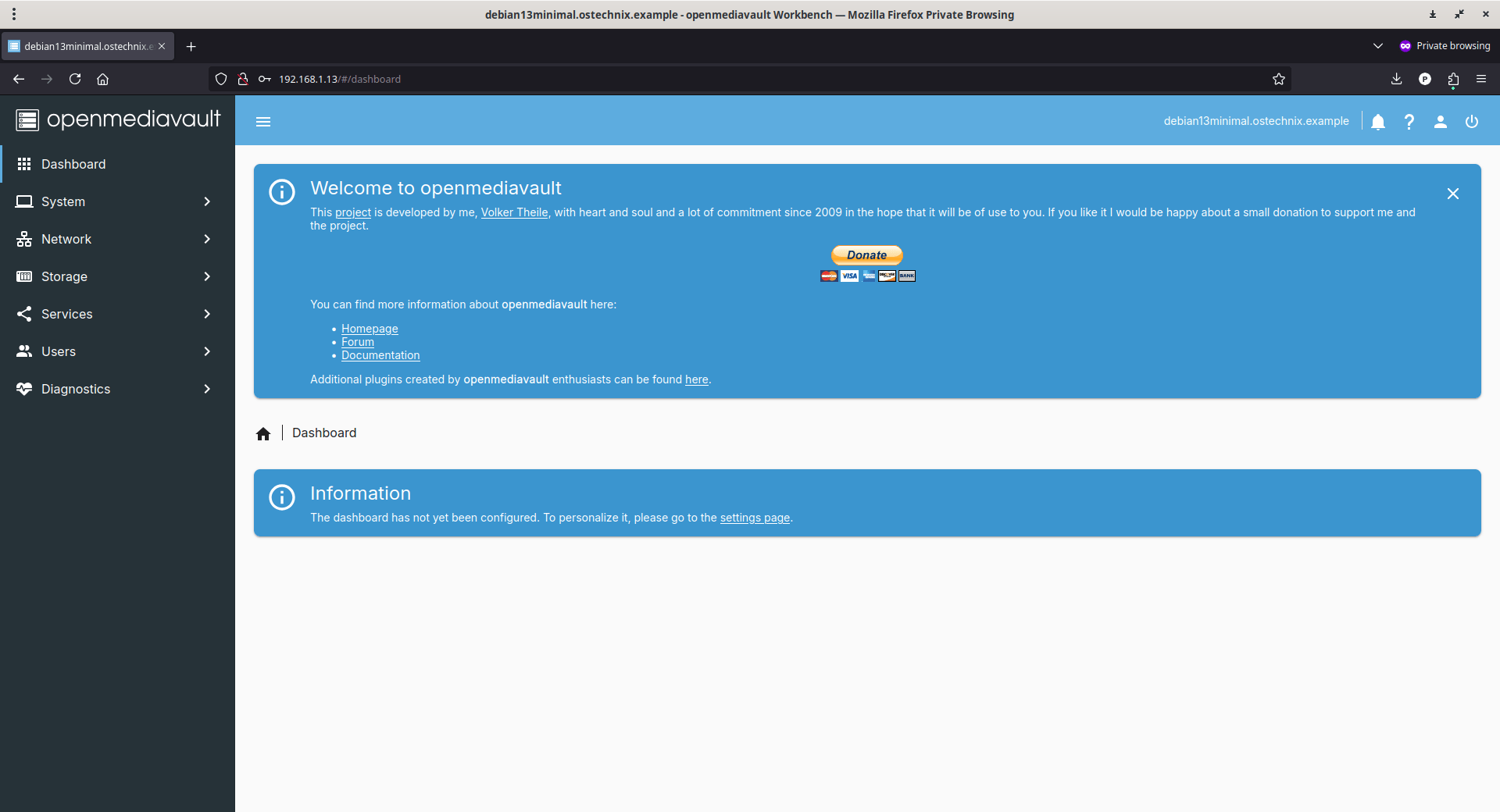
This is how openmediavault web dashboard looks like:
7.1. Change Openmediavault Admin Password
The first thing to do after logging into the openmediavault web dashboard is to change the admin password.
To do so, click the User icon on the top right corner, and choose "Change Password" from the drop-down list:
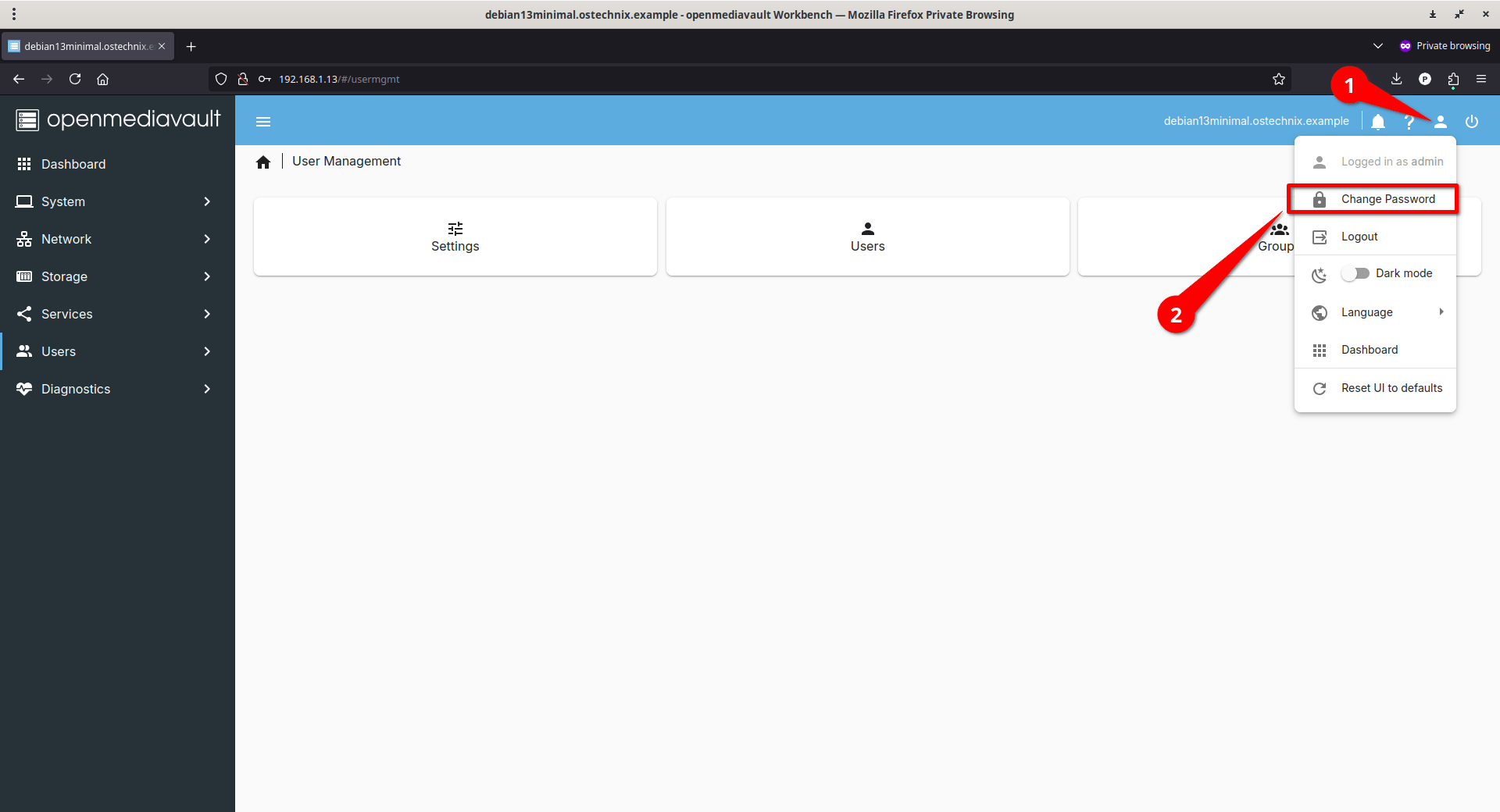
Enter the new password twice and save the changes.
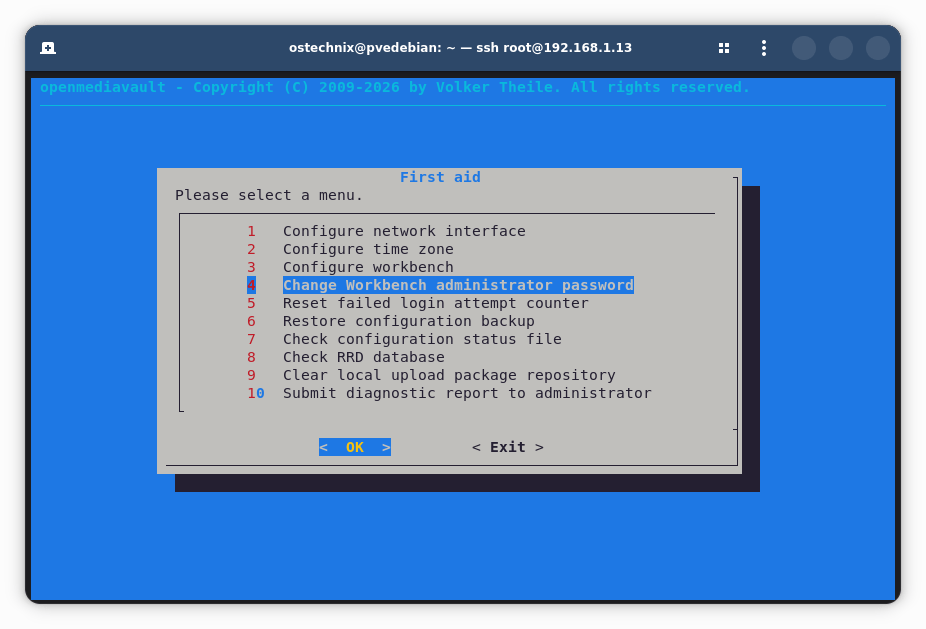
You can also change the admin user's password by running the following command from OMV terminal window:
omv-firstaid
Choose "Change Workbench Administrator Password" option from the list:
Enter the new password for admin user:
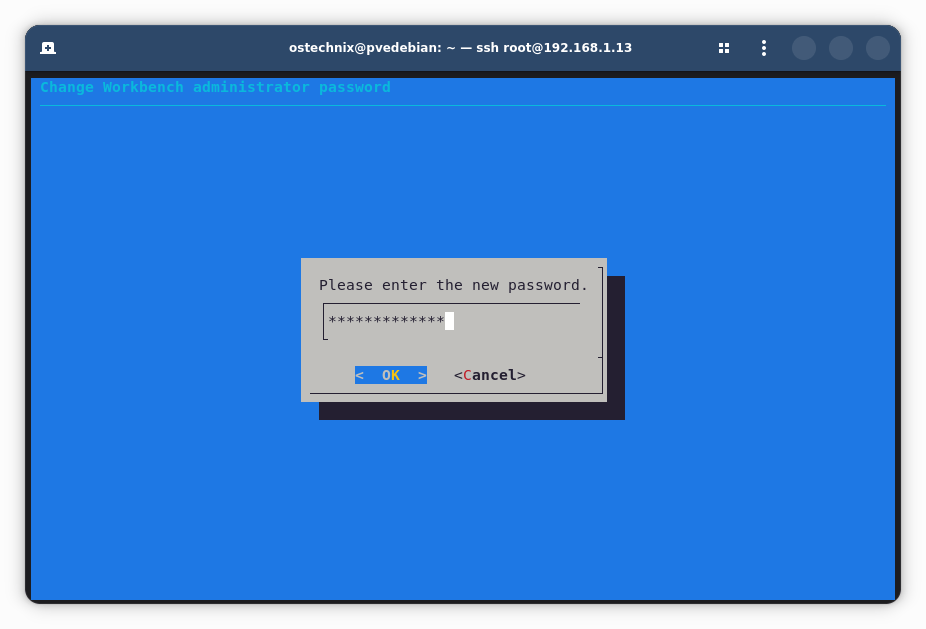
Re-enter the password to confirm. Now you can access the OMV web dashboard using the new admin password.
Conclusion
In this detailed guide, we learned what Openmediavault actually is, how to install latest Openmediavault 8 version using ISO and install OMV directly on Debian 13 minimal system. At this point:
- OMV is installed
- Fully updated
- And ready to use!
In our next articles, we will discuss:
- Getting Started with OpenMediaVault 8 - Orientation, dashboard, system basics, and what OMV expects you to do next.
- Storage Management in OpenMediaVault 8 - Disks, filesystems, mount points, and why OMV enforces this flow.
- Users, Permissions, and Access Control - How to create and manage users.
- And more advanced configuration.
