
What is --dry-run and Why Should You Care?
Imagine you're about to delete 1,000 files from your server. You hit Enter. Seconds later, you realize you targeted the wrong directory. Your heart sinks. Those files are gone forever.
This nightmare scenario happens to Linux users often. But there's a simple flag that could have prevented it: --dry-run.
The --dry-run flag (also called --simulate, -n, or --no-act in some commands) tells Linux: "Show me what you're going to do, but don't actually do it." It's like a rehearsal before the real performance.
A Practical Example That Will Change How You Work
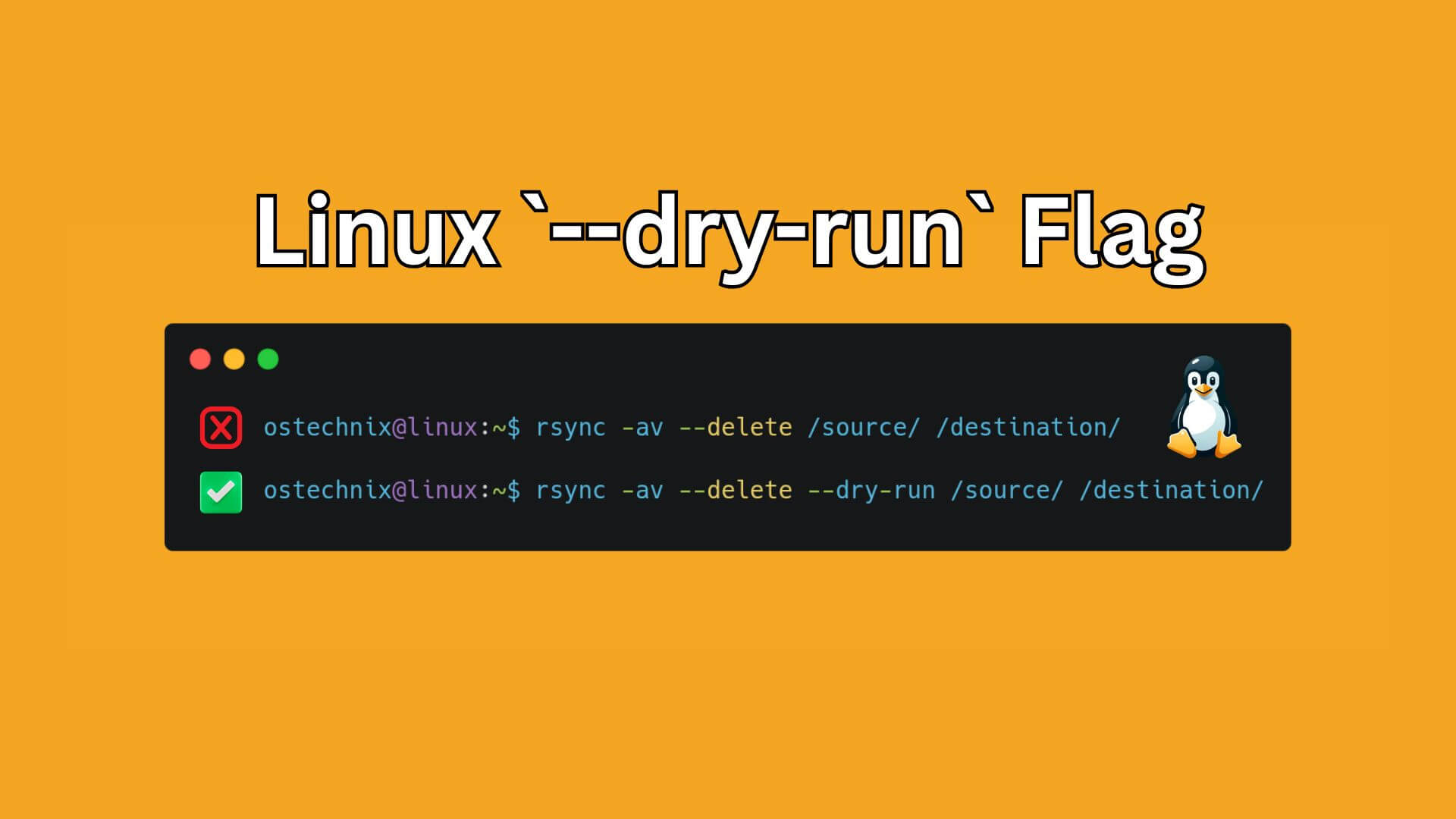
Let's say you want to synchronize two directories using rsync. Here's what most beginners do:
rsync -av --delete /source/ /backup/
They hit Enter, cross their fingers, and hope it works correctly.
Here's what an experienced admin does:
rsync -av --delete --dry-run /source/ /backup/
The output shows you:
- Which files will be copied,
- Which files will be deleted,
- and Which files will be updated.
Zero risk. You can review everything before committing. If something looks wrong, you fix the command and try again.
Linux Commands That Support --dry-run Option
Here are the most important commands where --dry-run can save you:
1. rsync - File Synchronization
# Always dry-run first!
rsync -av --delete --dry-run /source/ /destination/

# If it looks good, remove --dry-run
rsync -av --delete /source/ /destination/
Why it matters: rsync with --delete can wipe out your entire backup if you mix up source and destination.
2. apt/apt-get - Package Management (Debian/Ubuntu)
# See what will be installed/removed without doing it
apt-get install package-name --dry-run
apt-get upgrade --simulate
apt-get autoremove --dry-run
Why it matters: Removes the fear of breaking your system with dependency conflicts.
3. dnf/yum - Package Management (RHEL/Fedora)
dnf install package-name --assumeno
yum update --assumeno
Why it matters: Preview system updates before applying them to production servers.
4. git - Version Control
# See what would be cleaned without actually deleting
git clean -n

# Preview what would be removed
git clean -nd
Why it matters: Prevents accidental deletion of untracked files you actually need.
The Beginner's Safety Checklist
Before running ANY command that modifies, deletes, or moves files, ask yourself:
- Is this reversible? (If no → use
--dry-run) - Am I 100% sure about the paths? (If no → use
--dry-run) - Have I run this exact command before? (If no → use
--dry-run) - Would a mistake here cause significant problems? (If yes → use
--dry-run) - Am I tired, distracted, or multitasking? (If yes → use
--dry-run)
What About Commands Without --dry-run?
Please be mindful that not all dangerous commands have this flag. In such cases, here's your backup plan:
For rm (remove files):
# Use interactive mode
rm -i important-files*

# Or preview with ls first
ls important-files*
# Review the output, then:
rm important-files*
Recommended Read: Why Aliasing rm Command is a Bad Practice in Linux
For mv (move files):
# Preview with echo
echo mv source/* /destination/
# If it looks right, run it for real:
mv source/* /destination/
For chmod (change permissions):
# Preview what will be affected
find /path -type f -name "*.sh"
# Then apply chmod
find /path -type f -name "*.sh" -exec chmod +x {} \;
For dd (disk operations):
There is NO dry-run for dd command. One typo can destroy your entire hard drive. So, triple-check your command before hit ENTER.
You can also consider using safer alternatives like rsync for backups.
Building the Habit: A 30-Day Challenge
Week 1-2:
Use --dry-run on EVERY command that supports it, even simple ones. This builds muscle memory.
Week 3:
Start judging which commands need it. Still use it for anything you're uncertain about.
Week 4:
You're now making cautious decisions. You use --dry-run instinctively when the situation calls for it.
Real-World Stories
You may still thinking "I would be careful". But think again!
Story 1: The rsync disaster
Imagine you're a system administrator at a major company who ran rsync --delete with the source and destination swapped. In 30 seconds, you deleted their entire production backup.
You probably need to a spend significant money or time or both in recovery efforts. A --dry-run would have taken 10 seconds.
Story 2: The package removal nightmare
You're a developer who ran apt-get autoremove without checking. It removed critical libraries that other applications depended on.
The server was down for 4 hours. --dry-run would have shown the problem immediately.
Story 3: The git clean catastrophe
You're a programmer who ran git clean -fd thinking it would only remove build artifacts. It deleted your 3 days of uncommitted work. git clean -n would have shown you the danger.
So knowing how to use --dry-run option in Linux commands is useful for everyone.
Create Aliases for Safety
1. Create an alias to make dry-run your default:
echo "alias rsync='rsync --dry-run'" >> ~/.bashrc
# Remove --dry-run manually when you're ready to execute
2. Add this to your terminal prompt to remind yourself:
# Add to .bashrc
echo 'THINK: Can I dry-run this?'
3. Practice on throwaway files right now:
Create a test directory:
mkdir ~/dry-run-practice
cd ~/dry-run-practice
touch file{1..10}.txt
Practice with rsync:
rsync -av --delete --dry-run ./ ../test-backup/
You will see the following output:
sending incremental file list
created directory ../test-backup
./
file1.txt
file10.txt
file2.txt
file3.txt
file4.txt
file5.txt
file6.txt
file7.txt
file8.txt
file9.txt

sent 278 bytes  received 86 bytes  728.00 bytes/sec
total size is 0  speedup is 0.00 (DRY RUN)
Now you know what happens under the hood. If you're OK with these changes, run the rsync command again without dry-run flag.
Reference Card and Cheat Sheet
Here's a quick reference card. Print this and keep near you desk.
┌─────────────────────────────────────────────────┐
│  ALWAYS DRY-RUN THESE COMMANDS FIRST:           │
├─────────────────────────────────────────────────┤
│  rsync -av --delete --dry-run                   │
│  apt-get install/remove --dry-run               │
│  dnf install/remove --assumeno                  │
│  git clean -n                                   │
│                                                 │
│  PREVIEW WITHOUT DRY-RUN:                       │
│  ls [files] → then rm [files]                   │
│  find [path] → then add -exec                   │
│  echo [command] → then run command              │
└─────────────────────────────────────────────────┘
Cheat Sheet: Using --dry-run Flag in Linux Commands
Remember: A 10-second dry-run beats a 10-hour recovery every single time.
Frequently Asked Questions (FAQ)
A: The --dry-run flag simulates a command without executing it.
A: No, not all commands support --dry-run. However, many critical commands like rsync, apt, and git do.
A: Yes, --dry-run and --simulate are often aliases for the same functionality.
A: No, the rm command doesn't support --dry-run. Instead, use rm -i for interactive mode.
Conclusion
Using --dry-run flag in supported commands isn't about being paranoid or slow. It's about being cautious. Many Linux administrators use dry-run flags occasionally because they've learned—often the hard way—that:
Prevention takes seconds. Recovery takes hours (or might be impossible).
You're not an inefficient admin for using --dry-run. You're a better one. The confidence you'll gain from knowing exactly what a command will do before it does it is quite helpful.
Recommended Read:
- Dangerous Linux Commands Beginners Must Avoid (Top 10)
- How To Prevent Crontab Entries From Accidental Deletion In Linux
- How To Fix Broken Ubuntu OS Without Reinstalling It
- How To Fix Busybox Initramfs Error On Ubuntu
- How To Solve Initramfs Error In Fedora
- How To Restore Broken Arch Linux To Previous Working State
- Fundamental Linux Commands For Newbies (2026)
- 15 Essential Linux Commands Every Beginner Should Know
