
Ever wondered what's happening inside your Linux system right now? Meet tload, a straightforward command-line tool that shows your system's workload in real-time. Instead of staring at random numbers, you get a simple graph that updates automatically.
In this detailed guide, we will discuss what tload exactly is, how tload CLI utility works and how to monitor and understand your Linux system's load average using tload with practical examples in Linux.
Table of Contents
What is the tload Command in Linux?
Think of tload as a simple health monitor for your computer. The tload command prints a graph of the current system load average to the specified tty (or the tty of the tload process if none is specified).
This Linux monitoring tool displays your system's load average, which tells you how many tasks are using or waiting to use your CPU. The tool is part of the procps-ng package, which provides various utilities for browsing the /proc filesystem.
Here's the cool part: the graph updates itself automatically. Therefore, you can watch your system's activity change in real-time without running the command repeatedly.
Why Monitor System Load Average with tload?
System load matters because it tells you if your computer is struggling. When too many programs run at once, your system slows down. Consequently, tasks take longer to complete.
The load average represents the average number of processes in a runnable state (using/waiting for CPU) plus those in a blocked state (waiting for I/O).
By monitoring load average with tload, you can:
- Spot performance problems quickly
- Find out which programs consume too many resources
- Decide when to upgrade your hardware
- Troubleshoot slow performance issues
- Track CPU usage patterns over time
Moreover, watching load patterns helps you understand your system's normal behavior. Then, you'll notice immediately when something goes wrong.
Understanding Linux Load Average
Before diving deeper into tload, it's important to understand what load average actually means. As explained by Brendan Gregg, a performance expert, Linux load averages are unique because they track "not just runnable tasks, but also tasks in the uninterruptible sleep state."
What Do Load Average Numbers Mean?
The load average numbers relate directly to your CPU cores:
- On a single-core system: A load of 1.00 means 100% CPU utilization
- On a dual-core system: A load of 1.00 means only 50% capacity (one of two cores is busy)
- On a quad-core system: A load of 4.00 means all cores are completely utilized
Therefore, you should always interpret load values relative to how many CPU cores you have. Each core can handle a load average of 1. A load of 8.0 on an 8-core system is normal, while the same load on a 4-core system indicates the system is overloaded.
As experts suggested "A healthy load average is typically less than or equal to the number of CPU cores."
The Three Time Periods
Linux systems display load average as three numbers representing 1, 5, and 15-minute time periods. These values help you interpret load trends: If the 1 minute average is higher than the 5 or 15 minute averages, then load is increasing. If the 1 minute average is lower than the 5 or 15 minute averages, then load is decreasing.
These three values are actually "exponentially-damped moving sum averages" rather than simple averages. They use 1, 5, and 15 minutes as constants in an equation, and the resulting values reflect load well beyond those exact time periods.
Together, these numbers help you understand whether your system load is trending up or down rather than just showing a single snapshot.
How to Use tload Command in Linux
Basic Syntax:
Using the tload command is incredibly simple. Just open your terminal and type:
tload
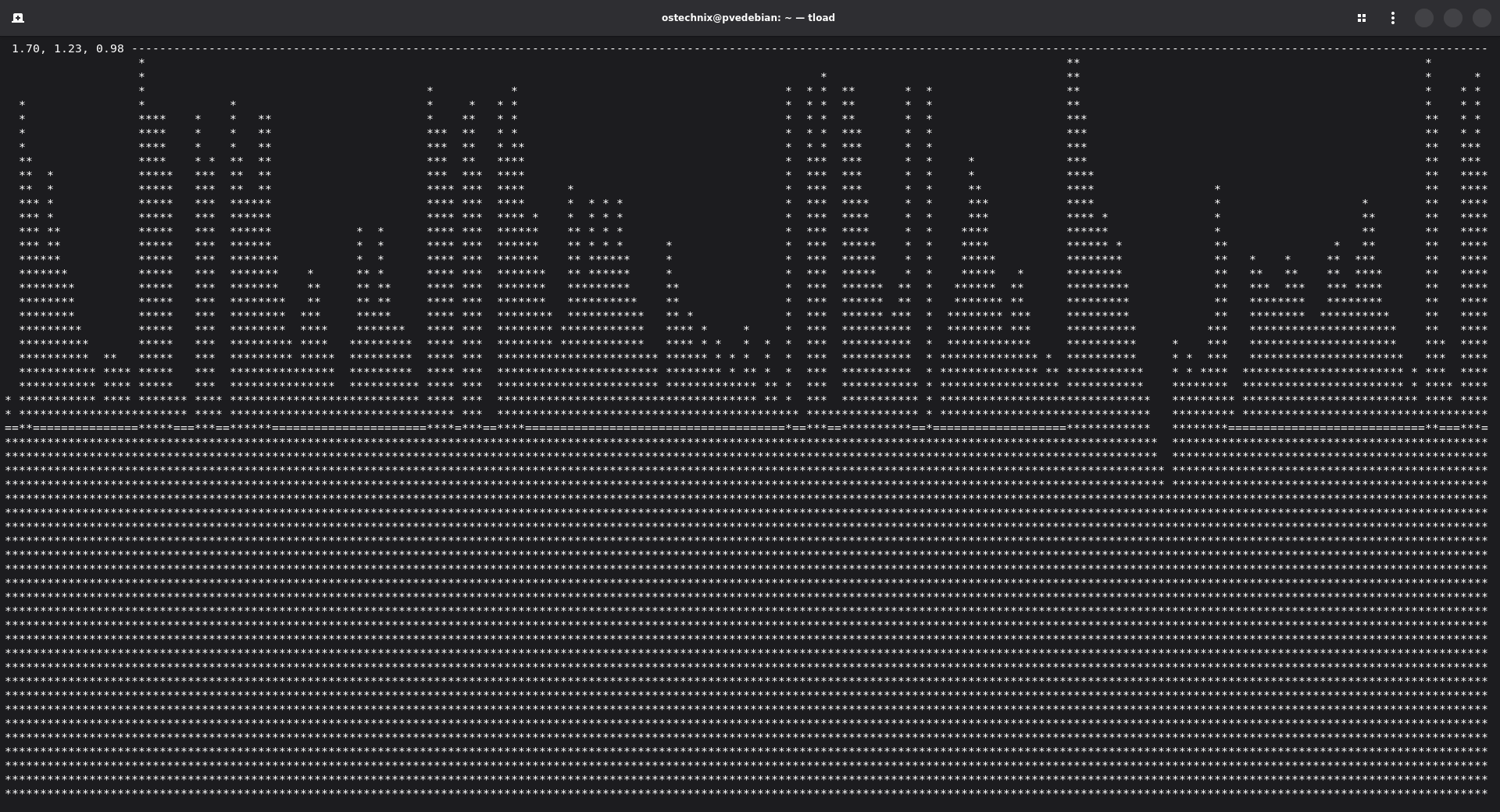
That's it! The command starts immediately and displays a graph. As time passes, the graph grows from left to right across your screen.
tload Command Options and Examples
You can customize how tload works with several options:
Change the update speed with -d option:
tload -d 10
The tload man page states: "The delay sets the delay between graph updates in seconds." This updates the graph every 10 seconds. Therefore, the display refreshes less frequently with higher values.
Pick a specific terminal with -t option:
tload -t /dev/pts/1
This sends the output to a particular terminal window. However, most people simply use the default display.
Scale the graph with -s option:
tload -s 100
The scale option allows a vertical scale to be specified for the display (in characters between graph ticks); thus, a smaller value represents a larger scale, and vice versa. Consequently, you can zoom in or out on the data.
How to Read tload Output and Graph
The tload graph might look confusing at first. Nevertheless, it's actually quite straightforward once you understand the visual representation.
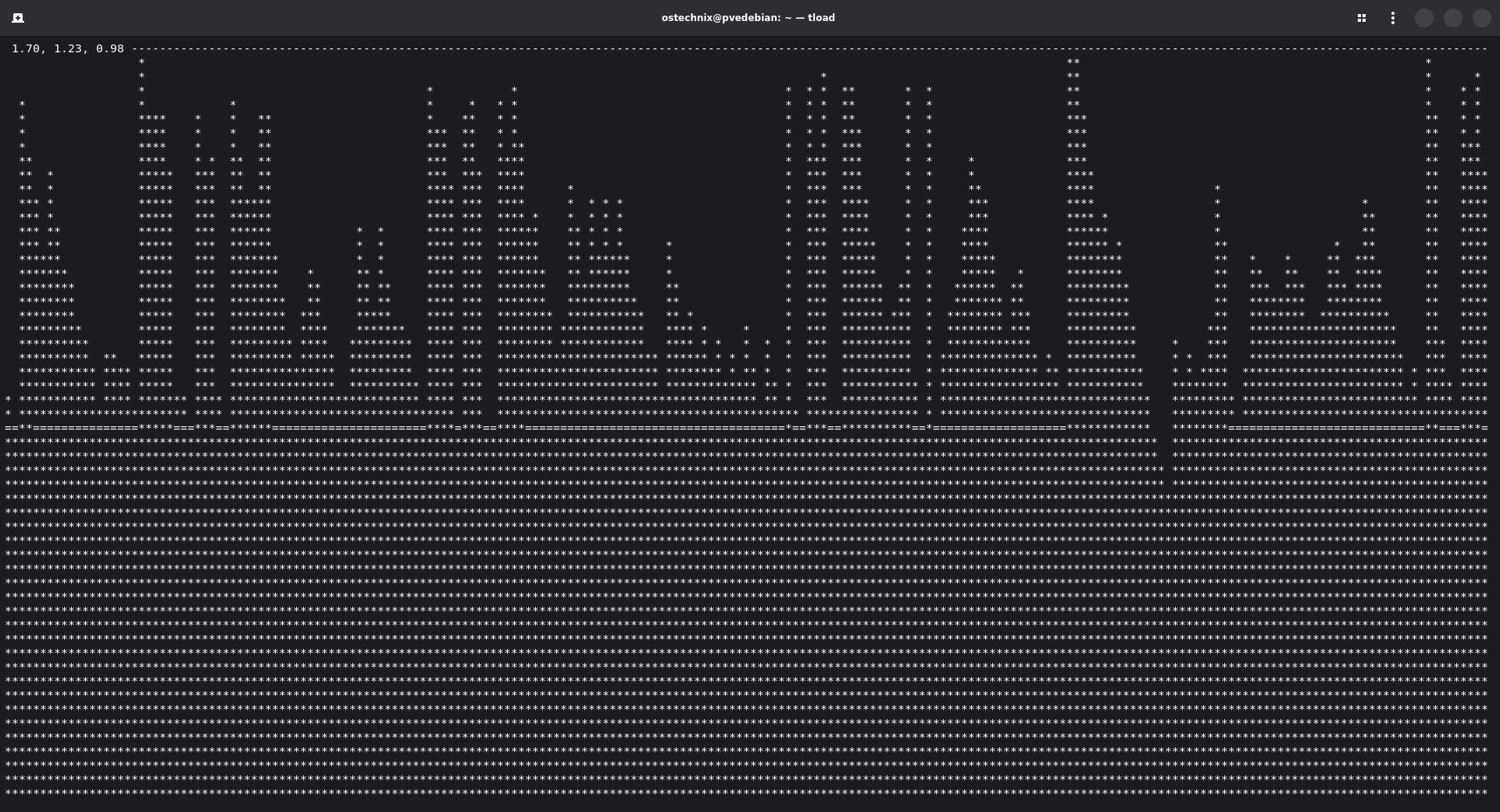
The vertical axis shows the load value. Higher points mean your system is busier. Lower points indicate lighter activity. As I stated earlier, these values should be interpreted relative to your CPU core count.
The horizontal axis represents time moving from left to right. Each column shows a different time sample. The graph scrolls continuously, so newer data appears on the right while older data disappears from the left.
The characters used create the visual pattern. Asterisks (*) typically mark the load points, forming a line graph. Additionally, different characters might appear depending on your terminal settings and how the load changes between updates.
Reading the Graph Pattern
When interpreting the tload graph, look for these patterns:
Steady horizontal lines indicate consistent load. This is normal for systems running predictable workloads.
Sudden spikes show brief periods of high activity. These might indicate a process starting, compiling code, or handling a burst of requests.
Gradual increases suggest growing demand on your system. This could mean more users connecting or background processes accumulating.
Drops to near-zero indicate idle periods when your CPU has little work to do.
tload vs top vs uptime: Which Linux Command to Use?
Several other Linux commands provide similar information. However, each has its own strengths.
uptime command shows load average as three numbers (1, 5, and 15-minute averages). It's quick but doesn't provide visual feedback. On the other hand, tload gives you a graph that's easier to interpret at a glance.
$ uptime
 19:01:32 up  4:03,  2 users,  load average: 0.00, 0.00, 0.00
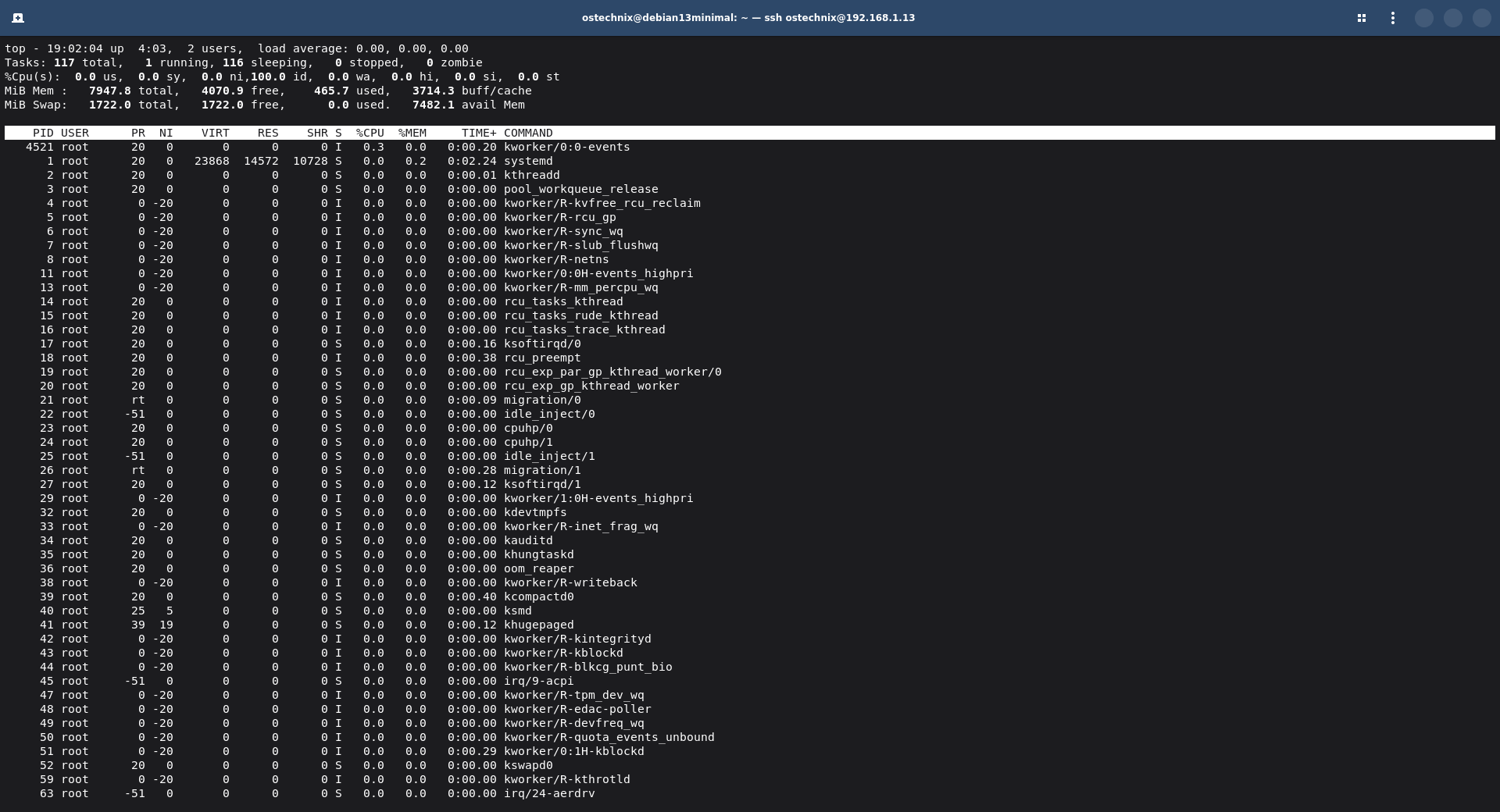
top command displays processes and load together. It offers more details but takes up more screen space. Meanwhile, tload stays compact and focused.
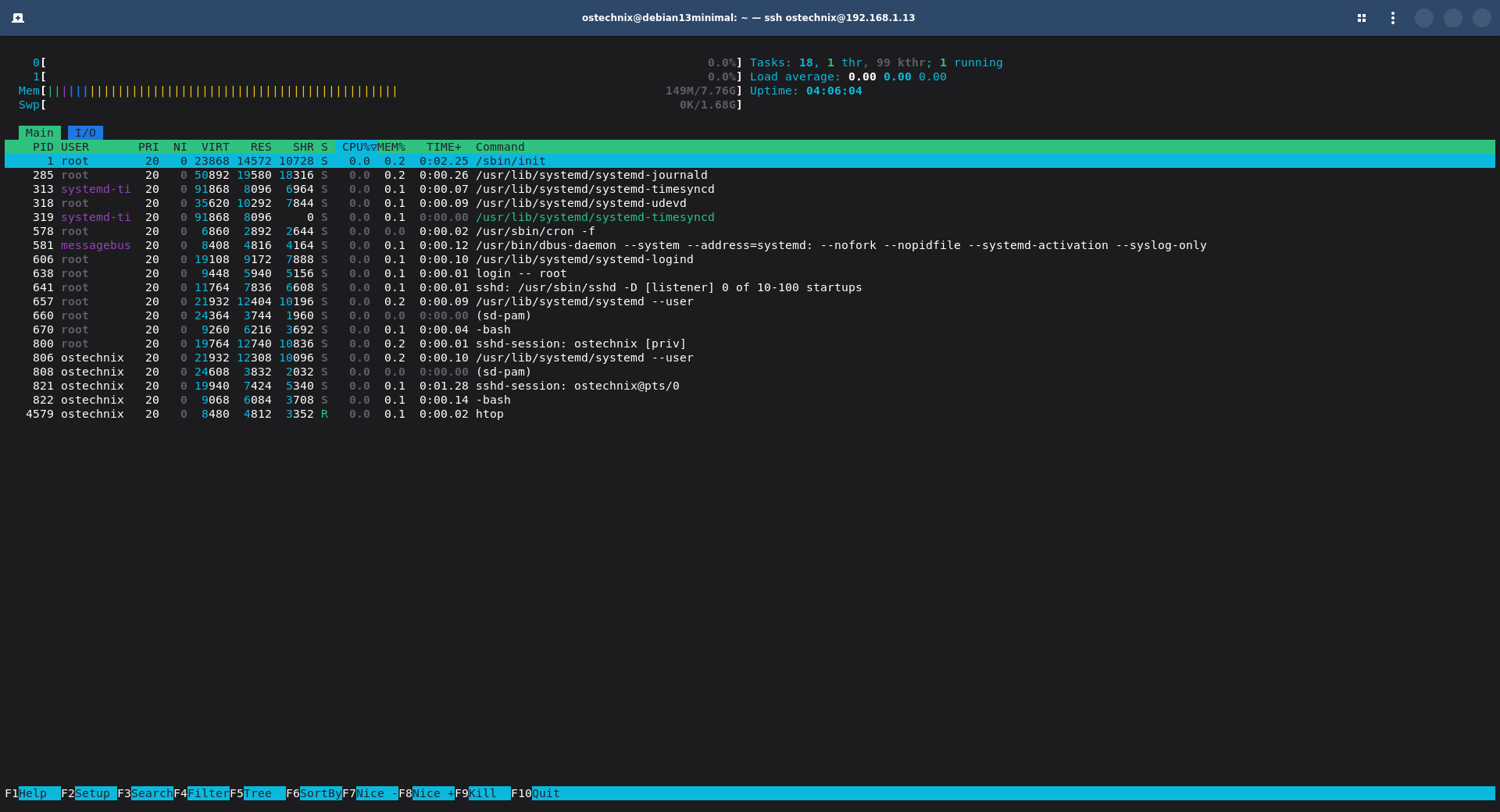
htop command provides a colorful, interactive interface. It's powerful but requires installation on most systems. In contrast, tload comes pre-installed on many Linux distributions as part of the procps package.
Recommended Read: Some Alternatives To ‘top’ Command line Utility You Might Want To Know
Real-World tload Use Cases
Let's look at some real-world scenarios where the tload command comes in handy.
Monitoring Long-Running Tasks
Suppose you're compiling a large software project. You can run tload in a separate terminal window. As the compilation progresses, you'll see the load spike. Once it finishes, the graph drops back down. Therefore, you know exactly when the task completes without constantly checking.
Linux Server Monitoring with tload
System administrators often use tload on servers. They might run it during peak hours to see how the system handles traffic. If the load stays consistently high, they know it's time to optimize or upgrade.
Debugging Performance Issues
Sometimes your Linux system feels slow, but you're not sure why. Running tload helps identify the problem. If the graph shows very high loads, then you know something is consuming excessive resources.
How to Install tload on Linux
Most Linux distributions include tload by default as part of the procps package. The procps package contains free, kill, pkill, pgrep, pmap, ps, pwdx, skill, slabtop, snice, sysctl, tload, top, uptime, vmstat, w, and watch.
However, if yours doesn't have it installed, installation is straightforward:
Install tload on Debian / Ubuntu:
sudo apt update
sudo apt install procps
Install tload on RHEL / Fedora / AlmaLinux / Rocky Linux:
sudo dnf install procps-ng
The procps or procps-ng package contains tload along with other useful system utilities.
tload Command Tips and Best Practices
Here are some practical suggestions to help you use the tload command effectively:
Run it in a dedicated terminal. Keep tload running in its own window while you work. This way, you can glance at it whenever needed. Use tmux or screen multiplexers for this purpose.
Adjust the delay based on your needs. For fast-changing systems, use shorter delays with the -d option. For stable servers, longer delays work fine.
Combine it with other monitoring tools. Use tload alongside commands like ps or top to get the complete picture of system performance.
Watch for patterns. Regular spikes might indicate scheduled tasks or cron jobs. Unexpected jumps could signal problems.
Remember your core count. Always interpret load values relative to how many CPU cores you have. You can check your core count with command:
grep 'model name' /proc/cpuinfo | wc -l
Troubleshooting Common tload Issues
Occasionally, you might encounter issues with the tload command. Here are common problems and their solutions.
Problem 1. The graph looks garbled
Try resizing your terminal window. Sometimes the display needs more space to render correctly.
Problem 2. tload command not found
Check if the command exists by typing which tload. If nothing appears, you need to install the procps package as described above.
Problem 3. The graph doesn't update
Make sure your system isn't completely frozen. Try pressing Ctrl+C to exit, then restart tload. If you specify -d 0, "the alarm is set to 0, which will never send the SIGALRM and update the display."
Problem 4. Terminal display issues
Some terminal emulators handle the ASCII graph better than others. Try using a different terminal if you experience problems.
Advanced: Understanding Linux Load Average Calculation
For those interested in deeper technical details, Brendan Gregg's analysis reveals that Linux load averages use an "exponentially decaying average" that includes both running processes and those in uninterruptible sleep states.
This is different from other Unix systems. In 1993, Linux developer Matthias Urlichs modified the calculation to include processes waiting for disk I/O, making load average more representative of overall system demand rather than just CPU usage alone.
Related Read:
- Install Netdata Performance Monitoring Tool In Linux
- Doppler – A Zero Configuration Remote Monitoring Tool
- How To View Linux System Statistics With Saidar
- Monitor Linux System Resource Usage With SysMonTask
Frequently Asked Questions (FAQ)
A: The tload command is a Linux utility that displays a graphical representation of system load average in real-time. It shows how busy your CPU is by creating an ASCII graph that updates automatically in your terminal. The command is part of the procps-ng package.
A: Simply type tload in your terminal and press Enter. The command will display a real-time graph of your system load. You can customize it with options: use -d to change the update delay (e.g., tload -d 10 for 10-second updates), -s to adjust the graph scale, or -t to specify a different terminal.
A: A healthy load average is typically less than or equal to the number of CPU cores you have. For example, on a 4-core system, a load of 4.0 or below is normal. To check your CPU core count, use: grep 'model name' /proc/cpuinfo | wc -l.
A: The uptime command shows load average as three numbers but provides no visual feedback. The top command displays processes and load together but uses more screen space. tload provides a simple visual ASCII graph focused solely on load average over time, making trends easier to spot at a glance.
A: Yes, tload comes pre-installed on most Linux distributions as part of the procps or procps-ng package. If it's not available, you can install it using your package manager: 'sudo apt install procps' on Debian/Ubuntu or 'sudo dnf install procps-ng' on Fedora/RHEL.
Key Takeaways: Master the tload Command
The tload command offers a simple, effective way to monitor your Linux system's workload in real-time. It transforms abstract numbers into an easy-to-read graph. Therefore, you can quickly understand what's happening with your system performance.
While it's not the most feature-rich monitoring tool, its simplicity makes it incredibly useful for quick system checks. You can launch it in seconds and immediately see your system's status. Plus, it requires no configuration or setup.
Next time your Linux system feels slow, try running the tload command. You might be surprised by what you discover. The visual feedback helps you make better decisions about managing your system resources.
Whether you're a system administrator, developer, or curious Linux user learning command-line tools, tload deserves a spot in your toolkit. It's one of those small utilities that proves incredibly handy once you know it exists.
Ready to monitor your system load? Open your terminal now and type tload to see your Linux system performance in action.
Resources:
