
Keeping a website online and fast is critical. Downtime or slow response times can hurt user trust and even lead to lost revenue. That’s why uptime monitoring tools are so important. Updo is a lightweight command-line tool that helps you monitor your website’s availability and performance in real time.
Unlike heavy monitoring platforms, Updo runs right in your terminal. It’s fast, flexible, and integrates easily with tools you may already use.
Table of Contents
What is Updo?
Updo is an open-source CLI tool for uptime and performance monitoring. It can track:
- Website status and uptime percentage
- Response times and error codes
- SSL certificate expiry dates
- Multi-target and multi-region performance
- Alerts via webhooks, Slack, or Discord
The tool also supports Prometheus and Grafana, making it suitable for both quick checks and long-term monitoring.
Updo is written in Go programming language.
Key Features of Updo
Updo packs several useful features into one lightweight package. Here’s what makes Updo stand out:
- Real-Time Monitoring: You get instant updates on uptime percentages, response times, and SSL certificate status. Furthermore, the tool tracks these metrics continuously without slowing down your system.
- Multi-Target Support: Instead of monitoring just one website, you can watch multiple URLs at once. Additionally, you can use config files to organize your monitoring setup better.
- Global Coverage: The tool deploys across 13 AWS regions worldwide. This means you can check your site's performance from different locations simultaneously.
- Smart Alerts: When something goes wrong, Updo sends notifications through Slack, Discord, or custom webhooks. Plus, you get desktop notifications for immediate awareness.
- Flexible HTTP Options: You can customize headers, use POST or PUT requests, and set up response assertions. Also, the tool handles SSL verification and redirect options easily.
Why Use Updo?
Many uptime monitoring services exist, but they often require paid plans or complex dashboards. Updo is different:
- It’s free and open-source.
- It runs locally without third-party dependencies.
- It’s developer-friendly, designed to fit into scripts, CI pipelines, or monitoring stacks.
If you need a simple but powerful uptime monitoring tool that works from your terminal, Updo is an excellent choice.
Installing Updo in Linux
Updo works on Linux, macOS, and Windows. The easiest way is to use the provided install script:
curl -sSL https://raw.githubusercontent.com/Owloops/updo/main/install.sh | bash
You can also download the Updo pre-built binaries and install them using your default package manager.
Head over to the Updo releases page and download the latest version for your Linux distribution. As of writing this, the latest version is 0.4.2.
Install Updo in Arch Linux and its variants:
curl -LO https://github.com/Owloops/updo/releases/download/v0.4.2/updo_0.4.2_linux_amd64.pkg.tar.zst
sudo pacman -U updo_0.4.2_linux_amd64.pkg.tar.zst
Install Updo on Debian, Ubuntu and its derivatives:
curl -LO https://github.com/Owloops/updo/releases/download/v0.4.2/updo_0.4.2_linux_amd64.deb
sudo dpkg -i updo_0.4.2_linux_amd64.deb
RedHat / Fedora / CentOS / AlmaLinux / Rocky Linux:
curl -LO https://github.com/Owloops/updo/releases/download/v0.4.2/updo_0.4.2_linux_amd64.rpm
sudo rpm -i updo_0.4.2_linux_amd64.rpm
If you have Docker installed, run:
docker build -t updo https://github.com/Owloops/updo.git
docker run updo monitor <website-url> [options]
Monitor Website Uptime using Updo
Monitoring a single site using Updo is straightforward. Simply type updo monitor followed by the website address you want to check:
updo monitor <website-url>
Example:
updo monitor https://ostechnix.com
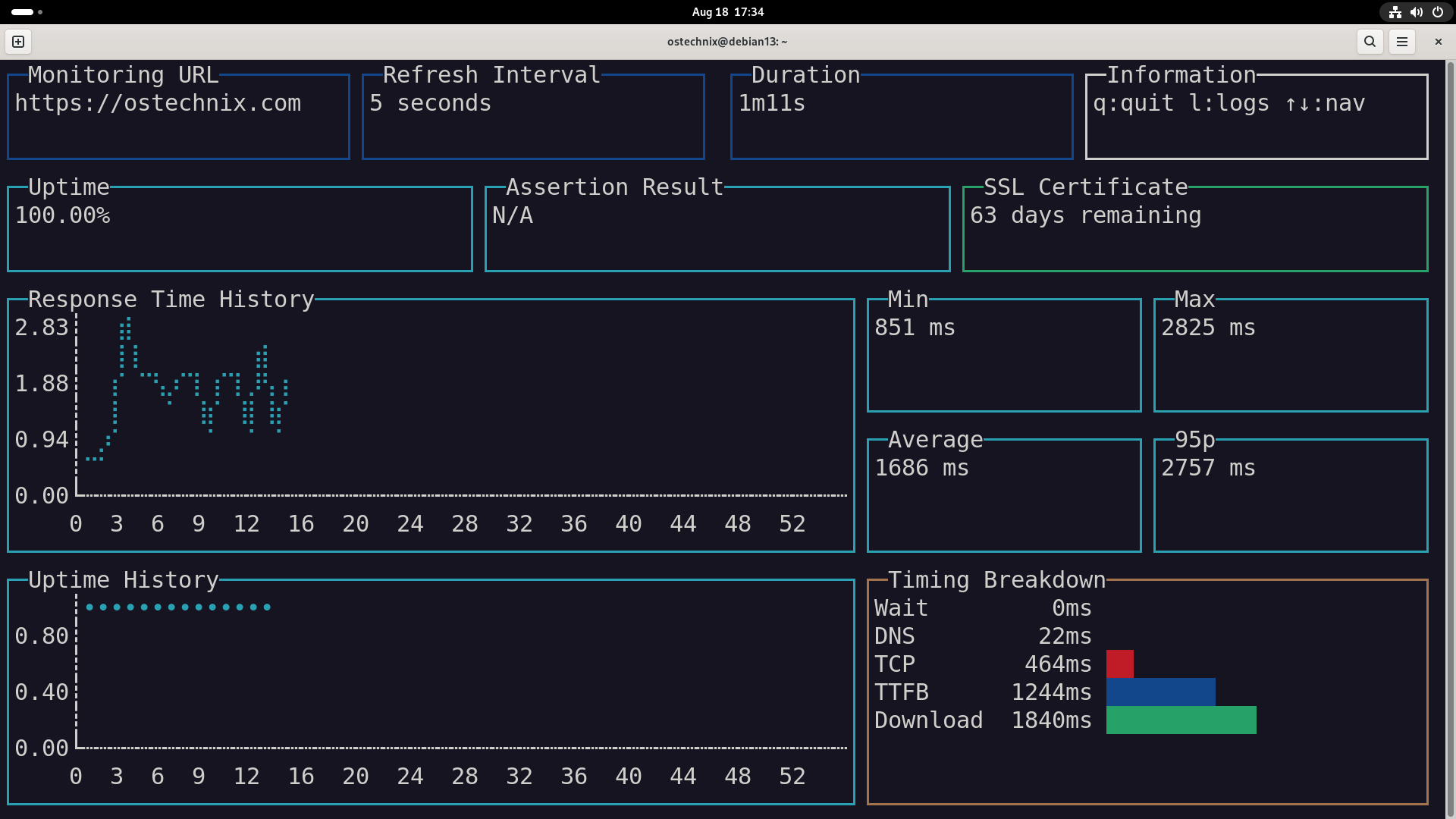
As you can see in the screenshot, the given site (ostechnix.com) is online (100% uptime). Updo TUI also displays a few other important details as given below:
- SSL is valid but will expire in about two months, so renewal is needed before then.
- Network performance shows most of the time is spent waiting for the server to send data (TTFB + Download).
- DNS and TCP are fast, so the bottleneck is likely server processing or content delivery, not network resolution.
This view is exactly why Updo is useful. It gives you a real-time breakdown of uptime and performance in a single screen.
You can also monitor multiple sites:
updo monitor https://ostechnix.com https://google.com
Adjust refresh rate and timeout:
updo monitor --refresh 10 --timeout 5 https://google.com
Run in simple mode with logging:
updo monitor --simple --count 10 https://github.com
updo monitor --log https://example.com > output.json
Customize checks with headers or POST requests:
updo monitor --header "Authorization: Bearer token" --request POST https://api.website.com
Practical Usage Examples
Let’s look at a few real-world scenarios where Updo makes sense.
1. Monitoring a Personal Blog
If you run a blog and want to check uptime every 30 seconds:
updo monitor --refresh 30 https://yourblog.com
This will keep checking your blog and alert you if it slows down or goes offline.
2. Watching an API Health Endpoint
APIs often have /health endpoints. You can test them like this:
updo monitor --assert-text "healthy" https://api.yourservice.com/health
Here, Updo will only consider the check successful if the response contains the word healthy.
3. Tracking SSL Certificate Expiry
Expired SSL certificates can break your site. Updo makes sure you know before it happens:
updo monitor --simple https://secure.yourshop.com
It will warn you if your certificate is close to expiring.
4. Multi-Region Testing for Global Users
If you want to check how your site performs in the US and Europe:
updo monitor --regions us-east-1,eu-west-1 https://yoursite.com
This helps you spot issues that affect only certain regions.
5. Integrating with Slack for Alerts
Get a message in Slack when your site goes down:
updo monitor --webhook-url "https://hooks.slack.com/services/XXXX/YYYY/ZZZZ" https://yourblog.com
That way, you don’t have to keep watching the terminal — you’ll get notified instantly.
Alerts and Integrations
Updo makes sure you don’t miss important downtime events. It can send alerts through:
- Slack or Discord webhooks
- Custom endpoints for internal systems
- Desktop notifications
For example, to get alerts in Slack:
updo monitor --webhook-url "https://hooks.slack.com/services/YOUR/WEBHOOK" https://yoursite.com
Webhook payloads include the event type, target, response time, and error details. This makes it easy to plug Updo into your alerting workflows.
Prometheus and Grafana
For deeper insights, you can export Updo metrics to Prometheus and visualize them with Grafana dashboards. This allows you to:
- Track uptime trends over weeks or months
- Compare global response times
- Set custom alerts on performance thresholds
A ready-to-use Docker example is available in the Updo repository.
To visualize uptime and response metrics with Prometheus and Grafana:
git clone https://github.com/Owloops/updo.git
cd updo/examples/prometheus-grafana
docker compose up -d
Now you can access pre-built dashboards at http://localhost:3000.
For advanced setups with multiple targets and custom rules, use a TOML config file.
Example Configuration:
[global]
webhook_url = "https://hooks.slack.com/services/YOUR/WEBHOOK"

[[targets]]
url = "https://api.example.com"
name = "API"
assert_text = "OK"
Related Read:
- How To Effortlessly Monitor Your Internet Traffic Using Sniffnet Network Monitoring Tool In Linux And Unix
- Monitor Your Network in Linux with Little Snitch Application Firewall
- Taking Linux Security To The Next Level With OpenSnitch Firewall
Final Thoughts
Website uptime matters, whether you’re running a small blog or a production API. With Updo, you can monitor your sites in real time, set up alerts, and even track long-term metrics with Prometheus and Grafana.
It’s easy to install, simple to use, and flexible enough for advanced monitoring setups. If you want more control over how you track your website’s health, give Updo a try.
For more details, check project link:
